
 VideoProc Converter AI
 AI features for Mac: Coming soon



 Listed in
 Summary: Low-resolution videos often look blurry, blocky, or noisy on today's HD and 4K screens. AI video upscaling software can improve them by sharpening details, reducing artifacts, and reconstructing textures that traditional upscaling cannot restore. To see which tools actually deliver better results, we tested popular AI video upscalers on real low-quality footage and picked the 10 best options in this guide.
Low-resolution footage like 480p SD (standard difinition) videos, compressed clips, and old recordings often fall apart on modern displays. Faces look soft, edges turn jagged, and compression noise becomes much more obvious.
Traditional upscaling only stretches pixels to fit a larger resolution, so it rarely adds real detail. AI video upscaling works differently: it analyzes each frame and uses trained models to rebuild edges, textures, and clarity for a more natural-looking result.
But not all AI upscalers perform the same. Some are better at restoring old footage, some handle anime or game videos better, and some upscale to 4K well but are slow or restrictive. To find the tools actually worth using, we recently tested leading AI video upscalers with real low-resolution, compressed, and older video clips, comparing output quality, speed, ease of use, and export limits.
Based on those results, this guide rounds up the 10 best AI video upscalers to help you choose the right one for cleaner HD or 4K output.
- 10 Best AI Video Upscaler in 2026
- 1. VideoProc Converter AI 👍
- 2. Topaz Video
- 3. Aiarty Video Enhancer
- 4. HitPaw VikPea
- 5. CapCut AI Video Upscaler
- 6. UniFab Video Enhancer
- 7. AVCLabs Video Enhancer AI
- 8. Nero AI Video Upscaler
- 9. Real-ESRGAN
- 10. Adobe Premiere Pro
- Best AI Video Upscaler Comparison Chart
- How We Test the Best AI Video Upscaler
- AI Upscaling vs Traditional Upscaling
- Best Free Video Upscaler FAQs
💡 How We Test
To make this roundup as practical and trustworthy as possible, we tested each AI video upscaler under the same hardware conditions using multiple types of low-quality footage instead of relying on a single sample clip.
- Test environment: AMD Ryzen 5 5600X, 64GB RAM, AMD Radeon RX 6700 XT 8GB, Windows 11 64-bit.
- Test videos: We used five types of footage that commonly need upscaling in real use: low-resolution anime video, movie footage, old video, low-light night footage, and phone video.
- Test criteria: We evaluated each software based on its ability to boost the video resolution to 4K while preserving or restoring fine details. Tools were also assessed for processing speed, ease of use, and format compatibility.
Find a more detailed breakdown about how we test in the following section.
💡 How We Updated and Fact-checked
In June 2026, we revisited every product in this comparison and put the latest versions through another round of hands-on testing, so the rankings reflect their current capabilities and real-world performance.
Every tool featured in this guide was fact-checked against its latest publicly available release, including new features, major updates, system requirements, pricing, and other key changes. We also reviewed recent user feedback to verify commonly reported pros and cons, then re-tested the tools ourselves to update our hands-on experience, performance observations, and image-quality assessments. This ensures the rankings reflect how these AI video enhancers perform today, not outdated versions or specs from months ago.
10 Best Free AI Video Upscaler to Upscale Video to 4K/8K
1. VideoProc Converter AI
Overview: VideoProc Converter AI is a budget-friendly local AI video upscaler that balances quality, speed, and affordability.
Rating: 4.5/5 
 by TheSweetBits
Platform: Windows; Mac
Price: Free; $34.95/year (3PCs), $54.95 for a lifetime license (1PC), $79.95 for a family lifetime license (up to 5 PCs).
VideoProc Converter AI is a cost-effective AI video upscaling software designed for fast and efficient local processing. It supports a wide range of AI-driven video enhancement features, runs smoothly on modest hardware, and delivers high-quality upscaling with minimal artifacts. After testing several AI video upscalers on both Windows and macOS, I found this tool to deliver one of the most well-rounded and consistently reliable performances in its category.
VideoProc Converter AI is one of the best video upscalers that strikes a solid balance between output quality, processing speed, and hardware efficiency, making it a dependable choice for users who want effective AI Super Resolution without overspending or putting excessive strain on their system.
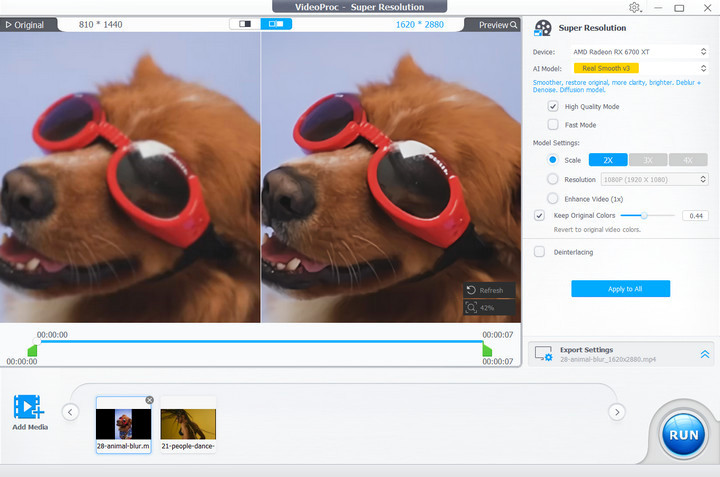
This software offers two different AI upscaling upscalings by either enlarging videos and images by 2x, 3x, 4x (200%, 300%, or 400%), or choosing 2K or 4K as the output resolution. In testing, it effectively reduced noise and improved clarity of blurry footage. The output remained stable and natural-looking, with minimal artifacts, color distortion, or flickering.
→ See the showcase below: upscaling the 720p footage to 1080p delivers noticeably sharper, cleaner results with less noise, while preserving a natural look, the original visual style, and fine details without introducing unwanted artifacts.



VideoProc Converter AI also offers flexible performance options for AI upscaling. Its Super Resolution feature includes both a High Quality Mode and a Fast Mode, allowing users to prioritize either maximum detail or faster processing depending on their needs. While High Quality Mode is the default and recommended option for higher quality output, while the Fast Mode processed videos noticeably quicker than most resource-intensive AI video upscalers.
Beyond upscaling, it also integrates multiple AI-powered video enhancement tools, including AI stabilization and frame interpolation. These additions help smooth and stabilize fast-moving footage, such as sports and gaming clips. Image AI and Audio AI work alongside the video tools to enhance photo and sound quality as well. Combined with GPU acceleration and modest hardware requirements, they make the software a versatile and efficient solution for improving video quality and preparing footage for modern HD and 4K displays.
Experience VideoProc Converter AI's video upscaling in action:
Features:
- Supports AI upscaling for videos and images by up to 400%, reaching 4K for videos and 10K for images.
- Equipped with the latest AI Super Resolution models, trained on diverse datasets to accurately restore details, reduce noise, and preserve natural textures across various video types.
- Offers both Fast Mode and High Quality Mode, allowing you to balance processing speed and output precision based on your project needs.
- Lightweight design with low hardware consumption, enabling faster rendering and higher upscaling efficiency.
- All-in-one AI video upscaling solution: enhances resolution, boosts frame rates, deblurs, denoises, deinterlaces, and restores fine details.
- Includes advanced AI tools such as frame interpolation, video stabilization, slow motion, face restoration, noise suppression, and colorization.
Pros:
- The most budget-friendly and beginner-friendly AI video upscaler with many other features.
- Upscales videos up to 400%, delivering 4K resolution with restored clarity and details.
- Boosts frame rates up to 5x, supporting 60fps, 120fps, 240fps, and 480fps for smooth slow motion.
- Latest AI models speed up processing by up to 80% without quality loss.
- Processes multiple videos at 1080p-4K with minimal lag on mid-range hardware.
Cons:
- Gen Detail and Real Smooth perform differently across video types, so users may need to test both models to find the best result for each clip.

How to AI Upscale Video with the Best Free AI Video Upscaler
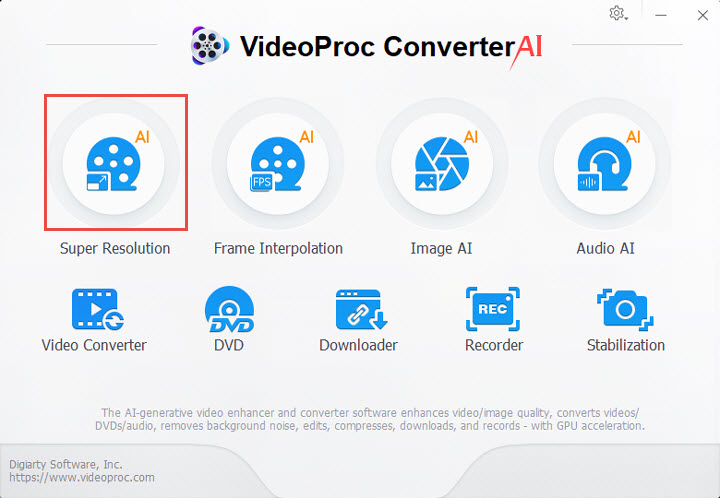
Step 1. Free download the best AI video upscaling software, run it, and click the 'Super Resolution' tab on the home page.
Step 2. Import the videos that you wish to upscale by dragging or clicking the +/Add Media icon. You can add multiple videos at one time.
Step 3. Select the desired upscaling model to upscale your video:
- Gen Detail V3: generate more details, clarity, and sharpness for your videos, and deliver better quality.
- Real Smooth V3: tailored for video restoration, smoothing, flaw elimination, and enhanced fidelity.
- Anime: upscaling and restoring anime videos on older computers.
- Zyxt: enhance the resolution of low-quality video on older computers.
💡 Tips:
- I personally recommend using 2× upscaling whenever possible. It provides a noticeable resolution boost while keeping the output looking natural, sharp, and free from the overprocessed or artificial look that higher scaling factors can sometimes introduce.
- If you need less color change, tick 'Keep Original Color' and adjust the slider from 0 to 1.
- It is recommended to use the latest generative AI upscaling models (Gen Detail V3 and Real Smooth V3) for the best upscaling results; if you are using an older computer, you can opt for the Anime or Zyxt models, which are designed to perform efficiently on less powerful hardware.
- I prefer High Quality Mode over Fast Mode, as I prioritize output quality over processing speed.
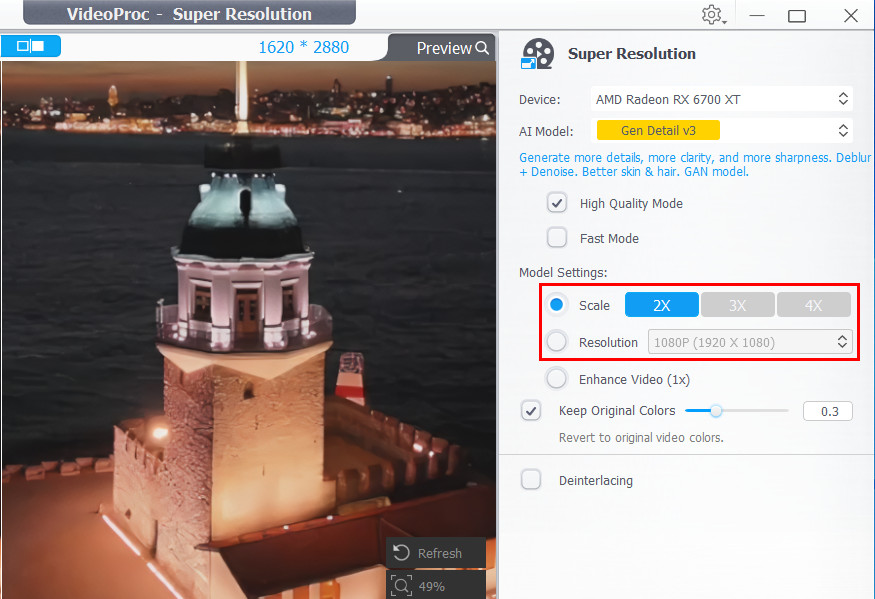
Step 4. Choose a scale option to enhance your video resolution by 2X, 3X, or 4X, or use the output resolution presets (1080p/2K/4K) directly to specify the output video size you want.
Step 5. (optional) you can cut video to upscale only a specific segment, and change video codec, audio codec, GOP, and output folder to your liking. Hit the Run button to start the AI video upscale process.
Besides videos, this AI upscaler also works nicely for images. For instance, you can use VideoProc to increase the resolution of old photos, low-res illustrations, and AICG pictures such as upscaling MidJourney images.
My Experience with VideoProc AI's Video Upscaling
Based on my hands-on tests of upscaling several videos by 2× with VideoProc AI's Super Resolution, I was impressed by how fast and smooth the entire process was. It easily delivered one of the fastest processing speeds among the AI video upscalers I tested, consistently pushing my GPU utilization to around 99% to make full use of hardware acceleration. 👍 (If you're using a mid-range PC, don't be surprised if the processing speed stays below 10 FPS - that's perfectly normal for AI-based video enhancement.)
The output quality was consistently solid. Whether I tested low-resolution videos, AI-generated clips, or footage with different types of content, the results were noticeably sharper and more detailed without introducing obvious artifacts. While it may not produce the absolute best output in every scenario compared with some high-end professional AI upscalers, it consistently delivers above-average results and rarely disappoints.
What stands out even more is its overall value. It's significantly more affordable than most competitors while also including a wide range of practical tools beyond AI upscaling, such as video conversion, compression, stabilization, recording, downloading, DVD ripping, and editing tools.
Overall, my experience showed that VideoProc strikes a solid balance between speed and output quality, making it a budget-friendly choice for both casual projects and more demanding video work.
Read the full review of VideoProc Converter AI >
🏆 VideoProc Converter AI is rated as one of the best free video upscalers by many trusted websites. Check some of them:
- Best AI Video Enhancer (2026) - appleinsider.com
- 7 Best AI Video Upscalers (2026): Improve Video Quality - codingem.com
- 9+ Best AI Video Upscaling Tools for 2026 - allaboutai.com
 Excellent
2. Topaz Video
Best for: skilled users to enhance video quality with AI.
Rating: 4.0/5  by Topaz Users
Platform: Windows 10/11 (64-bit) and macOS 11 Big Sur or later (Apple Silicon recommended). Recent AI models perform best on Windows 11 or Apple Silicon Macs with dedicated AI acceleration.
Price: Topaz Video is available by subscription only. The Personal monthly plan is $59/month, the annual plan is billed annually at $299, while Topaz Studio starts at $69/month, which includes Topaz Video along with the company's other AI image and video applications.
Topaz Video (formerly Topaz Video AI) is widely regarded as an industry-standard AI video upscaler ,allowing users to choose different enhancement strategies for archival footage, AI-generated videos, denoising, sharpening, and high-quality upscaling. It uses advanced deep learning models to upscale low-resolution footage to higher resolutions such as 4K or even 8K while attempting to preserve textures, edges, and natural colors. The software can also reduce noise, remove compression artifacts, and improve overall clarity.
Recent updates have expanded Topaz Video's AI capabilities and workflow options. The latest 1.7.0 release adds the Starlight Precise 2.6 model with adjustable sharpness levels, along with performance and artifact fixes for Starlight Mini. It also introduces a native Final Cut Pro plugin, more flexible stabilization previews, and a Model Manager for downloading and removing Neuroserver models. Other improvements include restored multi-GPU support for Starlight Sharp and various fixes for plugins, image sequences, and audio encoding.
In practice, however, the output quality can vary depending on the AI model selected and the source footage. Some users, particularly those restoring archival videos or footage with complex textures, have reported occasional over-sharpening, over-smoothed details, or subtle artifacts around faces, text, and fine patterns. Achieving the best results often requires testing multiple AI models and adjusting settings manually. In addition, Topaz Video remains one of the more hardware-intensive AI video upscalers, with newer diffusion-based models requiring substantial GPU memory for optimal performance.
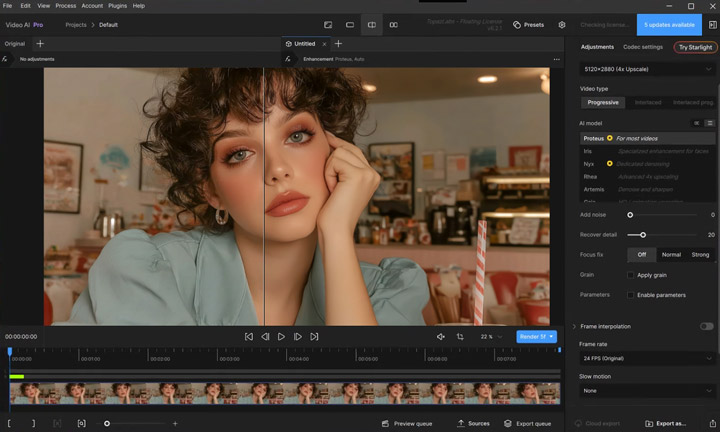
Despite these considerations, Topaz Labs Video AI remains one of the top-rated video upscalers for skilled users who want precise control over video enhancement and are comfortable with its technical demands.
Features:
- Upscales videos to 4K, 8K, or even 16K with support for 60fps and 120fps playback.
- De-interlaces footage and applies motion interpolation up to 16x for ultra-smooth playback.
- Corrects motion issues with deblurring and shake stabilization, enhancing visual clarity.
- Creates cinematic slow-motion sequences.
- Offers basic editing tools such as trimming, cropping, and duplicate removal for workflow convenience.
Pros:
- Preserves fine details when upscaling to 4K, 8K, or 16K.
- Supports 16x motion interpolation for smooth video playback.
- Stabilizes shaky footage and reduces motion blur.
- Allows batch processing of multiple videos.
- Provides real-time previews while editing.
- Can resume edits after a crash or power loss.
Cons:
- Requires powerful CPU/GPU and at least 32GB RAM.
- Advanced settings may be difficult for beginners.
- Overuse of some tools can create unnatural, over-smoothed visuals.
- Processing large or high-resolution videos takes longer.
- Price is high for non-professional users.
- Subscription model may frustrate some users, since it requires a full-year commitment.
My Experience with Topaz Video's Video Upscaling
In my testing, Topaz Video consistently delivered some of the most reliable upscaling results among all the tools I tried. The output looked natural, with well-preserved details, accurate colors, and very few noticeable artifacts. One of its biggest strengths is its wide selection of AI models, allowing you to choose the one that best suits different types of footage and restoration needs.
Batch processing is another advantage, making it easy to enhance multiple videos at once, although rendering large files can still be time-consuming due to the demanding AI models. On the downside, Topaz Video has switched to a subscription-only pricing model. If you only need AI upscaling occasionally, the long-term cost can add up quickly, and the required annual commitment may not appeal to every user.
Overall, Topaz Video remains one of the most capable AI video upscalers available, especially for users who prioritize output quality over processing speed or price.
Read our full review of Topaz Video >
3. Aiarty Video Enhancer
Best for upscaling lower-resolution or imperfect video footage to high-definition clarity.
Rating: 4.1/5 by Trustpilot
Platform: Windows and Mac
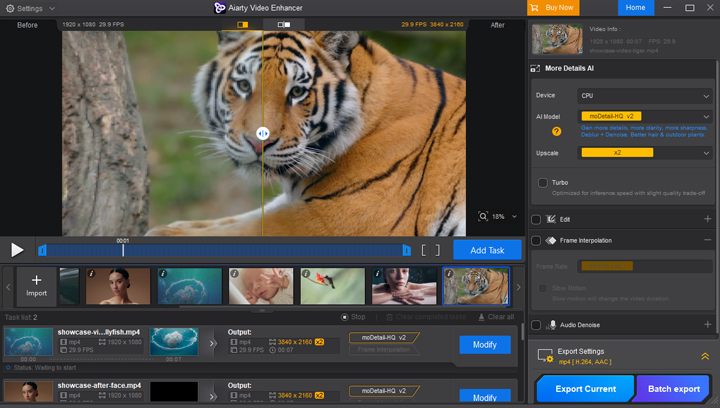
Aiarty Video Enhancer delivers a simple yet capable AI video enlargement experience. It uses advanced AI technology to upscale low-resolution videos, recover missing details, reduce noise, and improve overall clarity while maintaining a natural look. Recent updates have further improved detail generation and texture reconstruction while adding SDR-to-HDR (8-bit to 10-bit) conversion, making it particularly effective for AI-generated videos, anime, old footage, and heavily compressed clips. Despite the AI processing, the software remains lightweight and runs smoothly on most modern PCs with GPU acceleration.
Batch processing and multiple AI enhancement tools, including frame interpolation, stabilization, and slow-motion support, allow for versatile video editing. Aiarty excels at quick, high-quality upscaling, making it an ideal choice for both beginners and experienced users who want fast results.
Price: Free trial; $79/year; $165.00/lifetime (for 3PCs)
Features:
- Uses advanced AI to upscale low-resolution videos to 4K, enhancing clarity, detail, and sharpness.
- Offers three specialized AI models tailored for different enhancement scenarios.
- Turbo mode delivers up to 3× faster upscaling at real-time 30fps, supporting efficient workflow.
- Supports batch processing and offline processing, making it convenient for multiple videos without internet dependency.
Pros:
- Maintains consistent quality across various video types
- Efficient batch processing for multiple clips.
- Beginner-friendly interface with access to advanced AI models.
- Stable offline performance without cloud dependency.
- Balanced output size; upscaled videos remain manageable.
Cons:
- Turbo mode may slightly soften fine details in high-motion footage.
My Experience with Aiarty's AI Video Upscaling
Aiarty Video Enhancer impressed me with its speed and reliability. Even on mid-range hardware, it handled upscaling smoothly, restoring detail and clarity in older, compressed, or low-light footage. I appreciated how the integrated audio cleanup and color tools streamlined the workflow, so I didn't have to switch between multiple apps.
Aiarty delivers consistent, high-quality 4K results with minimal fuss. Features like Turbo mode and batch processing make the video upscaler ideal for creators who need quick, dependable enhancement without a steep learning curve.
Read our full review of Aiarty Video Enhancer >
4. HitPaw VikPea
Best free AI video upscaling software for enhancing facial features.
Rating: 3.7/5 by Google Play
Platform: Windows; Mac
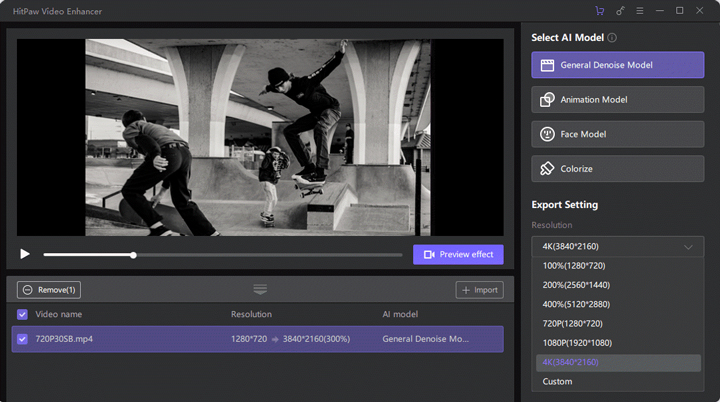
With a user-friendly interface, HitPaw VikPea allows users to upscale videos up to 4K, reduce noise, and improve overall clarity with minimal effort. The 4K video upscaling software includes multiple AI models tailored to different content types. The General Denoise Model focuses on reducing noise and enhancing video quality, while the Animation Model restores and sharpens animated content. The Face Model improves facial features by smoothing skin and enhancing eye clarity, and the Colorize Model can add color to black-and-white footage. Together, these models make the software versatile, capable of handling a wide range of upscaling and enhancement needs.
While HitPaw VikPea is generally praised for its ease of use and effective results, some users note that processing high-resolution videos can be slow. Additionally, the free trial has limitations such as restricted previews and disabled exports, which may affect the overall experience.
Price: Free trial; Mac: $70.39/month, $110.39/year, or $350.39/lifetime license; Windows: $43.19/month, $99.99/year, or $350.39/lifetime license.
Features:
- AI upscales videos up to 4K resolution.
- Multiple models for different content: denoise, animation, face, colorization.
- Noise reduction for clearer footage.
- Batch processing for multiple videos.
Pros:
- Intuitive, beginner-friendly interface.
- Produces noticeable improvements in clarity, color, and facial details.
- Quick and convenient for standard-length videos.
Cons:
- Requires a powerful computer for best performance.
- Slow processing on high-resolution videos.
- Quite expensive.
My Experience with HitPaw's Video Upscaling
HitPaw VikPea delivered generally solid results in my testing, particularly in terms of ease of use and overall output consistency. I tried it on noisy home videos as well as animated clips, and the AI upscaling improved clarity, color balance, and motion appearance with minimal manual adjustments required. The workflow is straightforward, making it accessible for users who prefer a one-click enhancement approach.
Processing time varied depending on resolution, with higher-resolution videos requiring noticeably longer to complete. However, the AI models performed consistently across different content types, producing visually clean and stable results without obvious artifacts in most cases.
From an objective quality standpoint, the exported videos achieved relatively good NIQE scores, averaging around 7.x in my tests. This suggests a lower level of perceived noise and a more natural-looking output with reduced artificial sharpening, which aligns with a generally balanced and less "AI-processed" visual appearance.
Read our full review of HitPaw VikPea >
5. CapCut
Best for content creators to upscale videos for social media for free.
Rating: 4/5 by PCMag
Platform: Windows, Mac, and web
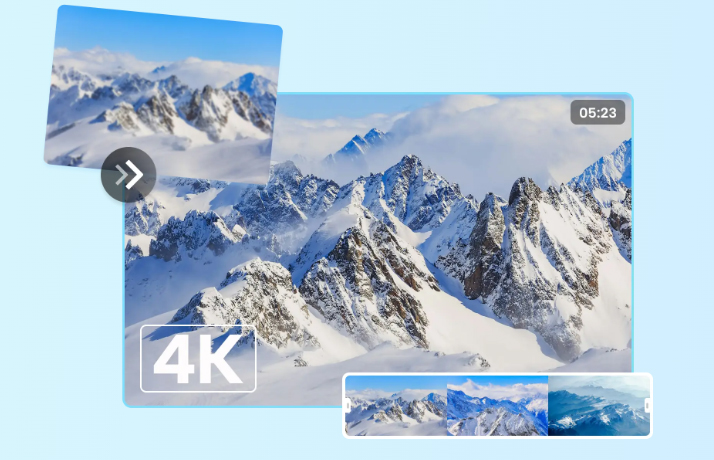
CapCut's AI Video Upscaler is designed primarily for content creators who want to improve video quality within a fast, all-in-one editing workflow. Rather than functioning as a standalone restoration tool, it integrates AI upscaling directly into CapCut's editing environment, allowing users to enhance resolution alongside features such as auto captions, background removal, color correction, and AI-powered editing.
Recent updates have further expanded CapCut's AI capabilities with improved HD enhancement and Super Resolution features, making it easier to upscale lower-resolution videos for platforms such as TikTok, Instagram Reels, and YouTube Shorts. The AI enhancement focuses on producing visually cleaner and sharper videos with minimal user input, prioritizing speed and ease of use over extensive manual controls. While it can noticeably improve the appearance of compressed or low-resolution clips, its enhancement is generally optimized for content creation rather than professional video restoration.
Price: Pro plan starts at $89.99/year.
Features:
- AI-powered upscaling up to 4K resolution.
- Built-in enhancement for color, contrast, and sharpness.
- Seamless integration with CapCut’s editing tools.
- Works on both desktop and mobile versions.
- Fast rendering optimized for social media formats.
Pros:
- Very easy to use with no technical setup needed.
- Quick processing and export times.
- Desktop version supports upscaling to 4K.
- Delivers vibrant, polished visuals ideal for online content.
- Intuitive interface, beginner-friendly; Multi-device support for flexible editing.
Cons:
- Online version limited to 2K upscaling.
- Slow processing for long or large videos.
- Limited control over upscaling parameters.
My Experience with CapCut's Video Upscaling
In my testing, CapCut's AI Video Upscaler noticeably improved the overall clarity of low-resolution videos and reduced visible compression artifacts, particularly when using the desktop version. The upscaling process was quick and integrated seamlessly into the editing workflow, making it convenient to upscale, edit, and export videos from a single application.
Compared with dedicated AI video upscalers such as VideoProc Converter AI, however, CapCut provides a less noticeable enhancement. While edges appear cleaner and videos look sharper at first glance, fine textures and subtle details are not reconstructed as effectively, and the output can appear slightly over-smoothed on larger displays. I also found that the desktop version consistently produced better results than the mobile app, although CapCut has not publicly explained whether different AI models or processing pipelines are used across platforms.
Overall, CapCut's AI Upscaler is well suited for creators who prioritize convenience, editing efficiency, and social media publishing. If your goal is maximum detail recovery or restoring heavily degraded footage, a dedicated AI video upscaler will generally produce stronger results.
6. UniFab Video Enhancer
Best for AI upscaling digitalized DVD files.
Rating: 4.2/5 by Trustpilot
Platform: Windows
UniFab Video Enhancer is an AI-based video enhancement tool that focuses on improving video quality through a combination of upscaling, noise reduction, and other enhancement modules. It supports resolution upscaling up to 16K, along with additional features such as HDR conversion and frame rate interpolation, depending on the selected processing mode. The software provides multiple AI models designed for different types of content, allowing users to choose between speed and quality-oriented processing. Its interface is relatively straightforward, making it accessible to users without advanced editing experience.
In testing, UniFab delivered noticeable improvements in overall video clarity, particularly on low-resolution and compressed footage. Fine details appeared cleaner after processing, although results varied depending on the selected model and source material. The enhancement was generally more effective on static or moderately detailed scenes, while more complex motion content required longer processing times to achieve stable results.
Since UniFab relies heavily on GPU acceleration, performance is strongly dependent on hardware capability, and lower-end systems may experience slower processing. While the trial version provides access to most features, occasional stability issues and interface inconsistencies were observed during testing. Overall, UniFab performs as a capable video enhancement tool.
Price: Limited free trial; UniFab Video Enhancer Pro $179.99 for a Lifetime License
Features:
- AI-powered video upscaling up to 16K resolution.
- Noise reduction and deinterlacing capabilities.
- HDR conversion and frame rate enhancement.
- Multiple AI models for different content types.
- Batch processing support.
- Intuitive and user-friendly interface.
Pros:
- High-quality video enhancement with improved clarity and detail.
- Supports a wide range of video formats and codecs.
- Regular updates and improvements.
- Comprehensive suite of tools for various enhancement needs.
Cons:
- Minor bugs and interface inconsistencies reported by some users.
- 30-day free trial may not be sufficient for extensive testing.
- Higher system requirements compared to some competitors.
My Experience with UniFab's Video Upscaling
UniFab made the video enhancement process relatively straightforward once set up, though the upscaling option is not immediately obvious in the interface and appears to default to the original resolution in some workflows. After selecting the appropriate enhancement mode, I tested it on both older SD footage and standard HD clips.
In my experience, the AI upscaling produced noticeable improvements in perceived clarity, fine detail, and color balance, especially on low-resolution source material. The results were generally stable across different clips, with fewer visible artifacts than expected in more challenging scenes. Processing time increased significantly with higher-resolution inputs, which is consistent with other GPU-accelerated AI upscaling tools. A few frame drops were also observed in some cases.
Overall, the output quality felt consistently balanced and stable, with results that in some cases approach higher-end AI upscaling tools, particularly in terms of natural-looking detail retention, even if it does not always match their maximum level of refinement.
7. AVCLabs Video Enhancer AI
Best for improving video resolution and clarity through AI.
Rating: 4.2/10 by Trustpilot
Platform: Windows; Mac
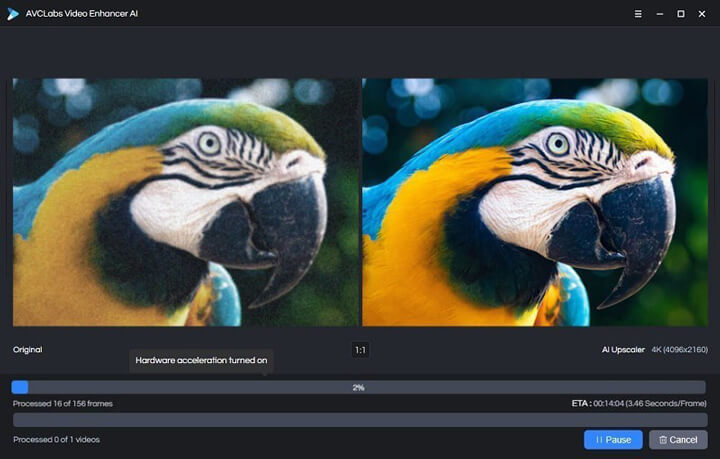
AVCLabs Video Enhancer AI is an AI-based video upscaling tool that improves video quality and resolution using machine learning techniques. It analyzes footage frame by frame and attempts to reconstruct missing details, with support for up to 8K output. The Face Enhancement feature is designed to improve facial clarity while reducing visible artifacts, while the Video Blur function enables automatic face blurring for privacy or editing needs. The tool also provides noise reduction and artifact suppression to help reduce common visual issues in low-quality footage, making it suitable for general video enhancement workflows.
Price: Limited free trial; $39.95/month; $119.95/year; $299.90 lifetime license.
Features:
- Upscales videos from 480p to 4K/8K with AI-enhanced clarity and detail.
- Reduces noise and motion blur for smoother visuals.
- Frame interpolation enables natural slow-motion effects.
- Face refinement and portrait enhancement for sharper facial features.
- Supports batch processing and offline mode for efficient and private workflow.
- Compatible with modern formats: H.264, H.265, VP9, AV1.
Pros:
- Produces visually polished 4K/8K videos with minimal artifacts.
- Smooth slow-motion playback feels natural, even for shaky or compressed footage.
- Handles multiple videos simultaneously.
- Beginner-friendly interface.
- Offline processing ensures privacy and stable performance without cloud reliance.
- Enhances faces and colors without needing separate editing software.
Cons:
- A bit expensive; relatively high requirement for computer configuration.
- The software may not be suitable for professional video upscaling tasks as it offers limited customization and control over the enhancement process.
- Only the first 3 videos are free under the trial version.
My Experience with AVCLabs's AI Video Upscaling
In my testing, AVCLabs Video Enhancer AI provided some improvements in clarity and detail for low-resolution footage. Blurry or noisy videos showed moderately sharper edges, cleaner textures, and slightly improved color rendering after processing. The face enhancement feature worked in a controlled and subtle way, improving facial clarity without introducing strong artifacts or an overprocessed look. The automated blur function for privacy use cases also performed reliably, correctly detecting and blurring faces without manual intervention.
Processing time was reasonable for 1080p to 4K upscaling, though higher-resolution content or visually complex scenes required noticeably longer processing, which is typical for AI-based enhancement workflows.
Based on external review scores and user ratings, the product generally ranks highly in its category, though real-world testing results showed a more moderate level of performance compared to top-tier AI upscalers. It still supports up to 8K output and covers the main enhancement functions expected from this type of tool, making it a sufficient option for entry-level users who need basic upscaling and restoration without advanced tuning requirements.
8. Nero AI Video Upscaler
Best AI video upcsaler to upscale and enhance part of the video image without pre-cutting.
Rating: 3.6/5 by Amazon Users
Platform: Windows 10/11, online, and mobile.
Nero AI Video Upscaler is an easy-to-use AI video enhancement tool that focuses on improving the quality of low-resolution videos with a straightforward workflow. It offers up to 4× AI upscaling, supports output up to 4K, and includes several enhancement options for reducing noise and improving overall image clarity. While its AI processing can produce cleaner-looking results on some footage, the improvements are generally modest compared with more advanced AI video upscalers.
One feature that sets Nero apart is Clip Selection, which allows you to enhance only a selected region of a video without pre-cutting the entire clip. The software also provides multiple AI modes, including Fast, Animation, and Realistic, allowing users to prioritize either processing speed or image quality depending on the content. The desktop version currently accepts video input up to 1920×1080 for AI enhancement and exports without adding a watermark. Overall, Nero AI Video Upscaler is better suited to casual users looking for a simple video enhancement tool than professionals seeking maximum restoration quality.

Price: Limited free version; $84.95/year or $195 for a lifetime license (1 PC, Windows 10/11), including free updates.
Features:
- AI-powered video upscaling with output up to 4K.
- Noise reduction and artifact suppression for low-quality videos.
- Multiple AI models for live-action and animated content.
- Clip Selection for enhancing part of a video without pre-cutting.
- Batch processing with an easy-to-use interface.
Pros:
- Beginner-friendly and easy to use.
- Useful Clip Selection feature.
- Supports batch processing.
- Affordable lifetime license.
- Suitable for basic video enhancement tasks.
Cons:
- AI enhancement quality is less consistent than leading AI video upscalers.
- Processing can be slow for high-resolution or longer videos.
- Results vary depending on the AI model and source footage.
- Limited editing features beyond AI enhancement.
My Experience with Nero AI's Video Upscaling
Using Nero AI Video Upscaler felt straightforward and efficient. Upscaling 1080p footage to 4K was smooth, with noticeable improvement in clarity, textures, and overall visual quality. The AI models adapted well to different video types, and batch processing made handling multiple files easier. While high-resolution videos took longer to process, the video upscaling software remained stable throughout. Overall, it strikes a solid balance between performance, usability, and quality, making it a reliable choice for both casual and semi-professional video upscaling.
9. Real-ESRGAN
Best open source and free AI video upscaler to restore and upscale real-world or old video footage.
Rating by Aiarty
Platform: Windows, Linux, and MacOS
One of the biggest strengths of Real-ESRGAN is that it was specifically designed for real-world degraded media rather than ideal synthetic downscales. According to its authors, the model is trained using a high-order degradation pipeline that simulates blur, noise, JPEG compression artifacts, and other real-world distortions. This allows it to better reconstruct textures and reduce common artifacts in compressed or low-quality footage.
In practice, Real-ESRGAN generally performs well on degraded content such as older recordings, low-bitrate web videos, compressed footage, and anime, where its training helps recover cleaner edges and more natural-looking details. Although originally developed for image super-resolution, it has become one of the most widely adopted open-source AI models for video enhancement by processing frames individually. It is often integrated into video restoration workflows alongside frame interpolation or temporal stabilization tools to help minimize flickering between frames.

However, Real-ESRGAN is not without its trade-offs. Like most GAN-based upscalers, it may hallucinate textures or fine details that were not present in the original source. When used for frame-by-frame video upscaling, inconsistent detail generation can also introduce temporal flickering unless additional post-processing or stabilization is applied. Processing high-resolution videos remains computationally demanding and typically requires a modern GPU for practical performance.
Overall, Real-ESRGAN remains one of the most influential and well-supported open-source AI upscalers, offering a strong foundation for restoring compressed, noisy, and low-quality footage. While newer community-developed models and fine-tuned variants, such as neosr or 4x-UltraSharp, often deliver better results for specific content types, Real-ESRGAN continues to be a reliable baseline thanks to its mature ecosystem, broad compatibility, and consistent performance. Achieving the best results usually involves testing different models and adjusting parameters such as scale factor, denoise strength, and temporal smoothing based on the source material.
Price: Free and open-source
Features:
- AI upscaling based on the Enhanced Super-Resolution GAN (ESRGAN) architecture.
- Trained with real-world degradations for realistic restoration.
- Supports upscaling by 2×, 4×, and even higher with consistent visual fidelity.
- Compatible with both images and video frames for flexible workflows.
- Open-source and actively maintained by the AI developer community.
- Can be integrated into custom pipelines or used via GUIs and third-party wrappers.
Pros:
- Produces highly detailed and natural-looking results with minimal artifacts.
- Excels at restoring old, low-quality, or compressed footage.
- Free and open-source, allowing customization and community support.
- Delivers video quality comparable to paid professional video upscaling tools.
- Handles texture and fine detail reconstruction exceptionally well.
Cons:
- Setup requires some technical knowledge; not ideal for beginners.
- Processing can be slow without a strong GPU.
- May occasionally generate over-sharpened or artificial textures on certain footage.
- Lacks a built-in video GUI interface for direct batch processing.
My Experience with Real-ESRGAN's Video Upscaling
After testing Real-ESRGAN on a variety of video clips, I found that it provided reliable improvements for compressed and low-quality footage rather than dramatic transformations. Older SD videos appeared cleaner, with reduced compression artifacts and moderately improved detail, although the results varied depending on the source material. Upscaling a 480p clip to 1080p produced a noticeably clearer image, but some of the finer textures were AI-generated approximations rather than faithful restorations.
Because Real-ESRGAN processes videos frame by frame, fast-moving scenes can occasionally show inconsistent textures or slight flickering without additional temporal processing. Compared with today's latest commercial AI upscalers and newer community-trained models, the original Real-ESRGAN no longer delivers the strongest image quality in every scenario. Even so, it remains a solid open-source baseline for restoring compressed or degraded footage and continues to be widely used in many video enhancement workflows.
10. Adobe Premiere Pro
Best for the top professionals to edit videos.
Rating: 4.5/5 by PCmag
Platform: Windows; Mac
Adobe Premiere Pro is a professional video editing platform that also provides basic tools for resolution adjustment and visual enhancement, rather than a dedicated AI video upscaler. In practical use, the commonly used "Fit to Frame" function is essentially a traditional scaling operation (previously referred to as Scale), which resizes footage to match the sequence resolution using standard interpolation methods instead of AI-based detail reconstruction.
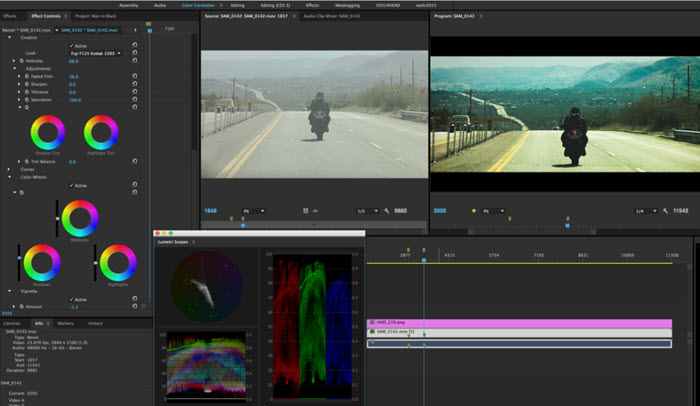
Premiere Pro supports 4K, 8K, and higher-resolution workflows and can upscale lower-resolution footage, but its built-in scaling, such as Set to Frame Size and Scale to Frame Size, is not a dedicated AI super-resolution solution. For AI-powered video upscaling, Adobe offers the Detail-preserving Upscale effect in After Effects and a dedicated AI video upscaling feature in Adobe Firefly.
As a result, Premiere Pro is better suited to professional video editing and conventional scaling than to AI-powered video upscaling. If your main goal is to turn low-resolution footage into sharper 4K video with AI-based detail reconstruction, a dedicated AI video upscaler is a better fit.
Price: Adobe Premiere Pro is available only through a subscription. The Single App plan starts at around $22.99/month (annual plan, billed monthly), while the month-to-month plan costs about $34.49/month. An annual prepaid option is also available at approximately $239.88/year.
Features:
- Non-AI scaling to 4K, 8K, and higher resolutions.
- Auto Reframe and Scene Edit Detection for intelligent frame adjustments.
- Lumetri Color panel for precise color grading and tonal enhancement.
- Integrated noise reduction and motion stabilization for smoother playback.
- Supports both compressed and archival footage, maintaining natural textures.
- Seamless integration with After Effects for advanced compositing and visual effects.
Pros:
- Flexible control over frame-level adjustments and color, beyond simple AI upscaling.
- Handles large, multi-layered projects efficiently on high-performance systems.
- Enables recovery of older or low-resolution footage to near-modern standards.
- Combines upscaling with editing workflow, avoiding the need for multiple software.
Cons:
- Steep learning curve for beginners.
- High system requirements; requires robust CPU/GPU for smooth 4K/8K upscaling.
- Processing and rendering times can be long for ultra-high-resolution videos.
- Less immediate "one-click" automation compared to dedicated AI upscalers.
- The 'audio out of sync in Premiere' error occurs occasionally.
My Experience with Adobe Premiere Pro's AI Video Upscaling
Using Adobe Premiere Pro for video upscaling is best understood as part of a professional editing workflow rather than a dedicated AI enhancement process. In testing, the commonly used "Fit to Frame" function (previously known as Scale) simply resizes footage to match the sequence resolution using traditional interpolation methods. As a result, upscaling 720p or 1080p footage to 4K or 8K does not introduce new details in the way AI-based upscalers do, but instead relies on resizing combined with manual color grading, sharpening, and compositing tools.
Where Premiere Pro excels is in flexibility. Editors can combine basic scaling with Lumetri Color adjustments, motion controls, and other timeline-based editing tools to refine the final output within a single environment. This makes it suitable for integrating lower-resolution footage into professional 4K or higher-resolution projects, especially when upscaling is only one part of a larger editing workflow. However, compared with dedicated AI video upscalers, the visual improvement is more limited and depends heavily on manual tuning rather than automated reconstruction.
On the downside, achieving high-quality results requires both experience and sufficient hardware performance, particularly when working with high-resolution timelines or complex effects. While the learning curve can be steep for beginners, Premiere Pro remains a powerful solution for professional editors who prioritize precise control over editing and post-production rather than one-click AI enhancement.
The Best Free AI Video Upscaler Software Comparison Chart
| Best Free AI Video Upscaler | Best for | Processing Speed | Scaling/Max Resolution | Price |
|---|---|---|---|---|
General video/image restoration/upscaling |
|
2x, 3x, 4x; 480p, 720p, 1080p, 2K, 4K |
Free trial; |
|
Skilled users to upscale video quality with AI |
|
2x, 4x, 6x; 4K, 8K, 16K |
A yearly cost of $299–$699. Mid-year cancellations are not prorated.. |
|
Upscaling imperfect video footage to high-definition clarity |
|
2x, 3x, 4x; 720p, 1080p, 2K, 4K |
Free trial; |
|
Enhancing social media videos |
|
HD, UHD, 4K |
Free; $89.99/year |
|
Improving sharpness, clarity, and overall visual appeal |
|
2x, 4x; 4K, 8K |
Free trial; |
|
Upscaling digitalized DVD files |
|
from original to 16K |
Free trial; |
|
Improving video resolution and clarity through AI |
|
HD, FHD, UHD |
Free trial; |
|
Quickly upscaling and enhancing video footage |
|
|
Free trial; |
|
Restoring and upscaling real-world or old video footage |
|
2x, 3x, 4x |
Free and open source |
|
Editing videos; upscaling during editing |
|
2x, 4x |
$22.99/month (annual plan billed monthly);
$34.49/month (monthly plan) |






Conclusion: After testing the best free AI video upscalers, I found that while they can deliver decent results, they often come with trade-offs. For example, Topaz gives good result but takes much longer to render, AVCLabs struggles with GPU compatibility since it is not optimized for AMD acceleration, and online free AI video upscalers always produce less clear and detailed output.
In contrast, VideoProc Converter AI stood out for its strong balance of speed, quality, and price. Thanks to Level-3 GPU acceleration, it runs incredibly fast while keeping CPU usage low, and makes video upscaling easy without sacrificing crisp details. Best of all, it offers a free trial, while its lifetime license costs much less than any other paid tool mentioned in this post, making it one of the most budget-friendly options for beginners, daily creators, and long-term users.
How We Test the Best AI Free Video Upscaler
To bring you the most reliable free AI video upscalers and enhancers, we conduct thorough testing across several critical factors. Our process ensures that each tool excels in quality, performance, and user experience. Here's how we approach our evaluation:
- Output Quality (40% weight): We meticulously analyze the enhanced resolution, paying close attention to how well details are preserved, clarity is improved, and sharpness is maintained in the upscaled videos.
- Processing Speed and Efficiency (30% weight): We evaluate the software's speed and resource efficiency during video processing, focusing on its ability to upscale quickly without sacrificing quality, especially for large or high-resolution files. An efficient AI video enhancer should optimize this process.
- User Experience and Workflow (10% weight): We assess how intuitive and user-friendly the software is, from installation to regular use. We ensure that both beginners and professionals can easily navigate and utilize the features without a steep learning curve. Also, we value user privacy, so local processing is more recommended.
- Resolution and Format Compatibility (10% weight): We test each upscaler's ability to handle a wide variety of formats and resolutions, from standard definition to 4K and even 8K, ensuring versatility across different video types.
- Cross-Platform Compatibility (10% weight): We verify the software's compatibility across various operating systems, including Windows, macOS, and Linux, to ensure users can access the tool on their preferred platform without issues.
By rigorously testing each AI video upscaler across these key areas, we ensure that our top recommendations meet the highest standards. Whether you're enhancing personal projects or handling professional-level video production, the tools we feature are built to deliver optimal results that satisfy every need and skill level.
This article focuses specifically on low-resolution-to-high-resolution video upscaling. We test how well different tools handle common scenarios such as watching 480p, 720p, or 1080p footage on 4K TVs and large screens, where low-resolution video can look noticeably soft or blurry. Our testing focuses on edge and fine-detail recovery, pixel reconstruction, and the GPU and processing power required when upscaling footage by 200% or 400%, such as converting 720p or 1080p video to 4K.
If your video suffers from video quality issues, such as heavy noise, blur, stuttering, or poor lighting, check out our tests and reviews of the best AI video enhancers.
AI Upscaling vs. Traditional Upscaling
Traditional video upscaling involves implementing algorithms designed to fill the additional pixels with similar visual information in a way that makes the resulting video look clearer and more detailed, or create interstitial pixels to produce a smoother transition between low-resolution pixels. While an AI video upscaler performs the same function, it possesses an improved capability to recognize the image context and enhance the intricacy of the output. This is achieved through the utilization of deep machine learning models that have been trained on extensive datasets of high-resolution images and videos. These models learn to identify patterns and features in images and use the collected knowledge to generate higher-quality versions of the input video, making it a powerful video enhancer.

AI video upscaling is a technique that uses artificial intelligence (AI) algorithms to upscale video from HD to 1080p/4K.
Take a piece of an old family video that was recorded on VHS tapes. The tape comes in low resolutions and has degraded over time, resulting in blurry and pixelated videos. Using AI video upscaling software, you can feed these low-resolution videos into the algorithm. The algorithm will then dissect the video into individual frames, analyze and predict the missing information in these areas, and cross-reference them with images or video footage from other frames or the training dataset to identify pixel patterns resembling those found. Subsequently, it adds additional pixels to generate a higher-resolution rendition of the original video, effectively AI upscaling videos and providing significant video enhancement.
FAQs
1. What is the best AI video upscaling software?
There is no one-size-fits-all answer, as each of the 10 AI video upscalers reviewed above has its own strengths and limitations. Topaz Video delivers professional-quality, natural-looking results but comes at a relatively high price for casual users. Real-ESRGAN is a free, open-source option, but its technical setup can be challenging for beginners. Adobe Premiere Pro, while a powerful video editor, does not offer built-in AI video upscaling.
For most users, VideoProc Converter AI stands out as one of the best overall choices for its balance of output quality, processing speed, ease of use, and price. Its AI-powered Super Resolution can upscale videos by 2×, 3×, or 4×, with output resolutions of up to 4K, while keeping the workflow simple even for beginners.
2. Is there any truly unlimited free AI video upscaler?
Yes, but the choices are limited. AI video upscaling requires considerable computing resources, so most commercial tools either offer a limited free trial or charge based on usage. In our research, "free" AI video upscalers generally fall into three categories:
- Free or open-source software: Tools such as Video2X and Waifu2x-Extension-GUI can be used locally without subscription fees or per-video credits. Video2X is an open-source video super-resolution framework that supports models such as Real-ESRGAN, Real-CUGAN, and Anime4K, while Waifu2x-Extension-GUI supports multiple AI upscaling models and is free for personal use. However, these tools require your own GPU resources and may involve a steeper learning curve than commercial software.
- Free trials: This is the most common model among desktop AI video upscalers. The limitations vary by product. For example, UniFab offers a 30-day trial, but each module can only be tested up to three times, while AVCLabs Video Enhancer AI limits free processing to the first 30 seconds and overlays a prominent watermark in the center of the output.
- Credit-based: Online upscalers such as Fotor use credits based on video duration and output settings, so free usage is limited.
In short, if you mean unlimited processing with no subscription, credits, watermark, or time limit, free/open-source desktop tools are the closest option, but you trade convenience for your own computing resources and setup.
3. Can 1080p be upscaled to 4K?
Yes! By utilizing the AI video upscaling software outlined above, you can easily upscale 1080p to 4K. For a user-friendly yet robust AI upscale solution, try VideoProc Converter AI. Simply load the video you wish to upscale into the software, choose a preferred output, and the AI program will handle the rest. VideoProc Converter AI uses Super Resolution to maximally scale up your videos and images by 400% and enlarge them to up to 4K while delivering a natural result without artifacts and losing details.



