
 VideoProc Converter AI
 New AI features are available


 Listed in
 I keep seeing ads that promise the same kind of "miracle" photo enhancement. A grainy, dark image goes in and a crisp, magazine-quality result comes out. In reality, it does not always work that way.
Some AI photo enhancers struggle to fully address issues like grain and pixelation. Others attempt to rebuild details in ways that can look artificial, introducing distracting artifacts such as waxy skin, over-sharpened edges, or smudged textures. There are also cases where simple sharpening is overused, making images appear harsher without genuinely improving quality. That is why I decided to write this post.
To cut through marketing hype, I spent the past few weeks testing dozens of AI photo enhancers, both online and offline, across a wide range of images with different issues such as noise, grain, blur, and compression artifacts. The goal was to find AI photo enhancers that can effectively remove these imperfections while preserving natural detail, including texture, facial features, and realistic skin tones. Based on these results, I narrowed it down to six of the best AI photo enhancers available today. Of course, no tool is perfect, and I'll also point out the limitations I noticed during testing.
- Quick Comparison: Best AI Photo Enhancers at a Glance
- My Testing Methodology
- Best AI Photo Enhancers List (Detailed Tests and Results)
- Which AI Photo Enhancer Should You Use
- Why Some AI Photo Enhancer That Didn't Make the Cut
- The Ethics of AI Photo Enhancement: How Much Is Too Much
- The Hidden Cost of Online AI Photo Enhancer
Quick Comparison: Best AI Photo Enhancers at a Glance
If you're short on time and want to see how these best AI photo enhancers stack up against each other, here is a quick breakdown based on my testing:
| AI Photo Enhancer | Best For | Pricing | Key Strengths | Limitations |
|---|---|---|---|---|
Everyday photo/video enhancement. |
$39.95/year or $54.95/lifetime |
Deblur, denoise, fix JPEG; preserves detail |
No photo color grading |
|
Extreme low-quality image restoration |
Free |
Reconstructs heavily degraded images; preserves fine details |
Requires technical setup; slower on large files |
|
Professional RAW workflows |
$199/year |
High-precision detail recovery; maintains natural textures; excellent for archival and high-res editing |
Expensive; learning curve; overkill for casual users |
|
Basic upscaling and enlargement |
Free |
Upscales images; maintains natural look; customizable models |
Soft on complex images; struggles with text or compressed files |
|
Quick edits for social media and web use |
~$8–$20/month |
One-click enhancement; improves clarity; easy to use |
Limited fine detail recovery; smudging on compressed images; noise not fully removed |
|
Mobile face enhancement and selfies |
~$9.99/month |
Fast face enhancement; improves selfies and portraits |
Can over-enhance; alters colors/brightness; not for large/professional images |
My Testing Methodology: Beyond the Marketing Claims
I tested dozens of AI photo enhancers across a wide range of real-world use cases, including wedding portraits, old family photos, casual snapshots, e-commerce product images, and AI-generated content. These images represent common challenges users face when trying to restore or enhance photos.
Across these samples, I focused on several recurring issues that typically define the difficulty of the task, including noise in low-light images, compression artifacts in low-bitrate JPEGs, low-resolution areas requiring upscaling, faded or scanned photos with reduced detail, and motion blur or focus issues that affect overall sharpness.
To ensure consistency, all desktop AI photo enhancers were tested on the same hardware setup: a Windows desktop with an RTX 3060 GPU. This allowed me to compare not only output quality, but also processing speed and system load under identical conditions.
How I Evaluate the AI Photo Enhancement Results
My evaluation is based on a consistent set of criteria designed to measure both technical quality and real-world usability.
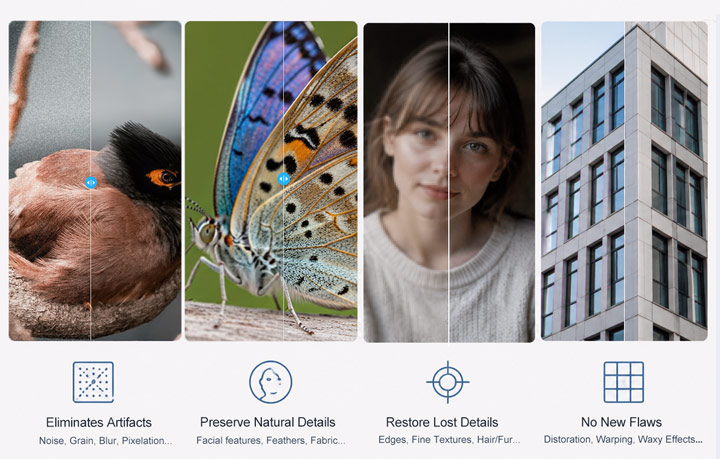
Artifacts Removal: I look at how effectively each AI photo enhancer removes noise, grain, motion blur, focus issues, compression artifacts, pixelation, and other common or challenging quality issues across different image types.
Preserves Natural Details: Skin, fabrics, hair, and all other fine elements should retain realistic detail without being overly smoothed or turned into a plastic-like finish.
Restore Missing Details: A capable AI photo enhancer should also reconstruct missing or blurred elements such as fine textures, edges, hair/fur strands, and small objects to recover image clarity.
No New Distortion or Artifacts: A good AI photo enhancer should preserve the original composition without warping shapes or introducing distortions in patterns like grids, text, or fine architectural lines.
Beyond visual quality, I also consider practical factors such as offline processing, batch efficiency, and usability. In real workflows, these aspects can be just as important as image quality.
6 Best AI Photo Enhancers: A Deep Dive into Real Test Results
1. VideoProc Converter AI
Best for: Creators and everyone who need a budget-friendly AI photo enhancer that balances quality, speed, and affordability.
- Compatibility: Windows / Mac
- Expert Rating: 9.8/10
 by Digital Photography School
 - Unique Value: A complete suite that supports AI photo/video enhancement, conversion/downloading, and more
- Price: Free trial; $39.95/year; Lifetime license often available for around $54.95
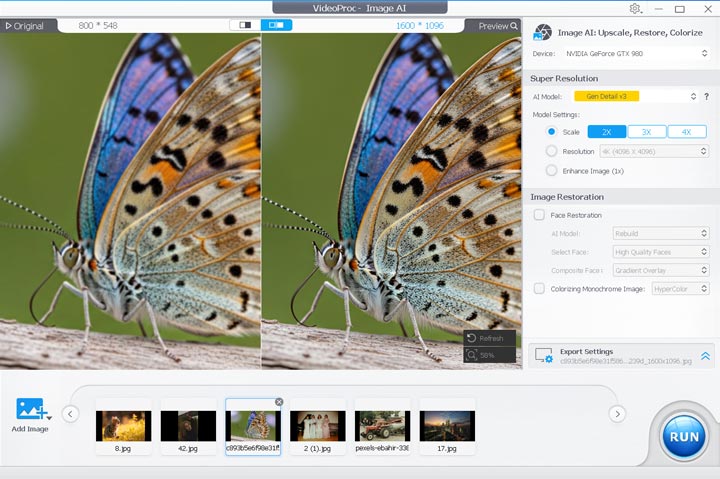
VideoProc Converter AI, from my testing, is the best pick for users who want professional-grade clarity and upscaling at an affordable price. It allows you to upscale images of various types to 8K/10K resolution. It features AI models such as “Gen Detail v3” and “Real Smooth v3,” which intelligently improve image quality by reducing blurriness, noise, and other imperfections while preserving fine details like fur, facial features, fabric textures, leaves, and more. In addition, it supports GAN-based models, including Face Restoration (Rebuild), which can transform blurry faces into crisp, natural-looking ones with accurately restored facial features.
The easy-to-use workflow, combined with a complete media processing and enhancement toolkit, is another reason it stands out. With it, you can enhance video files up to 4K, improve video and audio quality, convert media formats, and much more. These are all accessible through a straightforward interface. In addition, it runs locally, so your photo files never need to be uploaded to the cloud, giving you full control and stronger privacy protection.
Free download and install VideoProc Converter AI to enhance your photos to 8K/10K clarity.

Let's Put This AI Photo Enhancer to the Test
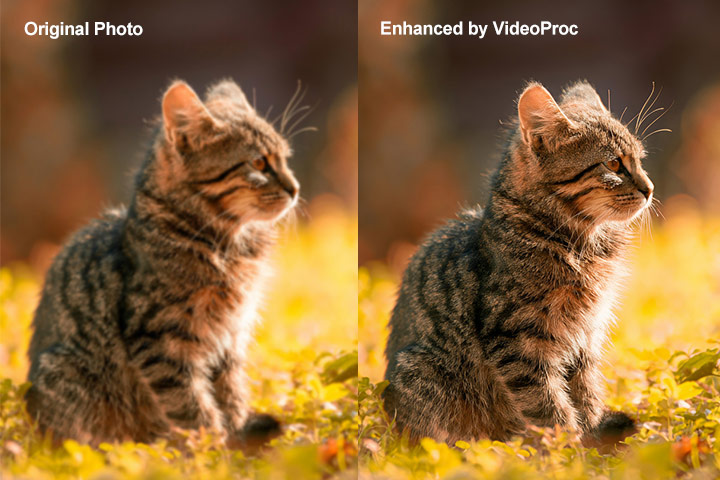
Test 1: Blurry Cat (Clarity & Texture)
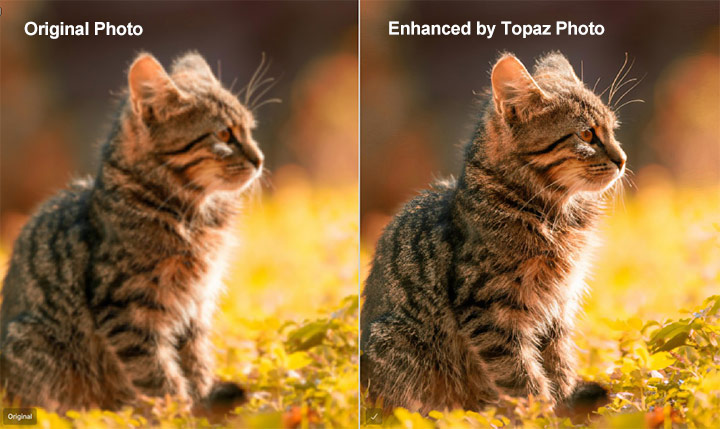
It's like a nearsighted person suddenly putting on glasses. Everything becomes sharp and crystal clear, and the details feel completely natural.
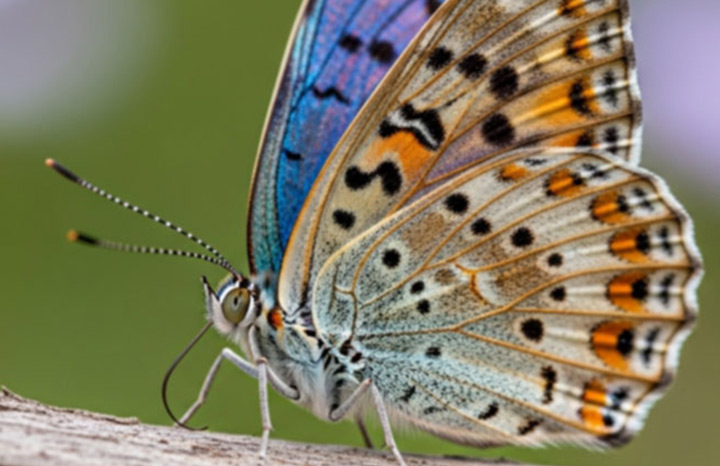
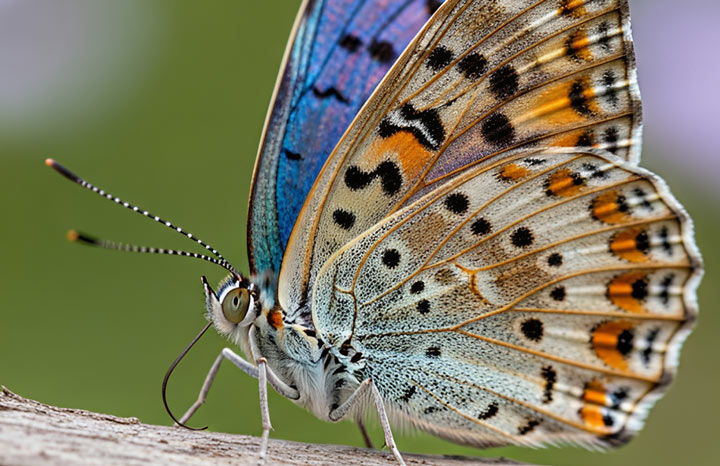
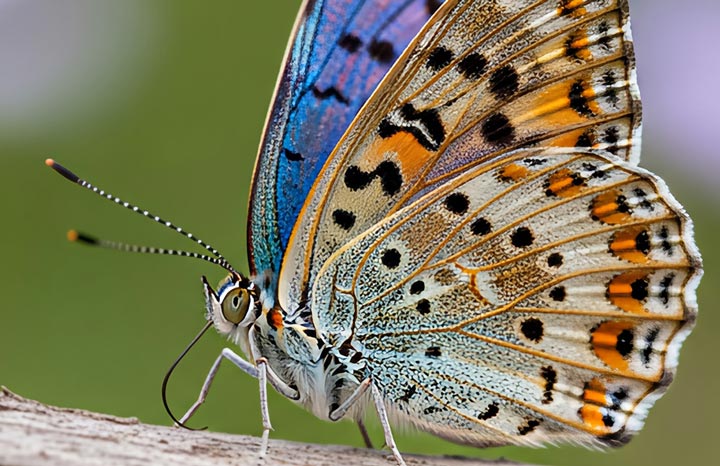
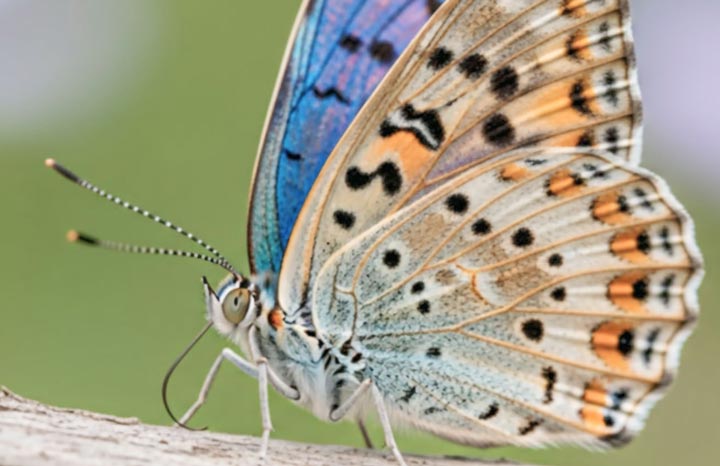
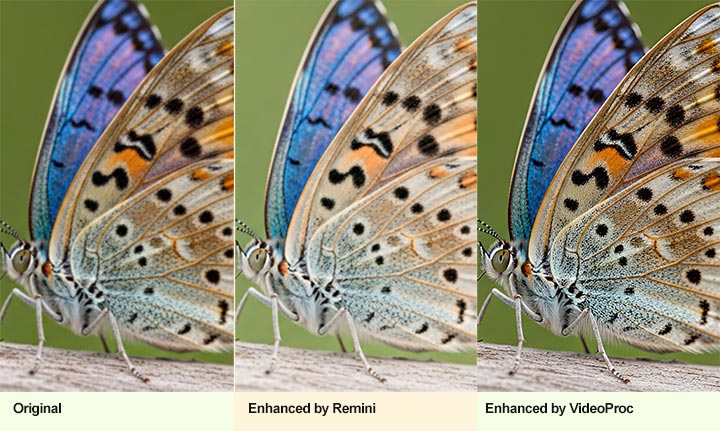
Test 2: Blurry Butterfly (Detail Restoration)
This capable AI photo enhancer does an excellent job enhancing and restoring details. After enhancement, the details are clear without any over-sharpening.

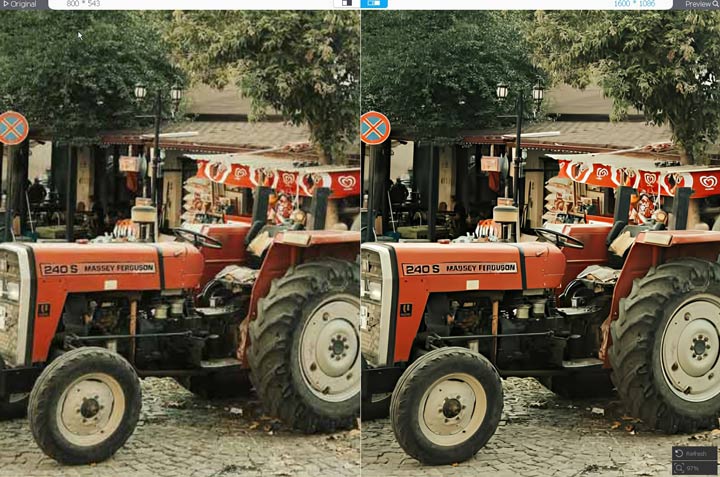
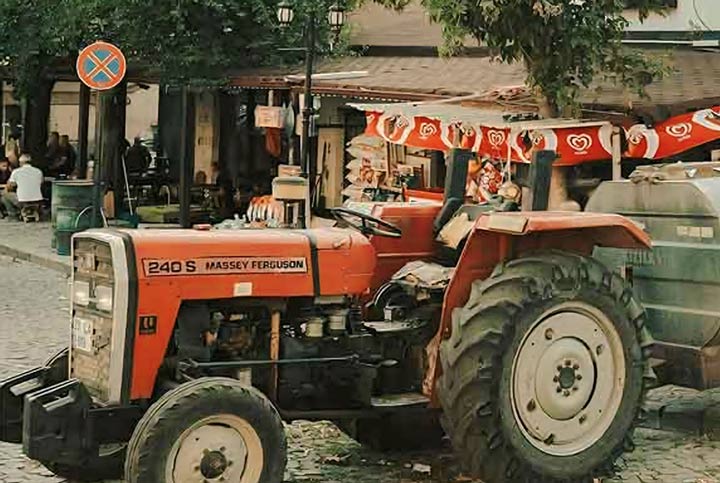
Test 3: Compressed Text & Cropped Image (Reconstruction)
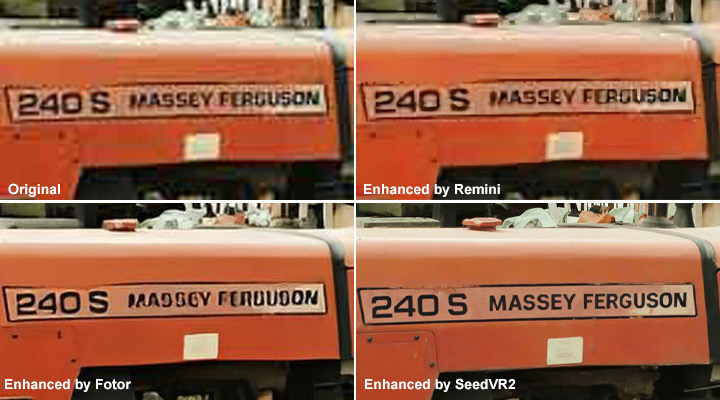
The overall quality improvement is noticeable; the wheels and background are sharp. The only drawback is that text and some fine details still look slightly blurred, with a bit of a smudged appearance.
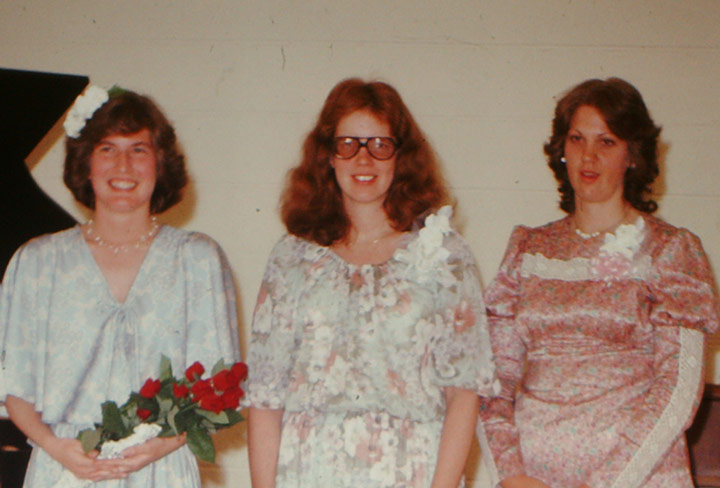
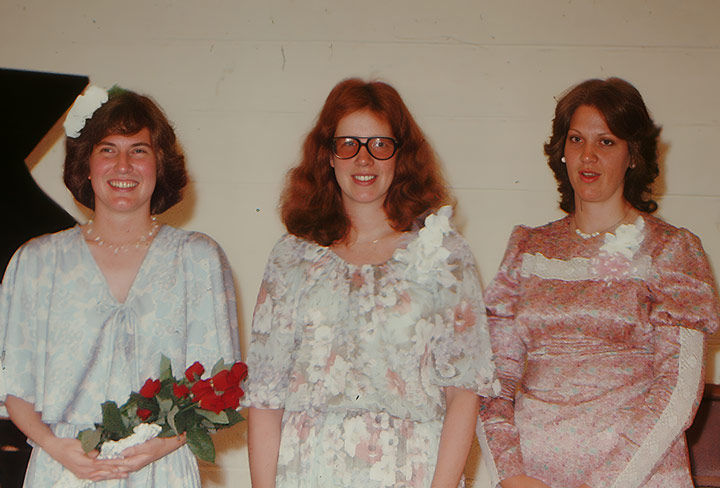
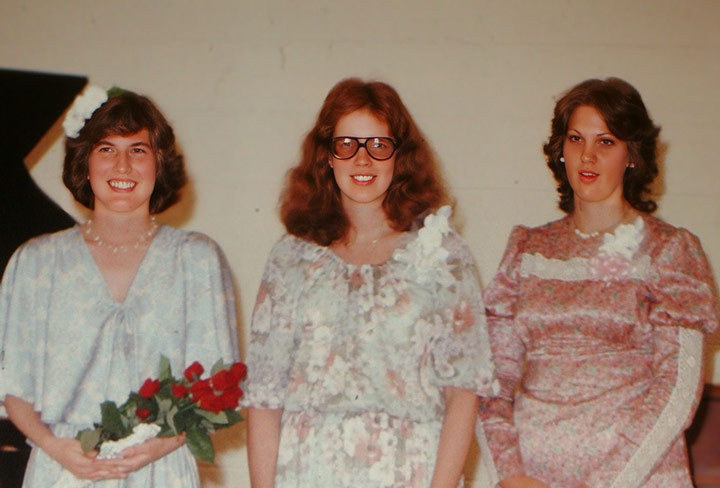
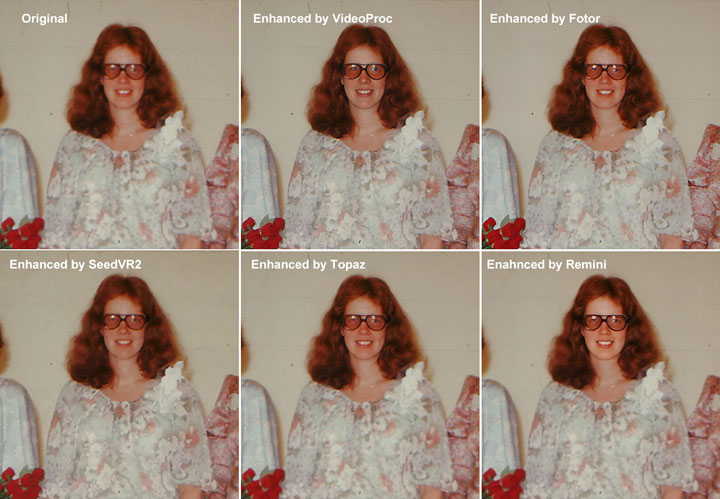
Test 4: Old Group Photo (Face Reconstruction)
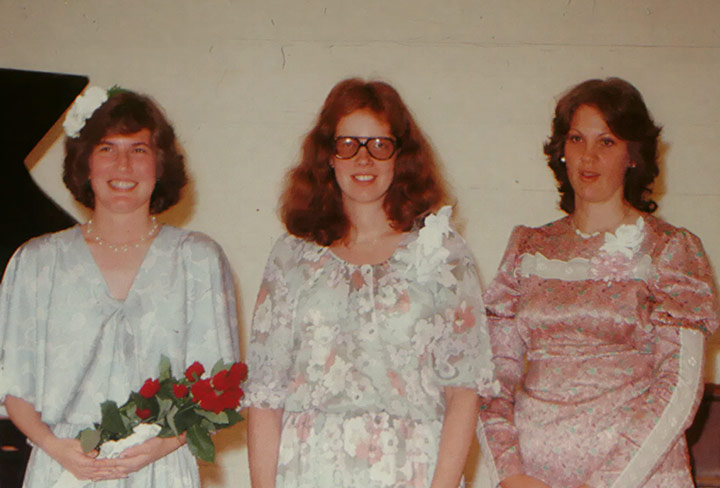
Using the Face Restoration Rebuild model together with the Gen Detail v3 enhancement, the result is very good. Facial features are clear and highly faithful to the original.
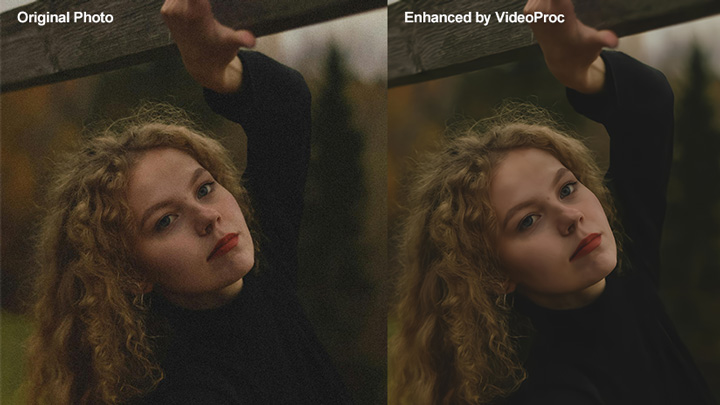
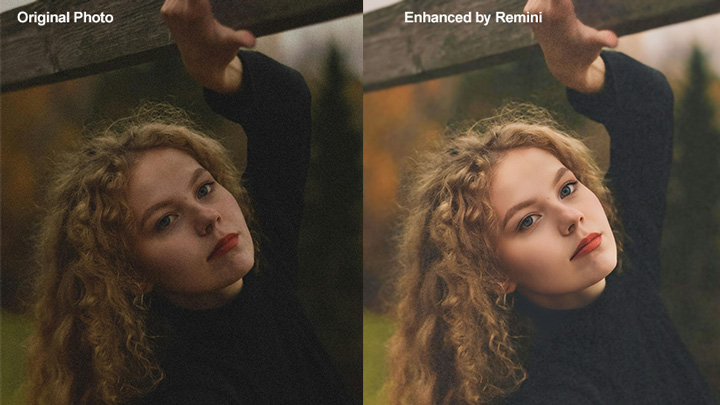
Test 5: Night Portrait (Denoising & Detail)
The noise is completely removed while facial details are preserved. Personally, I feel that in low-light shots, this level of clarity might slightly reduce the aesthetic feel for some users—but in terms of denoising, VPC does an excellent job.
What I Found: The enhancement for noise, grain, and bluriness is remarkably natural with this one of the best AI photo enhancer. Its Face Restoration (Rebuild) model also works wonders on old, blurry portraits. My only caveat is that on extremely low-resolution images, you can occasionally notice a minor "smearing" effect where the AI lacks enough data for a perfect reconstruction.
Pros:
- No monthly or yearly subscriptions; you own the software.
- Fully offline processing ensures your photos never leave your hard drive.
- Runs fast on older or mid-range PCs thanks to GPU acceleration.
- Includes video upscaling, frame interpolation, and screen recording in the same package.
Cons:
- Requires a desktop installation (Windows or Mac).
2. SeedVR2 (or SeedVR 2.5)
Best for: Tech-savvy users who need the "nuclear option" for unfixable photos.
- Compatibility: Local installation (Windows/Linux) via ComfyUI or specialized platforms
- Community review on Reddit.com
- Unique features: Enhance and restore video quality
- Pricing: Free (open source), but requires high-end hardware
If you've spent time on GitHub or AI restoration subreddits, you've likely come across SeedVR2. It's not a standalone “click-and-fix” app, but a sophisticated generative restoration framework built on Stable Diffusion. Unlike traditional tools that sharpen existing details, SeedVR2 “re-imagines” missing data, making it ideal for photos so damaged that standard upscalers fail.
The barrier to entry, however, is high. To get viral-quality results, you typically need to set it up within a workflow like ComfyUI. Even if you follow video tutorials or download shared workflows from pro users, the learning curve is steep. You need to understand nodes, prompts, and how to balance the "influence" of the AI. Furthermore, the hardware requirements are brutal. If you don't have a top-tier GPU with high VRAM, you're either stuck with lower-tier "3B" models or dealing with excruciatingly slow processing times.
Let's Put This AI Photo Enhancer to the Test
📌A quick, honest heads-up: I actually couldn't get ComfyUI to deploy on my local machine for unknown reason, so I ended up using SeaArt.ai. It allows you to build or import local workflows just like you would on your own computer, and it's a fantastic platform that I'd recommend to anyone who wants to skip the technical setup struggle.
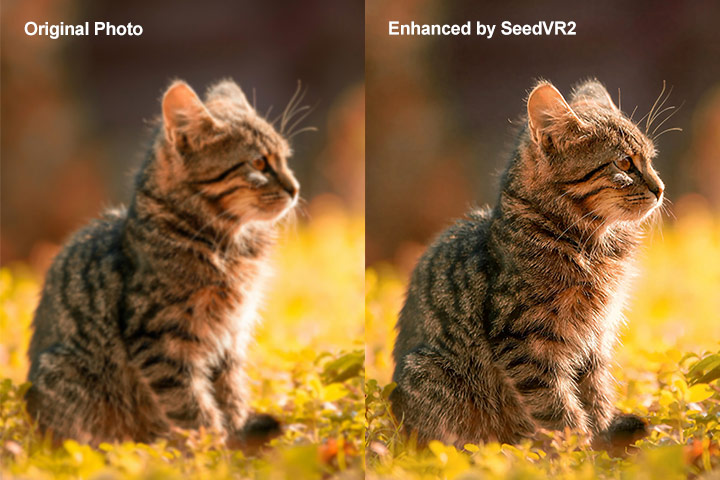
Test 1: Blurry Cat (Clarity & Texture)
The enhanced fur looks slightly thick and sharp, giving a minor over-sharpened impression.
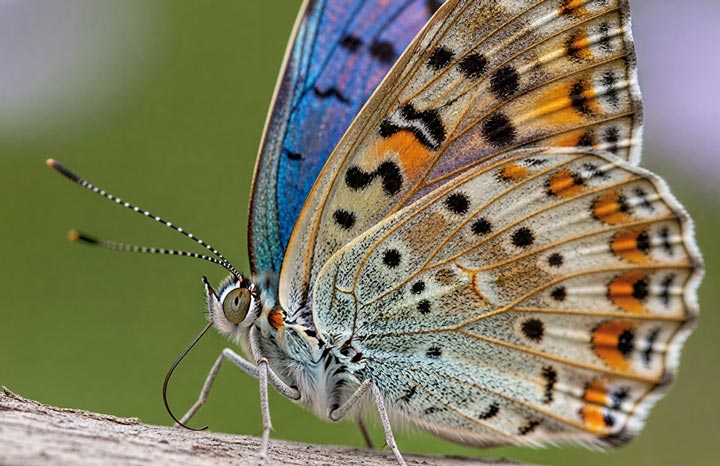
Test 2: Blurry Butterfly (Detail Restoration)
Near-perfect unblur. Both blurriness removal and detail preservation/restoration are excellent.
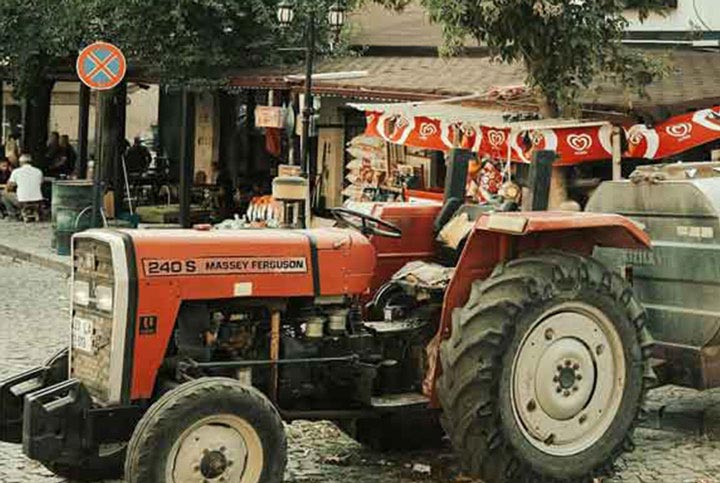
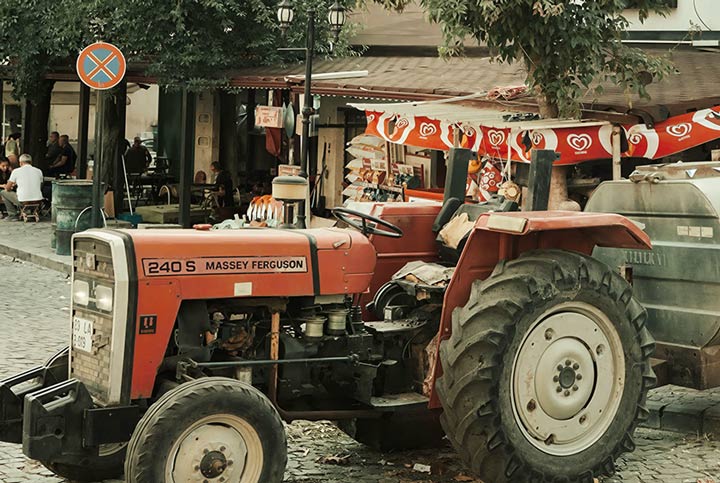
Test 3: Compressed Text & Cropped Image (Reconstruction)
Out of all AI photo enhancers tested, this performs the best. Letter details clearly show the superior handling.
Test 4: Old Group Photo (Face Reconstruction)
Overall detail enhancement is good, and clarity is improved. Faces are slightly soft, possibly because there’s no targeted facial restoration.
Test 5: Night Portrait (Denoising & Detail)
Very satisfying. The noise is almost completely removed with this powerful AI photo enhancer, with no visible loss of quality or detail.
What I Found: SeedVR2 delivered impressive results when restoring severely low-quality images. As you saw, even with heavily cropped, compressed, or extremely noisy photos, it was able to clean up distracting artifacts while restoring details in a surprisingly natural way, which I found even outperforms most paid AI photo enhancers.
However, since its a generative AI model. As seen in my "cat test," it sometimes prioritizes a sharp, high-definition finish over strict, 1:1 historical accuracy. It is the ultimate choice for when you need a "wow" result to save a lost cause, provided you're comfortable with the AI taking some creative liberties to bring the image back to life.
Pros:
- Unrivaled for "lost causes" where detail is completely gone.
- Extreme facial and texture reconstruction that looks incredibly realistic.
- Highly customizable via ComfyUI for those who know what they are doing.
Cons:
- Extremely high learning curve; not beginner-friendly.
- Requires heavy-duty PC hardware (high VRAM GPU).
- Can "hallucinate" or change original facial details if not tuned correctly.
- Complex setup process compared to one-click desktop tools.
3. Topaz Photo
Best for: Professional photographers, graphic designers, and anyone working with RAW or high-resolution source files.
- Compatibility: Windows / Mac
- Unique Value: Spot healing, adjust lighting, neutralizes color casts, and more.
- Expert Ratings:
 4/5 by PCMag
 - Price: $27/month (annually payment) or $199/year
Topaz Photo AI is one of the most frequently recommended AI photo enhancers across professional communities, Reddit discussions, and comparison articles. After putting it through my real-world testing workflow, it's clear why. It supports upscaling photos by up to 600% of the original resolution, and across almost every image I tested, it consistently delivered natural, high-quality improvements.
This industry-leading AI photo enhancer offers specialized AI models for specific visual ailments. Its High Fidelity 3 model, for example, improves high-resolution images without introducing harsh artifacts. For photographers who shoot in RAW, the RAW Denoise model works at the sensor level to remove thermal noise while keeping fine details intact, producing a level of clarity most web-based AI photo enhancers can't match. Archival and scanned photos benefit from the Dust & Scratch v2 model, which cleans up imperfections while preserving textures, and even small or low-resolution faces are enhanced naturally with the Recover Faces tool.
Let's Lest It Out
Test 1: Blurry Cat (Clarity & Texture)
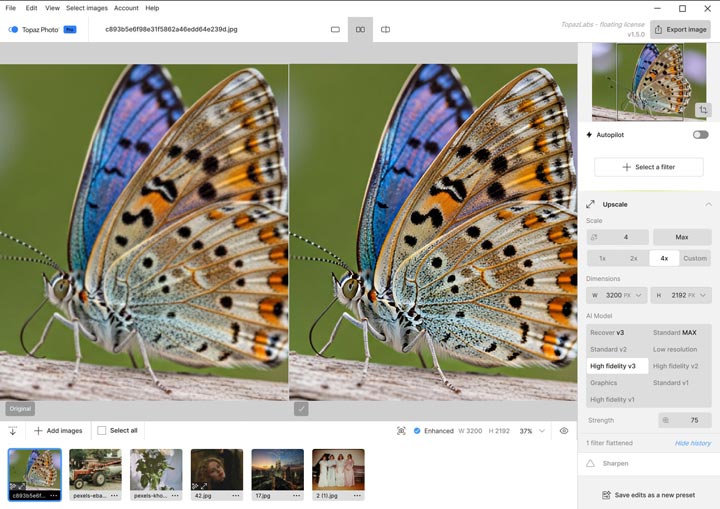
Using High Fidelity v3 + 4x upscale with minimal sharpening, the final result is excellent—sharp, natural, and free of artifacts.
Test 2: Blurry Butterfly (Detail Restoration)
With the same settings, the butterfly image shows clear details in the features, eyes, and antennae. The unblur effect is impressive.
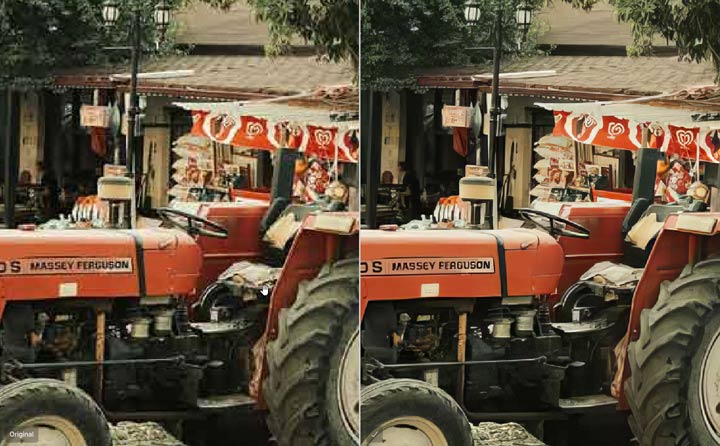
Test 3: Compressed Text & Cropped Image (Reconstruction)
This is the least satisfying result. I tried multiple filters and models, like Recover, Graphics, and Low Quality, but there were still distortions and over-smudging. The letters clearly show the issue. I considered cloud-based models, but rendering times were extremely long, so I gave up.
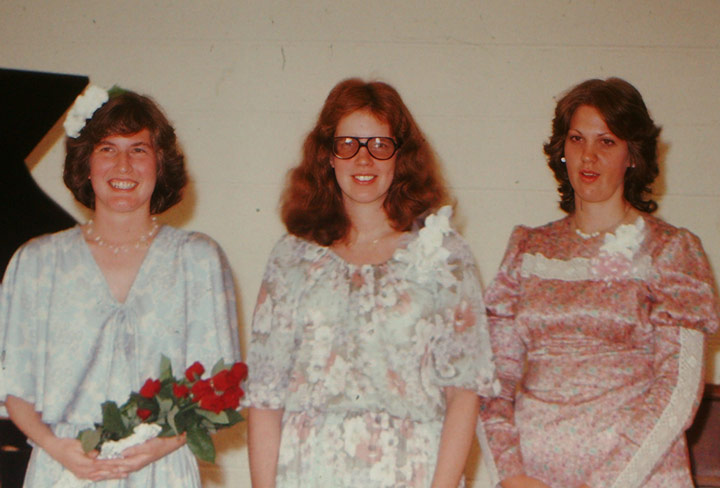
Test 4: Old Group Photo (Face Reconstruction)
Overall acceptable. The enhanced photo is slightly soft, but facial features remain faithful to the original.
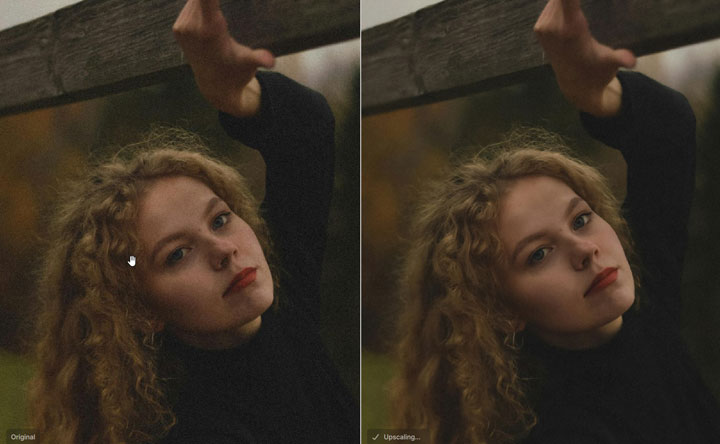
Test 5: Night Portrait (Denoising & Detail)
This is probably the best among all AI photo enhancers tested. The denoising isn't perfectly clean, but it preserves a bit of noise, making the image look natural while retaining nearly all details.
What I Found: What stands out most about Topaz Photo AI is its ability to recover fine details while preserving natural textures. The results feel controlled and professional, even in demanding situations like RAW processing or archival restoration. It’s an excellent choice for commercial work, high-resolution editing, and projects where detail accuracy is critical. That said, its complexity and cost make it less ideal for casual users or quick, everyday photo enhancement.
Pros:
- Specialized models for RAW denoising and archival restoration that others can't match.
- Exceptional at avoiding the "AI-plastic" look by preserving original grain.
- Includes object removal, lighting adjustment, and color balancing in one app.
- Everything happens on your machine, ensuring total privacy.
Cons:
- High Cost: $199/year is a steep investment for casual users.
- Requires a powerful GPU to run efficiently without lagging.
- The sheer number of models and settings can be overwhelming for beginners.
- Installation requires downloading the model and can take over 3 hours at my 3MB/s speed.
4. Upscayl
Best for:Linux fans and anyone looking for a free AI photo upscaler.
- Compatibility: Windows, Mac, Linux (desktop)
- Expert Rating: by superprompt.com
- Unique feature: Support custom photo unscaling and enhancing models
- Pricing: Free (Open Source)
Upscayl is a cross-platform, open-source desktop application that provides high-quality AI photo upscaling without the typical barriers of entry. There are no subscriptions, no credit systems, and no internet connection required for the actual processing. It runs entirely on your local hardware, making it one of the few truly private options in the AI space.
This AI photo enhancer is built around simplicity. You choose from several pre-integrated AI models, such as Real-ESRGAN for general enhancement or specialized models for digital art and sharpen-focused tasks. It doesn't include heavy editing toolkits or generative "hallucination" features; instead, it focuses on the single task of increasing image resolution while maintaining as much clarity as possible. For creators who need to batch-process large folders of images, Upscayl offers an efficient, cost-free workflow that respects your data.
Let's Put This AI Photo Enhancer to the Test
Note: One of the best things about this open source image upscaler is that it's extensible. You can add custom models like 4x_NMKD-Siax_200k or realesr-animevideov3-x2 to better suit specific types of images. For my tests, however, I stuck with the default models. To keep this review fair, I wanted to see what each tool could deliver right out of the box without specialized third-party tweaks.
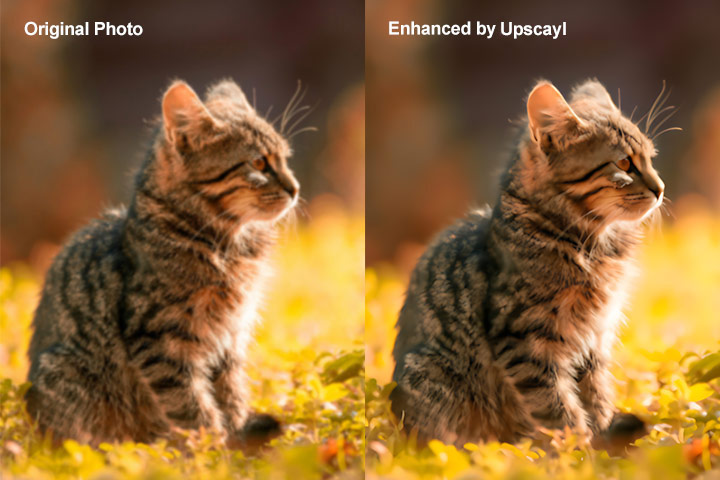
Test 1: Blurry Cat (Clarity & Texture)
The enhancement is very soft, with noticeable smudging throughout the image. I tried multiple models, but none produced satisfactory results.
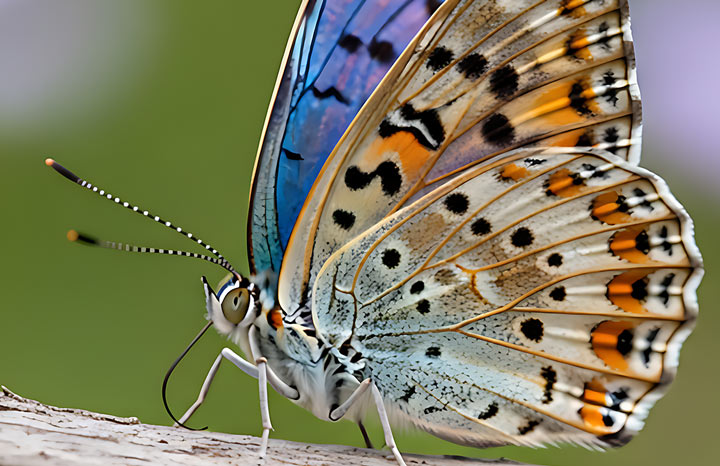
Test 2: Blurry Butterfly (Detail Restoration)
Similar to Test 1, the image remains very soft after enhancement, and details are not effectively restored.
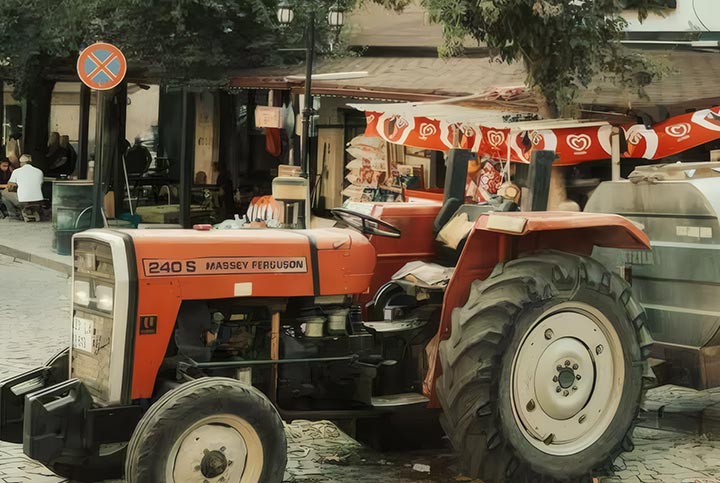
Test 3: Compressed Text & Cropped Image (Reconstruction)
The details are still unclear, and text elements remain incomplete and difficult to read, showing that Upscayl struggles with heavily compressed or detailed images.
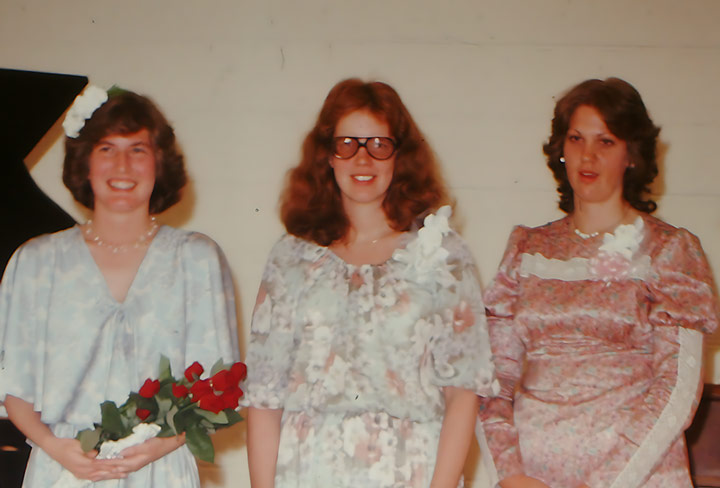
Test 4: Old Group Photo (Face Reconstruction)
The overall enhancement is acceptable and gives the image a natural look, but the result is not particularly sharp, with details remaining somewhat soft.
Test 5: Night Portrait (Denoising & Detail)
The noise is effectively reduced, and the overall image is cleaner. However, facial features appear slightly waxy and over-smoothed, giving the faces an artificial look.
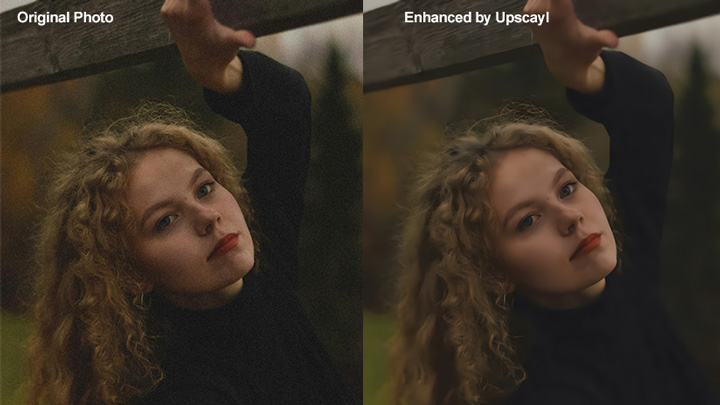
What I Found: If your original photo is heavily noisy, blurry, or pixelated, Upscayl struggles. It often results in "over-smoothing" artifacts, where the AI smudges the details to hide the noise, creating a somewhat artificial look. However, if your original photo is already decent with just a bit small or lacking in resolution, Upscayl is fantastic. It does a good job of increasing the resolution to 4K or 8K while keeping the lines clean and the image sharp. It's a tool for making good photos bigger, not for bringing "pixel-disaster" photos back to life.
Pros:
- Totally Free: No watermarks, hidden credits, or paywalled features.
- All processing happens offline; your photos never leave your hard drive.
- ne of the few AI tools with top-tier performance on Linux distributions.
- Capable of upscaling entire folders of images simultaneously at no cost.
- Support adding extra AI upscaling and enhancing models.
Cons:
- It runs slowly and sometimes freeze out the computer.
- Lacks advanced editing tools like object removal, color correction, or lighting adjustments.
- You are confined to the integrated open-source models with fewer "surgical" controls.
- Bulk enhancing is less flexible: You cannot choose individual files from multiple folders."
5. Fotor
Best for: Quickly enhancing slightly blurry photos or images that don't have obvious quality issues.
- Compatibility: Run all popular browsers.
- Unique Value: A lot of fancy AI features, such as watermark remover and skin retouch.
- Expert Rating: by PCMag
- Price: $8.99/month for limited features; $19.99/month for Fotor Pro with full AI feature access.
Fotor has been a staple in the creative community for over a decade, establishing its reputation as a versatile photo editor long before AI became the industry standard. Today, it has evolved into a powerful one-click solution that is particularly effective for those who want immediate results without manual tweaking. Once you upload a photo, its AI automatically detects various quality issues and applies an instant enhancement to make the image as clear as possible. Beyond this automated fix, you can further polish your photos with specific tools like AI upscaling, face unblurring, and skin retouching. Fotor also offers a suite of creative AI features such as AI Expand, colorization, and an AI headshot generator.
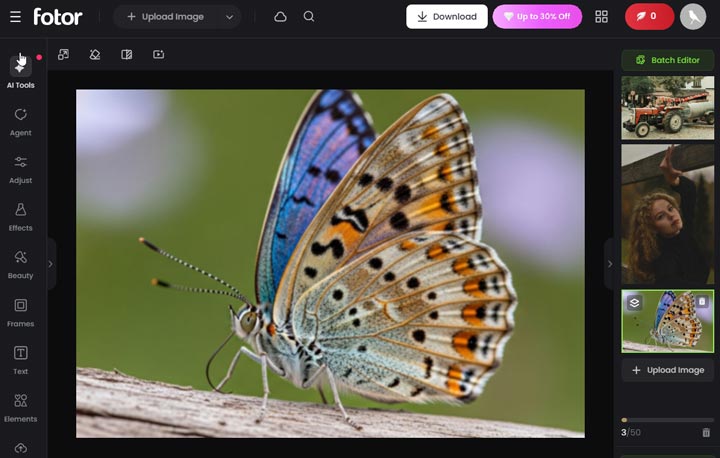
Let's Put This AI Photo Enhancer to the Test
Test 1: Blurry Cat (Clarity & Texture)
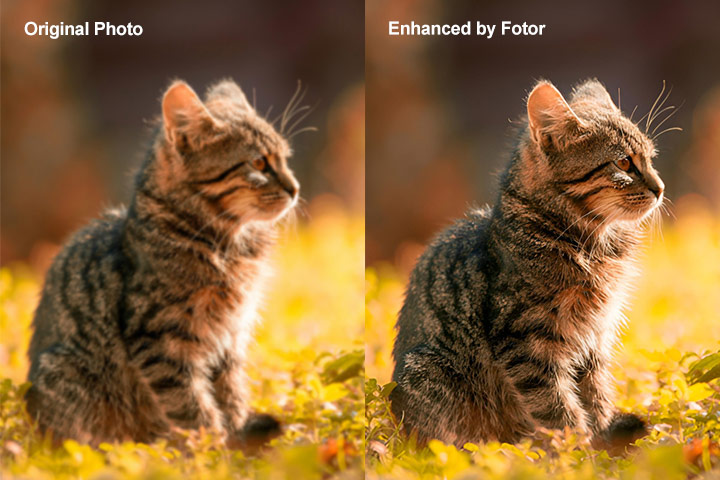
The unblurred result remains slightly soft and only shows a marginal improvement in clarity compared to the original image.
Test 2: Blurry Butterfly (Detail Restoration)
The enhanced image is somewhat clearer than the original, but it still lacks sharpness and fine detail.
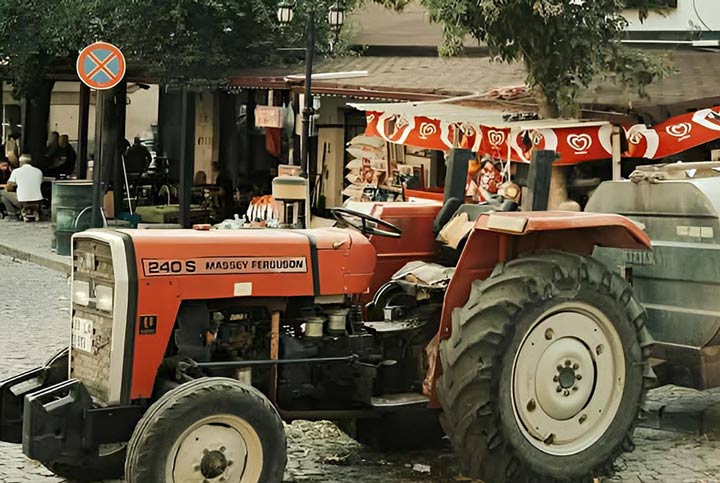
Test 3: Compressed Text & Cropped Image (Reconstruction)
Heavily compressed images with text are challenging for most AI enhancers, and Fotor does not improve the quality effectively. The enhanced result shows significant smudging, and the text remains unclear.
Test 4: Old Group Photo (Face Reconstruction)
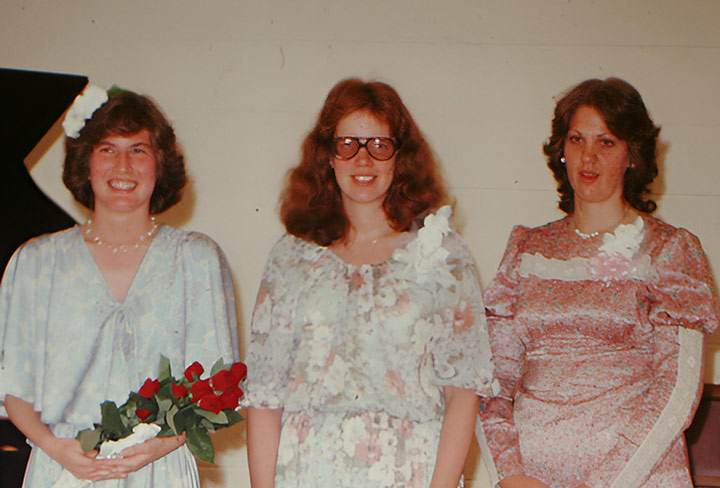
The overall enhancement is decent, giving the photo a natural look, but one person on the far right ends up with some unintended spots on their face.
Test 5: Night Portrait (Denoising & Detail)
The details are fairly preserved, but the noise remains very noticeable, so the denoising effect is limited.
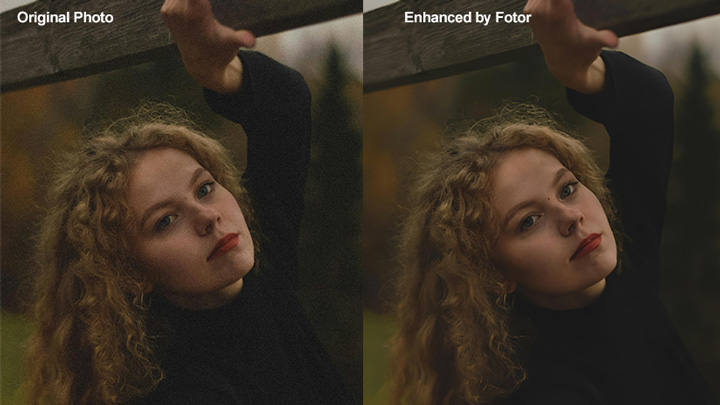
What I Found: In my testing, I found the quality improvement to be generally natural and clear for most photos, with a good level of detail preservation. However, its results don't always stand up to intense scrutiny. For example, when zooming in on some denoised photos, I still noticed some artifacts, and when handling heavily compressed images, the AI sometimes over-softens the result, which can ruin the clarity of any embedded text.
Pros:
- Extremely user-friendly one-click workflow.
- Wide variety of creative AI features beyond simple enhancement.
- Convenient online platform; no heavy installation required.
Cons:
- Often failed to clear away bluriness, noises, and other noticeable artifacts.
- Can occasionally introduce artifacts or over-soften textures.
- Dependent on an internet connection for processing.
6. Remini
Best for: Instant facial restoration, mobile-first users, and "bringing life back" to old, blurry portraits.
- Compatibility: iOS, Android, Web.
- Expert Rating: 4.4/5 by Fahimai
- Pricing: Subscription-based; usually requires a weekly or monthly commitment (starts around $4.99 - $9.99/week depending on the plan).
Remini is a widely used AI photo and video enhancer available on iPhone, Android, and web, with over 500 million downloads on Google Play. Its popularity largely comes from its ability to dramatically transform heavily blurred or low-quality face photos into sharp, high-definition portraits.
It uses AI-driven reconstruction to infer missing facial details such as eyes, teeth, and skin texture, effectively rebuilding parts of the image when the original information is limited. This makes it especially appealing for casual mobile users who want quick results directly on their phones. However, this approach also creates a recognizable output style often referred to as the “Remini look.” While faces become clearer and more detailed, the result can sometimes feel overly smoothed or slightly artificial, occasionally even changing the identity in subtle ways.
Let's Put This AI Photo Enhancer to the Test
Test 1: Blurry Cat (Clarity & Texture)
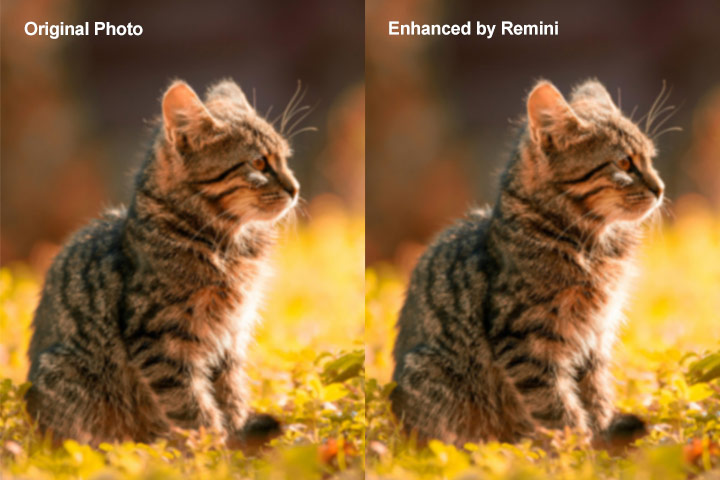
The performance is average, as the image remains blurry and lacks significant improvement in detail.
Test 2: Blurry Butterfly (Detail Restoration)
The image clarity and fine details remain soft. Most of the changes are in color.
Test 3: Compressed Text & Cropped Image (Reconstruction)
The results are similar to Test 2, with minimal improvement in detail and clarity, making text and small features still difficult to read.
Test 4: Old Group Photo (Face Reconstruction)
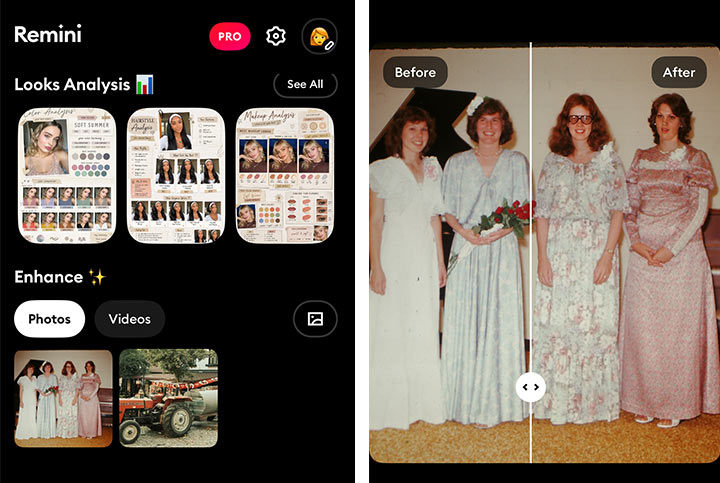
The results are mixed. Facial features become clearer, and the overall enhancement looks natural, but for users seeking high fidelity to the original image, some faces appear slightly over-enhanced or unnaturally beautified.
Test 5: Night Portrait (Denoising & Detail)
The effect depends on personal preference. The noise is removed, but the overall image is noticeably brightened, which may alter the original atmosphere.
What I Found:This mobile based AI photo enhancer is a "miracle worker" for faces If you have an old family photo where the face is just a smudge, Remini will give you a usable image when nothing else can. However, for professional photography or work where you need to maintain 100% of the original character and texture, it might be too aggressive. It's the ultimate "Social Media Enhancer", but use it with caution if you want to keep the "soul" of the original photograph intact.
Pros:
- Ntural face Can save portraits that other tools would leave blurry.
- Mobile Convenience: The app is extremely fast and easy to use for on-the-go edits.
- Video Enhancement: Also offers a surprisingly capable AI video enhancer within the mobile app.
Cons:
- The "Uncanny Valley" Effect: Can over-process faces, making them look "plastic" or synthetic.
- Loss of Originality: Sometimes "invents" details (like eye shape or skin texture) that weren't there, changing the person's actual likeness.
- Subscription Model: Known for a fairly aggressive weekly subscription structure that can be expensive long-term.
- Privacy: Being a cloud-based app, you must upload your photos to their servers.
Which AI Photo Enhancer Should You Use
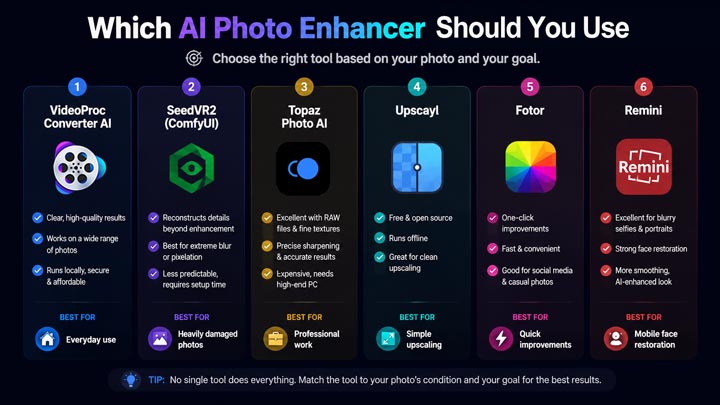
In my expeience, I don't think there's a single tool that covers everything. Choosing the right tool really depends on the condition of your original photo and what you're trying to achieve. After months of testing, here's how I personally end up using them.
1. For everyday use, VideoProc Converter AI is an excellent choice. It delivers clear, high-quality results on a wide range of photos and runs locally, making it a secure option for private images, all at an affordable price
2. For heavily damaged images with extreme blur or pixelation, SeedVR2 has been the most capable tool I've tried. It can reconstruct detail in a way that goes beyond simple enhancement, which makes it useful when other tools fail completely. The trade-off is that it's less predictable, and using it through ComfyUI can take some setup time.
3. For professional work where accuracy is crucial, Topaz Photo AI is one of the most reliable tools. It excels with RAW files, fine textures, and precise sharpening. However, it is expensive and requires a high-end computer to run smoothly.
4. For simple upscaling, Upscayl is still an easy recommendation. It's free, runs offline, and works well when the original image is already in decent shape. It won't fix heavily damaged photos, but it does a solid job for clean enlargements.
5. For quick, one-click improvements, Fotor is convenient. It's more about speed and convenience than precision, and it works well for social media-type images where you just want something cleaner and more presentable.
6. For mobile face restoration, Remini is still one of the most popular options. It's very effective at turning blurry selfies into sharp portraits, but the result often has a very recognizable “AI-enhanced” look, with stronger smoothing and more aggressive facial reconstruction than other tools.
Why Some AI Photo Enhancer That Didn't Make the Cut
I also tested several general-purpose design and editing platforms, including Canva Magic Media and Picsart. These tools are widely used for social media content creation, quick edits, and graphic design tasks, and they perform well in those areas due to their speed and ease of use.
However, when it comes to high-fidelity image enhancement, these limitations become more noticeable. In my tests, these platforms tend to prioritize overall visual improvement rather than precise reconstruction of heavily degraded details. In low-quality or heavily compressed images, this often results in smoothing effects that make the image appear cleaner, but also reduce fine textures and original structural detail. As a result, the output can look visually polished, but less accurate to the source image. This is especially evident in more challenging cases with complex textures or strong compression, where subtle artifacts may appear around edges or detailed regions due to aggressive enhancement.
Because of this, while these AI photo enhancers are excellent for design workflows and quick content creation, they were not included in my final list focused specifically on AI-driven image restoration quality.
The Ethics of AI Photo Enhancement: How Much Is Too Much
As AI photo enhancement tools become more capable, the line between improving an image and changing it is becoming less clear. Most AI photo enhancers are designed to improve image quality by reducing noise, increasing sharpness, or enhancing overall clarity. At this point, the distinction becomes less about visual quality alone, and more about how much of the original image is still being preserved. When AI photo enhancement becomes more aggressive, the output can shift from refining existing information to rebuilding parts of the image, which may still look convincing but is not always fully faithful to the source.
There is no fixed rule for how much enhancement is "too much", as the answer largely depends on context. A personal photo may prioritize emotional value, while professional or archival use often requires stricter fidelity to the original image. In the end, it often comes down to a simple question before exporting: does this still feel like what was actually there?
The Hidden Cost of Online AI Photo Enhancer: Why I Favor Local Enhancing
Most users rarely read the fine print, but in many AI photo enhancer tools, convenience often comes with a trade-off: data privacy. Some cloud-based photo enhancers process images on remote servers, which can raise concerns for users handling sensitive personal photos or client work.
This is why, although I still include some cloud-based AI photo enhancers in this list, I personally prefer local processing tools such as Topaz Photo AI, VideoProc Converter AI, and Upscayl. These tools process images directly on your device, which helps improve privacy since files do not need to be uploaded to external servers.



