Different Ways to Use Al Vocal Remover

Whether you're producing music, editing videos, creating content, or restoring old audio, this feature lets you separate vocals and instrumentals with precision, opening up new possibilities for how you work with sound. The stage is yours — take the lead and create without limits.

  • User comment:

    Couldn't find a backing track for my student's performance tomorrow, and this actually solved the problem — lifesaver!

    2025-08-21 by Jerry
  • User comment:

    I needed to strip the vocals from a couple of hit songs so I could record my own vocals and add some guitar, without having to redo the whole rhythm section from scratch. This tool made it super easy!

    2025-08-12 by Paul
  • User comment:

    Thanks a ton! I spent all day yesterday testing online vocal removers and they were terrible—you could still hear the vocals and adlibs bleeding through. This one actually works perfectly.

    2025-08-20 by Wilson
  • User comment:

    Man, this would be sick for games—imagine swapping out the voice lines or soundtrack and making the whole thing feel fresh again.

    2025-08-18 by Hubert
  • User comment:

    Honestly, tools like this are perfect for creators and filmmakers who wanna make their own custom remixed soundtracks.

    2025-08-29 by Bobby
  • Karaoke

  • Instrument Recordings

  • Content Creation

  • Gaming

  • Remixing

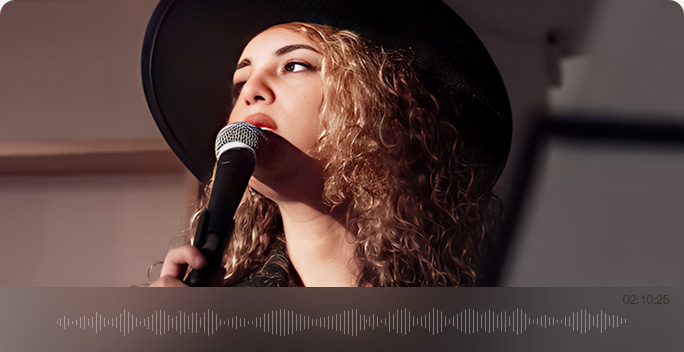
  • Create Karaoke Tracks

    For: Singers, karaoke enthusiasts, school rehearsals

    Easily remove vocals from any song in seconds to create your own karaoke or accompaniment version. Sing along to high-quality backing tracks without relying on hard-to-find official instrumentals — simply load your file, separate the tracks, and start performing.

  • Clean Up Instrument Recordings

    For: Musicians, music learners, bands

    When practicing or performing, unexpected chatter or background voices can ruin an otherwise perfect take. Use AI Vocal Remover to strip away unwanted speech, leaving only the pure instrument sound — ready to upload to music platforms, share on social media, or submit for competitions.

  • Produce Background Music for Content Creation

    For: Content creators, vloggers, podcasters

    Clear vocals from songs to craft clean background music for intros, outros, BGM loops, and scene transitions. This saves time compared to searching for instrumental versions online. For even cleaner results, pair it with VideoProc's Noise Suppression to remove background noise before publishing.

  • Customize Audio for Gaming and Dubbing

    For: Game developers, voice actors, video editors

    Separate vocals from music in game soundtracks or cinematic clips to replace them with new voiceovers or adapt the audio to match different scenes, languages, or storylines. Maintain immersive sound while giving projects a fresh voice.

  • Isolate Vocals for Remixing and Sampling

    For: Musicians, DJs, producers, filmmakers

    AI vocal separation helps extract acapella tracks for remixes, voiceovers, mashups, sampling, or vocal analysis, preserving subtle details like breath and vibrato. Also for restoration, transcription, or archiving when old recordings are mixed with background music or ambient noise.

Why Choose VideoProc for Vocal Separation

You Can Do More Before or After Vocal Isolation Using VideoProc

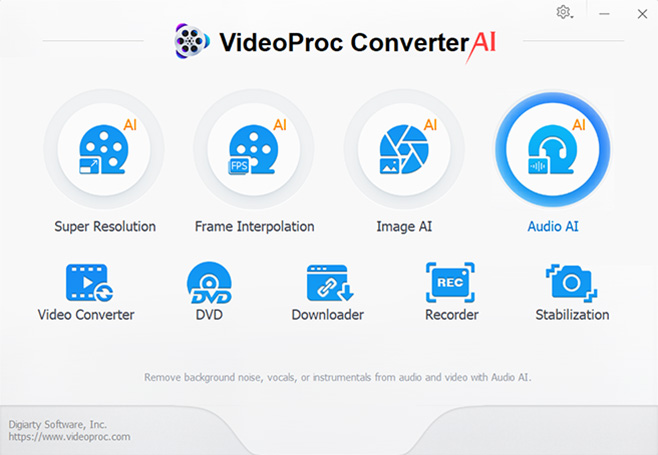
VideoProc Converter AI is an all-in-one multimedia toolkit for audio, video, DVDs, and images. Equipped with multiple AI models, it can enhance, upscale, restore, convert, compress, edit, download, and record with ease.

  • # Downloader

    Download Video or Music from Online Sites

    VideoProc's Downloader allows you to download songs, music files, videos from 1000+ popular websites, saving as MP3, FLAC, M4A, MP4, WebM, and so on for offline use.

    Disclaimer: Downloading music and videos online may be subject to copyright laws. Always check the source and obtain permission if you plan to use them commercially.

  • # Noise Remover

    Remove Background Noise with Noise Suppression

    Go beyond vocal separation with the integrated AI Noise Suppression feature to remove hiss, wind, hum, and other unwanted background noise. Adjust volume levels, preview changes in real time (15 seconds), and fine-tune your output for crystal-clear results.

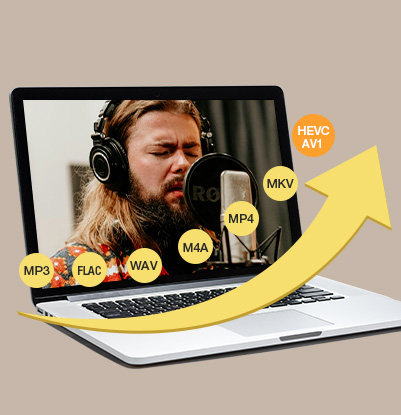
  • # Video/Audio Converter

    Convert Audio and Video Formats

    The built-in Video Converter can convert 370+ video and audio formats and codecs. You can extract audio from video, or change one audio/video format to another. Make your media files friendly to any devices, apps, and platforms.

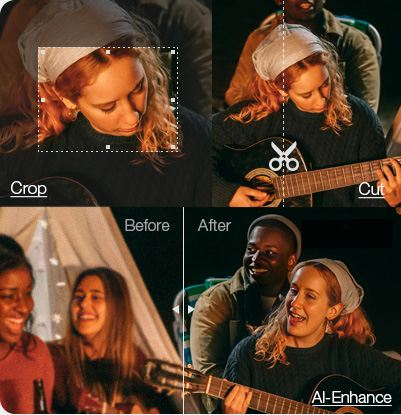
  • # Video Editor

    Edit & AI Enhance Videos

    The 29 quick-edit tools in the toolbox help you edit before or after you remove vocals from videos. You can cut, split, crop, merge, add a watermark, apply effects, change speed, add subtitles, and so on. Better still, you can upscale, enhance, stabilize, and smooth videos using advanced AI features.

Step-by-Step Guide of Vocal Isolation & Removal

VideoProc Removes Background Noise - Step 1 VideoProc Removes Background Noise - Step 2 VideoProc Removes Background Noise - Step 3
  • Step 1. Add Audio/Video Files

    In Audio AI of VideoProc, click "Add Media" or drag and drop to add your source music or videos.

  • Step 2. Enable Vocal Remover

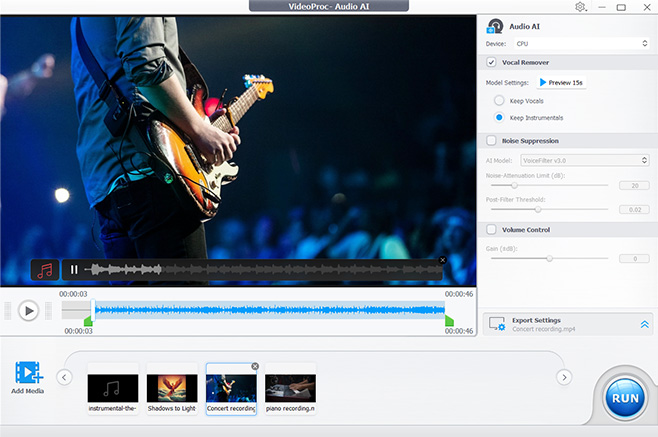
    Tick Vocal Remover, and choose "Keep Vocals" or "Keep Instrumentals". Then click "Preview 15s" to start model loading and interfering.

  • Step 3. Start Exporting

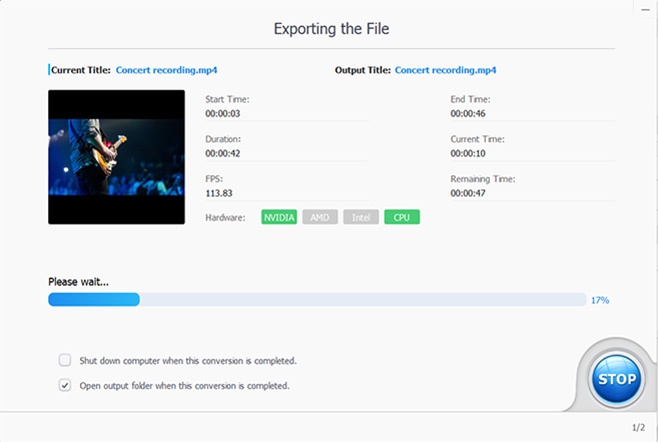
    You can listen to the preview of the isolated track, cut the clip, or enable Noise Suppression. After export settings, hit RUN to start outputting the files.

Related Articles

Explore our in-depth guides on vocal isolation, audio processing, and other sound-enhancement techniques. Discover tips, tutorials, and insights to help you get the best results from your audio projects.

FAQs

1. How to Choose the Best Vocal Remover?

A good vocal remover should cleanly separate vocals from instrumentals without leaving artifacts. VideoProc Converter AI’s Vocal Remover uses AI to do this automatically, making it simple to use even for beginners. When choosing a tool, consider audio quality, supported file formats, processing speed, and extra features like keeping instrumentals or exporting stems. User reviews and demos can also help you decide which tool fits your needs.

2. What are the system and hardware requirements to use VideoProc Converter AI's Vocal Remover?

VideoProc Converter AI's Vocal Remover is lightweight and easy to run.

  • • Operating System: Windows 7 or later, macOS 10.13 or later
  • • CPU/GPU: Any modern CPU is sufficient; no high-end GPU needed
3. Is It Legal to Extract Vocals or Instruments from a Song on YouTube or Other Websites?

Generally, downloading or extracting music from YouTube or other platforms without permission may violate copyright laws, even if you only use the instrumentals. Always make sure to check the song’s licensing if you plan to use it commercially or share it publicly.

Digiarty Software, established in 2006, pioneers multimedia innovation with AI-powered and GPU-accelerated solutions. With the mission to "Art Up Your Digital Life", Digiarty provides AI video/image enhancement, editing, conversion, and more solutions. VideoProc under Digiarty has attracted 4.6 million users from 180+ countries.

Any third-party product names and trademarks used on this website, including but not limited to Apple, are property of their respective owners.