
 VideoProc Converter AI
 New AI features are available



 Listed in
 If you're searching for UniFab AI, UniFab Video Enhancer, or UniFab Video Upscaler, you're in the right place. Despite the confusing naming, these all refer to tools within the same UniFab suite. Formerly known as DVDFab Video Enhancer AI, UniFab AI uses artificial intelligence to improve video quality, enhancing standard-definition or slightly soft HD footage to bring it closer to the sharp, polished visuals you’d expect from modern streaming platforms.
With pricing set at $84.99 for a lifetime Video Upscaler AI license, $179.99 for Video Enhancer Pro (which includes the Upscaler, Denoiser, and Converter), or $319.99 for the full UniFab All‑in‑One suite, the key question is whether UniFab truly delivers on its promises and justifies the cost.
In this review, we'll take a closer look at the technology behind UniFab Video Enhancer, break down its video enhancement features, outline system requirements, explain the available plans, and, most importantly, share our real-world performance findings.
Key Takeaways
Too busy to read the full review? Here is the TL;DR on DVDFab's UniFab AI:
- Hit-or-Miss Quality: Some AI features work well, but the core video upscaling often falls short.
- Confusing Pricing: Product names and purchase model are unclear and can be misleading.
- High Cost: Expensive software with questionable value for the price.
- Slow & Demanding: : Processing is very slow, and it seems like you really need a high-end rig to get a smooth experience. My tests confirm that it struggles on anything less than a powerful, modern PC.
- A Better Alternative: Look into faster, more affordable alternatives like VideoProc Converter AI, which delivers better video clarity than UniFab and includes more features like image enhancement and a video downloader.
DVDFab, UniFab AI, Video Enhancer/Upscaler? Clearing Up the Confusion
Before we dive into performance, there's an important point we need to clear up: DVDFab's product naming can be a bit confusing. You'll come across terms like "UniFab Video Enhancer," "UniFab Video Upscaler," and the older "DVDFab Video Enhancer AI." Let's break it down:
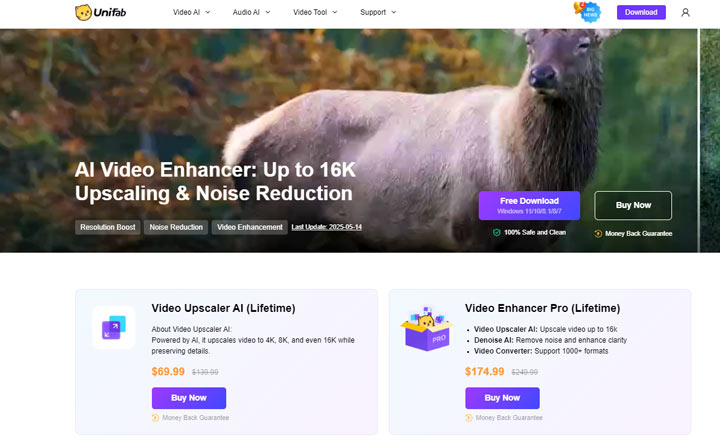
- DVDFab Video Enhancer AI (formerly known as DVDFab Video Enlarger AI) was discontinued in October 2023. You won't see updates for that anymore because its features have now been integrated into the UniFab suite.
- UniFab is a comprehensive media enhancement suite that offers multiple tools, including the Upscaler, HDR Upconverter, and Smoother. These features can either be purchased separately or bundled together in the suite.
- UniFab Video Upscaler is one of the key components within the suite. It focuses specifically on improving video resolution (for example, upscaling lower-quality videos to higher resolutions).
Where things become tricky, and arguably a real drawback, is the naming. Someone searching for "UniFab Video Enhancer" would reasonably expect a full-featured video enhancement tool. However, the product officially sold as "UniFab Video Enhancer Pro (Lifetime)" only includes the Upscaler, Denoiser, and Video Converter. Other enhancement features are excluded unless they are purchased separately or accessed through a larger bundle.
Because of this gap between expectations and reality, this Unifab Video Enhancer review will not focus solely on the Upscaler, Denoiser, and Converter. We will also examine additional enhancement features within the UniFab ecosystem, such as HDR conversion and Face Enhance, to provide a more complete and realistic picture of what UniFab can and cannot do.
Key Features of DVDFab Unifab Video Enhancer AI
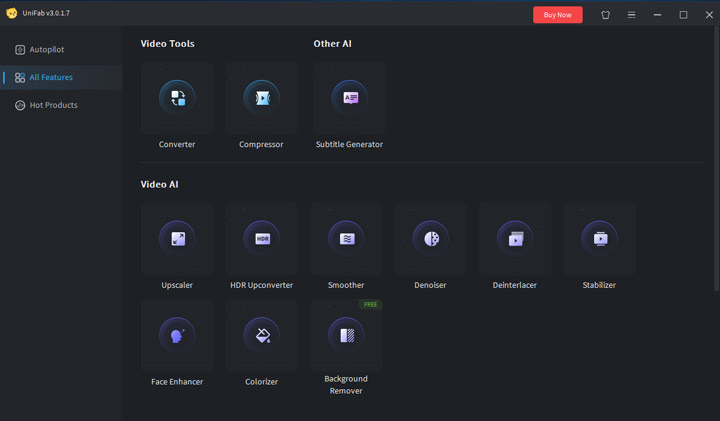
- Video Upscaling: Upscale videos to 720P, 1080P, 4K, 8K, 16K.
- SDR to HDR Conversion: Transform SDR videos into HDR 10 or Dolby Vision formats.
- Smoother: Increase the footage frame rates from 24fps/30fps/60fps to up to 120 fps.
- Denoiser: Automatically remove noises and graininess from your footage
- Face Enhancer: Make the blurred face in the footage look clearer.
- Colorizer: Add natural colors to the faded or black and white videos.
- Stabilizing: Automatically removes shake for iphone and GoPro footage
Update: Starting with UniFab 4, DVDFab added FabCloud, so you can offload AI-heavy tasks like upscaling and colorizing to their servers. It also handles things like HDR conversion and auto-subtitle generation. This is great because it saves your own hardware from the heavy lifting, though you do have to pay for cloud credits separately.
How UniFab Actually Performs: Hands-on Results
Now that we've cleared up the confusing naming situation, let's get into the actual tools UniFab offers and how they performed in our testing.
1. UniFab Video Upscale AI
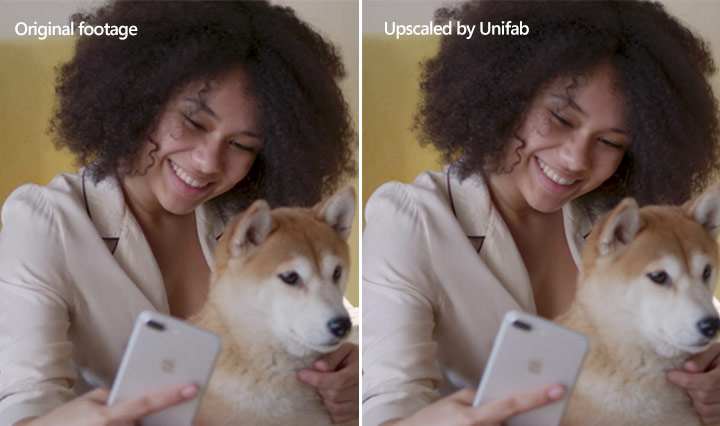
The software offers a massive range of options, going from 1x all the way up to a frankly ambitious 16K. We decided to keep things practical and tested its ability to upscale standard footage to 4K.
The result: It was a letdown. While the resolution did technically increase, the picture didn't get any sharper or more detailed. It just looked like a bigger version of the original, blurry image—hardly the “AI enhancement” we were expecting.
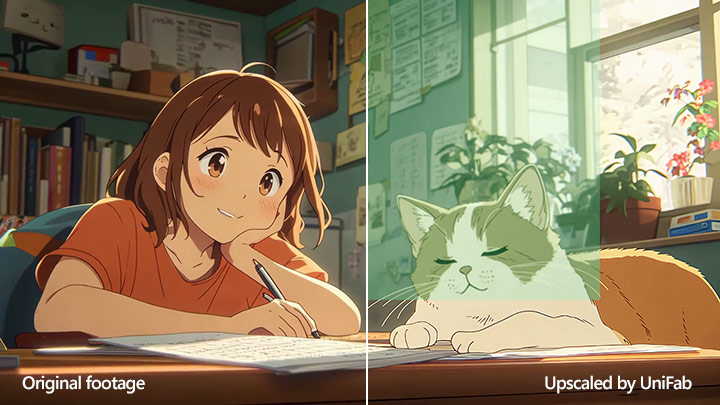
2. UniFab Video Upscale AI for Anime
The Upscaler also boasts a specialized mode specifically trained for anime footage. Unfortunately, this mode proved completely unusable in our testing. The software consistently struggled to even read the original anime clips, throwing up a persistent green screen during processing.
The result: We tried pushing it through anyway, and the output was corrupted - large portions of the footage were simply overlaid with that same green screen. This points to a serious, show-stopping bug specifically affecting the anime mode.
3. Uniface Face Enhancer
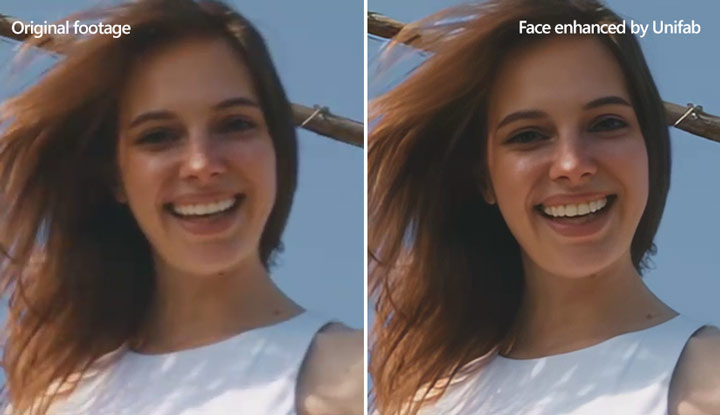
Its purpose, according to UniFab, is to address things like blurry faces, enhance skin texture, and restore facial details in your video footage. To put this to the test, we specifically used a clip where a female face appeared blurry.
The result: It made noticeable improvements to facial features, and crucially, the effect looked natural rather than artificial or weirdly smooth.
4. Denoise
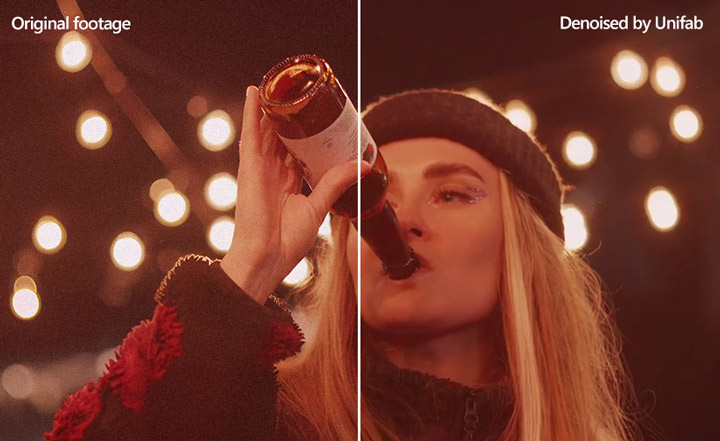
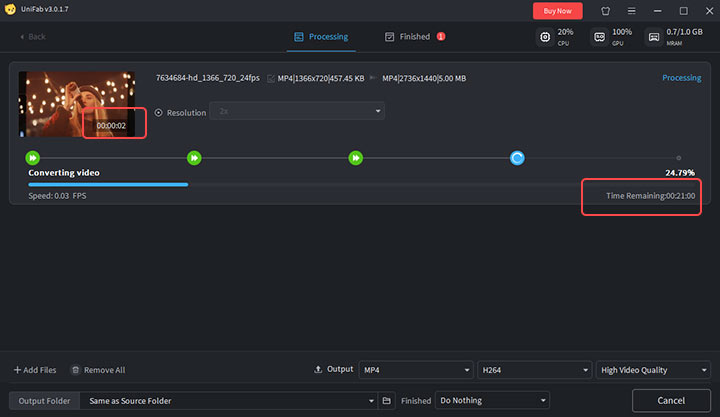
UniFab gives us the option to upscale videos while denoising. We initially tried the 4K upscale option here, but it just threw a failure error every time. Dropping down to a 2x upscale finally allowed the process to start. But the processing speed was unbelievably slow. A tiny two-second test clip showed an estimated completion time of around 20 minutes! And during that time, my computer became incredibly choppy - trying to do anything else simultaneously was pretty much impossible.
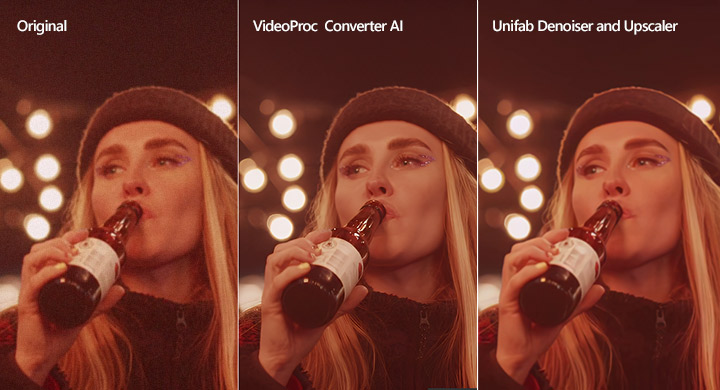
The result: Putting the painful performance aside, the quality of the denoise and enhancement at 2x was genuinely good. It did an excellent job of cleaning up the noise in the footage. Sadly, the denoised footage still suffered from a lack of clarity and had a slightly blurry appearance. Fine details, particularly in the hat and hair, weren't rendered sharply.
5. UniFab HDR Upconverter AI
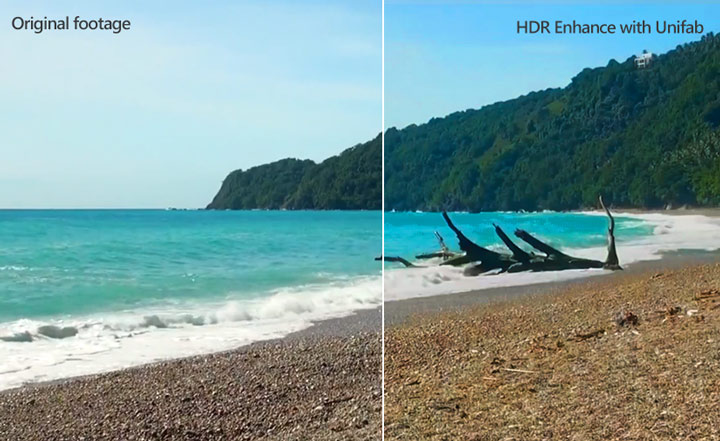
This tool is designed specifically for converting Standard Dynamic Range (SDR) video into High Dynamic Range (HDR), supporting both HDR10 and Dolby Vision formats. You get a choice of color spaces, including HDR DCI-P3 and HDR Rec.2020. It offers different processing modes, from a 'Fast Model' for quicker results to higher-quality options like a '4KHD model'. A crucial point, though: these higher-quality modes are seriously demanding and definitely not something your average computer will handle well.
The result: Despite the hardware demands, the HDR conversion itself yielded positive results. It genuinely made the video colors look more vivid, and overall, I was satisfied with that specific outcome.
6. Autopilot
UniFab includes an 'Autopilot' - the idea being it analyzes your video and automatically suggests the best enhancements. We fed it a low-resolution SDR clip. It correctly identified the source and recommended converting to HDR, upscaling to 1080p, and changing the codec to HEVC. This suggests it's primarily looking at basic metadata. What it completely failed to pick up on, though, was that the video was noticeably grainy and desperately needed denoising. It didn't recommend any noise reduction, which highlights a pretty significant blind spot in its automatic analysis.
Pros and Cons of UniFab
Pros
- It genuinely improved facial details in test footage, and the results looked natural without overly smoothed appearance.
- It effectively cleans up noisy footage without introducing distracting artifacts.
- UniFab supports a wide range of video and audio formats. This ensures you can bring in and process footage from various sources without compatibility headaches.
- The SDR to HDR conversion feature stands out as a strong point. It's a valuable capability to have, and in my testing, it successfully made videos look more vivid and dynamic, adding a noticeable visual punch.
Cons
- Downloading and setting up the necessary runtime environment added over 10 min to the initial installation process.
- Processing speed is consistently low across many features.
- The upscale feature may fail to bring noticeable increase in clarity or detail.
- Applying more than one enhancement task simultaneously is difficult.
- It's difficult for users to figure out exactly which product or bundle they actually need.
- It's not for the faint of heart when it comes to hardware.
- You'll frequently encounter pop-ups promoting other DVDFab products.
System Requirements
Before you even consider purchasing UniFab, it's absolutely essential to look at the system requirements. As noted earlier in the cons, this software is quite demanding, particularly if you want to use its more advanced features effectively.
| Requirement | Recommended Specification |
|---|---|
Operating System |
Windows 11/10 (64-bit only) or macOS |
System Memory (RAM) |
16GB or more |
Graphics Card (GPU) |
Nvidia RTX 30 series or higher (with 8GB VRAM) |
CPU |
Intel i7 8th generation or AMD Ryzen 3000 series or higher |
Putting it simply, UniFab isn't designed for entry-level or even mid-range machines from a few years ago. To get the most out of its features, you need a fairly robust, modern PC or Mac, especially one with a strong, recent Nvidia graphics card.
Unifab Pricing
Navigating UniFab's pricing structure is, frankly, quite confusing, and it's a significant point of friction for potential users. You essentially have two main ways to purchase access, but the way the software is delivered complicates things.
First, you can purchase individual features as standalone tools. Here's a look at some of those prices and terms:
- UniFab Video Upscaler AI: $69.99 (Lifetime)
- UniFab HDR Upconverter AI: $109.99 (Yearly)
- Smoother AI: $99.99 (Yearly)
- UniFab Denoise AI: $99.99 (Yearly)
- UniFab Video Stabilizer AI: $99.99 (Yearly)
- Video Colorizer AI: $99.99 (Yearly)
- Face Enhancer AI: $99.99 (Yearly)
- Video Converter: $59.99 (Lifetime)
Alternatively, you can opt for the UniFab All-In-One package, which bundles all features for a single price: $279.99 for a lifetime license.
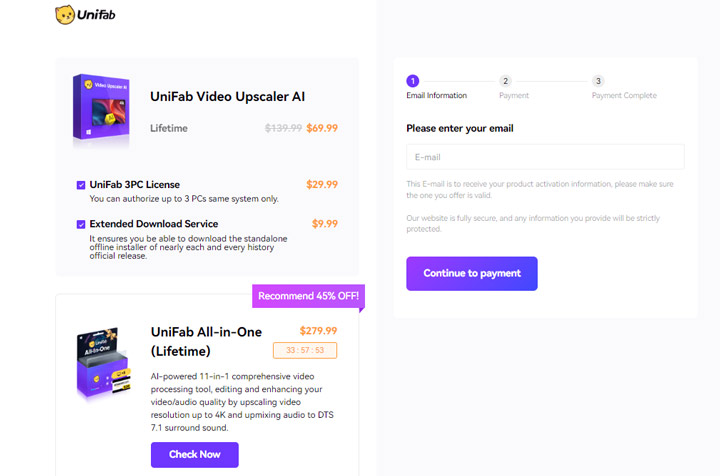
Now, here's where the confusion and frustration really set in: Regardless of whether you purchase a single standalone feature or the full All-In-One UniFab bundle, the software you download and install is always the complete UniFab All-In-One suite. This means you install a large application packed with features you haven't paid for, and the software essentially acts as a gatekeeper, requiring separate payment to unlock each individual module. It feels less like buying a specific tool and more like getting a demo suite where you have to pay per feature to activate them.
This approach also makes the Autopilot feature feel less like a helpful assistant and more like a persistent upsell tool. It analyzes your video and suggests all the tools it thinks are needed - including ones you haven't purchased - constantly prompting you to buy additional licenses. It's not a user-friendly experience when you've only paid for one or two specific functions.
How to Use Unifab Video Enhancer
So, you've got UniFab Video Enhancer installed and you're ready to enhance some video. Here's a breakdown of the typical workflow:
Step 1. Open UniFab and select the specific tool you need from the main interface - Upscaler for resolution, Denoise for grain, and so on, depending on your task.
Step 2. Based on your chosen function, you'll see various options. Configure settings like target resolution, select AI models, or adjust parameters (e.g., denoising strength) here.
Step 3. Drag and drop the source file into the UniFab window. You can use the AI preview (the small eye icon) to see a short sample before committing.
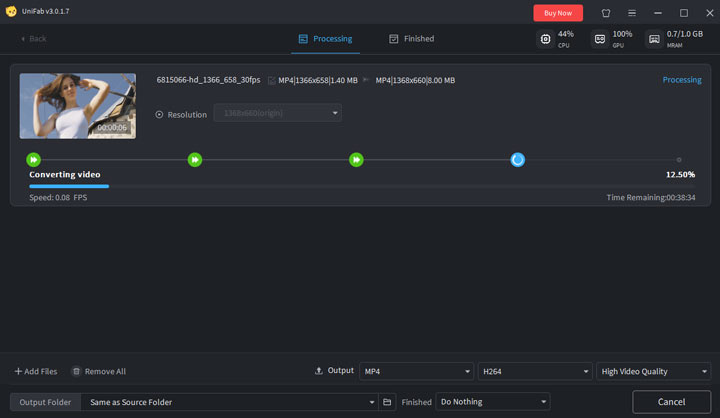
Crucially, be aware: the preview is only 3 seconds. And the very first time you use a specific AI model, you'll face a setup process that can take around 20 minutes (depending on internet speed) before you even get that brief preview.
Step 4. Select your final output quality and hit start. UniFab Video Enhancer AI begins the full enhancement. Fair warning: this process can be very long - potentially hours - depending on video length, settings, and your hardware. As mentioned earlier, it's resource-intensive; don't expect to do other demanding tasks simultaneously.
Try the Best Unifab Video Enhancer AI Alternative
Based on my testing, UniFab, often falls short due to its slow processing, demanding hardware requirements, and results that frequently lack noticeable quality improvement. If you're looking for more impressive enhancement outcomes, significantly faster performance, and a much more straightforward, affordable pricing model, we strongly recommend using VideoProc Converter AI.
To give you a clearer picture of just how much better VideoProc Converter AI stacks up against UniFab, in terms of features, system demands, and picture enhancement capabilities, let's look at a side-by-side comparison.
Feature Set and Value: UniFab Video Enhancer AI vs VideoProc Converter AI
| Feature | UniFab Video Enhancer | VideoProc Converter AI |
|---|---|---|
Price |
$279.99 /lifetime (for All-in-One) |
👍 $54.95 /lifetime; $34.95/year |
Video AI |
Upscale, Enhance, Denoise; Frame Interpolation, Stabilization, HDR Convert, Colorize |
Upscale, Enhance, Denoise; Stabilization, 4 Advanced AI Models |
Image AI |
|
|
Video Converter |
|
|
Video Downloader |
|
|
DVD Ripping |
|
|
Screen Recorder |
|
|
Bulk Processing |
Supported |
👍 Process hundreds of files at high speed |
 Not supported
 Upscale, enhance
System Requirements: UniFab vs VideoProc
| Requirement | UniFab | VideoProc Converter AI |
|---|---|---|
Operating System |
Windows 11/10 |
Windows 11/10 and macOS |
System Memory (RAM) |
16GB or more |
2GB Minimum (More recommended for performance) |
Graphics Card (GPU) |
Nvidia RTX 30 series or higher (with 8GB VRAM) |
All recent GPUs (see the detailed requirements on GPU) |
CPU |
Intel i7 8th generation or AMD Ryzen 3000 series or higher |
1 GHz Intel or AMD processor |
As the table illustrates, UniFab demands a powerful, modern machine, particularly emphasizing high RAM and a recent, high-end Nvidia GPU for its recommended setup.
VideoProc Converter AI, however, while it certainly benefits from powerful hardware, its minimum requirements are significantly lower. This means that even a mid-range computer can still comfortably handle upscaling and enhancing videos using the software.
Output Quality: UniFab vs VideoProc
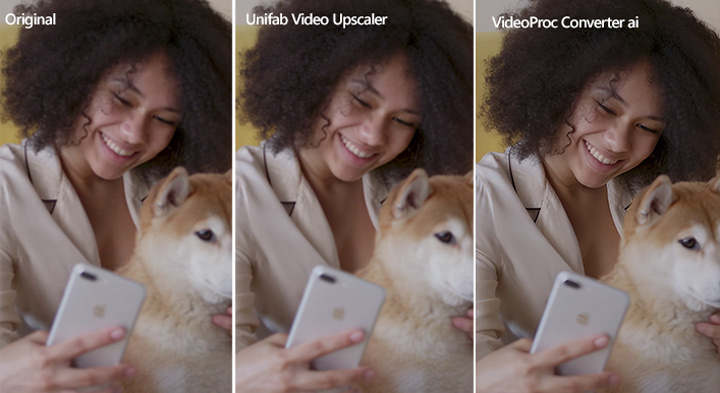
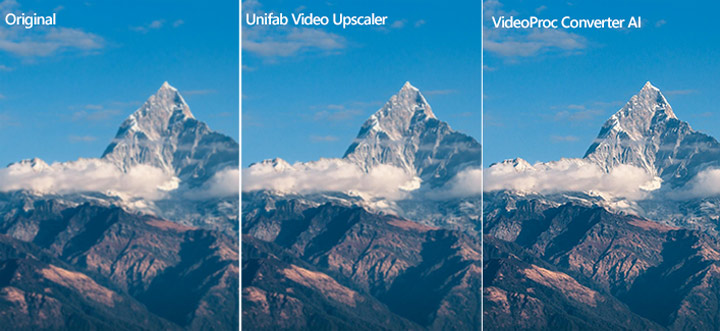
Let's take a side-by-side look at how VideoProc Converter AI and UniFab Video Enhancer perform in various enhancement scenarios.
Test 1: Denoise Comparison
Test 2: Upscale Comparison
Test 3: Landscape Upscale Comparison

In conclusion, while UniFab offers a suite of AI tools, its performance, confusing pricing, and demanding system requirements can be significant drawbacks. VideoProc Converter AI emerges as a strong alternative, providing more consistent and faster AI enhancement results, broader media processing capabilities, and a more user-friendly experience at a more accessible price point. If you need a versatile tool that handles both video and image enhancement effectively without requiring top-tier hardware, VideoProc Converter AI is definitely worth considering.



