
VideoProc Converter AI is generally described as an all-in-one AI-powered media toolkit for consumers and prosumers. Originally recognized for its video conversion and DVD ripping utilities, the software now has evolved into a multimodal AI toolkit for videos, DVDs, audio, and images.
This review evaluates how well it performs in real-world use. The following evaluation highlights the software’s technical strengths, operational limitations, and its practical value in the current AI software landscape.
VideoProc Converter AI - Chosen by Over 5.2 Million Users
- All-in-one multimedia toolkit for videos, DVDs, audio, and images.
- Serves as an AI enhancer, video/audio/DVD converter, downloader, and editor.
- AI tools: Super Resolution, Frame Interpolation, Stabilization, Image AI, and Audio AI.
- Full Hardware Acceleration and real-time rendering for fast processing.
- Friendly to beginners and pros. Update consistently to keep up with new techs.
 Excellent

What Does VideoProc Converter AI Do
VideoProc Converter AI is an all-in-one AI video/image enhancer and converter. It combines traditional video processing with a suite of AI-driven enhancement tools.
As of the latest version, its AI features include Super Resolution, Frame Interpolation, and AI Stabilization for videos, as well as two dedicated AI modules for images and audio files. Regarding its non-AI capabilities, it offers basically everything you'd expect from a classic utility tool, including format conversion, DVD backup, compression, downloading, and screen recording. The main interface is essentially a list of its functions.
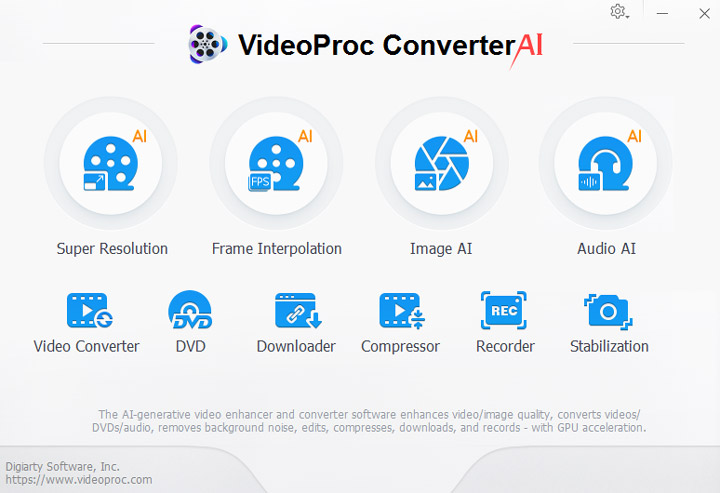
VideoProc Converter AI offers a compelling package for everyday users, archivists digitizing family DVDs, and casual content creators who want an affordable way to upgrade their media libraries.
Is VideoProc Converter AI Safe
The short answer? Yes, VideoProc Converter AI is safe as long as you get it from the right place.
The official software, downloaded from VideoProc's website, is a legitimate product from an established company. It's digitally signed and totally malware-free. It doesn't snoop on your files, and security platforms consistently give it a clean bill of health.
But, as with any popular software, do not download pirated or cracked versions. The risks of malware, data theft, and a completely broken application far outweigh the cost of the license. If you are considering the software, your best bet is to use the free trial to see if it works for your hardware and needs, and then decide if it's worth the investment for you.
Is VideoProc Converter AI Free to Use
VideoProc Converter AI is not free software. It operates on a freemium model and offers a free trial version.
The free trial version has no time limit, so you can use it as long as you want to evaluate the software. However, each AI feature is limited to five watermark-free outputs, and non-AI features are restricted to processing files that are five minutes or less in duration. Here's a detailed comparison between the trial version and the full version.
For paid plans, VideoProc Converter AI offers three main pricing tiers:
| Plan | Price | Key Benefits |
|---|---|---|
Premium 365 |
$34.95/year | Full feature access for 1 year, all updates during that year, for up to 3 PCs or Macs. |
Lifetime (1-PC) |
$54.95 one-time | Permanent full feature access, all future updates, for a single PC or Mac. |
Family Lifetime |
$79.95 one-time | Lifetime benefits, but for 3 to 5 PCs or Macs. |
The prices can fluctuate. If you decide to purchase after the trial, you can currently get a lifetime license for as low as $39.95 (for one device) through the official license page.
How to Use VideoProc Converter AI
Getting started with VideoProc Converter AI is incredibly easy. The software features a clean, intuitive interface and a minimal learning curve, allowing even first-time users to pick it up without difficulty. Regardless of the specific function, you basically only need to import the file, set the desired format or parameters, and then export.
The following example uses the Image AI module to demonstrate the basic operational steps.
- Download and install the software following the on-screen prompts, then launch the application.
- Select the desired function from the main interface. In this case, we will choose Image AI.
- Import the media file you wish to process by dragging and dropping it or by clicking the "+ Add" button. Batch processing is supported.
- Configure feature settings, such as AI model, upscaling factor, resolution, etc. Enable features like Face Restoration or Colorization as needed.
- Preview and adjust the results.
- Once you are satisfied with the preview, configure the output settings, such as format and quality level.
- Click the "RUN" button to start the processing.
How I Test VideoProc Converter AI
All tests were conducted on a system running Windows 10 (64-bit), equipped with an AMD Ryzen 5 5600X CPU, an AMD Radeon RX 6700 XT GPU (8GB VRAM), and 64GB of RAM.
The testing focused primarily on its Super Resolution feature. We selected more than a dozen videos of different formats, resolutions, and types for testing. During the test, we monitored key metrics for each task, such as processing time, average processing FPS, peak GPU usage, and overall system stability. After testing, we extracted frames from each output video to compare their visual quality individually; you will see these later in the test details.
In addition, we conducted a comparative analysis using data from our previous tests of similar software, so you can assess its strengths and weaknesses to make an informed decision.
Key Features Test & Review
1. Super Resolution – Upscaling Videos with Different AI Models
Super Resolution is arguably the most impressive AI tool in VideoProc Converter AI. Unlike traditional upscaling methods, this tool uses deep learning and neural networks to automatically denoise, deblur, and generate new detail where none previously existed. It can upscale your footage by 200%, 300%, or 400%, bringing the resolution all the way up to crisp 4K.
The software offers different AI models tailored to various types of source material. In other words, it employs different algorithms depending on the specific clip you import, making it smarter and capable of delivering better results than some "one-size-fits-all" apps.
| Model Name | Best For | Key Strengths |
|---|---|---|
Gen Detail V3 (Suggested) |
General-purpose enhancement; Videos rich in texture and realistic detail. |
Fastest model; adds fine detail, sharpens edges, and enhances perceptual quality; ideal for most footage |
Real Smooth V3 (Suggested) |
Videos that prioritize smooth, fluid visuals over the addition of extra detail. |
Reduces flaws and artifacts while preserving natural fidelity and smoothness. |
Anime |
Cartoons, anime, and illustrated content. |
Maintain the original style and color of anime. Optimized for clean outlines and textures. |
Zyxt |
Real-world photography and realistic videos. |
A lighter-weight option for upscaling general reality footage on legacy hardware. |
I tested the models individually on a low-resolution (720x346) MP4 video upscaled by four times. Then, I compared the original video with outputs processed by different models in VideoProc. Below are the comparisons between the original quality and the Gen Detail and Real Smooth models.
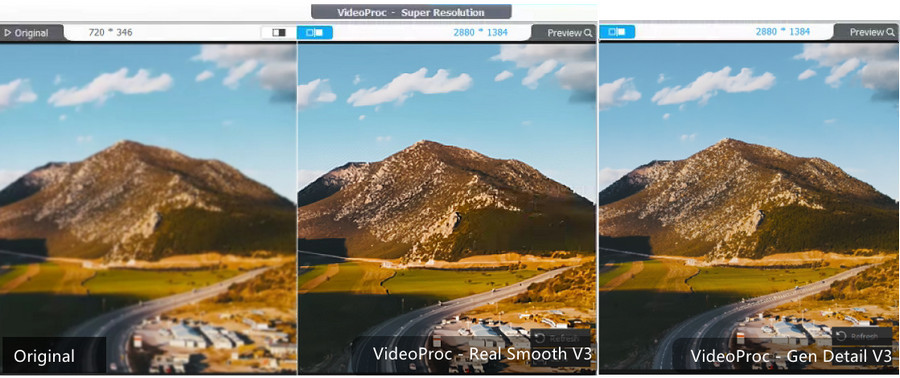
As you can see from the comparison images above, the improvement is real. The Gen Detail model excels at organic textures, generating finer, more intricate details, whereas Real Smooth excels at noise reduction, maintaining continuity, and delivering a smoother visual experience.
I repeated the test with a different source video. I set the scale to 2x, aiming to push that 720p clip up to 2K resolution at the Highest quality setting. Processing this 225-frame video took approximately 68 seconds. The software pushed my GPU to 98% utilization and averaged about 3.31 frames per second during rendering.
- Gen Detail vs. Real Smooth: While the Gen Detail model is technically optimized for texture preservation and neutral saturation, and Real Smooth is designed for a vibrant, cleaner aesthetic, real-world performance is highly content-dependent.
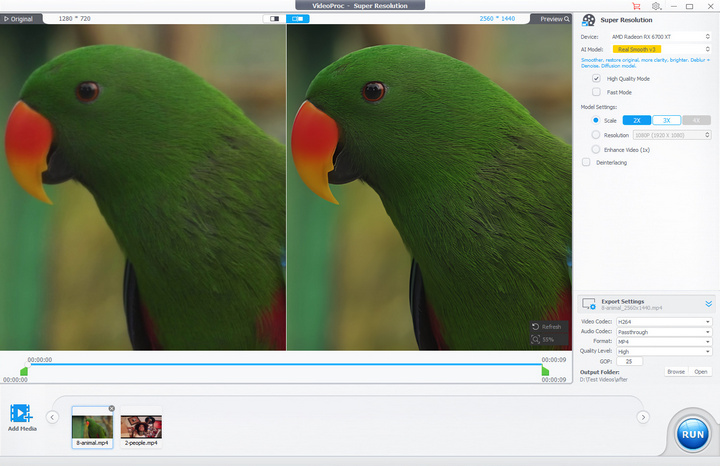
My tests indicate that the ideal choice varies by source material; for instance, Real Smooth occasionally outperformed Gen Detail in clarity and fine-detail retention on specific clips. Test both models to determine which best complements your specific footage. Collectively, both models represent the software's most capable tools for high-fidelity restoration.
- Anime Model: This specialized model is optimized for cell-shaded content. It effectively eliminates compression artifacts in cartoons and anime while preserving the integrity of sharp line art and flat color fills.
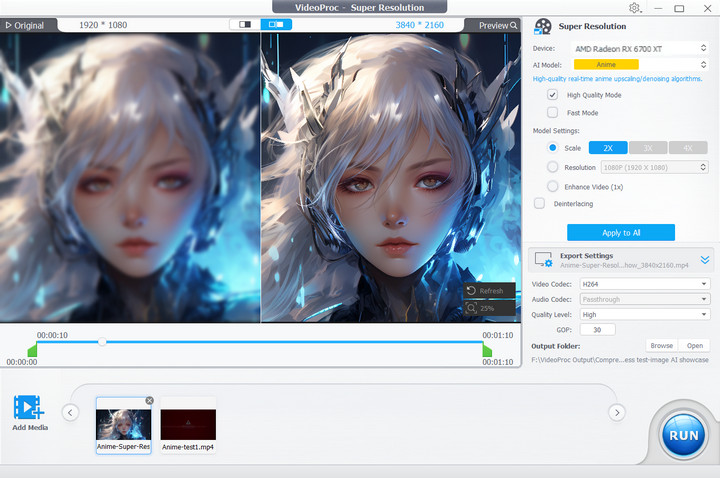
- Zyxt: While less advanced than the generative models, Zyxt serves as a necessary fallback for users with legacy hardware that does not meet the system requirements for the newer AI architectures.
My Verdict:
VideoProc Converter AI is a genuinely impressive tool that delivers noticeable, tangible improvements to old or low-resolution footage. The distinct AI models give you flexibility to match the right tool to your content, and the one-click workflow makes it accessible to anyone.
While the processing speed might not seem particularly impressive at first glance, it actually ranks second or third when compared against seven or eight similar software programs. Ultimately, AI video processing is time-consuming and heavily dependent on hardware performance. For 720p travel videos, old 1080p clips, and everyday content that needs a quality boost, VideoProc Converter AI is one of the most balanced and practical options.
"I use Heygen.com AI avatar to create videos and the videos created are 1080p. I use your software to upscale to 4K and it does an amazing job. Thanking you all for the hard work that you've put on to create such a great piece of software. " — Feedback from a user via email
2. Image AI – Enhancing Photos in Multiple Ways
Besides video, VideoProc includes an Image AI module for still images. The module is built around its core capabilities: Super Resolution, Face Restoration, and Colorizing.
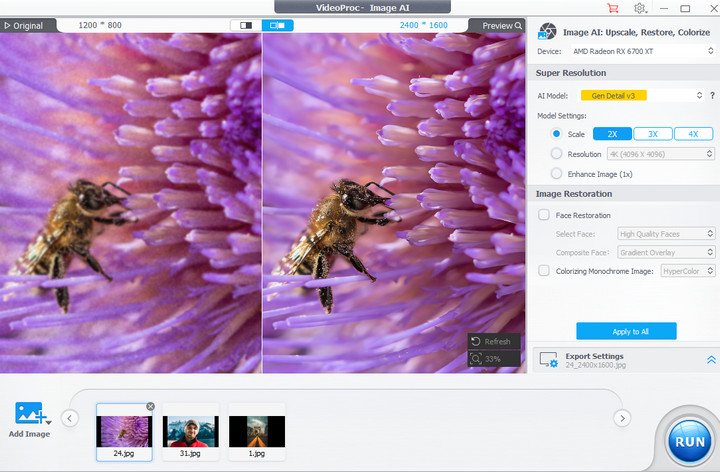
Image Super Resolution uses the same AI models as the video version to upscale images up to 10K resolution, while simultaneously denoising, deblurring, and generating realistic details such as skin, hair, and textures.
In our test (see the comparison image below), there is a significant enhancement in micro-details. The processed image on the right is dramatically sharper and cleaner. The upscaling has heavily reduced the background noise and grain without losing the underlying image data. Features such as the fine hairs on the bee's thorax, the texture of its eye, and the distinct edges of the purple petals become sharply defined.
Face Restoration includes three specialized AI models to give you real flexibility. On a scanned old portrait, it can noticeably recover facial features like eyes and lips, delivering a more lifelike look without the uncanny effect sometimes seen in other AI tools. The option to restore all faces or just a key face is particularly useful for group photos.
Colorizing converts a black-and-white aged photo into color. You can choose to upscale and restore details while colorizing. The result was impressive enough for casual sharing or archiving.



My Verdict:
Personally, I would use this Image AI tool for photos I intend to post on social media. If you are already highly proficient with Photoshop or Lightroom, you might prefer to handle noise reduction and color grading manually to suit your own tastes. However, for people digitizing old photo albums or content creators working with low-resolution images, it is hard to resist an option that offers one-click simplicity yet delivers decent results.
Just be realistic about your source material and your hardware. It works best with images that have some quality to work with. And like many AI enhancers, if there's small text in the background, the AI might struggle.
3. Video Conversion
VideoProc Converter AI started as a straightforward video conversion tool, and that core functionality remains rock solid. Its built-in converter supports over 370 formats and codecs, from modern formats like HEVC (H.265), AV1, and ProRes to legacy formats like AVI, WMV, and DivX. Hardware acceleration is available across Intel, NVIDIA, and AMD GPUs, which makes a real difference in processing speed.
Compared to tools like Handbrake or FFmpeg, VideoProc Converter AI offers a streamlined interface and a wide range of one-click presets. Even beginners can easily get videos ready for playback or sharing, while professional users retain the ability to fine-tune parameters such as encoding format, bitrate, frame rate, and CRF.
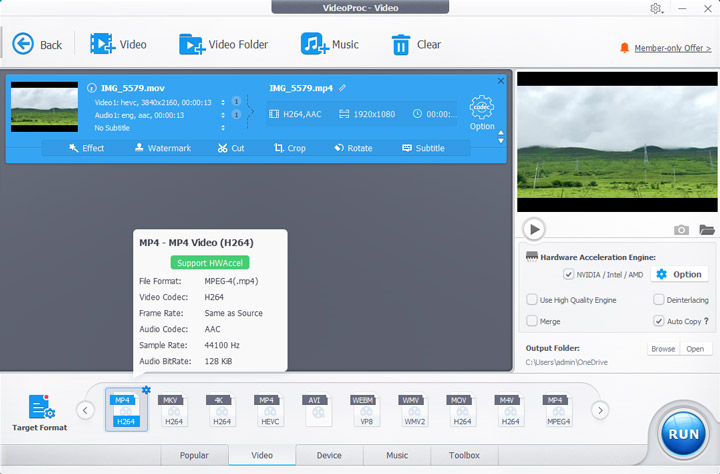
The conversion speed is truly impressive. On my test system, converting a 13-second, 4K 30 fps HEVC video shot on an iPhone 16 to H.264 MP4 format took just under 3 seconds, whereas similar software took around 5 to 10 seconds (see the details here). The software consistently maintained low CPU usage (~20%) by efficiently offloading the heavy processing tasks to the GPU. This means you can keep working on other tasks without the system slowing down or stuttering.
4. Other Utilities
Besides Super Resolution and format conversion, we also explored the software's other features. VideoProc Converter AI comes with a bunch of other tools that make it a true all-in-one media app.
- DVD Ripping works on both store-bought and homemade DVD discs. You can create a lossless 1:1 digital backup or convert it to formats such as MP4.
- Frame Interpolation uses AI to add new frames between existing ones. You can boost your video from 24fps or 30fps to 60fps, 120fps, 240fps, or even 480fps. This creates smooth slow motion without expensive cameras.
- Video Stabilization tracks moving objects in your footage. It works well for handheld videos, drone shots, and action cam clips.
- Audio AI gives you two helpful tools. Noise Suppression removes background sounds like wind, fan hum, or electrical hiss. Vocal Remover uses AI to separate voices from background music.
- Video Downloader saves videos, audio, and playlists from 1000+ sites in 4K, 8K, or its original quality.
- Screen Recorder captures desktop, webcam, or both simultaneously with or without audio — useful for tutorials or streaming prep.
My Verdict:
The DVD ripper is a real standout. In my tests, it handled copy protection mechanisms flawlessly and worked out of the box without extra libraries. It found the main movie quickly and did not crash. Some other DVD rippers I have tried freeze up or mislabel the tracks. VideoProc did not have that problem.
These media tools make VideoProc more useful. You can do a lot all in one place. You do not need to switch between different apps. For most casual users, these extras add real value. You get a lot of useful tools in one package. And for the price, that is a pretty good deal.
VideoProc Converter AI vs. Alternatives
Now let's talk about the competition. In this section, we are focusing on two direct competitors: Topaz Video AI and UniFab All-In-One. We actually ran the same video clips and settings (2x upscaling, high-quality output preset) through each program and recorded their respective performance in the test. These data show what each tool does, how it performed, and where it fits compared to VideoProc Converter AI. We believe this comparative analysis will help you assess each option's strengths and weaknesses so you can make an informed decision based on your specific needs and budget.
1. VideoProc vs Topaz Video
Topaz Video has been the industry standard for years. Professional editors, archivists, and filmmakers reach for it when they need the absolute best quality. It can upscale resolution, remove noise and blur, stabilize shaky shots, and interpolate frames. As of 2026, the software carries more than 19 specialized models, among which Proteus is for general-purpose upscaling and detail recovery. Here's our detailed review of Topaz Video if you'd like to know more.
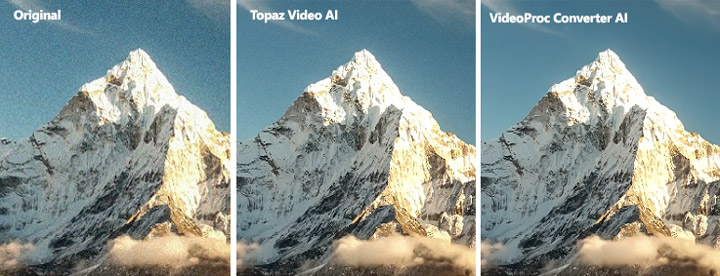
For this test, we selected a nighttime video of a building and compared the performance of both tools using their most versatile models. It's a 7-second vertical video clip (810×1440 pixels) recorded in MPEG-4 AVC format at 30 fps, delivering a total of 211 frames. Here's the data from the test:
| Spec | Topaz Video | VideoProc Converter AI |
|---|---|---|
Model Used |
Proteus |
Gen Detail |
Time Taken (s) |
258 |
84 |
Avg. Processing FPS |
0.82 |
2.51 |
Max GPU Utilization |
99% |
99% |
Peak VRAM Usage |
6705 MB |
5335 MB |
Max CPU Utilization |
72.421 |
36.544 |
Output File Bitrate |
8.49 Mbps |
7.93 Mbps |
Total Frame Count |
211 |
211 |
As we can see, VideoProc is significantly faster at this task, completing the rendering in just 84 seconds, whereas Topaz takes 258 seconds. Both programs pushed the graphics card to its absolute limit, while Topaz is much harder on the processor, using up to 72.4% CPU.
Regarding the output files, Topaz compressed the output to a slightly higher bitrate (8.49 Mbps) than VideoProc (7.93 Mbps). Generally, a higher bitrate can mean more visual data, though how much of a difference that actually makes depends heavily on how efficient their respective AI models are. So, how does the output quality compare?
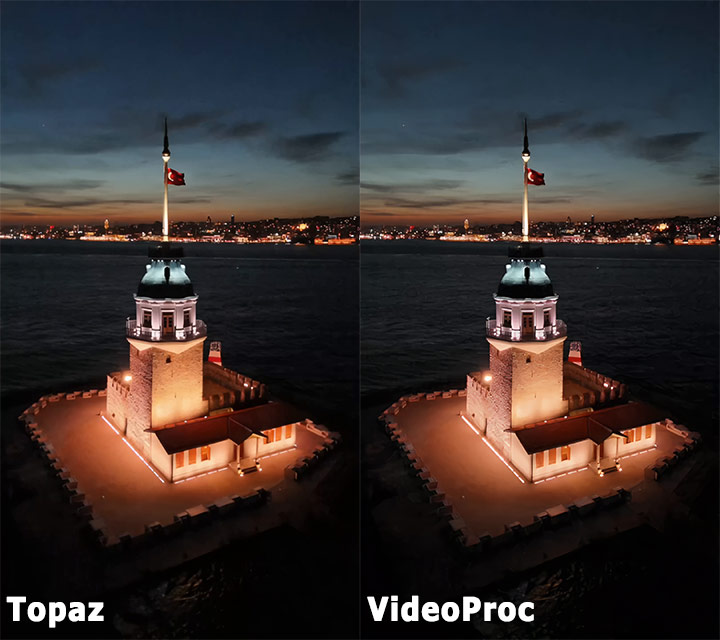
Night skies are notorious for showing blocky compression artifacts and heavy chroma noise. Both Topaz and VideoProc have cleaned the sky up beautifully, leaving a very smooth, organic-looking twilight gradient from orange to deep blue. If you look at the stone texture on the main building, VideoProc has preserved much more of the organic, rugged stone feel. In contrast, Topaz significantly removed noise and blur, but the courtyard ground and the roofs of the lower buildings are flattened into smooth plastic gradients. Furthermore, the two handle the water very differently. While Topaz generated a stylized, almost procedural wave pattern, VideoProc has retained the chaotic, realistic texture of choppy water at night.
My Verdict:
Topaz delivers impressive clarity, sharpness, and noise reduction. The quality is unmatched. The model library is deep. The results are stunning. But it carries a steep price tag of $299. If you are a professional filmmaker, archivist, or content creator who needs the absolute best quality and has the budget and hardware to support it, Topaz is worth every penny.
VideoProc Converter AI targets a very different audience. For many tasks, it offers about 80% of the visual improvement for a fraction of the cost. When it comes to processing performance, VideoProc Converter AI has a clear advantage in speed and system requirements. Additionally, VideoProc offers a one-time purchase model, which puts it in a different category than subscription-based tools. That matters for a lot of users.
2. VideoProc vs UniFab All-In-One
UniFab All-In-One is a name you might come across when searching for AI software reviews. Like VideoProc Converter AI, it positions itself as an all-in-one AI suite for audio and video enhancement. It includes features such as Video Upscaler, HDR Upconverter, Face Enhancer, Denoise AI, Video Stabilizer, and many more. Still, here's our Unifab review blog.
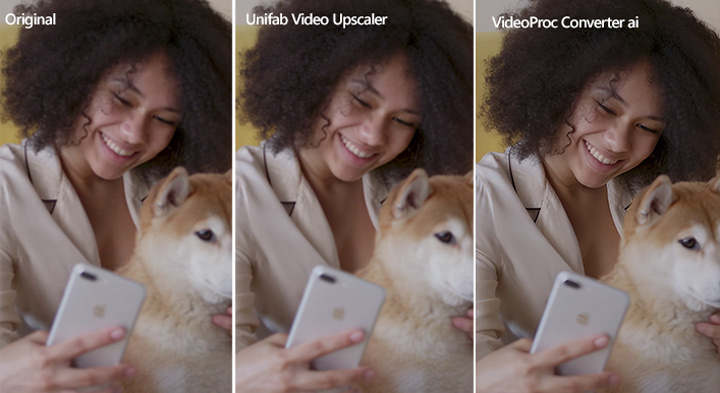
It offers "flexible" pricing options. In addition to purchasing a lifetime license for the complete UniFab All-In-One package for around $300, you can also buy individual features separately for approximately $100 each. This may be a marketing strategy, but at least it does offer a lifetime option.
Anyway, just as we did with Topaz, we focused our testing on the video upscaling feature, using its most universal model, Equinox. This time, the test video was a 7.5-second vertical clip of a fluffy dog, shot in MPEG-4 AVC format at 810×1440 resolution and 30 fps with 225 frames in total.
The results of this test differ significantly, but it must first be stated that all data are from actual test outcomes. While there may be some inherent randomness across the six or seven test videos, we have not altered the results in any way for marketing purposes.
| Spec | UniFab All-In-One | VideoProc Converter AI |
|---|---|---|
Model Used |
Equinox |
Gen Detail |
Time Taken (s) |
1003 (~16 mins) |
88 |
Avg. Processing FPS |
0.21 |
2.56 |
Max GPU Utilization |
92% |
99% |
Peak VRAM Usage |
1985 MB |
5454 MB |
Max CPU Utilization |
83.609 |
35.608 |
Output File Bitrate |
53.75 Mbps |
8.71 Mbps |
Total Frame Count |
211 |
225 |
There was a striking difference in processing times between the two. When processing the same video, UniFab took ten times longer than VideoProc. In fact, except for the Kairo model designed for anime, UniFab's processing speeds were slower than those of VideoProc and even Topaz. It uses very little VRAM but relies heavily on the CPU, which we've indeed seen similar feedback regarding Nvidia RTX 50 series in its official community.
The final output file size was also surprisingly large. UniFab's Equinox model treated the video like a heavy, frame-by-frame photographic restoration task and, even worse, dropped 14 frames during ingestion or rendering. The output resolution (1624x2880) was not strictly a 2x upscale of the original video, either. VideoProc Converter AI handled the full frame count smoothly in under 1.5 minutes with manageable file size and efficient GPU utilization.
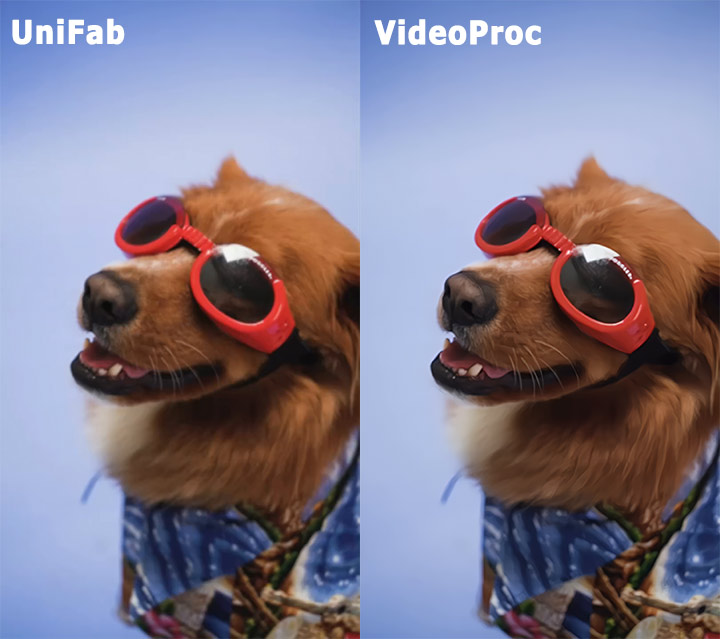
Fur is one of the hardest textures for AI upscalers, but UniFab did an impressive job separating fine strands around the ears, snout, and chest. The glossy sheen and reflections on the red doggles are smooth and clean. VideoProc delivered an even sharper upscaling result. The fur around the ears and snout looks like real, soft animal hair rather than digital brushstrokes. The whiskers are softer and blend naturally into the surrounding fur. The dog's nose retains a believable, slightly moist leather texture rather than an over-sharpened plastic sheen.
My Verdict:
UniFab All-In-One is a capable AI video enhancement suite. The model variety is impressive. The Kairo model for animation performs very quickly, though the more versatile Equinox model does not. If you need high-resolution upscaling up to 16K, UniFab supports that. The lifetime license option is appealing for users who do not want subscriptions. However, UniFab has clear disadvantages. The processing is slow. The quality is inconsistent. In our comparative test with six videos, the total frame count and duration of each output video differed from the original. With the high price of the full suite, users expecting a professional-grade solution might find this unacceptable.
VideoProc Converter AI offers a different value proposition. It's faster, more affordable, and delivers better video clarity than UniFab in some comparisons. For most casual creators, vloggers, and everyday users, VideoProc Converter AI is the better choice.
Is VideoProc Converter AI Worth It
After all the testing, comparisons, and number crunching, this is the question that really matters. Is VideoProc Converter AI worth your money?
The price is hard to beat. At around $35 for a 1-year subscription and $54 for a lifetime license, VideoProc Converter AI is incredibly affordable. Topaz Video costs $25 per month. UniFab costs around $300 for the full suite. It offers about 80% of the visual improvement for a fraction of the cost.
VideoProc Converter AI does so much in one place. Most tasks I threw at it, whether AI upscaling, DVD ripping, or quick format conversion, worked smoothly in a single workflow. As you can see from our hands-on tests above, the results are satisfying, or sometimes even impressive, and processing speeds are often quite fast.
Of course, I'm not saying that VideoProc Converter AI is not without its drawbacks. The AI quality is not Topaz-level. On highly degraded footage, the results can be disappointing. If you need pixel-perfect cinematic restoration, this is not the right tool. But if you do not need professional-grade restoration, VideoProc Converter AI delivers outstanding value for basic AI enhancements on standard hardware. It's one of the most balanced and practical investments in the current software ecosystem.
Pros
- All-in-one toolkit – VideoProc combines video conversion, DVD ripping, downloading, and AI enhancement, reducing the need to switch between different programs.
- Strong AI performance – The video AI and Image AI models noticeably improve low-res and low-quality footage and photos, making them practical for real-world use.
- Fast with GPU acceleration – Large files process much quicker compared to CPU-only tools, which is valuable for 4K and batch tasks.
- User-friendly interface – Despite its wide feature set, it remains straightforward to navigate and easy for both beginners and advanced users.
- Handy extra tools – Features like the video downloader and editing tools add extra value beyond the core conversion and enhancement functions.
Cons:
- Hardware demand for newer AI models – Like other AI tools, to get the best out of the latest AI models, a capable GPU is required; older systems may struggle.
- Limited platform support – Currently available for Windows and macOS, with no support for Linux, iOS, or Android.
Final Verdict
After spending time with both the AI enhancement tools and the traditional multimedia features, the strengths of VideoProc Converter AI become fairly clear.
- On the AI side, features like Super Resolution, Frame Interpolation, and the Image and Audio AI modules (including Vocal Remover and Noise Suppression) are practical rather than experimental. The processing is consistent, and more importantly, it runs locally, which makes a noticeable difference in speed, privacy, and overall control compared to cloud-based workflows.
- Its traditional toolkit remains just as relevant. GPU-accelerated video conversion, DVD ripping, video downloading, and lightweight editing are well-optimized and stable in everyday use. These aren’t just add-ons—they form a solid backbone that makes the software genuinely useful beyond AI enhancement tasks.
- In terms of usability, the interface is clean and straightforward, with most AI features accessible in just a few clicks. Hardware acceleration is well integrated, so even heavier processing tasks feel responsive on a mid-range setup. Combined with flexible lifetime and family licensing, it offers strong long-term value without locking users into ongoing subscriptions.
Bottom Line: VideoProc Converter AI is a reliable, efficient, and cost-effective choice for anyone looking to enhance, convert, and manage video and audio content in one package.
FAQs
1. Is VideoProc Converter AI Trustworthy?
VideoProc Converter AI is generally considered a legitimate and trustworthy video software. It is developed by Digiarty Software, a long-established software company with a large global user base. According to publicly available information, Digiarty products have been used by hundreds of millions of users worldwide.
VideoProc Converter AI has received reviews and recommendations from numerous independent technology websites and holds an average rating of around 4.1 on Trustpilot. User feedback commonly highlights its ease of use, fast performance, broad feature set, and relatively affordable pricing.
👉 Learn about the trustworthiness and safety of VideoProc
2. How to Use VideoProc Converter AI?
You can use VideoProc Converter AI after downloading it to your PC or Mac. You can start by selecting a feature, loading your video, audio, DVD, or image, and following the on-screen steps. The program is beginner-friendly, and there are detailed tutorials to guide you through AI enhancement, conversion, downloading, editing, and more.
👉 VideoProc AI Tutorials & Guides
3. What's the System Requirement of VideoProc Converter AI
VideoProc Converter AI runs on Windows 7/8/10/11 and macOS 10.13+ (AI features require 10.15+ or macOS 13+ for CoreML). AI functions like Super Resolution, Frame Interpolation, and Stabilization need a capable CPU/GPU, with NVIDIA, AMD, or Intel hardware meeting DirectML, TensorRT, or Vulkan requirements. Apple Silicon (M1/M2/M3) is fully supported.
For full specs and detailed AI requirements, please head to:
4. Is VideoProc Converter AI free to Use?
VideoProc Converter AI offers both free trial and paid versions. The free trial lets you test most features with some limitations. The paid options include annual subscription (Premium 365), one-time Lifetime license for 1 PC, and Family Lifetime license for up to 5 PCs, which unlock all AI and traditional features with updates and support.
5. Is VideoProc Converter AI worth it?
Yes, VideoProc Converter AI is widely considered a worthwhile option. Compared with many standalone AI video enhancement tools, which are often expensive and limited to a single function, VideoProc Converter AI offers a broad, all-in-one feature set. Users can access AI upscaling, frame interpolation, stabilization, and image enhancement alongside video conversion, downloading, compression, editing, DVD ripping, and screen recording, all within one application.
From a pricing perspective, it is generally seen as more affordable than comparable AI-focused tools, allowing users to solve multiple video and media tasks for roughly the cost of a single-purpose AI enhancer. In addition, VideoProc Converter AI provides multiple licensing plans, including one-time purchase options that allow users to pay once and use the software long term, which further increases its overall value.
6. Does VideoProc Converter AI support 4K video?
Yes. VideoProc Converter AI fully supports 4K video across both its traditional processing tools and AI-powered features. It is designed to handle 4K input and output throughout video conversion, compression, downloading, editing, and screen recording. In addition, its AI functions, such as upscaling, frame interpolation, stabilization, and image enhancement, also support 4K resolution, allowing users to process high-resolution footage without downscaling. As a result, VideoProc Converter AI is generally considered well-suited for working with 4K content, whether the goal is enhancing quality, optimizing playback, or preparing videos for modern displays and platforms.




