
 New AI features are available
If you've ever noticed, when you pick up your iPhone to shoot, there's a ProRes icon in the upper left corner. This ProRes codec has become so ubiquitous that your iPhone records in it. But what is ProRes, and why does Apple and everyone else keep talking about it?

This guide breaks down the essentials without drowning you in jargon. We'll explain what ProRes is in plain language, explore why professionals love it, reveal when it's unnecessary, and show you how to work with ProRes painlessly.
What Is ProRes in Plain English
ProRes is a family of "visually lossless" lossy video codecs. It's developed by Apple for professional post-production. A "codec" simply means a way of compressing and decompressing video, much like H.264 or AV1, which you may already know.
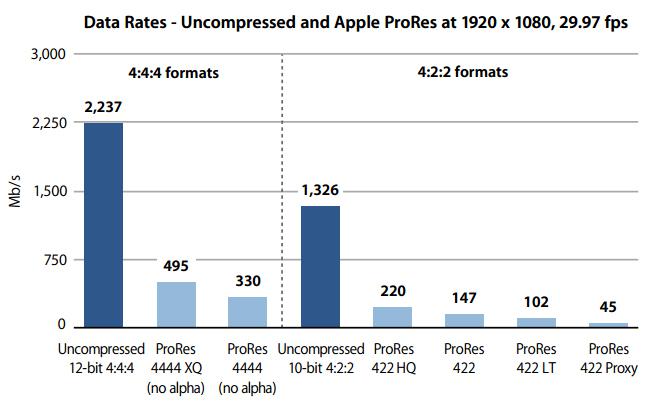
But unlike delivery formats like H.264, which only store a few complete frames and guess the rest (called inter-frame compression), ProRes uses intra-frame compression, storing every single frame independently. This makes the files larger but lets your computer play and scrub through them smoothly, because it doesn't have to guess what the next frame should look like.
There isn't just one ProRes; there are six levels, namely Proxy, LT, 422, 422 HQ, 4444 and 4444 XQ. All 422 variants record at 10-bit depth with 4:2:2 chroma subsampling while the 4444 versions support up to 12-bit 4:4:4:4, including an alpha channel. Proxy and LT are lighter variants for rough cuts. In practice this means ProRes preserves far more color and tonal detail than 8-bit delivery formats, making it ideal for color grading and visual effects.
Why Creators Use ProRes
Because ProRes favors quality and speed over maximum compression, it has become the backbone of professional video workflows. Creators use ProRes for its:
- Smooth editing: Since every frame is complete, your NLEs can quickly display and scrub through footage without uncompressing neighbouring frames.
- Fidelity of the original color information: All ProRes variants use at least 10-bit color and 4:2:2 chroma subsampling for more details, so the image stays clean and natural during color grading.
- Resilience in multigenerational workflows: ProRes can remain visually lossless even after multiple encode/decode cycles. This makes it a reliable intermediate format.
- Wide industry support: Virtually all major editing programs can ingest ProRes, many cameras record directly to ProRes, and broadcasters accept ProRes masters.
- HDR and wide-gamut ready: ProRes can carry HDR signals and wide color gamuts like Rec.2020, with the 4444 XQ variant recommended for HDR mastering.
These qualities explain why professionals rely on ProRes for acquisition, editing, mastering and even archiving. When quality and robustness matter, ProRes is the default intermediate codec.
When ProRes Is Overkill
For all its virtues, ProRes isn't always the right choice. As mentioned earlier, ProRes stores every frame independently. Therefore, the file sizes are much larger than those of delivery codecs. For example, at ~147 Mbps a ProRes 422 stream generates about 66 GB per hour of 1080p30 footage. These huge files demand fast drives and plenty of storage. This is fine for a post-production studio, but excessive for a simple vlog or daily use.
ProRes might be overkill for:
- Short social videos or streaming uploads. The platform will compress it regardless. A small H.264 or HEVC file is sufficient and far easier to manage.
- Quick-turn projects. Turnaround time matters more than maximum quality. Editing directly in your camera's codec and exporting to a delivery format may be faster.
- Limited storage or bandwidth. Shooting an hour of ProRes on an iPhone or action camera will fill up your storage quickly. Using another codec is more practical.
Choosing the right codec involves balancing quality and size or data rate. For ProRes, use Proxy or LT for lightweight offline editing, 422 for high-quality editing, HQ for mastering and color grading, and 4444 or XQ only when you need 4:4:4 chroma or HDR headroom.
For a detailed comparison of ProPres 422 and HQ, please refer to ProRes 422 vs ProRes 422 HQ.
How to Work with ProRes Without Headaches
Even if you don't shoot in ProRes, you may still need to ingest it, deliver it, or simply watch it. Windows OS and Android devices don't have native support for Apple's ProRes format. If problems arise in such cases, a ProRes converter may help.
VideoProc Converter AI is a one-stop AI toolkit for video, image, audio, and DVD files. This program elegantly handles all your quality, format and file-size headaches. Here's what you can do with ProRes files in VideoProc Converter AI:
- Preview ProRes files smoothly on Windows or Mac;
- Transcode video files to or from ProRes format;
- Compress to shrink large ProRes files without losing quality;
- Perform simple edits such as cutting, trimming, rotating, merging, etc.
- Upscale, stabilize, interpolate new frames or remove background noise with AI tools.
You can preserve ProRes or use other output formats during all these operations. With its unique level-3 hardware acceleration, even batch processing multiple ProRes files can be buttery smooth.
VideoProc Converter AI brings ProRes support to devices that don't natively have it. By integrating VideoProc Converter AI into your workflow, you can harness the strengths of ProRes while mitigating its downsides. The goal isn't to replace your NLE, but to make dealing with ProRes painless.

ProRes Variants Explained
Now that you've got a handle on what ProRes is and when to use it, let's make a deeper dive. The ProRes family includes several variants tailored to different needs. Below we make a table to summarize the approximate data rates at 1080p and 4K, the chroma sampling and typical use cases.
| ProRes variant | Approx. data rate @ 1080p30 | Approx. data rate @ 4K (29.97 fps) | Chroma & bit-depth | Typical use |
|---|---|---|---|---|
ProRes 422 Proxy |
~45 Mbps |
~180 Mbps |
4:2:2, 10-bit |
Offline editing proxies |
ProRes 422 LT |
~102 Mbps |
~408 Mbps |
4:2:2, 10-bit |
Low data-rate full-resolution editing |
ProRes 422 (Standard) |
~147 Mbps |
~588 Mbps |
4:2:2, 10-bit |
High-quality editing and mastering |
ProRes 422 HQ |
~220 Mbps |
~880 Mbps |
4:2:2, 10-bit |
Mastering, color grading |
ProRes 4444 |
~330 Mbps |
~1.32 Gbps |
4:4:4:4, up to 12-bit |
Mastering, VFX (supports alpha) |
ProRes 4444 XQ |
~500 Mbps |
~2 Gbps |
4:4:4:4, up to 12-bit |
Highest-fidelity HDR/VFX |
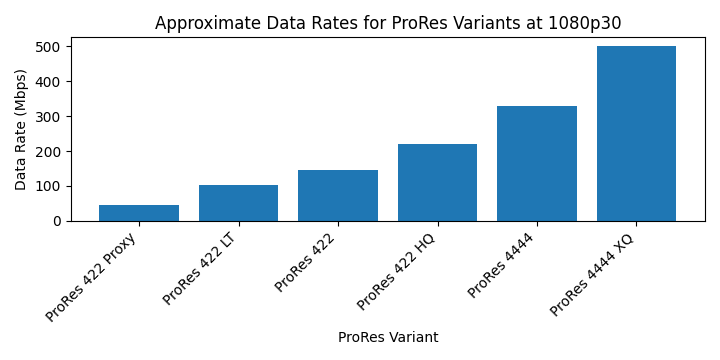
To help you grasp how the variants scale, the chart below plots the approximate data rates at 1080p30. Notice how the jump from Proxy to 4444 XQ corresponds to more than a ten-fold increase in bitrate. You can use this graphic as a quick reference when choosing the right profile.
ProRes Workflow Tips for Modern Creators
- Use the right ProRes level for the task. For editing and rough cuts, a Proxy or LT file will save disk space and still give you smooth editing. When finishing, relink to 422 HQ or 4444 to maintain quality.
- Transcode camera footage for easy editing. Convert highly compressed H.264/HEVC footage if your computer struggles with smooth playback. This improves timeline responsiveness and reduces export errors.
- Archive in ProRes when you need a future-proof master. Many broadcasters and archives accept ProRes 422 HQ or 4444 masters because they're visually lossless and widely supported.
- Convert for delivery. When you're ready to publish, export to a delivery format like H.264 or HEVC. Use VideoProc Converter AI to batch convert ProRes sequences to compressed files optimized for YouTube, Vimeo or social media.
- Mind your storage and hardware. High-bitrate ProRes formats require fast SSDs or RAID arrays for sustained playback. If you're working in 4K or 8K, plan for the necessary bandwidth or use proxies until the finishing stage.
Conclusion
So now you know what ProRes is. At its core, ProRes is about balancing quality, performance and flexibility. It gives creators a visually lossless intermediate format that edits like butter, preserves color detail and withstands multiple passes without degrading. Yet its heavy file sizes and Apple-centric licensing mean it isn't always necessary for everyday content. Choose the right ProRes flavor for the job, and use tools like VideoProc Converter AI to convert, compress or upscale your footage as needed. With this approach, you'll harness the best of ProRes without letting the codec slow you down or fill up your hard drive.




