
 New AI features are available
 Listed in
 How to upload high quality videos to Instagram without getting blurry results is a question almost every creator runs into.
"I spent a month on an edit and I rendered it... looked awesome then I uploaded it to Instagram... looked like crap. The color changes, it gets blurry, very frustrating."
If you have ever uploaded a 4K video to Instagram only to see it turn soft and pixelated, you are not alone. Instagram is known for compressing videos aggressively, which often leads to blurry playback, color shifts, and noticeable quality loss.
So why does Instagram ruin video quality, and how can you prevent it? In this guide, we will break down what causes the compression and show you the best settings and fixes to upload videos to Instagram in high quality.

Why Are My Instagram Videos Blurry after Uploading
Why does instagram ruin video quality? The Instagram compression algorithm is the major culprit to ruin your video. The reason for that is to save the storage space and bandwidth. Instagram is not the cloud storage to hold your video files, but an online media sharing app and social network platform. Therefore, it never means to hold all data of the file posted.
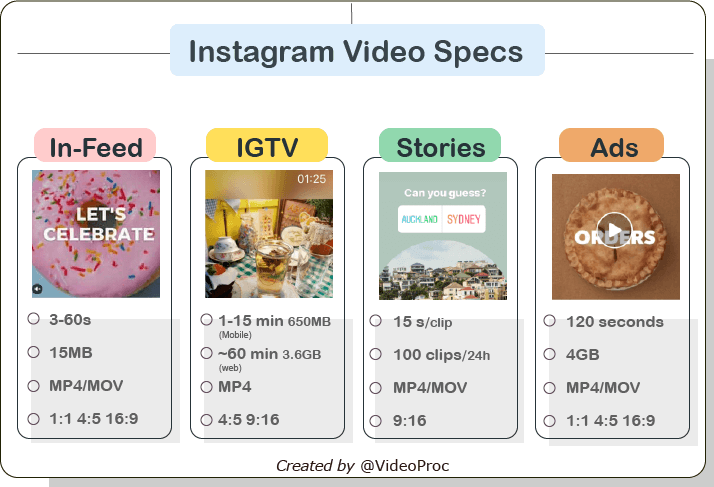
Once you uploaded a video, it calculates and then compresses your file to a reasonable size and resolution for storing it on the server. What is the reasonable size or resolution? Those requirements differ and depend on the way you upload your video.
See if you upload a 10-minute video to IGTV, the file size has to be smaller than 650MB. The problem is a 10-minute video took by iPhone16 is around 2GB. Once the source file is larger than the Instagram video requirements, it will be compressed. For video post to Instagram Feed-in, footage shot in 4K would be squeezed to 1080P while 480P/720P enlarged to the same 1080P resolution. And, as you can imagine, videos get blurred.
Solution 1. Post High Quality Videos to Instagram (Adjust Instagram Settings)
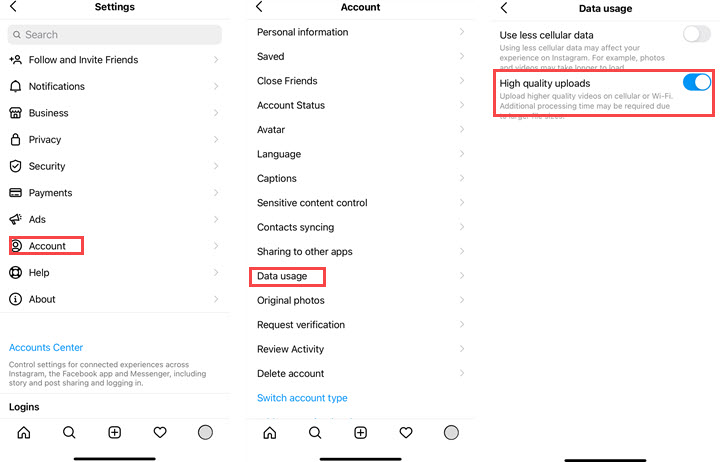
The Instagram app compresses high quality HD videos by default so to save bandwidth and server storage. If you want to upload high quality videos to Instagram without losing quality, you need to toggle on high quality uploads before you import videos from your phone to Instagram. Since settings are different on iOS and AndroidOS, we'll show you how to turn it on both operating systems.
Enable High Quality Uploads on iPhone
Step 1. Launch the Instagram app on your iPhone.
Step 2. Open Settings > Account > Data Usage.
Step 3. Toggle on High quality uploads.
Step 4. Quit Settings and select videos from your Photos app to upload to Instagram.
Enable High Quality Uploads on Android
Step 1. Open Instagram on Android.
Step 2. Open the user profile tab.
Step 3. Tap the three-dash icon to open Settings.
Step 4. Go to Account > Cellular data usage > High resolution media.
Step 5. Select Cellular date + Wi-Fi.
Step 6. Get back and upload videos from the local galley to Instagram.
Note: This method won't help if your source videos are blur/grainy or do not meet its uploading requirements.
Solution 2. Upload High Quality Videos to Instagram (Optimize Your Source Video)
Instagram compresses videos aggressively, especially when your file does not match its preferred format, resolution, or bitrate. That extra compression is what makes uploads look blurry, pixelated, or less sharp than the original.
To reduce quality loss, the key is to optimize the video before uploading, so Instagram has less work to do. VideoProc Converter AI helps you quickly resize, convert, and compress your video to Instagram friendly settings, and also trim or crop clips when needed.

Step 1. Load video(s) to VideoProc.
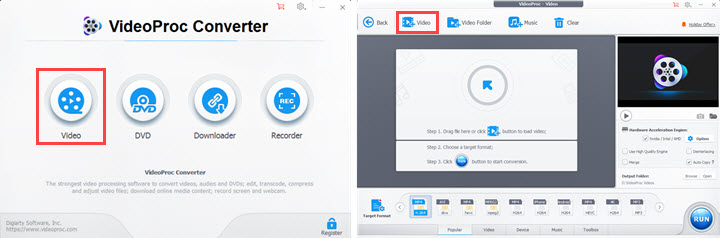
After the installation, open the software and click "Video Converter". Then load your video file through "+Video".
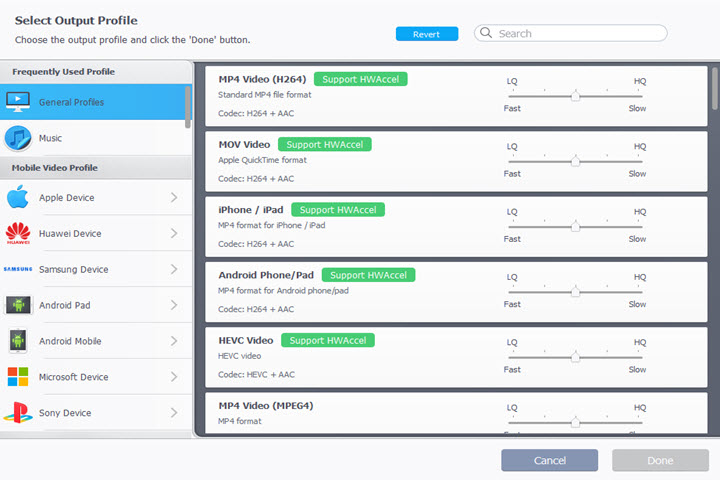
Step 2. Convert the Video to MP4 (H.264)
Click Output format and select MP4 (H.264). This can help transcode your high-quality video to Instagram friendly format.
Step 3 (Optional). Upscale or Downscale Video
It is said that video would be kept in high quality if you upconvert 1080p to 4K first and then upload it for compressing.
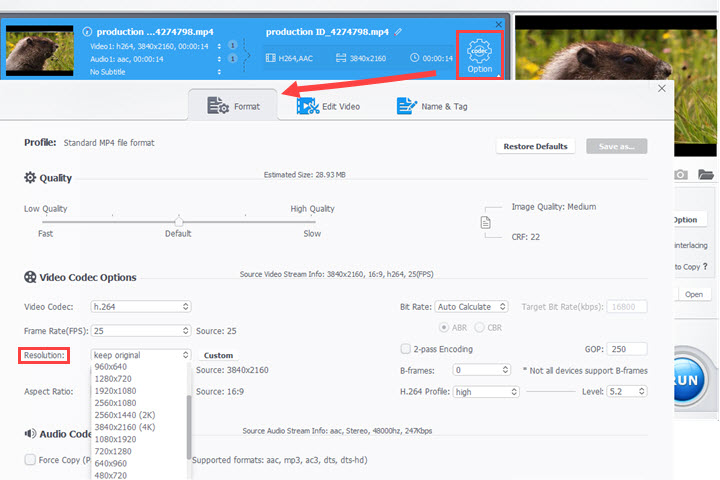
[Test Results]
- High quality - video shot in 4K, downscaled to 1080p manually for Instagram
- Good quality – video shot in 1080p uploaded to Instagram
- Slightly pixelated - video shot in 1080p, upscaled to 4K manually, compressed to 1080p by Instagram
- Bad quality - video shot in 4K, compressed to 1080p by Instagram
Step 4 (Optional). Edit the Video
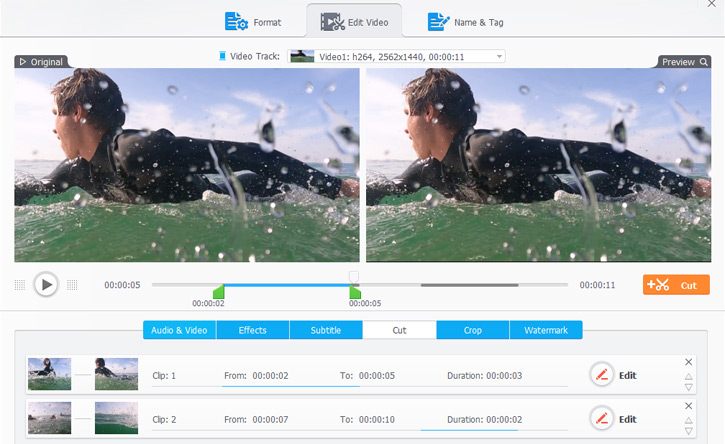
If you are uploading to Instagram Story, keep in mind each Story clip should be within 60 seconds.
To cut the Instagram video: click Cut, and drag the slider to choose the needed range. Hit Press > Done. You can repeat the steps to cut out more unwanted segements.
Tips:
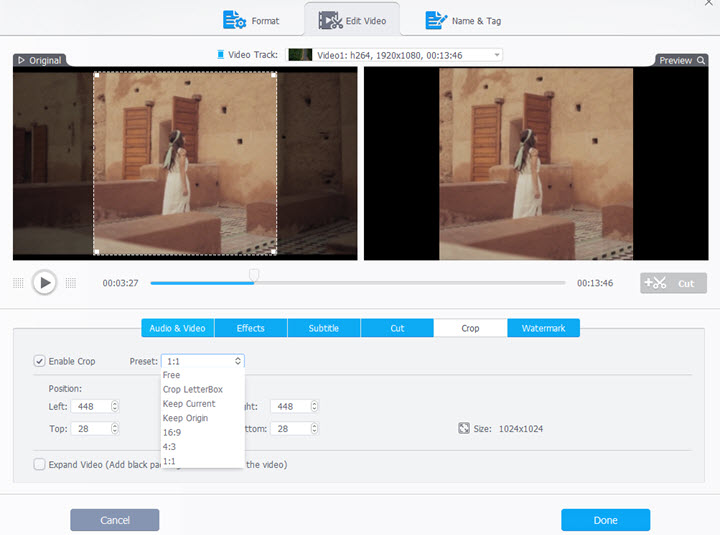
Suppose your video doesn't fit the aspect ratio supported by Instagram, you can hit Crop and then choose 1:1 in the "Preset" dropdown list for Instagram feed, then click Done. Surely, you can also choose "Free" to crop manually for Feed, Reels, Stories, or IGTV.
FAQs about Uploading High Quality Videos to Instagram
1. What type of video file can you upload to Instagram?
Instagram Feed: Videos shown on your profile or timeline.
- Total length: up to 60 seconds.
- File type: MP4 or MOV.
- Video codec: H.264 (HEVC is also supported for Reels uploads).
- Audio codec: AAC (128 kbps recommended).
- Dimensions: up to 1080 x 1080 (square) or 1080 x 1350 (portrait) or 1080 x 608 (landscape).
- Aspect ratio: between 1.91:1 (landscape) and 4:5 (portrait).
- File size limit: up to ~4 GB.
Instagram Story: Short clips that disappear after 24 hours.
- Total length per clip: up to 15 seconds (multiple clips can be posted sequentially).
- File type: MP4 or MOV.
- Video codec: H.264.
- Audio codec: AAC (128 kbps recommended).
- Recommended resolution: 1080 x 1920.
- Aspect ratio: 9:16 (vertical).
- File size limit: up to ~4 GB.
Instagram Reels: Short format video similar to TikTok.
- Total length: up to ~15 minutes (latest updates allow longer Reels in many regions).
- File type: MP4 or MOV.
- Video codec: H.264 or HEVC.
- Audio codec: AAC (128 kbps recommended).
- Recommended resolution: 1080 x 1920.
- Aspect ratio: 9:16 (vertical).
- File size limit: up to ~4 GB.
Instagram Long Videos (IGTV / Instagram Video): Longer vertical or horizontal videos.
- Total length: up to ~10 minutes for most accounts; up to ~60 minutes for larger or verified accounts.
- File type: MP4 preferred.
- Video codec: H.264.
- Audio codec: AAC (128 kbps recommended).
- Recommended resolution: 1080 x 1920 (vertical) or up to 2160 x 3840 where supported.
- Aspect ratio: 9:16 (vertical) or 16:9 (horizontal).
- File size limit: up to ~3.6 GB for the longest uploads.
2. Does Instagram support 1080p videos?
Instagram recommends you to share videos in resolution of 1080 x 1920P, and it also regulates a video uploading to IGTV should have minimum resolution of 720P. So yes, it supports 1080P video.
3. Can I upload HDR videos to Instagram?
Instagram accepts HDR videos but automatically converts HDR to SDR when you post them online. And that's also the reason why HDR videos look washed out on Instagram.
Final Words
There is no video uploading option available in Instagram desktop app and web page. To upload high quality video to Instagram, edit video through the tips above and then send the file to your mobile. You'd better not transfer the video via email. Use USB or file transfer software.
Besides converting videos, VideoProc Converter AI is also able to perform some video editing tasks, including cutting, trimming, merging, splitting, deshaking, denoising, adding special effects, and more. The operation is really beginner-friendly. Moreover, it can digitize DVDs, convert audios, download videos and music from 1000+ sites, and record screen and webcam.



