
So, you've finally downloaded yt-dlp and are wondering how to download videos in the highest quality.
By default, yt-dlp already downloads the best quality it can find. It weighs resolution, frame rate, codecs, and other factors together to select the best option.
Still, "best" can mean different things depending on what you need. Maybe you want the absolute highest resolution. Maybe you prefer a format that plays everywhere without extra software. Or maybe you're only after clean audio.
This beginner's guide introduces some yt-dlp commands and examples, showing you how to download the best quality video using yt-dlp.
YT-DLP Best Quality Command
In our basic usage guide, you already know the basic download command:
yt-dlp <video_url>
Since yt-dlp automatically downloads the best quality by default, simply running this basic command is all you need to get the highest quality, provided you have FFmpeg installed on your system.
But if you want to dig deeper, that command actually corresponds to three different equivalents under the hood:
-f bestvideo*+bestaudio/best-f bestvideo+bestaudio/best-f best/bestvideo+bestaudio
#1. -f bestvideo*+bestaudio/best
This is the normal default when ffmpeg is available.
-
Primary choice:
bestvideo*+bestaudiobestvideo*= the best format that contains video (it is allowed to already have audio)+bestaudio= also take the best pure audio stream and merge them with ffmpeg
- Fallback:
/best→ If the above is not possible or not better, just take the best single file that already includes both video and audio.
The asterisk tells yt-dlp to consider any format that contains video, even if that format already has audio mixed in. Then it adds the best pure audio stream and merges the two. Without the asterisk, a pure video-only stream would always be preferred over a progressive format, even if the progressive one is actually better overall.
#2. -f bestvideo+bestaudio/best
yt-dlp uses this style by default only in special cases, for example, when multiple audio streams are enabled.
-
Primary choice:
bestvideo+bestaudiobestvideo= the best video-only stream (strictly no audio)+bestaudio= the best audio-only stream- Merge them with ffmpeg
- Fallback:
/best
Here, there is no asterisk. Without the asterisk, yt-dlp forces separate streams whenever possible. It ignores any pre-mixed formats in the first step.
#3. -f best/bestvideo+bestaudio
This is roughly what yt-dlp switches to when ffmpeg is missing.
- Primary choice:
best= just pick the single best already-combined (progressive) format. - Fallback:
/bestvideo+bestaudio= only if no good progressive format exists, try the separate streams, which will fail without ffmpeg.
This order prioritizes the highest-ranked formats that already contain both video and audio, because yt-dlp knows it cannot merge anything. Precisely because of this, you often end up with lower resolution than you expected.
To put all these together simply in plain English, yt-dlp automatically downloads the best available quality for both video and audio streams, then merges them into a single file, provided you have FFmpeg installed. If FFmpeg is missing, it falls back to the best single file that already contains both video and audio streams (720p or lower).
FFmpeg yt-dlp:
Most modern sites, especially YouTube, offer high-resolution and high-frame-rate streams as separate files. One file holds the video. Another holds the audio. yt-dlp downloads both and hands them to FFmpeg to combine into a single playable file. That merge step is what unlocks 1080p, 1440p, 4K, and high-fps options.
Here's a detailed guide on how to install FFmpeg.
What Best Actually Means
When you run a simple command like yt-dlp <video_url>, the tool does not just pick the biggest file it can find. It sorts all available formats according to a priority order of fields. The highest-ranked format after this sorting is considered the "best."
The default sort order (from highest to lowest priority) is:
lang,quality,res,fps,hdr:12,vcodec,channels,acodec,size,br,asr,proto,ext,hasaud,source,id
The fields hasvid and ie_pref always take the highest priority in sorting and cannot be overridden easily unless you use --format-sort-force or --S-force.
Here's what each major field means in practice:
Field |
What it prefers |
|---|---|
|
Gives priority to formats that have a video stream |
|
The format preference |
|
Preferred language (original > dubbed, etc.) |
|
Extractor-provided quality score (when available) |
|
Higher video resolution, calculated as the smallest dimension |
|
Higher video frame rate |
|
The dynamic range of the video (DV > HDR12 > HDR10+ > HDR10 > HLG > SDR) |
|
Video codec (av01 > vp9.2 > vp9 > h265 > h264 > vp8 > h263 > theora > other) |
|
More audio channels (e.g. 5.1 > stereo) |
|
Audio codec (flac/alac > wav/aiff > opus > vorbis > aac > mp4a > mp3 > ac4 > eac3 > ac3 > dts > other) |
|
Larger exact filesize if available, otherwise approximate filesize |
|
Higher average bitrate in kbps, tbr/vbr/abr |
|
Higher audio sample rate in Hz |
|
More reliable protocols (https/ftps > http/ftp > m3u8_native/m3u8 > http_dash_segments> websocket_frag > f4f/f4m) |
|
Preferred container, equivalent to vext,aext |
|
Video extension (mp4 > mov > webm > flv > other) |
|
Audio extension (m4a > aac > mp3 > ogg > opus > webm > other) |
|
Gives priority to formats that have an audio stream |
|
The preference of the source |
|
Video identifier |
Other available fields include fs_approx, filesize, height, width, and so on.
Compared to youtube-dl, which mainly relies on bitrate, yt-dlp's multi-factor approach balances higher resolutions with superior codecs, typically resulting in better download quality.
Of course, if you want more control, you can still change those priorities later to adjust the criteria to determine the best format. The general format for this is --format-sort field1,field2....
YT-DLP Quality Select with Command Examples
The default settings work well for most people, but you can take full control whenever you want. Once you understand the basics, these ready-to-use commands cover the situations most people run into. Just replace the example link with your own.
List All Available Formats
yt-dlp -F <video_url>
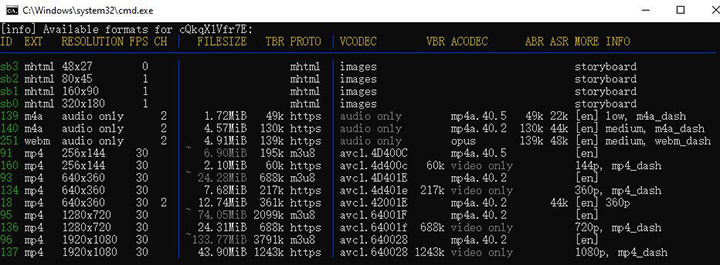
Using this command, yt-dlp will output a detailed list of all separate audio and video format codes available for the media. You'll see format ID numbers, resolutions, codecs, file sizes, and more.
Download Specific Format ID
Once you have the IDs, you can grab specific streams and merge them into one single file.
yt-dlp -f 137+251 <video_url>
For instance, in the example above, I want video 137 and audio 251. This command instructs yt-dlp to download both 137 and 251, then merge them together with FFmpeg.
Resolution Command
If you prefer not to look up the ID every time, you can also use filters to specify the desired resolution. The following command downloads the best quality at 1080p or below.
yt-dlp -f "bestvideo[height<=1080]+bestaudio/best" <video_url>
The same idea works for 4K as well. Just change the number:
yt-dlp -f "bestvideo[height<=2160]+bestaudio/best" <video_url>
If you want at least 720p and will accept higher if it exists:
yt-dlp -f "bestvideo[height>=720]+bestaudio/best" <video_url>
Format Selection
To force a widely compatible H.264 MP4 file:
yt-dlp -f "bestvideo[vcodec^=avc1]+bestaudio[acodec^=mp4a]/best[ext=mp4]" --merge-output-format mp4 <video_url>
To prefer HEVC (H.265) video in a MOV container:
yt-dlp -f "bestvideo[vcodec^=hev1]+bestaudio/best" --merge-output-format mov <video_url>
To download the best video with either H.264 or H.265 codec:
yt-dlp -f "(bv*[vcodec~='^((he|a)vc|h26[45])']+ba) / (bv*+ba/b)" <video_url>
YT-DLP Audio Only
For the highest quality audio in its original format (similar to downloading only audio with youtube-dl):
yt-dlp -x <video_url>
To convert that audio to MP3 at maximum quality:
yt-dlp -x --audio-format mp3 --audio-quality 0 <video_url>
Best YT-DLP Alternative with a GUI
If the command line feels like too much work, you still have solid options for video downloaders. One of the more practical choices is VideoProc Converter AI.
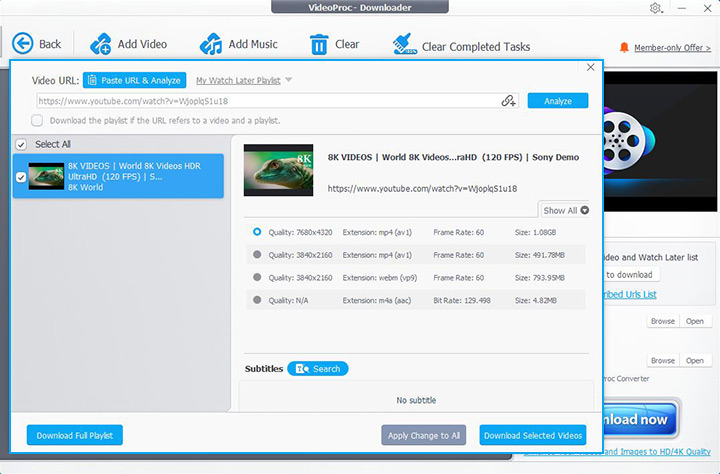
Its built-in downloader gives you a full visual interface. You paste a link, pick the quality you want from a clear list, and hit download. It supports more than 1000 sites, including YouTube, and can handle playlists and batch downloads. You also get to choose the output format and resolution without typing any flags.

VideoProc Converter AI - YT-DLP Alternative with a GUI
- Simpler and faster downloads in a friendly GUI with hardware acceleration
- Wide platform support for 1,000+ sites, YouTube, Facebook, TikTok, etc.
- High quality downloads, formats and codecs, audio-only, 1080p, 4K, up to 8K
- Batch downloads playlists, channels, live videos, audio, M3U8, etc.
- All-in-one: AI tools, video conversion, compression, DVD backup, etc.

Compared with yt-dlp, you trade some of the fine-grained control and scripting power for speed and simplicity. But most people who just want a high-quality file without opening a terminal will find the results more than good enough.
Conclusion
By default, yt-dlp already does a smart job of picking and downloading the highest quality for you.
When you want more say in the result, the controls are straightforward. You can list formats, limit height, prefer certain codecs, or grab audio only with a few extra flags.
If the command line still feels like a barrier, a program like VideoProc Converter AI gives you a visual way to download high-quality files. Combined with rapid updates to keep pace with platform changes, it covers the everyday needs of most users cleanly.