New AI features are available
We extract subtitles from MKV videos for different purposes. For example, we may extract subtitles from a low-resolution video file and add them to a higher-resolution version for a better viewing experience. Or we may find useful lectures, movies, or tutorials online and want to save the subtitles separately as learning material or for translation.
However, extracting subtitles from MKV files is not always as simple as it sounds. Unlike regular video formats, MKV is a container format that can include multiple subtitle tracks, such as different languages, forced subtitles, or SDH subtitles. Many users trying to extract subtitles from MKV often run into common issues: not knowing which subtitle track to extract, getting subtitle files in formats like ASS, PGS, or VobSub instead of SRT, or discovering that the subtitles are hardcoded and cannot be extracted directly. In other cases, users may simply want to extract a specific subtitle track or convert MKV subtitles to SRT for easier editing and reuse.
After testing a large number of subtitle extractors, we found one of the best options for both PC and Mac - VideoProc Converter AI. It allows users to extract subtitles from MKV videos or virtually any other video format in just a few clicks. Meanwhile, it also lets you import subtitle files from your computer or an external hard drive/USB, and even search for subtitles online before adding them to a video. Below, we'll walk you through four effective ways to extract subtitles from MKV videos step by step.
How to Extract Subtitles from MKV with VideoProc Converter AI
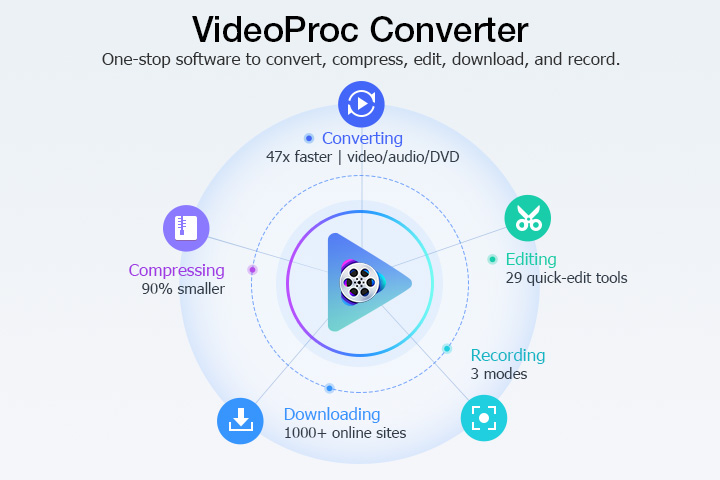
VideoProc Converter AI is a multimedia processing tool that includes a subtitle extraction feature. It allows users to extract subtitles from MP4, MKV, AVI, VOB, and other popular video formats, and supports common subtitle formats like SRT, ASS, and SSA. In addition to extracting subtitles, the software can also import or download subtitle files and add them to videos.
Beyond subtitle handling, the program provides basic video editing capabilities, including trimming, cropping, merging, rotating, and flipping clips, as well as adding effects or image watermarks. It also supports converting videos between different formats, resizing or upscaling video resolution, and processing files with relatively fast performance.
The software further includes additional utilities such as downloading videos, audio, or live streams from various online platforms, and a built-in screen recorder that can capture on-screen activity along with system audio or microphone input.
Free download and install the best subtitle extractor – VideoProc Converter AI – on Windows 11/10/8/7 or Mac computer, etc. and follow the easy 3 steps below to extract subtitles from MKV, MP4, etc.

Step 1. Add a video with MKV subtitle
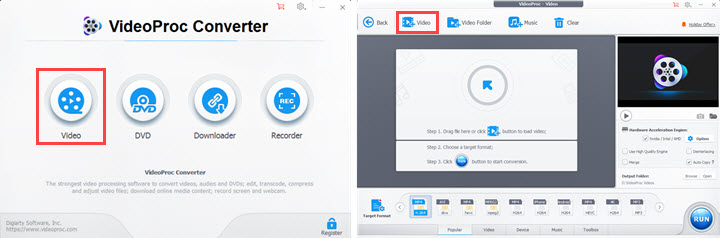
Run VideoProc Converter AI and click the Video button on the main interface. Click the +Video button to import a source video with subtitle.
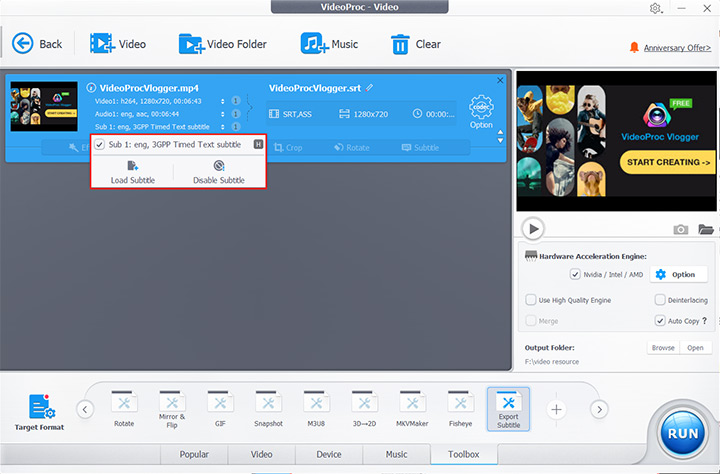
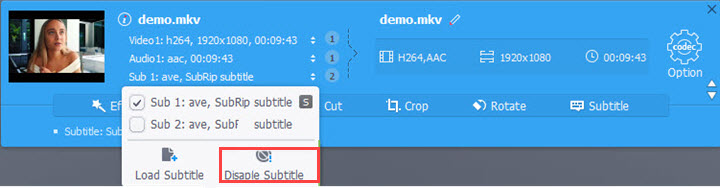
To check whether the video you added has a built-in subtitle track, just click "Disable Subtitle", and see the drop-down information.
Step 2. Select an output subtitle format
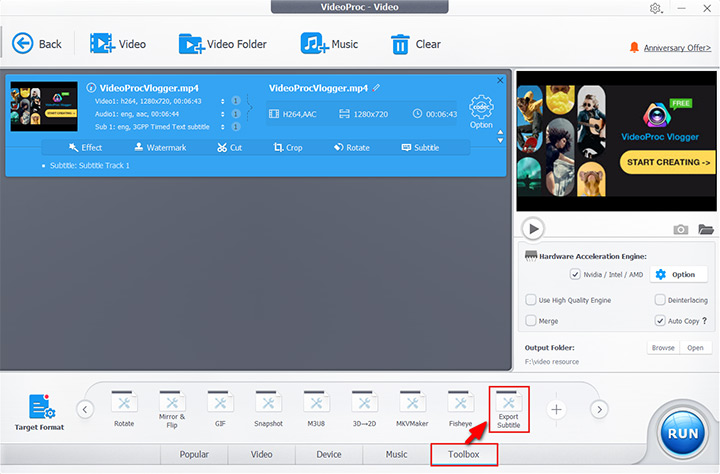
Tap the Toolbox icon in the lower area. Find the Export Subtitle option and double click it.
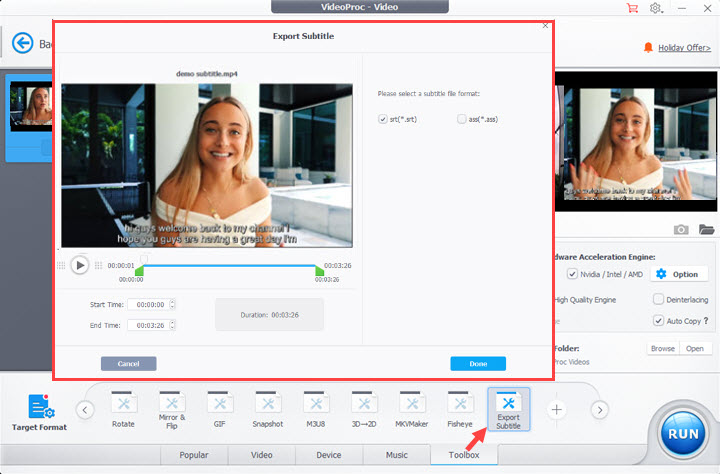
Then select an output subtitle file format (SRT or ASS). You can also extract a part of subtitles using trimming. Click Done.
Note: If there is no Export Subtitle option in the Toolbox, you can head to Target Format in the lower left corner and search for Export Subtitle in the field. Then, the subtitle extractor will be available.
Step 3. Extract subtitle from video
Hit RUN button to start extracting subtitle from MKV, MP4 or any other video as SRT or ASS subtitle file at ultrafast speed.
Pros
- Comprehensive video processing features, including subtitle extraction.
- Supports various output formats, including SRT and ASS.
- Fast conversion and extraction thanks to GPU acceleration.
- Can search and download subtitles online.
Cons
- Free only for video files shorter than 5 minutes; Files longer than 5 minutes require purchase or subscription.
How to Extract Subtitles from MKV Video with Subtitle Edit
Subtitle Edit is a free and open source software dedicated to helping people create, edit, translate, sync, convert, as well as extract subtitles from MKV and other video formats. It's available in 34 languages and is capable of reading and transcoding between 280+ subtitle formats, such as SubRip, ABC iView, Adobe Encore, Avid, Sony DVD Architect and many more. More so, you are allowed to synchronize subtitles with your movie with its waveform controls and visual sync. You’re able to rip or extract subtitles from videos so that you can modify, archive or even share.
Step 1. Navigate to SubtitleEdit at GitHub and download its latest version to your computer. It runs on both Windows and Linux computers.
Step 2. Open Subtitle Edit when it is good to go.
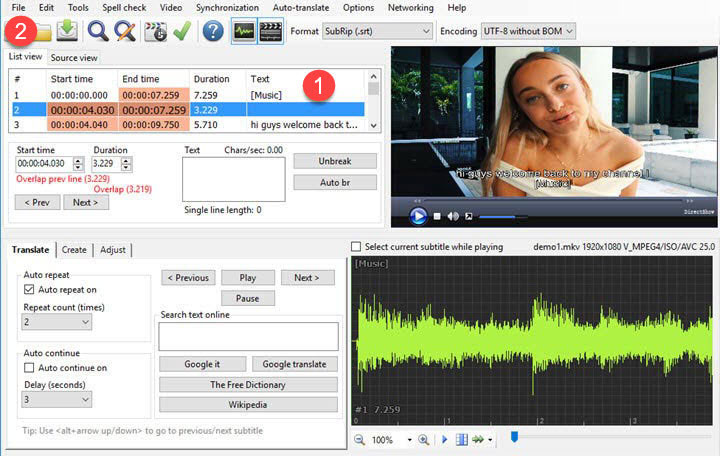
Step 3. Head to where your video is located, then drag and drop it to the subtitle editing area. Subtitle Edit will read all subtitle tracks embedded in the video. Choose the one you want to extract.
Step 4. Go to File > Save as > name your file, select a subtitle format and a location when the box prompting > Click Save to confirm your changes.
Pros
- Free and open-source.
- Supports a wide range of subtitle formats.
- Offers advanced subtitle editing features, including OCR.
- User-friendly interface.
- Available in multiple languages.
Cons
- OCR feature may require manual review for accuracy.
- May require additional software (like VLC) for video playback.
How to Extract Subtitles from MKV Video with MKVToolNix and MKVExtractGUI-2 (or MKVcleaver)
First of all, both MKVExtractGUI-2 and MKVcleaver are options to extract subtitles from MKV, but they require MKVToolNix to help. MKVToolNix is a robust tool package to create, merge, view, and alter Matroska files under Windows, macOS and Linux. It supports the encapsulation of a variety of videos, audio tracks and subtitles, and other files into an MKV file. In this way, you don't have to jump back and forth between files. Besides, you can use it to extract videos, music and subtitle files from MKV files if you need to make some adjustments to the files. To extract subtitles from MKV using MKVToolNix, go through the tutorials in the following.
Step 1. Download and install MKV subtitle extractor.
Download and run MKVToolNix on your compyter. And then download and run either gMKVExtractGUI or MKVcleaver to your computer at the same time. Because they're a set of tools and gMKVExtractGUI or MKVcleaver won't run without MKVToolNix. Here we take gMKVExtractGUI as an example.
Step 2. Import your MKV video and select the MKV subtitle track.
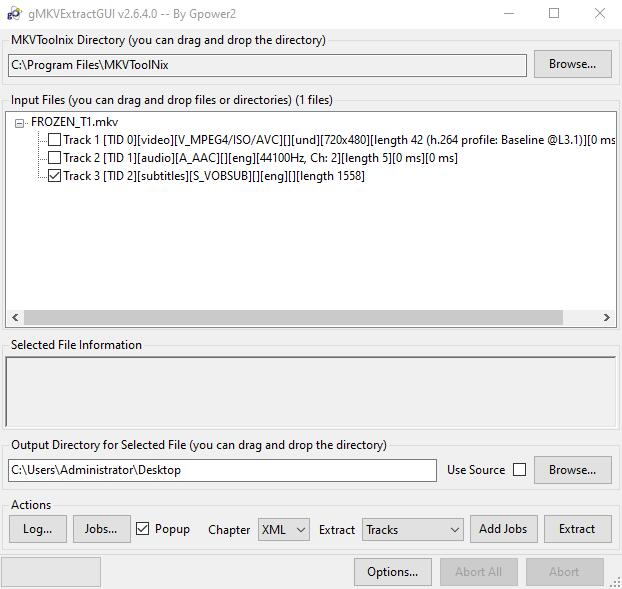
Import your MKV video here and tick the MKV subtitle track you want to extract.
Step 3. Extract subtitles from MKV.
Set an output directory to store subtitle files and click Extract to extract subtitles from MKV videos.
MKVToolNix can only extract your MKV subtitles into some text files, say, .mks. If you want to change them into the normal SRT files or something else, you can use this subtile tool to make it or switch to VideoProc Converter AI.
Pros
- Free and open-source.
- User-friendly interface for extracting tracks from MKV files.
- Extracts subtitles in their original format.
- Offers batch extraction capabilities.
Cons
- The default extracted files are .mks files by default, not SRT/ASS.
- May be slightly confusing for beginners.
- Could have compatibility issues with older versions or specific setups.
How to Extract Subtitle from MKV Files with VLC Media Player
First of all, after we researched and tried several different methods mentioned on the internet, it turned out that VLC media player cannot extract the subtitles contained in the MKV files. However, if there is luck for you, which means there are subtitle files on the internet for your MKV files, you can also extract the subtiles, or to be more precisely, download the subtitles. So obviously, this method does not work for all MKV files. Any way, here how to make it:
Step 1. Open your MKV file using the VLC media player and pause it.
Step 2. Then head to the View tab and choose VLsub option under it.
Step 3. In the new window, you will see two options: Search by hash and Search by name. In default, the name of your MKV file will appear in the box of Search by name. And we will highly recommend you use this one. So click on the Search by name button and wait for a few seconds. A few moments later, luckily you will see the subtitle results that VLC finds on the internet for you.
Step 4. Choose one file that you prefer and then click the Download selection button to have this subtitle file on your computer, which will be saved in the same destination of your MKV file.
Pros
- Can search and download subtitles available online for the video you are playing.
- User-friendly for accessing subtitle features during playback.
Cons
- Cannot directly extract embedded subtitles from the MKV file itself.
- Relies on the availability of online subtitles.
FAQs about Extracting Subtitles from MKV
1. What kind or format can MKV subtitles (or Matroska subtitles) be?
MKV subtitles can be in various formats, such as:
- SRT (SubRip Text) is the simplest and most widely supported subtitle format. It is a plain text file that contains subtitle lines along with their start and end time codes, which determine when each subtitle appears on screen. Because SRT files store only basic text and timing information without styling or multimedia elements, they offer excellent compatibility across most media players, devices, and platforms. The format is also easy to edit: open an SRT file with a text editor or word processor to modify subtitle text or adjust timing.
- ASS (Advanced SubStation Alpha) is a more advanced subtitle format that supports rich styling and visual effects. Unlike SRT, it allows subtitles to include different fonts, colors, sizes, screen positions, and animations. This makes it suitable for content that requires more complex presentation, such as karaoke effects, styled dialogue, or on-screen annotations. ASS subtitles are commonly used in anime releases and fan-made subtitles because they provide greater control over subtitle appearance and timing.
- VobSub: This is a subtitle format that consists of two files: an IDX file that contains the index of subtitle time and position locations, and a SUB file that contains the actual graphical subtitles. It is often used for DVD subtitles.
- PGS (Presentation Graphic Stream) is an image-based subtitle format commonly used in Blu-ray discs. Instead of storing text and timing like SRT or ASS, PGS subtitles are made up of bitmap images for each subtitle frame. Because of this, they preserve fonts, colors, and styles exactly as they appear in the original video. When extracting subtitles from MKV files sourced from Blu-ray, the subtitles are often saved as .sup files, which represent the PGS format and may not be supported by some media players or subtitle editors without conversion.
- VTT: It is short for Web Video Text Tracks Format. It is a subtitle format that is mainly used for adding timed text tracks, captions, and subtitles to HTML5 video and audio elements. It is similar to the SRT format, but it has some additional features, such as:
- It can support metadata, such as title, language, kind, etc.
- It can support styling, such as font, color, size, position, etc.
- It can support cues, such as voice, sound, chapter, etc.
- The VTT format is widely supported by modern browsers and web platforms, such as YouTube, Vimeo, Netflix, etc. It is also compatible with some media players, such as VLC, Media Player Classic, etc. However, some older devices or platforms may not support the VTT format, so you may need to convert it to SRT or other formats if you encounter compatibility issues.
There are also other subtitle formats that can be used in MKV files, such as STL, EBU STL, SAMI, XML, SCC, etc. However, they are less common and may not be supported by some players or devices.
2. What is the difference between hardcode MKV subtitles and softcode MKV subtitles?
The difference between hardcode MKV subtitles and softcode MKV subtitles is that hardcode subtitles are burned into the video stream, while softcode subtitles are embedded as a separate track in the MKV file. Hardcode subtitles cannot be turned off or changed by the player, while softcode subtitles can be toggled on or off, and adjusted for appearance and timing. Hardcode subtitles may affect the video quality and require re-encoding, while softcode subtitles preserve the original video and are more flexible. However, both of them can be extracted from the MKV files.
3. How to delete SRT/ASS subtitle from MKV/MP4/AVI/VOB videos?
Subtitles help us understand foreign movies and allow people who are hard of hearing to better comprehend the plots. But there are times we don't want to remain any subtitles on the source video for the aim to add the new, further study the language, etc. Follow below 2 steps to remove subtitles from MKV, MP4, AVI, VOB, etc.
Step 1. After we import the video file to VideoProc Converter AI, Click Subtitle > Disable.
Step 2. Hit Run to export the video.
4. How to add SRT/ASS subtitle files to a video?
VideoProc Converter AI allows users to add subtitles to a video, such as to import external SRT subtitles to videos. Let's have a few clicks to get the things done:
Step 1. Click the Subtitle drop-down menu in the source video column, and click Load Subtitle.
Step 2. Select the SRT/ASS subtitle file from your computer and add it to the video.
Or you can have some advanced setting to change the fonts, position, and color of subtitles by following steps.
Step 1. Click the Subtitle icon in the Edit column.
Step 2. Click Add Subtitle File to choose and import SRT/ASS subtitle file from the computer.

You can choose Burn-In to add hardcode subtitles or select Softcode to add captions to video. The later one allows you to turn on/off in playback, while the former one does not.
There are settings about subtitle size, position, color, and others for you to make adjustments to the displayed subtitles.
5. How to download SRT subtitle from online sites and import to videos?
VideoProc Converter AI also enables users to search subtitles, download subtitles online and import to video.
Step 1. Click the Subtitle icon to open the subtitle editing window.
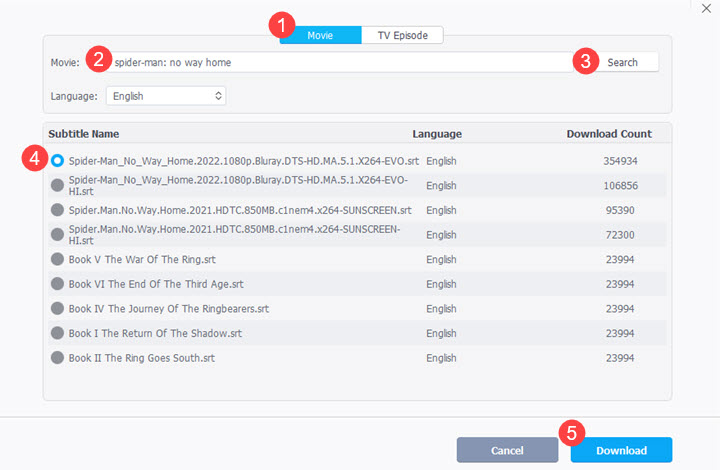
Step 2. Click the Search Subtitle File. Then choose either Movie or TV Episode, type movie name in the field, and choose movie language.
Step 3. Click the Search button. Choose a preferred subtitle file and click Download.