
 New AI features are available
Extracting subtitles from MP4 files can be useful in many situations. For example, your device might not recognize the subtitle track, or you may want to reuse the subtitles for translation, editing, or accessibility. Sometimes the video file doesn't include the subtitle with the language you need, or you're working with an older video and simply want a clean subtitle file. Either way, ripping subtitles from MP4 makes things much easier.
In this guide, we'll show you six different ways to extract subtitles from MP4 files, including tools that can pull out built-in subtitle tracks with a click and methods for dealing with subtitles burned into the video.
Before Started: What Type of the Existing MP4 Subtitles
Before picking a method to extract subtitles from MP4, check your video in a player like VLC:
- Softcoded (internal tracks): If you can toggle the subtitles or switch languages, you have soft-coded subtitles. These are independent data tracks like SRT, ASS, or PGS stored inside the MP4 container. Since they aren't part of the actual video frames, you can pull them out losslessly using Methods 1, 2, or 3.
- Hardcoded (burned-in): If the subtitles are permanently visible and cannot be turned off, they are hard-coded. These are part of the video pixels, so there is no separate track to "extract" in the traditional sense. To get these into a text format, you will need to use OCR in Methods 4 or 5 to scan the video frames and recreate the text.
- No Subtitles: If your MP4 has no subtitles at all, or if it only has auto-generated CC that you still want to extract, use Method 6. This approach relies on the audio dialogue to generate a clean, accurate subtitle track for you.
Extract Subtitles from MP4 (for Softcoded Subtitles)
Method 1. Use VideoProc Converter AI
Best for: Quick extraction subtitles from MP4 files with soft-coded subtitles, beginner-friendly.
For users who want to extract embedded subtitles quickly, VideoProc Converter AI offers a simple solution. This powerful subtitle editor and extractor can read the MP4 container and export SRT or ASS subtitle tracks without re-encoding the video. In our tests, extracting subtitles from a 2-hour 4K MP4 took only a few seconds. Multiple language tracks were recognized accurately, making it easy to get your subtitles ready for editing or translation.

VideoProc Converter AI - Extract Subtitles from MP4 in Seconds
- Extract SRT/ASS from MKV, MP4, AVI, WebM, MOV, and more.
- Support soft-coded, internal, and multi-language subtitle tracks.
- Lossless extraction without re-encoding the original video.
- Built-in tools to add, search, or burn-in subtitles to videos.
- 47x real-time faster, accelerated by Level-3 GPU acceleration.
 Excellent
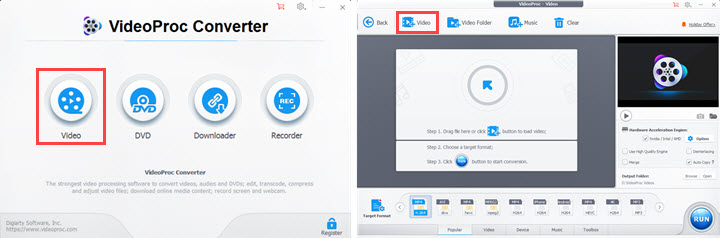
Step 1: Run VideoProc Converter AI and click the Video Converter button. Click +Video to import the MP4 file.
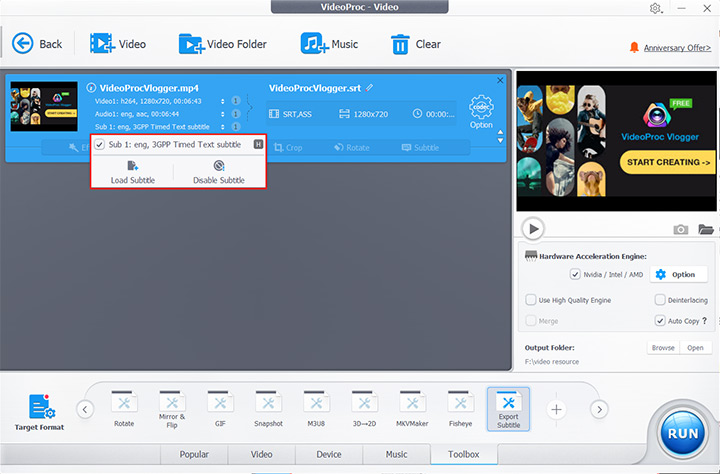
Step 2: Hit the Toolbox icon at the bottom. Select Export Subtitle. Choose your preferred format (SRT or ASS). Click Done.
Tips:
- If you need subtitle from part of the video, just drag the green knobs to choose the desired section.
- You ca also click Target Format to find the option of Export Subtitle.
Step 3: Click RUN. VideoProc will extract the subtitles from your MP4 and save them as an SRT or ASS file.
Method 2: Use FFmpeg
Best for: Programmers, tech-savvy users, and anyone who prefer working with the command line to extract and manage soft subtitles for free.
FFmpeg is a free, open-source, cross-platform tool that can handle almost any audio, video, or subtitle stream. Many people have probably heard of it, since it powers most media software under the hood. Unlike typical GUI apps, FFmpeg lets you work directly with media files and automate multiple processing tasks without a graphical interface. Thanks to its versatile stream support, it can extract soft subtitles like SRT, ASS, SSA, or PGS text streams embedded in MP4 files. You can keep the extracted subtitles as separate files, convert them to different formats, or even burn them into a new video. While some command-line familiarity is needed, once you get the hang of it, FFmpeg is fast, reliable, and precise, making it a favorite among programmers and power users.
Step 1. Install FFmpeg
Download and install FFmpeg for your platform (Windows, macOS, or Linux). Make sure it's added to your system PATH so you can run it from any terminal or command prompt.
Step 2. Open a terminal
Launch your terminal (macOS/Linux) or Command Prompt/PowerShell (Windows). Navigate to the folder where your video file is located, or provide the full path to the file in your commands.
Step 3. Check subtitle streams
Before extracting, it's useful to see what subtitle tracks are available. Run: ffmpeg -i input_video.MP4. Look for lines starting with Stream #0:s: — these are your subtitle tracks. Take note of the number of the track you want to extract.
Step 4. Extract the subtitle
Use the -map option to specify the track you want, and give it an output filename: ffmpeg -i input_video.MP4 -map 0:s:0 subs.srt. Replace 0:s:0 with the correct stream number if it's different, and choose a name for your output file.
Step 5. Verify and use
Open the generated .srt file to check that it matches your video. From here, you can edit, convert to other formats, or use it directly for playback.
Method 3: Use MP4TooNix
Best for: Users who need precise control over subtitle extraction.
For users who need precise subtitle extraction from MP4, MKVToolNix is a widely trusted tool. Originally developed for Matroska (MP4) files, it also works effectively with MP4 containers, allowing you to extract subtitle tracks from MKV and MP4 files directly without modifying the video. It gives full control over subtitle streams, preserving all timestamps and formatting exactly as in the original file. This ensures that the extracted subtitles remain perfectly synchronized with the video, even for complex multi-track files.
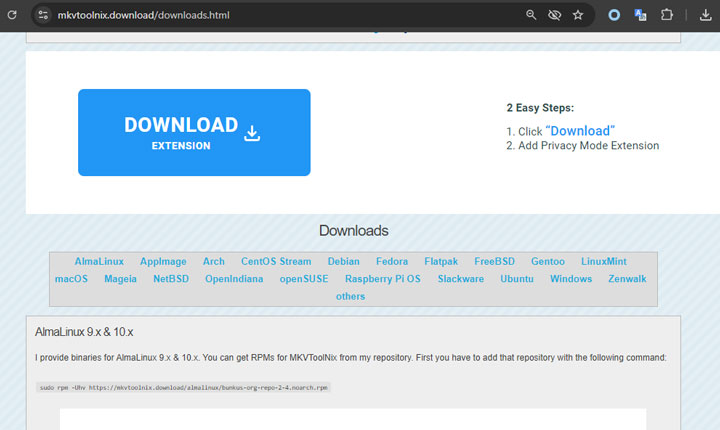
Step 1. Download and install MKVToolNix
Download and install MKVToolNix on your computer. The software includes MP4extract, the built-in tool for extracting subtitle tracks. You don't need any additional GUI tools, though optional front-ends like gMP4ExtractGUI or MP4Cleaver can make the process easier if you prefer a graphical interface.
Step 2. Import your MP4 video
Open MKVToolNix (or your preferred GUI front-end) and import your MP4 video. The program will list all streams in the file, including video, audio, and subtitle tracks.
Step 3. Select the subtitle track
Choose the subtitle track you want to extract. Make sure only the subtitle track is selected so that the extraction process focuses solely on the subtitles without affecting the video or audio streams.
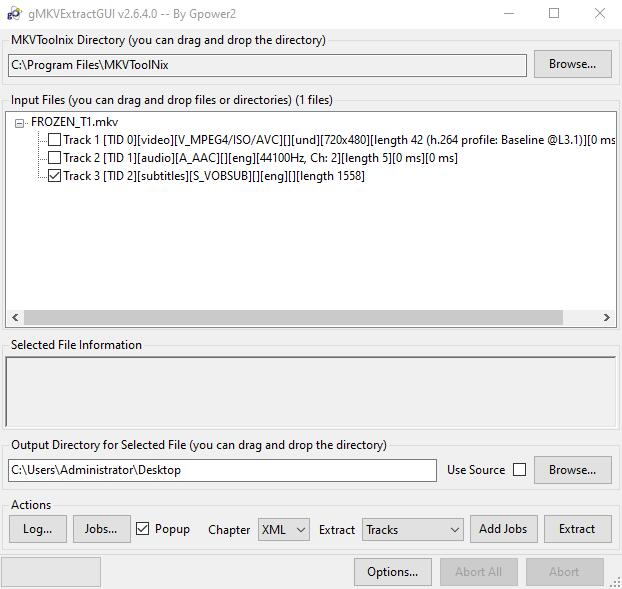
Step 4. Extract the subtitles
Set an output folder for your subtitle file and start the extraction. MKVToolNix will save the subtitles in a raw format while preserving all timestamps and formatting exactly as in the original file.
Step 5. Convert to SRT or other formats (optional)
The extracted file may not be in SRT format. If needed, use a subtitle converter tool to change it to SRT or another standard subtitle format for easier use in your video projects.
Extract Subtitles from MP4 (for Hardcoded Subtitles)
Method 4: Use NikSe
Best for: Videos where subtitles are "burned-in" and cannot be turned off.
Hardcoded or image-based subtitles in MP4 files can be tricky — many extractors just say "No subtitle tracks found". NikSe handles these with ease, using built-in OCR to turn image-based subtitles into editable .srt or .ass files. Surely, it's not perfect and doesn't get 100% of every line right: blurry, heavily compressed, or busy-background subtitles, and complex scripts like Chinese, Japanese, or Korean, may need a little tweaking. Luckily, NikSe makes editing easy, so corrections are straightforward. Soft subtitles, on the other hand, are handled flawlessly. On top of that, NikSe supports hundreds of formats, advanced syncing, waveform and spectrogram views, and full Unicode support, making it a complete subtitle solution.
Step 1. Open your MP4 file
Launch NikSe and load the MP4 you want to extract subtitles from. The software will automatically detect any embedded text-based or image-based tracks.
Step 2. Choose the subtitle track
Pick the track you want to work with. If it's a soft subtitle, you're ready to go; if it's an image-based track (PGS/PGI), you'll need to use OCR.
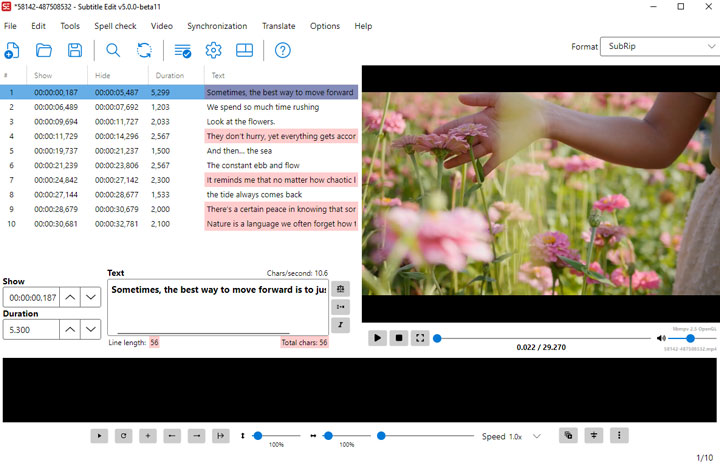
Step 3. Run OCR (if needed)
For image-based subtitles, start the built-in OCR process. NikSe will convert the subtitles into editable text formats like .srt or .ass.
Step 4. Edit and sync
Use the visual waveform and spectrogram displays to adjust timing, merge or split lines, and fix any recognition errors.
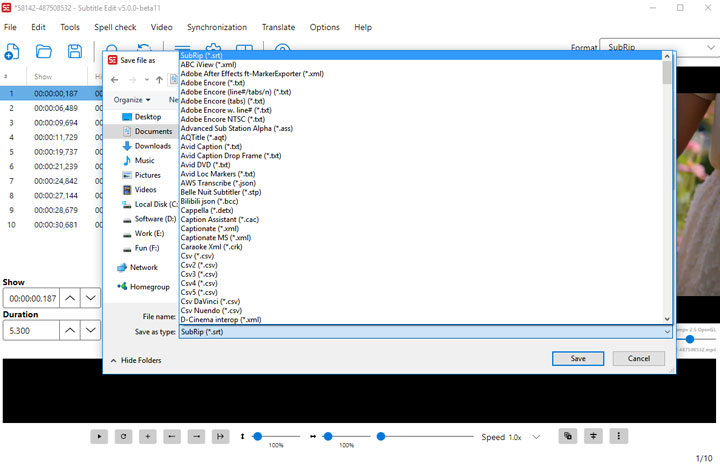
Step 5. Export your subtitles
Once satisfied, export to your preferred format. You can choose from over 300 supported formats, ready for playback, sharing, or further editing.
Method 5: Use SubExtractor (Online Tool)
Best for: Quickly extracting burned-in subtitles from small MP4 files directly in your browser.
SubExtractor uses AI OCR to detect and extract burned-in subtitles, converting them into editable SRT, VTT, or ASS files. Its AI engine supports multiple languages and adapts to different fonts, video qualities, and backgrounds, making it surprisingly accurate for an online tool. Compared with NikSe, it's simpler and less flexible. Subtitles extracted via SubExtractor rarely reach perfection, especially for special characters or tricky fonts, and the platform doesn't offer advanced editing, syncing, or proofreading features. It's ideal for fast extraction of hardcoded subtitles but less suited for professional workflows or fine-tuning.
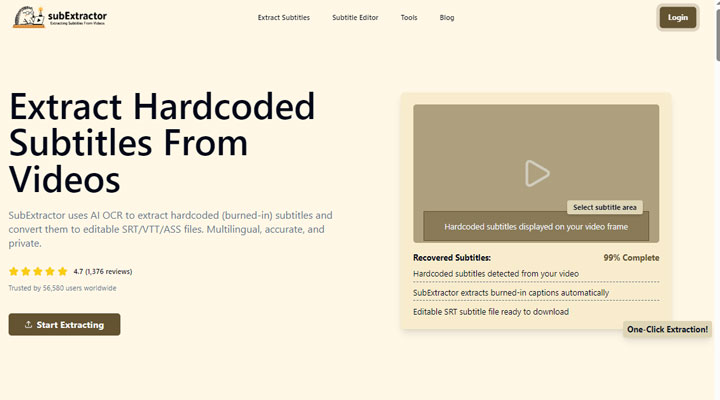
Step 1. Upload the MP4 File
Go to the SubExtractor website in your preferred browser. Click the upload button and select your MP4 or other supported video file. Make sure your file is 1GB or smaller, as that is the maximum file size allowed per upload.
Step 2. Choose the output format
Decide whether you want your subtitles as SRT, VTT, or ASS files. SRT is great for general playback and editing, VTT works well for web use, and ASS is suitable for more advanced subtitle styling.
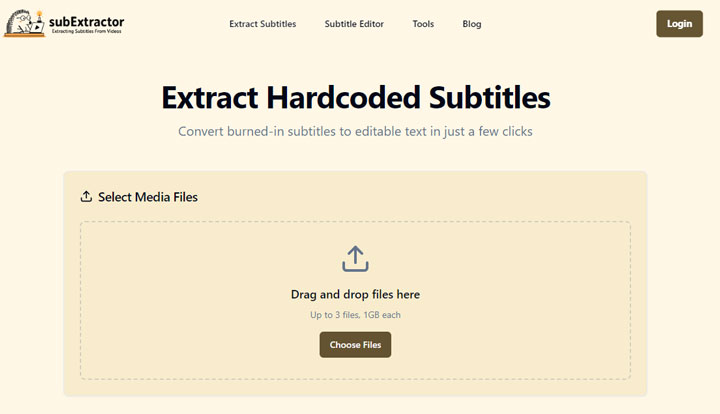
Step 3. Start the extraction
Click the Start or Extract button. The AI will analyze the video, detect burned-in subtitles, and convert them into your selected format. Depending on video length and quality, this may take a few seconds to a few minutes. Click the Download icon to save your extracted subtitles to your computer.
Extract Subtitles from MP4 (No Subtitle Tracks, Auto CC)
Method 6: Use SubtitleExtractor (No Subtitle Tracks, Auto CC)
Best for: Users who want to extract or generate subtitles from MP4 files on your browser.
SubtitleExtractor.com offers a streamlined, browser-based way to extract subtitles from MP4 without local installations. Its hybrid AI engine handles internal streams, OCR-recovered hardcoded text, and audio transcription. However, this convenience comes with technical trade-offs. Large 4K files face significant upload bottlenecks, and the OCR accuracy can falter with stylized fonts or busy backgrounds in hardcoded videos. Privacy-conscious users may also hesitate to upload proprietary content despite the platform's data-purge policy. Furthermore, free-tier limitations on file size and processing speed often make it more practical for short clips than feature-length archives. For users prioritizing 100% accuracy and offline security, traditional demuxing tools remain the more robust, albeit steeper, alternative.
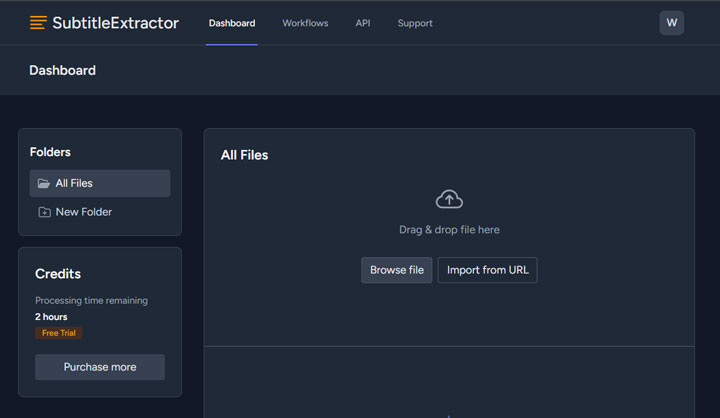
Step 1. Import the MP4 File
Go to the SubtitleExtractor website and click the Upload button to select your MP4 file (or another supported format). Keep in mind that the maximum file size per upload is 2GB.
Step 2. Choose the Subtitle Type
Depending on your video, choose how you want to extract subtitles. Use Vision mode if your subtitles are hardcoded (burned into the video), or switch to Audio mode to let AI detect and generate subtitles from the spoken audio.
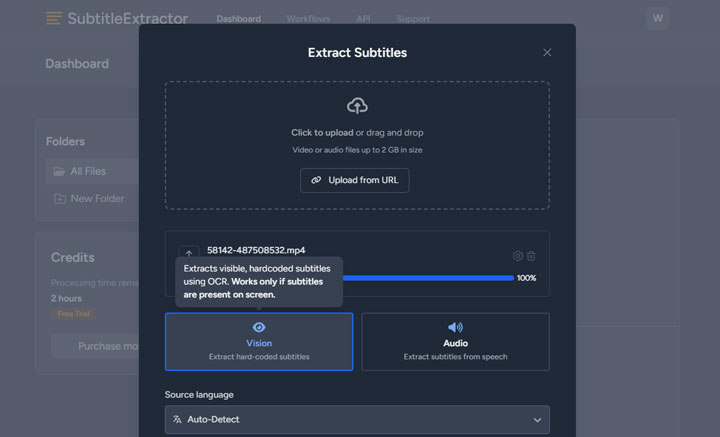
Step 3. Start the extraction
If needed, select the correct language for better accuracy. Then click Extract Subtitles to begin the process.
FAQs
1.How do I choose the right track to extract if an MP4 has multiple languages?
This depends on the tool you use to extract subtitle from MP4. Suppose you're using VideoProc Conveter AI, then you can enable the subtitle feature to see the available subtitle tracks and choose to extract the specific subtitle track(s) you need.
2.Why is my extracted file a .sup or .sub instead of a text-based .srt?
MP4 files often contain PGS (Presentation Graphic Stream) subtitles from Blu-rays. These are image-based, not text-based. If you extract them, you get a .sup file. To get an .srt, you must run that extracted file through an OCR tool (like Subtitle Edit) to "read" the images and convert them into text.
3.Can I extract subtitles from MP4 without losing video quality?
Yes. Extraction (also known as demuxing) is a 100% lossless process. You are simply pulling a data stream out of the MP4 container. The original video and audio tracks remain untouched and are not re-encoded or compressed during the process.
4.Why do some MP4 files show "No subtitle tracks" even though I see them on screen?
If your player shows subtitles but extraction tools find no tracks, the subtitles are likely hardcoded (burned into the video frames). In this case, there is no separate "track" to extract. Your only option is to use an AI-OCR tool like Subtitle Edit to scan the video pixels and recreate the subtitle file from scratch.
5.How can I batch-extract subtitles from an entire season of MP4 files?
The most straightforward solution is using VideoProc Converter AI, as it supports bulk importing and allows you to extract subtitle tracks from multiple MP4s simultaneously through its "Export Subtitle" feature. If you prefer a more technical, free alternative, you can use FFmpeg. Open your terminal in the folder containing your videos and run: for %i in (*.MP4) do ffmpeg -i "%i" -map 0:s:0 "%%~ni.srt". This command targets the first subtitle track (0:s:0) of every MP4 in the directory and generates matching SRT files instantly.
6.What should I do if the extracted subtitles are "scrambled" or show weird symbols?
This is an encoding mismatch. It usually happens when the original MP4 used an older character set (like Big5 or ANSI). To fix this, open the extracted file in a text editor (like Notepad++) and "Save As" or "Convert to" UTF-8. This is the universal standard that ensures your subtitles display correctly on all modern devices.




