Download Online Videos & AI Upscale to HD/4K!
If you're dealing with yt-dlp not working out of nowhere, you're not alone. Sudden breakages are just part of using yt-dlp, usually because YouTube changed something on the backend. A recent update, for example, caused the android_vr client in version 2026.07.04 to throw 403 errors until it was patched in the 2026.08.19 release. Still, updating doesn't fix everything. An HTTP 403, 429, or 503 can point to several different issues: an outdated GUI backend, a missing JavaScript runtime, subtitle rate limits, network routing, login verification, or even an unquoted URL.
Reinstalling yt-dlp or FFmpeg rarely fixes anything if you don't check the verbose log first. The fastest way forward is always to diagnose the exact error output. Having dealt with plenty of these breakages myself, I pulled together solutions from my own testing, active GitHub issues, and Reddit threads. This guide will help you decode the error message, identify the root cause, and jump straight to the right fix for "yt-dlp not working" without the usual trial and error.
- Is yt-dlp Not Working Right Now? August 2026 Update
- Quick Diagnosis: What Does Your yt-dlp Error Point To
- Why Is yt-dlp Not Working
- How to Fix yt-dlp Not Working: General Fix
- How to Fix yt-dlp 403 Forbidden
- How to Fix yt-dlp 429 Too Many Requests
- How to Fix yt-dlp 503 Service Unavailable
- How to Fix Other yt-dlp Not Working Errors
- yt-dlp Still Not Working? Try VideoProc Converter AI
- FAQs
Is yt-dlp Not Working Right Now? August 2026 Update
Many yt-dlp users began seeing 403 errors on August 17, 2026, even though they hadn't changed their commands or settings. The problem affected requests made through version 1.65.10 of the android_vr client, which was still selected by yt-dlp stable 2026.07.04.
yt-dlp removed the affected client from its defaults on August 18, and the fix was included in stable 2026.08.19. If you're still using an older version, follow these yt-dlp update steps, then try the same URL again. More troubleshooting steps are covered below under “403 After yt-dlp Selects a Format.”

Some affected logs also contain this warning: WARNING: [youtube] No supported JavaScript runtime could be found.
The warning and the 403 may appear in the same log, but they point to different problems. In this case, the 403 was caused by the affected android_vr client. The warning means yt-dlp could not use a supported JavaScript runtime to handle YouTube's JavaScript challenges. Installing Deno or configuring another supported runtime is still recommended for full YouTube support. However, the JavaScript runtime warning was not the cause of this particular android_vr 403 error.
🤔 If you're tired of manually updating to nightly builds or troubleshooting JavaScript runtimes every time YouTube changes its code, consider VideoProc Converter AI. It is a robust alternative for anyone who needs a reliable way to download online videos effortlessly:
- Frequent updates ensure stable downloads without the need for manual fixes or adjustments.
- Batch download 4K videos from 1000+ mainstream websites and 2000+ niche platforms.
- Complete flexibility: set proxies and choose your preferred quality, fps, format, etc.
- All-in-onetoolkit: download, record, convert, edit, and AI-upscale or enhance videos.

Quick Diagnosis: What Does the yt-dlp Error Point To
Before you start reinstalling things or blaming your internet, take a breath. Most yt-dlp problems like yt-dlp not working, yt-dlp 503/403 forbidden follow a predictable pattern. The exact error—and where it appears in the log—can usually tell you what to check first.
| What you see | It usually points to | Start here |
|---|---|---|
HTTP Error 403: Forbidden |
Outdated version, rejected media request, PO Token requirement, login verification, IP issue |
Update yt-dlp and check where the 403 error appears in the log |
HTTP Error 503: Service Unavailable |
Googlevideo/CDN trouble, a failing network route, or a temporary delivery problem |
Wait before retrying, then test another network or format |
No supported JavaScript runtime could be found |
yt-dlp cannot use a supported runtime for YouTube's JavaScript challenges |
Install Deno or configure another supported JavaScript runtime |
Sign in to confirm you're not a bot |
Browser verification, login, cookies, or IP restrictions |
Open the URL on the same network and complete any verification |
HTTP Error 429: Too Many Requests |
Rate limiting affecting your IP, account, or a specific request |
Stop repeated requests, wait, and check for a browser CAPTCHA |
Unable to download video subtitles: HTTP Error 429 |
The subtitle request is rate-limited, even though the video may still be available |
Disable subtitles temporarily and try the same URL again |
Requested format is not available |
A forced format is unavailable for that video |
Let yt-dlp choose automatically or inspect the available formats |
ffmpeg not found / merge error |
A local FFmpeg, PATH, merging, or post-processing problem |
Check the FFmpeg installation and confirm it is available in PATH |
yt-dlp works in the terminal but not in an app |
The app may use its own bundled yt-dlp version, settings, or update channel |
Check the yt-dlp path and version shown in the app's log |
'list' is not recognized... |
A shell syntax problem, often caused by an unquoted YouTube URL |
Put the entire URL in quotation marks |
Unsupported URL |
An incorrect URL or a website extractor that needs updating |
Check the URL, update yt-dlp, and test it again |
Why Is yt-dlp Not Working
1. YouTube or the Website Changed Something
This is one of the first things to suspect when yt-dlp worked normally yesterday but suddenly fails today without any changes on your side. yt-dlp has to keep adapting to the way YouTube and other websites expose video information and media streams, so changes to player clients, streaming URLs, JavaScript challenges, playback verification, APIs, or page structures can break an otherwise working setup.
The August 17 android_vr breakage is a good example. The yt-dlp installation itself did not suddenly become corrupt. YouTube changed how requests from that client were handled, and downloads started returning 403 until yt-dlp changed its defaults. The same thing can happen on other supported websites when an extractor no longer matches the site's latest API or page structure.
Tips: The best way to tell if it's 'just you' is to look at the scope. If everyone starts seeing the same error at the same time, YouTube probably changed something on their end. Don't waste time rebuilding your setup when the problem is likely a platform-side regression.
2. Your yt-dlp Environment Is Outdated or Incomplete
Sometimes the website is fine, but your local setup has fallen behind.
An older yt-dlp build may still open normally even though its extractor no longer matches the current website. This is especially easy to miss when you use a third-party app. The app may bundle its own copy of yt-dlp, so updating another installation in Command Prompt, PowerShell, pip, or Homebrew may not change the version the app actually uses.
The supporting components matter too. yt-dlp now expects a supported JavaScript runtime for full YouTube support, while FFmpeg is used later for merging, conversion, and other post-processing tasks. A missing runtime and a missing FFmpeg installation can both cause failures, but they affect different stages of the process.
3. YouTube Is Rejecting or Restricting the Request
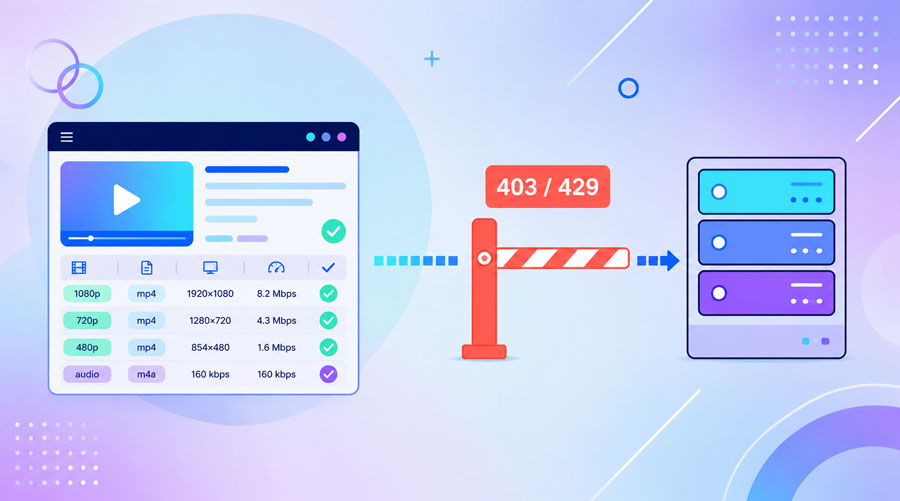
In many cases, yt-dlp successfully retrieves video metadata and lists available formats, only to throw a 403 or 429 error on the very next download request. When this happens, the extractor has already done its job; the remote server is rejecting the actual media stream, subtitle file, or session token due to rate limiting, IP blocks, or login verification. When troubleshooting yt-dlp not working, always check the final few lines of your terminal log. An HTTP 429 attached to a subtitle request, for instance, doesn't mean the video stream itself failed—it just means that specific subtitle request was throttled.
4. The Video or Format Itself Has a Problem
If other downloads work and only a single video fails, yt-dlp itself is rarely the problem. The affected video is more likely private, deleted, geoblocked, age-restricted, gated behind an account login, or missing the exact stream requested by your command.
The same logic applies when one format returns a 403 error while another downloads fine. Stream availability and CDN delivery routes vary across different uploads, which is why hardcoded format rules like 137+140 won't work on every link. Before assuming yt-dlp is not working and reinstalling your environment, test a different public URL and let yt-dlp select the best format automatically.
5. Your Command Has a Syntax Problem
Some failures happen before yt-dlp even gets a fair chance to process the URL. A common Windows example is a YouTube URL containing &: without quotation marks, Command Prompt can split the URL into separate commands and produce errors such as 'list' is not recognized as an internal or external command.
Old config files can be just as confusing because they may silently force a format, proxy, cookie file, player client, or other option on every run. If a plain yt-dlp command works but your usual setup does not, your command or configuration deserves a closer look.
6. The Media Server or Network Path Is Failing
When yt-dlp retrieves the video information and selects a format before returning 503, the problem is usually happening on the delivery path rather than during extraction. The Googlevideo server, CDN route, selected format, IP address, or network connection may be temporarily unavailable.
This is why reinstalling yt-dlp or FFmpeg rarely fixes a yt-dlp 503 error that appears at this stage. Waiting, requesting a fresh media URL, reducing repeated attempts, or testing another normal network route is more useful.
How to Fix yt-dlp Not Working: General Fix
If yt-dlp is not working, first confirm which version you are using, then run the failed URL again with verbose logging:
yt-dlp -vU "VIDEO_URL"
The verbose log should point you in the right direction. Don't focus only on the final error—check the few lines right before it, because they often reveal what actually went wrong:
- Many unrelated URLs suddenly fail: Check for a recent website or extractor change, then update yt-dlp through the same method you used to install it.
- You see a JavaScript runtime warning: Check your Deno, Node.js, or other supported runtime setup.
- Only one video or format fails: Test another public URL and remove any forced format or old custom options.
- The error mentions subtitles: Try again without subtitles before assuming the entire yt-dlp setup is broken.
- You see a login, CAPTCHA, bot, or 429 message: Check browser access, your IP, and whether repeated requests have triggered a temporary limit.
- yt-dlp reaches merging or post-processing before failing: Check FFmpeg rather than the website extractor.
- The log ends in 403, 429, or 503: Use the matching section below because these errors do not have the same cause.
If your usual command is complicated, also try the plain version once:
yt-dlp "VIDEO_URL"
If the plain command works, yt-dlp itself is probably fine. The yt-dlp not working problem is more likely to be a saved configuration, forced format, cookie file, proxy, subtitle option, or another custom setting. If you use a GUI, also check the yt-dlp path and version shown in its log. The app may not be using the same copy you updated in the terminal.
How to Fix yt-dlp 403 Forbidden
A yt-dlp 403 Forbidden error can happen at different stages, so the right fix depends on where the log stops. Run the URL with verbose logging before changing your cookies, formats, or network settings:
yt-dlp -v "VIDEO_URL"
Before changing cookies, formats, or network settings, check the version reported at the beginning of the log. Update yt-dlp through the same method you originally used to install it. A standalone executable, pip installation, package-managed copy, and third-party GUI may each require a different update method.
yt-dlp --update-to nightly
Try the same URL again after updating. If the yt-dlp 403 error remains, check whether the log stops before the video information appears, after a format is selected, or while yt-dlp is processing a specific media request.
1. How to Fix a yt-dlp 403 Error Before Video Information Is Retrieved
If the log stops at Downloading webpage, an initial API request, or another step before yt-dlp displays the title and formats, the media download has not started. The website is refusing the first request, the extractor is outdated, or the session needs browser verification.
Open the same video in a browser on the same connection. If the browser also asks you to sign in, solve a CAPTCHA, verify your age, or confirm that you are not a bot, complete that check and continue with the browser cookies steps below.
If the video opens normally in the browser, try the updated yt-dlp build again. On non-YouTube sites protected by Cloudflare, a verified browser session and the same IP may still be required. The yt-dlp FAQ explains how to pass that browser session to yt-dlp.
FFmpeg cannot fix this stage of the failure. yt-dlp has not reached the media file or the final merge yet.
2. How to Fix a yt-dlp 403 After the Format Is Selected
If the log reaches [info] Downloading 1 format(s) before returning 403, extraction succeeded. The refusal happened when yt-dlp tried to open the selected media URL.

The August 2026 android_vr failure has this pattern:
Downloading android vr player API JSON
[info] ... Downloading 1 format(s): 400+251
ERROR: unable to download video data: HTTP Error 403: Forbidden
If your log mentions android_vr and returns HTTP Error 403 after selecting a format, check whether you are using a version older than stable 2026.08.19. The widespread August 2026 issue affected the client selected by stable 2026.07.04. yt-dlp later removed that client from its defaults, and the fix was included in stable 2026.08.19.
If you have already updated but the log still reports an older version, another copy of yt-dlp may be running. Check the executable path shown in the verbose log or in your downloader app’s settings.
If the log explicitly says that a PO Token is required, follow yt-dlp’s current PO Token guide. Do not treat every yt-dlp 403 error as a PO Token problem. The project recommends using a provider plugin when a token is required because many PO Tokens are bound to individual video IDs and cannot be reused as a permanent manual fix.
If neither message appears, continue with the format and network checks in the next section.
3. How to Fix a yt-dlp 403 Error on a Specific Format or After a Download
If one format returns 403 while another works, list the available formats and select a different one:
yt-dlp -F "VIDEO_URL"
yt-dlp -f "FORMAT_ID" "VIDEO_URL"
As a quick comparison, request the best format that already contains both video and audio:
yt-dlp -f "b" "VIDEO_URL"
This may provide lower quality than yt-dlp's usual separate video-and-audio selection, but it tests a different media file. If it works, yt-dlp itself is functioning and the failure is tied more closely to the original format or playback path.
If the download starts and later returns 403, rerun the command once to obtain a fresh media URL. If the same point fails again, disconnect a VPN or proxy, try a phone hotspot, or test IPv4 explicitly:
yt-dlp --force-ipv4 "VIDEO_URL"
A route that works on one connection but not another points to an IP or delivery-path problem. It is still not an FFmpeg error: the failure occurs while yt-dlp is fetching bytes, before the final merge.
4. How to Fix a yt-dlp 403 Error with a Missing JavaScript Runtime Warning
This warning does not prove that the missing runtime caused the yt-dlp 403 error. The warning and the 403 may appear in the same log while pointing to two separate problems. However, it does mean that yt-dlp cannot use a supported runtime to handle YouTube’s JavaScript challenges, so the runtime setup should still be fixed.
WARNING: [youtube] No supported JavaScript runtime could be found
Deno is the recommended runtime and is enabled by default when yt-dlp can find it. Install Deno 2.3.0 or later, then confirm that it is available on your system path:
deno --version
Official bundled executables such as yt-dlp.exe already include the EJS challenge scripts. If you installed yt-dlp with pip, update it with the default dependency group so that the matching yt-dlp-ejs package is installed:
python -m pip install -U "yt-dlp[default]"
Node.js is also supported, but it must be enabled explicitly:
yt-dlp --js-runtimes node "VIDEO_URL"
See the official EJS setup guide for the supported runtimes, minimum versions, and installation-specific requirements. Once the warning disappears, try the same URL again. If the yt-dlp 403 error remains, return to the verbose log and check where the request is being rejected instead of assuming the JavaScript runtime is still the cause.
5. How to Fix a yt-dlp 403 Error with "Sign in to Confirm You're Not a Bot"
This message points to a session or IP verification problem. Open the same video in your normal browser on the same connection and complete the sign-in, CAPTCHA, age check, or bot-confirmation prompt.
Once the video opens normally, rerun yt-dlp using cookies from that browser:
yt-dlp --cookies-from-browser chrome "VIDEO_URL"
Replace chrome with the browser you actually used. Keep the same connection when you rerun the command, since some verified sessions depend on both the cookies and the IP address that completed the check.
If the log also contains 429 Too Many Requests, stop simultaneous or repeated downloads and complete any browser CAPTCHA before trying again. The yt-dlp FAQ describes 429 as an IP-based block caused by overuse.
Use cookies for this branch because the error points to login or browser verification. If YouTube shows no such prompt, return to the earlier 403 branches instead of treating cookies as a universal fix.
How to Fix yt-dlp 429 Too Many Requests
HTTP Error 429 means the server is temporarily limiting requests from your IP address, browser session, or account. It often appears after repeated attempts, large queues, or several requests running at the same time. If yt-dlp is not working and the log ends in 429, reinstalling the program usually will not remove the restriction.
Before changing your entire setup, read the complete error. A yt-dlp 429 error may affect the initial webpage request, a media request, or only the subtitles. These cases do not always have the same effect or require the same fix.
1. Check Whether Only the Subtitles Failed
Some apps mark the entire job as failed even when yt-dlp has already selected the video and audio formats. For example, the final line may say:
ERROR: Unable to download video subtitles for 'en': HTTP Error 429: Too Many Requests
This points to a subtitle request limit. It does not necessarily mean that the selected video format has also failed. Try the same URL without requesting subtitles:
yt-dlp --no-write-subs "VIDEO_URL"
If that works, disable automatic subtitles in your app or yt-dlp configuration and try them again later. Updating FFmpeg will not fix a 429 returned by the subtitle server.
2. Stop Repeated Requests and Wait
Pause queued or repeated attempts and give the temporary limit time to clear. If you are processing a playlist or several URLs, reduce concurrent requests and avoid restarting the same failed task over and over.
Open the same URL in your browser on the same network. If the browser shows a CAPTCHA, login request, or bot-verification message, complete that check before trying yt-dlp again.
3. Check the Network and IP Address
Disconnect a VPN or proxy and test the URL once over your normal connection. If you are already using a direct connection, a phone hotspot can help confirm whether the yt-dlp 429 error is tied to the original IP address.
Avoid rapidly switching through multiple proxies or continuing to send repeated requests. That can make the temporary restriction last longer.
4. What If the yt-dlp 429 Error Still Appears?
Test one unrelated public URL without subtitles or other optional requests. If that works, the original failure is probably limited to a specific video, subtitle track, or request. If every URL returns 429 on the same network, stop retrying and allow more time for the rate limit to clear.
Cookies are relevant only when the browser also asks for login or verification. FFmpeg, format conversion settings, and repeated yt-dlp reinstalls are not direct fixes for an IP-based rate limit.
How to Fix yt-dlp 503 Service Unavailable
If your log ends with HTTP Error 503: Service Unavailable after yt-dlp has selected a format, started downloading, or displayed Resuming download, the failure is occurring during media delivery. yt-dlp has already retrieved the video information, but the request to the googlevideo.com media server cannot be completed.

A 503 at this stage is often temporary. It may be related to the media server, network route, IP address, request frequency, or selected format. The most useful fixes are to start a fresh request, retry more slowly, switch networks, or download another format. See the detailed steps below:
Step 1. Retry with a Fresh URL and HTTP Backoff
Run the original command again once. yt-dlp will request a fresh media URL and can resume an existing .part file when possible. If the same retry loop returns, add a delay between HTTP retries:
yt-dlp --retries 10 --retry-sleep "http:linear=2:10:2" "VIDEO_URL"
This spaces the retries from two to ten seconds apart instead of sending ten requests in quick succession. It cannot force an unavailable server to respond, but it gives a temporary CDN problem time to clear. If the log specifically reports failed DASH or HLS fragments, reduce fragment concurrency and apply the delay to fragment retries:
yt-dlp -N 1 --fragment-retries 10 --retry-sleep "fragment:linear=2:10:2" "VIDEO_URL"
The -N 1 option affects segmented downloads only. It will not change a normal single-file HTTP request.
Step 2. Change the Route to the Googlevideo Server
If delayed retries still fail, disconnect a VPN or proxy and run the command again. If you are already using a direct connection, try the same video once through another network, such as a phone hotspot. You can also test IPv4 explicitly:
yt-dlp --force-ipv4 "VIDEO_URL"
If the download works on the hotspot, without the VPN, or over IPv4, use the working route or wait before returning to the original connection. Reinstalling yt-dlp will not repair a CDN route that fails only on one network.
Step 3. Switch to Another Media Format
If one video still fails, list its available formats:
yt-dlp -F "VIDEO_URL"
Select a different format ID and try again:
yt-dlp -f "FORMAT_ID" "VIDEO_URL"
For a quick test, request the best format that already contains both video and audio:
yt-dlp -f "b" "VIDEO_URL"
This may provide lower quality than the normal best-video-plus-best-audio selection, but it can use a different media file. If another format works, keep that format or retry the preferred one later.
What If the yt-dlp 503 Service Unavailable Error Still Appears
Test one unrelated public URL first. If several URLs fail only on one connection but work on another, use the working network or wait for the original route to recover. If only one video fails, try another available format or return to it later.
If fresh media URLs, delayed retries, another network, and another format all return 503, check the current yt-dlp issue tracker for a matching report. At that point, repeatedly changing local settings is unlikely to help.
Although this problem is sometimes described as “yt-dlp 503 forbidden,” HTTP 503 actually means Service Unavailable. A yt-dlp 403 Forbidden error is a different failure and should be diagnosed with the 403 steps above.
Cookies are useful only when the website also asks for login or browser verification. A JavaScript runtime is used for challenge handling. Neither is a direct fix for a yt-dlp 503 error that occurs after yt-dlp has already selected a format and reached the media server.
How to Fix Other Problems When yt-dlp Is Not Working
If your yt-dlp error does not match the 403 or 503 cases above, look for the exact message or behavior below. These problems usually come from the command, local setup, saved options, or a site-specific extractor rather than a widespread YouTube outage.
1. How to Fix 'list' Is Not Recognized When Running yt-dlp
If Windows CMD displays 'list' is not recognized as an internal or external command, then very possibly it's because yt-dlp has not received the complete URL. CMD is treating each ampersand as a command separator. To fix this, put quotation marks around the entire URL: yt-dlp "https://www.youtube.com/watch?v=ABC&list=XYZ&index=1"
2. How to Fix "ffmpeg Not Found" or "JS Runtimes: None" in yt-dlp
Run the following commands from the same terminal or environment used to launch yt-dlp:
- ffmpeg -version
- deno --version
If either command is not recognized, add the folder containing that executable to PATH, restart the terminal, and try again. If both commands work in the terminal but a GUI still reports ffmpeg not found or JS runtimes: none, restart the GUI and check which environment it uses. The GUI may not have access to the same PATH as your terminal.
💡 Tips: On Windows, the JavaScript runtime can also be placed in the same folder as yt-dlp.exe or supplied through the --js-runtimes option. See the official EJS setup guide for the supported runtime options.
3. How to Fix yt-dlp When It Works in the Terminal but Not in a GUI
If yt-dlp is not working in a GUI but the same URL works in the terminal, the two programs may not be using the same yt-dlp executable. First, check the terminal version:
yt-dlp --version
Compare it with the version and executable path shown in the GUI log. Apps such as Stacher, YTDLnis, and other yt-dlp-based tools may bundle their own executable or use a separate update channel. Updating yt-dlp in Command Prompt, PowerShell, pip, pipx, or Homebrew will not automatically update that bundled copy.
Use the app's built-in updater when available. If it lets you choose a release channel, start with the latest stable version. A recent extractor fix may occasionally appear in Nightly before the next stable release, but switching channels will not fix unrelated subtitle, network, cookie, or FFmpeg errors.
Restart the app after updating and check the log again. If the old version still appears, review the app's backend path or advanced settings instead of reinstalling FFmpeg or another unrelated copy of yt-dlp.
4. What If yt-dlp Is Not Working Inside VRChat or Another Integrated App?
Some applications and in-game video players rely on their own yt-dlp build, proxy, or media-processing service. In that situation, updating yt-dlp on your computer may not affect the component used inside the app.
Check the application's log, support page, or release notes to see whether the backend is maintained by the app developer or a separate third-party tool. A world creator or regular user may not have access to the component that needs to be updated.
If the affected backend cannot be updated by the user, you may need to wait for its maintainer to release a fix. Reinstalling an unrelated copy of yt-dlp or FFmpeg will not change the version used by the integrated player.
This is especially relevant on standalone devices, where users may not have access to the executable, proxy, or backend configuration. A workaround available on the desktop version may not work on the standalone version.
5. How to Fix yt-dlp When a Config File Overrides Your Command
Run the video once without loading any yt-dlp configuration files: yt-dlp --ignore-config "VIDEO_URL"
If this command works, an option in your config file is causing the failure. Check for an old proxy, format selector, cookies file, player client, extractor argument, or other workaround that is being applied to every download. Remove the outdated option and run yt-dlp normally again. The possible config locations are listed in the yt-dlp configuration documentation.
6. How to Fix "Requested Format Is Not Available" in yt-dlp
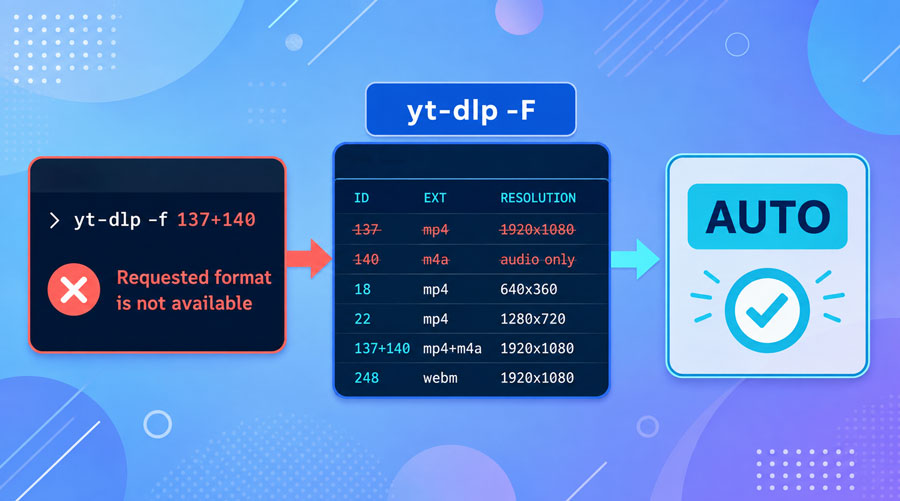
Remove the hard-coded format ID and let yt-dlp choose an available format: yt-dlp "VIDEO_URL". If this works, the format specified in your usual command is not available for that video. List the formats that can currently be downloaded: yt-dlp -F "VIDEO_URL"
Choose a format from that list instead of continuing to use an old command such as: yt-dlp -f 137+140 "VIDEO_URL". Format availability can differ between videos, so a combination that worked previously may not work for every URL.
7. How to Fix yt-dlp When It Fails with a Proxy or VPN
Disable the proxy or VPN temporarily and retry the same public video. Also remove any --proxy option from the command or yt-dlp config file. If you are unsure whether a proxy is being used, check the verbose log:
yt-dlp -v "VIDEO_URL"
If the video downloads over the direct connection, the failure is tied to the proxy IP or network route. Keep the direct connection or switch to another proxy or VPN server. If yt-dlp continues to fail without the proxy or VPN, the network route is not the only cause, so continue with the error shown in the new verbose log.
8. How to Fix "HTTP Error 400" After Adding Cookies to yt-dlp
Remove the --cookies option and run the command again. If the 400 error disappears, the cookie file is malformed or uses the wrong newline format. The simplest replacement is to let yt-dlp read cookies directly from your browser:
yt-dlp --cookies-from-browser chrome "VIDEO_URL"
Replace chrome with the browser you use.
If you prefer a cookies.txt file, re-export it in Mozilla/Netscape format. Its first line must be one of the following:
# HTTP Cookie File
# Netscape HTTP Cookie File
The newline format should be CRLF on Windows and LF on Linux or macOS. The official yt-dlp FAQ documents these cookie-file requirements.
9. How to Fix yt-dlp When It Downloads a Playlist Instead of One Video
Add --no-playlist to restrict the command to the current video:
yt-dlp --no-playlist "VIDEO_URL"
This usually happens when a YouTube watch URL also contains list= and index= parameters. You can also remove those parameters and use a clean watch URL containing only the video ID. If the single video now downloads normally, yt-dlp was processing the playlist information included in the original URL.
10. How to Fix “Unsupported URL” in yt-dlp
If yt-dlp is not working and reports Unsupported URL, first check the URL for missing characters, tracking parameters, redirects, or an unsupported page type. Then update yt-dlp through the same method you originally used to install it.
If you use an official executable that supports self-updating, run:
yt-dlp -U
A pip, pipx, Homebrew, apt, or third-party app installation may need to be updated through its own package manager or built-in updater. Updating a separate executable will not change the version used by a package manager or GUI.
If the latest stable version still returns the Unsupported URL error, check the yt-dlp issue tracker for that specific website. A recent extractor fix may be available in Nightly:
yt-dlp --update-to nightly
When other supported websites work and only one service fails, the problem is probably limited to that service's extractor. Save the complete verbose log before reporting the issue:
yt-dlp -vU "VIDEO_URL"
yt-dlp Still Not Working? Try VideoProc Converter AI
If you've already updated yt-dlp, or you're simply tired of troubleshooting runtimes, cookies, format IDs, 403 errors, and whatever breaks next—and just want to download your favorite videos with a few clicks, VideoProc Converter AI can be a real lifesaver. One thing I particularly like about it is how actively its downloader is maintained. The team keeps updating it to respond to changes across YouTube and other video platforms, so you don't have to keep chasing fixes whenever something changes. Just paste the video URL, let it analyze the available streams, and choose the resolution, format, audio, or subtitles you want.

Some of the Highlight Features of VideoProc:
- 1-Click to download videos, audio, subtitles, and playlists
- Choose available resolution, format, fps, size, and subtitle language.
- Support YouTube, Vimeo, and 1,000+ UGC sites and 2,000+ niche sites.
- Stable and easy enough! No separate ffmpeg, Deno, or command-line setup.
- Built-in proxy, conversion, compression, editing, and AI enhancement tools


FAQs About yt-dlp Not Working
1. Is yt-dlp down right now?
yt-dlp is a local program, so it does not go down like an online service. However, a supported website can change its player, API, verification system, or media delivery method and cause yt-dlp to stop working until its extractor is updated. The August 2026 android_vr issue was one example.
2. Why did yt-dlp stop working overnight?
If you did not change your commands or settings, check whether other users are reporting the same error. A sudden failure across many unrelated URLs often points to a website-side change. If only one URL, format, subtitle track, or app fails, the cause is more likely to be specific to that request or setup.
Run yt-dlp with verbose logging to see where the problem occurs:
yt-dlp -vU "VIDEO_URL"
3. Should I use stable or Nightly yt-dlp?
Start with the latest stable release. Nightly can help when a recent extractor fix has not yet reached stable, but switching channels is not the answer to every yt-dlp 403 Forbidden, 429, or 503 error. Check the related GitHub issue or release notes before moving to Nightly.
4. Why does yt-dlp say it is up to date when it still fails?
Your installation may be current within its selected update channel while a newer fix exists in another channel. A third-party app may also use a different yt-dlp executable from the one you updated in the terminal.
Check the version, update channel, installation method, and executable path shown in the verbose log. If you use a GUI, compare its reported version with the result of:
yt-dlp --version
5. Does yt-dlp require Deno now?
yt-dlp expects a supported external JavaScript runtime for full YouTube support. Deno 2.3.0 or later is the recommended option and is enabled automatically when yt-dlp can find it. Extraction without a supported runtime has been deprecated and may result in missing formats or failed JavaScript challenge handling.
Use the following command to confirm that Deno is available:
deno --version
6. Does FFmpeg fix yt-dlp 403 Forbidden errors?
No. FFmpeg handles merging, conversion, audio extraction, and other post-processing tasks. It cannot fix a yt-dlp 403 Forbidden error returned before yt-dlp reaches those stages.
If the log retrieves the video information, selects a format, and then returns 403, check the yt-dlp version, selected client, PO Token requirements, browser verification, and network route instead.
7. Why does yt-dlp work for some videos but not others?
Different videos may use different formats, CDN routes, access restrictions, player clients, subtitle tracks, or token requirements. A format ID that works for one video may not be available for another.
List the available formats and compare the verbose logs of a working and failing URL:
yt-dlp -F "VIDEO_URL"
8. What should I do about repeated yt-dlp 429 errors?
Stop repeated requests and wait before trying again. Check whether the 429 affects the initial webpage request, a media request, or only a subtitle track. If the error specifically mentions subtitles, disable subtitles temporarily and test the same URL again:
yt-dlp --no-write-subs "VIDEO_URL"
Also open the URL in a browser on the same network and complete any CAPTCHA, login, or bot-verification request. Reinstalling yt-dlp or FFmpeg will not directly remove an IP-based rate limit.
9. What should I do about repeated yt-dlp 503 errors?
Wait before retrying, reduce concurrent requests, and test another public URL. If the error occurs only on one network, disconnect a VPN or proxy or try another normal connection. You can also test another available format or force IPv4:
yt-dlp --force-ipv4 "VIDEO_URL"
A phrase such as “yt-dlp 503 Forbidden” mixes two different HTTP errors. HTTP 503 means Service Unavailable, while HTTP 403 means Forbidden. They usually occur at different stages and should not be troubleshot as the same problem.