
 New AI features are available
AI-driven upscaling has transformed what used to be a simple pixel-stretching exercise into a sophisticated enhancement process. Instead of enlarging each pixel equally, modern AI upscalers learn how textures, edges and patterns should look at higher resolution. The model produces sharper edges and cleaner textures than classic resizing. When you apply this to dozens or hundreds of photos at once, a bulk image upscaler can save hours of repetitive work.
This guide introduces several leading bulk image upscalers, lays out the key criteria, and offers practical tips for getting the best results. Some tools even apply extra cleanup like noise reduction, deblocking, or face refinement while they upscale.
1. VideoProc Converter AI
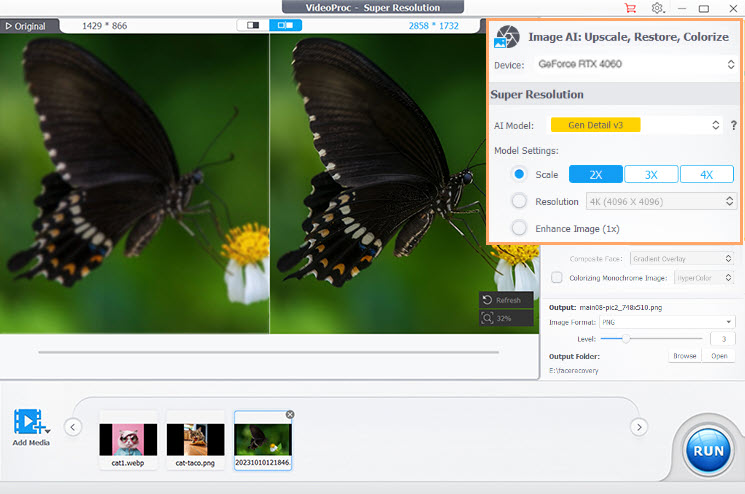
VideoProc Converter AI is a multimedia tool that includes a strong Image AI Upscaler module designed to be beginner-friendly on Windows and macOS. It supports 2x, 3x, and 4x upscaling, and can push outputs toward up to 10K resolution. Because the program dynamically adjusts the GPU memory footprint, it runs efficiently on consumer-level hardware.
What I like most for bulk jobs is that it doesn't treat every image the same. The program offers several models for different image types. You can choose a model suited to your subject and apply the same preset to an entire folder.
VideoProc Converter AI has tools for face restoration and AI colorization. This makes it handy for restoring old photos or enhancing digitized images. Although its enhancement depth may not always match specialized programs like Topaz on extremely challenging cases, it offers a strong balance of speed, quality and cost.

Pros:
- Lightweight, fast, less hardware consumption with GPU acceleration.
- Batch workflow is straightforward.
- Multiple AI models make it easier to handle mixed batches.
- Goes beyond upscaling with Face Restoration and colorization options.
- Lower cost one-time purchase.
- All-in-one: AI tools for images/audio/videos; DVD backup, video converter, compressor, etc.
Cons:
- RAW format images are not supported.
- Aggressive settings can be over-smooth or over-sharpen.
Best for people who want a strong value bulk AI image upscaler for photo enhancement, especially if you will use its video and other capabilities or need an easy button to improve lots of images quickly.
2. Topaz Gigapixel
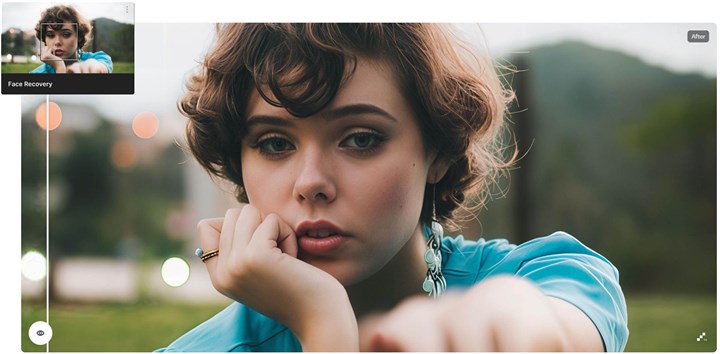
Topaz Gigapixel is a dedicated upscaling tool known for exceptional detail recovery. It supports up to 6x enlargement and even allows custom dimensions within that limit. The software includes several AI models tuned for different scenarios. It lets you pick a model that best handles your image's characteristics. If you are not sure, there's an Auto mode where the software analyzes the image and chooses the model and optimal settings for you.
Gigapixel AI can work standalone, but it also provides plugins for Adobe Photoshop and Lightroom. You can send an image from those programs to Gigapixel, upscale it, and get the result back without manual exporting. Additionally, Topaz has an optional cloud rendering service for those without powerful hardware, although with limited concurrency.
Pros:
- Offers best-in-class upscaling quality with strong detail recovery.
- Includes multiple AI models and fine control options if needed.
- Allows side-by-side previewing and comparison of different models.
- Supports batch upscaling and plugins for Photoshop or Lightroom.
- Excellent artifact control to avoid halos or ringing more effectively.
Cons:
- High computational demand makes it slow on older machines.
- Steep subscription-based pricing compared to alternatives, without one-time purchase options.
Best for photographers, designers, and teams who want the best-looking upscale quality, even if it takes longer.
3. Skylum Luminar Neo
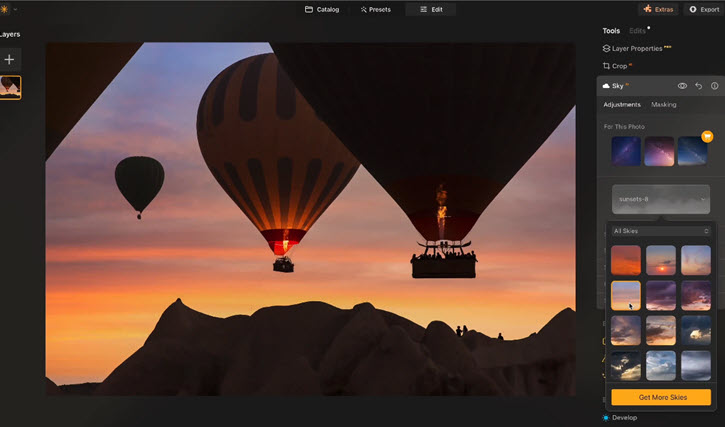
Luminar Neo is a full-featured photo editor known for its AI tools, and it includes an Upscale AI module for image enlargement. This option is attractive if you want both upscaling and general editing in one place.
Upscale AI in Luminar Neo allows you to enlarge images by 2x, 4x, or 6x. The tool maintains good detail for moderate increases. At 6x, some smoothing can occur, but overall it's effective for large prints or crops. It has two algorithms, providing a choice between safe upscaling and more aggressive detail enhancement. Beyond image resolution, a Face Enhancer option helps keep eyes, lips and skin details sharp.
Batch processing is possible, but customization is limited. When exporting multiple images, the same settings apply to all and advanced options are disabled. Output formats include JPEG, PNG, TIFF, PSD, and PDF, with options of color space for print workflows.
Pros:
- Fits naturally into a full editing workflow, not just upscaling.
- Offers up to 6x enlargement with good quality.
- Great export options (PSD, color spaces, etc.) for pros.
- Beginner-friendly one-button operation within a familiar interface.
Cons:
- Batch mode is less customizable than dedicated upscalers.
- The overall cost is higher if you don't already own Luminar Neo.
Best for people who want an editor-first workflow, where bulk upscaling is the finishing step, especially for print-friendly exporting.
4. Upscayl
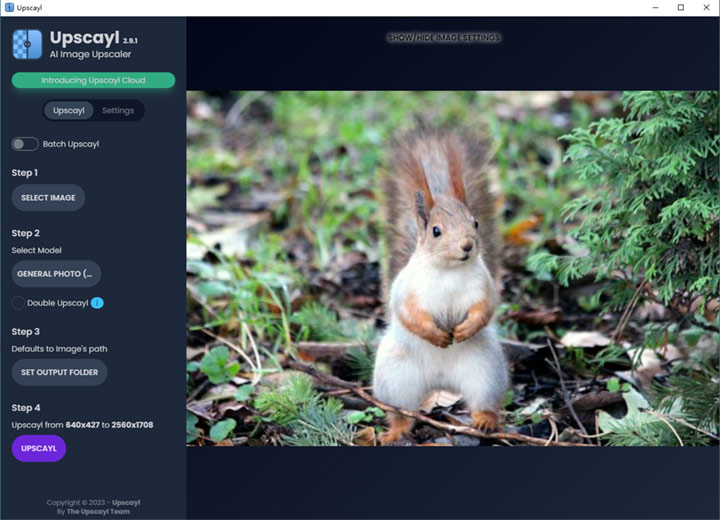
Upscayl is the free bulk image upscaler pick that actually makes sense for real work. It's a free, open-source GUI tool that runs on Windows, macOS, and Linux, and it uses Real-ESRGAN models under the hood. You can select from multiple variants. This flexibility is great for power users who understand which model suits their image.
This open source image upscaler does support adding multiple images and processing them sequentially via a Batch Upscale option. It can handle reasonable batch sizes on modern hardware. However, the interface is basic and can exhibit quirks. Nonetheless, you can certainly upscale images one after another without manual intervention. There are no file-size limits or credit caps. Your only constraint is hardware.
Pros:
- Free, open source, and runs on Windows, macOS, and Linux.
- Simple workflow for folder-based batch jobs.
- Uses strong open models (Real-ESRGAN), with multiple variants available.
- Local processing keeps your images private.
Cons:
- Performance depends heavily on hardware.
- UX can be less polished, and some versions have had batch mode quirks.
- RAW output is not supported.
- Some images may show artifacts depending on model choice and source quality.
Best for anyone who wants a free bulk AI image upscaler and is okay with a simpler interface and hardware-dependent speed.
5. Let's Enhance
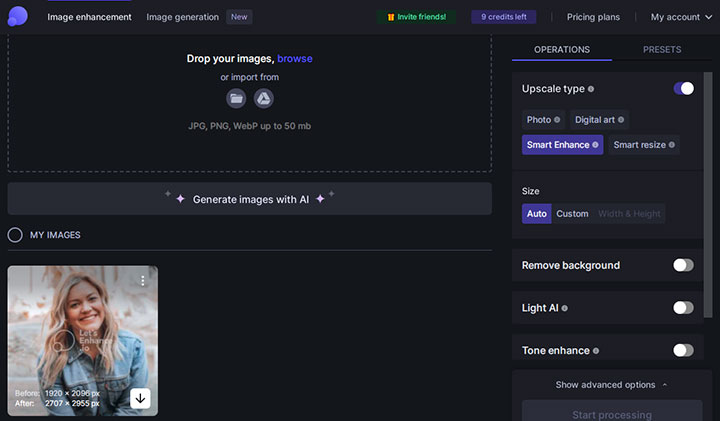
Let's Enhance is a popular bulk image upscaler online. It's browser-based, beginner-friendly, and includes a variety of enhancement presets for different content types.
The program allows you to drag and drop dozens of images and process them in parallel or queue, depending on the server load and your plan. It also provides an API for businesses to integrate upscaling into their website or workflow.
The AI automatically sharpens and restores detail, and it offers built-in color and tone correction so that upscaled images look more vibrant. You can choose preset modes such as Photo, Portrait, Illustration, E-commerce or Printing to tailor the enhancement to your content. Its headline feature is scale. This handy AI photo enhancer can enlarge images up to 16x their original size by chaining multiple passes or using specialized models. Most people will stick to 2x–8x for quality reasons, but if you ever need a truly giant image, the option is there.
Pros:
- No hardware required on your part, runs in the cloud, accessible from anywhere.
- Up to 16x upscaling headroom with quality-focused presets.
- Offers specialized models and presets for different needs like prints, art, etc.
- Built-in color enhancements and artifact removal.
- Credit-based pricing is good for smaller batch jobs and quick tests.
Cons:
- Requires uploading images, which can be slow or sensitive for private work.
- No real-time preview. Watermarks on outputs with the free plan.
- Limited manual control over the process. You rely on presets and batch settings.
- Credits and file limits can make large-scale bulk work expensive.
Best for people who want an online bulk AI image upscaler with strong presets and optional API automation, especially if they don't want to install software.
Tips for Better Bulk Upscaling
Bulk upscaling is like batch cooking. It's efficient, but you still don't want to dump every ingredient into the same pot and hope for the best. Here are some tips that you can try to avoid bad results:
- Sort your images by type so you can choose appropriate models or presets for each batch. Different content needs different models and strengths.
- Fix major issues first, such as crop, straighten, and basic exposure. This reduces the amount of guesswork the AI must perform, leading to cleaner results.
- Start with 2x for most jobs. 4x is great when you really need it, but it also increases the chance of artifacts.
- Spot-check early and often. Upscaling is content-dependent. A tool can ace landscapes and stumble on tiny text or logos.
- Watch for common artifacts, such as halos around edges, over-sharpened textures, warped patterns, and plastic-looking skin.
- Keep originals and exports separate and use consistent naming to prevent accidental overwrites when you are running multiple tests.
- Use appropriate output formats: Save exports as PNG or TIFF with proper DPI for printing or further editing. JPEG works for web delivery when you need smaller file sizes.
Conclusion
A good bulk image upscaler lets you breathe new life into old or low-resolution photos without manually editing each one. AI models analyze textures and edges to enlarge images while preserving realism. When choosing a tool, think about batch workflow, output quality, hardware requirements and cost.
VideoProc Converter AI offers a fast and feature-rich all-in-one solution, whereas Topaz Gigapixel gives the highest fidelity for critical prints. Luminar Neo integrates neatly into editing workflows. Upscayl provides a free desktop option for budget-conscious users. Let's Enhance is a great choice for effortless online processing. Whichever you pick, start by testing a small set of images, fine-tune your settings, and then run the full batch to unlock sharper, more professional-looking images.



