
 New AI features are available
Every family has shoeboxes or albums full of old photos. Those prints tucked in closets and drawers are time capsules, not clutter. They record weddings, birthdays, and everyday moments, but they are fragile. The paper they are printed on fades, cracks, or disappears during a move. The safest way to keep them is to create digital copies.
In this guide, we'll show you how to digitize old photos for safekeeping. You'll learn how to choose between scanning, photographing and hiring a service; how to prepare and handle fragile prints; how to capture them with the right settings; how to touch them up with modern software; and how to organize and store your digital memories for future generations.
Scanning vs Photographing vs Professional Service
1. Scanning
Scanning is the traditional way to turn prints into pixels. Flat-bed scanners can produce detailed, color-accurate scans and don't physically pull your photo through rollers. They are gentle on fragile prints and give you archival-quality files.
Scanning is ideal when:
- You want the highest quality and plan to enlarge or edit the photos later.
- You don't mind investing the time to scan each print and save the files.
The trade-off is time. Even with an efficient workflow, scanning even 100 photos can take hours. If you only have a few hundred photos and value quality, a flat-bed is still the best option to convert photos to digital at home.
Modern flat-beds from Canon or Epson can capture up to 4800 dpi, and high-speed models like the Epson FastFoto scan a stack of photos at about one photo per second.

2. Photographing
You may also want to capture your prints with a smartphone or digital camera. Photographing is much faster once you set up a small copy stand. For example, we see people using two lights at 45 degrees, a sheet of clean glass, and curtains to block reflections, and then place a print and snap. The advantages are obvious:
- Speed: once the lighting is right, you simply place a print and take a photo.
- Flexibility: a camera can handle large or odd-shaped items that won't fit on a scanner.
- High resolution: a good camera with a macro lens can capture more detail and dynamic range than many scanners.
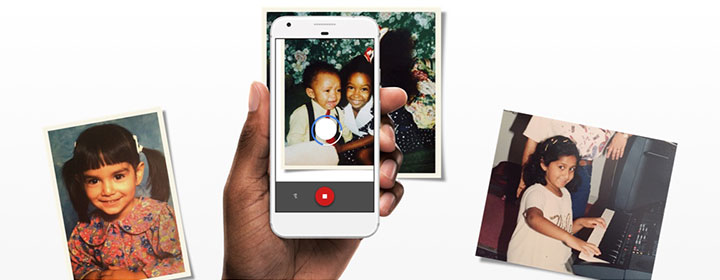
The downside is the potential for inconsistent image quality. Getting even lighting and avoiding glare takes practice, and phone photos rarely match the accuracy of a flat-bed scan. Smartphone apps like Google PhotoScan and Photomyne guide you through multiple shots to reduce reflections, but they still rely on ambient light.
3. Professional Services
Sometimes the easiest solution is to outsource. When you have thousands of prints or simply lack the time, professional digitization services are a convenient option. Mail-in digitization companies like ScanMyPhotos, Legacybox, and Capture can scan stacks of prints quickly and return digital files on a USB drive or via the cloud. Retail chains partner with scanning labs so you can drop off photos locally. These photo digitization services are ideal when:
- Your collection is huge.
- You don't have the time or patience to scan boxes of photos.
- You are not comfortable with technology and want guaranteed results.
Prices typically run twenty to forty cents per photo for standard 300 dpi JPEGs, with additional fees for higher resolutions or TIFF files. Be sure to ask about resolution and file format. Some services include light restoration and dust removal, but you'll still need to organize and label the files yourself.
How to Digitize Old Photos
Prerequisite: Prepare Your Old Photos Safely
Whether you choose to digitize your old photos at home or use a professional service, gather your photos and treat them gently before you start. Sort your photos by date or event and jot down notes. That bit of organization now will save you time when you name and file the digital images.
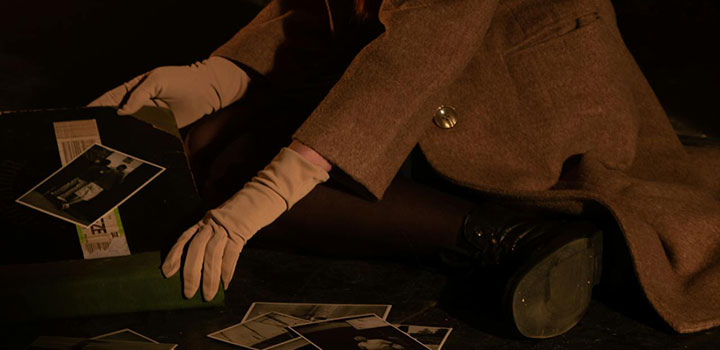
You'll want to do some basic cleaning first. Use gloves or hold them by the edges when sorting your photos, as oils from your hands can become permanent on a high-resolution scan. Wipe dust and fingerprints with a soft, lint-free cloth or a lens blower.
It's common for old photos to become curled. Mildly curled prints usually flatten under the scanner lid. For stubborn curls, sandwich the photo between clean paper and heavy books for a day or use a clear plastic sleeve during scanning. If a print is stuck to frame glass, scan it through the glass. Trying to peel it off can tear the emulsion. In other cases, you may have some fragile pieces. Place those cracked or brittle photos in a clear archival sleeve and scan through the sleeve to keep fragments together.
Scan Old Photos with the Right Settings
If you decide to digitize old photos by scanning, choose settings that preserve detail without creating enormous files. A scanner can produce beautiful results if you choose the right settings.
- Image resolution: For prints, 300 dpi is a good minimum for printing the same size photo or for basic digital use. For archiving, 600 dpi is a good minimum. Use 1200 dpi if you plan to enlarge small photos. Lower resolutions might miss fine detail.
- Color mode: Always scan in color, even if your print is black-and-white or sepia. The color channel holds more information for future restoration.
- Bit depth: Standard 24-bit (8 bits per channel) is usually fine. If you plan heavy editing, 48-bit TIFFs preserve more tonal range.
- File format: Save master scans as TIFF for long-term storage. JPEG is acceptable for sharing but discards data.
In addition, many scanners offer automatic color restoration or dust removal. Run a test scan with these features both on and off. Sometimes, they revive faded colors, but they can also oversaturate. If your scanner can handle multiple photos at once, it'll save you a lot of time to batch scan a handful and crop them later.
Shoot Old Photos with the Right Settings
If you choose to digitize by photographing your prints, you'll need to set up a controlled environment. The key is to get even lighting and avoid glare, whether you are using a camera or a mobile phone.
- Workspace: Use a solid table with a clean, non-glare sheet of glass to keep prints flat.
- Lighting: Work in bright, diffuse light and turn off overhead lights that cause glare. Place two soft lights at equal angles so shadows and glare cancel out. A tent made of curtains or white foam board helps diffuse light and block reflections.
- Camera: Use a tripod or copy stand to make the lens parallel to the photo. If you are using a smartphone, scanning apps guide you through multiple angles and stitch images to reduce reflections.
- Lens: A DSLR or mirrorless camera with a macro or close-focusing lens captures finer details and a better dynamic range than phones or most scanners.
- Camera settings: Shoot at your camera's base ISO to reduce noise and choose RAW format if available for maximum editing latitude.
These also apply to phones, although they may not preserve original colors and details. After setting everything up, take a test shot and view it at full size to ensure clarity. Adjust the lighting or focus as needed.
Use a Professional Service That Suits Your Needs
If you decide to ship your photos to a professional lab, spend a little time preparing. Remove prints from albums and frames, group them by size or event and secure them with paper bands or envelopes. Most services like Capture, ScanMyPhotos, and Legacybox provide mail-in kits. Write down your preferences for resolution and file format and ask whether the service offers dust removal or minor color correction.
Typical pricing runs twenty to forty cents per print. Higher resolution or TIFF output costs more. Ask if the return format is USB drive or cloud download, and how long your files remain available online. Before mailing irreplaceable photos, consider photographing or listing them as a reference, just in case.
Enhance Photos After Digitizing
Once you've captured your photos, you can improve them digitally. Even a good scan or photo can benefit from a little polish. Built-in apps like Windows Photos or Mac Photos let you make basic adjustments. You can crop and straighten the image, or adjust exposure and contrast. For deeper restoration, try dedicated software. Programs like GIMP or Photoshop offer healing and cloning tools. Online services such as MyHeritage Photo Enhancer and mobile apps like Remini can sharpen faces and adjust colors.
VideoProc Converter AI includes an Image AI suite to help enhance and restore old photos using artificial intelligence. Its Super Resolution tool can reduce noise, revive blurry faces, and add precise details for hair, skin, eyes, and lips. Tailored Face Restoration models can retouch key faces or entire groups as you need, automatically fixing blemishes, scratches, or stains while preserving the natural look. It also offers an AI colorizer to turn black-and-white family photos into lifelike colors. For the output file, you can choose to keep it consistent with the original photo or upscale it to 10K max with DPI settings.

Whatever tool you choose, remember not to overdo them. A light touch preserves the authentic character of old prints. And always keep your untouched master files. Edit copies so you can revert if needed.
Organize and Store Digitized Photos
Digitization creates hundreds or thousands of files that can quickly become a mess without a plan, so organize them in a way that makes sense to you. A little effort in organization will pay off by making your collection searchable and enjoyable for years to come.
- Choose a system with folders by year and subfolders for events, or by theme, such as vacations or portraits.
- Rename each file with a meaningful description rather than leaving it as Scan0001, Scan0002, etc. Batch-renaming tools can speed this up.
- Add metadata, such as names, dates, or locations, to simplify future searches.
- Back up your digital files using the 3-2-1 backup rule: keep three copies of your data, on two different types of media, with one copy stored off-site.
If you have a large collection, you can also consider using photo management software to simplify these tasks. Google Photos offers facial recognition and automatic organization with free storage up to 15 GB. Apple Photos syncs your library across devices. Adobe Lightroom Classic is a paid option favored by serious photographers because it combines a robust catalog with powerful editing tools. Free alternatives like digiKam or Mylio offer tagging and face recognition without subscription fees.
Final Thoughts
So that's all about how to digitize old photos. Start with a small batch and decide which method fits your needs and budget. Use a flat-bed scanner for the highest quality, a camera setup for speed and flexibility, or a professional service when time is limited. Always scan at high resolution, back up your files and record the stories behind the images. Once digitized, your photos are easier to share, edit and enjoy with friends and family anywhere in the world.
Digitizing your old photos is a labour of love. It takes patience to clean, scan or photograph and then organize everything, but the reward is priceless. As you handle each print, you'll rediscover memories and may even learn stories you didn't know before.




