
 New AI features are available
 Listed in
 Want to digitize some old DVDs and Blu-rays before your disc player completely dies?
MakeMKV is a name you simply cannot overlook when archiving home media. It does exactly what it says on the tin. The program extracts the original streams and creates an MKV file, giving you a 1:1 quality, untouched digital replica of your disc.
However, Apple's love for security makes using MakeMKV on Mac a completely different story. Modern macOS versions are incredibly locked down to keep your system safe. While that is great for stopping malware, it means your Mac is going to fight MakeMKV almost every step, from damaged app warnings to endless folder permission loops.
In this guide, we'll show you exactly how to download, install, and troubleshoot MakeMKV on your Mac so you can finally digitize your physical media library without the headache.
Download MakeMKV for Mac
First things first: let's get the software onto your machine.
MakeMKV is safe for Mac, provided you download it directly from the official website. Once you are on the site, simply navigate to the download page and click the link for Mac OS X. A standard Apple Disk Image (DMG) file will drop right into your Downloads folder.
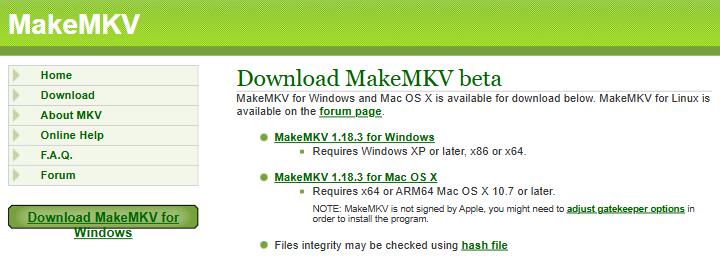
MakeMKV is fully compatible with both older Intel Macs and newer Apple Silicon Macs. As long as your machine is running Mac OS X 10.7 or a newer operating system, you meet the baseline requirements.
Note: The MakeMKV website has a habit of going offline. If this is your case, here is our guide on downloading MakeMKV even when the site is unavailable.
How to Use MakeMKV on Mac
To install MakeMKV on your Mac, double-click the DMG and drag the MakeMKV icon right into your Applications folder. If you are a power user who loves the Terminal, you can even install it silently using Homebrew by typing brew install --cask makemkv.
MakeMKV Is Damaged and Can't Be Opened
When you try to open MakeMKV for the first time, your Mac will likely throw an error message onto your screen. It will say something like, "MakeMKV is damaged and can't be opened. You should move it to the Trash".
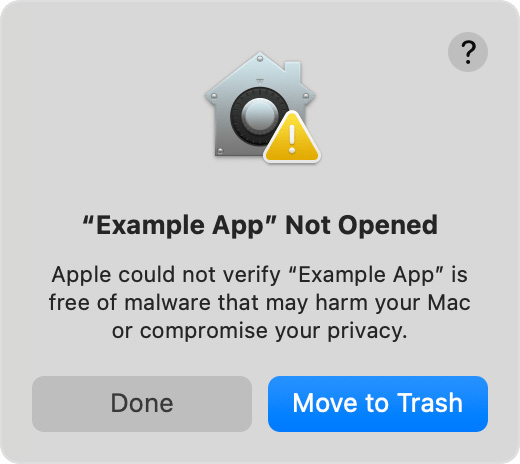
In this case, MakeMKV isn't actually corrupted. This is just Apple's Gatekeeper security system acting as an overzealous bouncer. Because MakeMKV is an independent app designed to bypass disc encryption, Apple flags it.
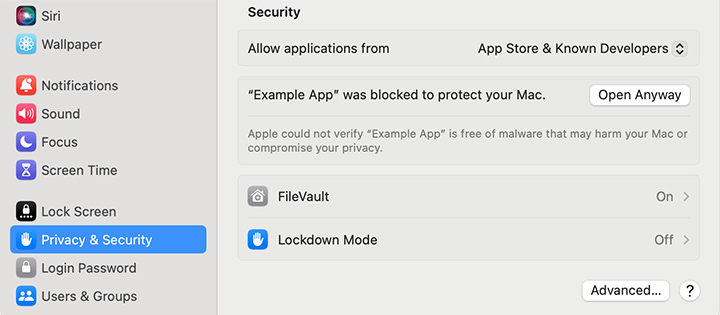
To circumvent this block, go to System Settings > Privacy & Security. Scroll down until you see a message saying MakeMKV was blocked to protect your Mac. Click the Open Anyway button. Then you are all set to go.
Is MakeMKV Free
MakeMKV operates on a highly unique monetization model. The developer gives you two options: buy a $50-$60 lifetime license to unlock all features permanently, or use a free beta key that they post on their official forums, which you have to update every month or two.
To save you the hassle, we regularly update and verify it here to ensure you can use the software immediately.
The current beta key is valid through the end of September 2026. Once it expires, the app will let you know, and you just hop back to the forum to grab the newest free code.
Hardware Requirements
Apple hasn't put a built-in disc drive in a Mac in over a decade. To use MakeMKV, you are going to need an external USB optical drive. So here's a quick tip: what kind of drive you need depends entirely on what you plan to archive.
Choose the Right Optical Drive
For standard DVDs, almost any cheap $20 to $30 external USB DVD drive from Amazon will work perfectly. For 1080p Blu-rays, most standard, unmodified external Blu-ray (BD-ROM) drives can easily handle 1080p discs. If you want to rip 4K UHD Blu-ray discs, you need a drive with modified, unlocked firmware—something the community calls "LibreDrive" status. Modern 4K drives are manufactured with locked firmware specifically designed to block software like MakeMKV from reading the discs.
Optical Drive Disconnection During Data Extraction
If you have been halfway through ripping a Blu-ray disc when the Mac suddenly disconnects from the optical drive, spits out an error, or the app just freezes, the vast majority of such issues, aside from software malfunctions, are rooted in USB power supply limitations.
To fix this, do not plug a slim Blu-ray drive directly into your Mac. You should always connect your optical drive to a powered USB hub, or buy a desktop drive enclosure that comes with its own dedicated power supply. This guarantees the drive gets uninterrupted power, ensuring your rips finish flawlessly every single time.
How to Rip a DVD or Blu-Ray on Mac
Now you have your drive properly powered, the software is installed, and you are finally ready to digitize your favorite movie. Here's how to rip a disc with MakeMKV on your Mac.
- Insert your DVD or Blu-ray into your external drive.
- Click the giant icon of an optical drive to scan the disc.
- When the scan finishes, a list of titles will be displayed, each with a runtime and size.
- Select the title with the largest file size, the longest duration, and the most chapters. That's the actual movie.
- Click the little drop-down arrow next to your main movie title, and deselect extras if you don't need them.
- On the right side, click the folder icon under "Output folder" to choose where you want to save your new file.
- Click the giant Make MKV button with the green arrow.
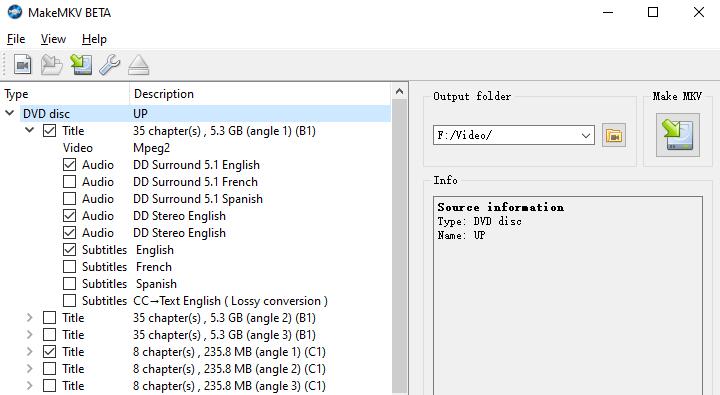
Now you can let the drive do the work. For more detailed steps, check our guide about how to use MakeMKV here.
Note: remember to have plenty of storage ready. A standard DVD will chew up about 4 to 8 GB, a standard Blu-ray can hit 20 to 50 GB, and a 4K UHD movie can easily push past 60 GB.
Troubleshooting MakeMKV on Mac Not Working
Constant Full Disk Access Prompts
You click to start your rip, and your Mac immediately asks for permission to access your folders or external drives. You click "Yes," but it asks again. And again. Eventually, the app might just freeze or crash entirely.
This is a known quirk with Apple's strict sandboxing security. To fix this, go to System Settings > Privacy & Security > Full Disk Access and toggle MakeMKV on.
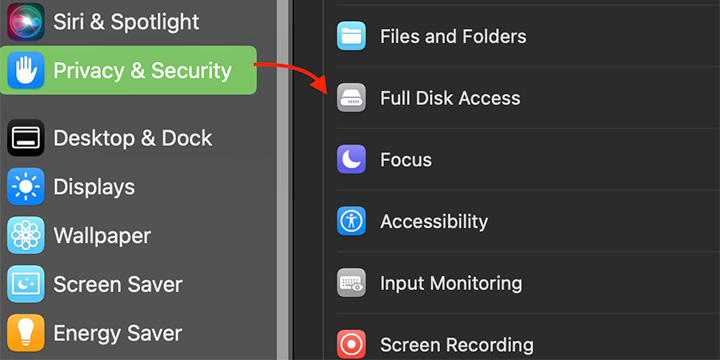
If your Mac still suffers from amnesia and forgets your permission the next time you open the app, you need to force it to remember using the Terminal.
- Open your Mac's Terminal app
- Paste this exact command:
codesign --force --deep --sign - /Applications/MakeMKV.app - Hit enter.
This essentially creates a local, trusted signature for the app right on your Mac, locking those permissions in place permanently so you don't get bugged again.
No Disc Found or the Drive Randomly Disconnects
You put a disc in, but the MakeMKV screen stays completely blank, or you get a frustrating "No Disc" error. Even worse, you might get halfway through ripping a dense movie and the drive just unceremoniously drops off your desktop. This usually boils down to one of two culprits: software access modes or hardware power.
On the software side, this is often because MakeMKV fails to successfully enter Direct Access Mode, which is absolutely required for advanced decryption, bypassing physical region locks, and successfully reading UHD media.
If macOS security intercepts this connection, the app is forced into a degraded OS Access Mode. In this limited state, your Mac might literally tell MakeMKV that the drive doesn't even exist, causing the app to report that no disc was found.
To make sure you aren't accidentally blocking yourself, open MakeMKV's Preferences, navigate to the IO tab, and make absolutely sure that "Disable direct access" is unchecked.
If your settings are correct but the drive still mysteriously vanishes mid-rip, you are almost certainly dealing with a power delivery issue, as we covered back in the hardware section. The solution is an easy hardware fix: plug your drive into an external, wall-powered USB hub instead so it has a dedicated stream of electricity.
Drive Space Falsely Full Error
You are ready to rip a movie, but MakeMKV throws a hard error saying your destination drive is out of space. You check your Mac's Finder, and it clearly shows you have hundreds of gigabytes available. What gives?
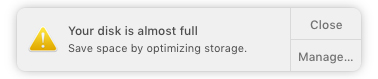
If you use Time Machine backups, macOS silently creates hidden local snapshots directly on your internal Apple File System (APFS) drive. The Mac Finder ignores them to make it look like you have space, but MakeMKV's deep system checks see those snapshots as occupied space and abort the rip to protect your data.
To fix this, the fastest and easiest workaround is stop ripping to your internal Mac drive. Hook up a standard external hard drive (ideally formatted in ExFAT) and rip your movies directly to that instead.
MakeMKV Alternative on Mac
MakeMKV is an incredible piece of software, but it isn't for everyone. Because it strictly creates 1:1 MKV files, you are often left with massive, uncompressed videos. If you want to watch those movies on your iPhone, iPad, or Apple TV, you usually have to run them through a second app just to convert them to a friendly MP4.
If you want a modern, hassle-free tool that does all the heavy lifting for you, I highly recommend looking at VideoProc Converter AI. It is an all-in-one media suite and easily one of the best MakeMKV alternatives out there for Mac users.

VideoProc Converter AI - Simple MakeMKV Alternative for Mac
- Rip DVD and 1:1 backup to digital copies: MKV, ISO, VOB, Video_TS…
- Convert and compress DVDs to MP4, MKV, MOV, AVI, MP3…
- Bypass the region restriction and copy protection schemes
- Fast processing speeds, stable connections, and ease of use
- All-in-one: DVD backup, AI enhancer, converter, downloader, quick edits

If you are a hardcore archivist who demands a perfect, lossless MKV backup, stick with MakeMKV. But if you want a fast, beginner-friendly way to digitize your DVD collection and make it instantly playable on all your Apple devices, VideoProc Converter AI is absolutely the way to go.
Bonus: Watch Blu-Rays Directly with VLC Player
What if you don't want to rip a massive 50 GB file to your hard drive? What if you just want to pop a Blu-ray into your drive and watch it on your Mac, like a normal person?
Beyond the creation of static MKV files on an external hard drive, MakeMKV has a powerful hidden talent. It can actually run in the background and decode the disc on the fly for VLC, so you can watch encrypted Blu-ray discs natively within the macOS environment without ripping them first. But again, Apple's strict app sandboxing blocks MakeMKV from doing this, so you can't just use the Integration tab in the app.
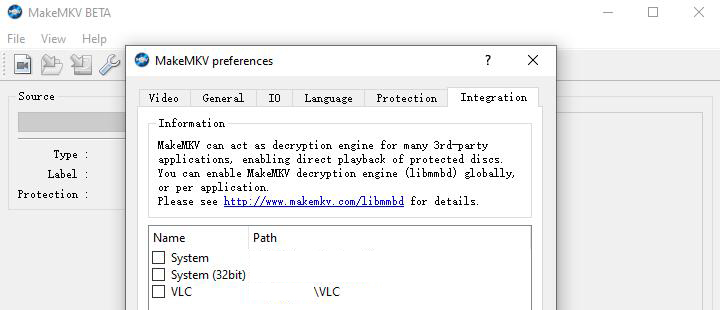
To bypass macOS security boundaries and force media player integration, we need to manually map MakeMKV's decoding libraries, aka MakeMKV Blu-ray Decrypter, right into your Mac's global library folder. Here's how.
- Open your Mac's Terminal app. You can find it quickly using Spotlight search.
- Copy and paste this exact command into the window:
sudo mkdir -p /usr/local/lib - Hit Enter. It will ask for your Mac login password. You won't see the characters as you type, but they are registering.
- Next, copy and paste this command and hit Enter again:
sudo ln -s /Applications/MakeMKV.app/Contents/lib/libmmbd_new.dylib /usr/local/lib/libaacs.dylib
Now, you can open VLC, click File > Open Disc, select your Blu-ray drive, and watch your movie with full menus and zero ripping required.
Conclusion
Getting MakeMKV to play nicely with your Mac takes a little bit of elbow grease. Between dodging Apple's strict Gatekeeper security, wrestling with folder permissions, and making sure your optical drive has enough power, it isn't exactly a plug-and-play experience.
If your goal is to build a 1:1 lossless digital library of your favorite Blu-rays, MakeMKV remains the best choice. Once you get past the initial setup hurdles, you have an incredibly powerful archiving studio right on your desktop.
However, if you read through this guide and thought, "Wow, that sounds like way too much work," you aren't alone. That is exactly why beginner-friendly alternatives like VideoProc Converter AI exist. Feel free to try the easier, faster route if you just want to get your movies off their plastic discs.




