
Looking for how to use JDownloader 2? You've come to the right place. JDownloader 2 is a free, open-source download manager that lets you download groups of files from different hosting sites. It can handle batch downloads, run several tasks at the same time, resume interrupted downloads, handle CAPTCHA workflows, and even extract archives for you.
JDownloader has an official support knowledge base, but the information is spread across many individual help articles. That can make it difficult for beginners who simply want to understand the whole workflow from start to finish.
That is why I decided to put this guide together. I want it to be a simple, step-by-step walkthrough that shows you everything you need to use JDownloader 2. You will learn the basic download workflow first, then see how to install JDownloader safely, understand LinkGrabber, add links in different ways, download videos and multi-host files, and use advanced settings to automate the whole process.
If you already have JDownloader installed, the basic workflow is simple: copy a link → check it in LinkGrabber → select the files → choose a download folder → start downloading.
- How to Use JDownloader 2: Step by Step
- Step 1. Download and Install JDownloader 2
- Step 2. Understand the JDownloader 2 Interface
- Step 3. Add Links to JDownloader 2
- Step 4. Check and Select the Files in LinkGrabber
- Step 5. Set the Download Location
- More Ways to Use JDownloader 2
- Advanced JDownloader 2 Settings
- Simultaneous Downloads, Chunks, and Speed Limits
- Organize Downloads With Packagizer
- Automate Downloads and Post-Processing
- Automatically Extract ZIP, RAR, and 7z Archives
- JDownloader 2 Not Working? Common Problems and Fixes
- The Easiest JDownloader Alternative
- JDownloader 2 FAQ
How to Use JDownloader 2: Step-by-Step
JDownloader 2 is one of the most powerful tools for automating downloads, especially when dealing with large batches of files or file-hosting services. Although different websites and file types may behave slightly differently, most users can follow the same five-step workflow to get started.
Step 1. Download and Install JDownloader 2
Go to the official download page: https://jdownloader.org/download/ JDownloader supports Windows, macOS, Linux, and several other platforms. Choose the version that matches your operating system and hardware. Once the installer finishes downloading, open it and follow the on-screen instructions to complete the setup of JDownloader 2.
I'm using JDownloader on Windows. The official offers-free download page currently provides installers for modern x64 and ARM64 systems, along with several Java versions for compatibility with older setups. For most users, the current x64 installer is the right choice on a standard 64-bit Windows PC, while Windows devices with ARM processors should use the ARM64 version.
Note:
If you see an installer that includes optional software offers, you can decline those offers during installation or use JDownloader's official optional software offers-free installer instead.
If you're on macOS, choose the installer based on your macOS version and Mac hardware. The official page currently provides builds for:
- macOS Big Sur (11) and later, including current versions
- High Sierra, Mojave, and Catalina
- Older Intel Macs running Lion (10.7) or later
- Snow Leopard (10.6)
- Dedicated Apple Silicon builds for supported newer macOS versions
Because JDownloader updates its installers over time, check the official download page for the latest recommended build rather than relying on a specific Java version shown in an older screenshot.
Step 2. Understand the JDownloader 2 Interface
JDownloader's interface is organized around three main tabs, each serving a different purpose:
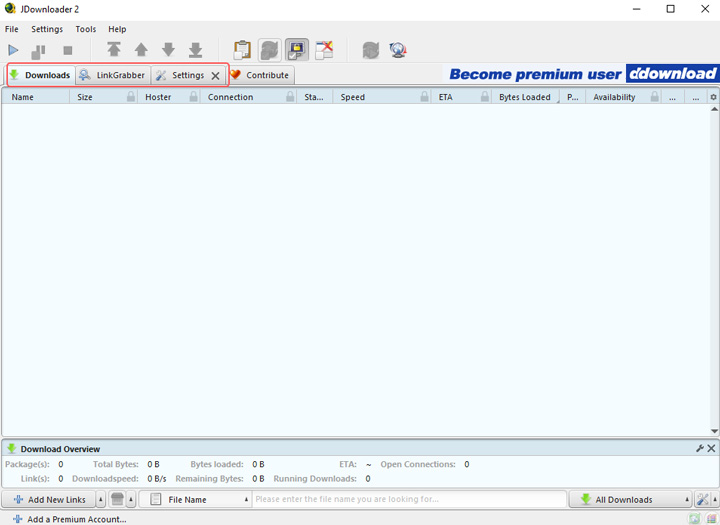
Downloads Tab
This tab shows your actual download queue. Files here may be downloading, paused, waiting, failed, or already completed. You can change priorities, resume downloads, stop items, or remove them directly from this list. Think of this as the place where the actual downloading happens.
LinkGrabber Tab
LinkGrabber is your temporary holding and analysis area. Whenever JDownloader detects a link, it usually appears here before downloading begins. JDownloader analyzes each link, checks information such as its online/offline status and file size where available, and groups related files into Packages for easier organization. This gives you a chance to remove files you don't need, choose variants, change the destination folder, or organize the package before anything is downloaded.
Settings Tab
This is where you customize how JDownloader behaves. You can adjust speed limits, manage accounts, configure plugins, change download behavior, create Packagizer rules, control archive extraction, and access more advanced options.
Step 3. Add Links to JDownloader 2
Enable Clipboard Observer, then copy the URL from your browser. JDownloader will automatically detect supported links and add them to LinkGrabber.
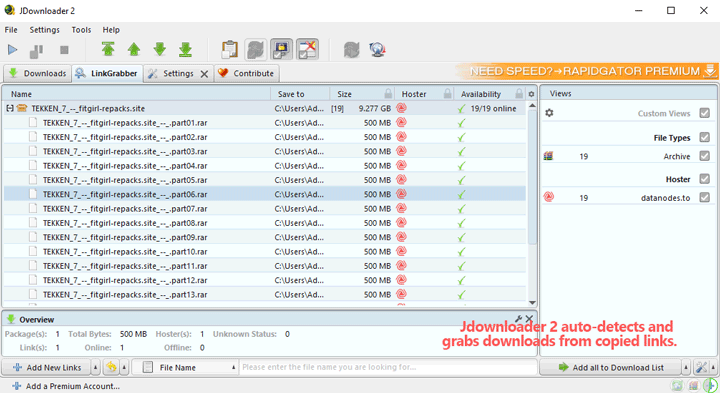
Alternative Ways to Add Links to JDownloader:
- MyJDownloader: You can use this browser extension to send links or pages directly from your browser to JDownloader. MyJDownloader lets you add links and control JDownloader remotely from its web interface or mobile app.
- Paste Links With Ctrl + V: Copy one or more URLs, open LinkGrabber, and press Ctrl + V to add them.
- Add New Links: Click Add New Links, paste the URL or URL list, and optionally set the package name or download folder before adding it.
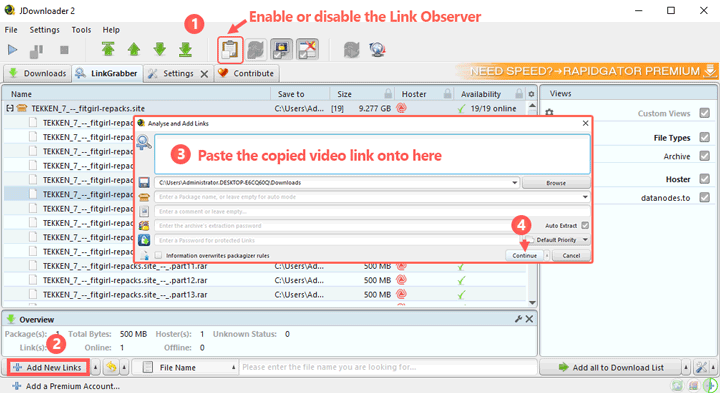
Step 4. Check and Select the Files in LinkGrabber
JDownloader will display the available files detected from the link. Check the Status column to confirm that the files are online and that the file size looks correct. Then select the exact files you want to download.
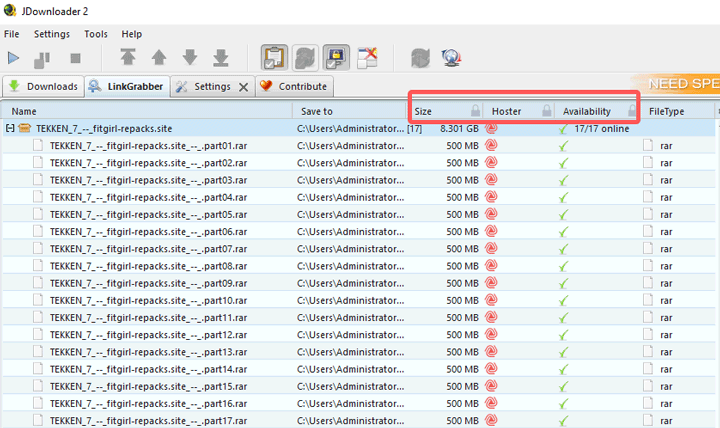
Note: What you see depends on the type of content. For example:
- Video links: JDownloader may detect the video, audio, subtitles, thumbnails, descriptions, and other available resources. Depending on the website, you may also be able to choose from multiple formats, resolutions, or codecs.
- Multi-part downloads: It may detect several archive parts and group them into the same package.
- Mirror links: If the same files are available from several hosting services, just choose the host you prefer.
Step 5. Set the Download Location
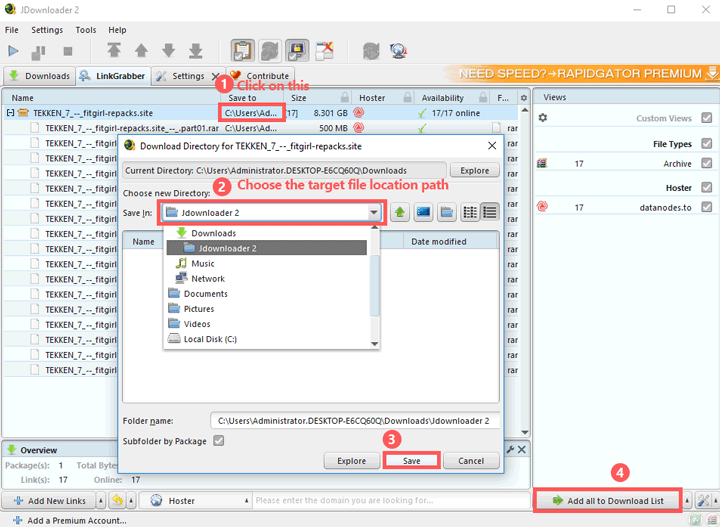
Right-click the package name and select Set Download Directory. Choose the folder where you want the final files to be saved and click Save. Then click Add all to Download List to move the selected items from LinkGrabber to your download queue.
Step 6. Start the Download
The files are now moved from LinkGrabber to the Downloads tab. Click the Start Downloading button to begin. You can use the Play, Pause, and Stop controls on the toolbar to manage your queue.
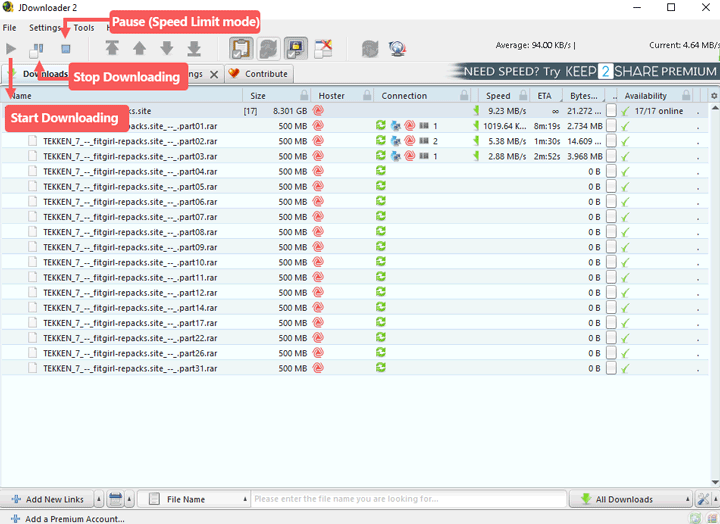
That's the basic JDownloader workflow. Once you understand how LinkGrabber → Download List → Download works, most of the other features in JDownloader become much easier to understand.
More Ways to Use JDownloader 2
Once you understand the basic LinkGrabber workflow, you can use the same process for more specialized downloads.
How to Use JDownloader 2 With Multi-Host Links
If you copy a list of links where the same file or file parts are offered by multiple hosts, for example Part 1 on one host and the same Part 1 on another, JDownloader can help you organize the available mirrors.
Step 1. Find and copy the multi-host or mirror links you want to use.
Step 2. Open JDownloader. As long as Clipboard Observer is turned on, it will pick up the supported links and show the detected files in LinkGrabber.
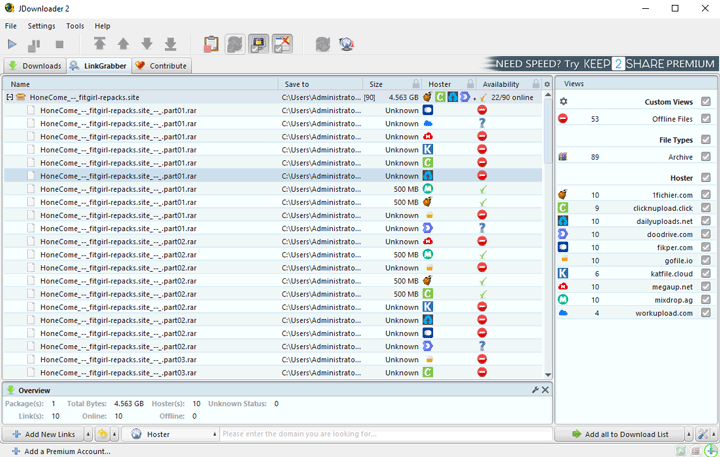
Step 3. In the Views section, go to Hosters. You can filter the results and keep only the hosting service you want to use.
Some hosts may contain only part of the complete file set. For example, you might need 10 archive parts while one mirror currently provides only 4. If that happens, check another available host or mirror.
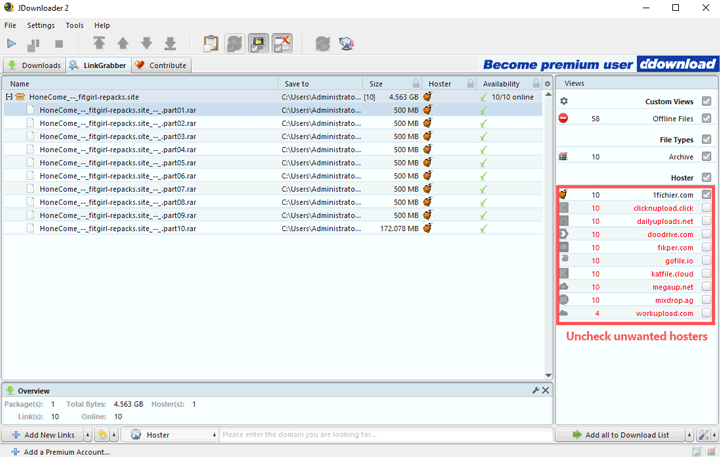
Step 4. Click Add all to Download List, then click the Start Downloading icon. JDownloader will begin fetching the selected files.
How to Use JDownloader to Download Videos Online
The exact result depends on the website and whether JDownloader currently supports it, but the general workflow is similar to downloading normal files.
Step 1. Find the video or playlist link and copy it.
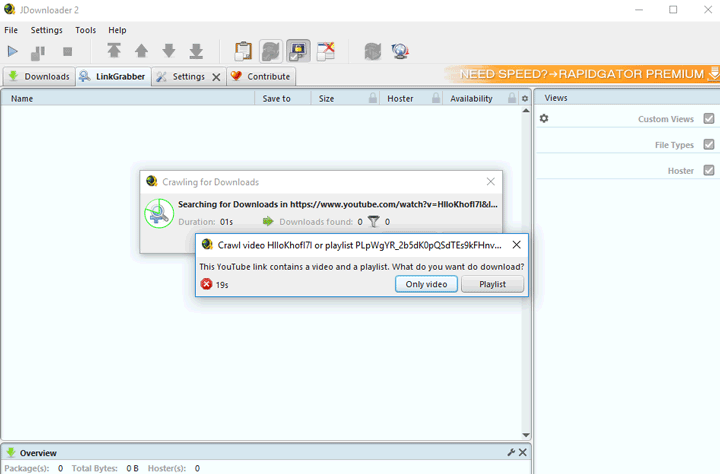
Step 2. Open JDownloader. It will start analyzing supported links you added. If you're adding a playlist link, JDownloader may ask whether you want to process only an individual video or the playlist. Choose the option that fits your needs.
In this demo, I select Playlist so JDownloader can detect the downloadable videos from that playlist.
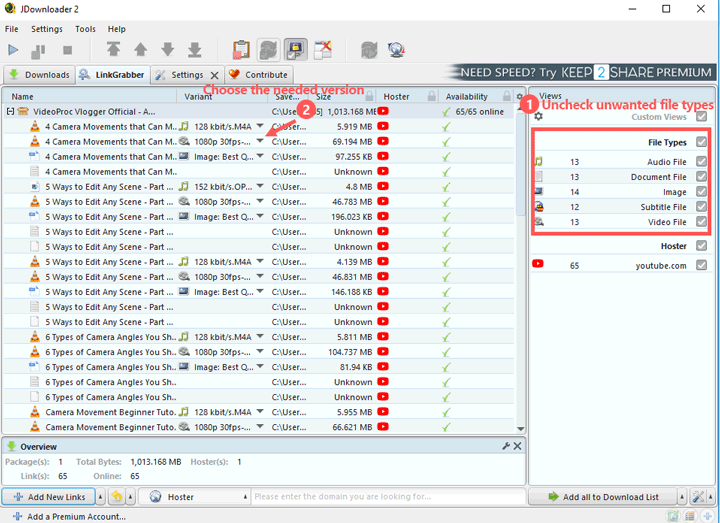
Step 3. Select the file types you want. For example, if you only need the video file, select the Video File option.
In the Variant column, you may see options for different video formats, resolutions, codecs, audio streams, subtitles, thumbnails, or other available files. You can change the variant if needed, but in many cases the default selection is enough.
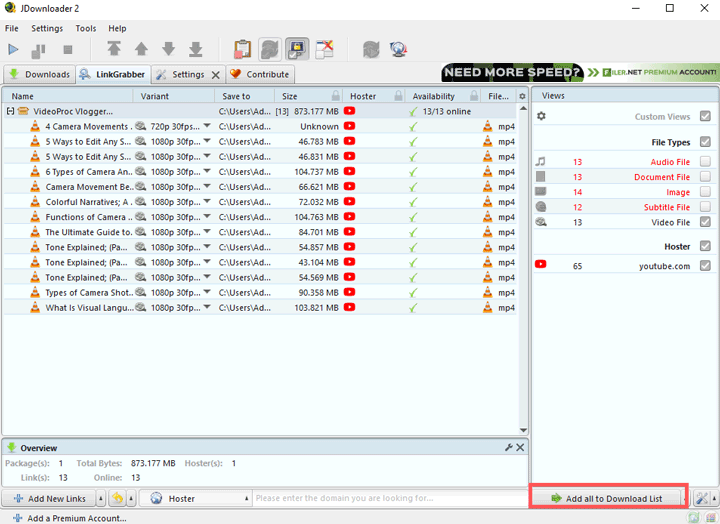
Step 4. Click Add all to Download List, then go to Downloads and start downloading the video files.
Note:
Support for online video platforms can change when those websites modify their streaming, login, or anti-bot systems. If JDownloader suddenly stops detecting a video or shows an error, update JDownloader first and check the troubleshooting section below.
JDownloader can download subtitle files from supported sources, but embedding those subtitle files directly into the video is a separate post-processing task.
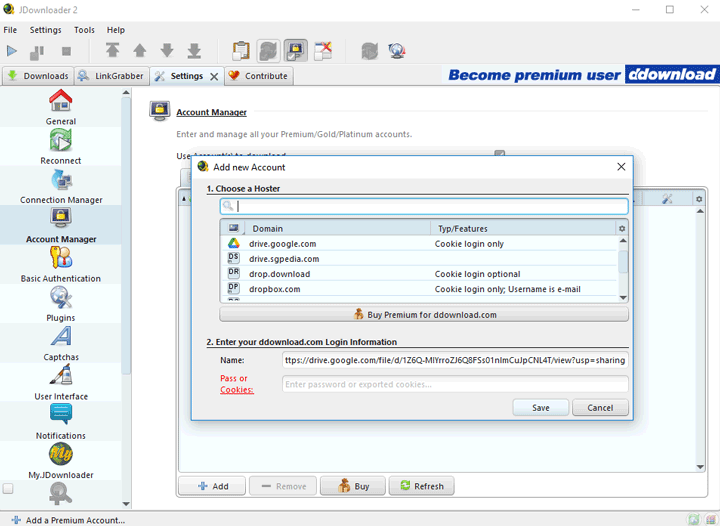
How to Add a Premium Hoster Account in JDownloader
If you already have a paid account with a supported file hoster, you can add that account to JDownloader so it can use the benefits provided by your subscription. Depending on the hoster and plan, those benefits may include higher download speeds, shorter or no waiting periods, more simultaneous downloads, or fewer CAPTCHA requirements. Free-tier limits are generally set by the hoster itself; JDownloader cannot simply remove them.
Step 1. Go to the Settings tab and click Account Manager.
Step 2. Click Add and select your file hoster.
Step 3. Enter the account credentials or login information required by that hoster. JDownloader will verify the account and use it automatically for applicable downloads.
Advanced JDownloader 2 Settings
To turn JDownloader 2 into more of a "set-it-and-forget-it" tool, you can adjust some advanced settings. These options control bandwidth usage, download behavior, file organization, archive extraction, and automation.
1. Set Simultaneous Downloads, Chunks, and Speed Limits
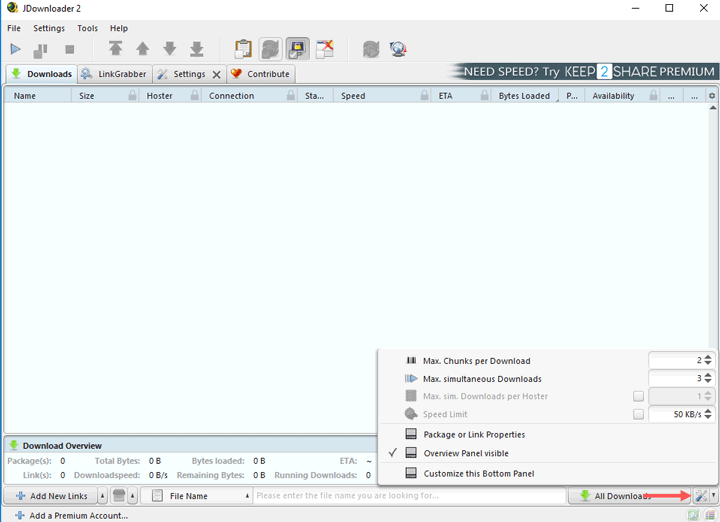
You can fine-tune how aggressively JDownloader downloads files. These settings can usually be accessed from the quick settings area near the bottom of the Downloads interface or through Settings > Download Management.
Max. Simultaneous Downloads: This controls how many files JDownloader can download at the same time. Increasing the number can help when you're downloading many files from hosts that allow parallel transfers, but more simultaneous downloads are not automatically faster.
The ideal setting depends on your internet connection and the limits imposed by each hoster.
Max. Chunks per Download: Chunks determine how many segments of a single file JDownloader tries to download in parallel. Using multiple chunks may improve performance with some servers, but other hosts restrict the number of connections per file.
A moderate setting is usually better than immediately pushing the numbers as high as possible.
Speed Limit: This option is useful when you need to reserve bandwidth for streaming, video calls, gaming, or normal browsing. For example, you can set a maximum transfer rate such as 500 KB/s or 5 MB/s and prevent JDownloader from consuming your entire connection.
If your goal is maximum speed, make sure you haven't accidentally enabled a low global speed limit.
2. Organize Downloads Automatically With Packagizer
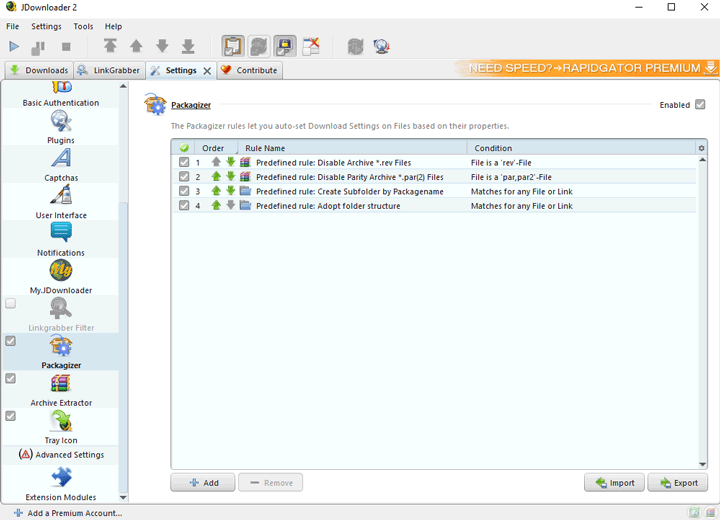
The Packagizer is an essential automation feature found under Settings > Packagizer. It lets you create rules that automatically modify properties such as filenames, package names, or download folders for newly added links.
How It Works: You define a condition and an action.
For example: If the download URL contains "YouTube", then set the download folder to /Videos/YouTube/.
Common Use Cases:
- Automated Folder Sorting: Automatically send files from a specific website or hoster to a specific folder, for example all Mega downloads to C:\Downloads\MegaFiles.
- Cleaning Up Filenames: Use wildcards or regular expressions to remove unwanted tags, timestamps, or repeated text from filenames.
- Adding Metadata: Insert dynamic placeholders such as <jd:simpledate:ddMMyyyy> to automatically append the current date to a filename or package name.
3. Automate Downloads and Post-Processing
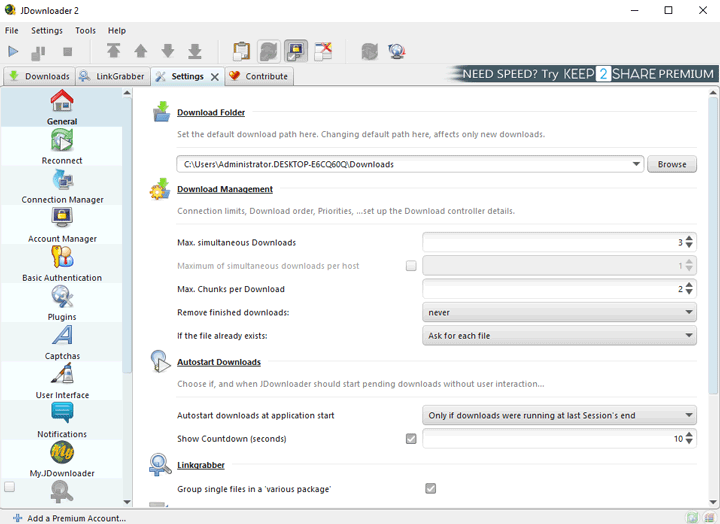
JDownloader 2 can automatically handle several tasks before and after the download itself. Go to Settings > General and the related settings sections.
Download Folder: Choose the default location where downloaded files will be saved. You can still override this folder for individual packages inside LinkGrabber.
Autostart Download: If enabled, JDownloader can automatically start downloading confirmed links instead of waiting for you to press Start manually.
You can also use a countdown so you have time to cancel before the download begins.
LinkGrabber also provides Auto Confirm and Autostart options for users who want newly detected links to move into the download queue automatically.
This is useful for automation, but I recommend becoming comfortable with LinkGrabber first. Otherwise, JDownloader may start files that you didn't intend to download.
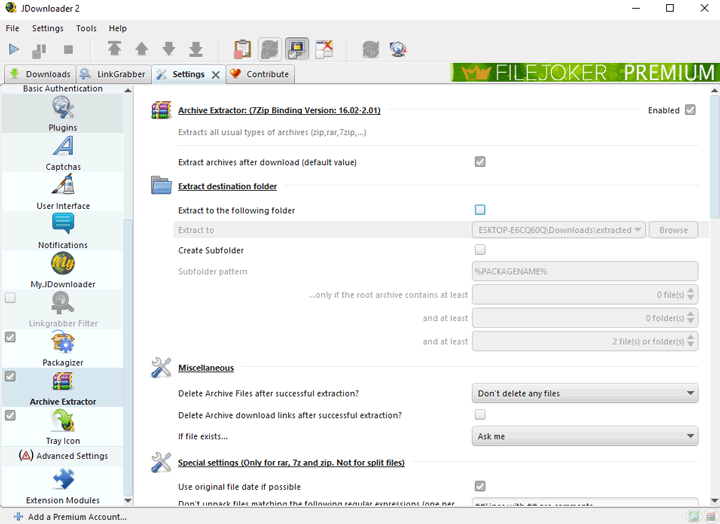
4. Automatically Extract ZIP, RAR, and 7z Archives
Archive Extractor helps JDownloader handle archives after downloading. It can automatically extract supported ZIP, RAR, 7z, and multi-part archives and place the final contents in your chosen destination.
You can find it under Settings > Archive Extractor.
Archive Extractor: Make sure archive extraction is enabled if you want JDownloader to unpack files automatically.
Extract Destination Folder: Enable Extract to the following folder if you want extracted files to go somewhere other than the normal download folder. Click Browse and choose your preferred destination. You can also create a subfolder.
Auto Delete Archive Files: If you don't need the original compressed archives after successful extraction, you can configure JDownloader to remove them automatically.
Be cautious with this option until you're confident that your extraction workflow is working correctly.
JDownloader 2 Not Working? Common Problems and Fixes
JDownloader relies on different websites, hosters, and plugins, so you may occasionally run into broken links, slow downloads, CAPTCHA prompts, or plugin errors. Here are some common problems and what you can do about them.
1. LinkGrabber Is Not Detecting Links
First, make sure Clipboard Observer is enabled. If copying the URL still doesn't add anything to LinkGrabber, press Ctrl + V or click Add New Links and paste it manually. It's also worth opening the link in your browser to make sure it still works. If JDownloader still can't detect it, the website or that particular URL type may not currently be supported.
2. JDownloader Says "Plugin Outdated"
A "Plugin outdated" message usually means the website has changed and JDownloader's current plugin can no longer process it correctly. Update JDownloader, restart it, and try the link again. If the URL works normally in your browser but still fails in JDownloader, check the official JDownloader support pages for updates or known issues with that host.
3. Download Is Very Slow
Before changing the download settings, compare the same file in JDownloader and your browser using the same network and account. If JDownloader is noticeably slower, check whether Speed Limit is enabled, your hoster is limiting free downloads, or a VPN or proxy is affecting the connection. If you use a premium hoster account, also make sure it is active in Account Manager.
Increasing the number of chunks or simultaneous downloads doesn't always improve speed. Some hosters limit connections on their side, so higher values can sometimes make little difference or even cause problems.
4. CAPTCHA Problems
If JDownloader keeps asking for a CAPTCHA or appears to skip CAPTCHA prompts, check whether Silent Mode is hiding the dialog and complete any browser-based CAPTCHA when prompted. Some CAPTCHA systems require browser integration, while others may not be supported directly by JDownloader at all.
5. File Shows as Offline
If LinkGrabber marks a file as offline, open the original URL in your browser first. If it doesn't work there either, the file has probably been removed or the link has expired. If the link still works in your browser, update JDownloader and add it again. Persistent problems with one particular host are usually best checked against JDownloader's official support information for that service.
6. "Temporarily Unavailable" Errors
"Temporarily unavailable" doesn't necessarily mean the file is gone. The host may be imposing a waiting period, temporarily rejecting requests, limiting your IP, or having compatibility problems with the current JDownloader plugin. Update JDownloader and try the download again later. If the error only affects one host, check whether JDownloader has reported a known issue with that service.
7. Download Keeps Stopping or Failing
If a download repeatedly stops or fails, check the destination folder and available disk space first. Make sure the folder still exists, JDownloader has permission to write to it, and any external or USB drive you're using is still connected. Long file paths or filenames can also cause problems on some systems.
The Easiest JDownloader Alternative: VideoProc Converter AI
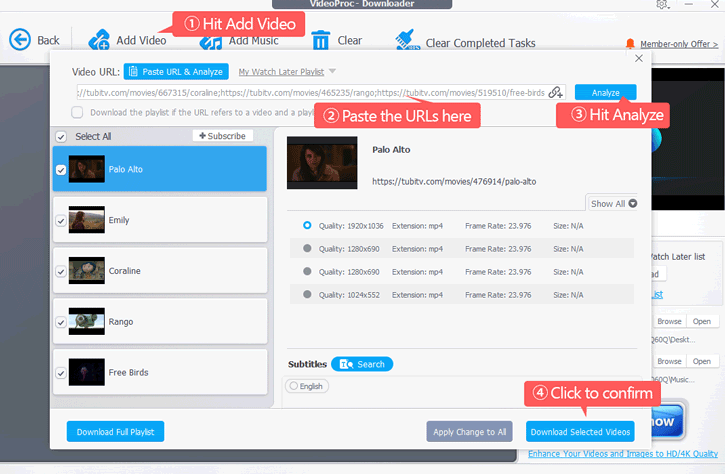
As this guide demonstrates, while JDownloader 2 is incredibly powerful, its complexity, steep learning curve, and reliance on outdated or fragmented learning sources can still be challenging for beginners. If your primary goal is to simply download videos, music, and subtitles, I recommend you to use VideoProc Converter AI. It is designed for ease-of-use, allowing you to download media files from over 1000 UGC sites and 2000+ niche sites with a single click. Check some of the highlight features of this capable JDownloader 2 alternative:
- 1-Click to download all or selected videos from multiple URLs (support playlists)
- Allow you to choose from all available resolutions, formats, fps, and subtitles, etc.
- Support downloading subtitles and easily hardcode subtitles into the video.
- Download videos in the original quality 2K/4K; AI upscale low-quality videos to 4K.
- Feature-rich: AI-enhance videos/audio/images; convert/compress/edit videos...
- Features an intuitive, regularly updated interface, and is free of bundled software.
Free download and install VideoProc Converter AI to download videos/audio/subtitles from 1000+ sites!

JDownloader 2 FAQ
1. Where Does JDownloader Save Downloaded Files?
JDownloader saves files to the download folder set in Settings or to the folder assigned to a specific package. To change it before downloading, right-click the package in LinkGrabber and select Set Download Directory.
2. Why Doesn't JDownloader Detect a Link I Copy?
Make sure Clipboard Observer is enabled first. If the link still doesn't appear in LinkGrabber, press Ctrl + V or use Add New Links to paste it manually. If that also fails, the URL or website may not currently be supported.
3. Do I Need the Browser Extension to Use JDownloader?
No. The browser extension is optional. For normal downloads, you can simply copy a URL and let Clipboard Observer detect it, or paste the link directly into LinkGrabber.