
 New AI features are available
 Listed in
 Instagram used to only accept square videos and photos, automatically cropping portrait and landscape videos when uploading. Recently, Instagram started supporting most common aspect ratios, like 16:9 for landscape videos and 4:5 or 9:16 for portrait shots. However, the Instagram feed still often crops videos to square by default. Here are the most effective ways to fit a whole video on Instagram without cropping, ensuring the best viewing experience for your audience.
Part 1. How to Fit Whole Video on Instagram Post
Instagram feed supports square, landscape, and portrait videos (1:1, 16:9, and 4:5). However, vertical 9:16 videos are often cropped to 4:5, which may cut off important parts of your footage. Follow these steps to fit your whole video on Instagram without losing key areas:
Step 1. Select your video from your phone library. Open Instagram, tap the "+" icon to create a new post, and choose the video you want to upload from your gallery.
Step 2. Tap the expand icon. On the preview screen, tap the expand icon located at the bottom left. This will adjust the video to display in full size on your feed.
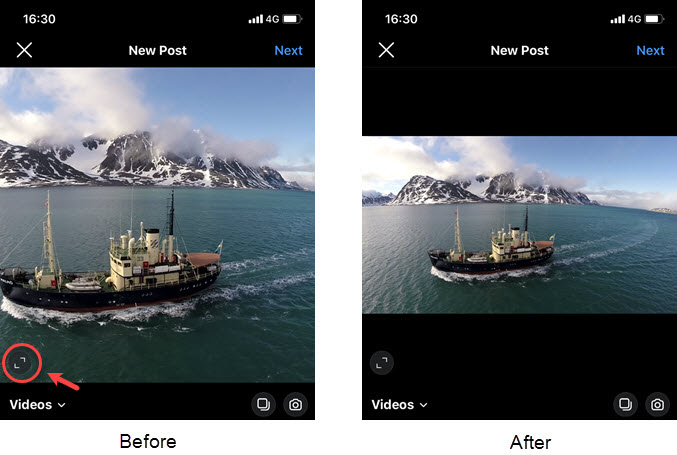
Step 3. Check for cropping issues. If your video is in 9:16 format, Instagram may still crop it to 4:5. Make sure the key parts of your video are visible, and adjust the framing if necessary before posting.
To fit a whole video on Instagram without cropping, you need more control over aspect ratio and canvas size than Instagram itself provides. This is where VideoProc Converter AI comes in.
It’s an easy-to-use yet powerful video editor suitable for all skill levels, offering essential tools like resizing, cropping, cutting, merging, converting, downloading, and more, all in one place.
What makes VideoProc Converter AI especially useful for Instagram is that it lets you adjust video dimensions instead of force-cropping the footage. This way, your video fits Instagram posts perfectly while keeping the entire frame intact, no matter the original aspect ratio.
VideoProc Converter AI — Fit Videos on Instagram without Cropping or Distortion
- 100% free and easy way to make videos fit Instagram posts without losing content.
- Automatically optimize video format, resolution, and aspect ratio for Instagram.
- Supports all Instagram video types, including feed posts, stories, lives, and IGTV.
- Useful beyond resizing—make longer videos, convert GIFs to video, and repost Facebook videos to Instagram.

Now download and install VideoProc Converter AI to get prepared for the following tutorial on how to fit a full size video on Instagram without cropping.
Step 1. Launch VideoProc Converter AI and select "Video" on its homepage to open its video editing panel.
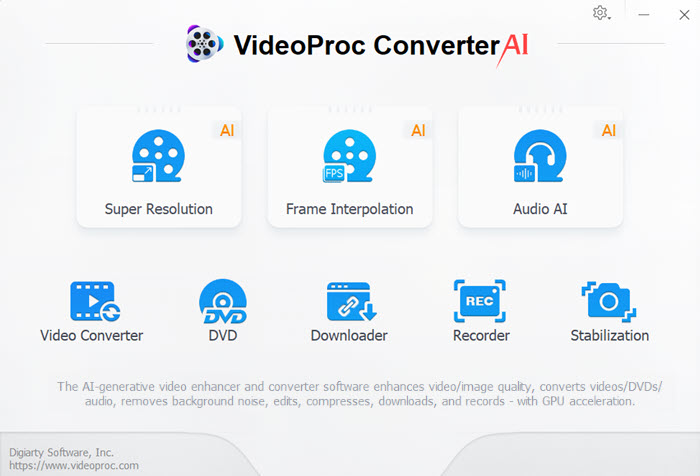
Step 2. Drag and drop a vertical video (or multiple videos) you want to upload to Instagram without cropping to the interface of VideoProc. Move to the "Video" option on the bottom and choose "MP4" as the output format.

Step 3. Double-click on the MP4 format icon to open the "Format" panel. Move to "Video Codec Options" > "Resolution" > "Custom".
Tip 1: Set the output resolution correctly. Set the video resolution to 1080×1350, which is the maximum supported resolution for Instagram 4:5 portrait videos. This changes the aspect ratio from 9:16 to 4:5 while keeping the best possible image quality. If you prefer a custom size, you can use an aspect ratio calculator, as long as the final resolution stays in a 4:5 ratio. Click Done to apply the resolution.
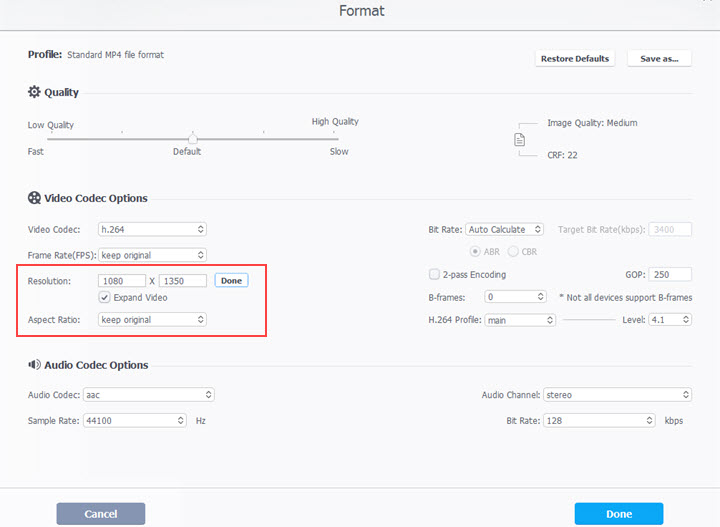
Tip 2: Prevent video distortion. To avoid stretching after resizing, check Expand Video and select Keep Original under the Aspect Ratio option. This adds black borders instead of cropping the footage, so the entire frame remains visible.< Finally, click Done in the bottom right corner to save your changes.
Step 4. Then get back to the main UI. After selecting an output folder, smash on the "RUN" button to export the video. Ultimately, you can upload the full size video on Instagram without cropping nor distortion.

Part 2. How to Fit Whole Video on Instagram Story and IGTV
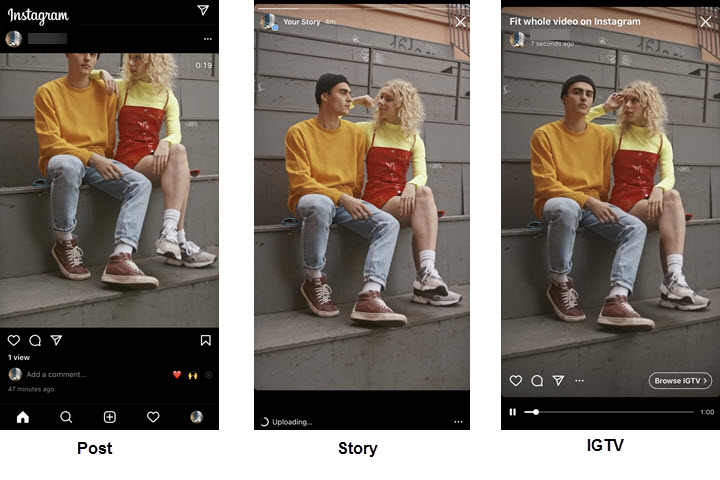
Compared with feed posts, Instagram Stories and IGTV are much more forgiving when it comes to aspect ratio. Even though Instagram’s built-in editor isn’t very advanced, it can still handle basic resizing well enough in many cases. Here’s how it works in real use.
Step 1. Upload any video directly to Story or IGTV. Open Instagram, swipe right to create a Story (or upload to IGTV), and select a video from your iPhone or Android. The video can be landscape, square, or vertical—no pre-editing required.
Step 2. Let Instagram auto-fit the video. If the aspect ratio doesn’t match 9:16, Instagram will automatically scale the video to fit the screen and add background borders. Nothing gets cropped, and the entire frame stays visible.

Step 3. Keep or remove the borders. If you’re okay with the borders, you can post the video as-is. But if you want a true full-screen look without padding, the only option is to resize the video for Instagram by cropping it to a 9:16 ratio before uploading.
FAQs
1. How to make iMovie fit Instagram?
iMovie only edits and exports videos at 16:9 which was unsupported on Instagram. But now you can upload a video from iMovie to Instagram directly without cropping. If you prefer square or vertical videos, you should use VideoProc Converter AI to change the aspect ratio or the video dimension.
2. How to fit video on Instagram on Android?
For videos in aspect ratios supported on Instagram, you can fit the video while uploading it from your Android phone. While for incompatible ones, you can resize them by adding white borders with the Clideo online resizer, which does not ask you to install any app on your Android.
3. Can you upload 1920x1080 to Instagram?
Yes. 1920x1080 videos fit the Instagram post, stories and IGTV well. As for 1920x1080 photos, you are only enabled to post them on feed and stories because IGTV doesn't accept images.
4. Why does Instagram crop my vertical video even after I resize it?
Because Instagram feed still forces vertical videos into a 4:5 frame. Even if your video is 9:16, it will be cropped unless you add borders or resize the canvas to 4:5 before uploading.
5. How do I upload a full video to Instagram without black borders?
The only way is to crop the video to Instagram’s native aspect ratios, like 1:1 or 4:5 for feed and 9:16 for stories. Instagram does not support full-screen uploads without borders otherwise.




