
 New AI features are available
 Listed in
 Wondering if it's possible to combine two MKV files into one MKV file. Got a DVD rip that had one half of the film on side 1 and the other half on side 2, which resulted in two separate MKV files. Would prefer the final compressed render to only be one file.
– a Reddit thread
There are countless situations where you need to merge videos together. These could be MP4 or MKV videos from different sides of the same DVD, or several clips from your GoPro or DJI. HandBrake is a popular open-source video transcoder. This is likely why many users ask how to combine videos with HandBrake.
However, the question is, can HandBrake combine videos? This blog will explain everything.
Can HandBrake Combine Videos
No, HandBrake cannot merge or concatenate separate video files into one continuous video. It's designed primarily as a video transcoder for converting videos from various formats to MP4, MKV, or WebM. The official HandBrake documentation also explicitly states that combining multiple clips into one is not supported.
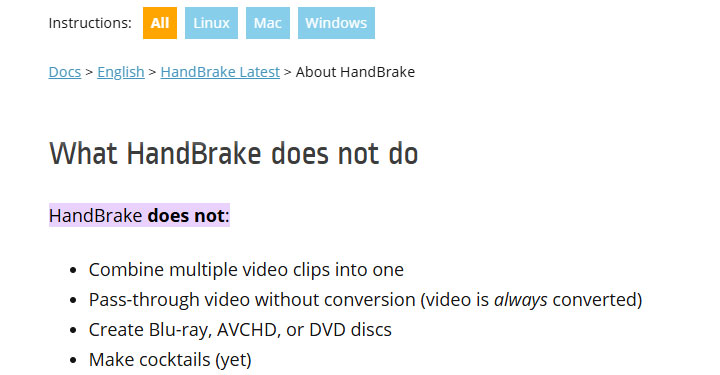
HandBrake works well for converting or compressing single videos, but for the task of merging video files, HandBrake is not the appropriate tool. You'll need a HandBrake alternative to combine videos.
HandBrake Alternative to Merge Videos
VideoProc Converter AI is a versatile video processing tool with extensive format support. Unlike HandBrake, the software has a dedicated Merge feature. This video merger excels at combining multiple video files into one, even if they have different formats, resolutions, or codecs.
For files that are already in the same format and resolution, VideoProc Converter AI offers a lossless pass-through mode via its Auto Copy feature. For files with mixed formats or sizes, VideoProc Converter AI will convert them to a common format of your choice during the merge. In both cases, you can preserve high video quality by choosing appropriate settings.

VideoProc Converter AI - HandBrake Alternative to Combine Videos
- Dedicated Merge feature to combine multiple videos in one click
- Merge videos in the same format losslessly with the Auto Copy mode
- Automatically convert and merge videos with mixed formats
- Support more than 420 output formats and device presets
- All-in-one: DVD ripping, editor, converter, compressor, AI enhancer, etc.



How to Combine Videos into One File
Step 1. Add videos to the video merger.
Open VideoProc Converter AI and click the Video icon on the main screen. Import all the video files you want to combine by dragging and dropping the files into the window.
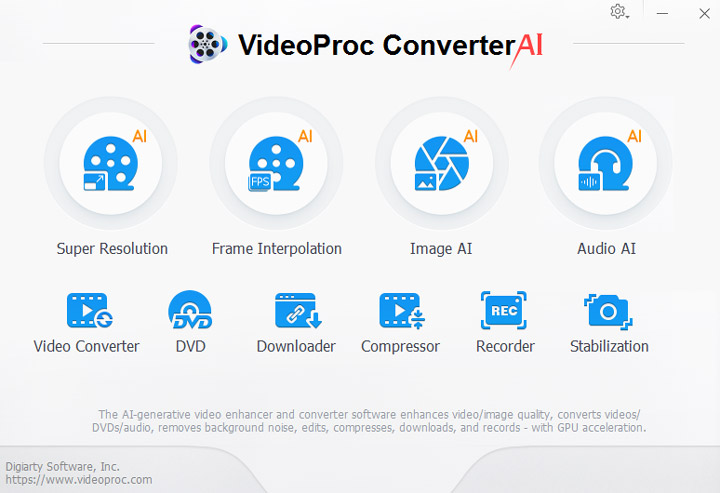
Step 2. Arrange and preview the clips.
Ensure your videos are in the desired order for the final sequence. The final video will appear in the order listed from top to bottom. Use the up or down arrow buttons to rearrange their order as needed.

Step 3. Choose the output format and enable merge.
At the bottom of the interface, choose a target output format for the merged video. You can select a preset from the Video category or click Target Format for more profiles. Check the "Merge" option on the main interface to tell the program to join the files into one video.

Step 4. Start to combine the videos into one.
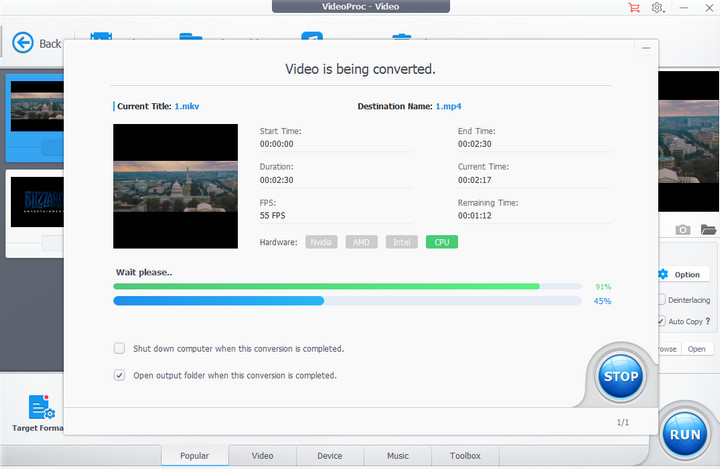
Double-check your settings. If desired, click the Browse button to choose where the combined file will be saved. Then click the RUN button. VideoProc will begin merging all the added clips into a single continuous video file.
Pro Tip:
Same-Format & Resolution Videos
If all source videos share the same format, codec, and resolution, you can merge them without re-encoding for zero quality loss.
In VideoProc Converter AI, choose an output format that matches the original video format and enable the Auto Copy mode. The Auto Copy mode will copy video/audio streams directly without conversion, producing a merged file with 1:1 original quality.
Mixed-Format or Different Resolution Videos
VideoProc Converter AI can merge videos even if they have differing formats, resolutions, or aspect ratios by re-encoding them into a unified format. In this case, select a target format that meets your needs, and the software will convert each clip as needed during the merge. You can also use the Codec Option to manually set video parameters, such as resolution, frame rate, bitrate, etc.
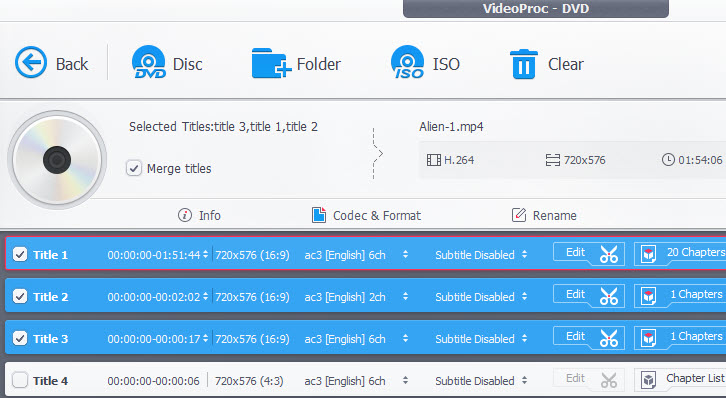
Handbrake allows you to select and rip multiple titles from a DVD but will only put one title into each file. VideoProc Converter AI, however, allows you to select multiple titles simultaneously and merge them into a single video in just one go.
Conclusion
That's all about HandBrake video combining. HandBrake is not suitable to combine videos on either Windows or Mac, regardless of whether the files share the same format or resolution or not. Its functionality is limited to conversion of individual files.
But luckily, there are other methods and tools you can use to combine videos. VideoProc Converter AI, featuring a dedicated video merger, is designed for this task. Its Merge feature can seamlessly join multiple videos into one file, whether they have different formats, resolutions, or codecs or not. In addition, its unique level-3 hardware acceleration provides faster video merging speeds with less GPU usage.
For users who simply need to join clips with minimal fuss and maximum quality retention, VideoProc Converter AI is the appropriate choice.




