New AI features are available
You know the feeling. You shot a great video, but the lighting was poor. When you watch it back, the clip is covered in an ugly and grainy fizz.
In the past, you might have tried standard noise reduction tools, only to spend hours tweaking settings manually through trial and error. Today, AI video denoisers actually study your footage. They figure out what is noise and what is a real texture.
With so many choices on the market, I decided to find out which program actually delivers on this promise. I built a benchmark test and put several AI tools through their paces to measure real quality. Keep reading to see the hard numbers and the visual results.
Testing Methodology
I ran all the tests on a standard desktop setup so you can see realistic performance. All the tests are conducted on a Windows 10 PC with a 12th Gen Intel Core i5-12400F processor (12 CPUs, ~2.5GHz), 16GB of RAM, and an NVIDIA GeForce GTX 1050 Ti graphics card with 4GB of dedicated memory.
The Test Footage
We picked two very different clips to see how each tool handles unique problems.
- Clip No.1: a low-light portrait video encoded with AVC codec. I used VideoProc Converter AI to cut it into a 5.25-second clip without re-encoding, and no other changes were made. It features a resolution of 2048x1080, and runs at 24 fps.
- Clip N0.2: a skateboarding video with fast motion that lasts 5.8 seconds. It features a resolution of 960x720 and runs at 60 frames per second.
The Evaluation Metrics
Just looking at a video with our own eyes is not enough. I need real numbers to find the true winner. Here is what I measured during the test.
- Visual Quality (The NIQE Score): I use an objective math formula called NIQE to grade the final videos. This tool studies the image to see if it looks natural or artificial. You only need to remember one simple rule for NIQE. A lower score is always better. A low score means the video looks closer to flawless reality.
- Hardware Impact: I track how fast the software processes your video frames every single second. I also log how much of the graphics card it uses. These numbers tell me if a program will run quickly or if it might crash an older laptop.
TL;DR Quick Comparison
Software Name |
Avg. Processing FPS |
Portrait NIQE Score |
Subjective Visual Quality |
|---|---|---|---|
VideoProc Converter AI |
1.48 |
9.42 |
Prioritized a clean, smooth, highly polished look. |
Topaz Online AI Video Denoiser |
1.22 |
8.15 |
Prioritized aggressive detail recovery and sharpening. |
Picwand AI Video Denoiser |
1.97 |
9.29 |
Highly ineffective; made almost no noticeable difference to the original noise levels. |
Fotor AI Video Denoiser |
0.85 |
5.01 |
Destructive; inappropriately altered the exposure and color, which ended up amplifying the noise rather than reducing it. |
1. VideoProc Converter AI
- Time Taken: ~83s
- Avg. Processing FPS: 1.4819
- Max GPU Utilization: 100%
- Peak VRAM Usage: 2162 MB (~2.1 GB)
- Max CPU Utilization: 30.905%
- NIQE Score: 9.423916
VideoProc Converter AI is a popular desktop program that packs a huge amount of power into a very simple package. It features an intelligent AI enhancement suite that can denoise your clips. Instead of just smudging the noisy spots like older tools, its smart AI models actually rebuild the missing textures. This makes it a fantastic choice for cleaning up dark smartphone clips, high ISO camera footage, and heavily compressed videos.
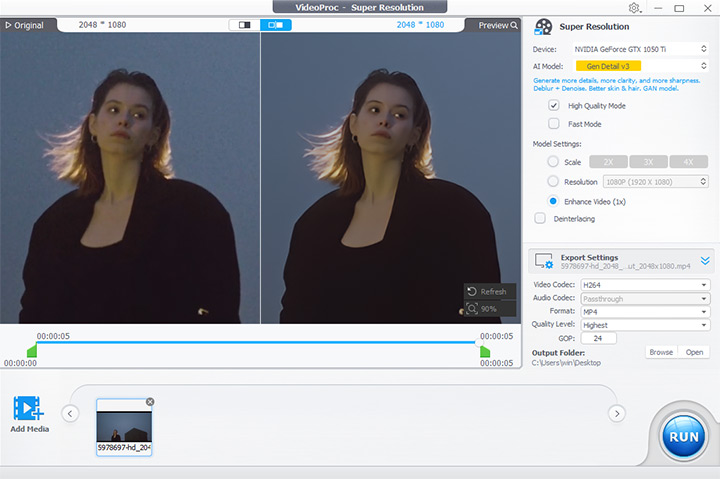
The entire process feels incredibly smooth and beginner friendly. You just select an AI model in its Video Super Resolution tool, set your preferred output quality, and click RUN. As you watch the progress bar, you will notice the software moves surprisingly fast. It uses special hardware acceleration to share the heavy lifting across your computer parts, which means you can clean up your video without your PC freezing up or crashing.

Pros:
- Very easy to navigate for total beginners with a clean drag and drop workspace.
- Includes extra tools to upscale your video resolution and fix shaky camera movements.
- Renders videos quickly because it optimizes your computer hardware efficiently.
- Supports batch noise reduction for almost all video formats.
Cons:
- You must download and install the full software on your computer before you can use it.
- You will still need a reasonably modern graphics card to get the fastest export speeds.
2. Topaz Online AI Video Denoiser
- Time Taken: ~99s
- Avg. Processing FPS: 1.2222
- Max GPU Utilization: 43%
- Peak VRAM Usage: 904 MB
- Max CPU Utilization: 15.444%
- NIQE Score: 8.146387
Topaz is a heavy hitter in the creative world, and their online tools bring that studio power directly to your web browser. The online video denoiser uses targeted models to handle different types of moving footage.
When you launch AI Video Denoiser, you are actually redirected to the Topaz Astra interface (you can read our Astra review blog here). The number of credits required varies depending on your video duration and the specific model used.
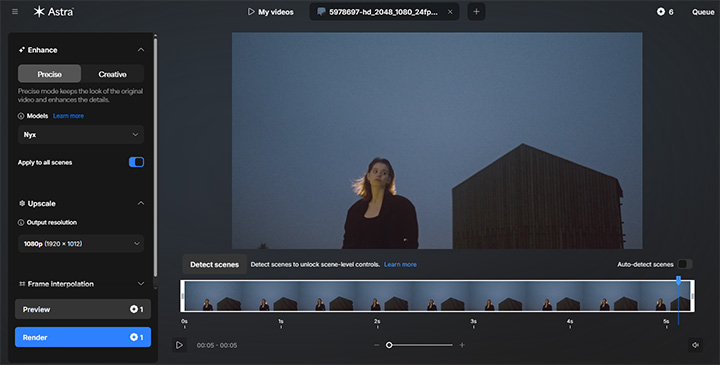
It is worth noting that the Topaz Online AI Video Denoiser offers only two output resolution options: 1080p and 4K. In my case, when processing the first 2048x1080 px portrait video, selecting the 1080p setting resulted in an actual output resolution of 1920x1012 px.
Pros:
- It runs entirely in the cloud, so you do not need an expensive graphics card to get professional results.
- Offers highly specific AI models tailored to different types of video noise.
- A Scene detection option to improve quality and unlock scene-level controls.
Cons:
- You must have a fast and stable internet connection to upload your large video files.
- The resolution of the output video may be altered.
- The credit system accumulates costs as video duration increases, which can ultimately result in a hefty price tag. Processing a single minute of video could potentially cost $10.
3. Picwand AI Video Denoiser
- Time Taken: ~62s
- Avg. Processing FPS: 1.9677
- Max GPU Utilization: 27%
- Peak VRAM Usage: 656 MB
- Max CPU Utilization: 18.190%
- NIQE Score: 9.286141
Picwand is another tool you can try to denoise video online for free. Much like Topaz, it operates on a credit-based system; however, you can earn free credits for trial purposes by registering an account, downloading the mobile app, and similar activities.
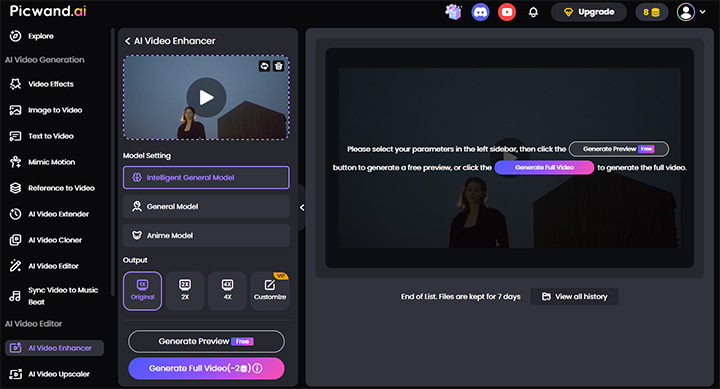
The video enhancer actually offers three distinct models: the Intelligent General Model, the General Model, and the Anime Model. I opted to stick with the default "Intelligent General Model" and set the resolution to "Original." Aside from that, there aren't many other settings available to configure.
Pros:
- Very easy to use directly in your web browser with a clean and simple interface.
- Automatically fixes bad lighting and colors while fixing the grainy noise.
- Lets you preview the results before you spend credits to download the full video.
Cons:
- You must buy a subscription or purchase credits to unlock higher resolutions and longer video exports.
- The range of configurable settings is relatively limited.
- Because it works online, you have to wait for your video to upload before the cleaning process can even begin.
4. Fotor AI Video Denoiser
- Time Taken: ~84s
- Avg. Processing FPS: 0.8452
- Max GPU Utilization: 37%
- Peak VRAM Usage: 873 MB
- Max CPU Utilization: 17.823%
- NIQE Score: 5.005244
Fotor is a well-known online platform that does more than just edit photos. Its dedicated AI video enhancer is designed to enhance poor video quality automatically.
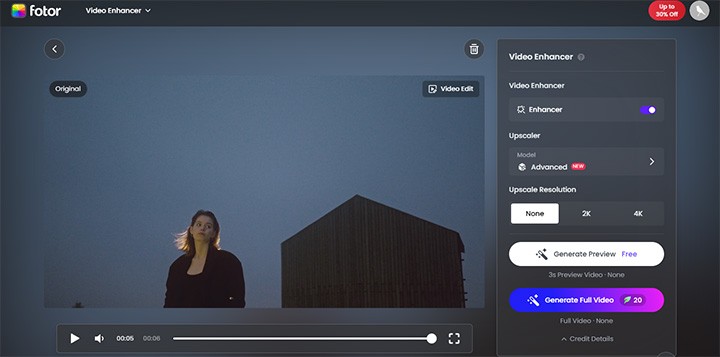
Fotor accepts MP4, MOV, WebM uploads. There are no complicated menus or technical sliders to adjust. You can simply choose between two models, Standard and Advanced, and then set the upscale resolution. However, I must admit that, even for an online tool, there is still room for improvement regarding its processing speed.
Pros:
- Works entirely in your web browser without requiring any software installation.
- Cleans up noise while also fixing bad lighting and colors automatically.
- Extremely easy to use for complete beginners with its simple one click process.
Cons:
- Destructive algorithms; inappropriately altered the exposure and color.
- The free version puts limits on your exports.
- You have to pay for a subscription to download your videos in full 4K resolution.
Final Verdict
After looking at all the test numbers and comparing the video clips, you have an important choice to make. Every tool we tested brings unique strengths to the table. Your final decision will depend entirely on your computer hardware and your daily editing needs.
Sometimes you just want to fix a quick video without downloading huge files or installing heavy software. For the best online tool, we highly recommend Topaz's online tools. If you want the cleanest video possible, this is your top pick.
When evaluating overall quality, processing speed, and cost-effectiveness, VideoProc Converter AI stands out as the best AI video denoiser that strikes the most optimal balance among these factors. It kept the fine textures perfectly without eating up all your system memory. This means you can clean up your clips smoothly on a standard desktop setup.