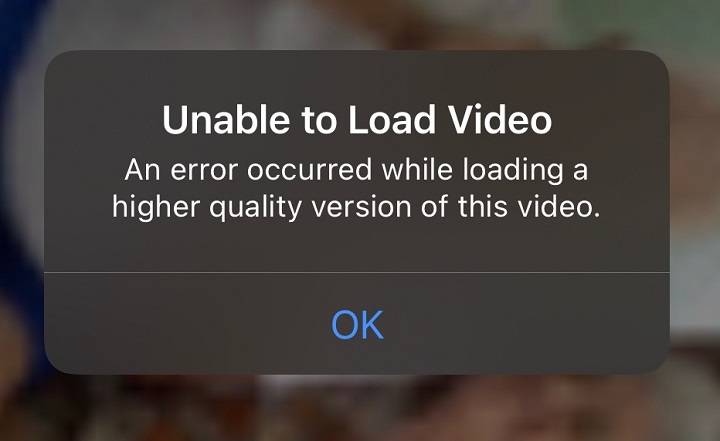
You scroll through your Camera Roll ready to watch a clip, only to hit an error message instead of the video you expected. "Unable to Load Video. An error occurred while loading a higher quality version of this video"
This issue shows up frequently for people who store photos and videos in iCloud. In most cases, it appears when the full version of a video lives in the cloud. Your iPhone is trying to download the full-resolution video but fails for one reason or another.
In this article, you will learn why your iPhone is unable to load videos and get clear, step-by-step solutions that resolve the issue for most users.
Why Is My iPhone Unable to Load Video
The "unable to load video iPhone" error appears most often inside your camera roll.
Your iPhone may keep a smaller preview of the video on the device and leave the full-resolution file in the cloud. Opening the video triggers a download of that higher-quality version. If the download fails for any reason, the error message shows up. Here are the most frequent causes:
- Low free storage on the device
- "Optimize iPhone Storage" setting
- Unstable or slow network connection
- Pending iCloud Terms and Conditions
- Outdated iOS version
- Temporary software glitch in the Photos app
- Low Power Mode / Low Data Mode
- Corrupted video file or unsupported format
Similar loading failures can occur outside the Photos app. In Safari, X, or YouTube the problem is more often tied to network conditions, app cache, or temporary service issues.
How to Fix Unable to Load Video on iPhone
#1. Force-Quit and Reopen the Photos App
The Photos app can sometimes enter a stuck state where it fails to request the higher-quality video. Fully closing and reopening the app clears that temporary process.
#2. Restart Your iPhone
Temporary software glitches often prevent the Photos app from properly requesting or processing the higher-quality version of a video. Restarting the device clears these short-term issues and gives the system a fresh start.
- Press and hold the side button and one of the volume buttons until the power-off slider appears.
- Drag the slider to turn the device off.
- Wait 30 seconds, then press and hold the side button until the Apple logo appears.
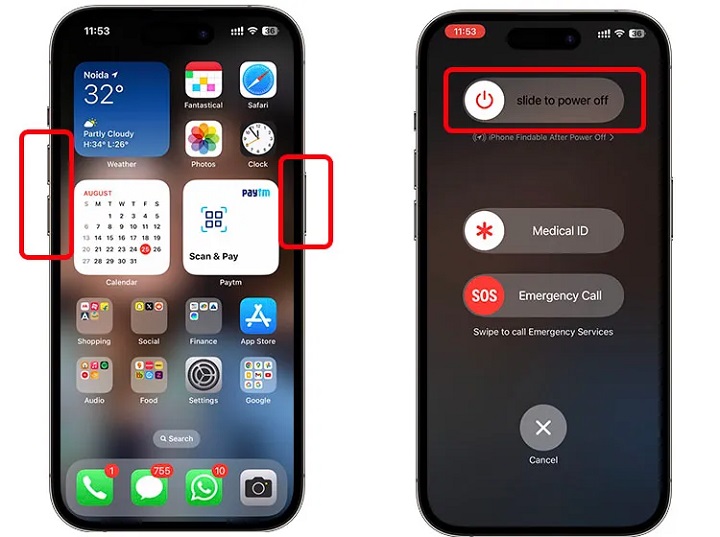
If your iPhone cannot restart normally and requires a force restart: quickly press and release the volume-up button, press and release the volume-down button, then press and hold the side button until the Apple logo appears.
#3. Ensure a Stable Internet Connection
Videos kept in iCloud must be downloaded over the internet before they can play at full quality. A weak or interrupted connection stops this process and triggers the error message.
- Connect to a trusted Wi-Fi network with a strong signal.
- If Wi-Fi is weak, switch to cellular data temporarily.
- Toggle Airplane Mode on for 15 seconds, then turn it off.
- Test the connection by loading a webpage in Safari.
If necessary, reset network settings to restore default network behavior. Go to Settings > General > Transfer or Reset iPhone > Reset > Reset Network Settings. Reconnect to Wi-Fi afterward and try the video again.
#4. Check and Free Up Storage Space
When free storage is too low, the iPhone cannot download or temporarily store the full-resolution video from iCloud. Freeing up space removes this barrier and allows the download to complete.
- Open Settings > General > iPhone Storage.
- Review how much free space remains.
- Delete unused apps, large videos, or other files until several gigabytes are free.
- Return to the Photos app and try playing the video again.
If necessary, you can use an iPhone manager to back up data to your computer to free up space, then try loading the video again to see if it plays.

DearMob iPhone Manager- Robust iOS Data Backup and Transfer
- Unlimited data transfer between iPhone/iPad and Windows/Mac
- Transfer and manage 15+ file types via Wi-Fi or USB Connection
- Two-way sync: Full & Selective backup or restore on any iDevices
- Backup photos by Albums/Types, HEIC, Apple ProRAW, live photos
- Encrypt your backup files and data with military-level tech
#5. Accept Pending iCloud Terms and Conditions
Apple occasionally updates its iCloud terms, and media features can remain blocked until the new terms are accepted. Confirming them restores full access to cloud-stored videos.
- Open Settings and tap your name at the top.
- Look for any banner or prompt about new Terms and Conditions.
- Tap the prompt and accept the terms.
If no prompt appears, the terms have already been accepted. Then, you can restart your iPhone and test video playback.
#6. Toggle the Video as a Favorite
Marking a video as a Favorite and then removing that mark can prompt the system to recheck and refresh its link to the full file stored in iCloud. This simple action often resolves stuck loading states.
- Open the Photos app and locate the video.
- Tap the heart icon at the bottom of the screen to mark it as a Favorite.
- Wait a few seconds, then tap the heart icon again to remove it from Favorites.
- Try playing the video.
#7. Duplicate the Problematic Video
Similar to marking a video as a "Favorite" and then unmarking it, creating a duplicate can force a refresh or re-download of the video, or bypass a temporary glitch affecting only the original file entry. The new copy often loads without the same error.
- Open the video in the Photos app.
- Tap the three-dot menu in the upper-right corner.
- Select Duplicate.
Open the new copy and try playing it. After doing this, the original file will often play correctly.
#8. Turn Off Low Power Mode
Low Power Mode reduces background activity to save battery, and this restriction can interfere with the processes needed to download and prepare videos for playback. Here's how to disable it to allow those processes to run normally.
- Open Settings > Battery.
- Toggle off Low Power Mode.
- Return to the Photos app and try the video again.
#9. Change Photos Settings to Download and Keep Originals
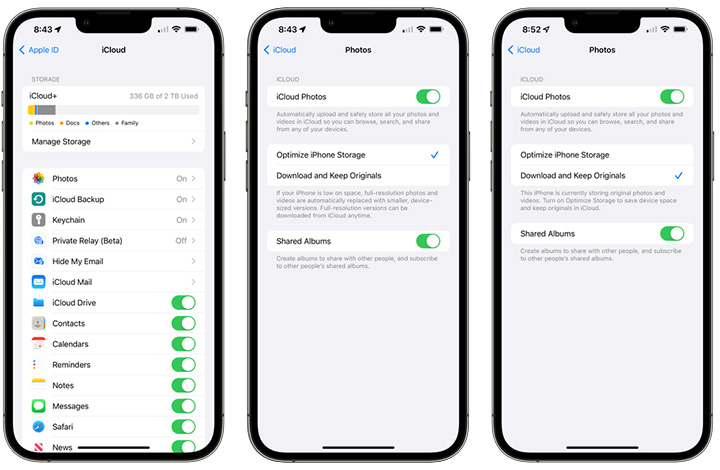
With Optimize iPhone Storage enabled, full videos stay in the cloud and must be downloaded each time. Switching to Download and Keep Originals can store the complete files on the device.
- Open Settings > Photos.
- Select Download and Keep Originals.
- Wait for the download process to complete (this can take time and requires free storage).
- Once finished, open the video in the Photos app.
#10. Update to the Latest iOS Version
Older versions of iOS may contain bugs that affect how the Photos app handles iCloud videos. Installing the latest update brings in fixes that improve media loading reliability.
- Open Settings > General > Software Update.
- If an update is available, tap Download and Install.
Keep the iPhone connected to power and Wi-Fi during the process. After the update finishes, test the video.
#11. Convert an Unsupported Video Format
Although less common, some videos fail to load because they use a format or codec that the iPhone does not support natively. The Photos app and most built-in players work best with MP4 or MOV files that use H.264 or HEVC encoding. Formats such as AVI, MKV, WMV, or FLV often need conversion before they will play reliably.
To convert a video, use a desktop video converter on a computer.

VideoProc Converter AI - Best Video Converter with Good Quality
- Support 420+ codecs and formats, incl. ProRes, H.264, HEVC, etc.
- Intuitive interface; 1-click presets for different use cases
- Customizable codec, bitrate, frame rate, resolution, quality, profile, etc.
- Fast batch conversion with Level-3 Hardware Acceleration
- All-in-one: AI tools, downloader, compressor, recorder, etc.

Online converters can also work for smaller files, though they require uploading the video to a website. Always choose a reputable service and avoid uploading sensitive content. After conversion, the video should load and play without the previous error.
Videos Not Playing in Safari, X, or YouTube
Loading failures outside the Photos app usually are due to network conditions, app cache, or temporary service problems.
Start by confirming you have a strong internet connection and test the same video on a different network if possible. Force-quit the app or browser, then reopen it. Low storage can also interfere with buffering in streaming apps, so free up space if the device is nearly full.
In Safari, try clearing website data for the specific site. Turning off hardware acceleration can help sometimes.
For YouTube and X, signing out and back in, or reinstalling the app, often clears stubborn cache issues. Besides, some in-app settings, such as Data Saver and Video Autoplay, can also interfere with the media buffering process. Read our guide on fixing X video playback issues.
Conclusion
The "unable to load video" error on iPhone is usually because of limited storage, iCloud optimization settings, or a weak internet connection.
In most cases, you can fix the problem by restarting the device, freeing up storage space, ensuring a stable network, or adjusting "Photos" storage preferences. There are also some tricks to force a refresh or re-download of the problematic video, for example, marking it as a "Favorite" and then unmarking it, creating a copy, or editing the video within the Photos app.
In the rare cases where nothing works, feel free to contact Apple Support.