
 New AI features are available
You are scrolling through X, then it happens. The video freezes. You see a black screen. Or the player spins forever. Sometimes you get a clear playback error like "Content is not available" or "This media could not be played."
Twitter videos not playing show up in different ways, but these glitches are usually simple to fix. Full platform outages are uncommon. You can often get videos playing again in a few minutes.

Quick Diagnosis: Is It You, the Video, or X?
Before you start changing settings or clearing data, take a minute to figure out where the problem actually sits. Is it your device, one specific video, or something on X itself?
- Check if X is down or having wider issues.
- Test the same video in a few different places.
- See if other videos on other platforms play normally.
If the problem sits on Twitter-end, you might just need to wait it out. Otherwise, pay attention to the exact symptoms you see.
Sometimes no videos play at all. Other times only some Twitter videos are not playing while the rest work fine. You might notice videos not playing automatically, even though you can start them by tapping. You could also run into clear error messages.
Each of these clues points to a different cause. Once you know which one matches what you are seeing, the fixes become much clearer and faster to try.
Quick Reference Table
Symptom |
Most Likely Fix |
|---|---|
No videos play at all |
Switch networks, toggle Airplane Mode, then clear cache |
Only some Twitter videos not playing |
Clear cache, check sensitive content setting |
Videos not playing automatically |
Turn off Data Saver and enable video autoplay |
Content is not available |
Clear cache, enable "Display media that may contain sensitive content" |
This media could not be played |
Restart app, switch network, update app/browser, disable hardware acceleration |
This video is not available in your location |
Turn off VPN or proxy, test on another network |
Videos fail in browser |
Clear browser data, disable hardware acceleration, test in Incognito, set tracking protection to Standard |
Videos fail in the X app |
Clear app cache, offload the app, check Low Data Mode, then reinstall if needed |
Problem happens on every device and network after all fixes |
Likely on X's side: wait and check status pages |
Universal Fixes
#1. Check Your Connection
Switch between Wi-Fi and mobile data. If you are on Wi-Fi, turn it off and try cellular. If you are on cellular, connect to Wi-Fi instead. You can also turn Airplane Mode on for ten seconds and then turn it off again. This forces your phone to grab a fresh connection.
#2. Restart the X App, Browser, or Your Device
The X can simply get stuck. Force-close the X app completely.
On most phones you swipe it away from the recent apps list. Then open it again. In a browser, just refresh the page or close the tab and reopen x.com.
A full restart clears temporary glitches that a simple app close sometimes misses.
#3. Disable Data Saver and Enable Autoplay
Check your Data Saver and autoplay settings next. Go easy on these settings if you watch a lot of videos. Leaving it on all the time forces X to limit the media.
- Open the X app and tap your profile picture.
- Go to Settings and privacy, then Accessibility, display, and languages.
- Tap Data usage.
- Turn Data Saver off.
- Set video autoplay to play on both Wi-Fi and mobile data if you want clips to start on their own.
#4. Clear Cache and Cookies
The app stores temporary files to load things faster. When those files get messy, videos can fail to start. Clearing them usually clears the problem.
On Android:
- Go to Settings > Apps, and find X.
- Open Storage.
- Tap on the Clear cache button.
- Choose to Clear cache only or Clear all data.
On iPhone, go to Settings > General > iPhone Storage. Find X and tap Offload App. This clears temporary files without deleting the app completely.
#5. Update the App
Keep the X app and your browsers updated. New versions often include fixes for playback bugs.
Open the App Store or Google Play and make sure the X app is current. Do the same for your browser and your phone's system software.
Twitter/X Videos Not Playing on the App
#1. Clear App Cache
Cache files help reduce loading time, but they can also cause the video not to play due to insufficient memory. Try to clear the cache by following the steps described earlier.
#2. Check Data Usage Settings
You can also check whether Low Data Mode is turned on under Cellular or Mobile Data.
When this setting is on, X limits how much data videos can use. The same thing happens if Low Data Mode is active on your phone. Turn it off if it is active.

#3. Clean Up Storage Space
Make sure you have enough free storage too. When storage gets too low, apps struggle to load larger files like videos. Delete old photos, apps you no longer use, or large downloads. Aim for at least a couple of gigabytes of free space, then try the video again.
#4. Reinstall the App
If nothing else works, reinstall the X app completely or try the web version in a browser.
Delete the X app, restart your phone, and install it fresh from the App Store or Google Play. Log back in and test a video.
Some people also add x.com to their home screen as a progressive web app. This can bypass certain glitches that live only inside the regular app.
Twitter Videos Not Playing in Chrome, Firefox, or Other Browsers
#1. Clear Cookies and Cache
Browsers also use cache files, which also need to be cleared regularly.
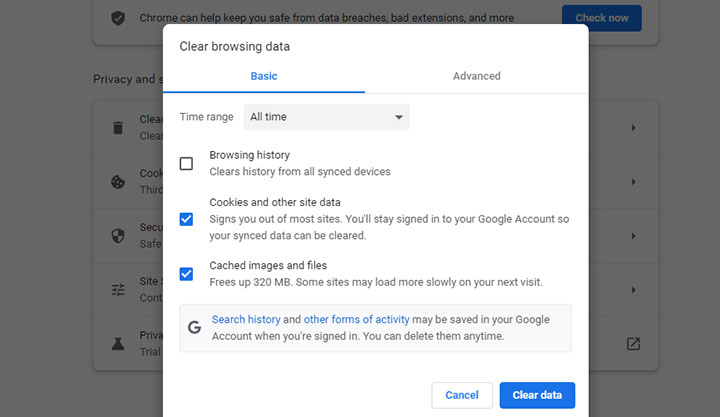
Open browser settings and clear browsing data. Choose Cookies and other site data plus Cached images and files. Set the time range to All time if the problem has lasted a while. You can also clear data just for x.com if you prefer.
#2. Disable Hardware Acceleration
Hardware acceleration in your browser sometimes conflicts with the player as well and leads to black screens or errors.
In Chrome, open Settings, search for hardware acceleration, turn it off, and relaunch the browser.
In Firefox, go to Settings, Performance, uncheck the recommended settings box, then uncheck Use hardware acceleration. Restart the browser and test.
#3. Turn Off Interfering Tools
Ad blockers and certain browser extensions interfere more often than you expect. They can block the scripts or media files X needs to play a video.
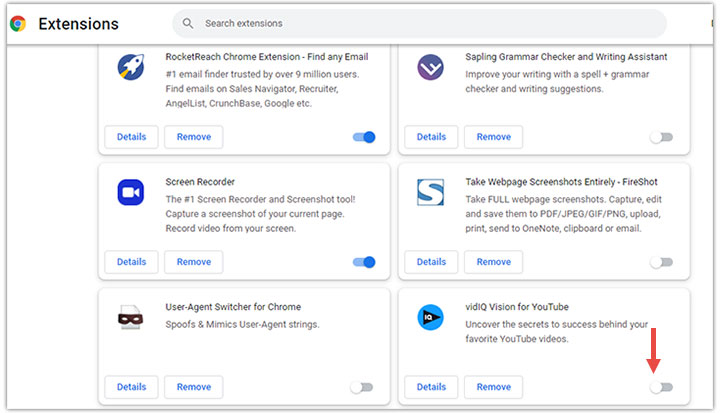
Disable any ad blockers or extensions that might interfere. Test the video in an Incognito window first. If it plays there, one of your extensions is the cause.
#4. Check Enhanced Tracking Protection Settings
Enhanced Tracking Protection is a privacy feature that automatically blocks known online trackers, cross-site cookies, social media trackers, cryptominers, and fingerprinters.
However, Strict Mode may break certain website features. So you may want to set it to Standard instead of Strict for a moment and see if videos start working.
#5. Update the Browser
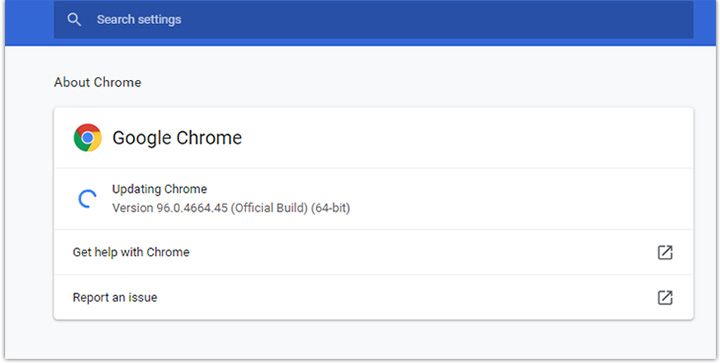
Update Chrome, Firefox, or other browsers to the latest version while you are at it. You can also try a different browser entirely to confirm the issue is limited to one program.
Content Is Not Available
When you see "Content is not available" or "Content not available," the cause is often a messy cache or a privacy setting. Double-check the sensitive content setting.
- Open your X settings.
- Look under Privacy and safety, then Content you see.
- Make sure the option to display media that may contain sensitive content is turned on.
Sometimes, a glitch on X's side can trigger a false positive for this notification, even if the video itself isn't actually sensitive.
Also, clear the app or browser cache again if you have not done so recently.
This Media Could Not Be Played
This usually means the player on your end ran into trouble. A weak connection can trigger it. An outdated app or browser can too. Restart the app, switch networks, and make sure everything is updated. On desktop, turning hardware acceleration off has fixed this for many people.
Twitter Video Not Available in Your Location
When you see "this video is not available in your location," it may be a real region limit. Some videos are blocked in certain countries. It can also be a false alarm caused by a VPN or proxy.
Turn off any VPN or proxy you are using and try again. These tools can change how your connection looks to X and sometimes block media files. Disconnect completely, then open the app or browser again and test a video.
Videos Not Playing Automatically
This almost always comes down to settings. Data Saver or Low Data Mode stops autoplay to save bandwidth. The autoplay option itself may simply be turned off.
To fix this, go back to the Data usage section in the X app and adjust both settings. Once they are open, clips should start on their own when you scroll.
Wrapping Up
X videos that refuse to play are annoying, but they are usually easy to fix. Start with the basics, then move on to the device- and platform-specific fixes. Check the exact error message you see. That message often points straight to the right solution.
If you come across a video you want to keep while scrolling, you can also use a Twitter downloader to save it to your device.

VideoProc Converter AI - HD Batch Video Downloader
- No pop-ups or ads. 100% clean and safe to download and use
- Support 1000+ popular sites and 2000+ niche sites
- HD 1080p/4K/8K output (up to the original video resolution)
- Batch download videos, audio, subtitles, M3U8, and playlists in sec



