
 New AI features are available
Summary: Background noise like wind or hiss can ruin your video quality. How to remove it without losing vocal clarity? We've tested and reviewed 10 effective tools—from AI-powered one-click fixes to professional video editors. If you need an efficient, batch-processing solution while retaining natural audio, VideoProc Converter AI stands as the robust option with its advanced AI models.
"I created a video for uploading to YouTube but can't remove the background noise in the video. Is there a way for video noise reduction? What is the best app to remove or minimize the background noise in my recorded videos?"
Technically speaking, noise is defined based on the audio frequency and audio decibel, which is loud, disruptive, and out of the comfort area of human hearing. Hiss, rumble, crackle, hum, and even white noise are instances of noise in the audio. Also, all kinds of unwanted sounds in video recordings are noises.
To some extent, background noise would destroy your recorded video, no matter how carefully the shooting was conducted. But is there any app to remove background noise from video? This article will show you how to remove background noise from video on iPhone, Android, and desktop with some best background noise removal apps.
Can't wait? Check the comparison table below for a quick overview. Scroll down for detailed step-by-step guides and professional reviews for each tool.
Quick Comparison: Best Noise Removal Tools (2026 Edition)
| Tool | AI Powered | Manual Control | Denoise Intensity | Platform | Price | Best For |
|---|---|---|---|---|---|---|
|
Moderate |
|
Win/Mac |
Paid/Life |
Batch AI denoising with Super Resolution & GPU acceleration. |
|
|
Mixed (RNNoise Auto/Speex manual) |
|
Win/Mac |
Free |
Live streaming & screen recording with real-time RNNoise filters. |
|
|
Basic |
|
All |
Free |
Real-time basic audio filtering during media playback. |
|
|
None |
|
Online |
Free/Sub |
Instant studio-quality voice cleanup via AI cloud processing. |
|
|
Moderate |
|
Android/iOS |
Free/IAP |
Mobile creators needing quick AI noise subtraction on Android. |
|
|
Excellent |
|
Win/Mac |
Sub |
Professional filmmaking with AI Enhance Speech & DeNoise filters. |
|
|
Excellent |
|
Win/Mac/Lin |
Free |
Advanced manual cleanup using Precision Spectral Subtraction. |
|
|
Basic |
|
Online/Win |
Free/Sub |
Beginner-friendly online video editing with basic noise removal. |
|
|
Basic |
|
macOS |
Free |
Quick environment hum removal for Apple ecosystem users. |
|
|
Excellent |
|
Online |
Free |
Customizing noise reduction via spectral frequency sliders online. |


What is Background Noise
Background noise refers to any unwanted or incidental sound that is present in a given environment or audio signal, which can obscure or interfere with the desired primary signal or content. It typically arises from various sources, including environmental factors (e.g., traffic, wind, machinery), electrical interference (e.g., hums, static), or incidental sounds (e.g., conversations, footstep sounds).
In professional audio, telecommunications, or broadcasting contexts, background noise can significantly degrade the quality of the signal, reducing clarity and intelligibility. In such cases, it becomes crucial to employ techniques and technologies—such as noise reduction algorithms, noise gating, or spectral editing— to isolate and eliminate or attenuate the background noise, thereby enhancing the quality and fidelity of the primary audio content.
In the field of audio engineering, background noise is typically quantified in terms of its signal-to-noise ratio (SNR). This measurement compares the level of the desired signal (e.g., speech, music) to the level of unwanted noise. A higher SNR indicates a cleaner, more desirable signal, where the noise is less intrusive. Conversely, a lower SNR means that background noise is more prominent, which can detract from the overall quality of the audio.
Having established what background noise is and how it can affect the overall quality of your videos, let's now delve into the methods for effectively eliminating it. Whether you're editing on a desktop or mobile device, there are powerful tools and techniques available to reduce or remove unwanted noise from your video audio. In the following section, we'll guide you through the process of noise removal, providing solutions for both desktop and mobile platforms to ensure your audio is crisp, clear, and professional.
How to Remove Background Noise from Video on PC
PC and Mac users typically demand granular control over audio frequencies and high-performance processing for complex noise suppression. Desktop software is the premier choice for handling demanding 4K/8K footages, batch-processing YouTube content, and optimizing long-form recordings with maximum efficiency and zero audio distortion.
1. VideoProc Converter AI
Best for: Creators needing studio-grade audio clarity through automated AI noise removal.
When it comes to removing background noise from video audio, VideoProc Converter AI is the industry-leading solution for desktop users. Powered by advanced artificial intelligence, this tool is designed to enhance audio clarity by effectively eliminating unwanted sounds, ensuring your recordings are crisp and professional.
The noise removal software effectively isolates key audio elements, such as speech or vocals, from disruptive sounds like wind, traffic, and construction. Powered by AI, it intelligently reduces unwanted noise while preserving the integrity of the primary audio, making it ideal for podcasts, interviews, voiceovers, online courses, and vlogs. Users can customize noise suppression levels to suit different recording environments, and the real-time preview feature lets them fine-tune adjustments for full control over the final output.
For professionals and creators managing large volumes of content, VideoProc Converter AI's batch-processing feature is a game-changer. It enables users to efficiently process multiple audio or video files simultaneously, streamlining workflow and saving valuable time.
In conclusion, VideoProc Converter AI is the ultimate tool for achieving polished, studio-quality audio. With its advanced AI technology, intuitive interface, and powerful capabilities, it stands as the top choice for noise removal and audio enhancement on desktop.

VideoProc Converter AI — Remove Video Background Noise with AI
- AI distinguishes between desired audio signals and unwanted noise for clearer vocals.
- Handle a variety of dynamic noise conditions; preview and adjust in real time
- Offers adjustable settings and bulk noise removal for large audio/video projects.
- All-in-one audio solution: noise suppression, vocal removal, enhancing, convert, download, record, compress, edit, etc.
 Excellent

How to Remove Video Background Noise with AI
Step 1. Free download VideoProc Converter AI, click on the the "Audio AI" icon on the main interface, which will bring you to the Audio AI workplace.

Step 2. Upload your file. You can choose to import either an audio file or a video file that includes audio.

Step 3. Apply AI Noise Suppression and preview
Check Noise Suppression, choose the preferred AI model, and adjust the Noise Attenuation Limit, Post-Filter Threshold, and Volume Control accordingly.

- Noise Attenuation Limit (dB): This setting determines the maximum noise suppression level. A higher limit removes more noise but may reduce audio quality, while a lower limit preserves natural sound. For optimal results, set it to 6-12 dB for light reduction and 18-24 dB for moderate noise suppression.
- Post-Filter Threshold: This controls additional noise removal after the initial suppression. A lower threshold (0.01-0.02) offers lighter filtering for quieter environments, while a higher threshold (0.03-0.05) targets moderate noise, such as background hum or chatter, ensuring clarity in the main audio.
- Volume Control: This feature allows users to adjust audio levels. If noise reduction causes a drop in volume, users can increase the signal to enhance clarity and overall enjoyment of the content
Tips:
- For a clear before-and-after comparison, you can toggle off Noise Suppression to listen to the original audio, then turn it back on to hear the enhanced version.
- Click "Apply to All" to apply your changes to all audio files in your project.
Step 4. Export your audio.
Once you're satisfied with the result, you can choose to export the entire file or use the green knobs at both ends of the audio waveform to trim and export only the selected portion.

Adjust the video/audio codec, quality, and GOP as needed, select the destination folder, and click the Run button to export the file with enhanced audio.
2. VLC
Best for: Free and quick fixes of minor background hiss (not permanent editing).
VLC Media Player, primarily known as a versatile media player, also includes basic audio editing features, including some options for reducing background noise in videos. While it doesn't offer the advanced AI-driven noise reduction seen in specialized tools, VLC provides some practical options for users seeking a free, quick solution for noise management.
It can be useful for steady, low-frequency hums or minor background hiss, but it is not recommended for wind noise, heavy environmental noise, or voice-heavy content. In addition, you need to know that VLC's audio filters work by masking or attenuating certain frequency ranges rather than isolating unwanted sounds, so results may vary depending on the original file. Here is how to remove background noise from video free using VLC.

Step 1. Free download VLC.
If you still don't have a VLC player, then download it at VideoLan.
Step 2. Import your video.
Launch VLC media player, click Media in the top bar, choose Open File and then select a video to do noise reduction. Click +Video or +Video Folder to load your recorded videos from local drive separately or batch load.
Step 3. Start noise removal.
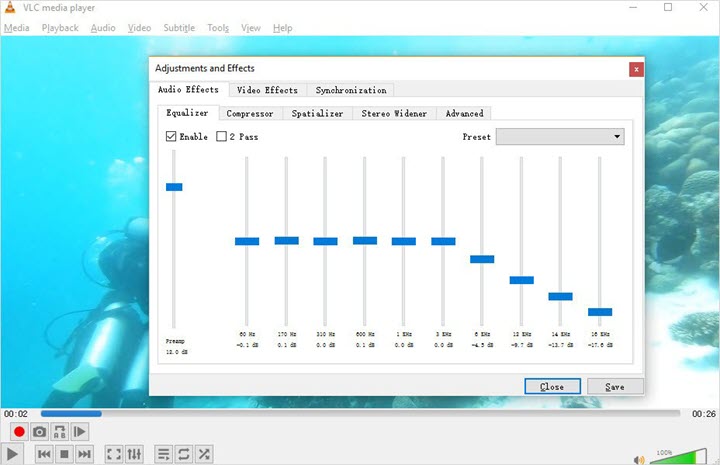
Move to the bottom of the player window and select Show extended settings. Or click Tools in the top task bar and choose Effects and Filters in the scroll-down menu. And Audio Effects panel pops up. Navigate to the Equalizer tab and then put a check mark in the Enable box.
Change the frequency band and decibel as the video plays. For example, slightly lowering the 60Hz band can help mask electrical hum, but be careful not to reduce frequencies that overlap with the human voice, as this can make audio sound thin. After the adjustment, click Save. Or you can choose a preset that automatically configure all the audio settings for you.
3. OBS
Best for: Real-time noise reduction for recording and streaming.
OBS Studio (Open Broadcast Software) is a free, open-source tool primarily designed for live streaming and recording. It offers advanced real-time noise reduction features like AI-driven RNNoise filter for complex background hums and ambient static removal in real-time. If you are working with low-end hardware, you can also use the Speex Noise Suppression filter and the traditional Noise Gate. These tools enable users to reduce background noise during live audio capture without post-processing.
While effective for live audio capture, OBS's noise reduction tools are not as precise as dedicated post-production software for complex audio editing, so users may need to rely on secondary editing tools for multi-track recordings or highly noisy environments. OBS Studio is ideal for streamers or podcasters seeking a real-time solution but may not offer the level of noise control needed for detailed video editing projects. Below we take reducing background noise freely with the RNNoise and Speex for example.

Step 1. Download and install OBS.
Head over to OBS Project and free download and install OBS on your system. When the installation is complete, launch it on your computer, and ensure your microphone is correctly recognized in the Audio Mixer panel.
Step 2. Apply the AI noise reduction filter.
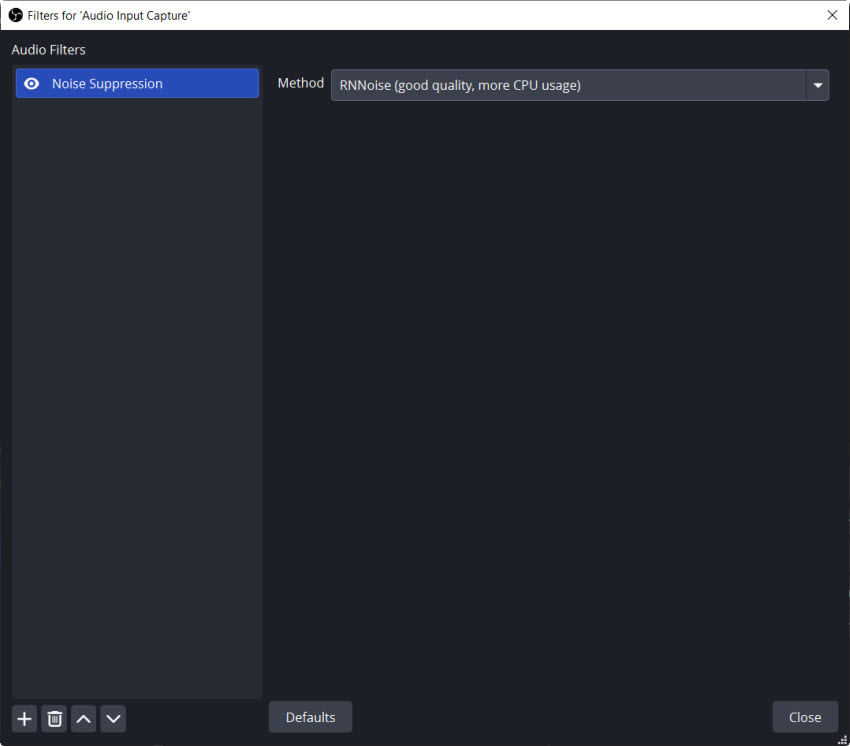
Go find your microphone input in the Mixer settings > click the three-dot icon or gear icon > Filters > go for the plus icon and select Noise Suppression from the expander > Name your filter when prompted (e.g. AI denoiser).
Step 3. Select the denoising method.
In the Method dropdown, you have 2 primary choices:
- RNNoise (recommended): Select this for high-quality, AI-powered noise removal. It uses a recurrent Neural Network to automatically suppress background hums.
- Speedx (Low CPU): Choose this if you are on an older computer. It allows to manually adjust the Suppression level.
Practical tips for Speex: Start with -30 dB for general use. Increase suppression (e.g. -40dB) for noisy environment. Decrease suppression (e.g. -20dB) if you noice your voice is becoming thin or distorted. Make sure putting on your headphones to monitor real-time audio quality.
How to Remove Background Noise from Video Online
If you want fast, convenient audio cleanup without installing software, online noise removal tools can be the go-to solutions. These methods clean up remote interviews, podcasts, social media videos, and voice-centric contents with ease. However, they require a stable internet connection and may have file size limitations compared to desktop powerhouses.
1. Adobe Podcast Enhance
Best for: Converting low-quality voice recordings into professional studio-grade audio online.
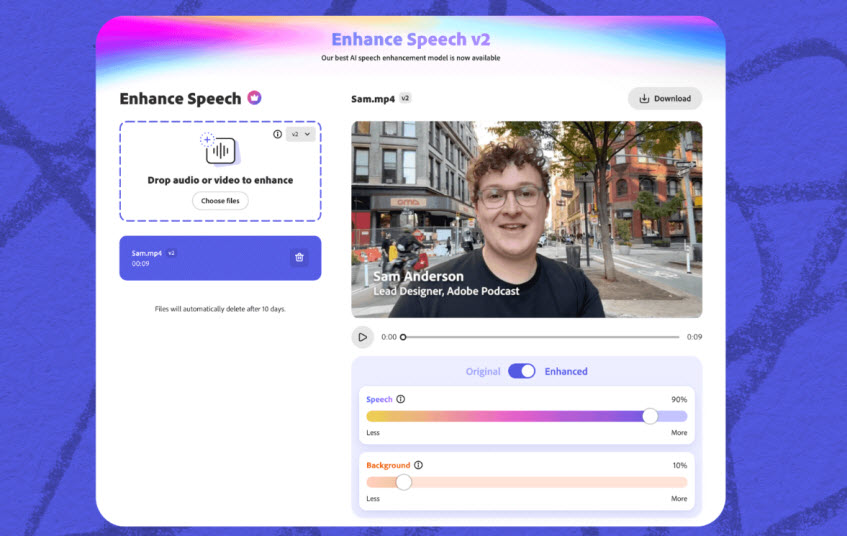
Adobe Podcast Enhance is one of the most popular AI-powered online noise removal tools, especially for voice-heavy videos and podcasts. It uses AI to remove background noise, echo, and distractions from audio, making it sound like it was recorded in a professional podcasting studio. This online tool supports bulk uploading multiple audio and video files, e.g. MP4, MP3, and WAV as long as the files are less than 1GB in size or 2 hour in duration. You can further adjust strength to ensure a perfect balance of studio-quality and natural environment sound.
Step 1. Accessible for free at podcast.adobe.com/en/enhance. Simply upload your audio or video file(s) into the upload box.
Step 2. Wait for the tool to analyze and rebuild your vocal frequencies. It generally takes a few seconds to a few minutes depending on the file size.
Step 3. Toggle the Enhance Speech button to hear the difference. Use the Strength slider to find the ideal spot. Once satisfied, click Download to save your enhanced audio file.
2. ClipChamp
Best for: Windows users seeking a fast, browser-based workflow for social media and business presentations.
Clipchamp is Microsoft's official online video editor, uniquely optimized for Windows 10 and Windows 11 environments. It brings professional AI tools directly to your browser, and provides a seamless one-click noise suppression experience. It's the go-to solution for creators who need to clean up background hums or environmental static without the hardware strain of a traditional desktop NLE.
In addition, Clipchamp is built with social media aspect ratio presets and direct integrates with OneDrive, making it the fastest path from raw recording to noise-free, 1080p export. Below we'll show you how to remove background noise from a video using Clipchamp.
Step 1. Import a video or audio asset.
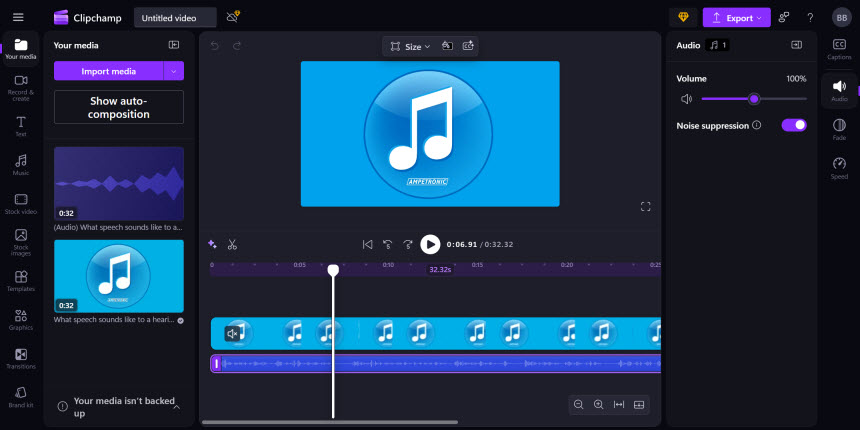
Once you open the noise removal tool, you can drag and drop a video or audio asset or click on the Import Media to import the file from your computer or drive. Then drag and drop your video onto the timeline to begin editing.
Step 2. Separate your audio from video.
To enable the noise suppression tool, you need to first separate your audio from video. Feel free to click on the video in the timeline, click on the Audio tab on the right side of the panel > Hit Detach audio button. Then your audio will automatically download to your computer and save as an MP2 file.
Step 3. Apply the noise suppression tool.
Click on your audio asset in the timeline. Toggle on the Noise suppression feature on the right side to remove background noise. Then your audio will be clear and crisp. You can play back your video and listen to the audio.
Step 4. Export your video in high quality.
Click on the Export button on the top right side to save your video with clear audio, and choose your preferred quality. Your content will export as an MP4 file.
3. AudioDenoise
Best for: Users seeking a completely free, browser-based solution for manual, granular control over noise parameters without installing software.
You would like to remove background noise from video without installing extra applications? Then try an online tool – Audiodenoise. It can recognize most popular video and audio formats and minimize the noise. It's worth noting that if you've uploaded a video, both video track and background noise will be removed. And you need to combine video and audio together later.
Step 1. Open the online tool.
Navigate to Audiodenoise in the first place.
Step 2. Upload a local file.
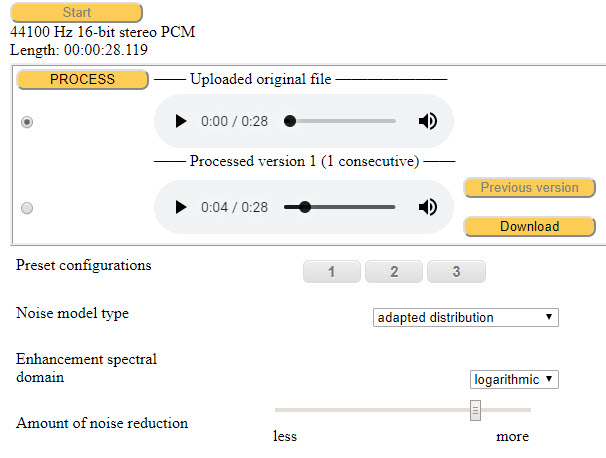
You are allowed to upload a video or an audio file. And hit the Start button to upload.
Step 3. Tweak the denoising parameters.
When audio players appear, you can manually adjust the denoising parameters to remove background noise from video. Of course, you can apply the denoising preset that configure all settings automatically.
Step 4. Save the output file.
When the adjustment is done, click the Download button to save the file locally.
How to Remove Background Noise on iPhone & Android
Mobile creators often record in unpredictable environments, from busy streets to windy cafes. Mobile apps leverage the neural processing power of your smartphone to deliver instant noise suppression on the go. Whether you need a quick fix for a social clip or a polished recording for a mobile podcast, these apps offer 'one-tap' solutions to isolate your voice and neutralize ambient distractions without requiring a desktop setup.
1. iMovie
Best for: Basic audio cleanup for macOS users or iPhone creators leaveraging Apple ecosystem.
iMovie offers a simple and beginner-friendly solution for removing background noise with its automatic noise reduction tool. It effectively reduces common distractions like wind and traffic, but its functionality is basic and localized to the macOS version.
Note for Mobile Users: The iOS app for iPhone and iPad currently lacks a dedicated noise reduction filter. To clean your audio, you can leverage the Apple ecosystem-recording on your iPhone and then syncing the project to your Mac to access the noise reduction and equalizer tools. Overall, iMovie is a good option for basic noise removal on the go, but for detailed editing, other solutions may be necessary. Follow the guide to remove background noise from iPhone video with iMovie.
Step 1. Open your video in iMovie on iPhone, tap the Share icon, select AirDrop or iCloud Drive to send the project to your Mac.
Step 2. Launch iMovie for Mac and open the transferred project. Click on your video clip in the timeline.
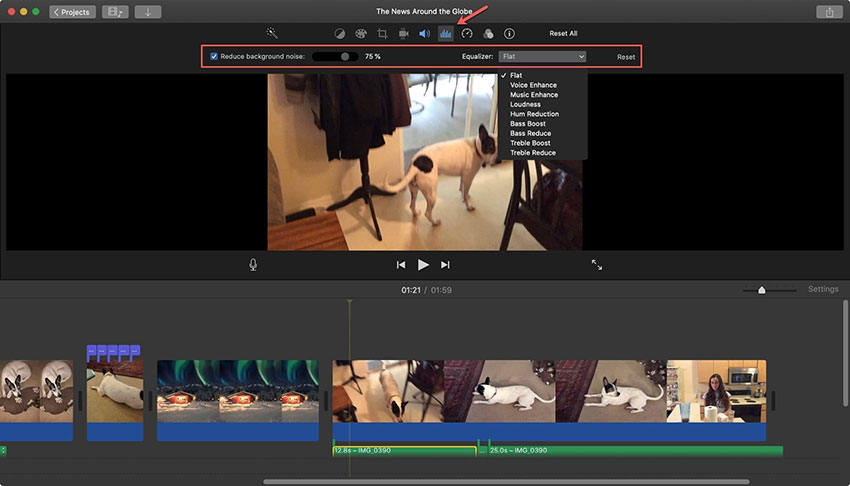
Step 3. Click on the Noise Reduction and Equalizer icon located above the preview window.
Step 4. Check the box for Reduce Background Noise, and drag the slider to the right to reduce background noise.
Step 5. Preview the audio and export your clean video in high definition.
2. ByeNoise
Best for: Android mobile creators who need a dedicated, AI-powered app to quickly clean up field recordings and social media videos on the go.
ByeNoise is a mobile app for Android that provides an easy solution for removing background noise from videos, specifically designed for on-the-go editing. Using AI-driven algorithms, ByeNoise effectively isolates speech and removes unwanted noise such as wind, traffic, or background chatter while preserving the clarity of the primary audio. The app is user-friendly, allowing users to quickly upload videos and apply noise reduction with just a few taps.
Step 1. Free download and install ByeNoise from the Google Play Store, and open the app on your Android. Import the video file you wish to remove background noise from.
Step 2. Once your video is loaded, you can play it to preview the original sound. Select the specific noise type (e.g. Wind, Static, or Hiss) and choose the reduction strength. ByeNoise uses AI-powered models to identify and reduce various types of background noise effectively.
Step 3. Tap on "Denoise" and then "Play Cleaned" to process the video and preview the results before saving the unwanted background noise-free version.

Advanced Noise Reduction Workflow for Professionals
For complex audio environments, one-click AI tools can sometimes lead to unnatural artifacts or 'hollow' vocals. Professional workflows offer the granular, frequency-specific control needed to eliminate stubborn interference while preserving the authentic warmth of the original recording."
1. Adobe Premiere Pro
Best for: Professional editors and filmmakers who require industry-standard AI audio restoration within a high-end video production workflow.
Adobe Premiere Pro is a widely recognized professional video editing software that offers a range of tools for audio enhancement, including effective background noise removal features. While it may not be solely focused on noise suppression, its integrated audio editing tools, combined with robust third-party plugin support, make it a versatile solution for improving audio quality in video projects. See below how to remove background noise from video using Adobe Premiere Pro:

Step 1. Download and purchase Adobe Premiere Pro.
Free download Adobe Premiere Pro at Creative Cloud at first. It takes a subscription model with $22.99/month. Or if you're new to Premiere Pro, you can get a 7-day free trial.
Step 2. Create a new project.
You will create a new project with proper sequence settings and import source files to the project.
Step 3. Apply the denoise effect.
Navigate to the Effects tab and search for Denoise > select DeNoise and drag it onto the audio track > make sure your audio track is selected and head over to Effects Controls > scroll down select Edit next to Custom Setup. And there's a pop-up with controls for removing background noise from video.
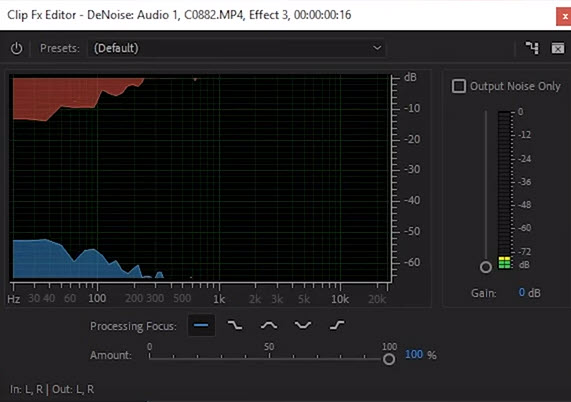
Pro tips: In Adobe Premiere Pro, you can alsouse the Enhance Speech feature in the Essential Sound panel, which uses AI to automatically rebuild vocal clarity with one click.
2. Audacity
Best for: Podcasters and home studio recorders looking for a completely free, professional-grade desktop editor with advanced AI noise suppression capabilities.
Audacity remains the gold standard for open-source audio editing in 2026. While its interface stays true to its classic roots, its underlying engine has been modernized to support AI-powered noise profiles.
Unlike simple online tools, Audacity allows for Spectral Subtraction, meaning it can "learn" the specific noise in your room (like an AC hum) and remove it without affecting your voice. It is the perfect middle ground for users who want more power than a mobile app but don't want to pay for a Premiere Pro subscription. Below are the steps about how to remove background noise with Audacity
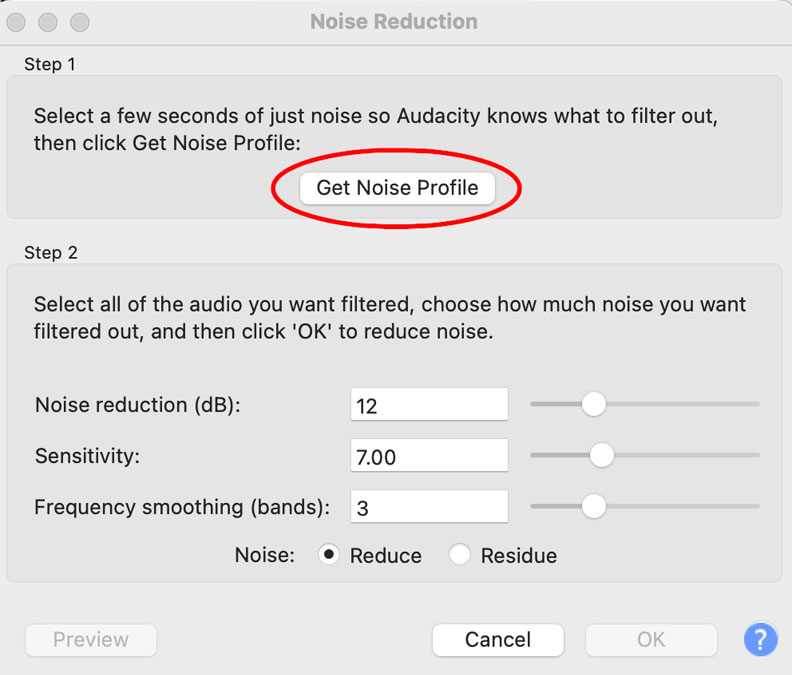
Step 1. Open Audacity and import your audio file. Use your mouse to highlight a silent portion of the track (at least 2-3 seconds) where only the background noise is audible. This teaches the software what to remove.
Step 2. Navigate to the Effect menu, select Noise Reduction, and click the "Get Noise Profile" button. The window will close once the tool has analyzed the sample.
Step 3. Select your entire audio track (Ctrl+A or Cmd+A). Go back to Effect > Noise Removal and Repair > Noise Reduction....
Step 4. Adjust the Noise Reduction (dB) slider (12dB is usually a safe starting point). Use the "Preview" button to check for "robotic" artifacts. If it sounds natural, click OK to process the entire file.
Step 5.Go to File > Export Audio and choose your preferred format (WAV or MP3) to save your cleaned track.
Tips to Reduce Background Noise When Shooting Video
While noise removal software and apps are a great way to clean up audio in post-production, taking steps to minimize background noise during filming can make a big difference in the quality of your recordings. By controlling the environment and using the right equipment, you can reduce the amount of noise that needs to be removed later. Here are some tips to help you reduce background noise when shooting video, ensuring your audio starts off as clean as possible:
- Choose a Quiet Location: Select a filming location away from noisy environments like busy streets, construction sites, or crowded areas. Opt for quiet indoor spaces or areas with natural soundproofing, such as rooms with carpets or curtains that absorb sound.
- Use a Directional Microphone: Invest in a directional microphone (such as a shotgun mic) that focuses on capturing sound from a specific source while rejecting unwanted noise from the sides or rear. This will help isolate the subject's voice and minimize ambient noise.
- Control the Environment: Turn off or move away from sources of unwanted noise, such as air conditioning, fans, or electronic devices. Close windows and doors to block out external sounds and reduce echo in the room.
- Shoot in a Controlled Environment: If possible, use a controlled soundproof room or studio where you can better manage audio conditions. Consider using foam panels or acoustic treatments to reduce reflections and minimize background noise.
- Monitor Audio in Real-Time: Use headphones to monitor your audio while filming. This will help you catch any background noise or audio issues early on and make adjustments before recording is complete.
- Record Separate Audio: If background noise is a persistent issue, consider recording audio separately using a portable recorder or digital audio interface. You can sync the clean audio with the video in post-production for better quality.
By implementing these techniques, you can significantly reduce background noise and ensure your video audio is clean and professional.
FAQs
1. Can CapCut remove background noise?
Yes, CapCut includes a built-in Noise Reduction feature that effectively minimizes unwanted background sounds, such as wind, traffic, or hums, while maintaining the clarity of the primary audio. However, its noise reduction capabilities are relatively basic compared to more specialized tools, making it ideal for quick edits but less precise for more complex noise removal tasks.
2. Is there an app to remove background noise from a video?
There are several software solutions and apps available to effectively remove background noise from videos on both desktop and mobile platforms.
For Desktop, VideoProc Converter AI, Adobe Premiere Pro, and Audacity are among the top choices, offering advanced noise reduction tools and robust audio processing capabilities.




