
 VideoProc Converter AI
 New AI features are available




 Listed in
 Ever found yourself working with older, lower-resolution footage in DaVinci Resolve? Don't worry, you're not alone. DaVinci Resolve's Super Scale feature offers a simple yet effective way to achieve stunning 2K, 4K, and even 8K results.
Still, the super scale feature is not a once and for all solution. It has many drawbacks for your workflow.
- Super Scale is a Studio-only feature in DaVinci Resolve. You won't be able to use it in the free version.
- You need a very powerful computer to use this feature, otherwise your PC may freeze with high RAM usage.
- If the media is already been compressed, it is less ideal for the Super Scale feature to restore it to 4K.
- Super Scale cannot be restricted to individual clip cuts. It takes effect for the entire clip on that timeline.
- For 480p, 2X works nicely. But if you want to upscale 480p directly to 4K, Super Scale may not be your first choice.
That's why we also included Part 2 in this blog, which offers a better AI solution to upscale individual clips to 4K with details. See the before and after comparison below. It is faster, easier, supporting batch tasks, and can be used as the best companion upscaler & enhancer for DaVinci Resolve and video editing software alike.
Part 1. Upscaling in DaVinci Resolve
Upscaling video means increasing its resolution, like turning 1080p footage into 4K or 8K. DaVinci Resolve offers standard mathematical upscaling and AI Super Scale.
Mathematical upscaling is free and supports basic timeline scaling or resizing using standard filters like Lanczos. Super Scale is available only in the paid version, DaVinci Resolve Studio (a one-time purchase, currently around $295).
Using Studio-only features in the free version typically adds a watermark.
Standard Upscaling
Standard upscaling uses mathematical interpolation algorithms (called Resize Filters) such as Sharper, Bicubic, Lanczos, or Bilinear. These methods redistribute and estimate existing pixels when a clip is scaled to a higher resolution, working in both the free and Studio versions. They improve smoothness compared to simple stretching but cannot create genuine new detail.
DaVinci Resolve Super Scale Feature
If you're using DaVinci Resolve Studio (the paid version), you get access to Super Scale. This AI-powered feature uses DaVinci Neural Engine to intelligently analyze your pixels and add new, intelligent detail, with options like 2x, 3x, or 4x, plus Enhanced modes. This makes your footage look much sharper and more detailed, especially great for fitting HD clips into a 4K or 8K timeline.
Part 2. How to Upscale Video in DaVinci Resolve
Super Scale is one of the more demanding Neural Engine features. While Blackmagic's baseline is modest, comfortable AI work still requires a relatively high-performance system. If your current setup isn't up to the task, you might want to try a less demanding upscaling solution.
To enable Super Scale, you need to access "Clip Attributes." Here's a detailed DaVinci Resolve Super Scale tutorial.
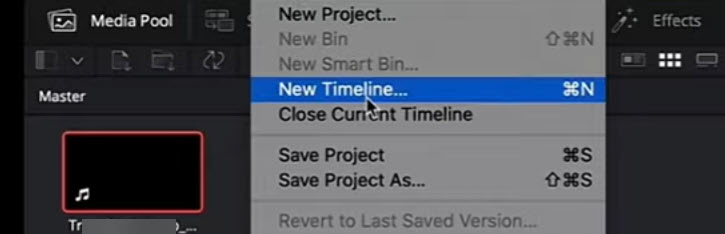
Step 1. Inside DaVinci Resolve, create a new project and a new timeline.
For existing timeline, right click to choose the Timeline Settings.
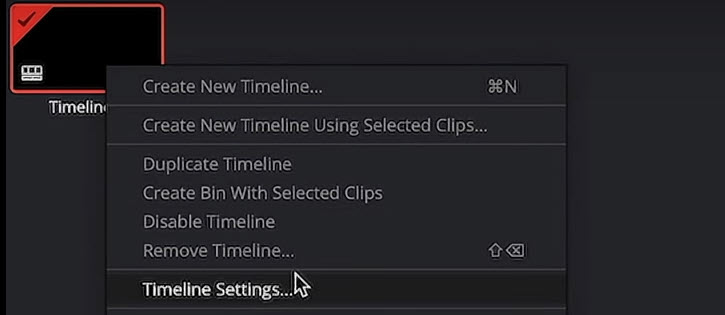
Step 2. Manage timeline settings.
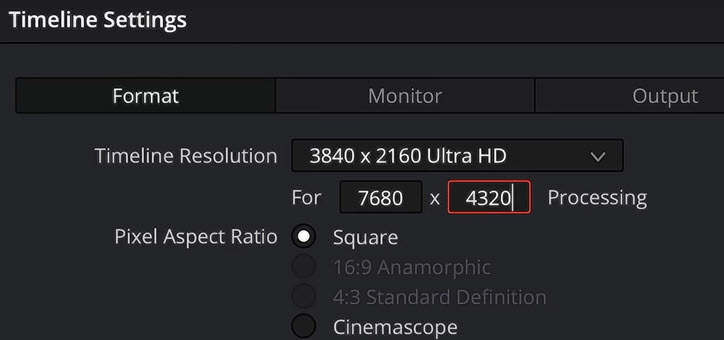
In the Timeline Settings dialogue box, uncheck the box "Use Project Settings".
For the Timeline Resolution drop-down menu, select the 3840x2160 Ultra HD Square option. For 8K, set to 7380x4320.
Step 3. Set clip attributes.
Drag and drop you video into the media pool. Hover your mouse over the video clip, right click to call out the context menu, and select the Clip Attributes option.
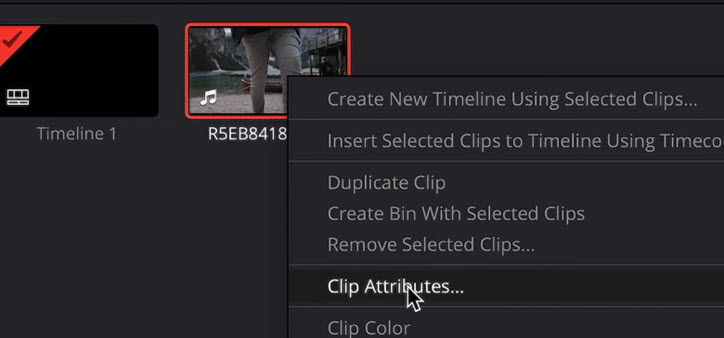
Step 4. Apply Super Scale in DaVinci Resolve.
For the Super Scale option, select 2X/3X/4X. You can go on set the sharpness level and noise reduction. DaVinci Resolve offers high, medium and low levels for these two features.

Note: Besides clip attributes, you can also access the super scale settings from the video tab in inspector.
Step 5. Export the video.
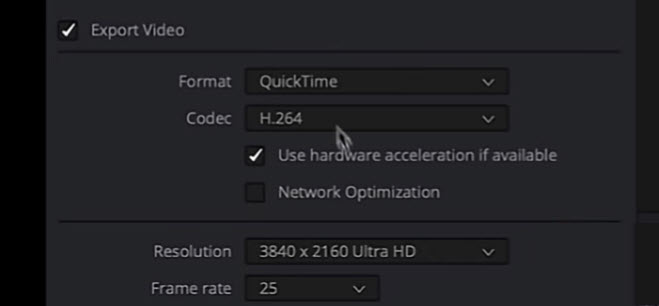
Hit the little rocket icon at the bottom of the UI to open up the exporting panel on the left side.
See to it that the Export Resolution matches what we've set for the timeline.
In most cases, you can leave other settings as they are.
If you are not going to export the video into a delivery ready format, but keep processing in other software, then you might want an intermediate codec (also known as a mezzanine codec or editing codec). For such a case, use Apple ProRes, CineForm, DNxHD, etc.
Part 3. A Better Solution to Upscale Videos with AI
As said earlier, the Super Scale feature is only available in DaVinci Resolve Studio version, and it is not optimized for low-spec computers. Plus, it is not a dedicated AI video upscaler, thus lacking models to enhance media quality for realistic details.
Editing videos is already a computing intensive process, let alone if you want to upscale the videos to max resolution inside the editing software.
A better strategy is to pre-process your footage with a standalone software like VideoProc Converter AI. This tool can help you achieve your desired resolution with better quality and greater control with new AI models for video Super Resolution.
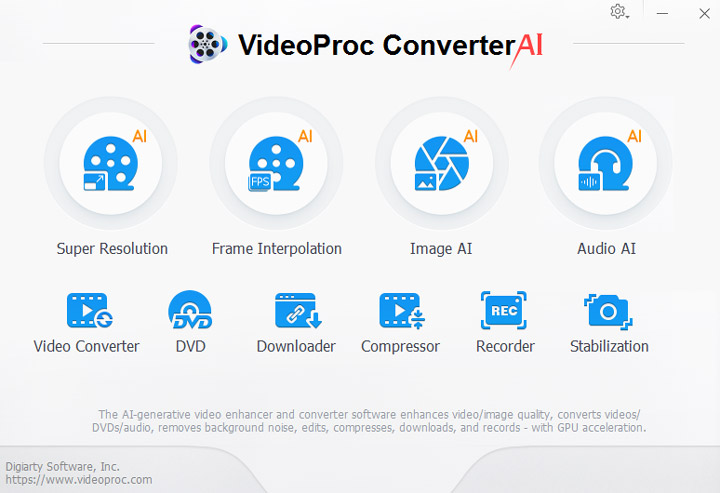
VideoProc Converter AI is a video enhancer and upscaler, with media processing toolkit to ease your digital workflow. It can be used as the best companion for DaVinci Resolve.

How VideoProc Can Help DaVinci Resolve Users:
Upscale videos and images to 4K/8K/Custom resolutions with AI
Optimized for AMD/Nvidia/Intel without RAM bottlenecks
Batch preprocess clips: convert format, edit, extract subtitles, etc
Prepare resources: Rip DVDs, download videos, record screens for your project

How to Upscale Videos with AI for Higher Resolutions and Better Quality:
Step 1. Download and Install VideoProc Converter. Go to the Super Resolution module from its home screen.
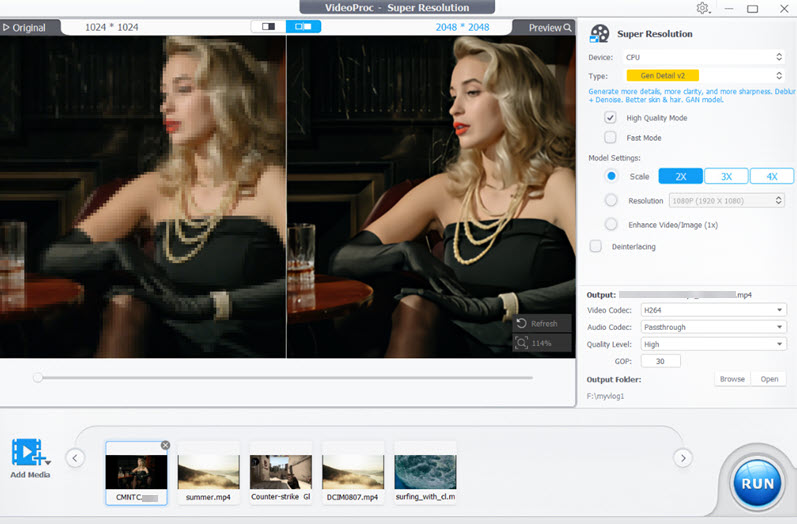
Step 2. Import all the video clips you hope to upscale, choose the upscaling multiples, and select the AI model.
VideoProc Converter AI also works for images: photography, AI-generated images, old photos, anime, illustrations, 3D CG, etc.
Besides 2X/3X/4X, you can also select a custom resolution.
For AI models, go Gen-Detail for general purpose. It will upscale videos and images with realistic details. For instance, the fine texture and hair/skin details will be kept and generated upon upscaling.
If you prefer a smoother result, use the Real Smooth model. As for Anime model, the name speaks for itself.
Step 3. Hit Run to start upscaling videos and images with AI.
Watch VideoProc Converter AI in action:
As a user mentioned, VideoProc Converter AI can "modernizes" videos with AI upscaling, bringing awesome clarity for videos.

FAQs
Can DaVinci Resolve upscale a video?
Yes, DaVinci Resolve can upscale videos. Both the free and Studio versions allow placing lower-resolution clips into a higher-resolution timeline and exporting at the larger size. Standard resize filters handle the scaling through mathematical interpolation, while the paid Studio version adds the more advanced Super Scale feature for improved detail recovery and sharpness.
How to upscale video quality in DaVinci Resolve for free?
To upscale video quality for free in DaVinci Resolve, you can use standard interpolation without AI enhancement. Set your timeline resolution to the desired higher size. Drop your clips onto the timeline, then go to Project Settings > Image Scaling and choose a high-quality Resize Filter such as Sharper or Lanczos.
Is DaVinci Resolve Super Scale free?
No, DaVinci Resolve Super Scale is not free. It is a Studio-only feature that requires the paid DaVinci Resolve Studio license. The free version of Resolve supports basic timeline scaling and standard resize filters, but Super Scale itself is locked behind the Studio version and will typically add a watermark if attempted without a valid license.
What does super scale do in DaVinci Resolve?
Super Scale in DaVinci Resolve is an AI-powered upscaling tool that uses the DaVinci Neural Engine to intelligently enlarge footage. Unlike simple pixel stretching, it analyzes image content and generates new pixels to reconstruct detail and improve sharpness. The feature offers factors such as 2x, 3x, or 4x along with sharpness and noise reduction controls, making it especially useful for archival or HD material in higher-resolution projects.



