
 New AI features are available
Have you ever captured a perfect moment on your iPhone, only to find that the video looks disappointingly blurry when you share it with friends and family? Why are videos sent to me blurry on iPhone? You're not alone. Many iPhone users face this frustrating issue, watching their crisp memories turn into fuzzy, pixelated disappointments.
But don't worry – there's hope for your blurry videos! In this post, we'll dive into the reasons behind this common problem and explore several effective solutions to ensure your videos stay crystal clear.
Whether you're a casual user who just wants to share clear videos of your kids' soccer games, or a content creator looking to maintain professional-quality footage, we've got you covered.
Why Are Videos Blurry Sent on iPhone?
Understanding the root cause is the first step to fixing the problem.
If a video looks like it was filmed on a potato by the time it reaches your iPhone, the culprit—aside from the video's original quality being less than stellar—almost always comes down to how the file was compressed during transit. This process, while does save data and speed up transfers, may also lead to loss of data and reduced video quality, resulting in those frustrating blurred visuals.
Here are some common causes:
- Low Quality Image Mode: A more likely cause for iPhone-to-iPhone transfers
- Different Messaging Protocols: A more likely cause for iPhone-to-Android transfers
- Poor Data Connection: A weak or unstable network connection can degrade video quality.
- The Quality of the Video Itself: Poor lighting conditions, focusing issues, or hardware malfunctions, etc.
Understanding these factors can help you pinpoint the cause of blurry videos on your iPhone and choose the most appropriate solution. In the following sections, we'll explore various methods to address these issues and improve your video quality.
How to Fix Blurry Videos Sent on iPhone
#1. Turn Off Low Quality Image Mode
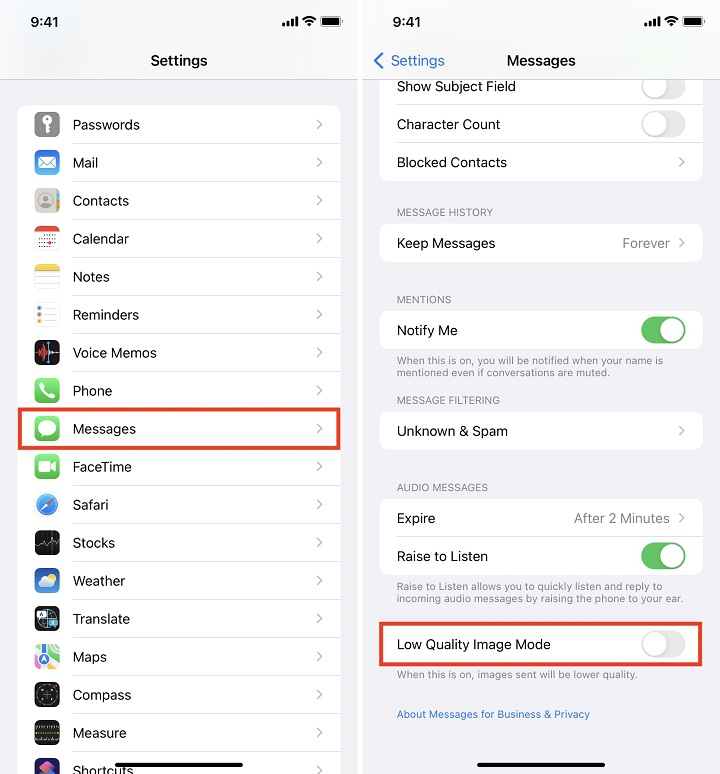
If you are receiving blurry videos from other iPhone users, your phone's settings might be to blame. Your iPhone has a feature called "Low Quality Image Mode" designed to save data, which might be intentionally compressing incoming media. Here's how to turn it off.
- Go to Settings > Messages.
- Scroll to the very bottom and look for Low Quality Image Mode.
- Toggle it off.
#2. Turn on RCS Messaging
Prior to 2024, iPhones utilized iMessage (which supports high-quality media) with other Apple devices, but reverted to SMS or MMS for Android. These older protocols impose strict file size limits imposed by cellular carriers, usually around 1 MB to 3.5 MB. The sender's phone has to aggressively compress the file to fit it through the MMS pipeline. This extreme compression destroys the video quality, resulting in a blurry mess.
Apple introduced support for RCS in iOS 18, which is the modern replacement for SMS/MMS and allows high-res photo and video sharing between iPhones and Androids. Therefore, if your iPhone is capable of running iOS 18, a simple system update and a quick adjustment to your settings should be enough to resolve the issue.
- Ensure you are running iOS 18 or later and your carrier supports it.
- Open the Settings app on your iPhone.
- Scroll to find Apps > Messages > RCS Messaging.
- Tap the toggle switch to enable RCS.
Note: The Android user must also have RCS enabled in their Google Messages app. Please refer to our troubleshooting guide regarding blurry images sent from an iPhone to an Android device.
#3. Use Alternative Sharing Methods
The carrier text is not the only option available for sending videos. Apps that send messages over the internet don't have strict file size limits. If someone has a large video to send, ask them to send it via a third-party messaging app or a cloud link.
- AirDrop or iCloud link when both the sender and the recipient are iPhone users.
- Google Photos if they have an Android.
- Third-Party Messaging App: WhatsApp, Telegram, Facebook Messenger, etc.
- Cloud Storage Services: Google Drive, Dropbox, Microsoft OneDrive, etc.
- File Transfer Apps: Quick Share, WeTransfer, Send Anywhere, etc.
- E-mail when the video file size is under 25MB.
| Transfer Method | Video Quality Impact | Best Use Case | Tips for Clarity |
|---|---|---|---|
iMessage (iOS to iOS) |
Generally good; can send high-quality originals. | iPhone to iPhone/iPad | Ensure "Low Quality Image Mode" is OFF in Settings > Messages. |
WhatsApp/Messenger |
Highly Compressed: Significant quality loss. |
Quick sharing for casual viewing where quality isn't critical. |
Request sender to share as "Document" or via a cloud link. |
Email (as Attachment) |
Good, especially for smaller files; larger files might be compressed or require cloud links. |
Sending shorter clips; professional sharing. |
Ensure the email client doesn't compress attachments. For large files, use cloud links. |
AirDrop (iOS/Mac) |
Excellent: Transfers original quality, lossless. | Local, high-quality sharing between Apple devices. | Ideal for direct, uncompressed transfers. |
iCloud Shared Albums |
Compressed: Photos & videos are downscaled. | Casual sharing of photo/video albums with friends/family. | Not for original quality. Use iCloud Drive for lossless sharing. |
iCloud Drive / Google Drive / Dropbox |
Excellent: Transfers original quality. | Sharing large files; cross-platform sharing; professional use. | Share a direct link to the file. Ensure sender uploads original resolution. |
Direct USB Transfer |
Excellent: Transfers original quality, lossless. | Backing up or transferring to/from a computer. | Always the best method for preserving original quality to a computer. |
#4. Optimize Network Connection
If an iPhone user sends you an iMessage video while one of you is in an area with a terrible cellular connection, iMessage may automatically compress the video to ensure the message actually delivers, making it blurry. So, ensure both users have a strong internet connection.
- Move closer to your Wi-Fi router.
- Use an ethernet connection for a more stable internet connection.
- Pause any downloads or uploads that might be hogging your bandwidth.
#5. Enhance Received Blurry Videos with AI
Note: This is a method for the blurry video files which have already sent on iPhone, and you want to fix the video files back to origianl quality or higher.
When dealing with blurry videos on your iPhone, whether they're sent to you, downloaded from video platforms, or recorded in low quality, AI technology can be a game-changer. For the best results, we recommend using a desktop AI video enhancer like VideoProc Converter AI. Here's why and how to use it:
Why Use VideoProc Converter AI:
- Since VideoProc Converter AI is an application working on Windows and Mac, it means there will be more processing power and dedicated graphics cards compared to mobile devices.
- User-friendly interface for easy operation.
- High-quality outputs using advanced AI models.
- Comprehensive features for various video enhancement needs.
Key Features of VideoProc Converter AI:
- Removes blur, noise, pixelation, and artifacts from videos in one click.
- Automatically enhances details while fixing blurry videos and images.
- Upscales videos and images to 4K and 10K with AI Super Resolution.
- Offers full AI solutions: restoring, denoising, frame interpolation, stabilization.
- Supports 420+ formats, processes 47x faster than real-time, and includes 29+ quick-edit tools.
By using VideoProc Converter AI, you can significantly improve the quality of blurry videos sent to or on your iPhone, restoring clarity and detail that may have been lost during compression or transfer. This method is particularly effective for videos that have suffered significant quality loss and need more than just minor adjustments.
So why not free download it now, and then get to how to use it in the following?

Steps to Enhance Blurry Videos Sent on iPhone with VideoProc Converter AI
Step 1. Transfer the blurry video from your iPhone to your computer.
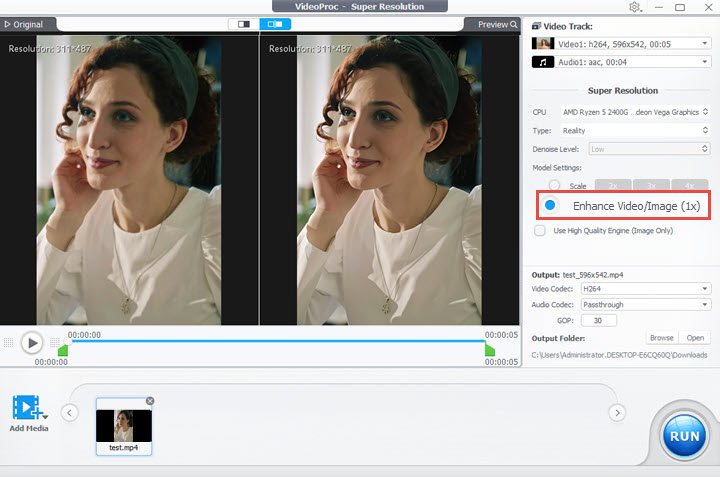
Step 2. Launch VideoProc Converter AI and select the "Super Resolution" feature.

Step 3. Drag and drop your blurry video into the interface.
Step 4. Click "Enhance Video/Image (1x)" to preview the result.
Step 5. If needed, upscale the video by 2x, 3x, or 4x for even better quality.
Step 6. Click "RUN" to export the enhanced video.
#6. Adjust Camera Settings
Note: The methods outlined in this section explain how to improve the quality of your next video recording by adjusting your camera settings.
One of the simplest ways to prevent blurry videos is to ensure that your iPhone's camera settings are optimized for the best possible quality. Here are some key adjustments you can make:
- Set the Highest Resolution: Go to Settings > Camera > Record Video. Select the highest available resolution, such as 4K at 60 fps. This setting will ensure that any videos you record are captured in the best quality possible.
- Enable HDR Video: HDR can enhance the quality of your videos by capturing a wider range of colors and details, especially in challenging lighting conditions. Go to Settings > Camera and enable Record HDR Video. This feature is particularly useful for videos shot in bright sunlight or low-light environments.
- Use Proper Focus: Before recording, tap on the subject you want to focus on. This action ensures that the camera locks onto the subject, reducing the chances of a blurry video. If possible, avoid using digital zoom, as it can lead to a loss of quality. Instead, physically move closer to your subject if needed.
- Stabilize Your Shot: If you're recording a longer video or in a dynamic environment, consider using a tripod or a gimbal stabilizer. This will help reduce camera shake, resulting in smoother and clearer footage.
- Record in Good Lighting: Whenever possible, record videos in bright, well-lit areas. Good lighting helps the camera capture more detail and reduces the chances of blurriness.
By adjusting these camera settings and being mindful of your recording environment, you can significantly improve the quality of videos captured on your iPhone. This proactive approach not only helps prevent blurriness but also enhances the overall viewing experience for anyone you share your videos with.
Conclusion
Dealing with blurry videos on your iPhone can be a frustrating experience, but understanding the causes and implementing the right solutions can make a significant difference. In this post, we explored several effective methods to enhance video quality. By applying these strategies, you can ensure that the videos you capture and share remain clear and vibrant, preserving those precious moments for years to come.
If you're looking for a powerful solution to enhance blurry videos, consider trying VideoProc Converter AI. With its advanced AI technology, you can easily restore and upscale your videos, ensuring they look their best. Whether you're a casual user or a content creator, VideoProc Converter AI is a versatile tool that can help you achieve professional-quality results.




