
 New AI features are available
 Listed in Tiktok
Struggling with the low quality of your TikTok videos after uploading? You are not alone. Posting videos to TikTok is fun, but the video quality can be tricky. Blurry footage or poor playback quality often happens due to compression, incorrect settings, or file limitations. Besides TikTok, other social media platforms will also change your video quality without letting you know, no matter when you are recording, editing, or uploading in the app.
But don't worry—there are easy fixes. In this guide, we'll show you how to upload high quality videos to TikTok. With a few adjustments, you can post clear and high-quality videos that stand out on TikTok.
Key Takeaways
- Record in 4K, but export in 1080p to get the best video quality on TikTok.
- Follow TikTok video quality requirements for the balance between quality and compatibility.
- Adjust TikTok settings like enabling High-Quality Uploads and disabling Data Saver to avoid compression.
- Use AI Super Resolution to enhance video quality without changing the resolution before posting. That will make your TikTok clearer and more detailed.
Record in 4K with Native Camera App
Record in 4K with your native camera app whenever possible, rather than the in-app camera. This is how to upload high-quality videos to TikTok from the first step.
Disable HDR, as TikTok often struggles to properly process HDR content. If TikTok fails to correctly handle the HDR data, your videos may look blown out, overly bright, or weirdly washed out after posting.
By recording in higher resolution, you capture more detail, which helps maintain clarity even after compression. Once recorded, resize the 4K resolution to 1080p when exporting before uploading to meet TikTok's format requirements.
Edit with a Third Party Video Editor
It's highly recommended to use a third-party video editor for more advanced editing and control over your TikTok videos. While TikTok's in-app editor is convenient, it has limitations. You might struggle with fewer editing options, lack of detailed control over effects, and reduced flexibility in adjusting video quality.
VideoProc Vlogger stands out as one of the best free video editing software for this. It allows you to edit in 4K and export in 1080p, which ensures high quality for TikTok uploads. The software offers advanced features like motion tracking, speed ramping, and color grading. Its intuitive interface makes it suitable for both beginners and experienced creators.

Export with the Correct Specifications
To ensure the best video quality, here are some specific settings to help post good quality videos on TikTok.
- Resolution: 1080p (1080 x 1920 pixels)
- Aspect Ratio: 9:16
- Codec: H.264 codec
- Format: MP4 or MOV
- Frame Rate: 30 fps (or 60 fps if you recorded the footage at 60 fps)
- Bitrate: 8–12 Mbps
- File Size limits: 75 MB on Android and 250 MB on iOS
Allow High-Quality Uploads
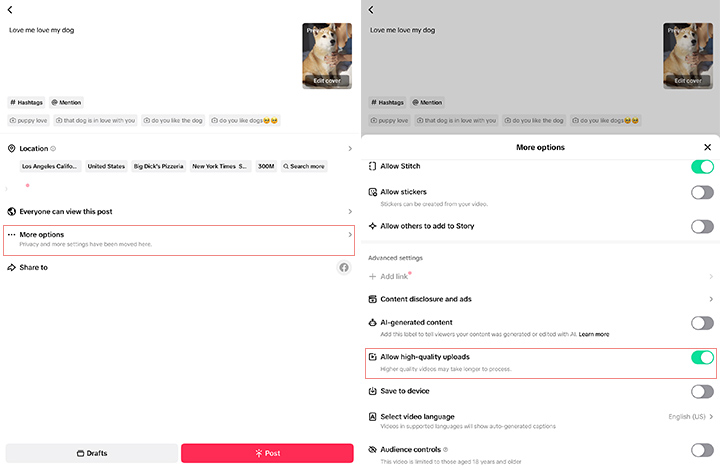
Before posting, make sure to enable the High-Quality Uploads option. This can be found on the final screen before uploading. It ensures TikTok uses the best possible resolution for your video.
- Post TikTok as usual.
- Click "More options" on the final editing page.
- Toggle on the "Allow high-quality uploads" option.
Disable Data Saver Mode
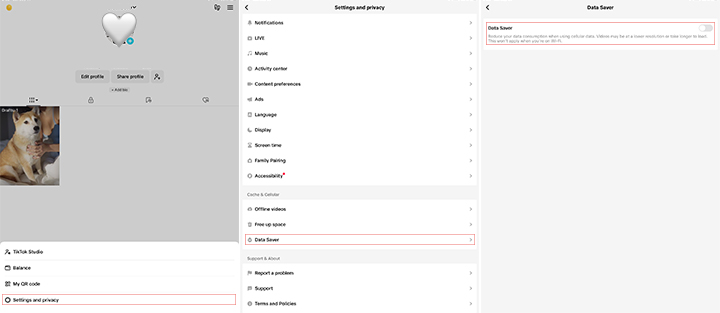
The Data Saver mode is to reduce cellular data usage when you scroll TikTok. When it's enabled, TikTok might compress your videos to a lower quality to reduce the file size, which will result in a lower resolution and poor video quality. Here's how to disable the data save mode and upload high quality videos to TikTok.
- Go to your profile page and click the menu icon.
- Tap "Settings and privacy > Cache and Cellular > Data Saver".
- Disable the Data Saver option.
Connect to Wi-Fi to Upload
Always try to upload your videos while connected to a fast, stable Wi-Fi network rather than cellular data to ensure a smooth, uninterrupted transfer.
Use TikTok Desktop App
If you prefer to edit videos on a computer or want to upload high-quality videos, the TikTok Desktop app is a great option. Although there is no official statement from TikTok, many influencers believe that uploading through the desktop app can help maintain higher video quality. It allows you to bypass some of the limitations of the mobile app. The desktop version also provides more stability when handling larger video files, ensuring a smoother uploading experience.
Change Privacy Settings
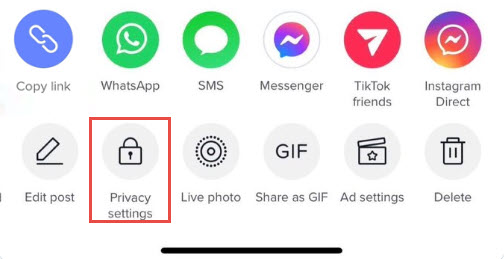
High-resolution videos take much longer to process on the server side. When you first upload a video, set its Privacy Settings to "Only you" initially, and then switch it to "Everyone" later on.
AI Enhance TikTok Video Quality
If you are looking for an extra boost in quality to make your TikTok stand out, VideoProc Converter AI offers a powerful solution. This AI video enhancer allows you to enhance video quality after editing without changing the resolution.
Its AI Super Resolution feature uses advanced algorithms to enhance video quality by reducing noise, sharpening details, and improving clarity. By using the Enhance Video/Image (1x) option, you can bring out more details and boost your video quality without altering resolution. It's perfect for improving overall video sharpness and quality before posting, giving your content a professional, polished look before they go live.
Conclusion
That's all about how to upload high quality videos to TikTok. By recording in 4K, following TikTok video quality requirements, and adjusting the app settings for maximum quality, you can ensure your videos look sharp and professional.
For an extra boost of the video quality, VideoProc Converter AI offers AI Super Resolution to further enhance your TikTok before posting. It's a simple yet powerful way to make your content stand out. Download VideoProc Converter AI today and take your TikToks to the next level.



