New AI features are available
It's an oddly specific kind of frustration: you tap a Facebook video, only to get audio playing over a pitch-black screen, or a Reel that freezes while the rest of your feed scrolls just fine.
Because Facebook streams and buffers video in dynamic chunks, playback hiccups usually aren't a full platform outage. More often, it's a small local miscommunication, like a clogged media cache on your phone, or a conflict with your browser's graphics acceleration and extensions.
Whether you're dealing with this on the mobile app or through your computer, here are the most reliable ways to clear the bottleneck and get your videos running smoothly again.
Why Are Facebook Videos Not Playing
Facebook videos may stop playing for a variety of reasons. In most cases, the cause falls into one of four categories: network conditions, problems with the Facebook app or browser, platform or device issues, or problems with the video itself.
1. Poor or Unstable Internet Connection: Video playback depends on a steady flow of data, so it is more sensitive to connection quality than text or static images. Facebook may still load posts, comments, and photos normally while videos buffer, freeze, or fail to begin playing. This can happen when the connection is slow, unstable, or frequently fluctuates, even if the device still appears to be online.
2. Problems With the Facebook App or Browser: The Facebook app and web browser both play a role in loading and decoding video content. If either is not working properly, playback can be affected. Possible causes include outdated software, corrupted temporary files, browser extensions, JavaScript restrictions, graphics acceleration conflicts, or compatibility problems introduced by a recent update.
3. Facebook or Device-Level Issues: Sometimes the problem originates outside the browser or connection. Facebook may experience temporary playback or processing issues, while certain devices or operating systems may have compatibility problems with the platform.
Device-related factors such as limited system resources, graphics problems, or software conflicts can also lead to freezing, black screens, or interrupted playback.
4. Problems With the Video Itself: When only one video is affected, the problem is more likely to be tied to that specific video. The post may have been deleted, made private, restricted by region or age, or shared with a limited audience. For uploaded videos, the source file itself may also contain damaged data or use an encoding format that Facebook cannot process correctly.
How to Identify Where the Problem Comes From
The way the Facebook video playback problem appears can help narrow down its source.
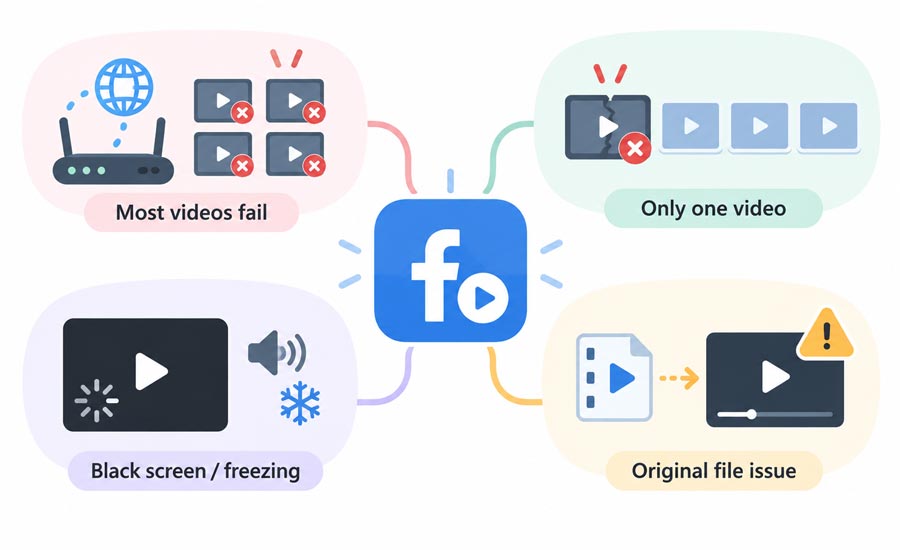
If Facebook videos won't play at all, and the problem affects most or every video you open, look beyond the individual post. The cause is usually connected to the internet connection, Facebook app, browser, device, or a temporary Facebook issue.
If only one Facebook video won't play while the rest work normally, the problem is usually with that video or post. It may have been removed, made private, restricted, or uploaded with a file problem.
If a Facebook video plays sound but shows a black screen, or keeps freezing during playback, the issue may come from the video format, decoding, graphics processing, or the way the file was encoded.
If an uploaded Facebook video won't play properly even before you upload it, such as freezing or showing a black screen in VLC or QuickTime, the source file itself is probably the issue rather than Facebook.
These patterns do not identify the cause with certainty, but they help separate platform-wide playback problems from issues that affect only a particular video.
11 Ways to Fix YouTube Video Not Playing
Once you have a sense of where the YouTube video not playing problem lies, work through the fixes below in order. They start with quick checks that won't change your settings, then move to browser or app resets only when necessary. Stop as soon as Facebook videos start playing again.
Fix 1: Check for Facebook Video Service Issues
When Facebook videos stop working without warning, it is tempting to start changing settings. That can waste time if Facebook itself is having trouble. An outage becomes more likely when the same videos fail in both the app and a browser, especially if the problem appeared suddenly rather than after an update or settings change.
Step 1. Check a third-party outage tracker to see whether Facebook reports have increased sharply.
Step 2. Open Facebook on another device or switch from the app to a web browser, then try playing a video.
Step 3. Switch between Wi-Fi and mobile data and test the video again.
Step 4. Compare the results. If Facebook videos fail across devices and networks while outage reports are also elevated, the problem is likely on Facebook's side. Try again later.
If Facebook works normally on another device or network, continue to the next fix.
Fix 2: Switch Networks and Pause Your VPN
A Facebook Feed can look perfectly normal on a weak connection. Text and thumbnails arrive in small pieces, while video needs a steadier stream of data. The result is often a Feed that scrolls normally and a player that does nothing but spin. VPNs and network filters introduce another possibility. Facebook may load through them while the separate servers delivering its video are slowed or blocked. The quickest way to tell is to change one part of the connection and replay the same video.
Step 1. Switch from Wi-Fi to mobile data, or connect to another Wi-Fi network.
Step 2. Open the same Facebook video and let it play for several seconds.
Step 3. If it still stalls, pause any VPN, proxy, custom DNS service, or network-level ad blocker, then test again.
Step 4. If several devices fail on the same Wi-Fi network, restart the router. Leave it alone if only one device is affected.
If disabling the VPN restores playback, try another VPN server or allow Facebook to bypass it. There is no reason to leave the VPN off permanently if a different route works.
Fix 3: Close Facebook Properly, Then Restart the Device
Facebook can remain active after you leave the app or close one browser tab. If its video player or network session is stuck, opening the same screen again may simply return you to the same broken state. A full close gives the app or browser a cleaner restart without removing your account or settings.
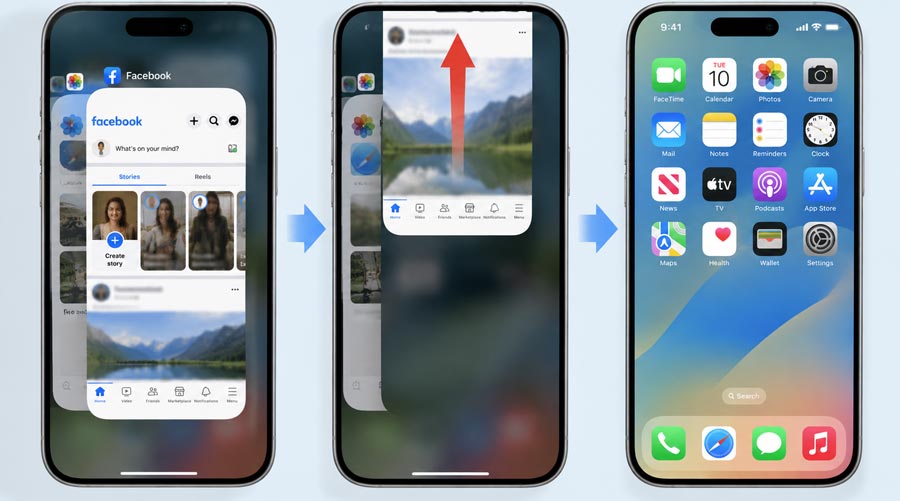
Step 1. On Android or iPhone, open the recent-apps screen and swipe Facebook away. On a computer, close every Facebook tab.
Step 2. Reopen Facebook and test two unrelated videos, not just the one that first failed.
Step 3. If neither video plays, restart the phone or computer and test again.
A restart also refreshes temporary media and network processes. If the problem returns immediately afterward, it is time to look beyond a one-off app glitch.
Fix 4: Update Facebook, Browser, and the Operating System
Facebook changes its player and video delivery systems over time. An older app or browser can keep loading the Feed but fail when it reaches newer playback code. Updates also carry fixes for media decoding, graphics, and crashes, so this step matters more when the trouble began after Facebook changed its interface or when video fails on several sites.
Step 1. Open Google Play or the App Store, search for Facebook, and install any available update.
Step 2. After the update finishes, reopen Facebook and test both a regular video and a Reel.
Tips:
If the YouTube video not playing error happens on your browser, then Open your browser's About or Update page and let it check for the latest version. Install the update if one is available, restart the browser, and test Facebook videos again.
If videos also fail on other websites or apps, check for available Android, iOS, Windows, or macOS updates. Install any routine system updates that include bug fixes or media-related improvements.
You do not need to install a major operating-system upgrade before trying the easier fixes. But if one Facebook format works and another does not, note the difference in case you later report the issue.
Fix 5: Clear Facebook's Cache or Site Data
Facebook stores temporary files so the Feed and videos can reopen more quickly. When one becomes stale or incomplete, the player may keep loading the same bad data. Clear only Facebook's temporary data first; wiping an entire browser or phone is unnecessary. Use the instructions for the device on which the problem occurs.
On Android
Android lets you remove Facebook's cache without erasing the app itself. Menu names may differ slightly between phone makers.
Step 1. Open Settings > Apps > Facebook.
Step 2. Tap Storage & cache, then choose Clear cache.
Step 3. Reopen Facebook and replay the video.
Do not choose Clear storage or Clear data yet. Those options reset the app and sign you out.
On iPhone or iPad
iOS does not provide the same Facebook cache button found on Android. Offloading is the less disruptive alternative because it removes the app while retaining its documents and data.
Step 1. Open Settings > General > iPhone Storage > Facebook.
Step 2. Tap Offload App, confirm the choice, and then select Reinstall App.
Step 3. Open Facebook and sign in if asked, then replay the video.
Make sure you know your password and can complete two-factor authentication before starting.
In a desktop browser
Start with a private or incognito window. This helps check whether stored browser data is contributing to the problem without deleting anything first.
Step 1. Open a private or incognito window, sign in to Facebook, and play the video again.
Step 2. If the Facebook video works there, close the private window and return to your normal browser window.
Step 3. Open your browser's privacy or browsing-data settings and clear cached images and files. You can leave cookies and saved passwords selected off if you do not want to be signed out of websites.
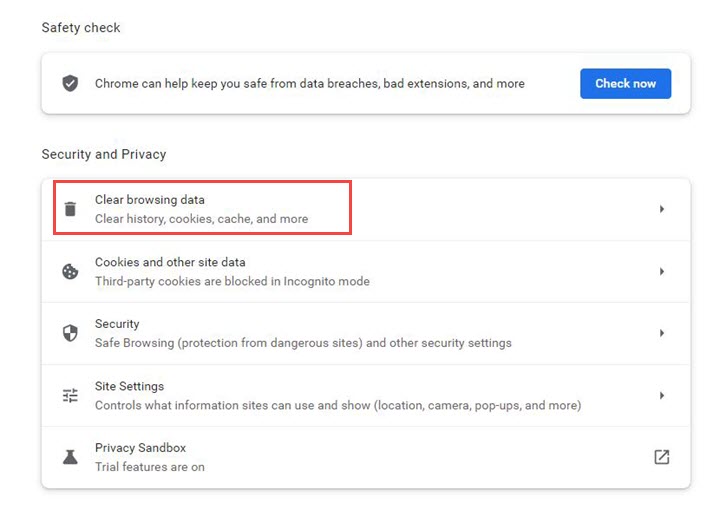
Step 4. Restart the browser, open Facebook, and test the video again.
If clearing the cache does not help, you can consider removing Facebook's site data as a separate troubleshooting step, but doing so may sign you out and reset some site preferences.
Fix 6: Turn Off Data-saving Restrictions for One Test
Data-saving settings can affect more than video quality. Depending on the device and settings in use, they may limit Facebook's network access or delay larger media requests. A common sign is that videos work on Wi-Fi but not on mobile data. Temporarily disable the relevant restriction only for testing. If video playback returns, you can turn the setting back on afterward and decide whether you want to keep it enabled.
On Android
Step 1. Allow Facebook to use mobile and background data.
Step 2. Turn off Data Saver temporarily.
Step 3. Turn off Facebook's own data-saving option, if enabled.
Step 4. Reopen Facebook and test the same video.
On iPhone
Step 1. Go to Settings > Cellular and make sure Facebook is enabled.
Step 2. Turn off Low Data Mode temporarily.
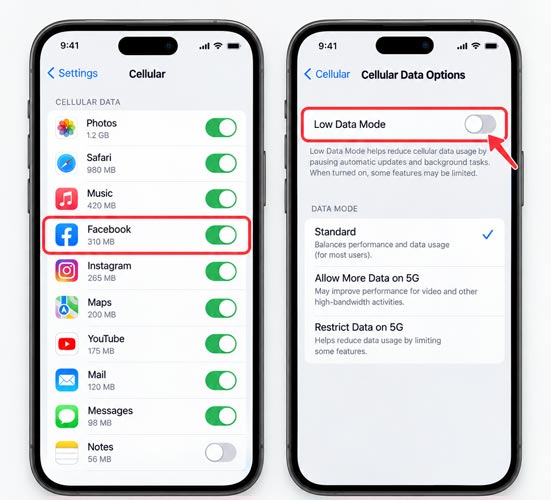
Step 3. Turn off Facebook's own data-saving option, if enabled.
Step 4. Reopen Facebook and test the same video.
Fix 7: Test Browser Extensions and JavaScript
This fix applies when Facebook videos are not playing in Chrome, Edge, Firefox, Safari, or another browser. Extensions that filter scripts or network requests can block part of the player while leaving the rest of Facebook untouched. That is why the Feed may load even though the play button does nothing.
A private window is the quickest comparison because most regular extensions and stored site data do not carry over in the same way. If the video works there, return to the normal window and test the likely conflicts individually. Ad blockers, script blockers, privacy tools, antivirus add-ons, and video downloaders deserve attention first.
Step 1. Open a private window, sign in to Facebook, and replay the video.
Step 2. If it works, return to a normal window and disable relevant extensions one at a time.
Step 3. Reload Facebook after each change.
Step 4. Check the browser's site permissions and allow JavaScript for facebook.com.
Do not install or enable Adobe Flash. Facebook no longer requires it, and current browsers do not support it. Any guide that recommends Flash is working from an obsolete version of the web.
Fix 8: Change Hardware Acceleration If the Video Is Black
When you can hear a Facebook video but see only a black frame, the stream has probably reached the browser. The failure is more likely happening as the browser hands the picture to the computer's graphics hardware.
Hardware acceleration normally makes video smoother, so turning it off is not a blanket recommendation. It is a comparison test for black screens, flickering, or frozen pictures—especially when the audio continues normally.
Step 1. Open the browser's Settings and search for hardware acceleration or graphics acceleration.
Step 2. Change the setting and relaunch the browser when prompted.
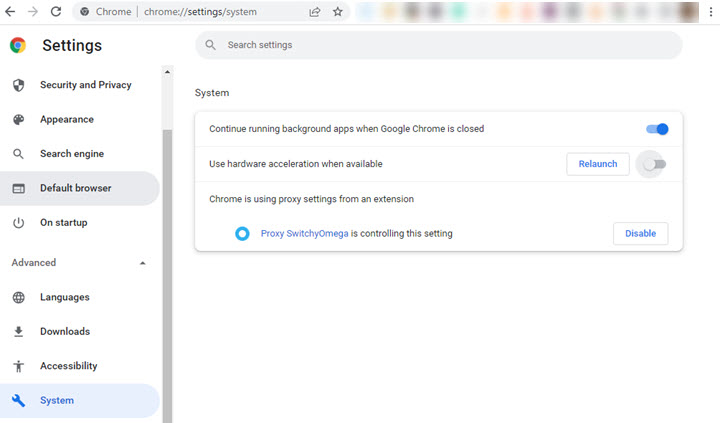
Step 3. Replay the Facebook video.
Step 4. If the change works, update the browser and graphics driver before deciding to leave acceleration disabled.
When black video appears across several websites, the browser or graphics driver deserves more attention than Facebook. If it happens only on Facebook, return to the extension and site-data checks first.
Fix 9: Log Out and Check Whether the Problem Follows Your Account
Most playback failures belong to a device or connection, but an account-specific problem is possible. The giveaway is that another Facebook account can play videos on the same device while yours fails in more than one place. Logging out refreshes the session; testing another account tells you whether the problem follows your profile.
Step 1. Log out of the affected Facebook account.
Step 2. Close and reopen the app or browser, then sign in again.
Step 3. If videos still fail, test another account on the same device.
Step 4. When only the original account is affected, check Account Status and use Help & support > Report a problem.
When reporting the problem, include the device, operating system, Facebook app or browser version, exact error message, and whether it affects Reels, regular video posts, or both. Those details are more useful than a general report that videos do not work.
Fix 10: Reinstall Facebook, But Only After the Earlier Checks
Re-installation makes sense only after the earlier checks point back to the Facebook app. A good example is when every video fails in the app, the same videos play in a browser, and updating or clearing the cache changes nothing. Reinstalling then replaces the app files and resets its local data.
It is deliberately the last fix here. Removing Facebook signs you out and takes more time, yet it cannot restore a deleted video, end an outage, or correct a problem that follows your account between devices.
Step 1. Confirm that you know your password and can complete two-factor authentication.
Step 2. Delete Facebook from the phone. Android users may try Clear storage instead.
Step 3. Reinstall Facebook from Google Play or the App Store.
Step 4. Sign in and test more than one video.
Do not reinstall the app because one video is unavailable, during a known outage, or when the problem follows your account to another device. Reinstallation cannot solve any of those cases.
Fix 11. Re-encode a Problematic Source Video
If the video freezes, stutters, shows a black screen, or also fails to play correctly in local media players, the source file itself may be the problem. It could contain damaged video data, use an unusual codec or encoding profile, or have settings that Facebook does not process reliably. In that case, uploading the same file again is unlikely to help. A better approach is to convert the video to Facebook compatible format by using a capable video converter like VideoProc Converter AI.
Step 1. Download, install, and run VideoProc Converter AI. Hit Video Converter.

Step 2. Import your problemtic video, choose MP4 H.264 whicch is one of Facebook favorite format type.
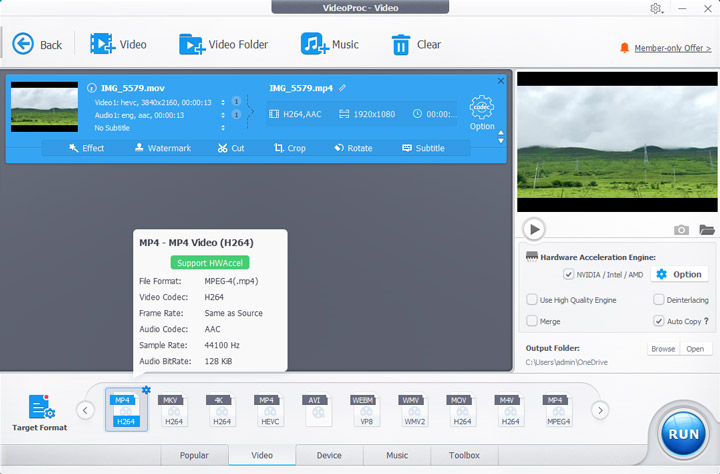
Tips: You can also adjust the resolution, frame rate, and bitrate before exporting.
Step 3. Play the converted video on your computer first. If it now plays smoothly, upload the new copy to Facebook. If the file works normally on your computer but still fails only after being uploaded, the source file is less likely to be the cause, and the problem may instead involve Facebook, your account, or the network.
Bonus: Facebook Videos Play, but Autoplay Isn't Working
If Facebook videos play normally after you press Play but do not start automatically, the issue is usually related to autoplay rather than video playback itself.
Check Facebook's Autoplay Setting
Facebook controls whether videos start automatically through its media and autoplay preferences. Depending on your settings, autoplay may be enabled on both Wi-Fi and mobile data, limited to Wi-Fi, or turned off completely. If videos never start on their own but play normally when tapped, this setting is the first place to look.
Check for Browser or Device Restrictions
Even when autoplay is enabled in Facebook, your browser or device may still block it. Browser autoplay policies, data-saving features, battery-saving modes, or site-specific permissions can prevent videos from starting automatically. This is especially relevant when autoplay works on one device or browser but not another.
In short, a Facebook video that plays after you tap it is different from a Facebook video that cannot play at all. The former points to autoplay settings or restrictions, while the latter requires the broader playback troubleshooting covered above.
Frequently asked questions
1. Why are Facebook videos not playing even though my internet works?
Your connection may be unstable rather than completely offline. The Facebook app, browser data, an extension, or Facebook itself could also be responsible. Test another video, switch networks, and open Facebook on another device to separate those causes.
2. Why won't Facebook videos play in Chrome?
The usual browser-side causes are damaged Facebook site data, blocked JavaScript, an extension conflict, an outdated Chrome build, or graphics acceleration. Try the same video in an incognito window first. If it works, investigate extensions and Facebook's site data before resetting Chrome.
3. How do I clear the Facebook video cache?
On Android, use Settings > Apps > Facebook > Storage & cache > Clear cache. On iPhone, there is no equivalent system button for clearing only Facebook's cache; offloading or reinstalling the app are the closest options. In a browser, remove site data for facebook.com rather than clearing everything.
4. Why can I hear a Facebook video but not see it?
Sound without a picture usually suggests a rendering problem. In a browser, test a private window, extensions, and hardware acceleration. If the same black screen appears on other video sites, update the browser and graphics driver.
5. Why are Facebook Reels not playing?
Reels can fail for the same reasons as other Facebook videos: an unstable connection, an outdated app, damaged cache data, data-saving restrictions, or a Facebook outage. Update and restart the app, switch networks, and test whether regular Facebook videos fail as well.
6. Does Facebook need Adobe Flash Player?
No. Facebook uses modern web video technology. Installing Flash will not fix Facebook video playback, and current browsers no longer support it.