
 New AI features are available
AV1 has quickly emerged as a next-gen video codec, offering superior video quality at 30-50% smaller file sizes than older formats like H.264, without compromising quality. This makes AV1 ideal for streaming services like YouTube and Netflix, modern browsers, mobile devices, and smart TVs. Notably, Apple's iPhone 15 Pro and Pro Max are among the first devices to feature AV1 hardware decoding.
However, despite its advantages, AV1 isn't universally supported yet. Many devices, browsers, and video editing software still struggle to handle AV1 content smoothly. For users who want hassle-free playback, editing, and sharing, AV1's limited compatibility can be a barrier. The solution? Converting AV1 to the more widely supported MP4 format, which ensures your video can be played on virtually any device or platform. In this guide, we'll show you how to convert AV1 videos to MP4, making sure your video files are ready for any device or software.
- Why It's Necessary to Convert AV1 to MP4
- AV1 (Codec) vs. MP4 (Container): A Quick Clarification
- Method 1. Convert AV1 to MP4 with VideoProc Converter AI👍
- Method 2. Convert AV1 to MP4 for Free with HandBrake
- Method 3. Convert AV1 to MP4 for Free via FFmpeg
- Method 4: Convert AV1 to MP4 Online for Free via CloudConvert
- FAQs
Why It's Necessary to Convert AV1 to MP4
Simply put, converting AV1 to MP4 makes your video content accessible on a wider variety of devices and platforms.
- Wider Device Compatibility: As of mid-2024, fewer than 10% of mobile devices support AV1 hardware decoding. For older devices or applications without hardware decoding (such as Safari on devices without the M3 chipset or later), AV1 videos won't play at all. In contrast, MP4 H.264 works almost everywhere.
- Software Support: Most video editing programs, including Premiere Pro and Final Cut Pro, don't support AV1 natively. Likewise, media playback software like Windows Media Player and QuickTime Player also lack native AV1 support. Converting your AV1 files to MP4 ensures compatibility with virtually all video editing software and media players.
- Easier Sharing and Uploading: MP4 (H.264) is the most widely accepted format for sharing videos online or with others. y converting AV1 to MP4, your video becomes playable on almost any device or platform, eliminating compatibility concerns.
AV1 (Codec) vs. MP4 (Container): A Quick Clarification
Understanding the distinction between a video codec and a container format is crucial when discussing video conversion from AV1 to MP4.
AV1 is a Video Codec: A codec (coder-decoder) is a set of rules or an algorithm used to compress and decompress video data. AV1 is a highly advanced codec designed for efficient compression, reducing file sizes while maintaining visual quality. When you have an "AV1 file," it means the video stream inside that file has been encoded using the AV1 compression standard.
MP4 is a Container Format: An MP4 file (MPEG-4 Part 14) is a container format. Think of it as a digital wrapper or a box. This box holds various streams of data together, including the video stream (encoded by a codec like H.264, H.265, or even AV1), audio streams, subtitles, and metadata. The MP4 container itself does not dictate the compression method of the video or audio within it.
Therefore, when you convert "AV1 to MP4," you are typically performing a re-encoding process. You are taking the video data that was compressed with the AV1 codec, decompressing it, and then re-compressing it using a different, more widely supported video codec like H.264 and H.265. This newly encoded video stream is then placed into an MP4 container.
Method 1. Convert AV1 to MP4 with VideoProc Converter AI
VideoProc Converter AI is one of the best AV1 to MP4 converters for both Windows and Mac, offering fast and easy conversion with no noticeable quality loss. This one of the best video converters allows you to convert AV1-encoded files, whether in MP4, MKV, or other formats, into MP4 files encoded with H.264, which strikes the perfect balance between size and quality. If needed, you can also convert AV1 to other formats like HEVC, MPEG, MOV, MKV, AVI, or WebM.
This versatile AV1 to MP4 converter also lets you compress videos and make quick edits, such as trimming and cropping. What's even better? Powered by advanced AI technology, VideoProc Converter AI can upscale and enhance your videos to reach up to 4K resolution, delivering crisp, high-quality results with naturally improved details.
VideoProc Converter AI - Convert AV1 to MP4 with No Quality Loss
- Convert AV1 to MP4 (H.264/H.265), MKV, MOV, AVI, WebM, and 420+ formats
- No visible quality loss with the adoption of high quality engine
- 47x real-time faster, accelerated by level-3 GPU acceleration tech
- AI-driven! Upscale videos to 4K, enhance photos, restore face(s) in photos...
- Feature-rich: convert, edit, compress, record, and download videos
 Excellent
Free Download and Install VideoProc Converter AI to convert AV1 to MP4 now!

Step 1. Add Your AV1 File(s)
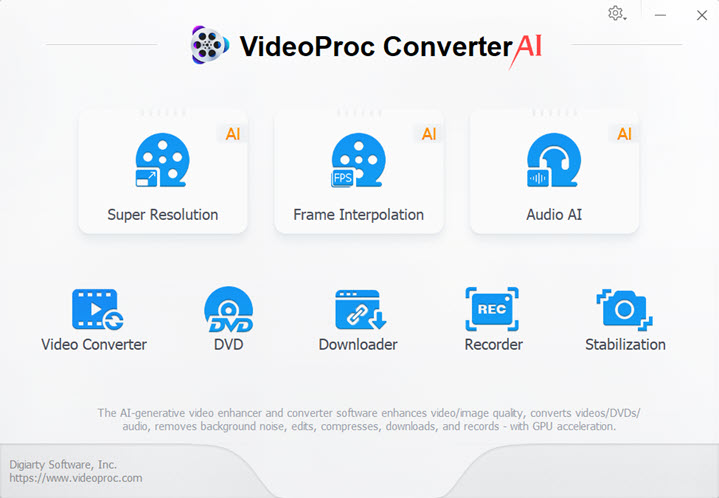
Free download and install VideoProc Converter AI on your Windows or Mac computer. Click Video Converter and then you can drag and drop your original AV1 files into this capable video converter.
Step 2. Choose MP4 H.264 for Output
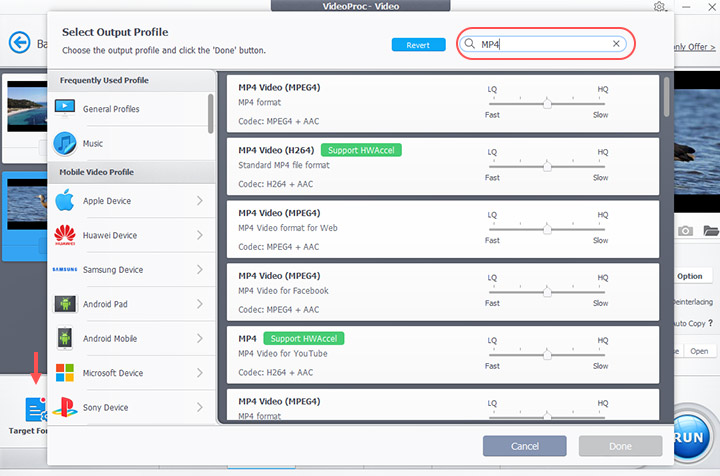
Go to the Target Format section and choose an MP4 output. It's recommended to choose MP4 H.264 as this format can play, edit, and share almost everywhere without error.
Tips:
- If you're looking for a more compact file size, we recommend choosing MP4 with HEVC. It's important to note that AV1 offers the best compression efficiency, followed by HEVC, and then H.264.
- For additional MP4 output options, click on Target Format, then search for MP4 to explore more choices.
Step 3. Start Converting AV1 to MP4
Enable the High Quality Engine to ensure your output maintains top-notch picture quality. Don't forget to check the hardware acceleration option, which allows for conversion speeds up to 47x faster while keeping CPU usage low (around 2%).
Before and After: AV1 to MP4 Conversion Results
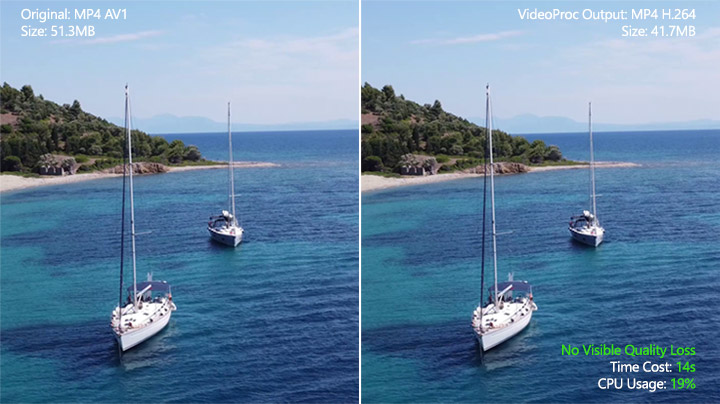
Let's quickly review the changes in file size and picture quality from my test of converting AV1 to MP4 with VideoProc Converter AI. I also tracked the conversion time and CPU usage during the process. The conversion finished in around 10 seconds, with CPU usage staying low at about 18% to 21%. Best of all, I didn’t notice any visible loss in picture quality.
Download VideoProc Converter AI and convert AV1 to MP4 now!
Method 2. Convert AV1 to MP4 for Free with HandBrake
HandBrake is a popular, free, and open-source video transcoder available for Windows, macOS, and Linux. With support for the AV1 codec and the MP4 format, it can also function as an effective AV1 to MP4 converter. However, it's worth noting that HandBrake isn't exactly beginner-friendly. Its interface can be difficult to navigate, filled with technical jargon that may be confusing. Additionally, it has limited GPU support, which means the conversion process can be slow and often uses around 80% of CPU resources, based on my test.
Step 1. Download and install HandBrake from its official website.
Step 2. Launch HandBrake and click Open Source to load your AV1 video file. The AV1 video loading process may take several minutes, depending on the video length and the total size.
Step 3. You can also choose a MP4 preset from the drop-down of the Preset menu. Alternatively, go to the Summary tab, choose MP4 as the target format.
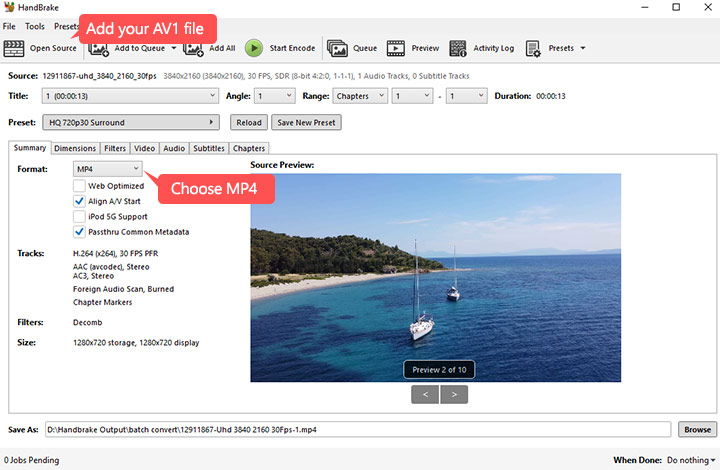
Step 4. Navigate to the Video tab. For broad compatibility, select H.264 (x264) as the Video Encoder. You can also choose other video codec based on your need.
Step 5. Adjust the Quality slider (e.g., the Constant Quality RF value) to balance file size and visual quality. Lower RF values result in higher quality and larger files, while higher values reduce both. For most cases, setting it around 20 is a good starting point.
Step 6. Check other tabs, such as Audio and Subtitles, to make sure your desired tracks are included. For example, if your original AV1 file has an audio track, ensure the corresponding audio track is selected under the Audio tab.
Step 7. Click Browse at the bottom to choose an output destination and file name. Click Start Encode to begin the conversion from AV1 to MP4.
Before and After: AV1 to MP4 Conversion Results
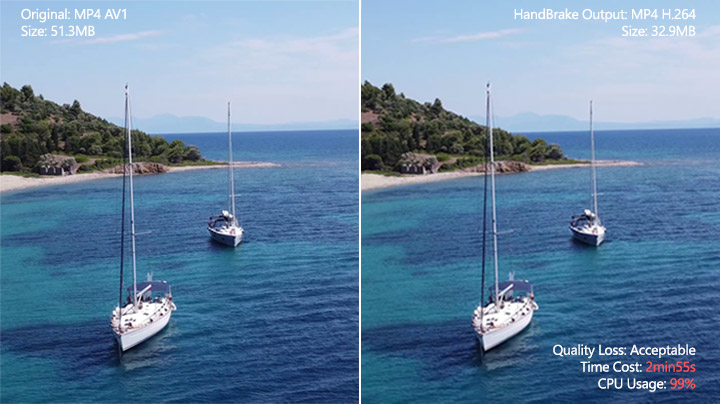
Let's quickly look at the changes in file size and picture quality from my test of converting AV1 to MP4 with HandBrake. I also tracked the conversion time and CPU usage during the process. The quality loss is noticeable but still within an acceptable range. However, the original video was only 13 seconds long, and it took nearly 3 minutes to complete the conversion. I can't imagine how long it would take if the video were several minutes in length.
Method 3. Convert AV1 to MP4 for Free via FFmpeg
FFmpeg provides robust AV1 decoding/encoding support and fine-grained control over codecs, bitrates, filters, and pipelines, so it's well-suited to AV1 to MP4 (H.264/HEVC) conversion workflows and batch automation via scripts. The trade-off is usability: installation and CLI ergonomics make onboarding hard for newcomers, whereas programmers typically leverage it for scalable, repeatable conversion jobs.
Step 1. To get started with FFmpeg, you'll need to install it on your system. Here's how to do it for both Windows and macOS:
- For Windows: Download the FFmpeg zip file from the FFmpeg Windows Builds. Extract the contents to a folder (e.g., C:\ffmpeg), then add the bin folder (e.g., C:\ffmpeg\bin) to your system's PATH. To verify, open Command Prompt and type ffmpeg -version.
- For macOS: The easiest way is through Homebrew. Install Homebrew by running /bin/bash -c "$(curl -fsSL https://raw.githubusercontent.com/Homebrew/install/HEAD/install.sh)" in your terminal. Afterward, install FFmpeg with brew install ffmpeg, and check installation with ffmpeg -version.
Step 2. After installing FFmpeg, open a terminal. On Windows, press Win + R, type CMD, and hit Enter. On Mac, press Cmd + Space, type Terminal, and hit Enter. On Linux, use Ctrl + Alt + T to open the terminal.
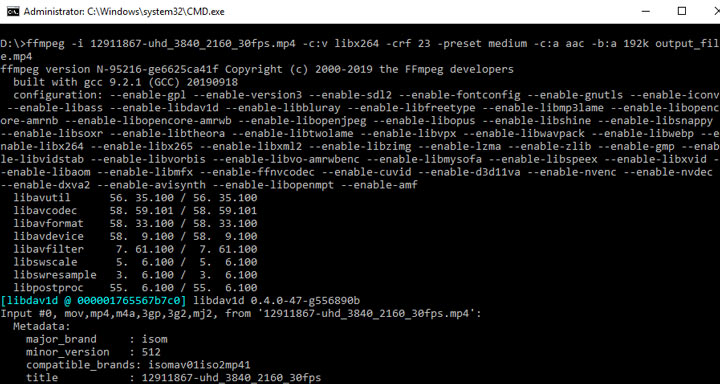
Step 3. Run the following command to convert your AV1 video to MP4:
ffmpeg -i input_file.mp4 -c:v libx264 -crf 23 -preset medium -c:a aac -b:a 192k output_file.mp4
 ;
;
Here's what the command does:
-i input_file.av1: Specifies the input file (replace input_file.av1 with the actual file name).-c:v libx264: Uses the H.264 codec for video encoding (MP4 format).-crf 23: Sets the Constant Rate Factor. 23 is a good balance between quality and file size (lower values increase quality and size).-preset medium: Defines the speed of encoding. You can adjust it to fast, slow, or very slow for different file sizes and encoding speeds.-c:a aac: Uses the AAC codec for audio encoding.-b:a 192k: Sets the audio bitrate to 192kbps (you can adjust this based on your needs).
Step 4. After running the command, FFmpeg will convert the AV1 file into MP4 format. Once it finishes, you'll have your output file ready to use.
Before and After: AV1 to MP4 Conversion Results
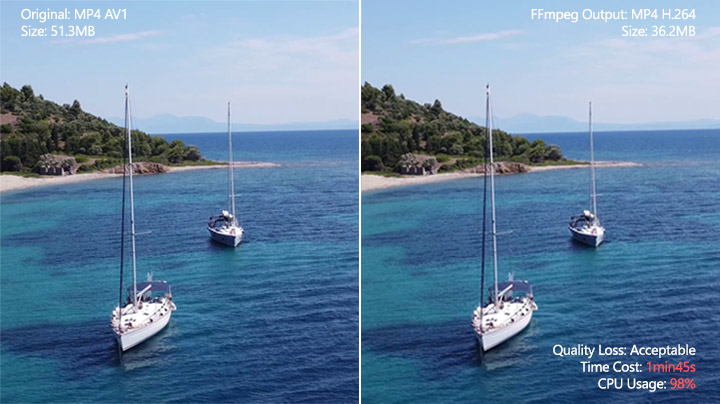
Let’s take a quick look at the file size and picture quality changes from my test of converting AV1 to MP4 with FFmpeg. I also noted the conversion time and CPU usage during the process. There is some quality loss, but it's not very noticeable. The real downside is that the process takes quite a while, and CPU usage stays at its peak. I'm sure there are ways to optimize this, but since I'm not very tech-savvy, this is probably the best I can manage.
Method 4: Convert AV1 to MP4 Online for Free via CloudConvert
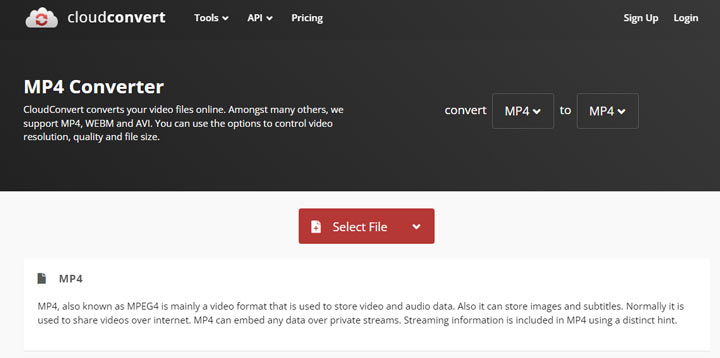
CloudConvert, as the name suggests, is a browser-based video conversion tool that supports over 200 formats. It can convert audio, video, documents, eBooks, images, and other common files we encounter daily in this digital age. CloudConvert also supports converting AV1 to MP4, allowing you to convert your AV1 files to MP4 encoded with x264 or x265. If you need additional codec options, like MPEG-4, you'll need to explore other tools mentioned in this post. The process is straightforward, as is typical for browser-based tools, but it still gives you some control over settings like bitrate, constant quality, and a few other properties.
Step 1. Open the official CloudConvert page in your browser.
Step 2. Click the Select Files button and select your AV1 video from your computer. CloudConvert also supports direct links or cloud storage uploads.
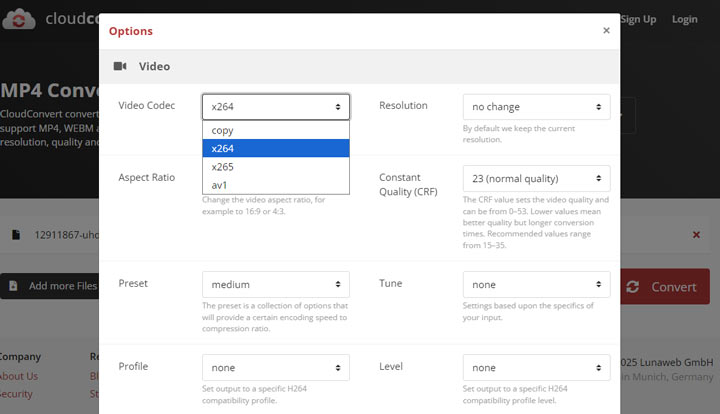
Step 3. Select MP4 as the desired output format. Click the gear icon to choose between x264 or x265. Note that you can also select AV1 as the target codec, but since we're converting AV1 to MP4 for better compatibility, it's recommended not to choose AV1 as the target codec.
Step 4. Review your encoding settings and click the Convert button to start the process.
Before and After: AV1 to MP4 Conversion Results
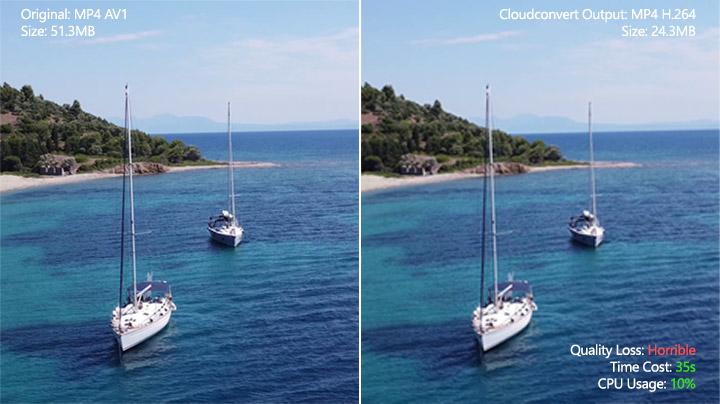
Let's review how the file size and picture quality changed in my test of converting AV1 to MP4 with CloudConvert. I also tracked the conversion time and CPU usage during the process. While this online AV1 to MP4 converter is fast, the drop in quality is noticeably significant.
FAQs
1. Why convert AV1 to MP4?
Converting AV1 to MP4 is necessary because AV1, despite its efficiency, has limited compatibility across devices, browsers, and video editing software. MP4 (especially with H.264 encoding) offers much wider support, ensuring your videos can be played, edited, and shared hassle-free on virtually any platform or device.
2. What is the best way to convert AV1 to MP4?
The "best" way depends on your needs:
- For ease of use, speed, and quality: VideoProc Converter AI is recommended for its user-friendly interface, hardware acceleration, and AI enhancement features.
- For free, open-source desktop conversion: HandBrake is a solid choice, though it has a steeper learning curve and can be slower.
- For advanced users and scripting: FFmpeg offers unparalleled control via command line.
- For quick online conversion: CloudConvert is convenient for smaller files without software installation.
3. Does converting AV1 to MP4 lose quality?
Converting AV1 to MP4 typically involves re-encoding the video, which is a lossy process. This means there can be some quality loss, especially if you choose a lower bitrate or a less efficient codec (like H.264 compared to AV1). However, with good conversion software like VideoProc Converter AI and appropriate settings (e.g., enabling High Quality Engine and choosing a suitable bitrate), the quality loss can be minimal and often unnoticeable to the human eye.
4. Can I convert AV1 to MP4 without re-encoding?
No, you generally cannot convert AV1 to MP4 without re-encoding if your goal is to improve compatibility. While MP4 is a container format that can hold an AV1 video stream, most devices and software that struggle with AV1 do so because they lack the AV1 codec for decoding. Therefore, to make the video widely compatible, you must re-encode the AV1 video stream into a more commonly supported codec like H.264 or H.265, and then place that new stream into an MP4 container.




