
 New AI features are available
If you have been working with digital video for more than a decade, you probably remember Any Video Converter (AVC). For a long time, it was the default recommendation for anyone who needed to turn a weird file format into something that would actually play on their iPod or Android phone. But the software landscape has changed dramatically since then. In 2025, the term "free software" often comes with an asterisk. Users are rightfully suspicious of hidden costs, invasive ads, annoying watermarks, or worse—bundled malware. With so many browser-based video converters and open-source transcoders available, does a dedicated desktop program like AVC still deserve a spot on your hard drive?
To find out, we downloaded the latest version of Any Video Converter Free and went beyond simply checking the spec sheet. We put the software through a series of practical, real-world tests, evaluating its core features such as conversion, compression, and downloading. The goal was to determine whether it is a genuinely useful utility or merely bloatware. Below is our honest, hands-on verdict.
- Why Trust Me For This Any Video Converter Free Review
- Any Video Converter Free System Requirements
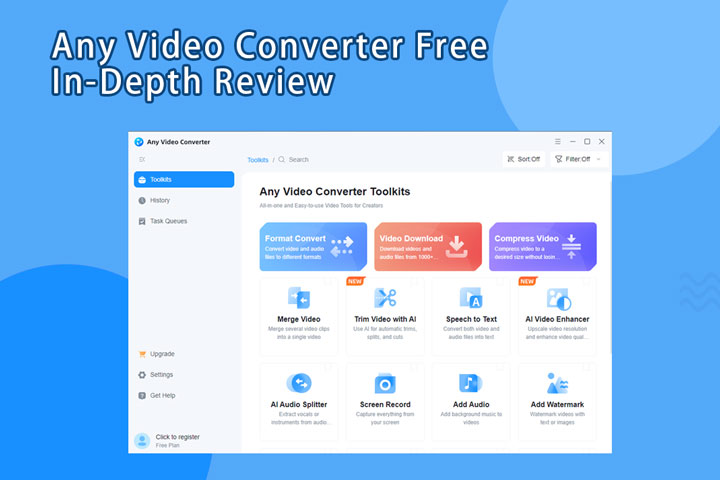
- Any Video Converter Free: Key Features At A Glance
- Feature Performance Tests: Speed, Quality, And Tools
- Safety And Bloatware Analysis: The Real Cost Of "Free"
- Best Alternative to Any Video Converter FreeHot
- FAQs
Why Trust Me For This Any Video Converter Free Review
Our team has spent years working in digital media production, dealing with every codec from legacy AVI files to modern HEVC standards. We understand the frustration of incompatible files and the need for reliable tools.
For this specific Any Video Converter Free review, we installed the latest version of Any Video Converter Free on a standard Windows 10 machine. We tested it using our own library of 4K and 1080p footage, ran the virus scans ourselves, and navigated the installation process to verify the safety of the bundled offers. This Any Video Converter Free review is not sponsored by the developer; it is based entirely on independent, hands-on testing to ensure you get accurate advice.
Any Video Converter Free System Requirements
One of the benefits of this software is that it is lightweight compared to heavy editors like Premiere Pro or DaVinci Resolve. You do not need a pretty high-end workstation to run it, which makes it ideal for older laptops.
- Supported OS: Windows 10/11 (64-bit) and macOS 10.15 or later.
- Processor: 1GHz Intel/AMD processor or above.
- RAM: 8GB of RAM on Windows and 512M physical RAM on Mac.
- Hard Disk: 700MB for installation.
💡 Note: While the minimum requirements are low, if you plan to convert 4K video, we strongly recommend at least 16GB of RAM and a quad-core processor to avoid system freezes.
Any Video Converter Free: Key Features At A Glance
Before we dive into the deep performance analysis, here is a quick summary of what Any Video Converter Free actually offers. If you are scanning this page trying to decide if it meets your basic requirements, this list is for you.
- Zero Watermarks: This is the most important feature for many users. Unlike many "freemium" tools that stamp a giant logo on your output video, AVC keeps your video clean.
- Broad Format Support: It is arguably the most compatible converter on the market, supporting over 100 inputs (including MP4, AVI, MOV, and HEVC) and offering pre-configured output profiles for specific devices like iPhones, Samsung Galaxy phones, and gaming consoles.
- Built-in Downloader: It includes a dedicated tool to grab videos directly from online hosting sites just by pasting a URL.
- Basic Editing: It allows for simple edits, such as trimming the start and end times, cropping the frame, and adding basic special effects.
- DVD Burning: This is becoming a rarity in modern software. AVC is one of the few remaining free tools that can burn digital video files directly to a physical DVD disc.
Any Video Converter Free: Feature Performance Tests
To measure the real-world value of Any Video Converter Free, we moved beyond the marketing copy. We conducted four specific tests focusing on the features regular users need most: Format Conversion, Downloading, Compression, and the secondary Toolkit.
Test 1. Format Conversion
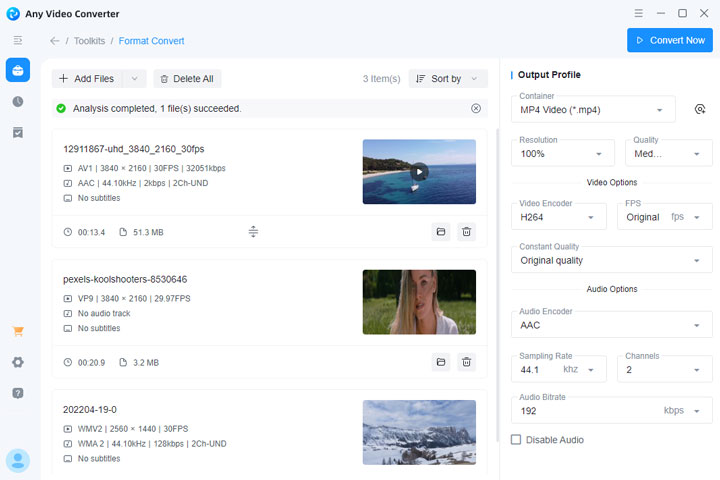
The primary reason anyone downloads Any Video Converter Free is to change file formats. For our test, we took 3 clips:
- Clip 1: 51.3 MB, 3840 × 2160 (4K) at 30 fps, MP4 encoded with AV1
- Clip 2: 3.2 MB, 3840 × 2160 at 29.97 fps, WebM encoded with VP9
- Clip 3: 87.2 MB, 2560 × 1440 at 30 fps, WMV encoded with WMV2
All three clips were converted into a standard 1080p MP4 file to ensure compatibility with most TVs and smartphones. The conversion engine proved to be reliable. We simply dragged and dropped the files, selected MP4 as the output format, set the resolution to 1920 × 1080, and chose H.264 as the codec. No additional settings were adjusted.
Speed: We observed a clear limitation. Since we were using the Free version, conversion speed was noticeably capped. Any Video Converter Free does not fully take advantage of modern GPU acceleration unless you upgrade to the Pro version, which led to longer processing times than expected.
Quality: The output was generally good. The videos remained sharp, audio stayed in sync, and there was no watermark on the exported files. Clips 1 and 2 showed some visible quality loss compared to the originals, though the results were still acceptable for everyday viewing.
What We Like
- Very straightforward and easy-to-follow conversion process
- Simple drag-and-drop workflow with minimal setup
- No watermark on exported videos, even in the free version
What We Dislike
- Limited range of supported output formats and codecs in the Free version
- MP4 output is restricted to H.264, HEVC, and AV1; codecs like MPEG-2 are not supported
- AV1 encoding support is available, but options are limited and do not cover all common use cases
- MOV output is supported, but ProRes is not available as an output codec
- No support for 1:1 remuxing, such as converting MKV to MP4 without quality loss
Test 2. Video Compression Efficiency
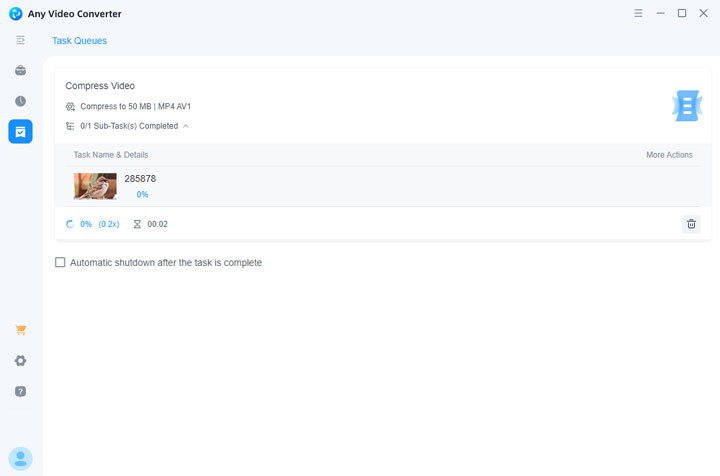
The interface of the Any Video Converter Free's compression tool is clean and easy to use. However, the preset compression ratios feel somewhat limited, as they only allow whole-number percentages. Because of this, we chose to specify a target size directly and set the output to 50 MB. For the output format, we selected MP4 (AV1), as AV1 is one of the most efficient modern codecs.
The final output size was 46.6 MB, which is close to the target and well within expectations. Visual quality also held up well, with only minor smoothing artifacts and no obvious blockiness or heavy smearing during normal playback.
What We Like
- Clean and intuitive compression interface
- Ability to specify a target output size directly
- Efficient compression results when using modern codecs like AV1
What We Dislike
- Preset compression ratios are limited to whole-number percentages
- Lack of fine-grained control over encoding settings such as bitrate and GOP structure
- Limited output format and codec options
- Less suitable for users who need precise, repeatable compression results
Test 3. Video Download Capabilities
Next, we tested the Download feature, which is frequently discussed on Reddit and other forums. We copied URLs from YouTube, Vimeo, and several social media platforms to see how Any Video Converter Free handled different sources.
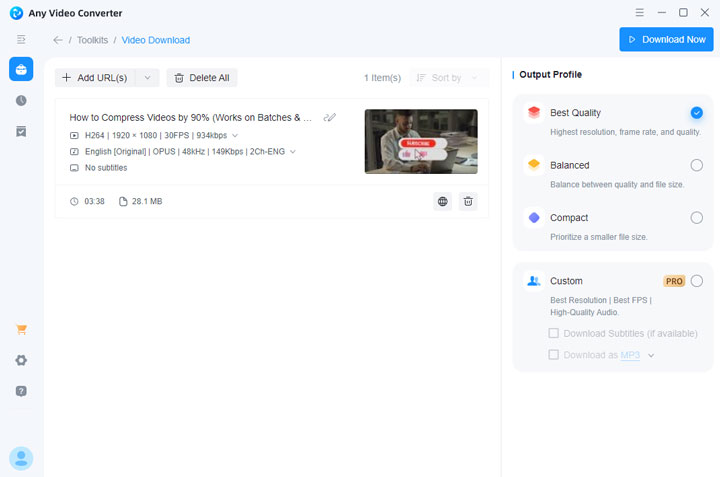
The link parser is reliable. After pasting a URL, Any Video Converter Free quickly analyzes it and offers three download options: Best Quality, Balanced, and Compact. We selected Best Quality and clicked Download Now to save the video locally. The entire process is straightforward, with no unnecessary steps.
What We Like
- Simple and clean download workflow
- Stable link analysis for major platforms like YouTube and Vimeo
- One-click download options with no complicated settings
What We Dislike
- Audio-only downloads (such as MP3 export) and subtitle downloads are not available in the free version and are locked behind a paywall
- No detailed technical information is shown, such as frame rate or resolution, unlike most dedicated video downloaders
- Limited control over the final download format and quality
Test 4. Edit Video
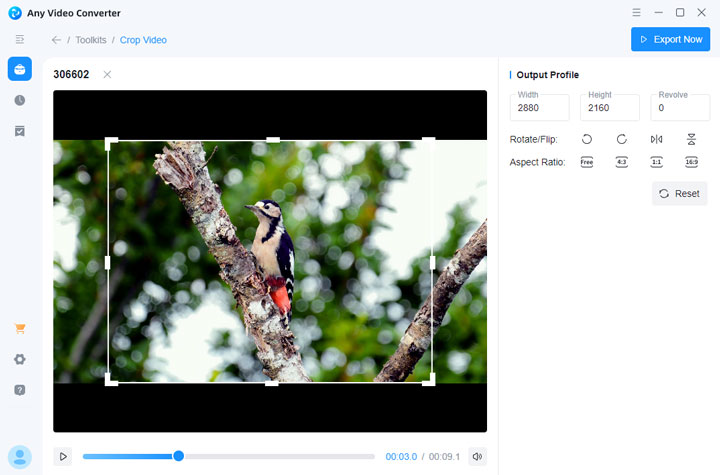
Any Video Converter Free offers several basic video editing features, including merge, crop, flip, rotate, speed adjustment, overlay, and watermarking. We tested the Crop, Trim, and Subtitle tools. For simple, single edits, they work well and are easy to use. However, they become inconvenient when you want to perform multiple edits, such as cropping and trimming together.
The reason is that the editing tools are separated into individual panels, unlike most video editors that allow multiple edits in a single workflow. In Any Video Converter Free, you must select the specific editing feature you want—say, crop—then re-enter that panel, re-import your footage, and perform the edit. If you want to add subtitles after cropping, you need to re-import the video again. This fragmented workflow makes multi-step editing cumbersome and time-consuming.
Test 5. Screen Record
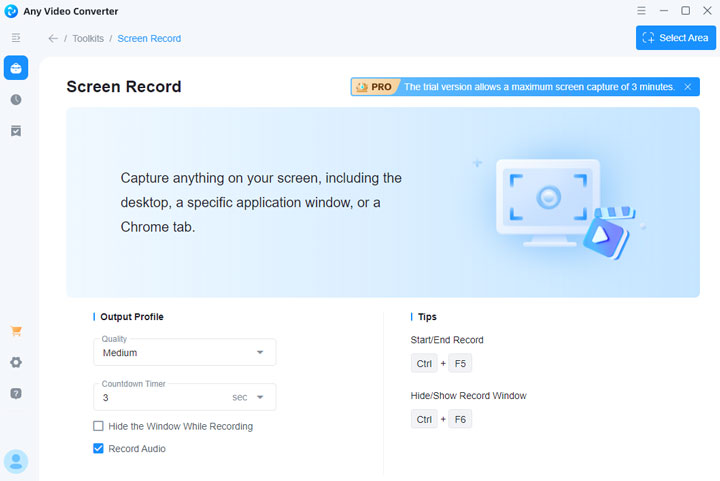
This is a handy addition. We recorded a quick 1-minuite desktop tutorial. It lacks advanced audio mixing (you can't record system audio and microphone on separate tracks easily), but for a free add-on, it gets the job done. However, its worth to note that your recording is limited within 3 minute. And the maximum recording resolution is 1080p.
Safety and Bloatware Analysis of Any Video Converter Free
This is the most critical part of our Any Video Converter Free review. When software is offered for free, there is often a trade-off. We analyzed the installation process and overall software behavior to determine whether Any Video Converter Free is safe to use on your computer.
The Installation Experience: If you decide to download Any Video Converter Free, you need to pay close attention during the installation process. Avoid clicking “Next” repeatedly without reviewing each step. During our setup, the installer attempted to bundle third-party security software and an alternative web browser. These extras are classified as Potentially Unwanted Applications (PUAs). While they are not viruses, they add unnecessary clutter. To install only Any Video Converter Free, you must explicitly uncheck these options or select “Decline” when prompted.
The Upgrade Prompts: Once installed, does Any Video Converter Free interrupt your workflow? To some extent, yes. A persistent button encourages upgrading to the Pro version, and occasional pop-up windows appear after conversions, comparing Free and Pro speeds. While these prompts can be distracting, they do not prevent the software from functioning. This is a common trade-off for using a free video converter.
Virus Scan Verdict: We scanned the installation directory of Any Video Converter Free using standard antivirus tools. The software itself tested clean, with no viruses or malware detected. As long as you remain cautious during installation and decline bundled offers, Any Video Converter Free is safe to use.
Best Alternative to Any Video Converter Free
Any Video Converter Free works well for basic video conversion, compression, and downloads. However, as our tests show, it comes with some notable limitations, such as limited output formats, separated editing tools, and capped download or conversion speeds. In addition, it lacks AI-driven features like video upscaling, image enhancement, and audio optimization. If you need a more feature-rich, flexible, and AI-powered alternative, VideoProc Converter AI is worth considering. In short, it’s easier to use, offers more features, and provides greater control over your videos. Some of its key highlights include:
VideoProc Converter AI - Fix AVC Limitations in a Click
- Convert videos/audio to ProRes, Xvid, AV1, HEVC, and 420+ file types
- Download videos/music/subtitles from 1000+ sites with ideal format, size, audio...
- (Bulk) compress videos by directly setting the target size or moving a slider
- Full control over the encoding parameters, incl. GOP, bitrate, and sample rate
- Quick edit tools: trim, crop, rotate, flip, merge, adjust color, and de-fisheye, etc.
- AI-driven! Elevate video quality to 4k, upscale image to 10K, de-noise, and more.
 Excellent
Download VideoProc Converter AI and get the most out of your video, audio, and image files!

Any Video Converter Free vs VideoProc Converter AI
| Feature | Any Video Converter Free | VideoProc Converter AI 👍 |
|---|---|---|
Conversion |
Limited output formats; |
Rich output formats; |
Download |
Support YouTube and social sites; |
Support YouTube and 1,000+ sites; |
Video Compression |
Basic preset ratios (30-80%); |
Advanced bulk compression; |
Editing Tools |
Crop, trim, rotate, merge; |
29 quick-editing tools; |
AI Features |
None |
Video Upscaling (4K); Image Upscaling (10K); Colorization, Face Restore, etc. |
Screen Recording |
Limited to a 3-minute recording time |
Full-featured screen & webcam; |
Performance & Acceleration |
Free version caps GPU acceleration |
Full GPU acceleration for faster speeds |
FAQs
1. Does Any Video Converter Free leave a watermark?
No. This is the main reason we recommend it. Your converted videos will be clean, regardless of the length or format.
2. Is the video quality reduced in the free version?
In fact, both the free and paid versions can cause some quality loss during conversion. This happens because transcoding is the process of decoding the original video and then re-encoding it into a new format. This process can slightly reduce the original quality, especially when changing resolution, codec, or compression settings.
3. Can Any Video Converter Free convert 4K videos?
Yes. We successfully tested it with 4K footage. However, be aware that converting 4K video requires significant processing power, and without the hardware acceleration of the Pro version, it may take a significant amount of time to complete.




