Download Online Videos & AI Upscale to HD/4K!
Podcasts are digital audio programs released in episodes, covering everything from news and entertainment to education and true crime. One of the niftiest things about podcasts is that you can stream and replay them whenever you like, fitting your listening around your own schedule. However, sometimes, you may want to download a podcast as well.
Why download podcasts? For starters, we don't always have a stable internet connection to stream episodes smoothly. Maybe you're about to board a flight, heading out on a road trip, or just trying to save mobile data. Downloading your favorite episodes means you can keep listening without worrying about buffering or losing your connection.
However, while most podcast apps let you download episodes for offline listening, those downloads aren't always available as regular MP3 files. If you want to save podcasts to your computer, transfer them to another device, or keep a personal backup, you may need a different approach.
Luckily, there are several ways to get the job done. In this guide, we'll show you how to download podcasts on PC, Mac, iPhone, and Android, along with ways to save podcast episodes from websites and keep them as MP3 files.
How to Download Podcasts to Computer
There are many ways to download a podcast to your computer. If you're using a Mac, Apple Podcasts is one of the easiest options for offline listening. Windows users can also download episodes directly from podcast websites, provided the publisher offers a downloadable audio file. However, if you want to keep podcasts as standalone files that you can edit, convert, or transfer between devices, VideoProc Converter AI is good option worth considering.
Method 1. Download Podcasts with Apple Podcasts on Mac
Apple Podcasts is available on Mac and offers a straightforward way to save episodes for offline listening. You can browse podcasts by category, search for a specific show, and download episodes without installing additional software.
Step 1. Open the Podcasts app on your Mac. Use the search bar to find the podcast you like. Alternatively, browse the available categories to discover new shows and episodes.
Step 2. Select the podcast episode you want to download. Move your pointer over the episode, click the More button, and choose Download. Depending on your settings, saving an episode to your library may also download it automatically.
Step 3. Once the download is complete, go to Downloaded in the sidebar to find the podcast episodes you've saved. You can now listen to them without an internet connection.
⚠️Note: Downloads in Apple Podcasts are primarily intended for playback within the app. If you need an MP3 file that you can freely move between devices, check whether the podcast publisher offers a direct audio download.
Method 2. Save Podcasts as Audio Files with VideoProc Converter AI
If you are looking for a tool that can do more than simply save podcasts for offline listening, VideoProc Converter AI is there for you. This multimedia program combines a media downloader, audio recorder, and file converter in one place. It can download videos and audio from supported websites, record audio playing on your computer, and convert existing podcast files to MP3, AAC, FLAC, and other formats.
It also comes with extra features to improve downloaded podcasts. For example, you can compress the audio size, trim unwanted segments, adjust the playback speed, and edit audio metadata to keep your podcast collection organized. Better still, it comes with many AI-driven features, with which you can easily remove background noise of the podcast, seperate music from vocal, and elevate video and image quality, etc.
What VideoProc Converter AI can do:
- Download videos and audio from 1000+ UGC websites and 2000+ niche sites.
- Record video and audio from sources that don't allow direct downloads.
- Convert audio files to MP3, AAC, FLAC, and other popular formats.
- Compress large audio files to save storage space (no perceivable quality loss).
- Quick editing tools to help you trim recordings and adjust audio playback speed.
- AI-driven! Eliminate background noise, seprate music track from vocal.

The following steps show you how to record a podcast and save it as a local audio file with VideoProc Converter AI. This is especially useful when you have permission to keep a recording and a direct audio download isn't available.
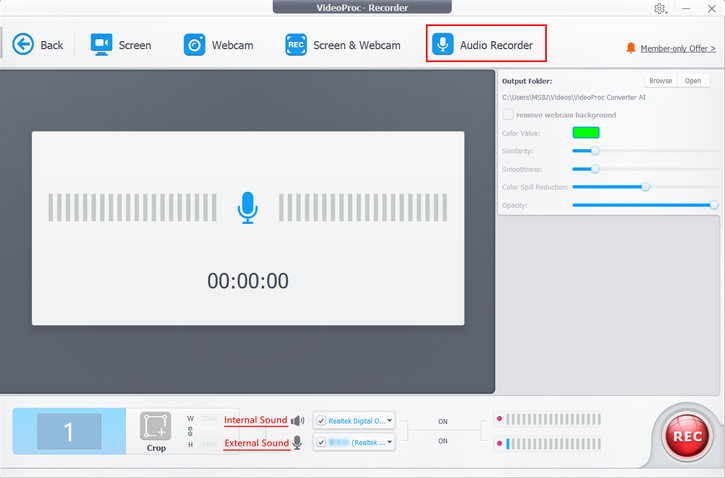
Step 1. Go to the Recording Panel.
Let's get started by installing VideoProc Converter AI on your PC or Mac. Once the installation finishes, launch it and press Recorder.
Step 2. Choose the Audio Recording Device.
Hit Audio Recorder. Go to the bottom of this panel to find the speaker button. Select the system audio output, such as Realtek Digital Output on a compatible Windows computer. Make sure the program can capture the audio being played.
Step 3. Record the Podcast.
Open the podcast you have permission to record. Press the REC button in VideoProc Converter AI and play the podcast to start the recording. Press Stop when you finish. You can find the recorded podcast on the right panel.
If you want to convert the recording or an existing podcast file to MP3, return to the main interface, open Video, and import the file. Choose MP3 as the output format and press Run to start the conversion.
Tip: Recording takes as long as the audio plays, so it isn't the fastest solution for a large number of episodes. For publicly available podcasts, a direct MP3 download is usually more convenient.
How to Download Podcasts to iPhone and iPad
With the right podcast app for iOS devices, we can easily download podcasts to an iPhone or iPad. One of the most convenient options is Apple Podcasts, Apple's own podcast app.
On Apple Podcasts, we can listen to shows covering all sorts of topics, from news and comedy to sports and technology. Better still, it lets us download many podcast episodes directly to our iOS devices without paying a subscription fee. Some premium shows and exclusive episodes, however, may require a paid subscription.
Step 1. Open the Podcasts App.
Find Apple Podcasts on your iPhone or iPad. If it isn't installed, you can download it from the App Store. Once the installation finishes, press Open to launch the app.
Step 2. Find the Podcast.
Press the Search button, enter the title of the specific podcast, and then tap Search to find the show you like. Alternatively, browse the available categories and recommendations to discover new podcast episodes.
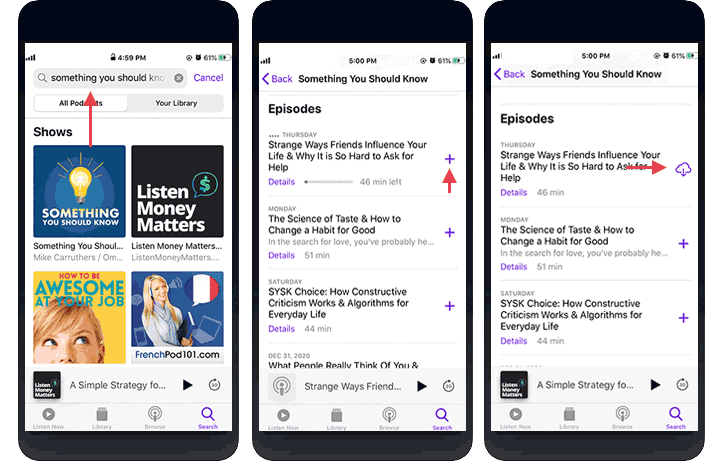
Step 3. Download the Podcast Episode.
Open the podcast show and find the episode you want to save. Tap the Download button, or open the More menu and choose Download. You can also touch and hold an episode in search results and select Download.
The download starts, and you can continue browsing other episodes while it finishes.
Step 4. Listen to the Offline Podcasts.
Tap Library and choose Downloaded to find the episodes you've saved. You can tap your favorite one to start enjoying the podcast without an internet connection.
If you follow a podcast regularly, you can also adjust its automatic download settings so new episodes are ready when you need them.
How to Download Podcasts to Android
Podcast Addict is one of the most popular apps for downloading podcasts on Android devices. This podcast downloader offers a large collection of shows and episodes, along with plenty of options for managing how you listen.
In addition, the integrated audio effects of Podcast Addict are very powerful. You can change podcast playback speed, skip silence, make the audio volume louder, and organize episodes in a playlist.
Podcast Addict goes a little further in simplifying the podcast downloading process. It can automatically download the latest episodes of your favorite podcasts, add them to your playlist, and sort them according to your preferences.
Step 1. Open the Podcast Downloader on Android.
Open the Google Play Store on your Android device. Enter Podcast Addict in the search bar to locate the app you need. Press Install. Once the installation finishes, press Open.
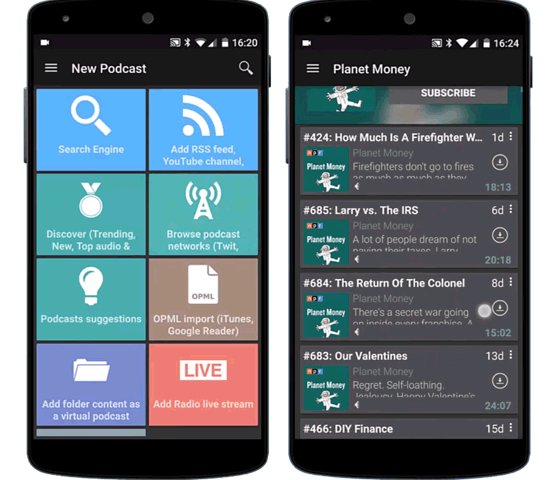
Step 2. Find the Specific Podcast.
Press the plus icon to find and add podcasts. You can use Search to locate a specific show, or explore the discovery options if you have no idea which podcast episodes you want to download.
Step 3. Download a Podcast.
Tap the podcast episode you like and find the Download button. Press it to save the episode for offline listening.
You can also select multiple episodes from a show and add them to the download queue, instead of downloading every episode separately.
Step 4. Set Up Automatic Downloads (Optional).
If you want to keep up with your favorite shows without downloading each new episode manually, Podcast Addict offers an Automatic Download feature.
Open Settings > Download and enable Automatic Download. You can also customize the setting for individual podcasts, so only the shows you choose will download new episodes automatically.
This is especially handy if you're following a long podcast series or want fresh episodes ready for your daily commute.
Another Option: Download Podcasts with YouTube Music
If you're already using YouTube Music, you don't necessarily need another podcast app.
Google Podcasts has been discontinued, and YouTube Music is now one of Google's main options for listening to podcasts. The good news is that podcast downloads are available without a Premium subscription for eligible episodes, although some shows may have restrictions.
Step 1. Open YouTube Music on your Android phone and search for the podcast you want.
Step 2. Find the episode you want to save. Tap the More menu beside the episode and choose Download.
Step 3. Wait for the download to complete. You can then find the episode in your YouTube Music downloads and listen offline.
Keep in mind that YouTube Music currently doesn't support downloading an entire podcast show or using Smart Downloads for podcast episodes.
How to Download Podcasts from a Website
Few of us know we can also download podcasts directly from a website. Some podcast websites offer a Download button next to the episode we want to play, and all we need to do is hit that button to save the audio file.
This method is particularly useful if you want an actual MP3 file instead of a download stored inside a podcast app.
However, not every podcast website provides a download button. Some only let you stream episodes online, while others link to audio files through their podcast RSS feeds.
Method 1. Download Podcasts Directly from the Website
Step 1. Find the Podcast.
Open the official website of the podcast you want to download. Find the specific show or episode using the website's search or episode list.
Step 2. Look for the Download Link.
Open the episode page and look for a Download, MP3, or similar button near the podcast player. Some publishers also provide an audio file link in the episode notes.
Step 3. Download the Podcast.
Click the download link to save the podcast to your computer. If the audio file opens in a new browser tab instead, you may be able to use the browser's download control or right-click the audio player and choose Save Audio As.
Step 4. Listen to the Downloaded Podcast.
Once the download finishes, open the saved audio file with your favorite media player. You can also copy it to a phone, USB drive, or another compatible device.
Method 2. Find the Podcast MP3 Link Through Its RSS Feed
Now what if there's no download button on the podcast website?
If the publisher makes the podcast's RSS feed publicly available, you may still be able to find the original audio file without relying on a third-party downloader.
Step 1. Find the Podcast RSS Feed.
Go to the podcast's official website and look for an RSS or Subscribe link. Some publishers provide a direct RSS feed address that you can open in your browser.
Step 2. Find the Episode.
Open the RSS feed and search for the episode title you want. Podcast feeds typically include information about each episode, such as its title, publication date, and audio file URL.
Step 3. Locate the Audio File Link.
Look for the episode's enclosure URL. This usually points to an MP3, M4A, or another audio file provided by the podcast publisher.
Step 4. Download the Podcast.
Open the audio link in your browser. If the publisher permits direct downloading, you can save the file to your computer using the browser's download option.
Note: This works with publicly accessible audio files. Subscription-only or restricted feeds may require authorization, and not all podcast websites make their audio files available for direct downloads.
How to Download Podcasts from Spotify
Spotify is another popular place to listen to podcasts, and it also lets users download many podcast episodes for offline listening.
One common misconception is that you need Spotify Premium to download podcasts. In fact, free Spotify users can download many podcast episodes, although some shows may require Premium or another subscription.
Here's how to download Spotify podcasts on your phone.
Step 1. Open Spotify and tap Search. Find the podcast show that covers one or more episodes you want to download.
Step 2. Open the show and scroll through its episode list. Find the specific episode you like.
Step 3. Tap the Download button beside the episode. If the option isn't immediately visible, open the episode's More menu to find it.
Step 4. After the download finishes, open Your Library and find your downloaded episodes. You can now play them offline in the Spotify app.
Keep in mind: Downloading a podcast in Spotify doesn't normally give you a standalone MP3 file that you can move to a USB drive or another player. If you need a portable audio file, check whether the podcast creator also publishes the episode through an official website or public RSS feed.
Final Words
Downloading podcasts isn't nearly as complicated as it might seem. If you just want something to listen to on your next flight or commute, apps like Apple Podcasts, Spotify, YouTube Music, and Podcast Addict can get the job done with very little effort.
But if you want to keep podcasts as MP3 files, move them between devices, or build a personal collection, downloading directly from the publisher's website is worth trying first. And if you need to convert, edit, compress, or record audio you're allowed to save, VideoProc Converter AI gives you a few extra options.
Whichever method you choose, the idea is simple: have your favorite episodes ready whenever you want to listen, with or without an internet connection.