New AI features are available
Shaky footage can easily ruin an otherwise great video. Yet, camera shake isn't always avoidable, especially when you're shooting handheld travel videos, capturing fast-paced action scenes, or restoring old home movies, keeping your footage steady isn't always easy. Traditionally, fixing shaky videos has meant spending hours on manual adjustments, motion tracking, and complex settings, often requiring significant computing power. Thankfully, AI-powered video stabilization has made the process much easier. As one of the most popular options, Topaz Video AI is often among the first tools people consider. But,
- How well does it actually work?
- How to stabilize shaky footage with Topaz Video?
- Which stabilization settings deliver the best results?
- And how does it compare with more affordable alternatives like VideoProc Converter AI?
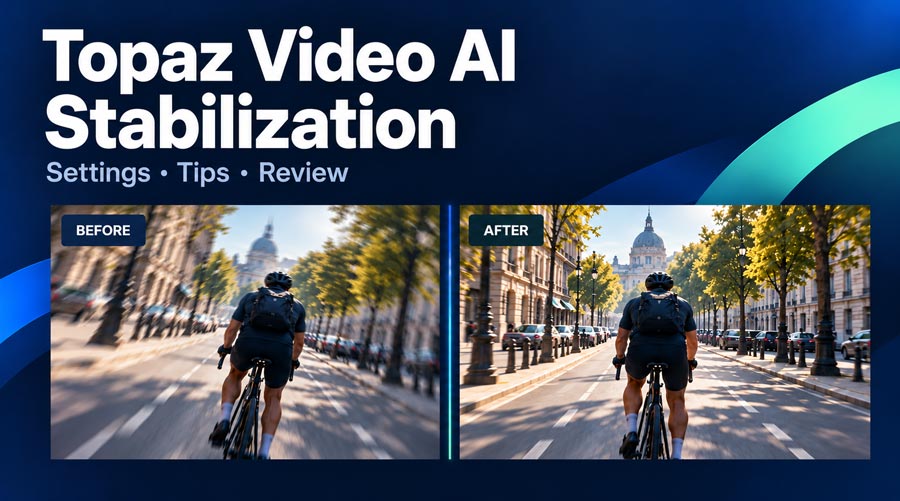
In this guide, we'll put Topaz Video AI's stabilization capabilities under the microscope, explore its strengths and limitations, and compare it with competing tools. Most importantly, we'll walk you through how to stabilize shaky footage in Topaz Video step by step so you can get smoother, more professional-looking results.
- What Is Topaz Video AI Stabilization
- How to Stabilize Video in Topaz Video AI: Step-by-Step
- Best Topaz Video AI Stabilization Settings
- Auto Crop vs Full Frame: Which Is Better
- Should You Enable Rolling Shutter Correction
- What About Reduce Jittery Motions
- Common Topaz Video AI Stabilization Problems and Fixes
- Topaz Video AI Stabilization Review: Pros and Cons
- Try an Affordable Topaz Video Stabilization Alternative
- Frequently Asked Questions
What Is Topaz Video AI Stabilization
Topaz Video AI stabilizes footage by analyzing inter-frame movement and adjusting frame positions to reduce shake and jitter, primarily through translation and rotation. To handle the empty borders created by this repositioning, Topaz offers Auto Crop and Full Frame. While each option involves trade-offs regarding cropping, image quality, and processing time, they represent a significant step up from traditional stabilization. Beyond smoothing out motion, Topaz features Motion Deblur, a dedicated tool to correct blur caused by camera movement or fast-moving subjects, making it effective against both shake and blur.
How to Stabilize Video in Topaz Video AI: Step-by-Step
If you're new to the software, here's a straightforward workflow for stabilizing shaky videos.
Step 1: Import Your Video
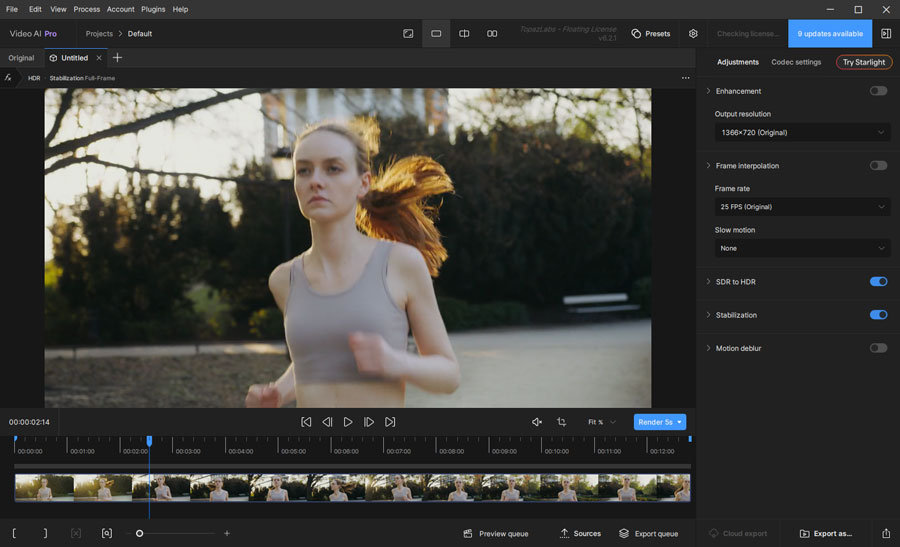
Launch Topaz Video AI, or the newer Topaz Video application, depending on which version you own. Import your footage using the file browser or by dragging the video into the workspace.
Before making any changes, play the original footage and identify the sections that need stabilization. This helps you decide how aggressively to stabilize the video.
Pay attention to the type of camera movement:
- Minor handheld shake
- Repeated jitter or vibration
- Walking or running footage
- Sudden camera movements
- Intentional pans mixed with unwanted shake
For longer recordings, consider testing a short section before processing the entire file.
Step 2: Enable the Stabilization Filter
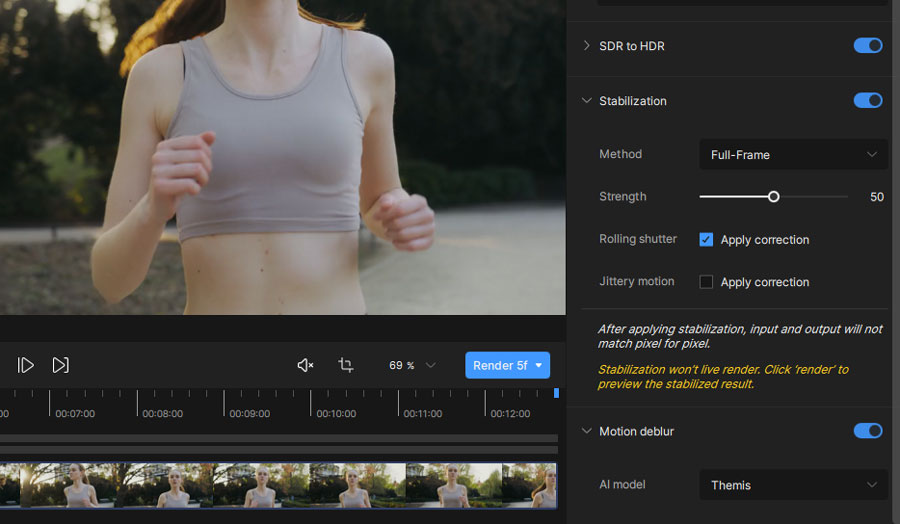
Locate the Stabilization option in the adjustments or controls panel. Enable the filter to access the stabilization settings. Depending on your software version, you'll see options for stabilization mode, strength, and additional motion correction features.
Step 3: Choose Auto Crop or Full Frame
Topaz offers two stabilization modes: Auto Crop, which trims the edges to remove empty areas caused by stabilization, and Full Frame, which fills in those areas to preserve the original frame dimensions.
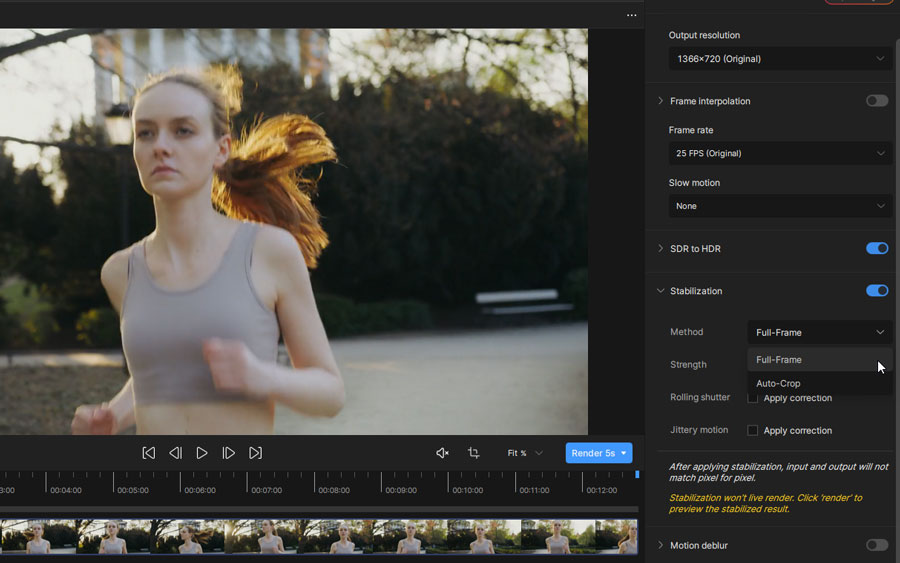
Tips: For most footage, start with Auto Crop. If cropping cuts out important parts of your video, try Full Frame instead. For a closer look at their trade-offs, see Auto Crop vs Full Frame: Which Is Better?
Step 4: Adjust Stabilization Strength
A higher strength setting generally produces smoother camera movement, but it can also increase cropping or visible artifacts. Topaz's stabilization tutorial demonstrates Auto Crop with a strength of 50% as a starting example.
- For lightly shaky footage, you may not need aggressive stabilization.
- For walking footage or recordings with noticeable vibration, stronger correction may help, although it can create a more pronounced crop.
Step 5: Preview the Stabilized Video
Before exporting, generate a preview of a representative section. Choose a segment containing the most noticeable camera shake, preferably with objects near the frame edges. Compare the processed footage with the original and ask:
- Does the camera movement look noticeably smoother?
- Are important subjects still inside the frame?
- Are the edges distorted or blurry?
- Does intentional camera movement still look natural?
- Are details preserved during movement?
Recent Topaz Video releases also include live stabilization preview functionality, although availability and setup depend on the application version. If the result looks unnatural, reduce the strength or test the alternative stabilization mode.
Step 6: Apply Motion Deblur if Needed
Stabilization corrects camera movement, but it doesn't necessarily remove blur already captured within individual frames. For example, a handheld recording may become smoother after stabilization while still appearing blurry during fast movement. In this case, you can enable Motion Deblur and preview the result.
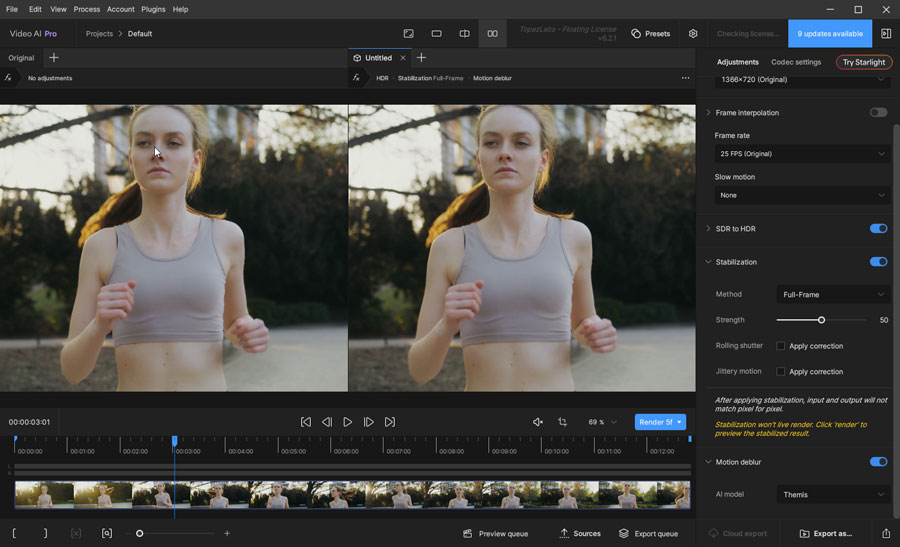
Step 7: Export Your Video
Once you're satisfied, choose the desired export settings and process the video. Pay attention to output resolution, frame rate, and compression settings.
Keep in mind:
- If you've selected Auto Crop, check the resulting dimensions. Cropping may produce an output smaller than your original footage.
- If necessary, you can resize the stabilized result to your target resolution using an appropriate enhancement workflow.
- Inspect the exported file rather than relying entirely on the preview. This is because some artifacts become more noticeable when viewing the footage at full resolution.
Best Topaz Video AI Stabilization Settings
One of the most common questions is: What are the best Topaz Video AI stabilization settings? Unfortunately, there isn't a universal configuration that works perfectly for every video.
The ideal settings depend on the severity of camera shake, the recording resolution, the amount of motion blur, and how much cropping you can accept. Here are some practical starting recommendations.
| Footage Type | Suggested Mode | Recommended Approach |
|---|---|---|
Light handheld shake |
Auto Crop |
Start with moderate strength |
Walking footage |
Auto Crop |
Gradually increase strength |
Footage with important edge details |
Full Frame |
Check generated edges carefully |
Footage with visible motion blur |
Auto Crop + Motion Deblur |
Evaluate stabilization and deblurring separately |
Old home videos |
Auto Crop |
Use conservative settings to preserve details |
Action footage |
Test both modes |
Balance smoothness with natural movement |
These are starting points rather than guaranteed optimal settings.
Auto Crop vs Full Frame: Which Is Better
The main difference comes down to cropping versus image quality. Auto Crop removes parts of the frame to avoid empty edges, while Full Frame uses AI to fill those areas, which can sometimes introduce visual artifacts.
Choose Auto Crop if:
- You can afford to lose some content around the edges.
- Preserving the original image details is your priority.
- Your footage contains detailed textures or text near the borders.
Choose Full Frame if:
- Cropping would cut out important subjects or details.
- You need to maintain the original frame dimensions.
- You're willing to accept some potential blur or distortion near the edges.
Neither mode is always better. Auto Crop is generally the safer starting point for image quality, while Full Frame is worth trying when preserving the entire composition matters more.
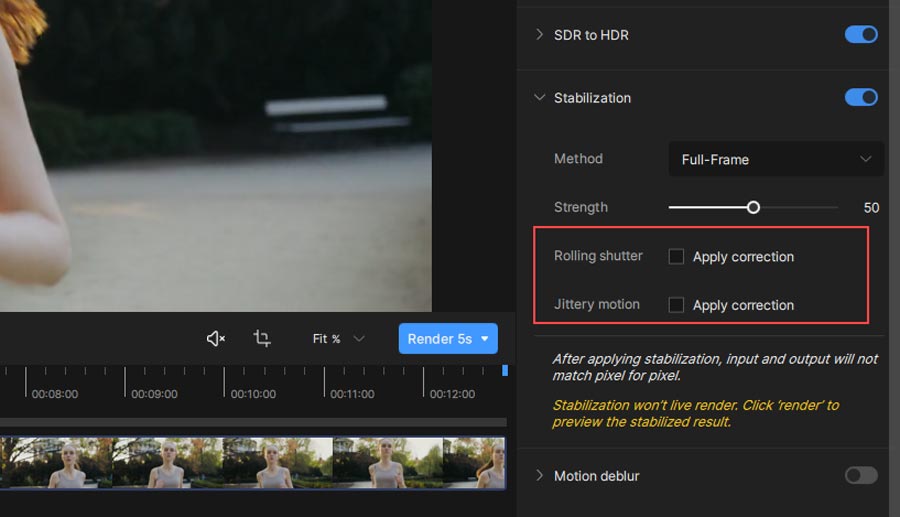
Should You Enable Rolling Shutter Correction
Some Topaz Video AI versions include Rolling Shutter Correction as an additional stabilization option. Rolling shutter distortion occurs when different parts of a frame are captured at slightly different times. This can make straight lines appear bent or cause a wobbling effect during quick camera movement. So should you use it? If your footage has a noticeable jelly-like wobble, turn on Rolling Shutter Correction to see if it helps. Otherwise, you can leave it off.
What About Reduce Jittery Motions
The Reduce Jittery Motions option helps correct residual jitter, parallax distortion, and unwanted tilting. If your video still looks shaky after stabilization, try enabling it. Keep in mind that additional processing passes can significantly increase rendering time.
Common Topaz Video AI Stabilization Problems and Fixes
Even after applying the recommended settings, you may encounter problems. Here are several common issues and ways to troubleshoot them.
Problem 1: Stabilized Video Looks Blurry
If the video appears blurry after stabilization, first determine where the blur occurs.
- If it appears mainly around the edges in Full Frame mode, the problem may be related to generated edge content. Try switching to Auto Crop and comparing the result.
- If the entire frame appears blurry during movement, the original footage may contain motion blur that stabilization alone cannot remove. In that case, test Motion Deblur separately.
Problem 2: Too Much Cropping
Auto Crop can remove a noticeable amount of the image, especially when the original video contains severe camera shake. To reduce excessive cropping:
- Lower the stabilization strength.
- Consider whether some natural camera movement is acceptable.
- Test Full Frame if preserving the original composition is essential.
- Check whether resizing is appropriate for your final output.
- Avoid forcing maximum stabilization when it removes important visual information.
Problem 3: The Video Still Looks Shaky
If your result remains unstable, gradually increase stabilization strength. Check whether the remaining movement is ordinary camera shake, rapid vibration, or rolling shutter distortion.
For footage with fast jitter, test the relevant additional correction options if your version supports them. Also verify that the source doesn't contain black borders or letterboxing that could interfere with motion analysis.
Tips: Cropping unwanted borders before stabilization has been recommended in Topaz community troubleshooting discussions.
Problem 4: Stabilization Takes Too Long
Video stabilization can require substantial computation, especially when combined with other AI filters. For a more efficient workflow:
- Test a short section before processing the entire clip.
- Compare the processing requirements of Auto Crop and Full Frame.
- Avoid enabling unnecessary enhancement filters.
- Check hardware compatibility and available system resources.
- Use previews to evaluate settings before a final export.
Processing speed varies by system, so benchmark your own footage rather than relying on general performance claims.
Problem 5: The Output Looks Unnatural
If the stabilized video has wavy edges, distorted objects, or unnatural wobbling, the stabilization may be too aggressive. Try lowering the Stabilization Strength and previewing the clip again. If you're using Full Frame, switch to Auto Crop to check whether the distortion comes from AI-generated edges.
Topaz Video AI Stabilization Review: Pros and Cons
Based on user feedback from Reddit and the Topaz Community, Topaz Video AI can deliver impressive stabilization results, but its performance isn't always consistent.
Pros
- Good results on challenging footage: Some users report better stabilization than DaVinci Resolve, particularly when working with old film scans or difficult footage.
- Works alongside video enhancement: Stabilization can be combined with other AI features, making Topaz useful for restoring old or low-quality videos.
Cons
- Inconsistent results: Users have reported blurry edges, pixelation, and occasional artifacts, even when the preview looks fine.
- Slow processing: Full Frame stabilization can be particularly time-consuming, and some users have complained about lengthy video analysis.
- Not always worth the extra effort: For ordinary handheld footage, built-in stabilizers in DaVinci Resolve or Premiere Pro may offer a simpler workflow.
The takeaway: Topaz Video AI is worth trying for difficult footage, especially if you're already using it for video enhancement. But for basic stabilization, it may not be the most efficient choice.
When to Consider an Alternative to Topaz Video AI
Topaz Video AI can deliver good stabilization results on challenging footage, and its enhancement tools make it useful for video restoration. However, results can vary, and getting the right balance between smoothness, cropping, and edge quality may take some testing. Price adds another consideration. If the annual subscription ($299) feels too expensive for your needs, VideoProc Converter AI offers a lower-cost option with a lifetime license (only $59.95), combining stabilization with AI enhancement tools. The table below compares their pricing and features.
| Feature | Topaz Video AI | VideoProc Converter AI |
|---|---|---|
Price |
299USD/year |
54.95USD/lifetime |
Stabilization options |
Auto Crop and Full Frame |
2 stabilization modes 4 presets Adjustable cropping |
Customization |
Strength, rolling shutter correction, jitter reduction |
Stabilization strength, cropping, processing speed |
Preview |
Live stabilization preview |
Before-and-after preview |
Batch stabilization |
Yes |
Yes |
Other AI features |
For videos: upscale, enhance,frame interpolation For images: no For audio: no |
For videos: upscale, enhance, frame interpolation For images: upscale, enhance, colorize, face restoration For audio: remove background noise, separate vocal from music |
Frequently Asked Questions
1.Does Topaz Video AI have video stabilization?
Yes. Topaz Video AI includes stabilization functionality designed to reduce unwanted camera shake and jitter. It supports Auto Crop and Full Frame stabilization approaches.
2.What is the best stabilization strength in Topaz Video AI?
There is no universal best value. A 50% strength setting in Auto Crop mode is demonstrated in Topaz's official tutorial, but the ideal strength depends on the footage. Start with moderate correction, preview the result, and adjust as necessary.
3.Can Topaz Video AI stabilize video without cropping?
Yes. Full Frame mode is designed to maintain the original frame dimensions by generating content for the missing edge areas. However, this can introduce blur or artifacts, particularly with aggressive stabilization.
4.Can Topaz fix extremely shaky footage?
It may improve severely shaky videos, but results are not guaranteed. Extreme movement, substantial motion blur, and missing image information can limit what stabilization software can recover.
5.Is Topaz Video AI better than DaVinci Resolve for stabilization?
Not necessarily. Topaz provides AI-assisted Full Frame processing and works well within video enhancement workflows. DaVinci Resolve offers integrated stabilization alongside professional editing tools. The better choice depends on the source footage and desired result.