


Summary: How to speed up video on Snapchat is easier than you might think. If your Snap feels too slow and risks losing attention, Snapchat provides built-in tools to speed up your snap and make it more engaging. Depending on whether you're recording a new Snap or uploading an existing video, you can use different features such as the speed filter, Director Mode, or an editing workaround for camera roll clips. This post breaks down each method clearly, so you can quickly speed up any Snapchat video without trial and error.

How to Speed Up a Video on Snapchat (After Recording)
This is the most common scenario for Snapchat users. You're in Snapchat's standard camera mode, you've just held down the record button to capture a moment, and now you want to speed up that clip before sending it to a friend or adding it to your Story. Snapchat makes this process very intuitive with a simple swipe gesture, but if you're new to the app, these speed filters can be easy to overlook.
Step 1: Record your video
Open the main camera screen. Hold down the large circular capture button to record your video. Keep holding it until you have captured the full scene, then release your thumb. The video will immediately start looping on your screen.
Step 2: Swipe left
Immediately place your finger on the center of the screen and swipe left. You will first see color filters (like Sepia or Black and White).
Step 3: Find the Rabbit
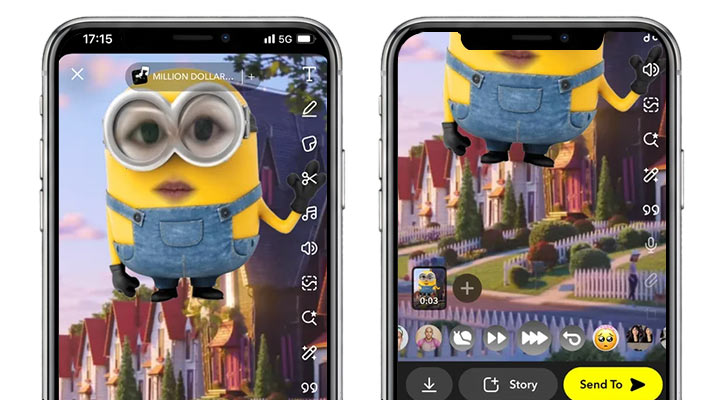
Keep swiping past the color filters. Stop when you see the illustration of a Rabbit which stands for speeding up. Your video will immediately play at a faster rate. If you have sound in the video, you will notice that the audio is also sped up, resulting in a high-pitched "chipmunk" voice effect.
Tips:
If you accidentally swipe past the Rabbit, you might see a Snail icon. The Snail does the opposite which creates a slow-motion effect on Snapchat.Just swipe back the other way to return to the Rabbit.
How to Speed Up a Video on Snapchat (Before Recording)
Sometimes, you know you want a fast-motion video before you even start recording. Maybe you are filming a “Get Ready With Me” outfit change or capturing a sunset as a timelapse. In these situations, the standard hold-and-swipe method can feel clumsy. Instead, it makes more sense to set the speed in advance so you can focus on framing your shot without worrying about editing afterward. Director Mode is a newer Snapchat feature that gives creators more control before recording, similar to the tools found on TikTok or Instagram Reels.
Step 1: Enter Director Mode
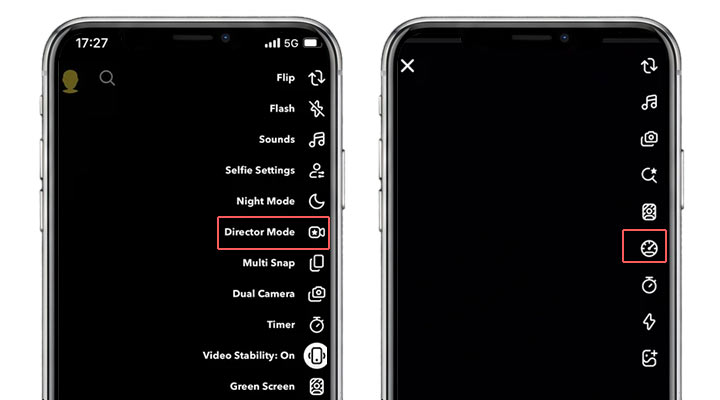
On the main camera screen, look at the vertical toolbar on the right side. You will see an icon that looks like a video camera with a star on it. Tap this to enter Director Mode. The interface will change slightly, giving you different options on the right-hand side.
Step 2: Locate the Speedometer
Once you are in Director Mode, look at the menu on the right. You will see an icon that looks like a speedometer. Tap this icon to open the playback speed settings.
Step 3: Select your speed
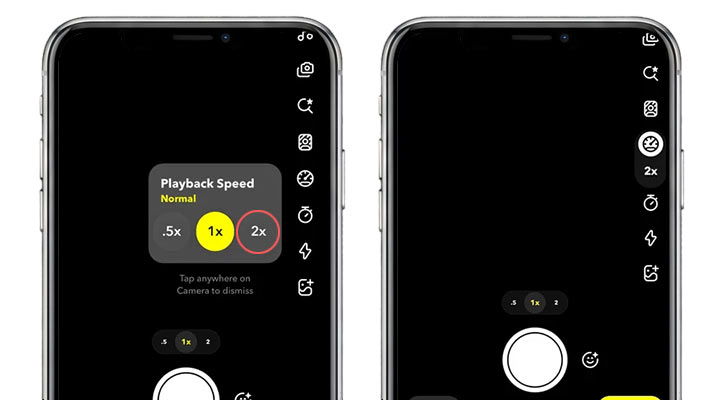
Tapping the icon allows you to toggle through different speed multipliers. Tap on 2x which stands for 2 times of the original speed.
Step 4: Record
Hit the record button to capture the footage at the specific speed you selected, so when you finish recording, the video is already sped up.
How to Speed Up a Video on Snapchat from Camera Roll
This is the area that causes the most frustration for users. You have an old video in your phone's gallery that you want to post. You upload it to Snapchat, but when you swipe left or right, the Rabbit filter is nowhere to be found. You only see color filters. Now what? Snapchat treats camera roll uploads as static images or finished files until you tell it otherwise. You have to manually enter the editing suite to access motion filters.
Step 1: Open Snapchat Memories
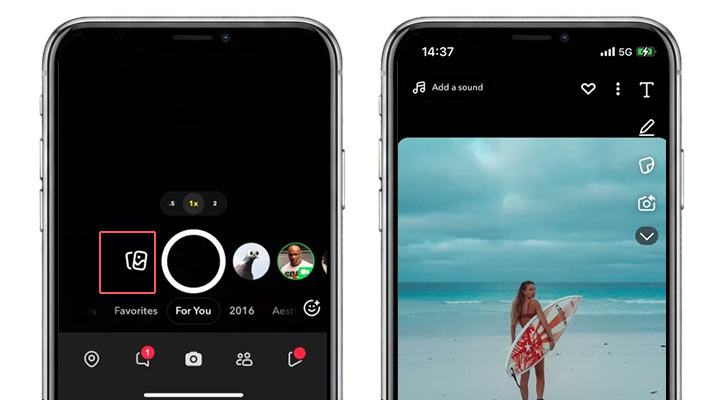
From the main camera screen, swipe up to open your Memories. Look for the tab labeled "Camera Roll" at the top of the screen to view videos stored on your actual device, not just your Snapchat cloud.
Step 2: Select the video
Tap on the video you want to use. It will open in a preview window with a black background.
Step 3: Tap the Menu or Pencil Icon
This is the critical step. Do not just try to send the video from here. Look for the three dots (menu icon) in the upper corner or the Pencil icon in the bottom corner. Tap it and select "Edit Snap" from the menu.
Step 4: Swipe for the Rabbit
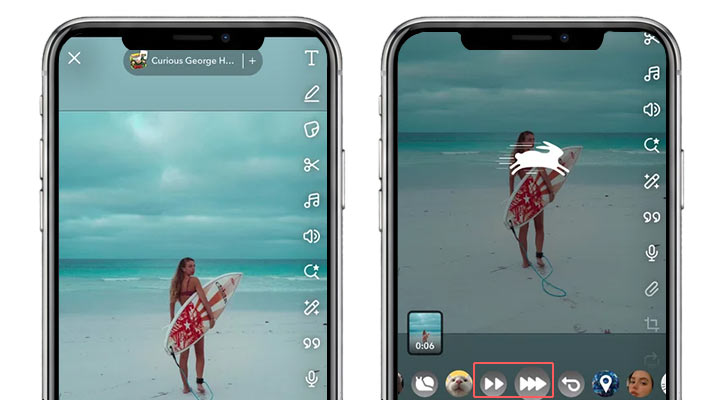
Now that you are in "Edit Snap" mode, the app treats the video as if you just recorded it live. Swipe left across the screen. You will move past the color filters and eventually find the Rabbit icon.
Step 5: Save or Send
Once the speed is applied, you can send it to your Story or save the new, faster version back to your device.
How to Speed Up a Video on Snapchat without Changing Pitch
One of the biggest downsides to speeding up a video on Snapchat is the audio distortion. The Rabbit filter compresses the audio wave, raising the pitch significantly. If you are speaking in the video, you will sound like a cartoon character. Sometimes this is funny, but other times it ruins the vibe of the content.
Solution 1: Mute the audio
If the original sound isn't critical, the easiest fix is to remove it and then add the background music. This keeps the video energetic without the distracting squeaky voices.To do so:
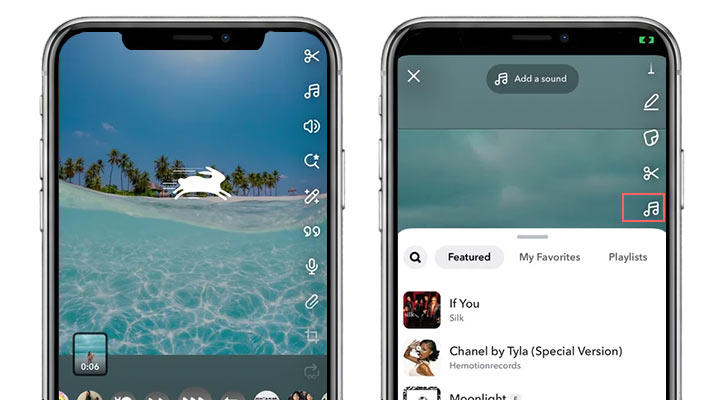
Step 1: On the preview screen (after applying the Rabbit filter), tap the speaker icon to mute the original noise.
Step 2: You can then tap the Music note icon to overlay a popular song from Snapchat's library.
Solution 2. Use an External Video Editor
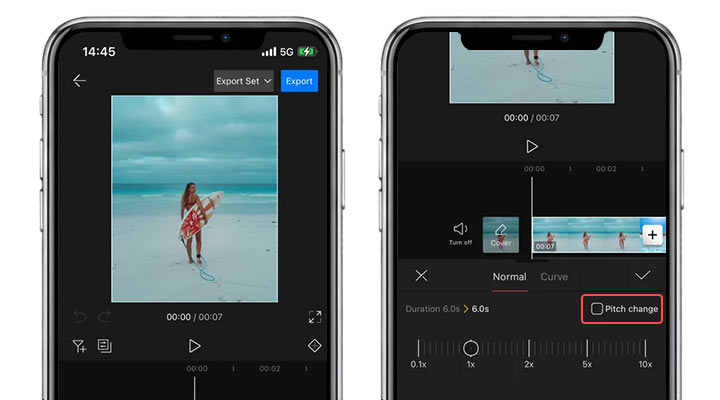
If you want to speed up a video but keep your voice sounding normal, Snapchat's built-in tools won't be enough. In this case, you need a free third-party app like VideoProc Editor, which is completely free and provides a full set of video editing tools.
Tips: It's lso available on PC under the name VideoProc Vlogger. While its core features are similar to the mobile version, there are some differences in functionality.
- 100% free to use with a clean and easy-to-use interface.
- Adjust speed from 0.1x to 10x, with optional variable speed presets and pitch control.
- Built-in keyframe animation with 30+ curve options for smooth, natural motion.
- Advanced editing tools including masking, animation, blending, PiP, and creative transitions.


Step 1: Add the Snapchat Video
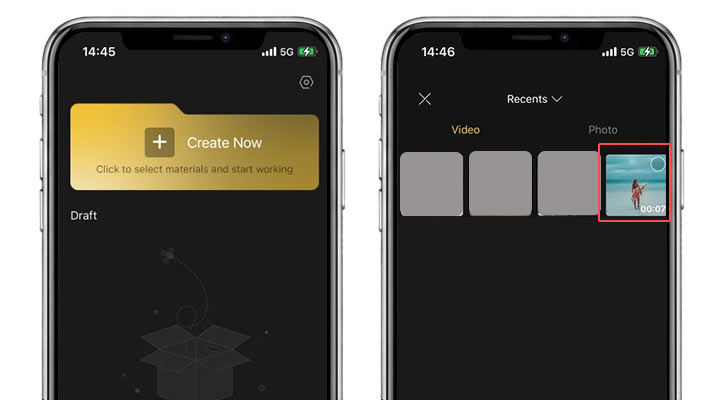
After installing VideoProc Editor on your phone, tap Create Now and select the video or photo clips you want to use.
Step 2: Speed Up the Snap
Tap the timeline, then choose Vary Speed and select a faster speed. You can also choose Curve to apply a variable speed for a more cinematic feel.
Step 3: Adjust the Picth
Tap Pitch Change to keep the audio sounding natural, then confirm with the checkmark.
Step 4: Export the Sped Up Snap
Tap Export to save the sped-up video, then upload it to Snapchat as your Snap.
FAQs
Why can't I find the Rabbit filter on my uploaded video?
You are likely viewing the video in preview mode rather than editing mode. You must tap the three dots or the pencil icon and select "Edit Snap". Once you do this, the motion filters (Snail and Rabbit) will become available when you swipe.
Does Director Mode affect the audio?
Yes. If you record at 2x or 3x speed in Director Mode, the audio is captured at that rate. When played back, it will sound sped up and high-pitched.
Can I speed up a video after posting it to my story?
No. Once a video is posted to your Story, it is "baked" into that format. If you want to change the speed, you must save the video to your phone, delete the story post, edit the saved video using the "Edit Snap" method, and re-post it.




