
 New AI features are available
 Listed in
 Summary: Stop settling for choppy slow-mo. Learn how to turn any 30FPS footage into buttery-smooth 120FPS masterpieces using AI tool like VideoProc Converter AI. We compare desktop, online, and mobile workflows to help you choose the best speed-ramping solution.
How to make a slow motion video on iPhone or other devices? We can record the video in slo-mo mode and play the video on a standard display. The slo-mo shooting mode means that the iPhone is shooting more frames per second to grab as much nitty-gritty detail as possible within a given time. For instance, when you shoot a Parkour cat in slow mode on modern iPhone (like iPhone 17), you are recording the video at 120fps or 240 fps. Playing this high frame rate video on a 30fps display can get a stunning slow motion look.
While iPhone's native slow-mo is great, it can't fix standard 30fps videos. If your footage was recorded at a regular frame rate and you try to make it slow motion, it will inevitably look choppy? So how do you convert to slow motion video without the stutter? A decent piece of slow motion video converter and editor can make your life easier. Read to learn how to make a slow motion video on iPhone, Android, computer, and browser by using the bes 6 slow motion video editors.
- Best overall quality (no frame drops): Use Desktop software like VideoProc Converter AI. It leverages AI frame interpolation to create missing frames, making a 30fps video look like it was shot at 120fps.
- Best for creative edits: Use VideoProc Vlogger. Ideal for Speed Ramping (gradually changing speed) to create professional transitions.
- One-off fast method: Use online slow motion tools. Convenient for files under 100M. However, quality loss and stuttering are common due to lack of AI smoothing.
- Best for mobile/native Fixes: Use iPhone/Android Photos or iMovie. Good for simple playback speed changes of high-FPS source footage.
Below, we break down each method by device, quality, speed, and use case.
Why Some Slow Motion Videos Looks Choppy?
If you've tried to slow down a standard 30fps video by 4x, you've likely seen the stuttering effect. This happens because, at 25% speed, you only have 7.5 unique frames per second- far below what the human eye perceives as fluid motion.
Traditional editors and basic tools are based on frame sampling and simply repeat existing frames, hence giving a slideshow-like experience because there is no visual information is created.
But nowadays instead of just stretching frames, AI frame interpolation analyzes the movement between two consecutive frames and generates a new, mathematically accurate frame to fill the gaps. This explains how AI tools like VideoProc Converter AI dramatically reduces stutter from videos and produces the fluid slow-motion effect typically associated with high-frame-rate footage.
1. How to Make a Video Slow Motion in VideoProc Converter AI
Fortunately, the slow motion maker in VideoProc Converter AI is enhanced with an AI Video Frame Interpolation tool. With the AI neuronet trained models, it understands consecutive frames, estimates pixel behavior, and generates realistic frames for higher FPS, even for complex and tricky content. So for a silk smooth slow motion video, try the AI Frame Interpolation feature in VideoProc Converter AI!
VideoProc Converter AI - Make Butter Smooth Slow-mo in One Click
- Intelligently boost videos from 24/30/60FPS to 120/240/480FPS for slow-mo.
- Generate new frames in between with natural and realistic details.
- Real-time faster AI computing by Full GPU acceleration.
- Full AI features: Super Resolution, Stabilization, and Frame Interpolation.
- 29 quick-edit tools, convert, compress, record, and download in one stop.
 Excellent
Download and install VideoProc Converter AI to boost video frame rate and make better slow-mo effect!

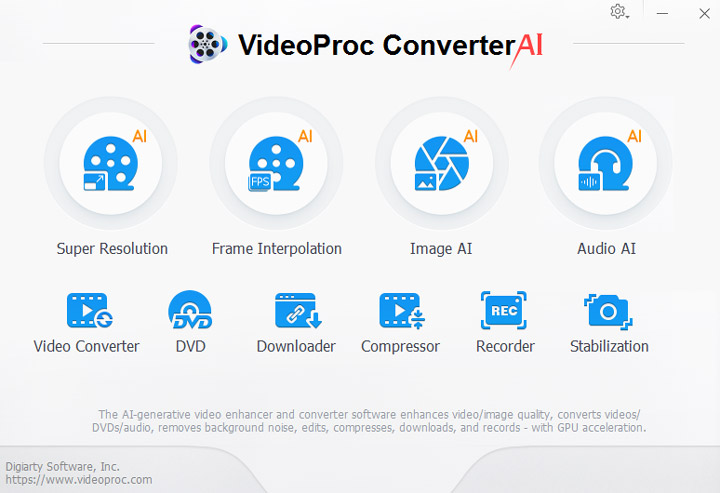
Step 1. Launch VideoProc Converter AI and select "Frame Interpolation" on the main interface.
Step 2. Drag and drop the source video to it. Drag the green knobs to set the segment you want to create a slow-mo effect.
Step 3. Check the "Slow Motion" option and set the slow-down speed.
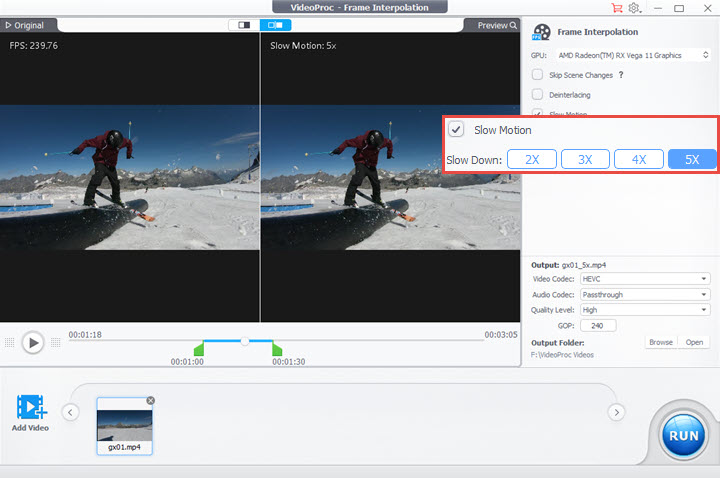
Tips: Enable "Skip Scene Changes" if there're big changes between scenes. This option comes to prevent generating distorted ghosting artifacts upon these unrelated transitions. The default and also the recommended value for sensitivity is 85. If the final video has distorted frames or other artifacts, increase the value. If it doesn't have any effect on frames without scene changes, lower the value.
Step 4. Choose an output format and folder. Hit "RUN" to begin converting to slow motion video.
Now you get a slow-mo clip. You can share it instantlly or go on editing with tools in its "Video Converter" module, or use VideoProc Vlogger, a free none-linear video editor from VideoProc.
2. How to Make a Video Slow Motion with VideoProc Vlogger
VideoProc Vlogger is a completely free slow motion video editor that offers a wide range of speed control, letting you adjust the speed from 0.01x or slower to 72x or faster without hassles. Even better, it lets you progressively slow down the speed of your video over time by manipulating the intuitive speed curve. This is really helpful when you want to add some unique cinematic touches for the slow motion video. There are 14 variable speed change effects presets, with which everyone can do epic speed ramping in one click.
It's more than a slow-mo video maker. VideoProc Vlogger is a full-featured video editing software that has a complete video editing toolset that allows you to cut, trim, split, rotate, and animate videos, as well as add the picture-in-picture, 3D LUTS, motion crop, and many advanced effects, etc. Moreover, it comes with a flexible audio editor which lets you alter the audio pitch, remove background noise, and optimize the sound, etc.
Step 1. Download and install VideoProc Vlogger on your PC or Mac. Launch it up. Complete the settings on the pop-up Project panel to create a new project.
Step 2. Drag the video that you wish to slow its speed down onto Media Library. After that, drag it onto Video Track.
Step 3. Select the video on the timeline. Use the Split tool to split at the start and the end of the part that you want to add the slow motion effect.
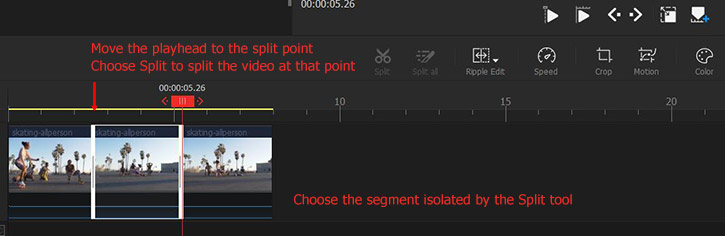
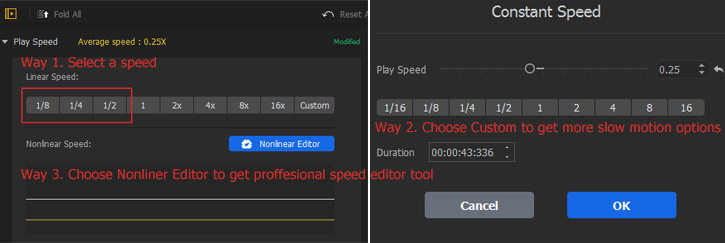
Step 4. Select the wanted segment. We can then put a video in slow motion in many different ways. Below I list 2 ways I used most often:
Option 1. Scroll down the mouse on the right Inspector panel to find the Play Speed tab. Select 1/8, 1/4, or 1/2 as the slow motion speed. Here you can also hit Custom and then drag the speed slider left to convert video to slow motion.
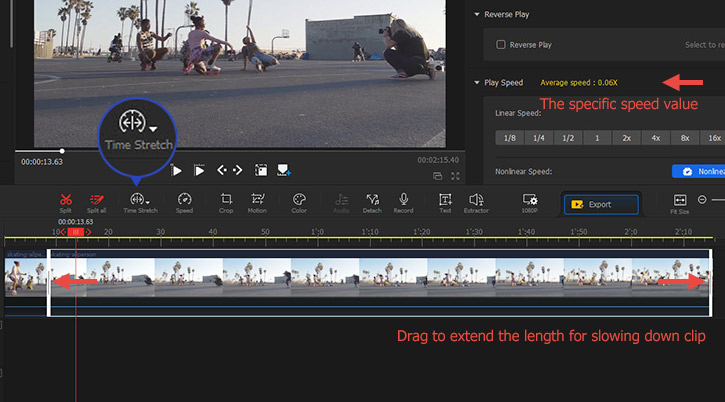
Option 2. Go to Timeline Toolbar and locate Ripple Edit. Click on this and choose Time Stretch. Drag the end of the clip right to slow down the video speed for making slow motion video.
Need to speed ramp slow motion footage?
The above method will slow down the speed with the same pace throughout the entire video. If you need to progressively ramp down the video speed, or you need to set different segments of a video with different speeds, the nonlinear Speed Editor offered by VideoProc Vlogger comes in handy. To speed ramp slow motion video in this easy video speed changer:
Press Nonlinear Editor to enter the Speed Editor panel. Drag the speed point (it's the white dot on the timeline) down to add the slow motion effect. You can drag the left or right handles of the speed point to make the speed change happens more naturally and smoothly.
Step 5. When all settings are done, press Export, and then hit Start. No need to do any setting, VideoProc Vlogger can make use of your hardware acceleration engine powered by NVidia/Intel/AMD to fast create a slow motion video while keeping a low CPU usage.
Tips:
In most cases, we need to make sure the frame rate of the outcome no less than 24 or 30 for getting a get a really smooth slow motion video. Suppose the original video is 240fps, you'd better keep the speed no less than 0.1times of the original. Have a look at the simple mathematical calculation, you'll understand why:
240/24=10x | 240/30=8x | 240/60=4x...
3. How to Make a Video Slow Motion with Microsoft ClipChamp
In 2026, Microsoft has integrated the AI-powered Clipchamp as the default video editor for Windows 11. The old "Add slow-mo" tool in the Photos app has been phased out in favor of Clipchamp’s more precise speed controller. You can try the ClipChamp online.
Step 1. Click on the Import media button in the media tab on the toolbar to browse your computer files, or connect your OneDrive.
Step 2. Drag and drop your video on the timeline. Once your video is on the timeline, click on the clip to highlight it. On the right-side property panel, click the "Speed" tab.
Step 3. Adjust the Slow-Mo Ratio. For standard slow-mo, drag the slider to the left. Clipchamp allows for granular control (e.g., 0.5x, 0.2x, or even 0.1x).
Step 4. Click the Export button in the top right corner. You can export in 1080p for free, or 4K if you have a premium subscription.
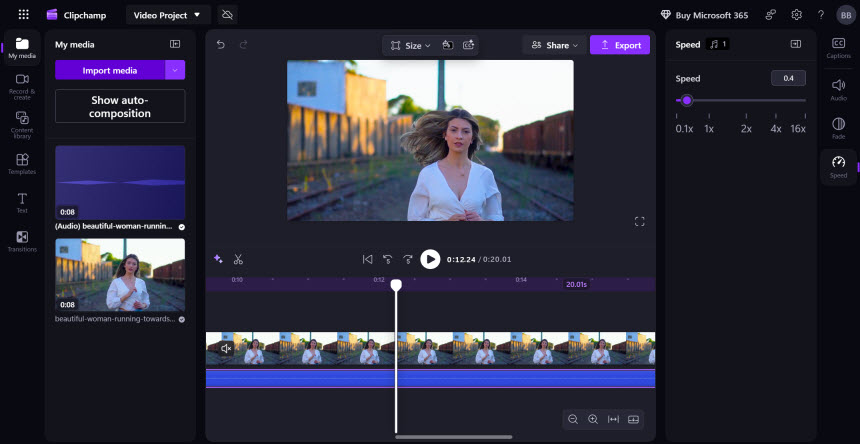
Notes:
While Microsoft Clipchamp is a significant upgrade over the old Photos app—offering a precise speed slider from 0.1x to 16x—it remains a frame-sampling tool. This means if you slow down a 30fps video to 0.1x, Clipchamp will simply repeat frames, resulting in a choppy playback. It is a solid, free choice for basic edits, but for pro-level, AI-smooth results (where new frames are actually generated), VideoProc Converter AI is still the superior professional alternative.
4. How to Make a Video Slow Motion on iPhone with Photos
Apple provides a built-in way to convert video to slow motion clip. iPhone users can fast put a video in slow motion using Photos - the default gallery app of iOS devices. However, this feature can only be applied to the video shoot in slo-mo. In other words, if you need to put a video recorded in regular mode into slow motion, Photos app isn't for you.
Step 1. In your Photos app, locate the slo-mo video that you'd like to slow down further.
Step 2. Tap "Edit" button. Drag the vertical white lines in the timeline to settle an area where you want to slow things down.

Step 3. Tap "Done" to save the video that you've already put in slow motion.
Notes:
The amount of speed that has been slowed down by using Photos for iOS is unclear, and there's no official data given. Most importantly, it lacks AI smoothing for standard videos. If you'd like to play extra magic on the speed with more speed choices and get multiple varied speed areas, you can resort to iMovie or AI-powered mobile apps like Capcut instead.
5. How to Make a Video Slow Motion with iMovie
In addition to Photo app, iMovie offers a quick and easy slow motion video converter solution for you to convert a normal video to slow motion on iPhone and iPad.
Step 1. Create a movie project in iMovie and import the video that you want to slow down its speed.
Step 2. Tap the "Timer" icon, and you'd see a tortoise and a bunny.
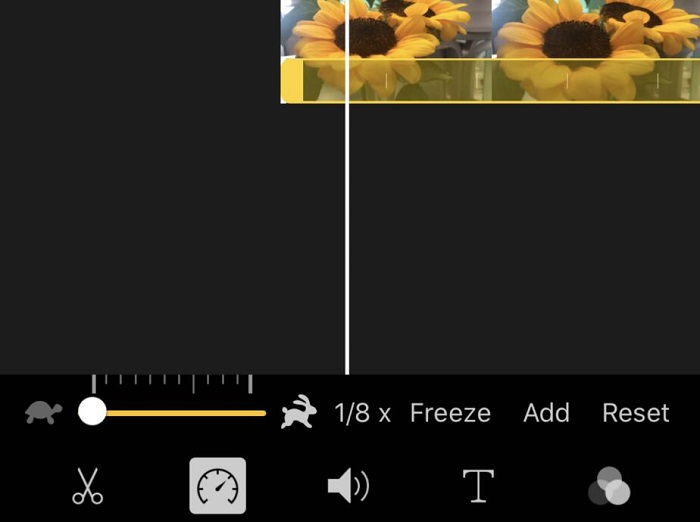
Step 3. Select an area where you want to add slo-mo effect on the timeline.
Step 4. Drag the bar to tortoise side, and you'd see the speed rate from 4/5x to 1/8x.
Step 5. Click "Done" button on the left upper corner and export the slo-mo video from iMovie to your Photos album.
Notes for Apple users:
iMovie does give a quick solution to put video in slow motion, and it can be a lightening fast editing without leaving your iPhone to another platform. However, it is rather a speed changer than a frame creator. It relies on Frame Sampling. If you create a slow motion video from the original low-fps video such as 30fps and slow down to 0.125x, the output will be stutter. For professional results on standard footage, software with AI feature is still a solid choice.
6. How to Make a Video Slow Motion Online with Canva
Canva is another convenient choice for creators who need to make a slow motion video for their designs without downloading software. It is perfect for social media posts where design matters more than technical frame precision.
Step 1. Upload your video to Canva and add it to your design.
Step 2. Click on the video and select the "Playback" (often labeled as "Speed" in the latest UI) icon from the top menu.
Step 3. Use the "Video Speed" slider to adjust from 0.25x to 2x.
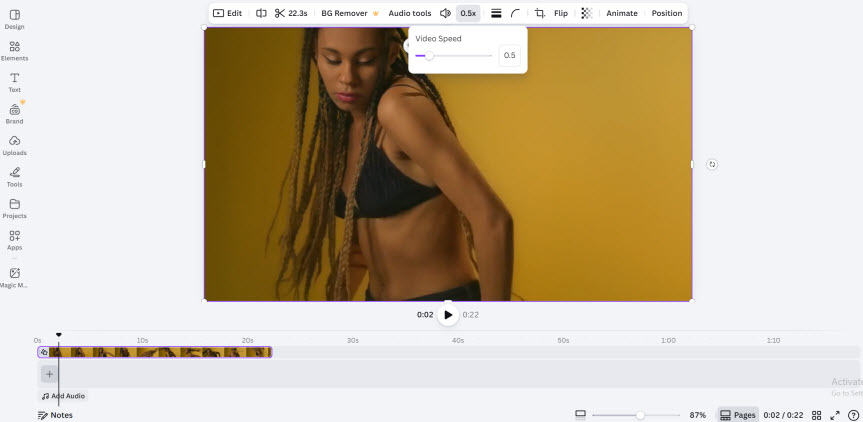
Expert Verdict: Canva functions as a speed changer instead of an AI frame generator. It lacks AI Frame Interpolation, meaning a 30fps clip slowed to 0.25x will result in a stuttery playback. Use Canva for quick social graphics, but for Smooth Slow Motion that requires new frames, VideoProc Converter AI remains the solid choice.
Pro Tip: Prepare Video for Better Slow Motion Effects (Optional)
Slow-motion result with a blurry, noisy, or unnatural appearence could quite often be related to issues starting at the time of the video recording stage, not the editing software.
Shutter speed is important: Excessive motion blur makes it harder for any interpolation algorithm to generate clear frames. As a general rule, faster shutter speeds produce better quality of ther slow motion.
Light is Key: Slow motion requires more light in order to record in slow motion. Dark footage can introduce digital noise, which becomes more visible when slowed down.
Avoid Flickering: Indoor LED lighting may cause flicker in slow motion due to frequency mismatches. If flicker appears, adjust lighting or shutter settings during recording, or apply flicker removal effect using some professional tools.
FAQ
1. What are the best settings for smooth slow motion?
Regardless of the frame rate, you should always set the slow-motion speed to match your scene. This is because slowing down footage too much without frame interpolation often causes choppy playback. Use the guidelines below to avoid stuttering in your final export:
- 30fps video (Standard): Avoid going below 0.5× without interpolation. Slower speeds typically require optical flow or AI frame generation to stay smooth.
- 60fps video (Action): Generally safe down to 0.25×, even without interpolation.
- Sports / action footage: Enable optical flow or AI frame interpolation to preserve motion clarity during fast movements.
- Social media exports: Export at 30fps or 60fps to avoid compression artifacts and preserve playback smoothness.
2. Can I turn a normal 24fps or 30fps video into smooth slow motion?
Yes, but traditional editing tools will make it look "choppy" because they simply repeat existing frames. To make a cinematic 0.25x slow-mo from 30fps footage, AI Frame Interpolation is deemed as essential. Tools like VideoProc Converter AI use deep learning to insert new frames, making a standard 30fps video a smooth video up to 120fps or even higher.
3. Does slowing down a video increase its final file size?
Generally, yes. By making a video slow motion, you are increasing its duration and—if using AI—increasing the total number of frames. More data usually equals a larger file. But VideoProc Converter AI mitigates this by using advanced HEVC (H.265) and AV1 compression and Hardware Acceleration, which keeps your high-bitrate slow-mo files manageable while keeping high visual fidelity.



