
 VideoProc Converter AI
 New AI features are available




 Listed in
 If you're trying to turn a 1080p video into 4K with HandBrake, the process looks simple enough: enable Allow Upscaling, choose a higher resolution, and encode. However, once you dig into settings like Resolution Limit, Optimal Size, Anamorphic, and Scaled Size, it can become a bit more confusing than it first appears.
In this guide, I will walk you through how to upscale video with HandBrake properly and explain which settings actually matter. I also want to help you decide when a conventional upscale is enough, and when you may need a different approach to improve the clarity of the source itself. Along the way, I'll answer some of the most common questions about HandBrake upscaling: what are you actually getting from the process? Will the video look clearer, or will you simply end up with the same image inside a larger 3840 × 2160 frame?
- Can HandBrake Upscale Video
- How to Upscale a Video in HandBrake
- Best HandBrake Settings for Upscaling
- Does HandBrake Upscaling Actually Improve Video Quality
- When to Upscale with HandBrake and When Not To
- Best HandBrake Upscaler Alternative for Better Clarity: VideoProc Converter AI
- Common HandBrake Upscaling Problems and Fixes
- FAQ
- The Bottom Line
Can HandBrake Upscale Video
HandBrake does support video upscaling. In current versions, you can enable this under the Dimensions tab by selecting Allow Upscaling. However, it's important to understand that HandBrake performs a "resize" rather than a "quality restoration." When you upscale a 1080p video to 4K, HandBrake calculates the additional pixels based on the existing image data. While the output file technically has more pixels, it doesn't contain more information. Here is a breakdown of what actually changes and what doesn't:
| What Changes | What Does NOT Change |
|---|---|
Output width and height |
Amount of detail originally captured |
Number of output pixels |
Focus of the source footage |
Encoding requirements |
Detail already lost to compression |
File size (often increases) |
A blurry face becoming sharp |
Delivery resolution |
Native 4K detail appearing from nowhere |
In short: HandBrake adds output pixels, but not new source detail. This is why an upscaled video may fill a 4K screen without actually looking any sharper. If you're looking for a way to upscale while genuinely enhancing image quality, I've included a superior alternative later in this guide.
How to Upscale a Video in HandBrake
Upscaling in HandBrake isn't complicated, but a few settings can make a noticeable difference to the final result. There's no need to adjust every option you see; the key is knowing which ones actually matter for resolution, aspect ratio, and quality.
Step 1. Open your source video
Launch HandBrake and load the video you want to upscale. Before changing anything, take note of the source resolution. If your file is already 1920 × 1080, for example, creating a 3840 × 2160 output will be an upscale rather than a simple transcode. You can start with a preset that is reasonably close to your intended output. There is usually no need to configure every encoder setting from scratch.
Step 2. Set the Resolution Limit
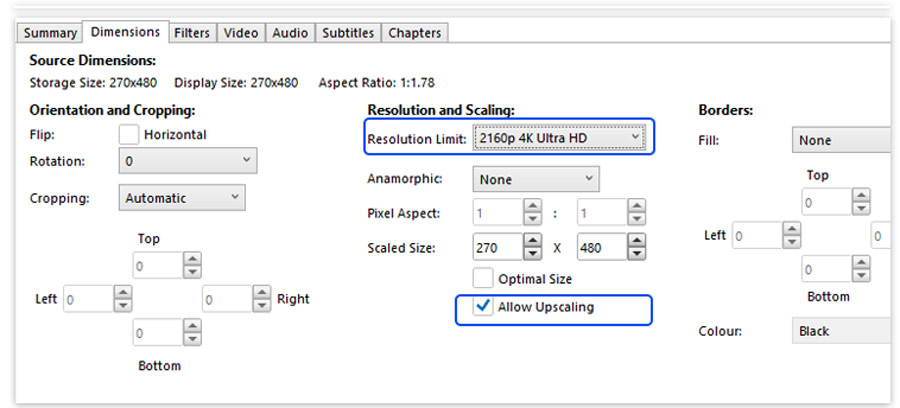
Open the Dimensions tab and turn on Allow Upscaling. Now set the Resolution Limit according to how large you want the output to be. For standard 16:9 video, common limits include:
- 720p HD: 1280 × 720
- 1080p HD: 1920 × 1080
- 2160 4K Ultra HD: 3840 x 2160
- 4320 8K Ultra HD: 7680 x 3840
Step 3. Set Your Target Resolution
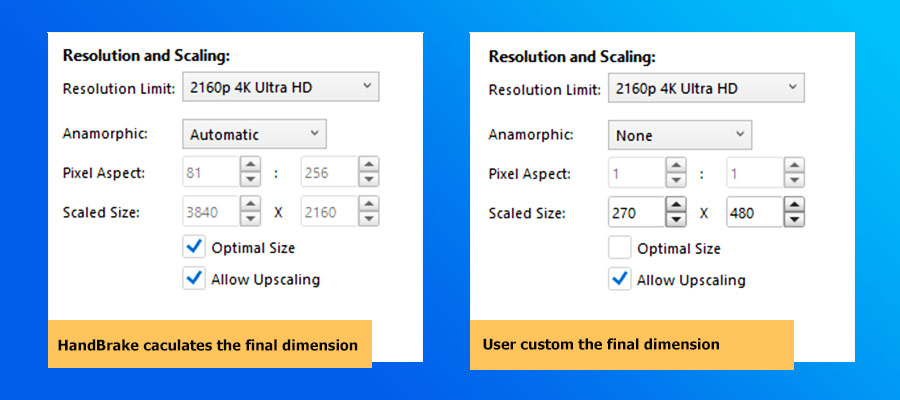
With Optimal Size enabled, HandBrake calculates the final dimensions for you, so you can't freely enter both width and height yourself. For example, if you're upscaling a 16:9 1080p source and set the Resolution Limit to 2160p 4K, the Scaled Size can reach 3840 × 2160. Check that value to confirm what HandBrake will actually output.
If you need to enter an exact width and height instead, set Anamorphic to Off and disable Optimal Size. You can then adjust both dimensions manually. Custom anamorphic mode also gives you more direct control over the output size.
Step 4. Check Cropping and Aspect Ratio
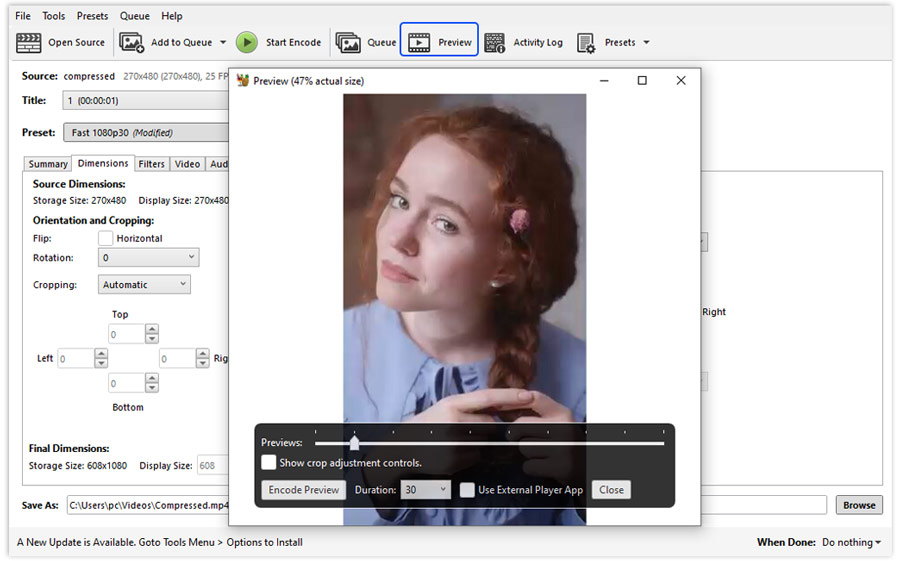
HandBrake can automatically crop black borders, but check the preview to make sure it hasn't removed any real picture content. Cropping changes the frame dimensions, so forcing a cropped source into 3840 × 2160 without preserving its aspect ratio can cause distortion. For most sources, leave Anamorphic set to Automatic unless you need more direct control over the output size.
Step 5. Choose the Video Quality Settings
Next, open the Video tab. A 4K output does not mean every setting needs to be pushed to its maximum. Select Constant Quality and, for x264 or x265, start with an RF value of 20–24 for 1080p output or 22–28 for 4K. Lower RF values preserve more of the encoded image but produce larger files, so test a short preview and adjust if necessary. RF controls compression quality, not detail that was missing from the source.
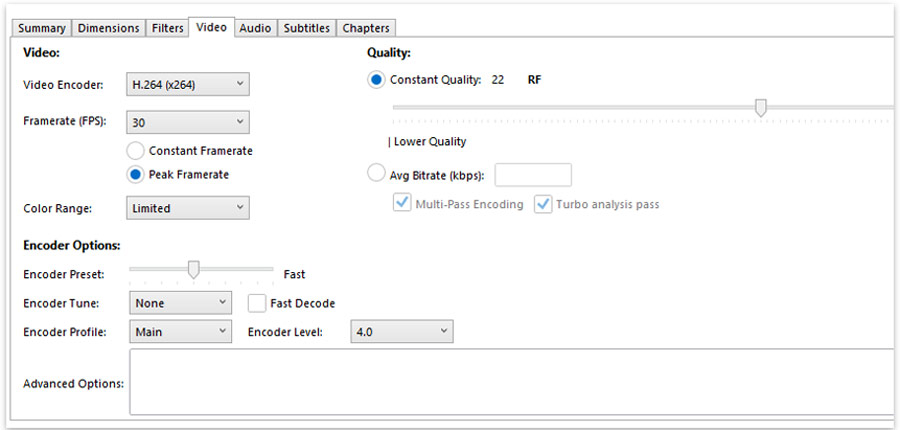
💡 Tip: Keep the source frame rate unless your editing software, delivery specification, or playback environment requires a different one. Upscaling changes the resolution, not the frame rate, and converting 30 fps footage to 60 fps does not add detail to individual frames.
Step 6. Export the Upscaled Video from HandBrake
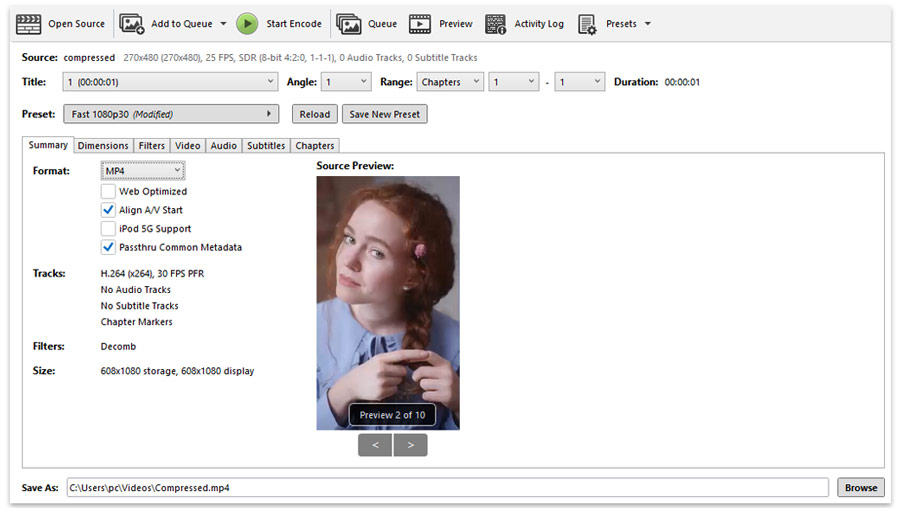
Click the Summary tab and choose the output format you need, such as MP4 or MKV. Set the destination path, then click Start Encode to export the upscaled video.
Best Settings for HandBrake Upscaling
There is no universal set of "best HandBrake upscale settings." A clean 1080p camera file, a DVD rip, an old screen recording, and a heavily compressed social-media clip all have different problems. A practical starting point looks more like this:
| Setting | Recommended starting point |
|---|---|
Allow Upscaling |
On |
Resolution Limit |
High enough for your target resolution |
Target resolution |
Only as high as your workflow needs |
Aspect ratio |
Preserve the source |
Anamorphic |
Automatic in most cases |
Quality mode |
Constant Quality |
Frame rate |
Based on the source unless your workflow requires otherwise |
Filters |
Enable only when there is a specific problem to fix |
Codec |
H.264 for compatibility; H.265 when efficiency matters and support is available |
Preview |
Test before a full encode |
The important phrase is starting point. Video encoding always involves tradeoffs among visual quality, file size, encoding time, hardware support, and compatibility. A number copied from somebody else's settings is not automatically right for your source.
What RF should you use
For x264 and x265 encodes, HandBrake's commonly recommended Constant Quality ranges move higher as resolution increases. Typical reference ranges are approximately:
| Resolution | RF range |
|---|---|
480p / 576p |
18–22 |
720p |
19–23 |
1080p |
20–24 |
2160p / 4K |
22–28 |
A lower RF value generally means higher encoded quality and a larger file. But this is where an important misunderstanding appears: RF is not an upscaling-strength setting. Choosing RF 18 instead of RF 24 does not tell HandBrake to reconstruct more missing texture or make a blurry face sharper. It tells the encoder to preserve the resulting image more faithfully during compression.
That can certainly matter. If your source has already been compressed once, you probably do not want to destroy additional detail with an unnecessarily aggressive second encode. At the same time, pushing RF far beyond what you can actually see may simply create a much larger file. A better approach is to encode a few short test clips at different values and compare them.
HandBrake Upscale: Should You Pick H.264 or H.265
Neither codec makes the upscale itself sharper. H.264 is still a practical choice when compatibility is the priority. H.265/HEVC can often deliver similar perceptual quality more efficiently, especially at higher resolutions, although it may encode more slowly and is not equally convenient in every editing or playback environment. Choose based on where the file needs to go. A video intended to play on a wide range of older devices has different needs from a personal archive or a file being uploaded to a modern video platform.
The same applies to hardware encoders such as NVENC, Quick Sync, VideoToolbox, and VCN. They can make encoding much faster, but their quality scales do not necessarily correspond directly to x264 or x265 RF values.
Does HandBrake Upscaling Actually Improve Video Quality
Usually, no. HandBrake can make a video larger, but it cannot restore detail that the source never captured.
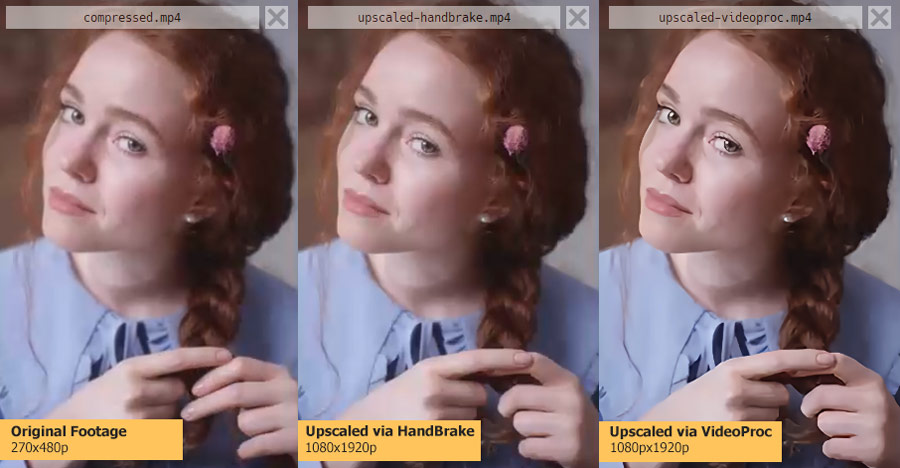
Take the video we just upscaled to 1080p with HandBrake in the steps above. Capture the same frame from the original and upscaled files and compare them side by side. The upscaled frame is larger, but the image quality is still poor: faces, edges, and fine textures remain soft. HandBrake has changed the frame size, but it has not restored the detail that was missing from the source.

When to Upscale with HandBrake and When Not To
Whether HandBrake is the right choice depends on what you want the upscale to accomplish. It works well when you need a larger file for a platform, project, or delivery requirement, but it is a poor fit if you expect blurry footage to become genuinely sharp. The sections below show where HandBrake fits and when you may need a tool designed to improve clarity.
When Should You Upscale with HandBrake
HandBrake is useful when the higher-resolution output itself serves a purpose. For example, sometimes a platform or editing project requires a video in 4K, even if the original footage was recorded at 1080p. In that case, you can use HandBrake to upscale the video to 3840 × 2160 and meet the required format. The output file will have 4K dimensions, but it will not have the same level of detail as footage originally recorded in 4K.
| Your goal | Is HandBrake upscaling a good fit? |
|---|---|
Deliver a file at a required 1080p or 4K resolution |
Yes |
Prepare a higher-resolution file for a platform workflow |
Often |
Match clips to a common project resolution |
Often |
Resize while also transcoding to H.264/H.265 |
Yes |
Work around poor scaling in a specific playback setup |
Possibly |
Make slightly smaller footage fit a larger production canvas |
Yes |
Make blurry footage genuinely sharp |
No |
Recover fine facial or text detail |
No |
Turn DVD footage into true native 4K detail |
No |
Upscale simply because “4K must look better” |
Usually not |
When Upscaling with HandBrake Won't Help
If your 1080p video already looks good and your TV, monitor, player, or editing software scales it properly, turning it into a 4K file may achieve little beyond another generation of encoding. The case is even clearer when the source itself is poor. A low-resolution video with blur, macroblocking, noise, ringing, or missing detail does not primarily have a “frame size” problem. Making the frame larger often just makes those flaws easier to see.
DVD footage is a good example. You can certainly create a 1080p or 4K output from a DVD source. That may be useful for compatibility or a production requirement. But the result should not be confused with material originally captured in HD or 4K. This is where the tool choice matters.
If the problem is resolution, HandBrake can resize it. If the problem is clarity, you may need something designed to enhance the picture rather than simply enlarge it.
Need 4K Clarity? Try the Best HandBrake Upscaler Alternative
There is nothing wrong with using HandBrake when the job is simply to resize a video. If you need a 1080p file converted to 4K dimensions, want more control over the codec and quality settings, or need to prepare a video for a particular delivery requirement, HandBrake does that job well. But that brings us back to the limitation mentioned at the beginning: making the frame larger does not necessarily make what is inside the frame clearer.
If you searched for a HandBrake upscaler because the original video looks blurry, noisy, compressed, or simply too soft on a larger screen, VideoProc Converter AI is a better fit. Its Super Resolution feature uses AI-based processing to upscale video to 1080p or 4K while naturally enhancing fine details such as feathers, fur, and fabric textures. It also automatically fixes visual flaws such as blurriness, graininess, and pixelation. To see this difference in action, I upscaled the exact same source clip to 1080p using both HandBrake and VideoProc Converter AI. Below is a side-by-side still-frame comparison. As you can clearly see, the frame upscaled by VideoProc looks noticeably sharper and cleaner, with the added detail blending in naturally rather than looking artificial or over-sharpened.
How to Upscale Videos with HandBrake's Best Alternative for 4K Clarity
Step 1. Download, install, and run VideoProc Converter AI. Choose Super Resolution. Import the videos.

Step 2. Choose the AI model. Gen Detail v3 and Real Smooth v3 are two of my favorite models. Select the target upscale ratio or pick the ideal resolution directly.
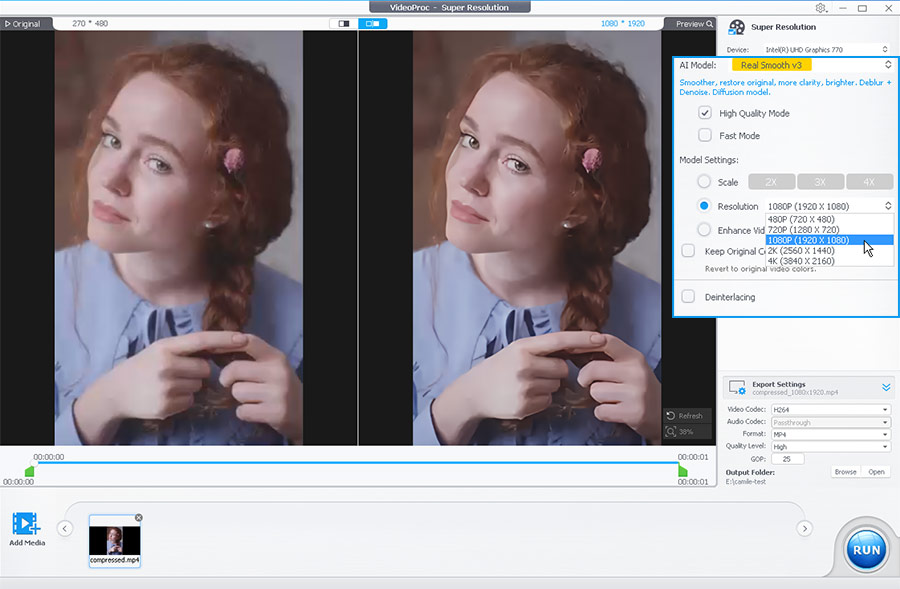
Step 3. Hit RUN to start exporting the upscaled videos from this powerful video enhancer.
Common HandBrake Upscaling Problems and Fixes
1. HandBrake Won't Let Me Increase the Resolution
Check Allow Upscaling first. If it is already enabled, look at Resolution Limit. A low limit can still cap your output even after upscaling has been allowed. Also check the aspect-ratio and dimension settings if HandBrake keeps recalculating one value after you change the other.
2. I Selected a 4K Preset, But the Video is Still 1080p
This is a common misunderstanding because a preset name can look like a target resolution. In HandBrake, preset resolutions generally behave as maximums rather than instructions to enlarge every smaller source. In other words: A 4K preset is not a "make this video 4K" button. A smaller source will not necessarily be enlarged just because you selected a 4K preset. You still need to enable upscaling and configure the dimensions appropriately.
3. Why Does My 4K Output from HandBrake Look Almost the Same As the 1080p Source
That is completely normal. If the original 1080p video already looked good and your display or player was scaling it well, creating a pre-upscaled 4K copy via HandBrake may produce very little visible difference. Both versions still originate from the same image information. This is also why judging an upscale at extreme zoom levels can be misleading.
4. Why Is My HandBrake Upscale File So Much Larger
After you use HandBrake to upscale a video, the output file may be much larger because it contains more pixels to encode. The codec and quality settings also affect the amount of data required. With Constant Quality encoding, HandBrake adjusts the bitrate to maintain the selected quality instead of targeting a fixed file size, so a complex source or lower RF setting can produce a substantially larger HandBrake upscale. A larger file still does not mean more original detail.
5. Why Does My HandBrake Upscale Look Stretched
Go back to the Dimensions tab and check the aspect ratio, cropping, anamorphic settings, and any manually entered width and height. If the source is not standard 16:9, forcing it into 1920 × 1080 or 3840 × 2160 can distort the picture. Preserve the source aspect ratio so upscaling does not change the shape of objects in the frame.
6. Why Does My HandBrake Upscale Look Worse
The problem may not be the upscale itself. Re-encoding with aggressive compression can reduce quality, while excessive sharpening may create halos and heavy denoising may remove fine texture. Try a short test with a higher-quality encode and fewer filters before blaming the resolution change.
FAQ
1. Can HandBrake upscale 1080p to 4K?
Yes. Enable Allow Upscaling in the Dimensions tab, make sure the Resolution Limit does not prevent a 4K output, and set the target dimensions appropriately. For standard UHD, the target is 3840 × 2160. The resulting file will have 4K dimensions, although it will not suddenly contain the same source detail as footage originally captured in 4K.
2. Does HandBrake improve video quality when upscaling?
Not inherently. HandBrake can enlarge the frame and preserve the source reasonably well when you use appropriate encoding settings. It cannot recover detail that is already missing simply by increasing the resolution.
3. What is the best RF for 4K upscaling in HandBrake?
For x264 and x265, RF values somewhere in the general 22–28 range are often used as a starting point for 2160p material, while 1080p commonly falls around RF 20–24. Do not treat those numbers as universal rules. RF controls the quality of the new encode, not the amount of detail created during upscaling.
4. Why can't I select a resolution higher than my source?
Make sure Allow Upscaling is turned on and check Resolution Limit. If HandBrake still changes the dimensions automatically, inspect the aspect-ratio, cropping, and anamorphic settings as well.
5. Does selecting a 4K HandBrake preset automatically upscale a 1080p video?
No. A 4K preset generally sets an upper resolution limit and a collection of encoding settings. It does not necessarily force smaller source material to be enlarged. To perform an actual upscale, configure it in the Dimensions tab.
6. Is HandBrake an AI video upscaler?
No. HandBrake can resize and encode video, but it is not an AI detail-restoration tool. If you want the source to look clearer as well as larger, an AI-based enhancer such as VideoProc Converter AI is designed for that type of task.
7. Is it worth upscaling 1080p to 4K with HandBrake?
It depends on why you need the 4K output. If you need it for a particular platform, delivery requirement, production workflow, or playback setup, it can make sense. If you are doing it purely because you expect 1080p footage to become dramatically sharper after being converted to 4K, the improvement may be disappointing.



