New AI features are available
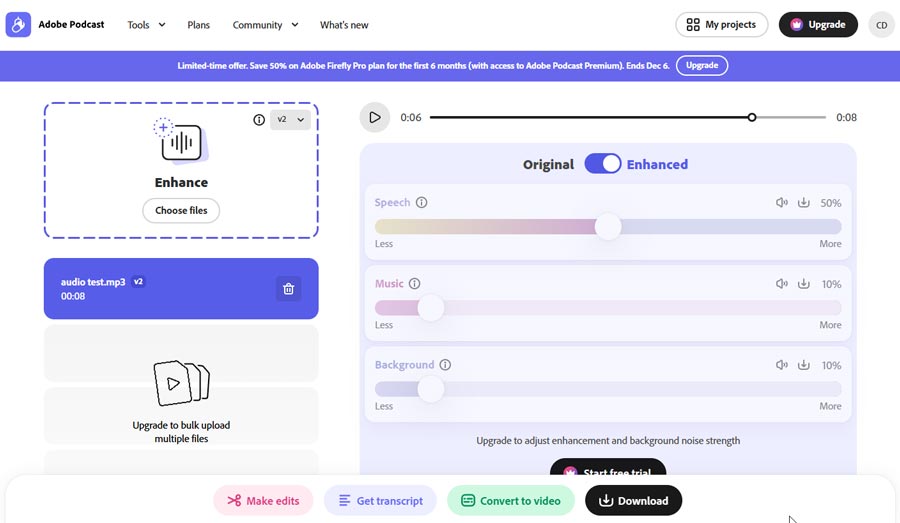
Adobe Podcast makes a striking first impression. With just a simple upload of your voice recording, you can effortlessly switch between the original and enhanced versions, instantly noticing how the background noise fades away. However, when you listen to the same passage a second time, you might pick up on different nuances—like how the speaker's tone shifts when they lower their voice or break into laughter. This is where I believe the true quality of the audio cleanup shines.
One of the standout features is the Enhance Speech option, which you can try for free. But for those contemplating a deeper dive into Adobe Podcast, the real question is how well the platform aligns with your specific needs. In this review, I'll explore the sound quality, the enhancing and editing experience in Studio, and the types of projects that truly justify upgrading to the Premium version.
What Is Adobe Podcast
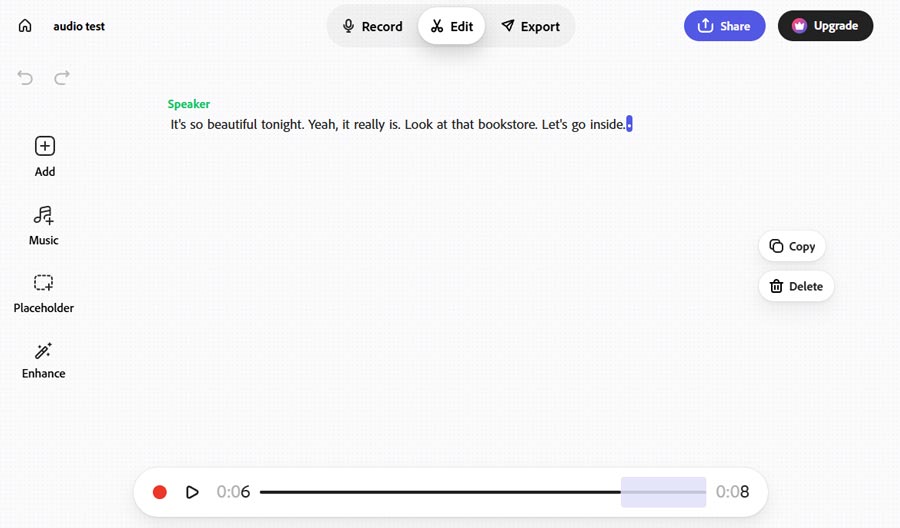
Adobe Podcast is a browser-based toolkit for recording, cleaning up, and editing spoken audio. Enhance Speech is the feature that lets you upload an existing recording and hear a cleaner version. If you're starting from scratch, you can also check your microphone before recording, invite a remote guest into Studio, and edit the conversation from its transcript.
- Mic Check: Record a short sample before your session to check how your microphone sounds. Feedback on issues such as background noise and echo gives you a chance to adjust your setup while you can still change the recording.
- Enhance Speech: Upload a voice recording to reduce background noise and room echo, then switch between the original and enhanced versions to hear what changed. The free plan accepts audio files. Premium also accepts video and lets you adjust the processing strength.
- Studio: Record in your browser or import an existing file, then use the transcript to find and edit a passage by its words. You can add your own music, choose a track from Adobe's library, or leave a placeholder for an intro you plan to record later.
Adobe Podcast Pricing: Is Adobe Podcasts Free
Adobe describes Enhance Speech as free on its website. So, is Adobe Podcast free to use? Yes. The free plan lets you clean up audio with Enhance Speech, check your microphone with Mic Check, and record and edit in Studio. The limits depend on what you upload. On Free, Enhance Speech accepts one audio file at a time, up to 30 minutes and 500 MB per file, with one hour of processing per day. Premium adds direct video uploads, batch processing, adjustable enhancement strength, and higher limits.
| Feature | Free | Premium through Firefly Pro |
|---|---|---|
Enhance Speech uploads |
Audio only, one file at a time |
Audio or video, with batch uploads |
Enhancement limits |
30 minutes and 500 MB per file, up to 1 hour per day |
2 hours and 1 GB per file, up to 4 hours per day |
Sound controls |
Fixed enhancement strength |
Adjust speech, music, and ambience |
Studio recording and editing |
Browser recording and transcript-based editing |
Same editing tools, plus downloads of each speaker's original recording |
Finished Studio projects |
Download up to 2 projects per day, up to 30 minutes each |
Unlimited project downloads, up to 2 hours each |
Mic Check |
Included |
Included |
How Much Does Adobe Podcast Premium Cost
As of November 19, 2026, new US subscribers get Adobe Podcast Premium through Firefly Pro. Eligible first-time subscribers who sign up by December 6, 2026, get a reduced rate for their first six months.
Month to month: $19.99 per month, or $9.99 per month for the first six months for eligible first-time subscribers.
Annual commitment, billed monthly: $16.99 per month with a 12-month commitment, or $8.49 per month for the first six months for eligible first-time subscribers.
Hands-On Test: Audio Cleanup and Editing in Adobe Podcast
I tested Adobe Podcast on the free plan with three recordings, then took one of them into Studio to see how it would edit. I initially tried uploading a video to Enhance Speech. Adobe prompted me to upgrade to Firefly Pro, so I switched to an audio clip.
How the Three Recordings Sounded
| Recording | What I heard in the original | What changed after enhancement |
|---|---|---|
Outdoor winter conversation |
A man and a woman talking over street noise and light wind |
The street sounded quieter, and both voices still sounded natural. I liked the results from both V1 and V2. |
Indoor podcast |
A steady hum beneath the dialogue |
The hum was much less distracting at the default setting. |
Street interview |
Traffic and wind competing with the speakers |
The dialogue was easier to follow. I'd have kept the processed version. |
The winter conversation was the clip I kept going back to. Even with the street noise reduced, the speakers still sounded like two people talking outdoors. Neither version made their voices sound overly dry, and I didn't hear enough of a difference to prefer V1 or V2 on that recording. Across all three clips, I was happy with the default strength.
Editing in Adobe Podcast Studio
The transcript made it easy to find a quote in my winter recording. What it didn't tell me was who said it. Studio transcribed both sides of the conversation in one continuous passage, so I replayed the line before attributing it to a speaker. That took a few seconds. If you're pulling several quotes from a longer recording imported as one file, checking the speaker on each cut could take more time than finding the words.
For arranging an episode, I liked being able to leave a placeholder for an intro and carry on editing. Music was just as straightforward: I could use my own track or choose one from Adobe's library.
Adobe Podcast User Feedback
Overall, the feedback I found on YouTube, Reddit, and Adobe Community was positive about Enhance Speech's ability to rescue noisy recordings. What impressed people most was how clearly a voice could come through afterward. On Adobe Community, @natural_Lark5EE1 described restoring podcast recordings from 2006. The originals sounded as though they'd been recorded in an auditorium. What stood out to them was how well the speaker's familiar voice came through after cleanup:
"Adobe Podcast is the only one that was able to make a radio broadcast quality voice identical to the original." — @natural_Lark5EE1 on Adobe Community
Users also mention a few problems with how the audio sounds after cleanup:
- In very noisy recordings, Enhance Speech can quiet the background but leave the voice sounding less natural. For example, in a four-microphone comparison, the producer heard less background noise in the processed iPhone clip, but also noticed clicks in the speaker's voice. The AirPods and lavalier clips sounded clearer after cleanup.
- Enhance Speech can make laughter harder to hear and some words harder to understand. For example, users in an Adobe Community discussion described laughs that sounded faint or echoey after cleanup. A report about Urdu and Arabic recordings describes words that were clear in the original audio but sounded slurred in the enhanced version.
Adobe Podcast: Pros and Cons
My tests and other users' reviews point to the same strength: Adobe Podcast can make speech easier to hear in a noisy recording. The main trade-offs are how the cleanup affects the voice and how much control you get on the free plan.
Pros
- Free reduced hum, traffic, and light wind in my clips while keeping the voices natural.
- You can find a quote in the transcript and export it as a clip.
- Studio lets you add music and leave placeholders for unfinished sections.
- Premium accepts video uploads and lets you download each Studio speaker's original track.
Cons
- Free limits each audio upload to 30 minutes.
- You need Premium to adjust the cleanup strength.
- Studio didn't label the two speakers in my imported recording.
- Some users heard quieter laughter or less distinct words after cleanup.
Is There a Good Adobe Podcast Alternative for Noise Removal
Need to remove background noise from multiple videos at once? Looking for a more affordable alternative to Adobe Podcast? VideoProc Converter AI is a great option. Its Noise Suppression tool lets you batch-process video and audio files directly, so you don't have to extract audio from each video first. Just add your files, remove unwanted noise, and save time on repetitive editing. It's also much more affordable, costing just $34.95 per year or $54.95 for a lifetime license on one computer, with unlimited AI tool usage. In comparison, Adobe Podcast Premium comes with Firefly Pro at $19.99 per month, costing nearly $240 for just one year. Plus, there's much more you can do with VideoProc Converter AI:
- Make podcasts, meeting recordings, and other audio sound clear with advanced AI.
- Clean hums, buzzes, hissing, clicks, wind, traffic sounds, and all kinds of background noise.
- Support MP3, WAV, FLAC, OGG, M4A, M4V, MP4, MOV, MKV, and 370+ video and audio formats.
- Rich AI features: upscale video/image by 400%, stabilize shaky footage, and more
- Convert, compress, record, and download videos and audio in one place.


Final Verdict: Is Adobe Podcast Premium Worth It
Adobe Podcast Free is good enough for basic audio cleanup. In my tests, it noticeably improved outdoor conversations, indoor recordings with steady hum, and interviews with traffic noise. Adobe Podcast Studio also makes it easy to edit dialogue, add music, and organize recordings. For occasional podcasts, interviews, or voice recordings, I'd stick with the free version.
Premium makes more sense if you regularly work with video or large batches of files. Direct video uploads, batch processing, and support for longer files can save time, especially when you're handling multiple interviews or episodes. However, at $19.99/month for Firefly Pro, it's worth upgrading only if you'll use those features often. For my three test recordings, the Free plan already delivered the audio improvements I needed.