 Listed in Resolution
Summary: 4:3 resolutions, often used for classic CRT monitors, retro gaming, or stylized video, include XGA (1024×768), SXGA- (1280×960), UXGA (1600×1200), QXGA (2048×1536), and 2880×2160 for 4K editing. - VideoProc Vlogger.
Quick Navigation:
- Part 1: What Are the 4:3 resolutions
- Part 2: List of 4:3 Resolutions
- Part 3: What Is 4K Resolution in 4:3 Aspect Ratio
- Part 4: The Difference Between 4:3 and 16:9
- Part 5: Change Aspect Ratio without Distortion
What Are the 4:3 Resolutions
The 4:3 aspect ratio, widely used for classic monitors, retro gaming, and certain video projects, supports a variety of resolutions. Commonly used resolutions include:
- 640×480
- 800×600
- 960×720
- 1024×768
- 1280×960
- 1440×1080
- 1600×1200
- 1856×1392
- 1920×1440
- 2048×1536
In addition, there are many less common or specialized 4:3 resolutions, often used for high-resolution editing, vintage video, or specific device formats. These include 160×120, 256×192, 320×240, 384×288, 400×300, 512×384, 832×624, 1152×864, 1400×1050, 1792×1344, 1856×1392, 2304×1728, 2560×1920, 2800×2100, 3200×2400, 4096×3072, 2704×2028, 2720×2040, 2732×2048, 4000×3000, and 6400×4800. While some of these resolutions are rarely used, they remain important for certain professional applications or high-res digital projects.
4:3 Resolution Chart: Pixels, Designations, and Common Uses
We make a list of both common and uncommon 4:3 resolutions below. Use it as a 4 by 3 resolutions cheat sheet.
| Resolution(Width x Height) | Total Pixels |
Designation |
Note |
|---|---|---|---|
160 x 120 |
19,200 |
QQVGA |
|
256 x 192 |
49,152 |
0.05M3 |
Nintendo DS (each screen) |
320 x 240 |
76,800 |
QVGA |
|
640 x 480 |
307,200 |
VGA |
|
800 x 600 |
480,000 |
SVGA |
|
960 x 720 |
691,200 |
0.69M3 |
|
1024 x 768 |
786,432 |
XGA |
|
1152 x 864 |
995,328 |
XGA+ |
|
1280 x 960 |
1,228,800 |
SXGA− |
720P |
1400 x 1050 |
1,470,000 |
SXGA+ |
|
1440 x 1080 |
1,555,200 |
1.56M3 |
|
1600 x 1200 |
1,920,000 |
UXGA |
|
1856 x 1392 |
2,583,552 |
2.58M3 |
|
1920 x 1440 |
2,764,800 |
2.76M3 |
1080P |
2048 x 1536 |
3,145,728 |
QXGA |
2K |
2560 x 1920 |
4,915,200 |
4.92M3 |
|
2880 x 2160 |
6,220,800 |
3K UHD |
|
3072 x 2304 |
7,077,888 |
3K |
|
3840 x 2880 |
11,059,200 |
4K UHD |
|
4096 x 3072 |
12,582,912 |
HXGA |
4K |
5120 x 3840 |
19,660,800 |
5K |
|
6144 x 4608 |
28,311,552 |
6K |
|
7680 x 5760 |
44,236,800 |
8K UHD |
|
8192 x 6144 |
50,331,648 |
8K |
What Is 4K Resolution in 4:3 Aspect Ratio
4K resolution generally refers to a horizontal pixel count of around 4,000, with "K" standing for kilo, or a thousand. While 16:9 is the most common format for 4K displays, 4:3 aspect ratio also has its place in professional video editing, archival work, and certain creative applications.
4096×3072 is a true 4K resolution in 4:3 format, providing a taller, almost square-like frame compared to widescreen 4K (3840×2160 in 16:9). This extra vertical space can be useful for cinematic cropping, IMAX-style presentations, or content originally shot in older 4:3 cameras. Filmmakers and videographers sometimes prefer this format for projects that require a balanced frame without stretching or letterboxing.
Using 4K 4:3 resolution ensures maximum pixel density for vertical-oriented shots, archival scans of photographs, and high-resolution content intended for both legacy and modern displays. Although less common than 16:9, it remains an important choice when precise framing and high-quality vertical space are priorities.
The Difference Between 4:3 and 16:9
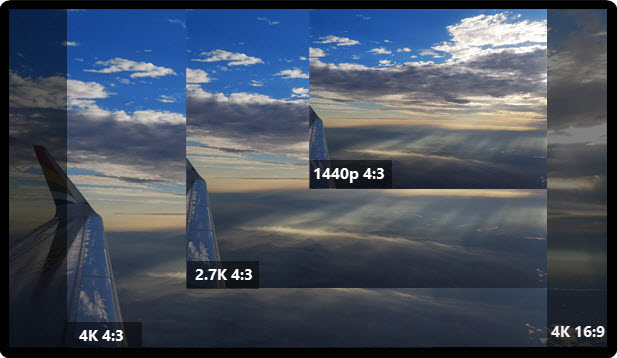
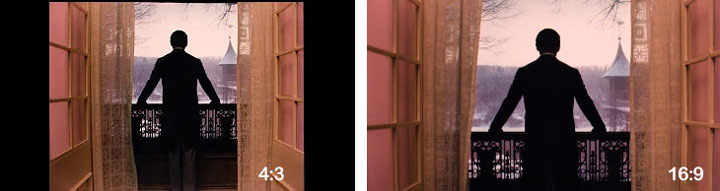
The 4x3 resolutions (1.33:1) is the classic TV standard, meaning the screen width is 4 units for every 3 units of height. In contrast, 16:9 (1.78:1) is the standard for HDTVs and modern monitors, offering a wider display that accommodates more horizontal content. This extra width makes videos and games feel more immersive compared to traditional 4:3 screens ( learn more about aspect ratios in Shotkit’s guide).
Despite its age, 4x3 resolutions remains relevant. Many action cameras, like GoPro and DJI Osmo Action, still include 2.7K and 4K 4:3 recording modes, ideal for cropping or creating vertical-friendly content. Even in cinema, directors sometimes favor taller aspect ratios: Zack Snyder chose a near-square format for Justice League to take full advantage of IMAX screens, rather than the standard widescreen crop. Understanding these uses also helps explain why 4:3 resolutions continue to be important for video production and gaming.
How to Change Video Resolution/Aspect Ratio
When you upload 4:3 videos to YouTube or other popular social media platforms, there will be unsightly black bars on the left and right side in the thumbnail. The industry used to favor the 4:3 aspect ratio, yet 16:9 is the norm now, as it is more stretched out, offering more pictures on the edge of current mainstream screens. Then how to change video resolution from 4:3 to 16:9?
Method 1. Change Aspect Ratio 4:3 to 16:9 with VideoProc Vlogger
To change aspect ratio, the easiest and intuitive way is to use the all-around video editing software - VideoProc Vlogger. You can crop a video to any aspect ratio, change resolution and aspect ratio simultaneously, or simply select an aspect ratio preset based on personal preference that automatically sets up everything.
VideoProc Vlogger - Change Aspect Ratio Video / Image for Free
- Resize between 4:3, 16:9, 1:1 and portrait 9:16, custom aspect ratio, etc.
- Select a fixed aspect ratio, and export the video at different resolutions of the same aspect ratio.
- Crop the unwanted area of the video and fit to the screen to keep a fixed resolution.
- Trim and split videos, edit motion and speed ramping effects, color grade footage of almost all formats.

How to Change Aspect Ratio 4:3 to 16:9 with VideoProc Vlogger
Before you change video resolution or aspect ratio, you should know where you will play the video on. For uploading online on social media like Instagram, 1:1 might be a good one. To present magnificent scenery on YouTube, choose 16:9 or any other widescreen resolutions.
The following steps are showing how to make the 4:3 to 16:9 conversion with VideoProc Vlogger.
First thing first, download VideoProc Vlogger for free and launch it after installation. Then import the 4:3 video file to the Media Library by clicking the + icon on the main interface. Drag and drop it to the Video Track.
Option 1. Change 4:3 to 16:9 by Cropping.
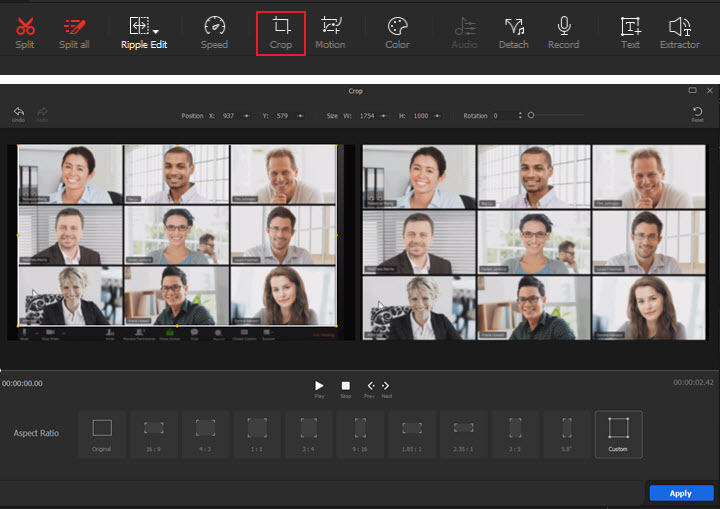
Step 1. Click the Crop button in the Toolbar.
Step 2. Choose 16:9 in the Preset Aspect Ratio.
Step 3. Customize position, size, and other parameters of the crop area.
Step 4. Hit Apply to save the change.
Option 2. Convert 4:3 to 16:9 by Changing Aspect Ratio.
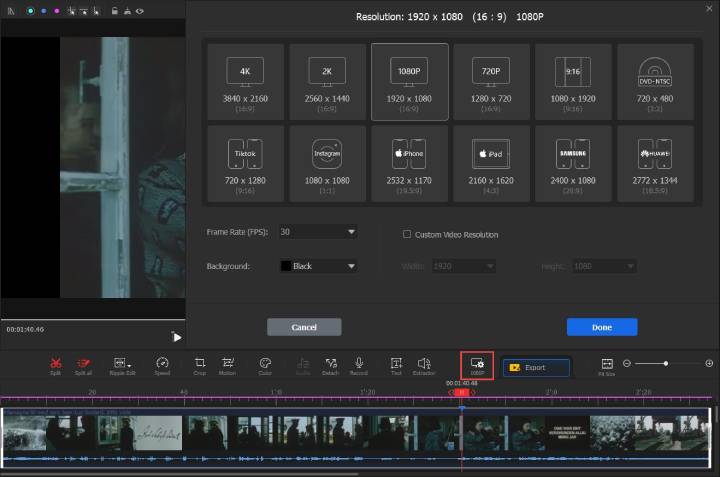
Step 1. Head to the Resolution button in the Toolbar.
Step 2. Choose a 16:9 preset or customize video resolution to 16:9.
Step 3. Click Done to save the change.
Note:
If you want to change video resolutions, aspect ratios, as well as video formats, then try the best video converter, VideoProc Converter AI.
If you want to improve your images and make your photos look better, try some photo enhancement services.
Method 2. Convert 4:3 to 16:9 with EaseUS Video Converter
As its name indicates, EaseUS Video Converter is a specially designed tool for video conversion. In addition to convert videos between various formats, it is aslo workable to convert audio from one format to another or convert videos between different resolutions, including changing 4:3 aspect ratio to 16:9.
Without manually cropping or adjusting the video, you will be able to change a video from 4:3 to 16:9 via proper settings using EaseUS Video Converter. By the way, during the video conversion, you can change the video format between a wide range of video formats, like MP4, MKV, FLV, MOV, and more. Moreover, you can opt a target resolution directly according to the device you use, be it Apple devices, Android devices, or TVs. Don't hesitate to give it a try.
Download EaseUS Video Converter to Convert Video Aspect Ratio:
1. Convert videos between different resolutions
2. Convert video/audio files from one format to another
3. Compress videos without losing quality
Steps to convert a video from 4:3 to 16:9:
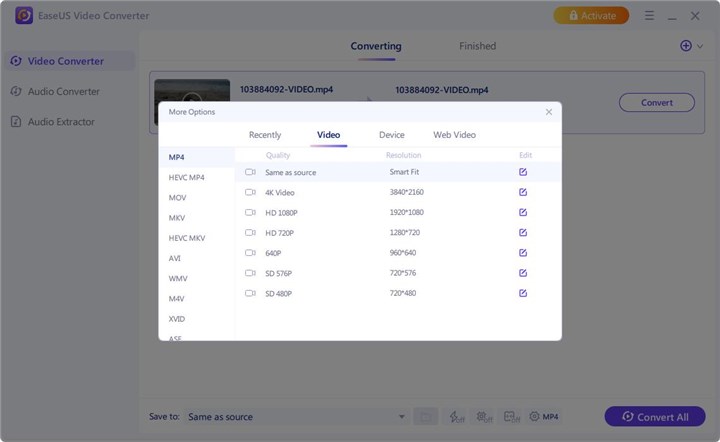
Step 1. Launch EaseUS Video Converter and go to Video Converter.
Step 2. Click Choose Files and select the source video you want to convert.
Step 3. Click the Settings icon, switch to the Video tab, and then choose the aspect ratio you prefer.
Step 4. Click Converter to start changing 4:3 to 16:9.
Method 3. Convert 4:3 video to 16:9 with AceThinker Video Editor Pro
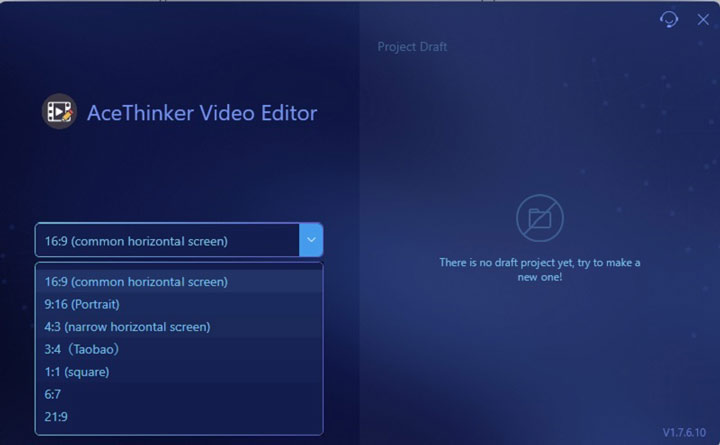
Without any complicated steps, AceThinker Video Editor Pro can also change the aspect ratio of any video easily. As a preset, you can easily set the aspect ratio between 16:9 (common horizontal screen), 9:16 (Portrait), 4:3 (narrow horizontal screen), 3:4 (Taobao), 1:1, 6:7, and 21:9.
Download AceThinker Video Editor to Change Aspect Ratio:
- Set the aspect ratio between 1:1, 4:3, 9:16, 16:9, and more.
- Crop the video with a fixed aspect ratio.
- Make the video more appealing by cutting, splitting, rotating, adding subtitles, overlaying, and more.
Option 1. Change 4:3 to 16:9 by Using 16:9 Preset
Step 1. If you haven't installed the Video Editor on your computer, download it by visiting the AceThinker Video Editor official website
Step 2. Finish all the installation prompts and launch the tool.
Step 3. Select the 16:9 (common horizontal screen) and click New Project.
Step 4. After that, you can select the video you want to edit by dragging the media file to the tool.
Step 5. Once you have adjusted the video according to your preference, you now click Export to save the video changes.
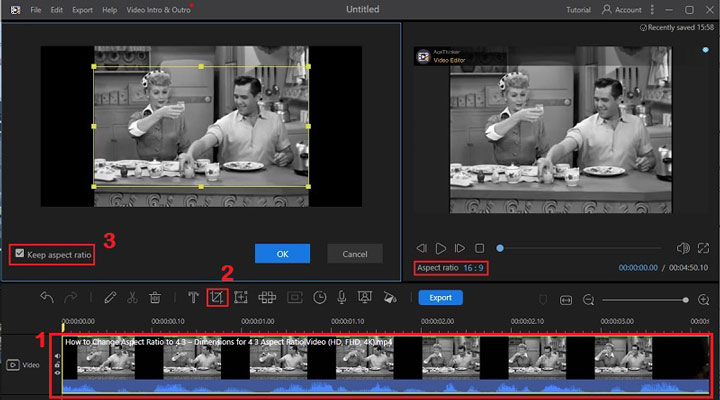
Option 2. Convert 4:3 Video to 16:9 Video by Cropping
This method is applicable if you have a video that is saved with a 4:3 aspect ratio.
Step 1. Launch the tool, select the 16:9 aspect ratio, and click New Project.
Step 2. Import the video by dragging and dropping it on the tool. Click the video on the timeline editing panel, then hit Crop.
Step 3. After that, a source panel will appear and hit Keep aspect ratio to convert the 4:3 video to the 16:9 video.
Step 4. Lastly, to save the changes you have made, hit the Export button.