
 New AI features are available
Have you ever found yourself replaying the same five seconds of a YouTube video over and over? Maybe you're trying to learn a tricky guitar riff, memorize a foreign phrase, or perfect your form on a new exercise. You hit the replay button, wait for the video to load again, and then... you do it all over. It's tedious, it breaks your flow, and it wastes precious time.
Here's the good news: you don't have to keep doing that. YouTube has built-in ways to loop videos, plus many tools to repeat specific sections almost effortlessly. Ready to save yourself some clicks? Let's dive in.
How to Loop a YouTube Video on PC and Mac
If you are on a computer, looping a YouTube video takes just one click. Well, one right-click, to be precise. The built-in loop button works in every major desktop browser and gets the job done with zero fuss. Note this only repeats the entire video from start to finish. You can't use it to select a specific section or segment for repeated playback.
Here's how to repeat a YouTube video on PC and Mac.
- Open and play any video on YouTube.
- Move your mouse cursor over the watch screen itself.
- Right-click directly on the video in the video player.
- Click the "Loop" option in the context menu.
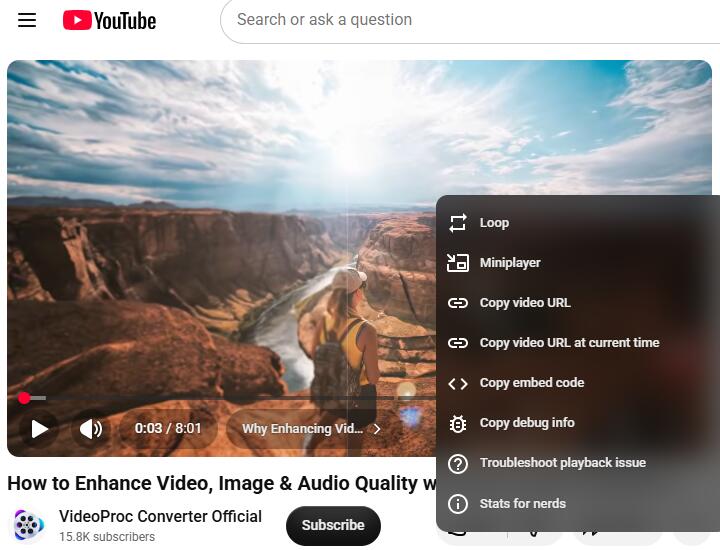
That's it. And turning it off is just as easy. Right-click the video again and uncheck the "Loop" option. Or, if you prefer, just refresh the page and the loop will stop.
How to Loop a Section of a YouTube Video
When you only care about a tiny segment, the built-in loop button isn't very useful, since it simply repeats the entire video from start to finish. In such cases, a YouTube looper tool can help by letting you set a custom start and end point for your loop.
You paste a YouTube link, choose your section, and the site handles the rest. No downloads, no installations, and they work on both computers and phones. As long as you have an internet connection, you are good to go.
Follow the steps below to loop a specific part of a YouTube video using LoopTube.
- Head over to looptube.io.
- Paste your YouTube URL into the box.
- Drag the first slider to mark where your loop should begin and the second slider to mark where it should end.
- Hit play, and the video will repeat just that segment over and over.
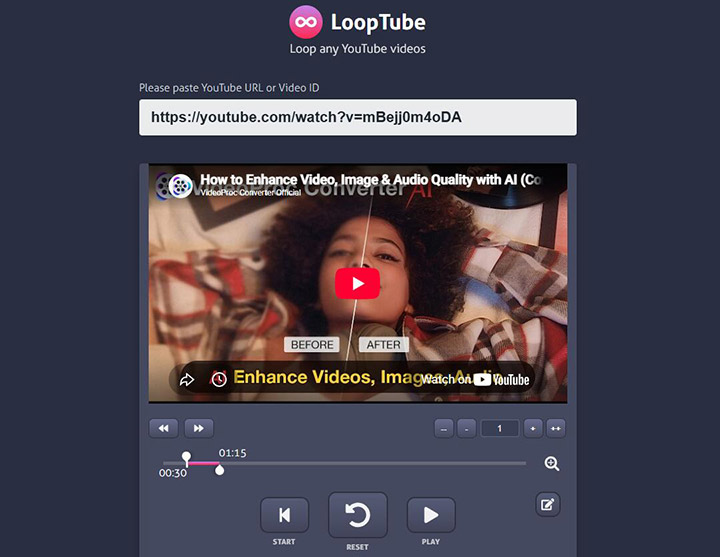
A couple of things to keep in mind. These video loopers work by embedding the YouTube player, so they rely on YouTube's video availability. If the original video gets taken down or made private, your loop won't work.
Loop a YouTube Video Without Right-Clicking
The built-in loop button and third-party websites are great for quick fixes. If you prefer not to leave the playback page, some browser extensions can help you loop either the entire video or just a certain part. Looper for YouTube is my personal favorite. Once installed, it adds dedicated loop controls directly to the YouTube player interface seamlessly. It lets you set custom AB repeat points, loop count, etc.
Here's how to set a YouTube video to play in loop without right-clicking.
- Go to the Chrome Web Store and install the Looper for YouTube extension.
- Open any video on YouTube.
- Click the "Loop" button under the YouTube player.
- Drag the sliders or manually enter the start and end times for the loop.
- Play the video, and it will then loop between those two points until you tell it to stop.
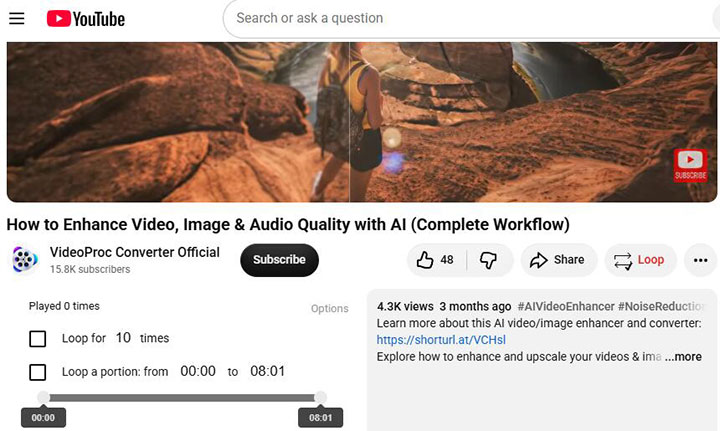
Extensions are particularly useful if you loop videos regularly. They remember your settings and give you the kind of fine-tuned control that no built-in feature can match. One quick note: only install extensions from official stores to avoid malicious software.
How to Loop a YouTube Video on Mobile
YouTube's built-in loop option works the same way on mobile devices and desktop computers. If you are watching YouTube on your phone, you just need to dig into the settings menu to find it.
Here's how to loop a YouTube video on mobile, both iPhone and Android devices.
- Open the YouTube app on your phone and start playing any video.
- Tap once on the video screen to bring up the playback controls.
- Go to Settings > Additional settings.
- Tap Loop video. Your video will now repeat continuously until you stop it.
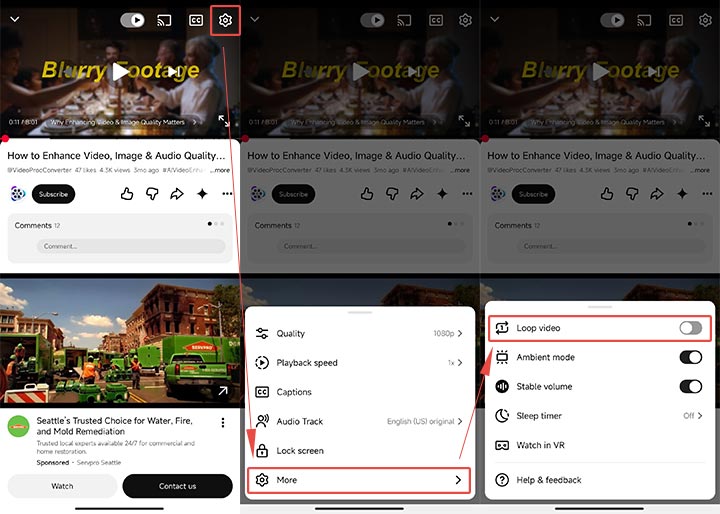
Just like on the desktop, this only loops the entire video from start to finish. You cannot select a specific section or skip around. And make sure your YouTube app is updated to the latest version. The "Loop video" option sometimes doesn't appear in older builds.
Download the Video and Loop When Playback
Streaming a video from YouTube is convenient, but it has its limits. You need an internet connection. The video might buffer at the worst possible moment. And if the uploader decides to make the video private or delete it, poof, it's gone.
Downloading a YouTube video solves all those problems. You get a permanent copy that lives on your device. And you can, of course, configure your media player to loop the video during local playback. You'll need a reliable video downloader, and one of the best options out there is VideoProc Converter AI.

VideoProc Converter AI - HD Batch Video Downloader
- No pop-ups or ads. 100% clean and safe to download and use
- Support 1000+ popular sites and 2000+ niche sites
- HD 1080p/4K/8K output (up to the original video resolution)
- Batch download videos, audio, subtitles, M3U8, and playlists in sec

Follow the steps below to download YouTube videos and set them on loop when playing back.
- Download and install VideoProc Converter AI.
- Enable the Downloader module from the main interface.
- Paste the YouTube URL or the playlist link into the box.
- Select your desired quality and click the "Download now" button to start the download.
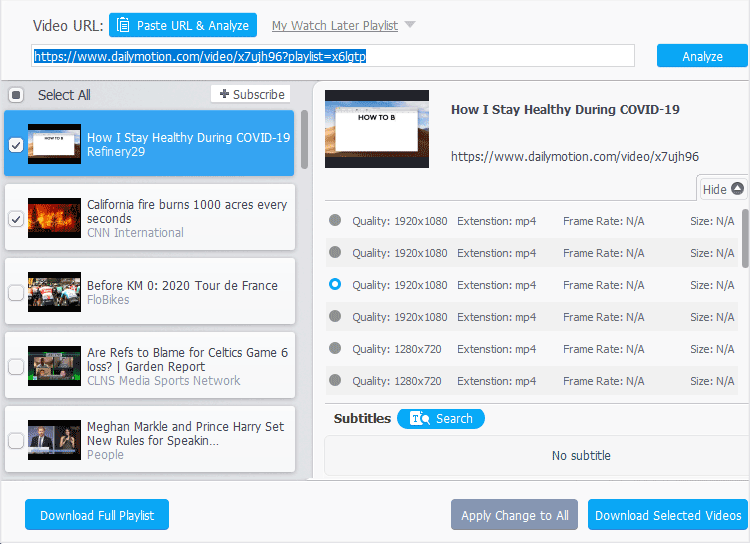
That's it. You now have a local copy that you can play, edit, or loop anytime you want. You can then set up looping in any local media player. Follow these steps below.
VLC Media Player:
- Open the video using VLC.
- Click the Loop button in the bottom playback toolbar to loop the entire video.
- To repeat a specific clip inside a video, click View > Advanced Controls in the top menu bar. A new A-B loop button will appear above the standard playback controls.
- Play your video and click the A-B loop button once at the desired loop start point.
- Continue playback, then click the A-B loop button again at the desired endpoint to set the loop's endpoint.
- The video will now continuously loop that specific segment.
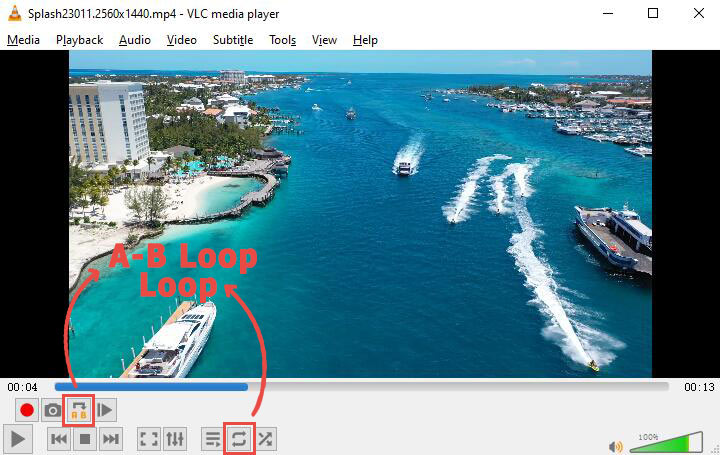
If you want to watch the video on your phone, the built-in Google Photos and Apple Photos apps also allow for loop playback. Please note that the looping functions in these two apps currently only repeat the entire video. You cannot loop just a specific segment of a video.
Google Photos:
- Open the Google Photos app and tap on the video you want to watch.
- Tap the three dots in the top-right corner to open the menu.
- Select Loop video to toggle the feature on.
Apple Photos app:
- Open the Settings app > Apps > Photos.
- Find the Loop Videos toggle switch and turn it ON.
Downloading gives you freedom. You are no longer tied to YouTube's servers or your internet speed. No buffering and no risk of the video being interrupted. It just plays, over and over, exactly as you need it.
Conclusion
So that's all about how to loop a YouTube video. We've covered a lot of ground together. You now know several ways to keep a video playing on repeat. The built-in loop button is the quickest option, but it only allows for looping the entire video rather than just a specific segment.
For those who only need a specific section, third-party YouTube loopers like LoopTube and browser extensions offer the flexibility to set start and end points.
Downloading a video gives you ultimate flexibility. With a tool like VideoProc Converter AI, you can save any YouTube video to your computer. Then you can loop it in VLC Media Player with advanced A-B controls, in Google Photos, or in the Apple Photos app. You are no longer dependent on an internet connection, and you never have to worry about the video disappearing.



