
 VideoProc Converter AI
 New AI features are available


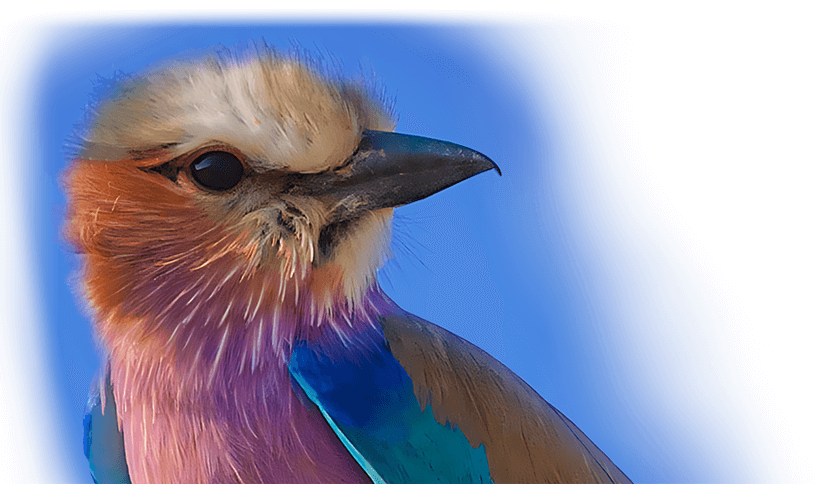
Have you ever uploaded a photo to Facebook, only to find that it looks blurry and low-quality compared to how it appeared on your device? It’s a frustrating experience, especially when you’ve captured the perfect moment with a high-quality camera or smartphone. You might wonder, "Why are my Facebook photos blurry?"
You're not alone - blurry images are a common problem for many social media users. Whether it's due to low-resolution uploads, Facebook's image compression algorithm, or issues with your camera, blurry photos can significantly detract from the impact and effectiveness of your content.
In this post, we'll explore the causes of why your Facebook photos may appear blurry and share proven techniques to help you capture crystal-clear images for your perfect posts. We’ll also introduce you to VideoProc Converter AI, a powerful tool designed to upscale and enhance your images like no other.

Why Do My Photos Look So Blurry on Facebook
Facebook photos often look blurry mainly because of how the platform processes and delivers images. Here are the primary reasons:
1. Compression During Upload
Facebook automatically compresses images to save storage space and speed up load times, especially on mobile networks. Unfortunately, this compression can sometimes lead to a noticeable loss in quality, making your photos appear blurry.
2. Automatic Resizing
Facebook has preferred display sizes for different placements, such as feed posts, profile pictures, cover photos, Stories, etc.
If your photo is much larger or smaller than those targets, Facebook scales it up or down. If your original image resolution is too low, this resizing can result in a even more blurry photo.
3. Source Photo Problems
Sometimes the blurriness starts before Facebook ever touches the image. Maybe the original photo was slightly out of focus, affected by camera shake, low light, or digital zoom. Or maybe the file was already heavily compressed, for example, saved multiple times as JPEG at low quality.
4. Upload Quality Settings
By default, many devices, especially mobile, upload in a lower-quality mode to save data and speed up the process. Data Saver mode in the Facebook app or system-level data-saving features on your phone deliberately lowers image quality.
5. Viewing and Delivery Factors
On high-resolution screens like Retina or HiDPI, compression artifacts become more noticeable.
A slow or unstable internet connection can also affect the quality of your uploaded photos. If your connection drops during the upload process, the photo may not upload correctly, resulting in a blurry image.
Cached low-quality versions or temporary loading issues in the app/browser can make photos appear blurrier than they actually are until fully loaded.
How to Make Facebook Photos Clearer
1. Enable HD Uploads
To minimize the effects of compression, consider adjusting your Facebook app settings and upload your photos in HD quality. This is the single best step and is often off by default, especially on mobile to save data.
On the Facebook mobile app:
- Tap the menu icon (three lines or your profile picture).
- Go to Settings & Privacy > Settings.
- Scroll to Preferences, or look for Media / Media and Contacts.
- Tap Media.
- Turn on Upload photos in HD (and videos in HD if available).
On desktop:
- When creating a photo album, look for a High Quality checkbox or settings option and enable it.
- In some account settings under Videos/Photo quality, choose HD if available.
After enabling this, new uploads use higher resolution and less aggressive compression.
2. Turn Off Data Saver Modes
Data Saver mode is another common culprit. When this setting is on, Facebook limits how much data videos can use. The same thing happens if Low Data Mode is active on your phone.
In Facebook app:
- Go to Settings & Privacy > Settings.
- Scroll to Media.
- Turn off Data Saver.
On your phone:
Disabling system-level Data Saver can also make a significant difference.
- Android: Settings > Network & internet > Data Saver
- iPhone: Settings > Cellular > Cellular Data Options > choose Standard or Allow More Data on 5G
3. Use an Ideal Size
Ensure that your photos have a high enough resolution before uploading them to Facebook. A resolution of at least 2048 pixels on the longest side is recommended for maintaining image quality. Resizing your photos to this dimension can help prevent blurriness caused by resizing.
4. Check Internet Connection
Make sure you have a stable and fast internet connection when uploading photos to Facebook. If possible, use a wired connection or a reliable Wi-Fi network to avoid any issues during the upload.
5. Optimize Photos Before Uploading
While the quick fixes mentioned above can help reduce the chances of your Facebook photos appearing blurry, they may not always be enough. For those looking to take their image quality to the next level, VideoProc Converter AI offers a powerful solution. This advanced software leverages cutting-edge AI technology to intelligently sharpen and enhance the clarity of your images, helping you achieve the best possible quality for your Facebook posts.
VideoProc Converter AI's AI-powered upscaling feature is designed to analyze the structure and details of your photos, identifying areas that need improvement. Unlike other image enhancers, VideoProc Converter AI uses deep learning algorithms to analyze and improve your photos, ensuring they look sharp and clear even after being uploaded to Facebook.

Why Choose VideoProc Converter AI?
- AI-Powered Enhancement: VideoProc Converter AI uses sophisticated AI algorithms to enhance image details, reduce noise, and correct blurriness. This results in a noticeable improvement in image quality, making your Facebook photos look professional and polished.
- User-Friendly Interface: The tool is designed to be easy to use, even for those with little to no experience in photo editing. With just a few clicks, you can enhance your photos and prepare them for upload.
- Faster Processing Times: VideoProc Converter AI processes images quickly, allowing you to upload multiple photos in a short amount of time. This is especially useful for those who frequently upload photos to Facebook and want to ensure consistent quality.

VideoProc Converter AI - Awesome AI Image Upscaler
- Increase image resolution to 10K and video resolution to 4K.
- Intelligently interpolate pixels. No distortion. No pixelation.
- Full GPU accelerated to enlarge images and videos in bulk.
- AI upscaling, denoising, frame interpolation, stabilization, deinterlacing.
- Convert, compress, quick-edit, screen record, and download videos.
 Excellent
Now download VideoProc Converter AI and see how to upscale blurry photos that you received.

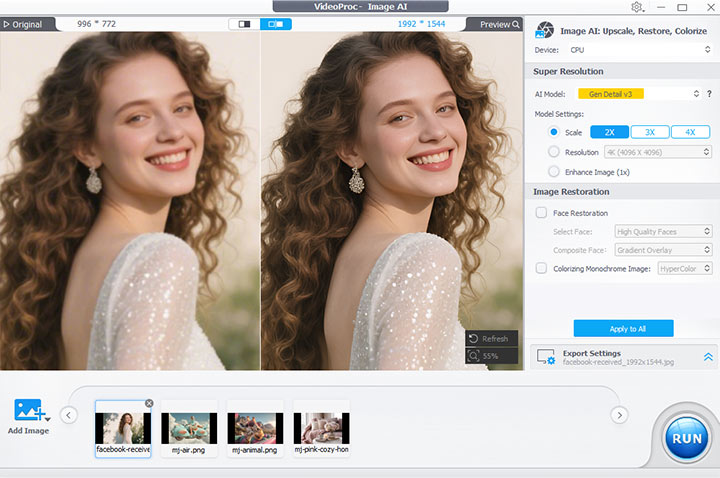
Step 1. Open VideoProc Converter AI. Click "Image AI" on its main interface. Then drag and drop the original Facebook photos here.

Step 2. Select the AI model — Gen Detail v3 and Real Smooth v3 are the most popular choices. Then, set the output resolution by selecting an upscale ratio, such as 2x or 4K. Alternatively, you can directly choose a target resolution or manually enter the pixel dimensions. You can right-click on the image file at the bottom to apply the upscaling settings to the rest.
Step 3. Click the "RUN" to start and export.
Other Techniques to Prevent Blurry Facebook Photos
While using VideoProc Converter AI is an excellent solution for fixing blurry Facebook photos, there are also other techniques and best practices you can implement to prevent the issue in the first place.
One effective strategy is to optimize your image file size and resolution before uploading to Facebook. Facebook's compression algorithm tends to be more forgiving of high-quality, high-resolution images, so taking the time to prepare your photos properly can help minimize the risk of blurriness.
Consider using a high-quality camera or smartphone with advanced camera features when capturing your photos. Newer smartphone models, in particular, often boast impressive camera capabilities to help you achieve sharper, more detailed images. Additionally, be mindful of stabilizing the camera during the photo capture, either by using a tripod or steadying your hands, to prevent any blurriness caused by camera movement.
Another technique to prevent blurry Facebook photos is to edit your images before posting. Tools like Adobe Photoshop, GIMP, or even the built-in editing features on your smartphone can allow you to sharpen, adjust the contrast, and enhance the overall clarity of your photos. By taking a few extra minutes to refine your images, you can ensure that your Facebook posts showcase your best work.
Update the Facebook app. Clear the app cache if necessary. On Android, go to Settings > Apps, and find Facebook. Open Storage. Tap on the Clear cache button. On iPhone, you can just delete and reinstall the app.
Conclusion
Blurry Facebook photos can be a thing of the past when you understand the common causes and apply the right solutions. Whether you’re dealing with incorrect image resolution or compression issues, or simply need a more advanced tool to enhance your photos, the tips and techniques covered in this guide will help you achieve perfect posts every time.
VideoProc Converter AI is the ultimate solution for those who want to ensure their Facebook photos look their best. Its AI-powered enhancements, user-friendly interface, and superior processing speed make it the go-to tool for fixing blurry photos and upscaling image quality. Try AI-powered upscaling feature today and experience the difference for yourself. Say goodbye to blurry photos and hello to perfect posts that engage and impress your audience.



