
 New AI features are available
 Listed in
 This in-depth, unbiased review of WinX DVD Ripper examines its key features, real-world performance, and user experience, providing useful insights for anyone considering downloading WinX DVD Ripper (Platinum).
Even in an era dominated by streaming, your physical DVD collection likely holds a special place. Those discs often boast superior quality, exclusive bonus features, and cherished memories. The challenge, however, is getting them onto your modern devices or simply backing them up. That's where dedicated DVD ripping software becomes essential, and WinX DVD Ripper Platinum has long been a prominent name in this field.
But does this veteran software still deliver in 2025? This in-depth review will put WinX DVD Ripper Platinum through its paces. We'll examine its features, test its ripping speed, and assess its ability to handle various disc protections. Join us as we determine if it remains the ultimate tool for digitizing your movie library.
- What Is WinX DVD Ripper (Platinum)
- Is WinX DVD Ripper Safe to Download
- WinX DVD Ripper Free vs Platinum: What Are the Limits
- Key Features: What Can It Actually Do
- Hands-on Test: My Experience Ripping a Protected DVD
- Speed and Quality Test Results
- Pros and Cons of WinX DVD Ripper Platinum
- User Reviews and Industry Feedback
- The Best Alternative to WinX DVD Ripper
- Final Verdict: Who Should Use It
What Is WinX DVD Ripper (Platinum)
WinX DVD Ripper Platinum is one of the leading DVD rippers, developed by Digiarty Software. It's designed to digitize DVDs for playback on devices without disc drives and to create digital backups. Launched in 2006, it initially focused on converting DVDs to AVI but has since expanded to support a wide range of formats like MP4, H.264, MOV, WMV, FLV, and more. The program also offers optimized profiles for devices such as iPhones, iPads, and Android smartphones. Best of all, it can bypass DVD copy protections, including CSS, region codes, and advanced DRM encryptions, making it compatible with a wide variety of commercial discs.
Is WinX DVD Ripper Safe to Download
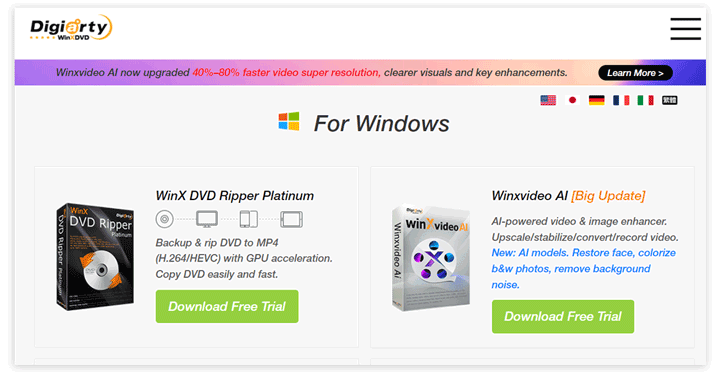
WinX DVD Ripper is safe to download if you get it from the official WinXDVD website or another trusted software platform. In this review, I installed the Windows version from the official download page and did not see bundled programs during setup.
That said, avoid cracked versions, license-key generators, or unofficial installers. These files may be modified, outdated, or bundled with unwanted software. If you only want to test the program, use the official installer and check what the free mode allows before entering payment information.
📝 To confidently use WinX DVD Ripper without concerns, just ensure to:
- Download it from trusted, official sources to avoid any security risks.
- Check reviews or user feedback to confirm the reliability of the download site.
- Stick to the official version to avoid unwanted ads or bundled programs.
WinX DVD Ripper Versions Comparison
WinX DVD Ripper comes in several versions, each designed for different operating systems and user needs. Here's a quick comparison of the main versions available:
| Version | WinX DVD Ripper Platinum | WinX DVD Ripper for Mac |
|---|---|---|
Supported OS |
Windows 7 and later |
macOS X 10.6 or later |
Latest Version |
V8.22.3 |
V6.8.3 |
Release Date |
December 9, 2024 |
December 9, 2024 |
Download Link |
||
Setup File Size |
31.7 MB |
54.8 MB |
📌 Important Notes:
WinX DVD Ripper Free Edition is essentially a version of WinX DVD Ripper Platinum with some feature limitations.
WinX DVD Ripper for Mac provides the same features as the Platinum version, but it's optimized for macOS.
Key Features of WinX DVD Ripper: A Quick Overview
- Decrypts advanced DVD protection schemes, incl. CSS, RCE, UOPs, Sony ArccOS, and Disney X-project DRM.
- Supports a wide range of input sources, including physical DVD discs, ISO images, and DVD folders.
- Converts to a comprehensive list of video and audio formats, such as MP4, MOV, AVI, MKV, MP3, and more, with optimized profiles for devices like iPhones, iPads, and Android smartphones.
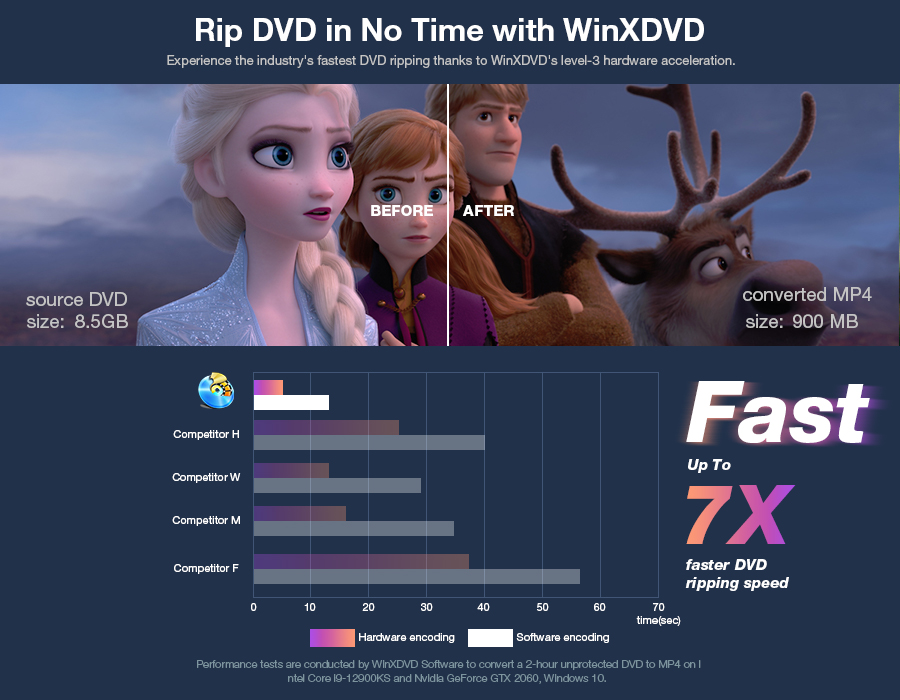
- Utilizes hardware acceleration with Intel QSV (Quick Sync Video), NVIDIA CUDA/NVENC, and AMD acceleration, reducing conversion times by offloading tasks to the GPU.
- Offers basic editing tools, such as trimming, cropping, merging titles, and adding external subtitle tracks.
Hands-on Test: My Experience with WinX DVD Ripper Platinum
For this WinX DVD Ripper Platinum review, I tested the program with several types of DVDs, including old home-recorded DVDs, standard movie DVDs, and a newer Disney-protected DVD with multiple similar titles. I wanted to see how it handled different real-world cases: aging discs, ordinary DVD-to-MP4 conversion, main-title detection, audio and subtitle selection, and protected-disc backup.
1. Setup and Activation
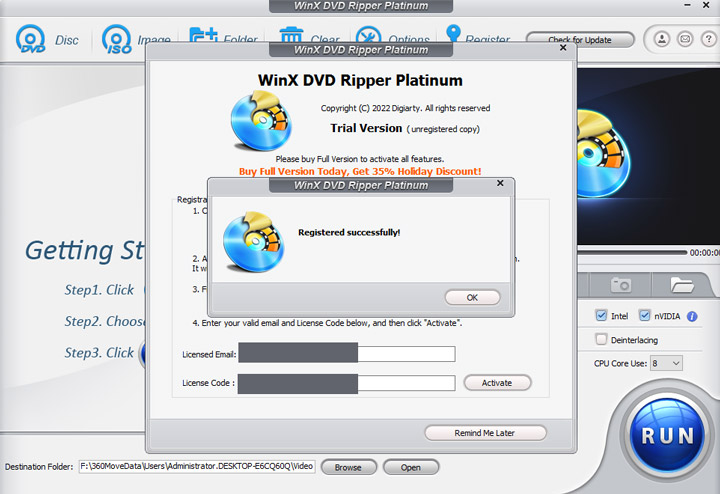
The setup was quick. The installer was about 31 MB, and I activated the full version with a one-year license. After activation, the program opened directly to the main interface.
2. Loading the DVD to WinX DVD Ripper
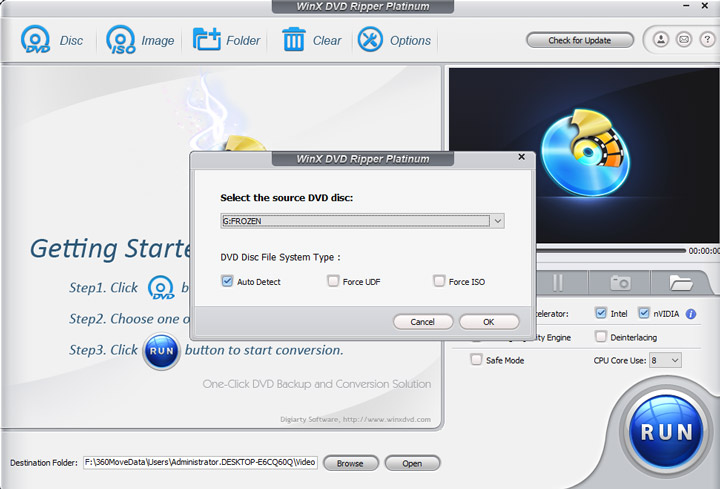
I clicked the Disc button, and WinX DVD Ripper detected the DVD in about 5 seconds. It also picked the main movie title automatically, so I did not have to check dozens of similar-looking titles by hand.
3. Choosing the Output Format
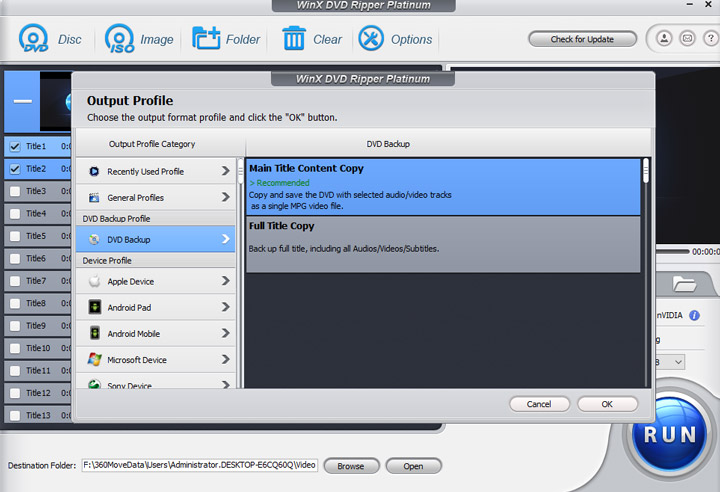
After the disc was loaded, the Output Profile window appeared. I chose MP4 H.264 for this test because it is the most practical format for playback on phones, TVs, and computers.
Tips: The profile list is large, but most users will likely choose one of three options: MP4 H.264 for normal playback, a device preset for iPhone or Android, or ISO/DVD folder backup for archiving.
| Option | Best for |
|---|---|
MP4 H.264 |
Everyday playback on phones, TVs, tablets, and computers |
Device preset |
Users who want a ready-made profile for iPhone, iPad, Android, or similar devices |
ISO / DVD folder backup |
Archiving the DVD with its original structure and quality |
4. Choose Titles, Audio Tracks, and Subtitles
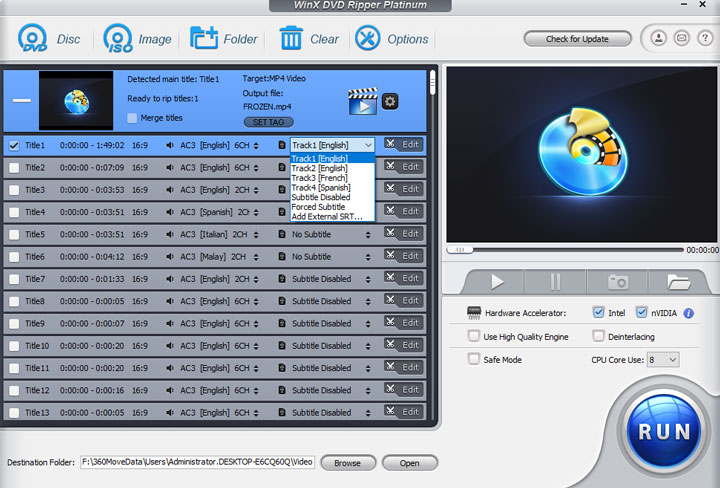
WinX DVD Ripper showed the available titles, audio tracks, and subtitle tracks clearly. The main title was already selected, but I could still switch to another title if needed. I could also choose a different audio track, turn subtitles off, select a built-in subtitle track, or add an external subtitle file.
5. Apply Quick Edits to Touch Up DVD Footage
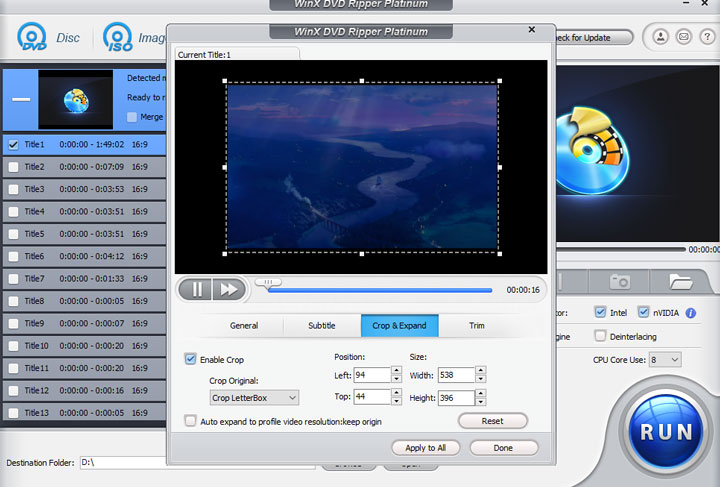
WinX DVD Ripper also has a few simple editing tools. I could trim unwanted parts, crop the video frame, adjust the volume, and add subtitles before exporting. It is not a full-featured video editor, but it works well for quick DVD edits.
6. Start Ripping DVD with WinX DVD Ripper
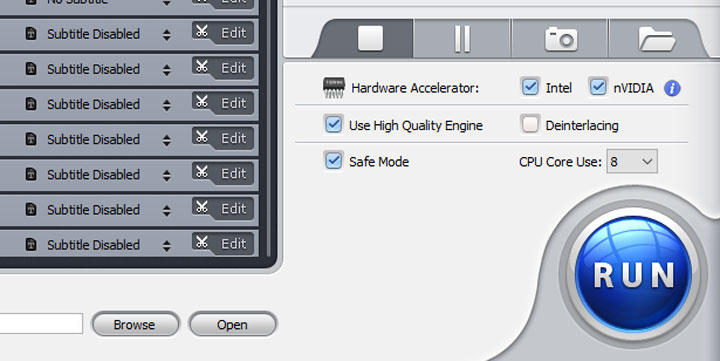
Before starting the rip, I kept GPU acceleration enabled and turned on High Quality Engine. I left the CPU usage setting at its default level.
Speed and Quality Test Results
Because DVD ripping results can change a lot from one disc to another, I compared WinX DVD Ripper Platinum across several DVD types instead of judging it from a single movie DVD. Here is what stood out in my hands-on test:
| DVD type | What I checked | Result |
|---|---|---|
| Old home-recorded DVD | Disc reading, MP4 conversion, playback quality | Loaded smoothly and converted to MP4 without extra setup |
| Standard movie DVD | Output profile, audio tracks, subtitles, MP4 H.264 export | The main title and media tracks were easy to select |
| Disney-protected DVD | Main-title detection, multi-title handling, protected-disc workflow | Detected the disc quickly and selected the correct main movie title |
| ISO / DVD folder backup | Backup without re-encoding | Kept the original DVD quality and structure |
Pros and Cons of WinX DVD Ripper Platinum
What I liked
- Handle both old home-recorded DVDs and commercial Disney-protected DVDs.
- Pick the correct title from the 99-title DVD automatically and correctly.
- Allow ISO and DVD folder backup for keeping the original DVD structure and quality.
- Switching audio tracks and subtitle tracks was easy.
- The main steps are easy enough for beginners.
What I did not like
- The interface feels a little bit out-of-dated.
- It does not rip Blu-rays or CDs.
- It lacks AI-driven features to enhance the quality of the DVD content.
Who Is WinX DVD Ripper For
WinX DVD Ripper Platinum is mainly for people who still have DVDs they want to keep using. That could be a movie collection, old home-recorded discs, workout DVDs, or ISO/VIDEO_TS backups that need to be saved as MP4 or copied to a hard drive.
It is a better fit for users who want a guided DVD ripping workflow instead of a manual setup. Free tools can be enough for homemade discs, but commercial DVDs, region codes, and multi-title structures often take more work. WinX DVD Ripper is designed to make that process simpler.
It is not the tool I would choose for everything. If you also need Blu-ray ripping, AI upscaling, AV1 conversion, downloading, recording, or broad video conversion, a more complete media program would be more useful.
The Best Alternative to WinX DVD Ripper – VideoProc Converter AI
WinX DVD Ripper is a powerful tool for digitizing DVDs, excelling at its core task with solid copy protection removal and efficient ripping. However, its focus is largely limited to DVD ripping, which might leave users looking for a more all-encompassing solution feeling restricted.
For instance, if you need to convert video formats beyond DVD content—like MP4, HEVC, MOV, or ProRes to formats like AV1, HEVC, or VP9—WinX DVD Ripper won't be much help, as it doesn't support many common video formats as input. Similarly, if you're looking to reduce output file sizes using advanced codecs like AV1, or upscale and enhance DVD content to 4K, WinX DVD Ripper falls short in these areas. In such cases, I recommend considering VideoProc Converter AI instead.
It takes things a step further, offering a versatile set of features that not only handle DVD ripping but also extend to a wide range of media conversion and enhancement tasks.
VideoProc Converter AI - Best Alternative to WinX DVD Ripper
- 1:1 DVD Backup in seconds | Rip DVDs to digital formats at speeds of up to 47x faster.
- Supports input/output for HEVC, AV1, VP9, MP4, MKV, AVI, ISO, VOB, and 370+ formats.
- Auto bypass DRMs, CSS, ArccOS, and virtually all common and tricky copy protections.
- AI-powered! Super Resolution, Frame Interpolation, Stabilization, and Deinterlacing.
- One-stop solution: Edit, compress, screen record, download, AI-enhance, and more.
 Excellent

Watch how to effortlessly rip and back up your DVD collection with VideoProc Converter AI!
Final Words
WinX DVD Ripper Platinum remains a solid bet for digitizing a DVD collection. It's built for speed and it's especially good at bypassing the latest copy protections. The interface is a bit old-school, but it's functional and skips the AI hype to focus on what actually works. If you just need to archive discs, it's still one of the best out there. But, if you're looking for more versatility, like AI-driven upscaling or a full suite of editing tools, VideoProc Converter AI is worth the move.




