VideoProc Converter

 New AI features are available

 Listed in
 Old DVDs often don’t hold up well on today’s 4K TVs and high-resolution screens, what once looked fine can now appear soft, noisy, or simply outdated. For anyone trying to rewatch classic movies or preserve a personal collection, the drop in visual quality is hard to ignore.
Traditional upscaling methods usually just stretch the image, which often makes things worse rather than better. Modern AI tools take a different approach by intelligently rebuilding missing details instead of simply enlarging pixels. With AI video upscaling, new pixels are generated in a way that blends naturally with the original frame, resulting in sharper and more realistic visuals. We'll walk you through how to upscale DVD to 1080p or 4K UHD step by step.
In most cases, NTSC DVDs are 720x480 at 29.97 FPS, and PAL DVDs are 720x576 at 25 FPS. In some cases, discs may also be authored using the following standard DVD resolutions:
- 720x486, 704x480, 352x480, 352x240 for NTSC discs.
- 768x576, 704x576, 352x576, 352x288 for PAL discs.
Rule of thumb: Keep a 1:1 DVD copy before using an AI upscaler!
When converting DVD to MP4, MKV, or other formats, some video processing tools may also upscale the content to 1080p or higher, which can introduce additional compression. Later, when applying AI upscaling, you are no longer working with the closest representation of the original DVD content, since the video has already been processed once.
A better approach is to preserve the original quality during ripping by keeping settings unchanged, a process commonly referred to as remuxing or a 1:1 DVD copy in the industry. If the original DVD is 720x480, keep it as-is. Then you can import the media file into an AI upscaler for higher-quality enhancement.
How to Upscale DVD in VideoProc Converter AI
VideoProc Converter AI is the tool that can handle the digitizing (remux/DVD copy) and the AI upscaling pipeline mentioned above.
It offers you options to keep everything the same when ripping DVD, thus ensuring that you are not deteriorating DVD quality. Then you can import that copy into the Super Resolution tool in VideoProc Converter AI, and AI upscaling DVD to higher resolutions.

VideoProc Converter AI - Rip & AI upscale DVD for modern screen
- 1:1 Copy DVD to digital format without quality loss, original resolution kept
- AI upscale original DVD content to 720p/1080p/4K UHD with natural details
- Sharper and clearer visual experience, enjoy hi-res TV and screen display
- Option to deinterlace old DVDs, preserve multiple subtitles and audio tracks
- Toolkit: converter, DVD ripper, downloader, recorder, FPS converter
 Excellent

Follow the detailed steps to upscale DVDs with AI upscaling algorithms on Windows.
For Mac users, check the steps right after this part.
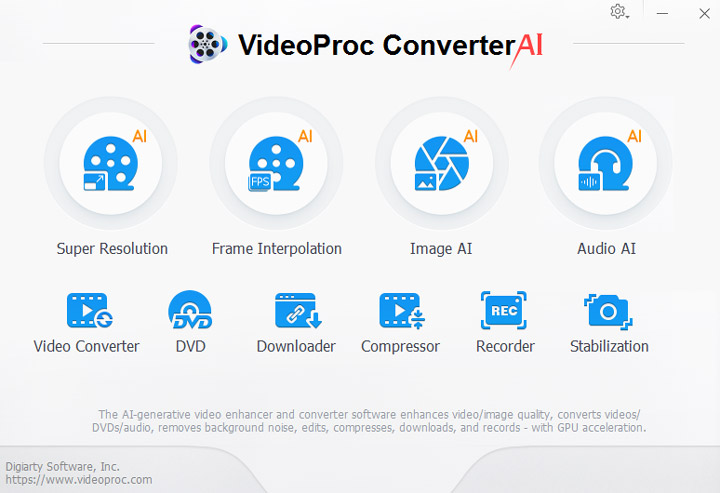
After installing VideoProc Converter AI, go to the DVD module from the main UI.
Step 1. Load your DVD disk, folder or ISO.
VideoProc can intelligently detect the DVD disc file system. So, it is ok if you have no idea what UDF or ISO is. You can easily mount the DVD, and load it into VideoProc Converter AI.
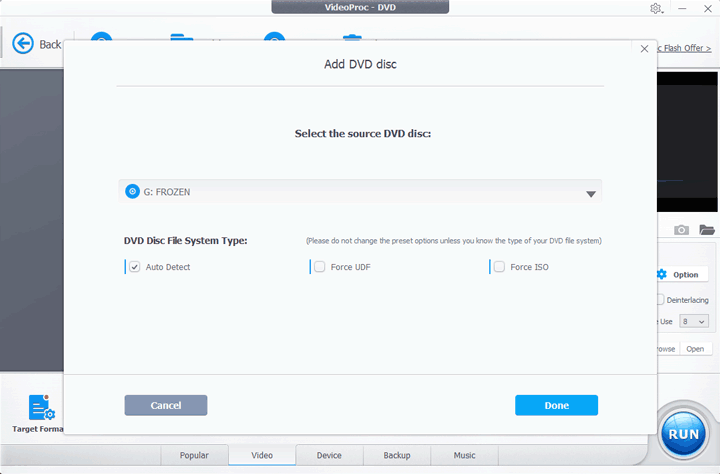
Note: The best part about VideoProc Converter AI is its ability to rip copy-protected DVDs. It helps you bypass region locks, unlock CSS, DRM, Disney 99-titles, Sony ARccOS, UOPs and all the other protection mechanisms.
Step 2. Choose the output format.
The no-brainer choice is the MKV copy. You can find it in the Backup tab > MKV copy.
This option will rip the DVD as-it, without changing its original resolution. It will also copy all the subtitles and audio tracks, especially if your DVD contains multi-language dubbings.
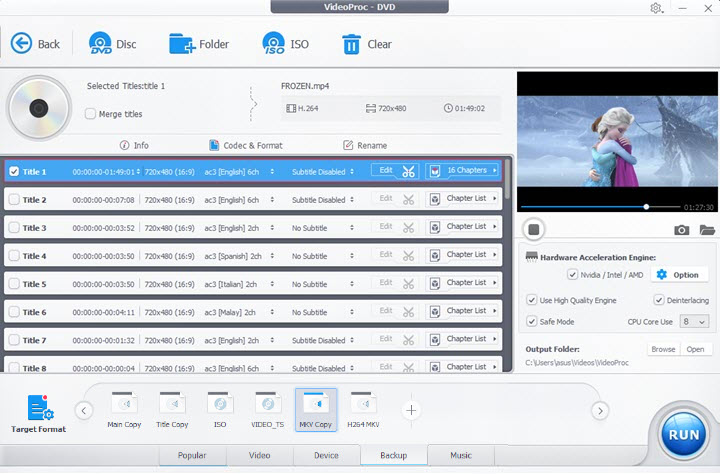
Step 3. Hit Run to start digitizing the DVD.
You can tick Safe Mode and Use High Quality Engine option.
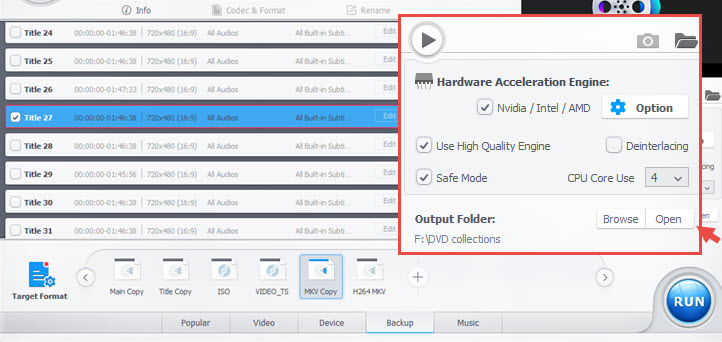
If your video is interlaced (you will see those unsightly horizontal lines), enable the Deinterlacing option.

Step 4. AI upscaling the digital DVD.
- Go to the Super Resolution module in VideoProc Converter AI.
- Drag and drop the digitized DVD from step 3.
- Choose upscaler model: Gen Detail, Real Smooth, Anime, etc.
- Choose scale: 2X, 3X or 4X.
Watch VideoProc Converter AI in action:
For instance, if your source video is 720x480:
- 2X: upscale 720x480 to 1440x960
- 3X: upscale 720x480 to 2160x1440
- 4X: upscale 720x480 to 2880x1920
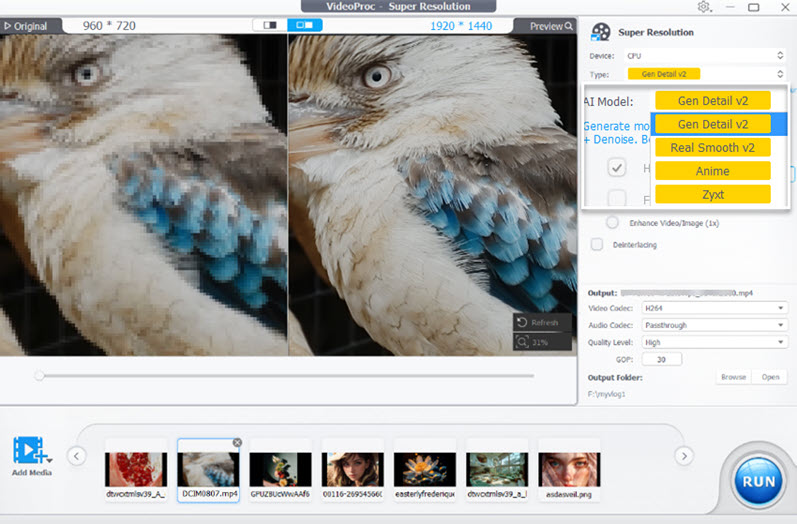
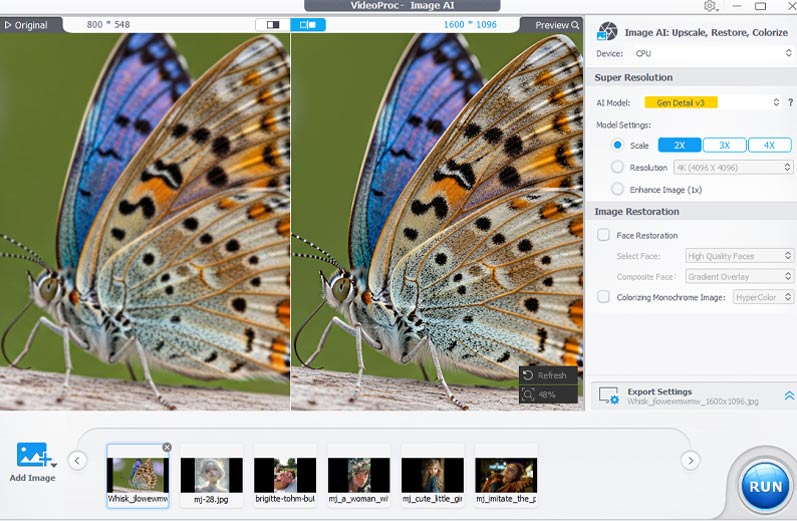
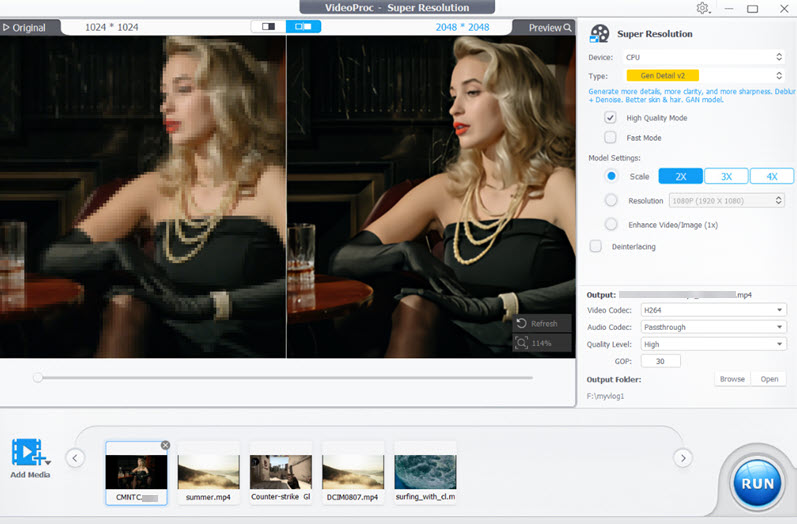
Tips: For video upscaling, you can enable Fast Mode, which is optimized to enhance videos at a faster processing speed while keeping great quality.
Step 5. Export the upscaled video.
In most cases, you can just use the default export settings:
- Video Codec: H264
- Audio Codec: Passthrough
- Quality Level: High
- GOP: 30

Bonus Tips to Enhance DVD Quality for Your Modern TVs
Modern TVs support higher frame rate for better visual experience. For instance, LG G2 OLED has UHD display at 120hz. Therefore, besides upscaling DVD, you can also AI interpolate the video to a higher frame rate. 60FPS will look smoother on smart TVs. Besides the Super Resolution tool, VideoProc Converter AI also has the AI frame rate converting tool built-in. You can read detailed steps to convert frame rate.
How to Upscale DVD on Mac using VideoProc Converter
For Mac users, follow these steps to upscale DVD in VideoProc:
Step 1. Go to the DVD module from the main UI.
Step 2. Drag and drop the DVD disk or folder into the working area.
Step 3. Choose an output format under the Target Format > Video tab.
For best compatibility, we can use the MP4 H264 profile.

Step 4. Upscale DVD to 720p, 1080p or higher.
Click the Gear-shaped icon on the format profile to go inside codec settings.
In the Resolution menu, choose the desired output resolution. You can also click the Custom button to type in the value.
Note: Make sure you are upscaling the DVD proportionally, so that the aspect ratio keeps the same before and after DVD upscaling.
As mentioned by a user from YouTube, VideoProc Converter AI allows you to upscale old videos to 4K and convert to high FPS, delivering enhanced videos for beloved families as a present.

The AI Super Resolution feature will soon be released for the VideoProc Converter Mac version.
Upscale DVDs in Real-time using DVD Players
Before AI-based upscaling became widely adopted, the most common image scaling techniques were nearest neighbor and bicubic interpolation. These methods are fast and lightweight, but they often fail to introduce any real “new” detail, which can make images look soft or slightly blurry when scaled up.
More advanced algorithms such as Lanczos interpolation or fractal-based approaches focus on preserving edges and fine structure during upscaling. While they can produce cleaner results in some cases, they still rely on mathematical estimation rather than true detail reconstruction, and may struggle to deliver consistently realistic output across different types of content.
AI Upscaler Software vs Non-AI Upscaling in DVD Players
The introduction of AI-based upscaling has significantly changed this landscape. Instead of relying purely on fixed formulas, AI models learn from large datasets and can generate more visually convincing details when enlarging images. This helps reduce blur and improves perceived sharpness, especially in low-resolution video content.
However, AI upscaling is computationally intensive and typically requires dedicated GPU resources. As a result, real-time AI upscaling is still not commonly available in standard DVD players or most smart TVs. These devices generally rely on traditional interpolation methods such as bicubic scaling combined with basic sharpening filters.
Depending on your needs, you may either choose a dedicated Blu-ray/DVD player with built-in real-time hardware upscaling, or use dedicated AI video upscaling software on a PC to enhance archived DVD content for better quality playback.

1. Panasonic DP-UB420 Streaming 4K Blu-ray Player ($249.99)
Positioned between entry-level and flagship models, the Panasonic DP-UB420 offers a balanced mix of performance and affordability. It features HCX image processing and 4K Chroma upscaling to deliver more refined video output. The built-in HDR Optimizer also adjusts HDR tone mapping based on your display, helping improve overall contrast and color accuracy.
2. Sony BDP-S6700 Streaming Blu-ray Player ($107.99)
The BDP-S6700 supports DVD and Blu-ray upscaling to near-HD or near-4K quality when paired with a compatible display. It delivers improved sharpness, deeper blacks, and more vibrant colors on modern TVs. Additional features like HDMI Deep Color help enhance color depth and overall image richness during playback.
3. Sony DVPSR510H DVD Player ($74.87)
This entry-level DVD player offers basic upscaling capabilities for smoother playback on HDMI-enabled TVs. It can convert standard DVDs to higher-resolution output for improved viewing clarity. The device also supports multiple disc formats including CD-R/RW and DVD±R/±RW, as well as common media formats such as JPEG, MP3, WMA, AAC, and linear PCM audio.
FAQ about Upscaling DVDs
Why do DVDs look so bad on modern 4K TVs?
DVDs were designed for older displays, so when they are stretched to fit 4K screens, the image becomes soft and pixelated. The TV is essentially enlarging a low-resolution source without adding real detail.
Is AI upscaling better than the upscaling in my DVD player or TV?
Yes, in most cases. Built-in TV or DVD player upscaling only enlarges the image using simple algorithms, while AI tools analyze frames and rebuild missing detail, resulting in sharper and more natural-looking video.
Do I need to rip DVDs before using AI upscaling software?
It is usually recommended. Ripping gives you a stable digital file that AI tools can process more accurately, without playback limits or compression from real-time hardware upscaling.
Will AI upscaling turn my DVDs into real 4K quality?
No. AI upscaling improves clarity, sharpness, and noise reduction, but it cannot recreate true 4K detail that was never captured in the original DVD source.
Is it worth upscaling an old DVD collection?
If you still watch DVDs on large screens, it can make a noticeable difference. The improvement is most visible on older movies, home videos, or poorly mastered discs, especially when viewed on modern TVs.