
 VideoProc Converter
 New AI features are available

 Listed in
 Finding a practical AI video enhancers is surprisingly difficult. Most options on the market force you to choose between high-end software that costs hundreds of dollars and grinds mid-range PCs to a halt, or online tools that charge monthly credits to process your personal files in the cloud.
Winxvideo AI tries to offer a simpler alternative. It is a local desktop program that bundles AI video upscaling, noise reduction, motion smoothing, image enhancing, and everyday video processing into a single package for around $35 a year.
But when a single program promises to do this much, the real concern is output quality. Does its AI actually reconstruct lost textures on old and blurry clips, or does it just smear faces with plastic smoothing and harsh edge halos? To find out, I tested Winxvideo AI across a wide mix of vintage home videos, noisy phone clips, and high-res source files. Along the way, I also evaluated its photo enhancement, video stabilization, and conversion speeds to see how the complete package holds up.

- What Is Winxvideo AI
- What Are the Key Features of Winxvideo AI
- How I Tested Winxvideo AI
- [Test Set 1] Upscale and Enhance Videos with Winxvideo AI
- [Test Set 2] Winxvideo AI's Extra AI Media Enhancement Features
- [Test Set 3] Winxvideo AI's Everyday Media Processing Tools
- Is Winxvideo AI Fast
- Is Winxvideo AI Easy to Use
- Winxvideo AI Price: How Much Does It Cost
- Pros and Cons of Winxvideo AI
- How Does Winxvideo AI Compare With Other AI Video Tools
Quick Verdict: Is Winxvideo AI Worth It
The Short Answer: Yes. For a fast, low-cost, all-in-one desktop suite that does a bit of everything, Winxvideo AI is an easy recommendation. There is no cloud option, but it processes files quickly, packs tons of useful utilities, and keeps your private media completely safe on your local drive.
| Category | Details |
|---|---|
What it is |
An all-in-one AI media enhancer and GPU-accelerated toolkit for multi-media processing. |
AI tools |
|
Extra tools |
|
AI quality |
|
Processing speed |
|
Ease of use |
Beginner-friendly with intuitive one-click model presets and straightforward export controls. |
Main limitation |
No cloud processing. Cannot generate videos or images from text prompt |
Pricing |
$34.95/year or $54.95 for a Lifetime License. |
Where to Download |
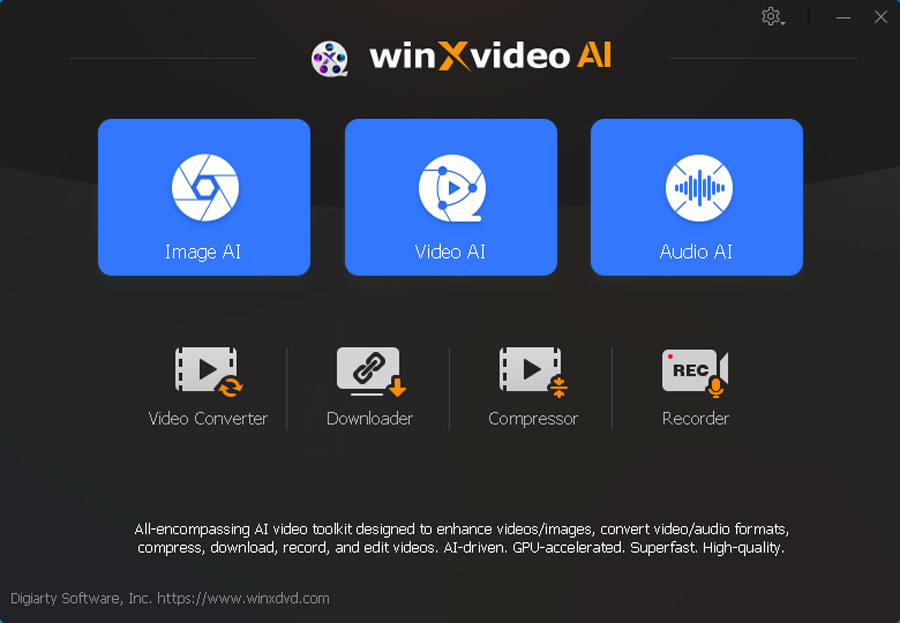
What Is Winxvideo AI
Developed by Digiarty Software for Windows and macOS, Winxvideo AI is divided into two main components: an AI processing engine and a standard video toolkit. The AI side handles video and image upscaling (up to 4K), frame interpolation, clip stabilization, and audio noise cleanup. The utility side covers GPU-accelerated format conversion, file compression, screen recording, and URL-based video downloading. It supports hardware acceleration across Intel, Nvidia, AMD, and Apple Silicon to handle high-bitrate 4K and 8K media without choking system resources.
What Are the Key Features of Winxvideo AI
To give you a clearer picture, it helps to look at the software in two parts: dedicated AI tools for upscaling, stabilization, and motion smoothing, and practical utilities for converting, compressing, and downloading.
AI Super Resolution: Upscales videos to 4K and still images to 10K at 2x, 3x, or 4x enlargement. Its newer generative models actively rebuild fine details in faces, text, and background textures to create natural sharpness without relying on harsh edge sharpening. The tool also automatically cleans up common source flaws such as compression blocks, color noise, grain, and edge blur during the enhancement process.
Frame Interpolation: Boosts frame rates from 24 or 30 fps up to 60 fps for smoother playback, or scales up to 480 fps for slow-motion effects. Built-in scene detection skips interpolation across hard cuts to prevent unnatural warping during sudden transitions.
AI Video Stabilization: Corrects shaky footage from phones, action cameras, and drones. It allows you to adjust how aggressively the AI stabilizes the shot against how much of the outer frame gets cropped.
Image & Audio AI: Beyond video, the software includes dedicated tools to colorize black and white photos, restore old portraits, eliminate background audio noise, and isolate vocal tracks from background music.
Everyday Video Utilities: Features a full GPU-accelerated engine that can transcode and shrink heavy 4K and 8K files without overloading the processor. It also includes tools to record desktop screens, capture webcam footage, and download video from online URLs.
How I Tested Winxvideo AI
My testing focused primarily on Super Resolution, evaluating how well its neural models handle different types of footage: vintage 480p clips, retro anime, noisy low-light video, and clean high-bitrate sources. I analyzed visual fidelity at both normal viewing size and 100% pixel crops, tracking render times and GPU load throughout.
Beyond video upscaling, I also tested the supporting tools, including photo colorization, face restoration, video stabilization, frame interpolation, and file conversion, to evaluate the overall package.
All tests and benchmarks were conducted on the following mid-range test system:
- GPU: NVIDIA GeForce RTX 3060 (12GB)
- CPU: Intel Core i5-11400F (6 cores, 12 threads)
- RAM: 16GB DDR4
- OS: Windows 11 (64-bit)
- Software Version: Winxvideo AI v4.10 (Hardware acceleration enabled)
[Test Set 1] Upscale and Enhance Videos with Winxvideo AI
For Test Group 1, I focused on Super Resolution, since it is one of the main reasons people use Winxvideo AI. I wanted to answer five practical questions:
- Can Winxvideo AI improve low-resolution video
- Can it fix blur, noise, and compression artifacts
- Does it still help with already-good, high-resolution video
- Can it improve AI-generated video
- Which Winxvideo AI model should you use
1. Can Winxvideo AI Improve Low-Resolution Video
I started with 480p footage because this is one of the most obvious situations where AI enhancement could be useful. I used both an old live-action clip and an older anime clip to see whether Winxvideo AI could improve very different kinds of low-resolution material without making them look overly processed.
[Test 1] Upscale Low Resolution Footage to 1080p with Winxvideo AI
For the first sample, I used an old 320px240p clip containing faces, hair, clothing, and background detail. After previewing the most relevant models, Real Smooth V3 gave me the best overall result for this particular source, so I used it for the main comparison.
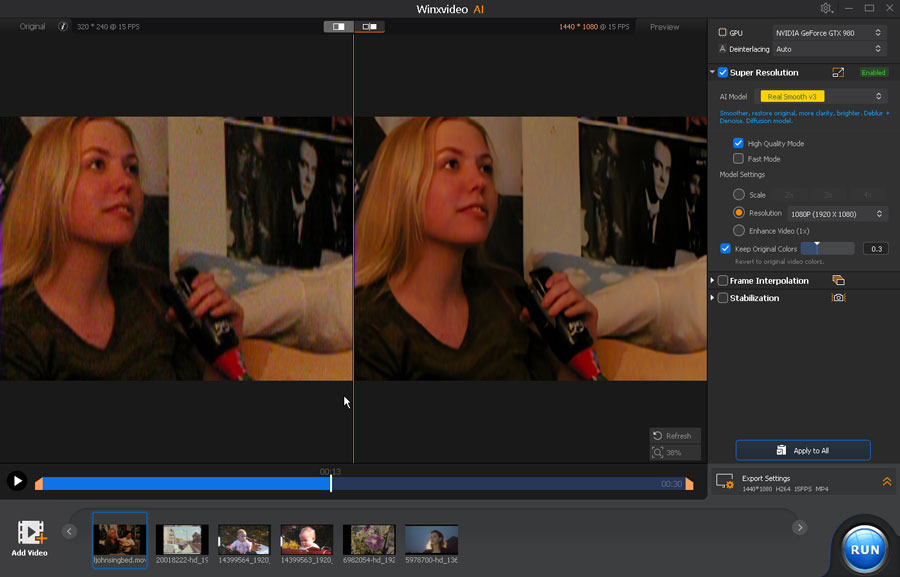
The overall improvement looked natural and convincing. The video appeared noticeably clearer, with better-defined details and no obvious over-sharpening. Some fine textures remained soft due to the limited detail in the original footage, but the result still felt balanced and realistic.
[Test 2] Upscale Old anime footage with Winxvideo AI
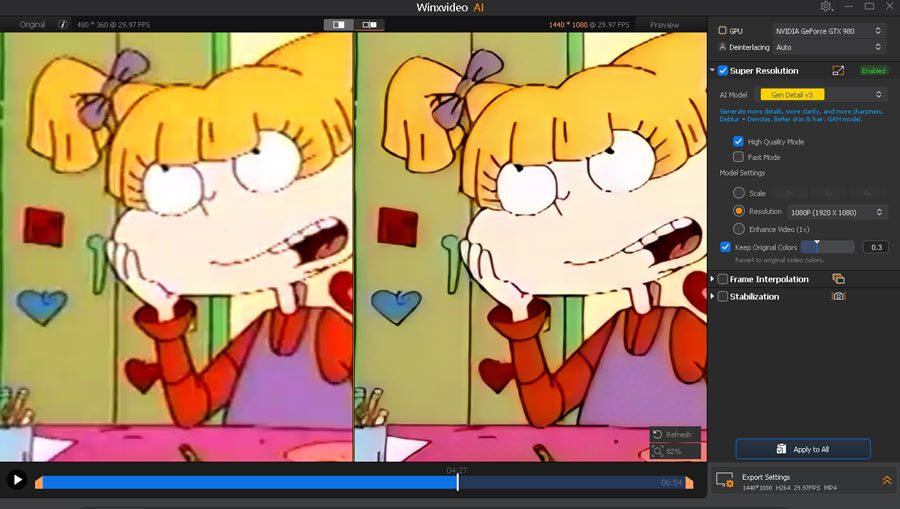
I then tested Winxvideo AI with an old 480px360p anime clip. I tried both Winxvideo AI's Anime model and v3 models. See the Gen Detail V3 test result,
See the Anime model test result:
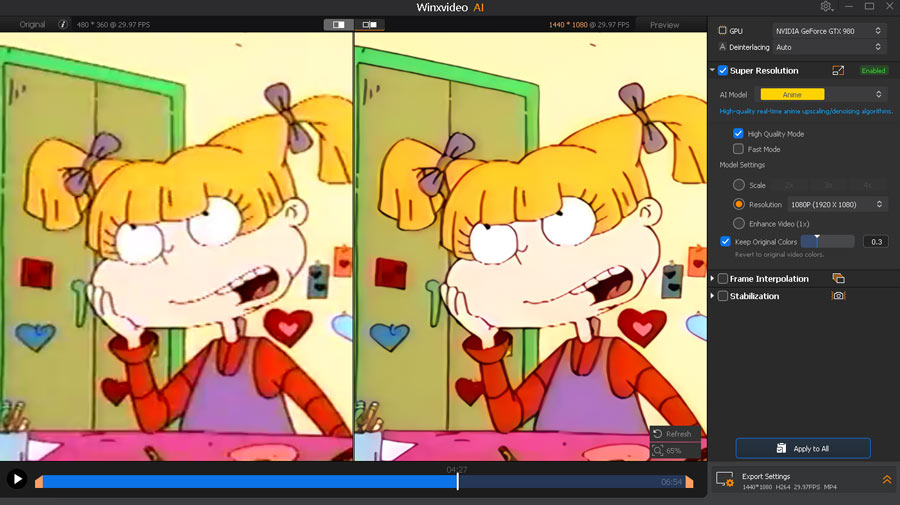
Both models produced good results, with the anime character's outlines looking sharper and cleaner without obvious overprocessing. On this particular clip, Real Smooth V3 actually appeared slightly sharper than the dedicated Anime model, which shows that the best model can still depend on the source rather than the label alone.
2. Can It Fix Blur, Noise, and Compression Artifacts
Visual flaws are not limited to old or low-resolution footage. A decades-old 480p recording may suffer from blur, grain, and compression damage, while a modern 1080p or even 4K clip can still contain noise, soft detail, motion blur, or artifacts introduced by aggressive encoding. I wanted to see how Winxvideo AI handles these problems individually rather than treating “video enhancement” as a single task. For this test, I used three separate 720p clips with clearly different defects: one noticeably blurry, one affected by visible noise, and one with heavy compression artifacts.
[Test 1] Deblur with Winxvideo AI
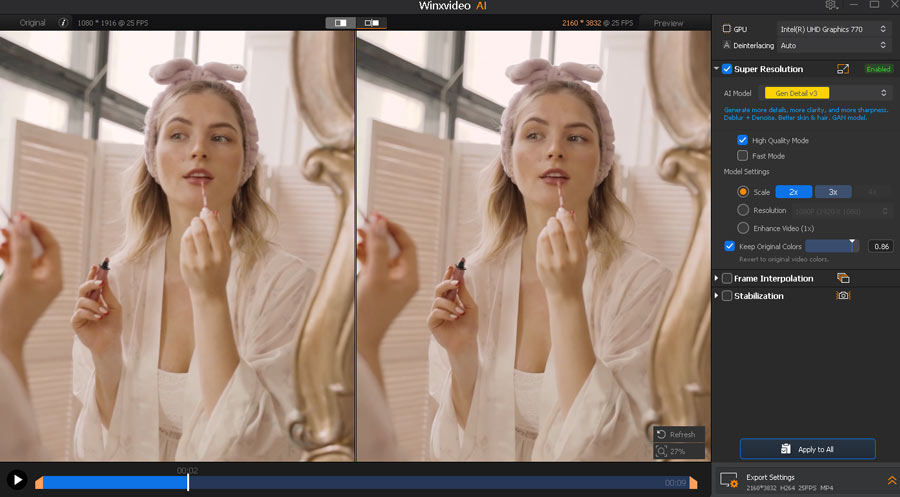
For this test, I deliberately lowered the source video's bitrate to create heavy blur, making facial features and clothing details noticeably soft. I then processed the clip with Winxvideo AI's Gen Detail V3 model at 2× upscale. Here's the result:
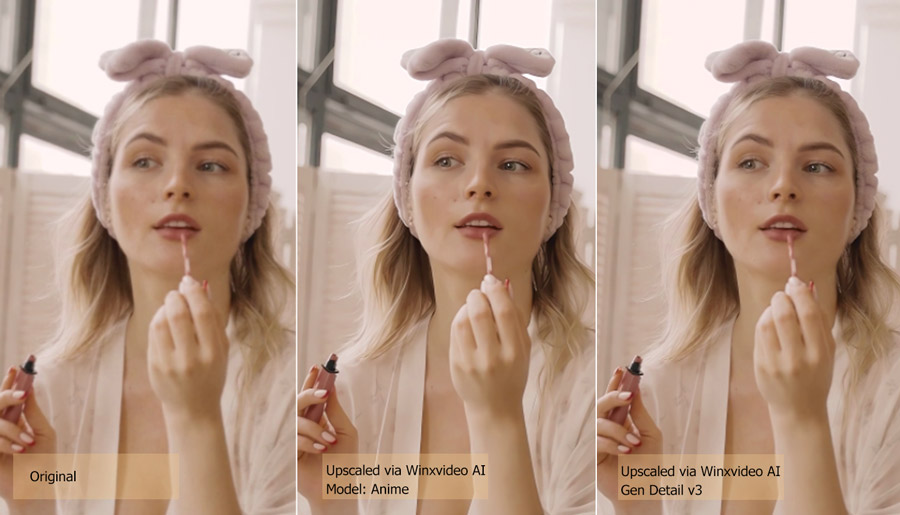
I also tested Real Smooth V3 and the Anime model. Both performed very well, noticeably improving the clarity of the blurry source while keeping the result natural. The footage looked cleaner and better defined, without the exaggerated sharpness or artificial texture that often comes with heavy deblurring.
[Test 2] Remove Noise and Grainy with Winxvideo AI
For the denoising test, I used a noisy 1280 × 720 underwater clip and processed it with Winxvideo AI's Real Smooth V3 model at 3× upscale.
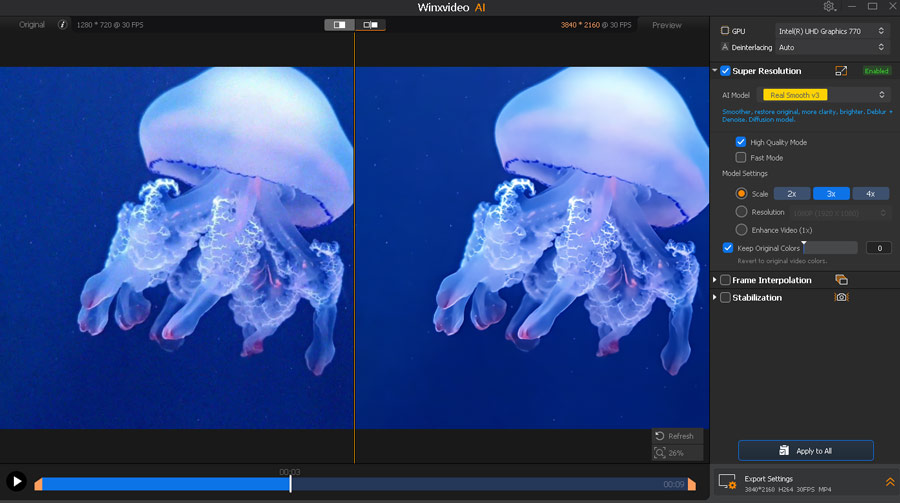
Noise was significantly reduced.The cleaned-up version looked crystal clear without sacrificing the loss of fine texture
[Test 3] Clear Compression artifacts with Winxvideo AI
Compression artifacts are harder to fix than ordinary blur or noise because some of the original image information may already be lost. For this test, I used a heavily compressed 480 × 270 H.264 clip with visible blockiness and smeared textures, using Winxvideo AI's Real Smooth V3 model at 4× upscale to clean it up.
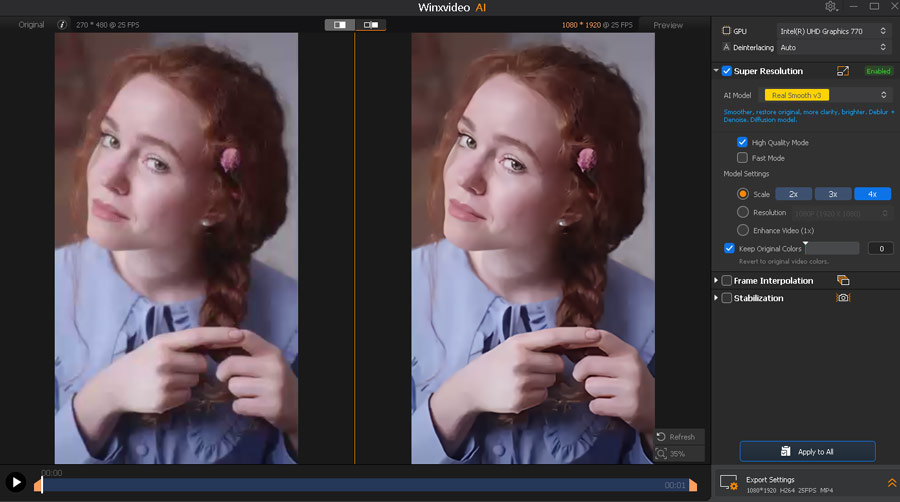
Because the source resolution was very low, some of the tiniest details still remained slightly unclear in the 4× upscaled version. Even so, the output looked noticeably sharper than the original, with facial features, hair texture, and other fine details enhanced in a natural-looking way.
3. Does It Still Help With Good 1080p Video
Not every video that goes through an AI enhancer starts out looking bad. I also tested a reasonably clean 1080p clip with decent detail but slightly soft textures to see whether Winxvideo AI could still make a visible difference.
[Test 1] Enhance Video Without Upscaling
For this test, I kept the original 1440 × 2160 resolution and used Winxvideo AI's Real Smooth V3 model at 1× enhancement, so any visible improvement would come from the AI processing rather than upscaling.
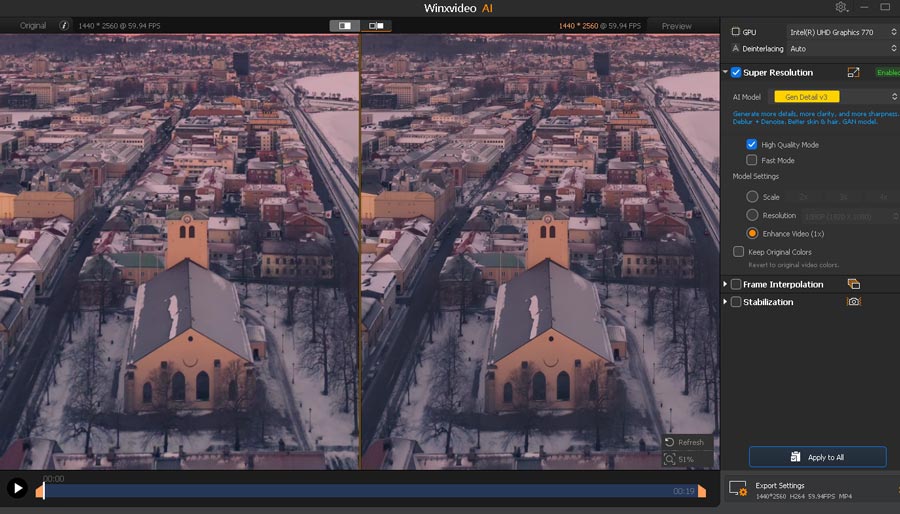
The overall image quality improved noticeably, with cleaner detail and more clearly defined building edges.
[Test 2] Upscale Video to 4K
I then upscaled the same clip to 4K with Winxvideo AI's Real Smooth V3 model to see whether increasing the resolution produced any visible improvement over the 1× enhanced version.
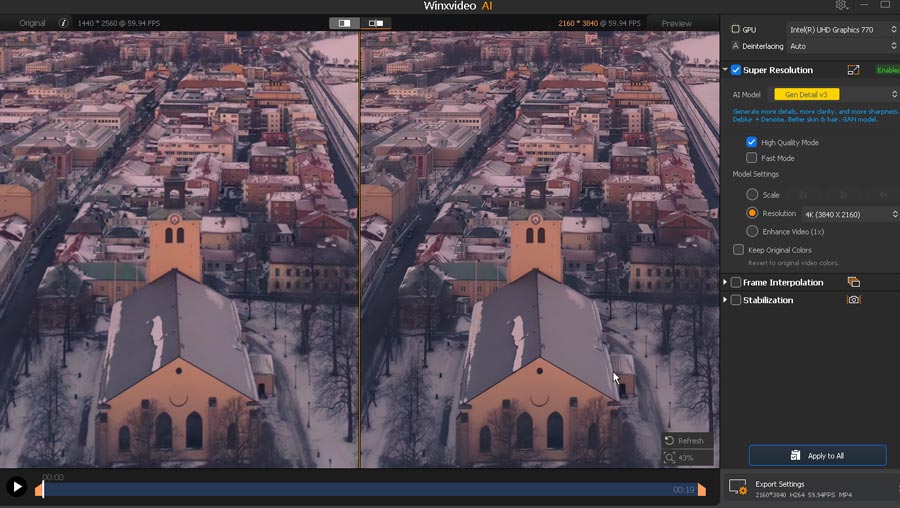
The 4K output still looked very sharp, but compared with the 1× enhanced version, I could not see a major difference in overall clarity. For this particular source, enhancing at the original resolution with Winxvideo AI already delivered most of the visible improvement.
4. Can It Improve AI-Generated Video
AI-generated video presents a different challenge because the source may already contain soft faces, smeared hair, unnatural fine details, or strange background textures. For this test, I used Winxvideo AI's Gen Detail V3 model at 2× upscale to see whether it could make the clip cleaner and more detailed without exaggerating those artificial-looking textures.
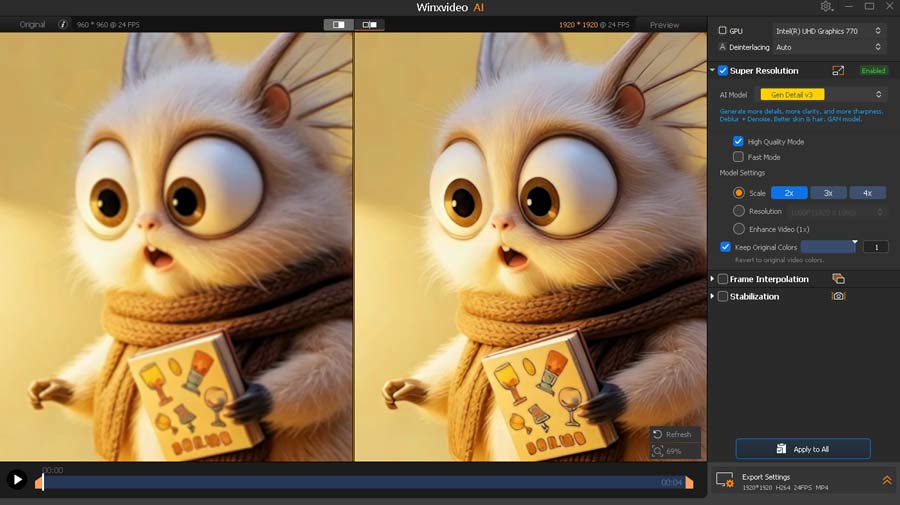
Winxvideo AI brought out more detail in the fur, book cover, and other fine textures while keeping them natural-looking.
5. Which Winxvideo AI Model Should You Use
For most footage, I would start with Real Smooth V3 if the source is blurry, noisy, or already looks a little rough, since it tends to clean up the image while keeping the result natural. Gen Detail V3 is the better first choice when the source still contains usable texture and you want to bring out more detail in areas such as hair, fur, clothing, or background objects. If you are unsure, preview both—Winxvideo AI renders short previews quickly enough that comparing the two usually takes less time than guessing from the model names.
| Model | Start with it when... |
|---|---|
Real Smooth V3 |
Footage is blurry, noisy, soft, or you want a cleaner, more natural result |
Gen Detail V3 |
The source has usable texture and you want stronger detail recovery |
Anime |
Anime, cartoons, or line-art content |
Zyxt |
Your GPU is older or struggles with the newer generative models |
In my testing, Real Smooth V3 and Gen Detail V3 were the two models worth trying first for almost any real-world video. Anime is useful when the source clearly matches it, while Zyxt makes more sense as a lighter option for less capable hardware.
[Test Set 2] Winxvideo AI's Extra AI Media Enhancement Features
Super Resolution is where I spent most of my testing time, but Winxvideo AI also includes several AI tools for photos and motion processing. I ran shorter tests to answer five practical questions:
- Can Winxvideo AI improve low-resolution photos
- Can it restore blurry faces
- How well does photo colorization work
- Can it stabilize shaky video without heavy cropping
- Can it make low-frame-rate video look smoother
1. Can Winxvideo AI Improve Low-Resolution Photos
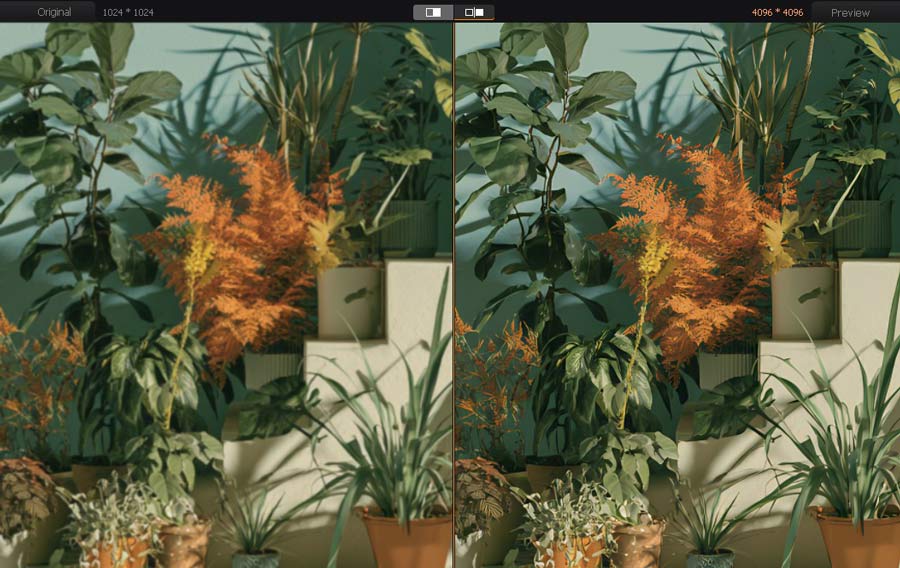
I tested Image AI with a 1024 × 1024 image created in Midjourney and upscaled it by 2× using Gen Detail V3. The output looked noticeably sharper overall, while softness was reduced without making the image look overly processed.
2. Can It Restore Blurry Faces
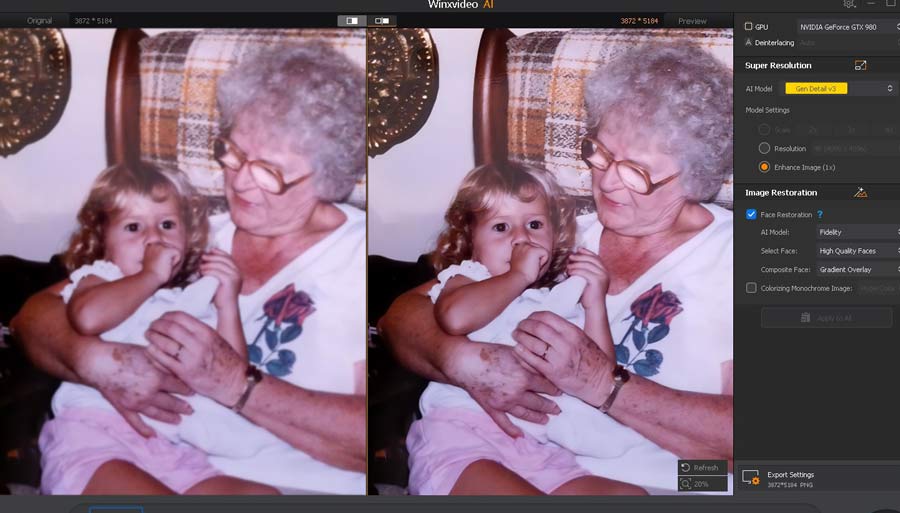
For Face Restoration, I used an older portrait with noticeably blurred facial features and tried all three available models: Rebuild, Fidelity, and GFPGAN. All three improved the face to some degree, producing cleaner and more recognizable facial details.
3. How Well Does Photo Colorization Work
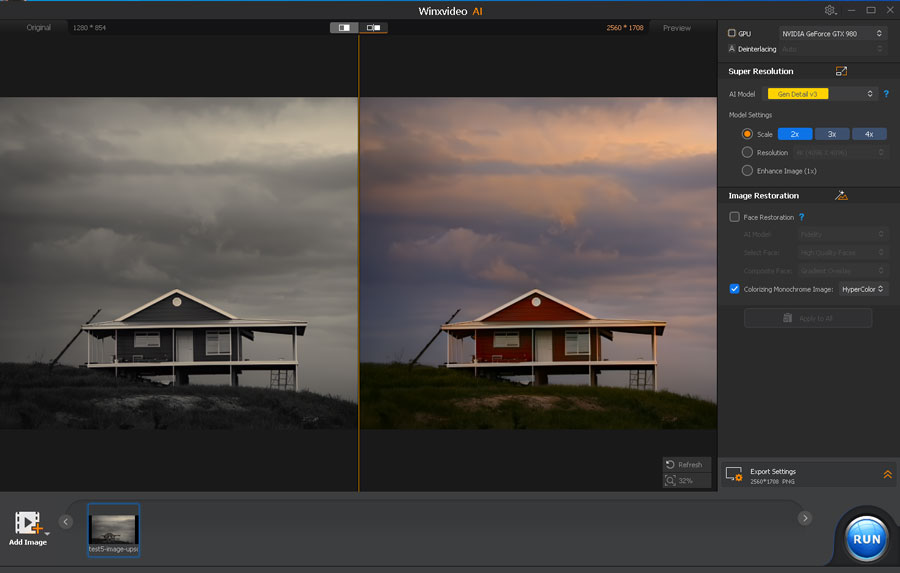
I also tried the colorization tool on a black-and-white portrait. Winxvideo AI added color automatically, and the result looked fairly natural without making the image feel overly processed.
4. Can It Stabilize Shaky Video Without Heavy Cropping
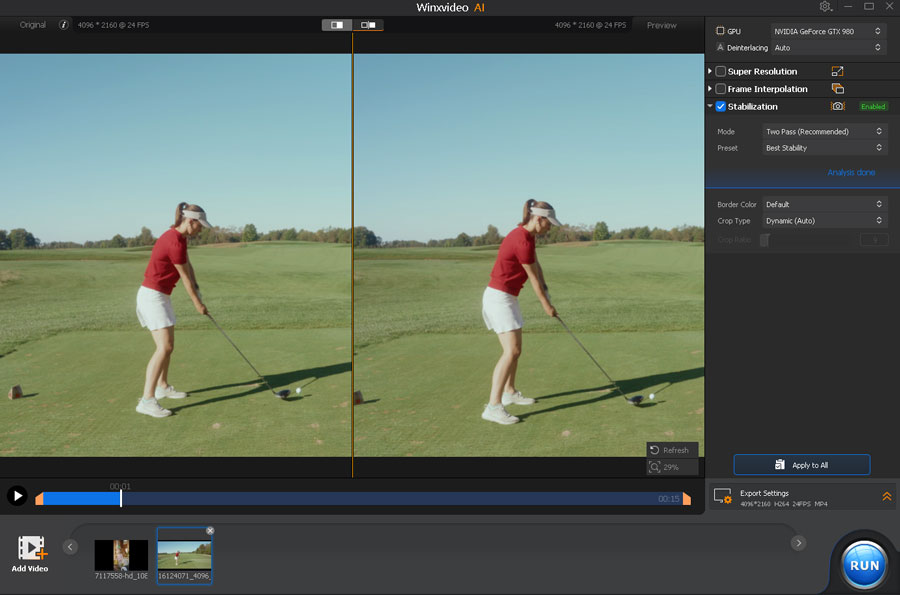
For stabilization, I used a clip of a woman playing golf with noticeable camera shake (golf footage source). Winxvideo AI offers One Pass and Two Pass modes, along with presets that balance stability, speed, and cropping. I left everything at the default settings, and the output was already quite steady, with only minimal cropping that was hard to notice.
5. Can It Make Low-Frame-Rate Video Look Smoother
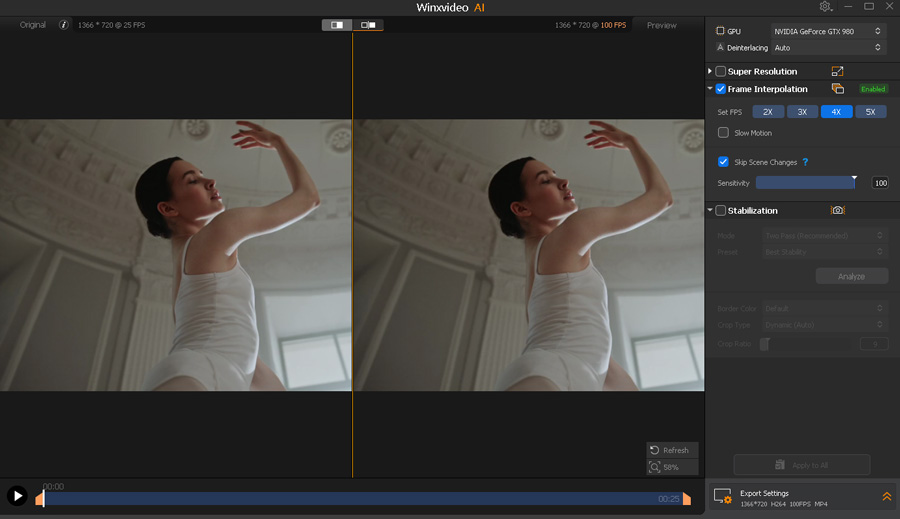
For the frame interpolation test, I converted a 25fps dancing clip to 100fps and enabled Skip Scene Changes to avoid generating unnecessary frames across hard cuts. The resulting motion looked noticeably smoother, and I did not notice obvious ghosting or distortion around the dancers.
[Test Set 3] Winxvideo AI's Everyday Media Processing Tools
Winxvideo AI also handles conversion, compression, editing, screen recording, and downloading. For this review, I put its video converter to the test.
How Good Is Winxvideo AI for Video Conversion
I ran two conversion tests to simulate common real-world use cases.
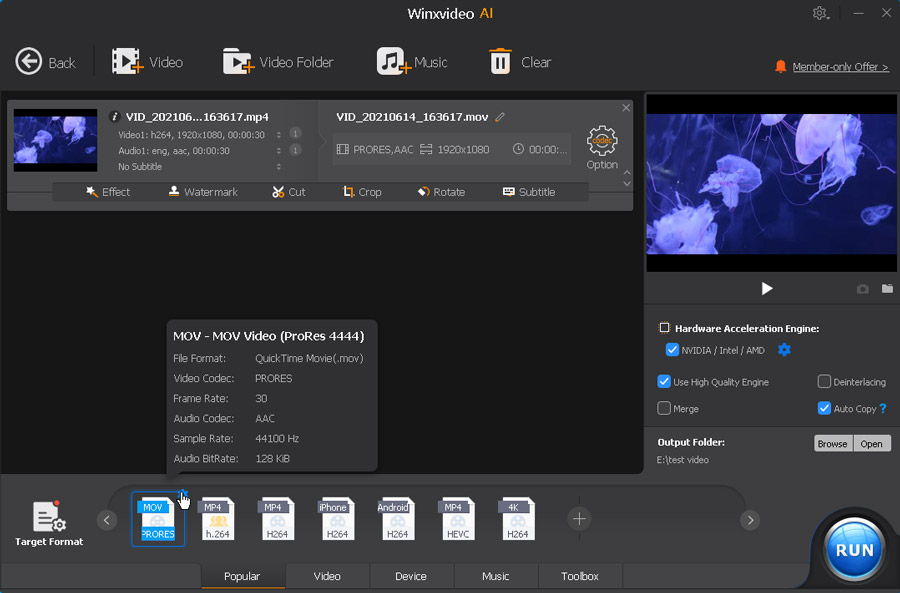
[Test 1] Convert H.264 to ProRes via Winxvideo AI for easier editing
The first source was a heavily compressed 30-second 1080p H.264 video. I converted it to ProRes, a format that is much easier to work with in many editing programs. The conversion took just 4 seconds, and I could not see any noticeable loss in visual quality compared with the source.
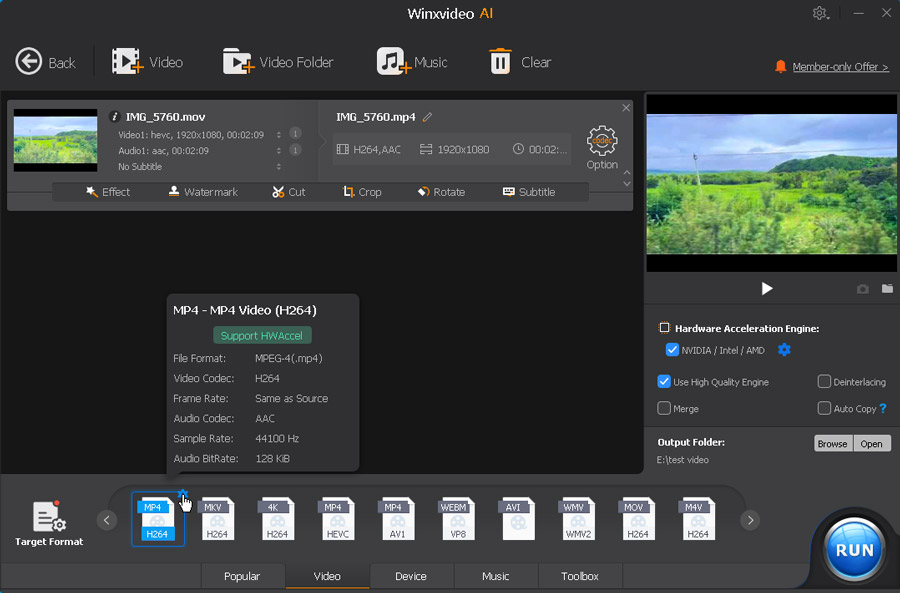
[Test 2] Convert HEVC to H.264 via Winxvideo AI for better compatibility
For the second test, I used a 2-minute-9-second 1080p HEVC video recorded on an iPhone that would not play directly on my Windows 10 system. I converted it to H.264 while keeping the original resolution and frame rate unchanged. The job finished in only 14 seconds, and the output looked virtually identical to the original in normal viewing.
The suite also includes a dedicated compressor, basic editing tools (trim/crop/merge), a screen recorder, and a video downloader. While not formally benchmarked here, they serve as convenient workflow extras rather than core reasons to buy.
Is Winxvideo AI Fast
Yes. Speed was one of the areas where Winxvideo AI stood out in my testing. To get a more useful comparison, I ran the same source clips through Winxvideo AI, Topaz Video, AVCLabs Video Enhancer AI, and Video2X on the same PC. I kept the output at 2× upscaling and matched the codec and quality settings as closely as each program allowed.
Because these tools use different AI models and processing pipelines, this is better viewed as a real-world workflow comparison than a strict model-for-model benchmark.
| Software | Clip 1 | Clip 1 | Clip 3 | Clip 4 | Avg. Time |
|---|---|---|---|---|---|
Winxvideo AI |
43s |
48s |
85s |
86s |
65.5s |
Video2X |
35s |
35s |
172s |
62s |
76.0s |
Topaz Video |
143s |
134s |
308s |
258s |
210.8s |
AVCLabs Video Enhancer AI |
1,064s |
1,201s |
2,246s |
2,206s |
1,679.3s |
Winxvideo AI finished the four tests in 43–86 seconds, averaging about 3.2× faster than Topaz Video and roughly 25× faster than AVCLabs in these runs. Video2X was the closest competitor and was actually faster on three of the four clips, although its processing time varied more noticeably between sources. Winxvideo AI also kept GPU utilization close to 99% during most of my AI tests, which helps explain its consistently strong throughput.
The speed advantage is not limited to AI enhancement. In my conversion tests, a 30-second 1080p H.264 video took just 4 seconds to convert to ProRes, while a 2:09 iPhone HEVC video took 14 seconds to convert to H.264. In both cases, I saw no obvious quality loss during normal viewing. Overall, Winxvideo AI was one of the faster tools I tested, especially considering that it combines AI enhancement with a much broader video-processing toolkit.
Is Winxvideo AI Easy to Use
Winxvideo AI has a fairly shallow learning curve.
Its AI and conventional video tools are separated into clear modules, and most enhancement jobs follow the same workflow: import a clip, choose an AI model, set the scale or target resolution, preview the result, and export. The side-by-side preview is particularly useful because Gen Detail, Real Smooth, Anime, and other models can produce noticeably different results on the same footage.
Batch processing is also supported, with settings that can be applied across multiple imported files. There are enough export controls for codec, quality, and GOP, but the overall experience remains preset-led rather than parameter-heavy. That makes Winxvideo AI approachable for first-time AI video and image enhancer users.
Winxvideo AI Price: How Much Does It Cost
Winxvideo AI offers both subscription and lifetime licenses, with all paid plans unlocking the same core AI and video-processing features.
| Plan | Current Price | Devices | Best For |
|---|---|---|---|
1-Year Plan |
$34.95 first year |
3 PCs |
Short-term use or multiple computers |
Lifetime License |
$54.95 one-time |
1 PC |
Most individual users |
Family Plan |
$79.95 one-time |
3–5 PCs |
Families or small teams |
A free trial is available, but it is mainly useful for testing the workflow: AI exports are limited, video conversion and editing are capped at five minutes, and screen recordings carry a watermark. The annual plan renews at $39.95, while the lifetime license includes future upgrades. For a single-PC user planning to keep Winxvideo AI long term, the lifetime license offers better value; the annual plan is more practical if you need coverage for up to three PCs.
Is Winxvideo AI Affordable Compared With Other AI Video Tools
Compared with other desktop AI video enhancers, Winxvideo AI sits at the more affordable end of the market. Topaz Video costs $299 per year, while HitPaw VikPea and UniFab charge more for both annual and perpetual plans. At $54.95, Winxvideo AI's lifetime license is inexpensive by comparison, especially since it also includes conversion, compression, recording, and other media tools.
Pros and Cons of Winxvideo AI
Pros
- Natural-looking Super Resolution on a wide range of footage
- Gen Detail V3 and Real Smooth V3 both perform well
- Fast AI rendering in my tests
- Strong GPU-accelerated video conversion
- AI video, image, audio, and everyday media tools in one app
- Affordable lifetime license
Cons
- The best AI model still requires some trial and error
- Very poor sources cannot recover detail that no longer exists
- 4K upscaling is not always visibly better than 1× enhancement
- No cloud rendering option
- Less suited to advanced 10-bit HDR / highly specialized workflows
How Does Winxvideo AI Compare With Other AI Video Tools
Winxvideo AI occupies a useful middle ground: more capable and flexible than most online enhancers, but far less expensive and intimidating than premium AI software such as Topaz Video. That balance is a big part of its appeal, especially if you want solid enhancement tools without committing to a costly, highly specialized workflow.
| Tool Type | Price | Typical Strengths | Typical Trade-Offs |
|---|---|---|---|
Winxvideo AI |
$34.95/year or $54.95 lifetime |
|
|
Topaz Video |
$299/year list price |
|
|
Online AI Video Enhancers |
Varies, typically free credits or monthly subscriptions |
|
|
FAQs
1. Is Winxvideo AI free?
Winxvideo AI offers a free trial, but it comes with limits. AI exports are restricted, video conversion and editing are capped at five minutes, and screen recordings include a watermark. A paid license is required to remove these restrictions.
2. Is Winxvideo AI safe?
Yes. Winxvideo AI is desktop software, and AI enhancement is processed locally on your computer rather than requiring you to upload source videos to a cloud server. That can be useful if you are working with private or large media files.
3. Can Winxvideo AI upscale video to 4K?
Yes. Winxvideo AI can upscale lower-resolution video to 4K using 2×, 3×, or 4× enlargement, depending on the source and selected settings. In my tests, the biggest gains came from lower-quality footage, while already-good high-resolution video did not always benefit much from further upscaling.
4. Does Winxvideo AI work on Mac?
Digiarty offers a macOS counterpart called Macxvideo AI. It provides a similar set of AI enhancement and video-processing tools for Mac users, while Winxvideo AI is primarily the Windows version.
5. What GPU do you need for Winxvideo AI?
A dedicated GPU is not required for basic conversion and editing, but it makes a significant difference for AI enhancement. Winxvideo AI supports hardware acceleration from NVIDIA, AMD, and Intel, while newer AI models benefit most from a reasonably modern GPU with sufficient VRAM. I tested it on an RTX 3060, where GPU utilization frequently approached 99% during Super Resolution processing.



