
 VideoProc Converter AI
 New AI features are available


 Listed in
 GoEnhance AI offers a lot of different features in one place, from video creation to upscaling. While it might not be the most talked-about tool right now, its claim of being a complete workspace is worth looking into. In my search for more information, I noticed that many reviews either scratch the surface of a single feature or completely ignore the actual costs. In many cases, they seem too eager to jump to a competitor's product to earn a commission, rather than giving a fair breakdown of GoEnhance itself.
I wanted to see if the results are actually worth the subscription cost, so I spent some time testing the core features myself to see how the platform performs in actual use cases. I also tracked the token usage across various settings to get a better sense of what a production-ready result really costs. This post breaks down my findings from a practical perspective and evaluates whether the convenience of the platform matches its price tag.
- GoEnhance AI Review: Quick Summary
- What Is GoEnhance AI
- GoEnhance Pricing: How Much Does It Cost
- How I Tested GoEnhance
- GoEnhance Video Generation Review
- GoEnhance Image-to-Video Review
- GoEnhance Text-to-Video Review
- GoEnhance Video-to-Video Generation
- More GoEnhance Video Tools
- GoEnhance Image Generation Review
- GoEnhance Video/Image Upscaler Review
- How Does GoEnhance AI Compare to Other AI Enhancement Tools
- AI Labs and Creative Effects
- Who Should Use GoEnhance
- Final Verdict: Is GoEnhance Worth It
GoEnhance AI Review: Quick Summary
| Category | Area | What I Found |
|---|---|---|
Pricing |
Monthly plans |
Starting from $24.99 to $99.99 per month (inclu. 1,600 to 8,000 tokens) |
Key features |
Video generation |
Text-to-Video, Image-to-Video, First & Last Frame, Refs to Video... |
Image generation |
Text-to-Image, Image-to-Image, and Character Image |
|
Creative and audio tools |
Creative tools: Motion Replace, face swap, virtual try-on, AI Hair Changer... |
|
Models |
For videos/images |
GoEnhance models like GoEnhance 1.5; |
Test results |
Best/weakest results |
Best: Image-to-Video created natural posture and eye movement |
Upscaling |
Video |
Improved faces and details. Videos were limited to 30s and HD1 to 1080p |
Image |
Clearer with less noise, but some details looked oversharpened |
|
Better alternative |
VideoProc Converter AI. It's more affordable, offers both yearly plan ($34.95) or one-time purchase ($54.95), supports batch video, image, and audio enhancement, upscales images to 10K and videos to 4K, and includes a wide range of extra features. |
What Is GoEnhance AI
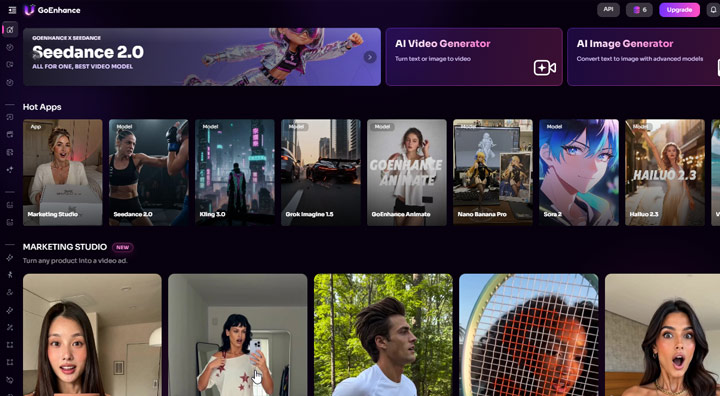
GoEnhance AI is a browser-based platform for creating and editing AI-powered videos and images. It includes text-to-video, image-to-video, video-to-video, text-to-image, image-to-image, AI upscaling, video effects, face swap, virtual try-on, and other creative tools.
It uses its own GoEnhance models and integrates many popular third-party models, including Veo, Kling, Seedance, and Wan. Instead of switching between separate AI tools and subscriptions, you can access different models and workflows from one dashboard.
GoEnhance Pricing: How Much Does It Cost
Most GoEnhance generations use tokens. The number of tokens required depends on the model, resolution, video length, and selected settings.
GoEnhance offers Standard, Pro, and Mega plans. Annual billing lowers the effective monthly price by about 30%.
| Plan | Monthly Tokens | Monthly Price | Effective Monthly Price When Billed Annually |
|---|---|---|---|
Standard |
1,600 |
$24.99 |
$17.50 |
Pro |
3,500 |
$49.99 |
$35.00 |
Mega |
8,000 |
$99.99 |
$70.00 |
To keep the estimates consistent, I used the Pro annual rate of approximately $0.01 per token throughout this review. The table below shows the token costs I found for several commonly used models and settings.
| Workflow | Model or Setting | Tokens | Estimated Cost |
|---|---|---|---|
Video-to-Video |
Flat Anime Style v6, 5 seconds |
25 |
About $0.25 |
Image-to-Video |
GoEnhance 1.5, 480p to 1080p |
15 to 160 |
About $0.15 to $1.60 |
Image-to-Video |
Wan 2.2 Spicy, 480p to 720p |
15 to 40 |
About $0.15 to $0.40 |
Image-to-Video |
Seedance 2.0, 5 to 15 seconds |
70 to 420 |
About $0.70 to $4.20 |
Image-to-Video |
Kling 3.0 Pro, 5 to 15 seconds |
120 to 360 |
About $1.20 to $3.60 |
Text-to-Video |
GoEnhance 1.5, 5 seconds |
15 to 80 |
About $0.15 to $0.80 |
Text-to-Video |
Third-party models reviewed, 5 seconds |
25 to 160 |
About $0.25 to $1.60 |
Image Generation |
GoEnhance models |
4 to 12 |
About $0.04 to $0.12 |
Image Generation |
Third-party models reviewed |
10 to 24 |
About $0.10 to $0.24 |
Note:
- GoEnhance's own models were generally the cheaper options.
- Some paid plans include unlimited Relax Mode for selected tools. Supported Relax Mode generations do not use the monthly token allowance, though processing may take longer. The option is not available for every model, feature, resolution, or setting.
- Prices and token requirements may change. The figures above reflect the plans and settings available when I conducted the tests.
How I Tested GoEnhance
GoEnhance has more tools than I could realistically test without burning through a large number of tokens. I narrowed the review to six features that seem to define the platform. These are the tools GoEnhance puts front and center in its interface, and the ones that come up most often in user discussions:
- Video-to-Video style transfer with a five-second source clip
- Image-to-Video with GoEnhance 1.5
- Text-to-Video with GoEnhance 1.5
- Text-to-Image with GoEnhance Real 1.0
- Video Upscaler with an AI-generated clip and a camera-recorded clip
- Image Upscaler with the Normal model
As you may have noticed, I used GoEnhance's own models to test video and image generation and enhancement. Although the platform provides access to third-party models, their output quality largely depends on the models themselves. A video generated with Seedance, for example, tells us more about Seedance than GoEnhance. For third-party models, I focused on the experience GoEnhance provides, including model versions, settings, token costs, resolution and duration options, and ease of access.
GoEnhance Video Generation Review
Video generation is a major part of the GoEnhance platform, with three main workflows: Video-to-Video, Image-to-Video, and Text-to-Video. I tested all three to see how easy they were to use, how well they performed, and what limitations I encountered.
GoEnhance Image-to-Video Review
- Maximum upload size: 10MB
- Maximum output resolution: 1080p with GoEnhance 1.5
- Maximum output length: 10 seconds with GoEnhance 1.5. Some third-party models support up to 15 seconds.
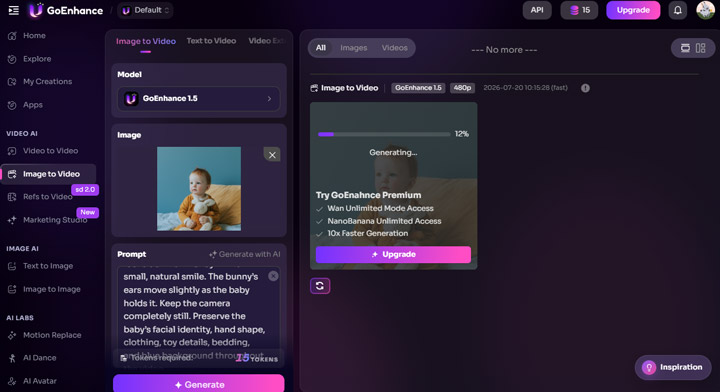
GoEnhance Image-to-Video turns a still image into a short animated clip based on a text prompt. You can use GoEnhance 1.5 or select a third-party model such as Wan 2.2 Spicy, Seedance 2.0, or Kling 3.0 Pro. The model selection gives you more choices for resolution, duration, and motion. However, premium third-party models can use tokens quickly, especially when generating longer or higher-resolution videos.
How Well Does GoEnhance Image-to-Video Perform
I tested GoEnhance 1.5 with a still image of a baby holding a plush toy. The final animation looked natural. The child's posture, eye movement, and general motion worked well with the original image. The movement did not look stiff or artificially added. This was the best result I received from the GoEnhance models tested in this review.
Pros
- Produced natural posture and eye movement
- Preserved the subject and composition of the source image
- Supported 480p, 720p, and 1080p output with GoEnhance 1.5
- Offered several third-party models with different duration and quality options
Cons
- Higher resolutions and longer videos used considerably more tokens
- Premium third-party models could consume the monthly allowance quickly
- Faces, hands, and small objects may still require close inspection
GoEnhance Text-to-Video Review
- Maximum output resolution: 1080p with GoEnhance 1.5. Third-party models vary.
- Maximum output length: 10 seconds with GoEnhance 1.5. Some third-party models support up to 15 seconds.
- Aspect ratios: 16:9, 9:16, and 1:1.
GoEnhance Text-to-Video is straightforward to use. You enter a prompt, choose a model, and adjust the settings available for that model. Along with GoEnhance 1.5, the platform offers Wan 2.2, Happy Horse 1.1, Kling 3.0, Seedance, and other third-party models. The available resolution, duration, audio, and multi-shot settings depend on the selected model.
How Well Does GoEnhance Text-to-Video Perform
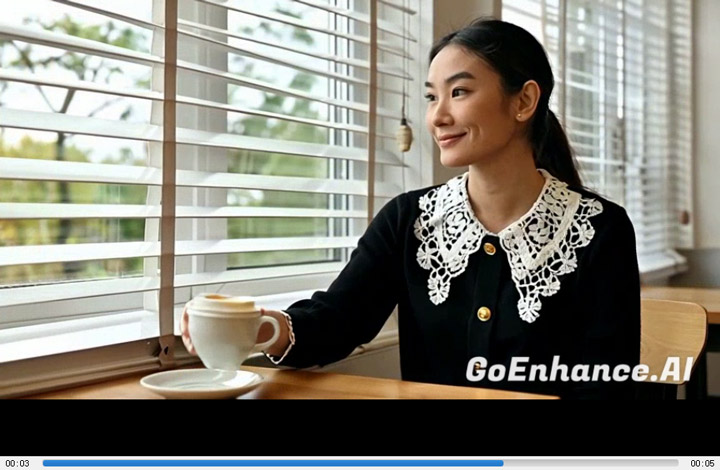
I tested GoEnhance 1.5 with the following prompt: The woman looks toward the window, smiles slightly, and lifts the coffee cup with her right hand. The camera makes a slow, subtle push-in. Keep her appearance, clothing, and the background consistent.
I was not satisfied with the result. The main movement looked stiff, and the cup moved in a way that did not feel physically convincing. The overall scene followed the prompt, but the smaller motion details lacked polish. The result could work as an early concept or draft, though I would not use it as a finished commercial video.
Pros
- Supported 480p, 720p, and 1080p with GoEnhance 1.5
- Offered 16:9, 9:16, and 1:1 aspect ratios
- Provided several third-party models with audio and multi-shot options
- Included lower-resolution settings for testing prompts
Cons
- Movement looked stiff in my GoEnhance 1.5 test
- The cup did not move naturally
- GoEnhance 1.5 was limited to five-second and ten-second videos
- The result did not look polished enough for commercial use
GoEnhance Video-to-Video Generation
- Maximum upload size: 100MB
- Maximum output length available in my test: 5 seconds
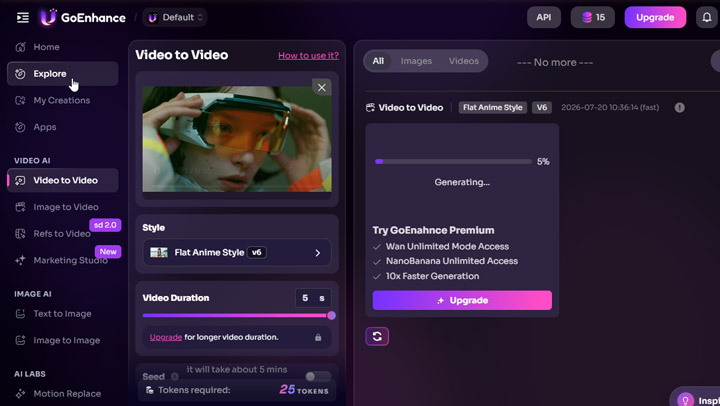
GoEnhance Video-to-Video applies a preset visual style to an existing clip. You upload a video, select an anime or animation style, choose the available duration, and start the generation. The workflow is easy to follow, though the tool does not provide a text prompt or identify the model behind each preset. This limits how much control you have over the transformation.
How Well Does GoEnhance Video-to-Video Perform
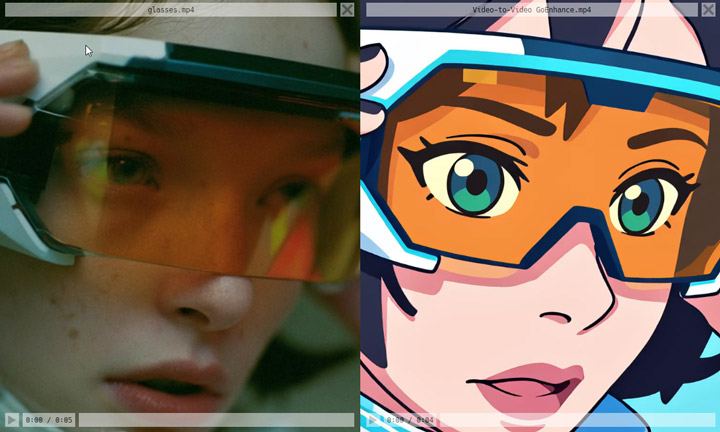
I tested Flat Anime Style v6 with a five-second source video. The generation took around three minutes and used 25 tokens, equal to about $0.25. The result was acceptable, though I was not fully satisfied with it. The anime style appeared in the output, but some details looked less polished than expected.
GoEnhance did preserve the original resolution. My 1696 × 928 input produced a 1696 × 928 output.
Pros
- Preserved the original video resolution
- Provided a wide selection of anime-style presets
- Required only a few steps to generate the video
Cons
- Did not support text prompts
- Did not identify the model used for each preset
- Had no built-in trimming tool
- Limited the output to five seconds in my test
- Could not select a specific segment from a longer source video
More GoEnhance Video Tools
GoEnhance includes several other tools for creating or extending videos. I did not test each tool in depth because doing so would have used too many tokens. Here are the most useful options I found:
- Video Extender: Upload a video under 50MB and use a prompt to continue the scene.
- First & Last Frame: Upload a starting image and an ending image, then generate a transition between them. Pricing is similar to Image-to-Video when using comparable model settings.
- Refs to Video: Use images or videos as references alongside a text prompt. Resolution and duration depend on the selected model.
- Marketing Studio: Create marketing and product videos from templates. Some examples looked smooth, though the people still had a noticeable AI-generated appearance.
These tools add more variety to GoEnhance, especially for creators working on short social or marketing videos. Since the settings vary by model, check the available resolution, duration, and token cost before generating.
GoEnhance Image Generation Review
- Available workflows: Text-to-Image, Image-to-Image, and Character Image
- Maximum input file size: 10MB
- Model selection: GoEnhance Real and GoEnhance Anime, plus third-party models
In the Image AI tab, I could create an image from a prompt, edit an existing image, or generate character artwork. The model list included GoEnhance Real and GoEnhance Anime, along with third-party options such as GPT Image 2, Nano Banana 2, and Qwen Image.
How Well Does GoEnhance Image Generation Perform
I tested GoEnhance Real 1.0 for turning text prompt into image. The generation used 6 tokens, equal to about $0.06. At first glance, the result looked good. The atmosphere felt natural, the composition worked well, and the image looked polished at a normal viewing size. When I zoomed in, I noticed a slight distortion in the fingers, which I feel it could become a problem in an advertisement, product image, or any project where small details matter.

Pros
- GoEnhance's own image models were relatively inexpensive
- The test image had a natural atmosphere and balanced composition
- Included native and third-party models
- Supported image generation, image editing, and character creation
Cons
- The fingers showed slight distortion on close inspection
- Small defects were easy to miss at normal viewing size
- Final images required a careful detail check before publishing
GoEnhance Video/Image Upscaler Review
- Available models: HD1 and Anime for videos; Normal and Creative for images
- Maximum upload size: 100MB for videos and 10MB for images
- Maximum video length: 30 seconds
- Maximum output resolution: 1080p with HD1 and 2K with Anime; up to 4K for images
- Token cost: Video pricing varies by model and length. My seven-second HD1 test used 24 tokens, or about $0.24. Image upscaling costs five tokens per image, or about $0.05.
GoEnhance Video Upscaler is mainly intended for short clips, including low-resolution videos generated on the platform. This is useful because many GoEnhance video models produce 480p or 720p output, while generating at a higher resolution can use considerably more tokens. For the upscaling of images, the Normal model provides automatic cleanup with few settings. The Creative model offers Real and Anime engines, a creativity control, HDR, and prompt input. It can add or reinterpret details, which may work well for AI artwork but could be a problem when the original details need to remain accurate.
How Well Does GoEnhance Upscaling Perform
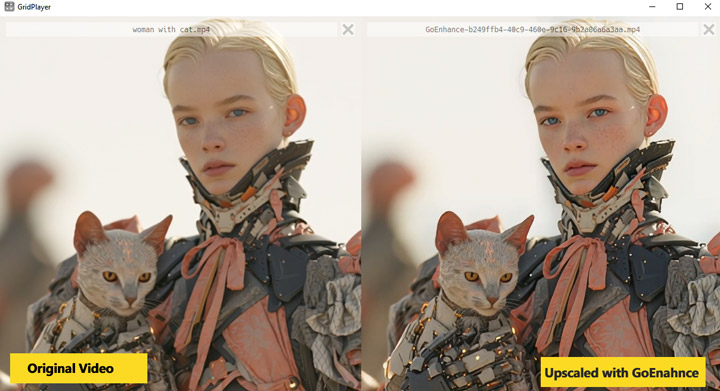
Test 1: Upscale a Low-Resolution AI-Generated Video
I used the HD1 model with a low-resolution AI-generated clip. Processing took around four minutes. The face and clothing looked clearer, and the details on the cat were easier to see. The result looked natural without appearing heavily sharpened or artificially repainted.
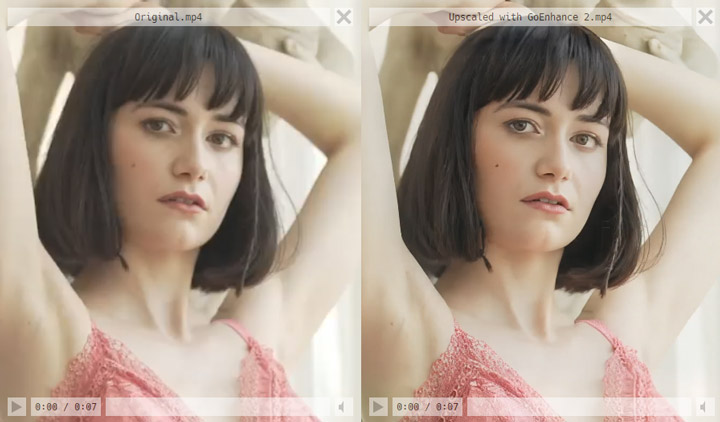
Test 2: Upscale a Camera-Recorded Video
I then tested a seven-second video recorded with a camera. It used 24 tokens, equal to about $0.24, and took a similar amount of time to process. The enhanced version showed clearer facial features and better clothing textures.
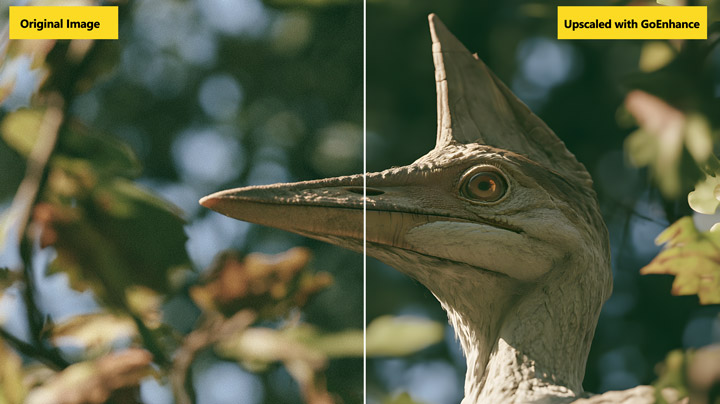
Test 3: Upscale an AI-Generated Image
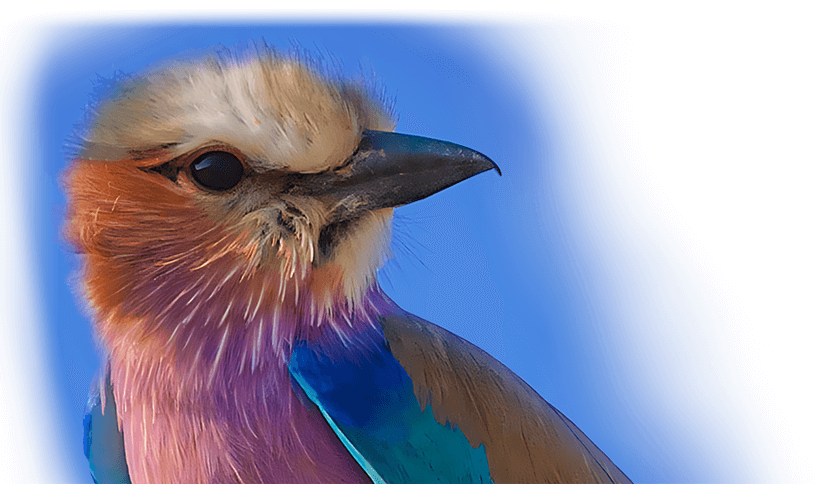
For the Image Upscaler test, I used the Normal model with a slightly noisy image generated in Midjourney. GoEnhance reduced the visible noise and improved the overall clarity. The result looked good at a normal viewing size, although some feather details appeared slightly oversharpened when I zoomed in.
Pros
- Improved clarity in AI-generated and camera-recorded videos
- Produced natural-looking facial and clothing details
- Reduced visible noise in the test image
- Included separate models for general footage, anime, and creative image enhancement
- Made it easy to enhance media without leaving GoEnhance
- Charged only five tokens for image upscaling
Cons
- Limited videos to 30 seconds and 100MB
- Limited HD1 video output to 1080p
- Did not provide batch processing in the workflow I tested
- Charged tokens for every video and image enhancement
- Slightly oversharpened fine feather details
- Creative image enhancement may change details from the original
How Does GoEnhance AI Compare to Other AI Enhancement Tools
GoEnhance's main advantage is convenience. If you have just generated a short video or image on the platform, you can enhance it without downloading the file and moving to another tool. My tests also showed visible improvements in facial features, clothing textures, noise, and overall clarity.
Compared with dedicated AI image and video enhancement software, however, GoEnhance has more restrictions. Videos are limited to 30 seconds and 100MB, HD1 output stops at 1080p, and the workflow I tested did not support batch processing. Every enhancement also uses tokens, so the cost increases when you process several files or retry a result.
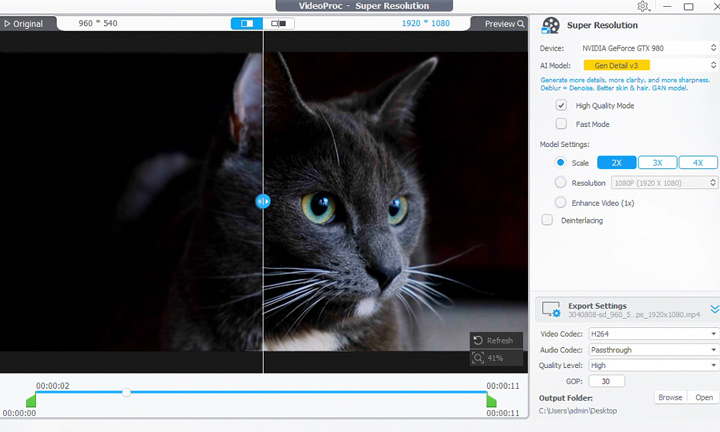
VideoProc Converter AI offers stronger long-term value for frequent media enhancement. With an affordable one-time purchase, it processes files locally without per-file token charges and supports batch enhancement for images, videos, and audio. It can upscale videos to 4K and images to 10K, while also providing a broader set of conversion, compression, editing, recording, and downloading tools. GoEnhance is convenient for quickly enhancing media created on its platform, but VideoProc is the more capable and cost-effective option for longer videos, large file collections, and repeated use.

AI Labs and Creative Effects
AI Labs contains many specialized effects. I did not test them one by one because the token cost would quickly overtake the value of a focused product review. A few tools nevertheless illustrate the range:
- Motion Replace transfers motion from a reference video to another character or subject, supporting the kind of dance and character-swap clips common on TikTok.
- AI Hair Changer previews different haircuts and styles.
- Virtual Try-On places clothing on a person without requiring a physical fitting.
These tools make GoEnhance feel broader than a basic model launcher. They are also highly use-case dependent. A playful social effect can tolerate artifacts that would be unacceptable in a product listing, fashion campaign, or client deliverable. Anyone considering GoEnhance for commercial work should test the exact workflow—not only the polished gallery examples—before committing to a plan.
Who Should Use GoEnhance
GoEnhance makes the most sense for:
- Social creators who want to experiment with several video styles and models
- Marketers prototyping short concepts before committing to production
- AI hobbyists who prefer one token wallet to multiple model accounts
- Creators who combine image generation, short video generation, effects, and occasional upscaling
- Beginners who want a browser-based workflow without installing local generative software
It is less suitable for:
- Editors who need precise timeline, trimming, compositing, or stabilization controls
- Teams processing long videos or large batches of existing media
- Users who require predictable quality from every generation
- Buyers interested in only one model that is cheaper or better supported elsewhere
- Professional enhancement workflows that need local processing, 4K output, and no per-job tokens
Final Verdict: Is GoEnhance Worth It
GoEnhance is worth considering if you want to generate videos and images with different AI models from one platform. GoEnhance 1.5 performed especially well in my Image-to-Video test, although Text-to-Video and Video-to-Video were less satisfied. It is best for experimenting with AI models and creating short-form content.
The image and video upscaler provide by GoEnhance are handy for occasional files, but the limits on video length, resolution, batch processing, and token use make them less practical for frequent enhancement work. If improving existing videos and images is your main goal, a dedicated desktop tool such as VideoProc Converter AI is a better fit. Overall, GoEnhance offers more room for creative experimentation, while its value depends on how often you use the wider selection of models and generation tools.



