
Enhance Your AI Videos & Images to 4K/10K with VideoProc
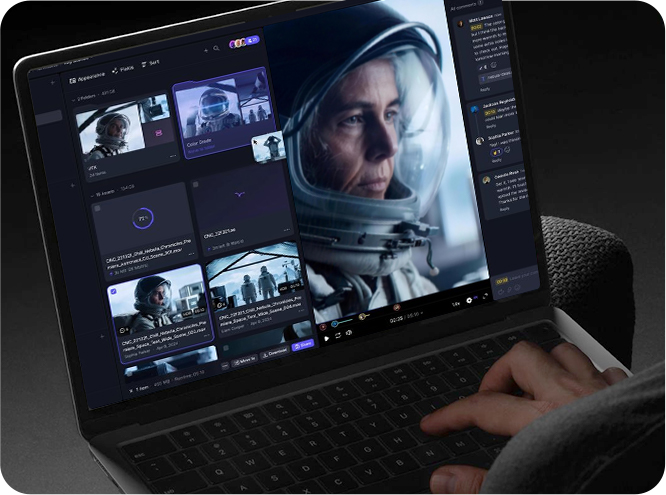
Generate the idea anywhere. Then enhance your AI images and videos with VideoProc Converter AI. Upscale 720p videos to 1080p/4K and low-res images to 8K/10K, reduce blur, refine faces, improve details, smooth motion, and more. Along with built-in tools to edit, convert, and compress, it ensures every AI creation is sharp, polished, and ready for sharing, delivery, or further work. No subscription or AI credits needed. Everything runs locally, with no cloud uploads.
-

Video to 1080p/4K
-

Image to 10K
-

Unblur Details
-

Remove Noise
-

Smooth Motion
-

Edit & Convert



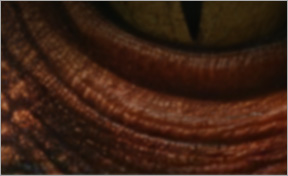
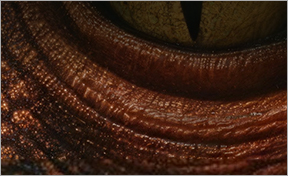

Enhance Soft Details
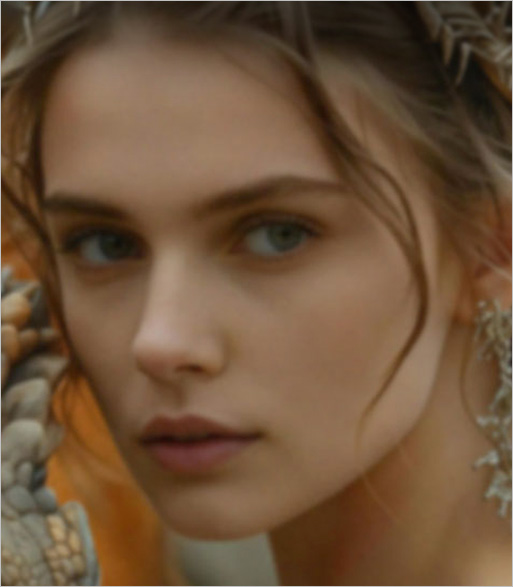
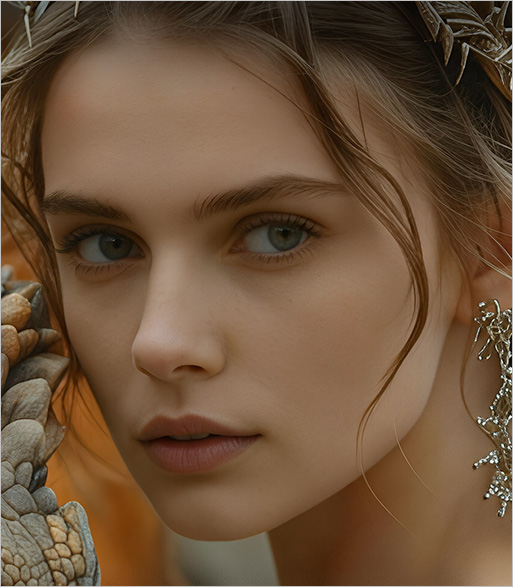
Refine Blurry Faces


4X Upscale
-
10Ksharp
Resolution
-
16AI Models
Video / Image / Audio
-
GPU
NVIDIA / AMD / CPU
-
Offline
Private. Unrestricted
Upscale Your Low-Res AI Creations into 4K/10K Clarity
Free AI generation is still bottlenecked by low resolution (capped at 2K images and watermarked 720p video), while 4K outputs quickly drain paid credits. Powered by AI Super Resolution, VideoProc Converter AI upscales low-res AI videos and images to 4K/10K, delivering pixel-level clarity and fine textures with 0 credit limits or pay-per-output fees.


-
Free Exports
Low-Resolution
Max. 720p
-
Edit & Crop
Crop Watermark
Details Drop
-
Costly 4K
Pay Every Time
~$112/min
-
VideoProc Solution
Upscale to 4K · No Per-Video Fees
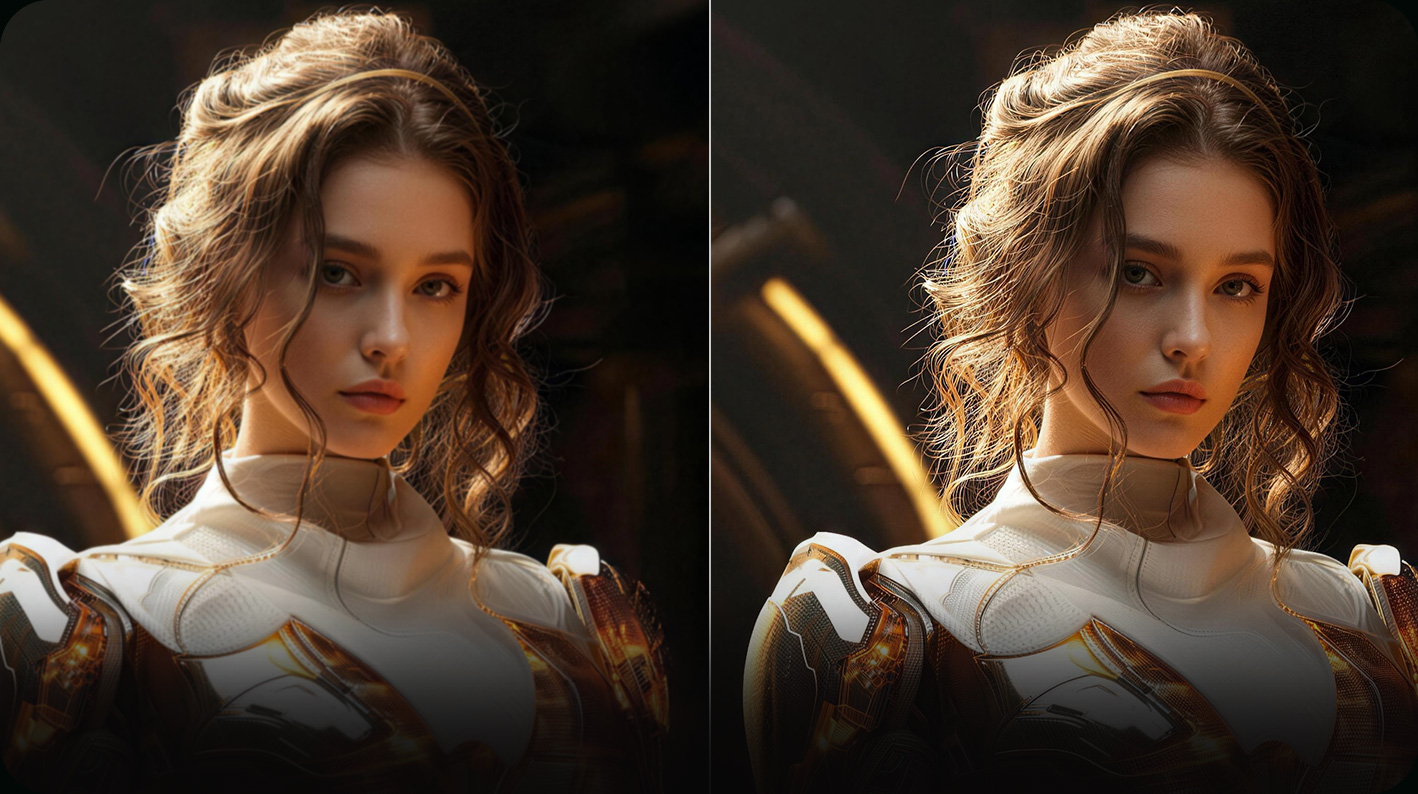
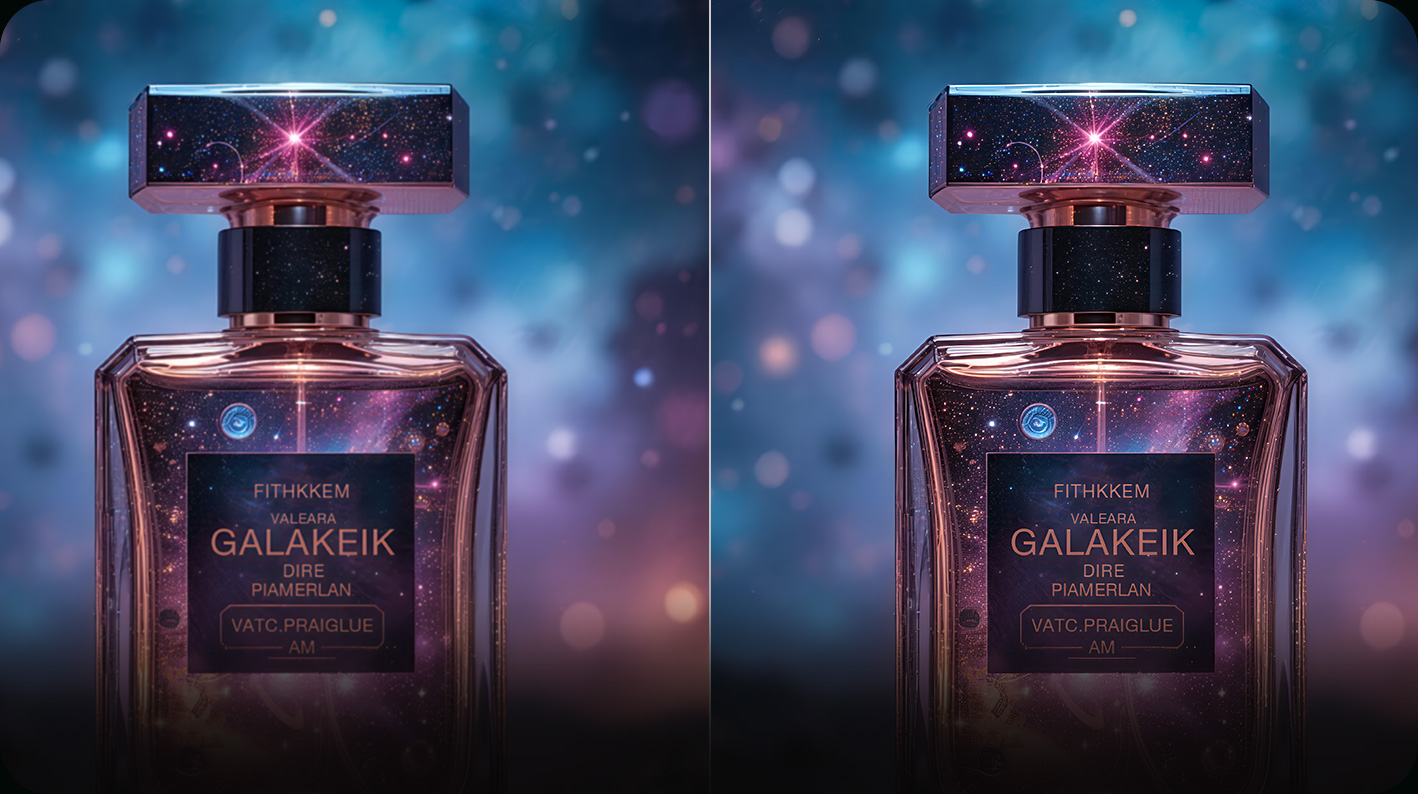
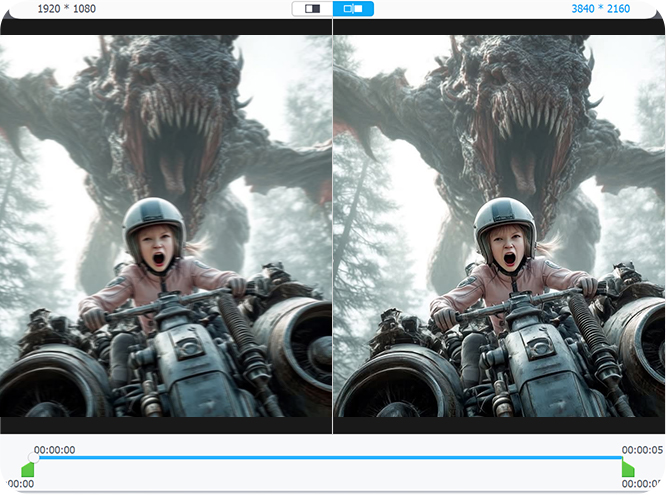
Batch upscale 720p AI videos to 4K resolution via Super Resolution, eliminating blur and refining natural textures. No pay-per-output restrictions.



-
Size Limit
Not Enough Pixels
Max. 2K
-
Quality Issue
Soft Details & Face
Lack Detail
-
Edit & Crop
Fewer Pixels Left
Worsen Quality
-
VideoProc Solution
Upscale to 10K · Maximum Details
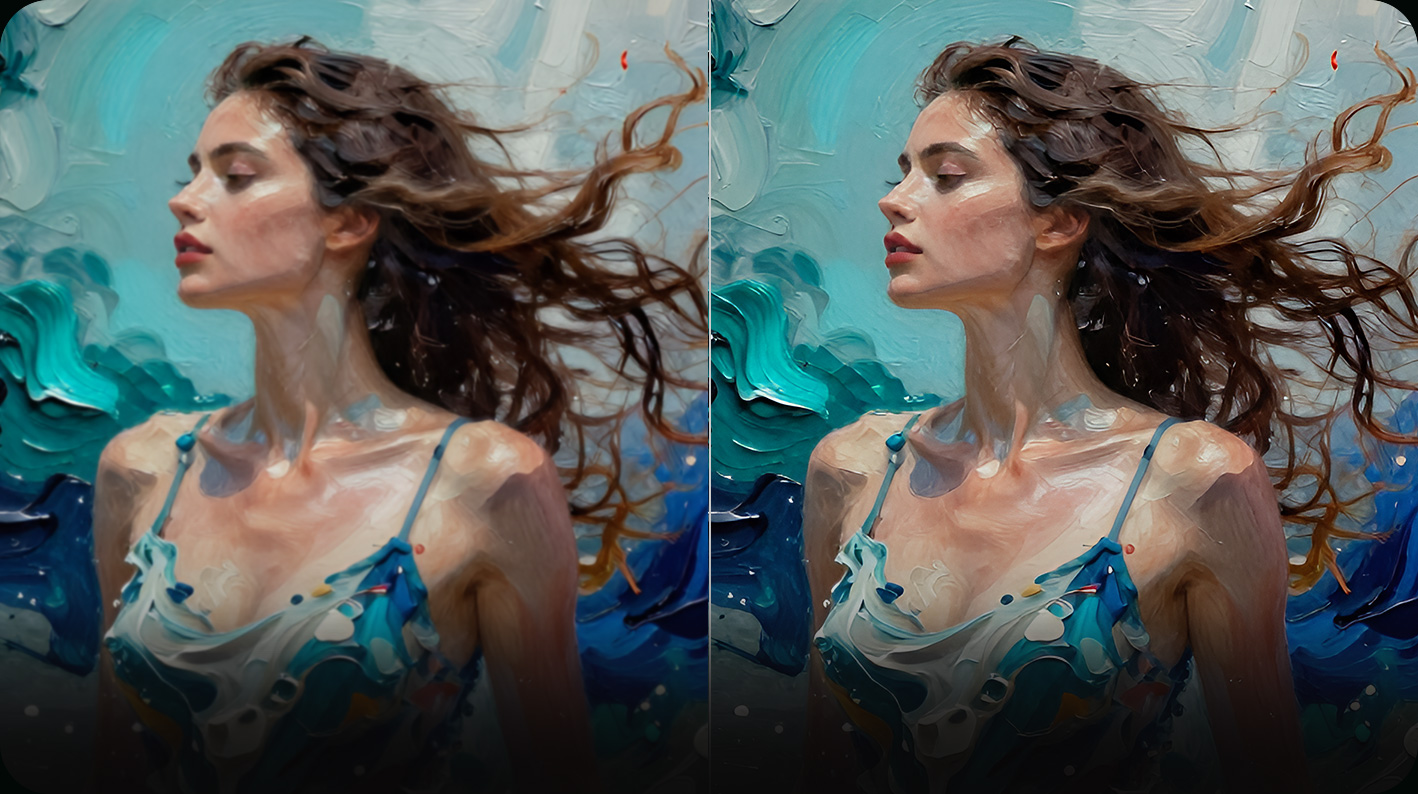
Upscale AI images to 8K/10K via Super Resolution with refined, high-fidelity details. Make every creation ready for 300 DPI print, large displays, and further editing.
-
Video Generator
-
Max. Free Output
-
Approx. 1080p Cost
-
Approx. 4K Cost
-
Kling
-
720p
-
$6.2 / 30s
-
$7.5–$7.8 / 30s
-
Veo 3
-
720p
-
$12.0 / 30s
-
$56.0 / 30s
-
Hailuo
-
768p
-
$6.2-$39.0 / 30s
-
$6.6–$30.0 / 30s
-
Luma
-
Not available
-
$5.4–$7.2 / 30s
-
$6.2–$7.6 / 30s
-
Runway
-
720p
-
$12.7–$14.9 / 30s
-
$56.0 / 30s
-
Pika
-
Not available
-
$2.8 / 30s
-
Not available
-
Dreamina
-
720p
-
$11.8-12.9 / 30s
-
Not available

-
Image Generator
-
Typical Output
-
Max. Output
-
Common Limits
-
Midjourney
-
1024 × 1024
Standard size -
2048 × 2048
Built-in upscale -
Not for large prints
Needs more pixels
-
Stable Diffusion / SDXL
-
1024 × 1024
Recommended base -
2048 × 2048
Workflow-dependent -
Artifacts
High VRAM, complex
-
Adobe Firefly
-
512px
Varies by mode -
2000 × 2000
Max. download size -
Blurry on large screen
Lacks fine detail
-
GPT Image 2
-
1024 x 1024
Via app/web -
2K
Via API -
Not for large prints
Lacks fine detail
-
Nano Banana 2
-
1K
$0.067 / image -
4K
$0.151 / image -
Expensive 4K Output
Needs more detail
-
Dreamina
-
1K
Varies by mode -
Up to 4K
Model-dependent -
Soft textures
Needs more detail
Enhance AI Videos and Images to Their Best Quality
Great AI generations deserve great visual quality. VideoProc Converter AI enhances your AI videos and images with AI-powered upscaling, detail recovery, smoother motion, and faithful enhancement, helping every creation look sharper, cleaner, and more polished without changing the style you chose.

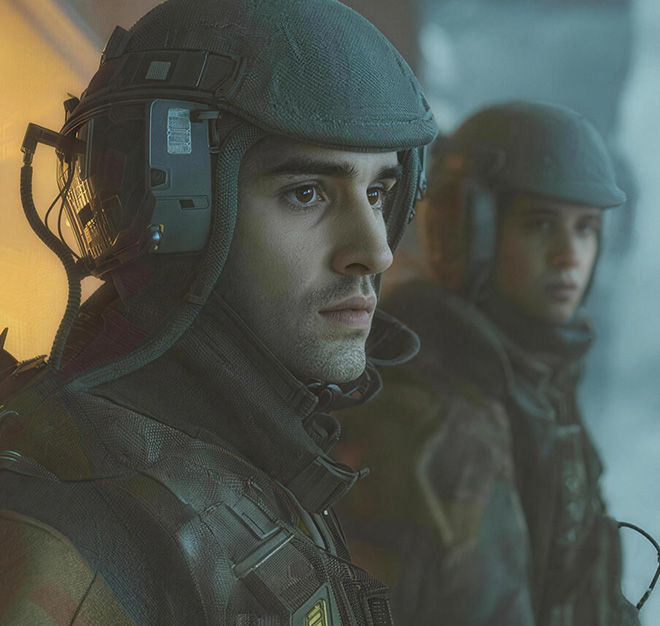
Sharpen Blurry Visuals
Even high-res AI visuals may look soft, especially after cropping. VideoProc's V3 models distinguish blur from real detail, sharpening soft edges for high-def clarity without artificial over-processing.

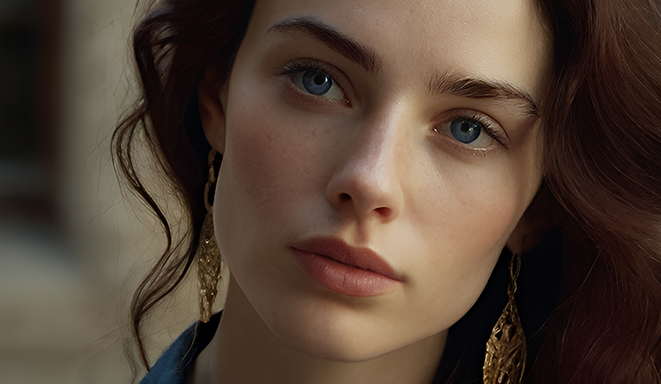
Keep the Chosen Look
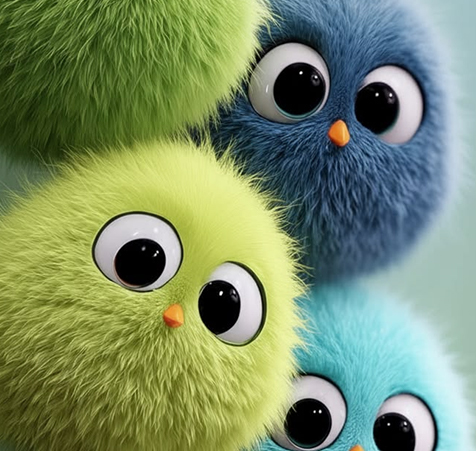
Unlike built-in upscalers that re-generate and alter your style, VideoProc Converter AI enhances quality while maintaining visual fidelity, keeping the look that made your generation worth choosing
Enhance Fine Details
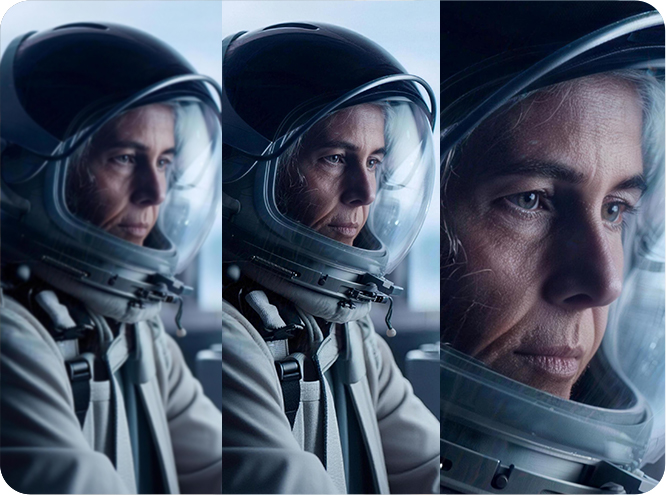
AI characters often look flat or waxy, lacking fine details. VideoProc brings back the subtle textures, such as skin pores, fabric weaves, and fur, for richer, more natural-looking results without the plastic AI look.

Smooth Choppy Motion
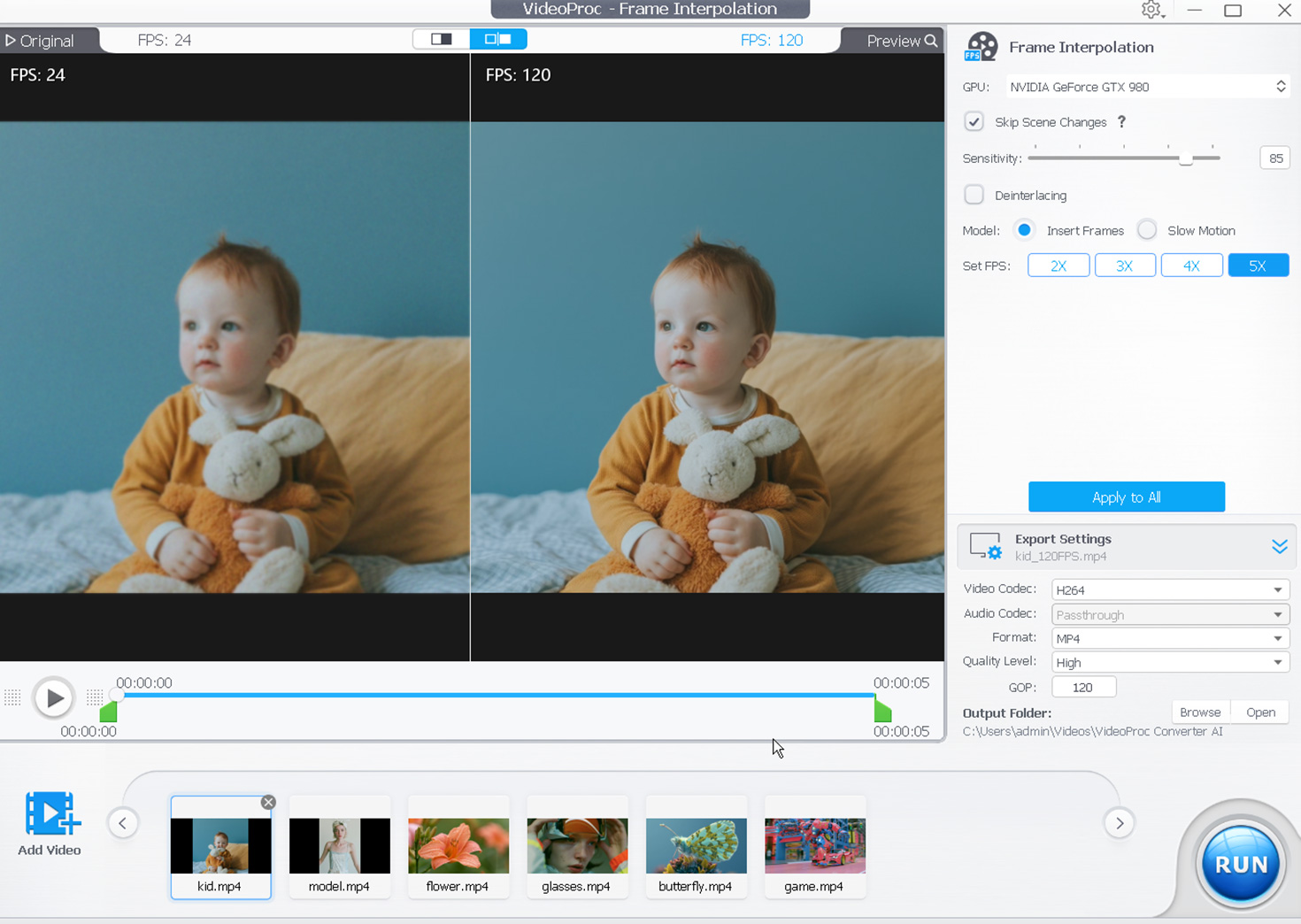
AI videos often export at 24fps or lower, making fast motion and slow-mo edits look choppy. VideoProc interpolates frames to 60/120fps or higher for fluid motion and buttery-smooth cinematic slow motion.
VideoProc - Perfect Partner for Your AI Generation Workflow
-
Bring AI Vision to Life
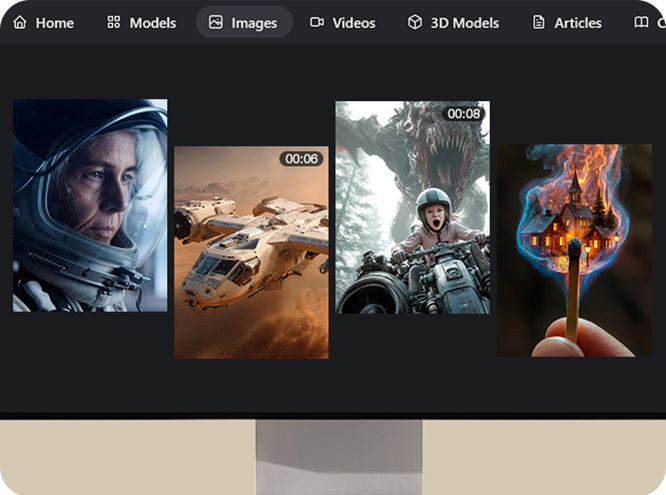
Create AI-generated images, videos, or image-to-video clips with tools like Midjourney, Stable Diffusion, Runway, Pika, Kling, Seedance, and more.
-
Enhance AI Images into 8K/10K
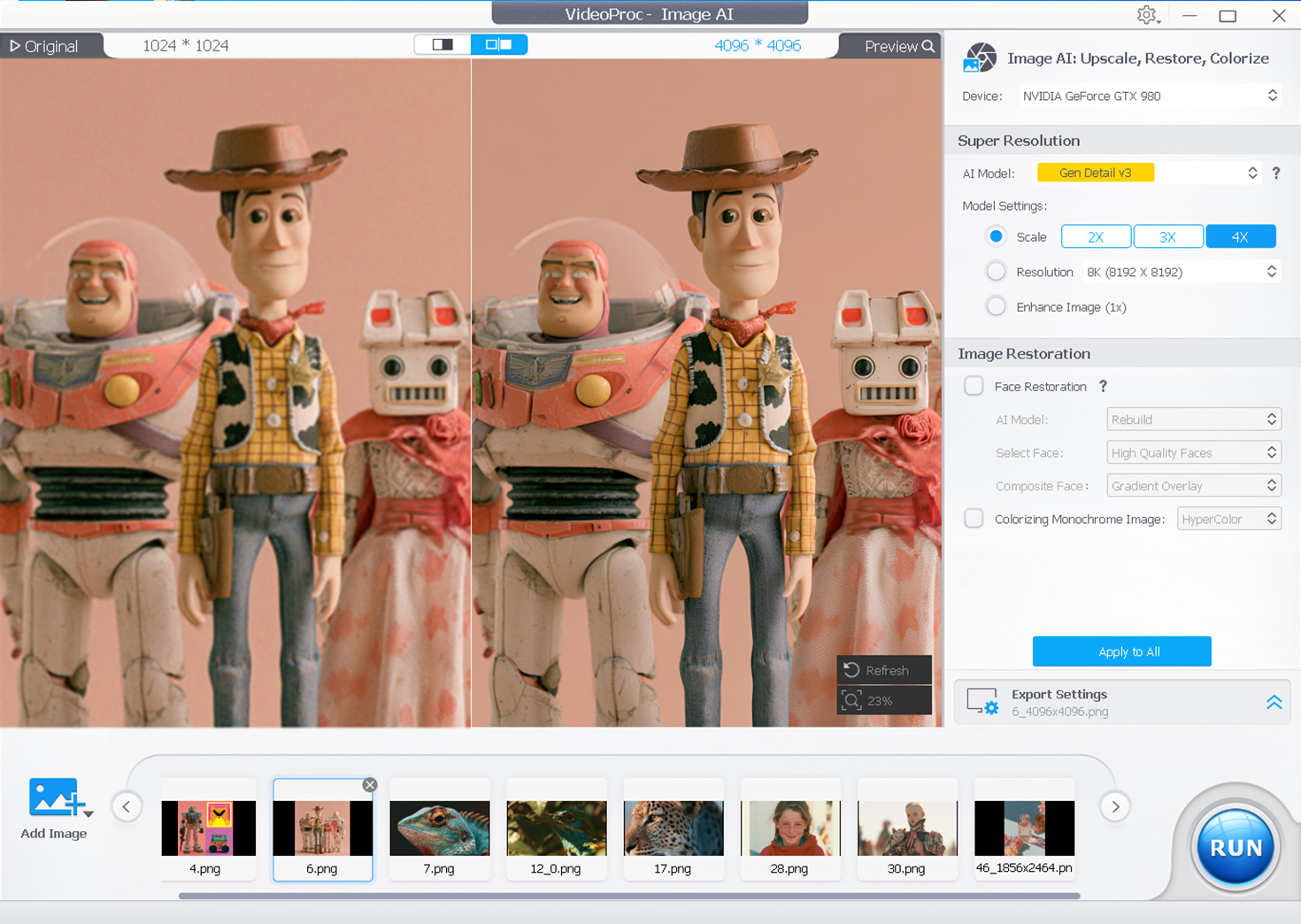
Upscale AI images by 200%, 300%, or 400% of the original resolution with VideoProc while reducing soft blur and restoring lifelike textures in skin, fabric, and more. It also restores blurry or distorted faces.
-
Elevate AI-Generated Videos
Enhance AI video quality with VideoProc by upscaling to 4K, unblurring fuzzy edges, restoring missing details, and boosting fps, etc. This feature-rich video enhancer also helps make quick edits, such as trim and crop watermarks.
-
Share with the World
Edit, convert, and compress your clips with VideoProc so your high-resolution videos play smoothly on any screen and are ready for easy sharing.
Why Enhance AI Images & Videos with VideoProc Converter AI
Quality & Fidelity
Max. Image Upscale
Max. Video Upscale
AI Video, Image & Audio in One
Built-in Video Editor
Built-in Converter
Built-in Compressor
Speed
Price
VideoProc Converter AI
Faithful High-Fidelity
• Good clarity and detail
• Natural-appearance
• Keep the original look
8K, 10K
4K
All-in-One AI Suite
• Upscale, deblur & denoise video and images;
• Stabilize & smooth video;
• Restore face & colorize image; clean audio
Yes, trim, crop, and 29 quick editing tools
Yes, convert video/audio to 420+ formats
Faster from Start to Finish
• No uploads, no waiting
• GPU-accelerated
Pay Less, Do More
• $39.95 one-time for 1 PC
• $59.95 one-time for 5 PCs
AI Generator's Enhancer
Hit-or-Miss
• May soften details
• May change the look
Depends on generator
Depends on generator
Often separate
Typically Slow
• Queue time or retries add up
High Cost
• Pay per output
• 4K/retry costs more
Online AI Enhancer
Limited Clarity Boost
• Details still look soft
Typically 4K
Typically 1080p
Often separate
Typically Slow
• Online queue delays
• Time lost to retries
High Cost
• Pay per output
• HD/4K costs extra
Other Local Enhancer
Hit-or-Miss
• Some are good
• Many add artifacts
Typically 4K/8K
Typically 4K
Mostly separate
Usually Moderate
• Hardware-dependent
• Varies by CPU/GPU/model
High Cost
• Some can cost nearly $300 a year
• Many lack a lifetime plan
Enhance Every Video/Image You Create with AI, for Every Purpose
From social posts, product ads, and campaign visuals to posters, concept art, game assets, cinematic shorts, MVs, and animation, VideoProc Converter AI upscales and enhances low-res AI images and videos with higher resolution, sharper detail, clearer textures, and smoother motion, making every AI creation ready to stand out wherever it appears.
- Edit & Reuse
- Social Media
- Art & Design
- Film & Motion
- Animation
- Marketing & Ads
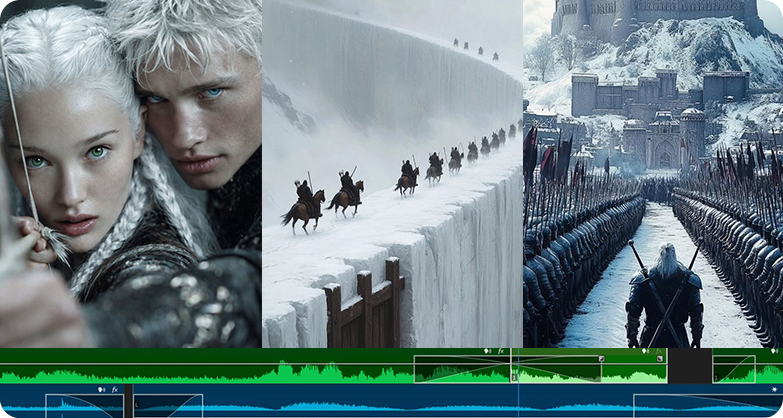
Edit, convert, and compress AI clips to make them easier to re-edit, remix, and reuse.
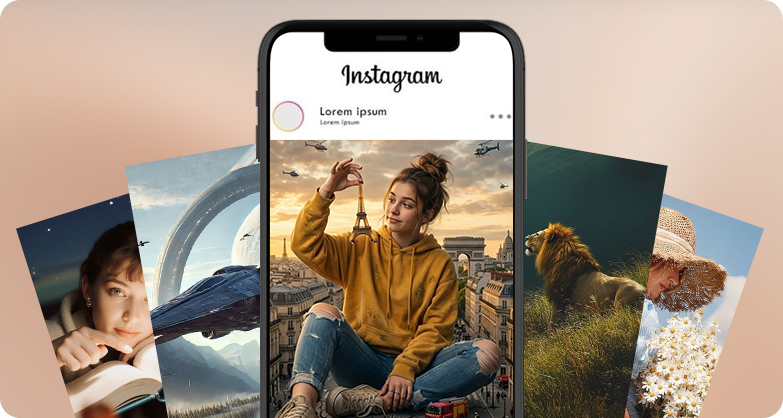
Enhance AI images and videos for social media across TikTok, Instagram, and YouTube, etc.
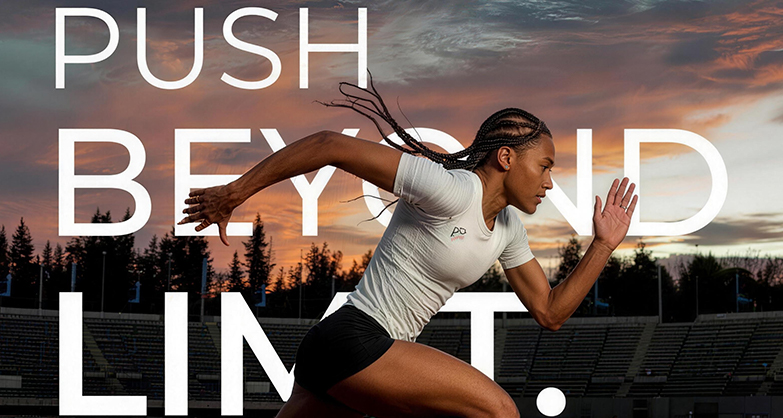
Upscale AI posters, design assets, and artwork to 10K with sharper detail and print-ready DPI.
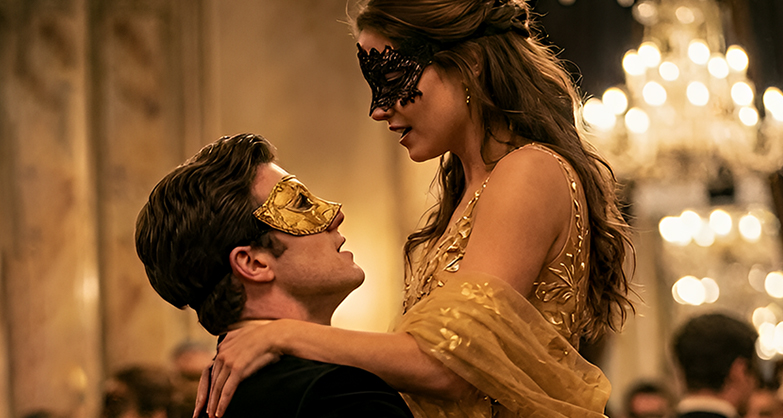
Transform cinematic AI films/shorts/trailers into production-grade 4K with exquisite detail and seamless motion.
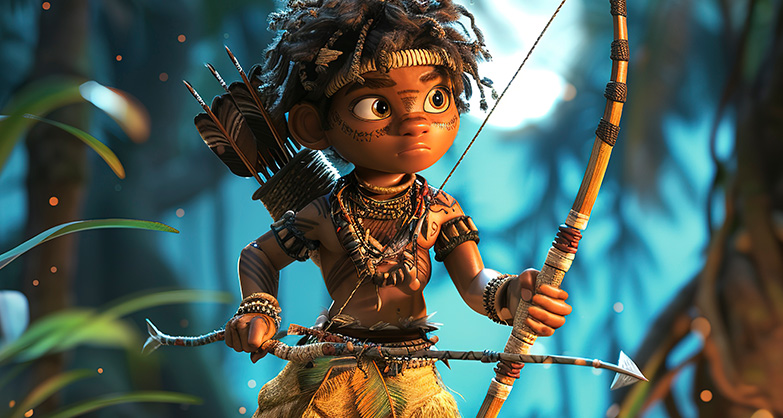
Bring AI animations to life with sharper visuals, richer textures, and smoother motion.
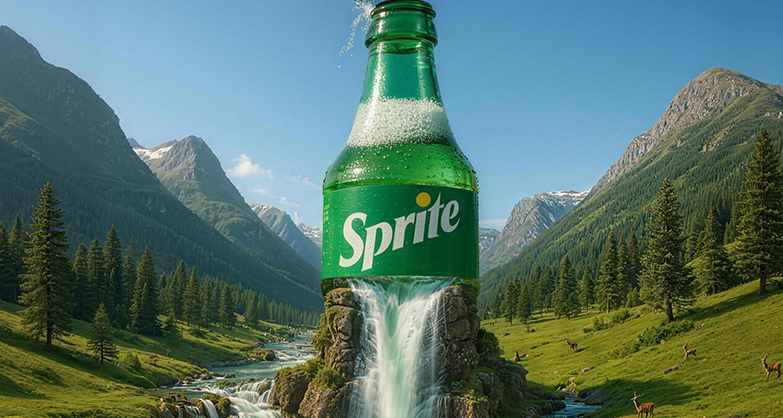
Give AI ads and product visuals sharper detail, richer texture, and a cleaner, polished look.
How to Enhance Your AI Videos and Images with VideoProc
-
Step 1
Import Files
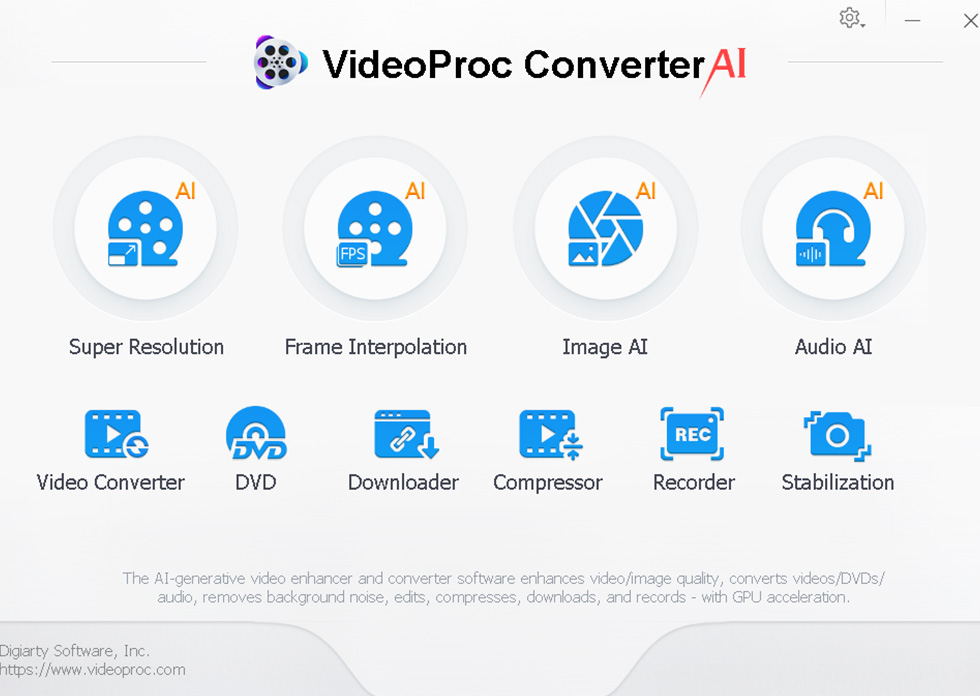
Run VideoProc. Select the needed AI feature. Drag and drop files to import them.
-
Step 2
Enhance AI Videos to 4K
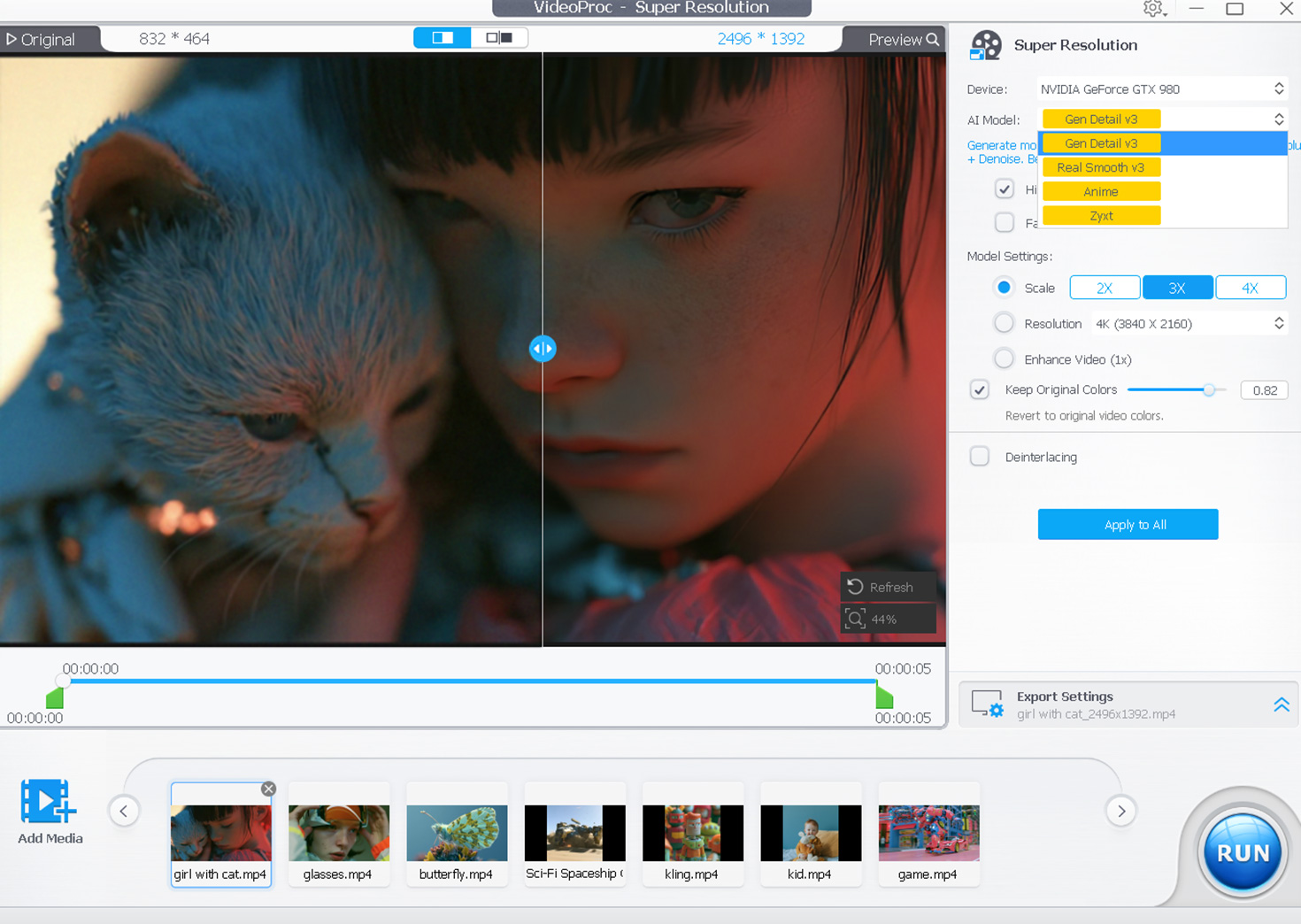
Pick an AI model. Select an upscale level, or set a target resolution such as 4K.
Or, Smooth AI Video Motion
Choose the desired frame interpolation level from 2x to 5x.
Or, Enhance AI Images to 10K
Pick an AI model. Set the ideal resolution. Enable Face restoration, as needed.
-
Step 3
Export Media Files
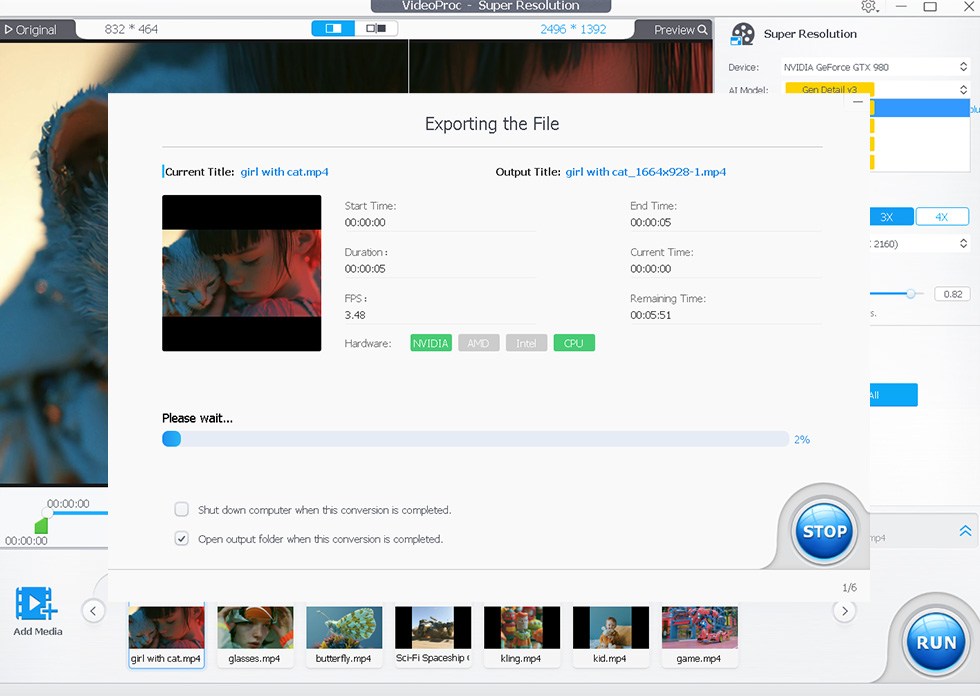
Adjust the output settings as needed. Hit RUN to process and export files.
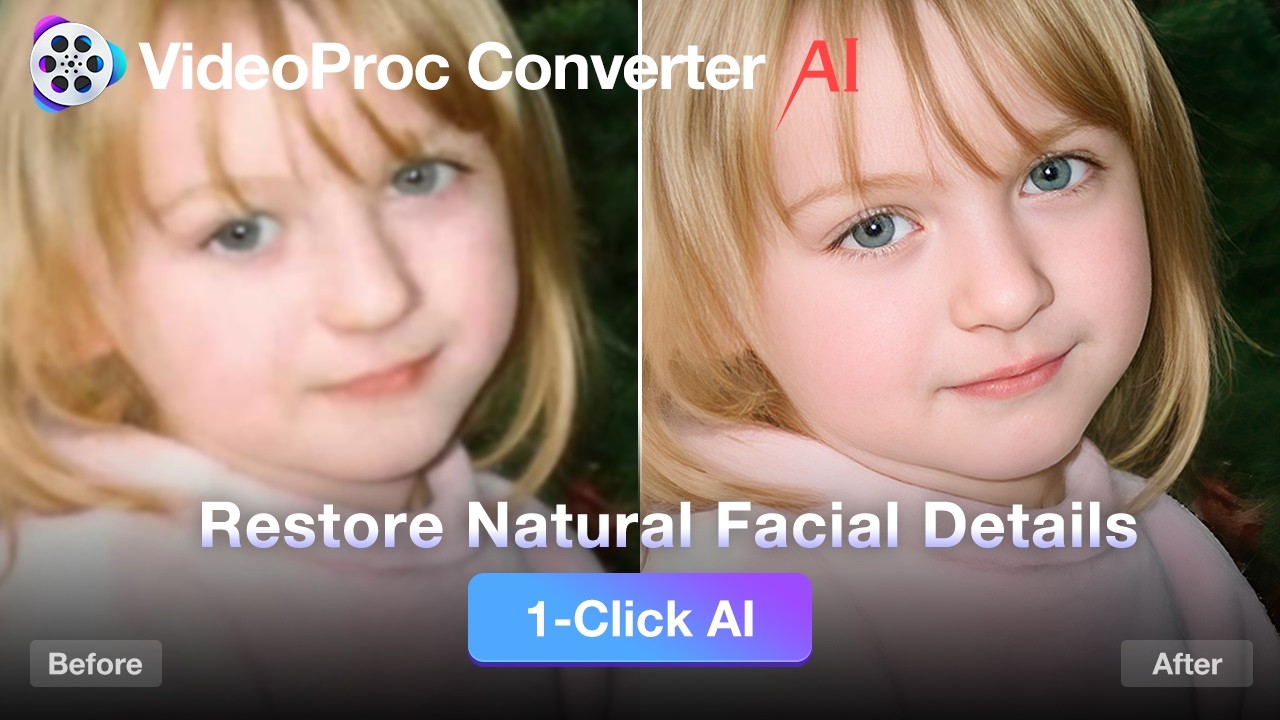
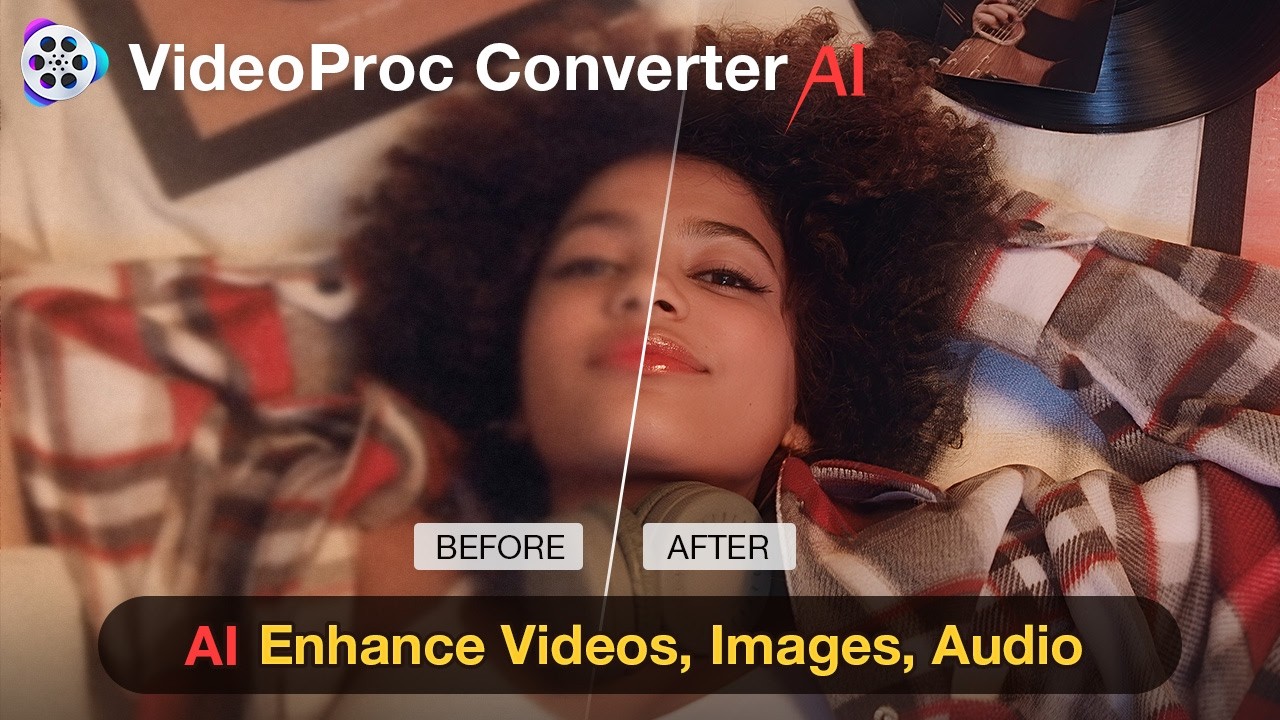
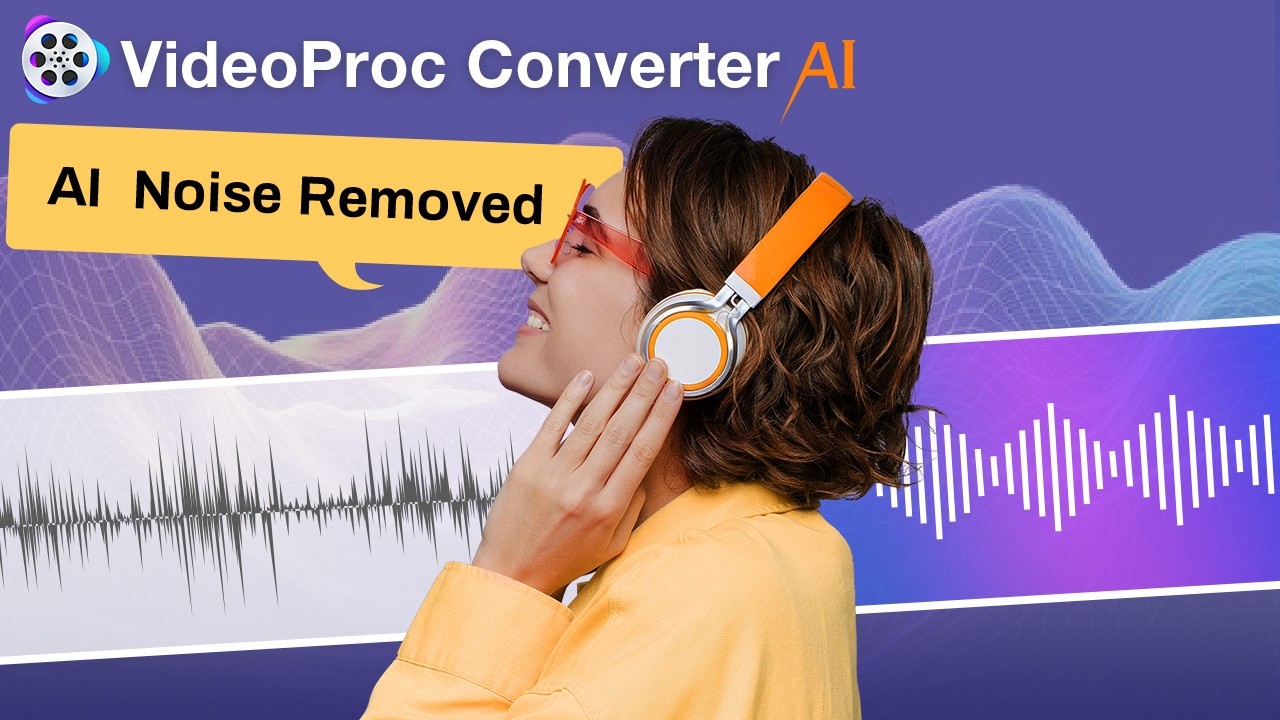
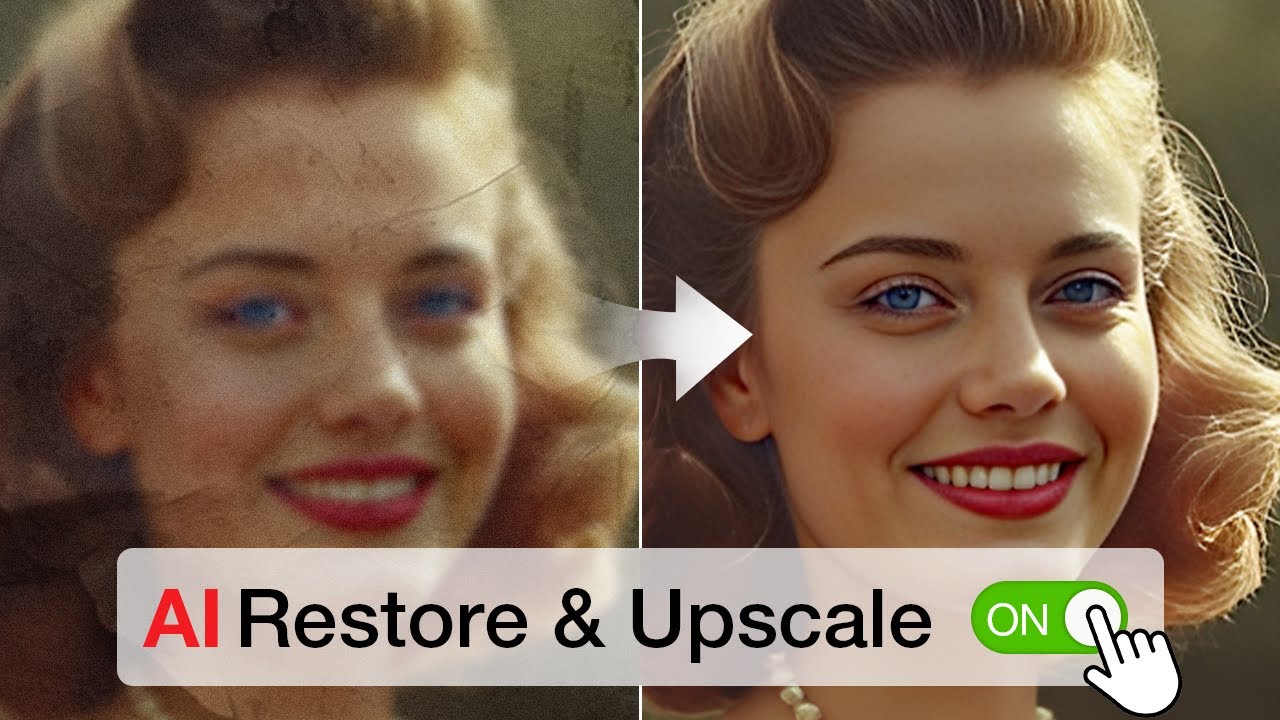
VideoProc Converter AI - Trusted to Bring Out the Best in AI Videos
Frequently Asked Questions
-
Why do my AI-generated images and videos look blurry?
Generative models prioritize composition over pixel precision. At native resolutions, fine textures are often blurred rather than sharply defined. In video, maintaining temporal stability further erases these micro-details to prevent flickering, creating a 'soft' look that fails at 4K. VideoProc Converter AI bridges this gap using advanced high-fidelity enhancement to rebuild lost textures. It upscales AI videos and images to crisp 4K/10K, ensuring every pixel is sharp and ready for the big screen.
-
Will AI upscaling change the original style or make the result look artificial?
The outcome largely depends on the upscaling tool you use. Many AI generators' built-in upscalers tend to "re-draw" scenes, which often shifts the original style. VideoProc Converter AI, however, focuses on high-fidelity enhancement. It intelligently restores textures and sharpens edges using your original pixels as the blueprint. By offering four specialized models (such as Gen Detail v3 and Real Smooth v3) for different content types, it delivers optimal quality across diverse media without introducing distortion, oversharpening, or any visible artifacts.
-
Does VideoProc Converter AI work with content from different AI generators?
Yes. You can enhance images and videos exported from a wide range of AI generation platforms, including Midjourney, Stable Diffusion, Runway, Sora, Seedance, Veo, Kling, and more. VideoProc Converter AI helps bring out the best in outputs from these image and video generators with higher resolution, sharper detail, clearer textures, and smoother motion.
-
Can I enhance AI images and videos offline?
Yes. VideoProc Converter AI processes files locally on your computer, keeping private artwork, client materials, and unfinished projects on your device. With no cloud uploads, credit limits, or online queues, you can enhance long videos and process multiple files in batches more freely.

Digiarty Software, established in 2006, pioneers multimedia innovation with AI-powered and GPU-accelerated solutions. With the mission to "Art Up Your Digital Life", Digiarty provides AI video/image enhancement, editing, conversion, and more solutions. VideoProc under Digiarty has attracted 5.2 million users from 180+ countries.
Subscribe to VideoProc
Stay current with our latest updates, guides, and subscriber-only offer.
Choose Language
Copyright © 2026 Digiarty Software, Inc. All rights reserved.
Any third-party product names and trademarks used on this website, including but not limited to Apple, are property of their respective owners.


