
Elevate Videos/Images Before Editing with VideoProc
Enhance, upscale, and restore footage with AI — perfect for creators, vloggers, and everyday users.
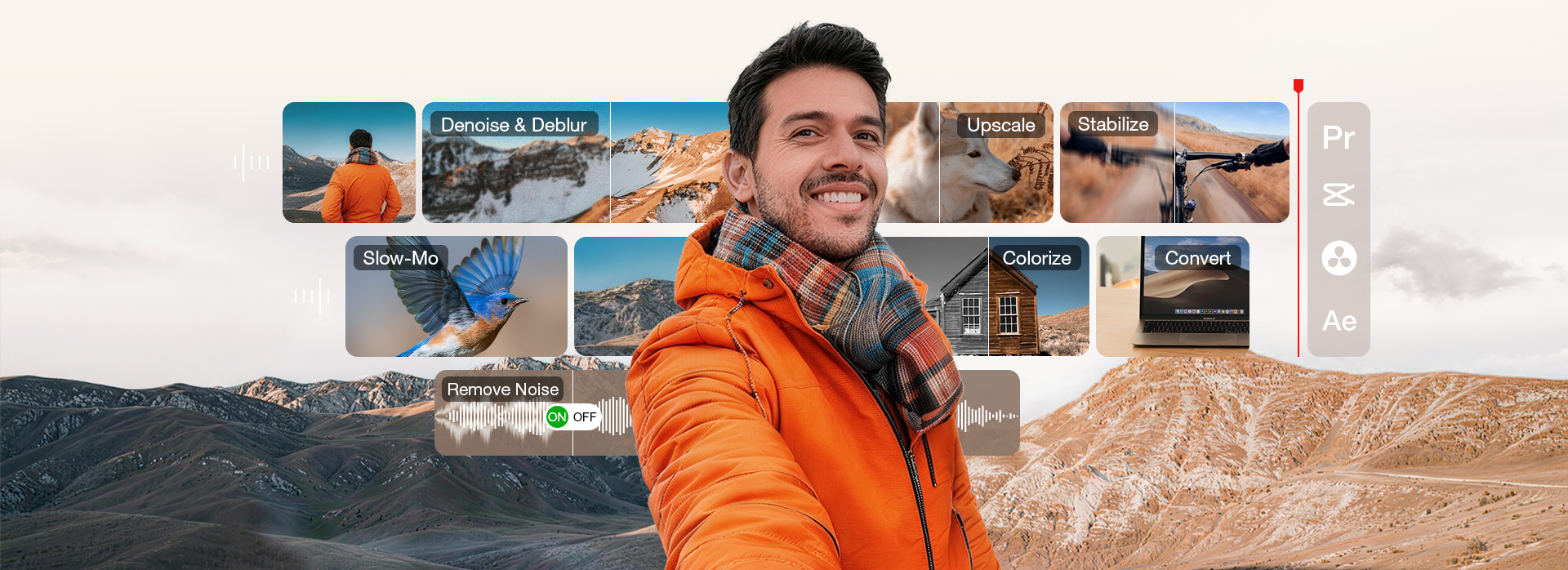
Noise, blur, shake, low resolution, and format incompatibility can all limit what you do with videos in daily sharing or long-term archiving. VideoProc Converter AI helps enhance the quality of your vlogs, AI-generated videos, or old clips, upscale them to 4K, and convert footage into edit-ready, SNS-compatible formats before or after editing.
 Optimized for 64-bit systems, ensuring optimal performance on graphics drivers newer than the version of Sep.2020.


Why Choose VideoProc As Your Editing Assistant
-
30+ AI Models
For top-tier results
-
Natural Clarity
For AI enhancement
-
GPU Acceleration
Powered by NVidia/Intel/AMD
-
4.6 Avg. Ratings
Over 5.2 million global users


VideoProc - improves overall video quality
Rescue Low-Quality Footage with AI Super Resolution
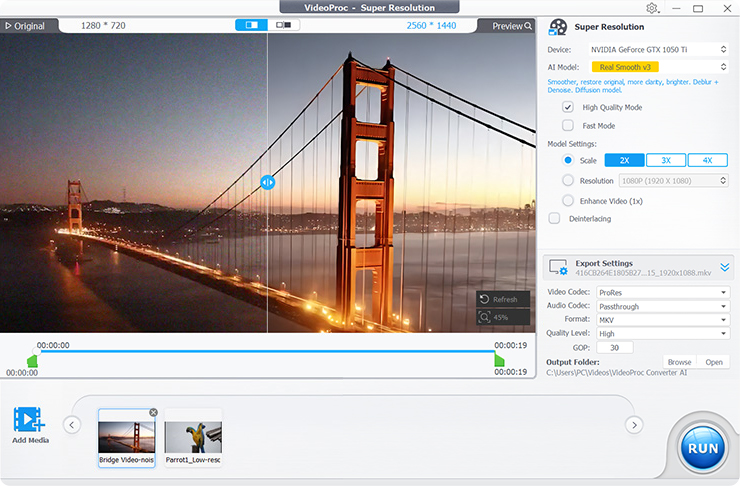
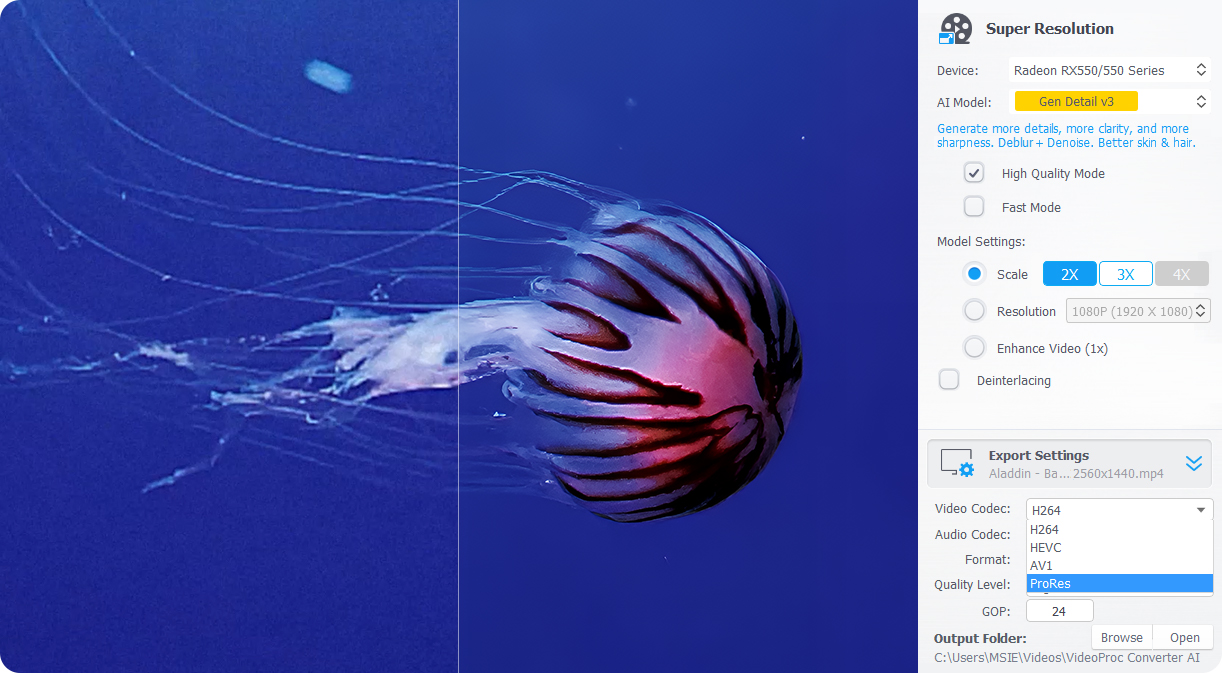
Super Resolution in VideoProc is an AI-powered tool designed to upscale and enhance video quality. It offers four specialized AI models to tackle different types of footage, automatically fixing blurry, noisy, or grainy videos for realistic and natural 4K results. The result: every clip becomes sharper, clearer, and ready for the timeline.
- #Denoise
- #Deblur
- #Sharpen
- #Upscale to 4K
Deblur & Sharpen
Fix Blurry Footage
Footage from different sources can be soft, blurry, or compressed.
Example: Downloaded clips, stock footage, or zoomed/cropped clips
How VideoProc Helps:
Sharpen videos, reconstruct edges, and correct focus issues.
Eliminate compression artifacts such as blocking, ringing, and banding.
Reduce lens blur, motion blur, and other softness.

Denoise
Remove Noise in Videos
Low-light or indoor footage can appear grainy or noisy.
Example: Nighttime vlogs, indoor tutorials, or high-ISO interviews
How VideoProc Helps:
Remove visual noise and grain in low-light footage.
Make soft, noisy clips sharper and cleaner for editing or publishing.
Handle even the most challenging night or high-ISO clips.
Upscale
Upscale Low-Resolution Videos
Low-resolution footage can appear pixelated and lack clarity.
Example: Old archives, AIGC clips, crops, downloads, stock videos
VideoProc helps:
Restore textures and enhance details for natural clarity.
Eliminate compression artifacts such as blocking, ringing, and banding.
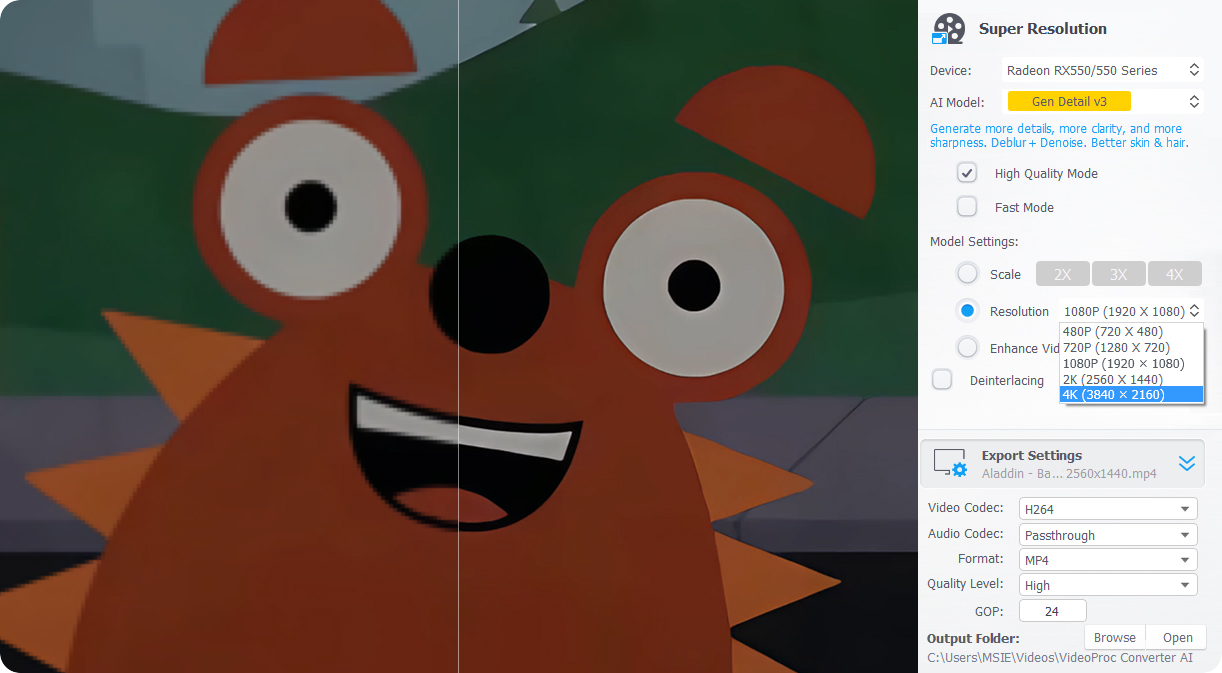
Upscale 480p or 720p footage to crisp HD or stunning 4K.
Fix Shaky Action/Outdoor Shots with Stabilization
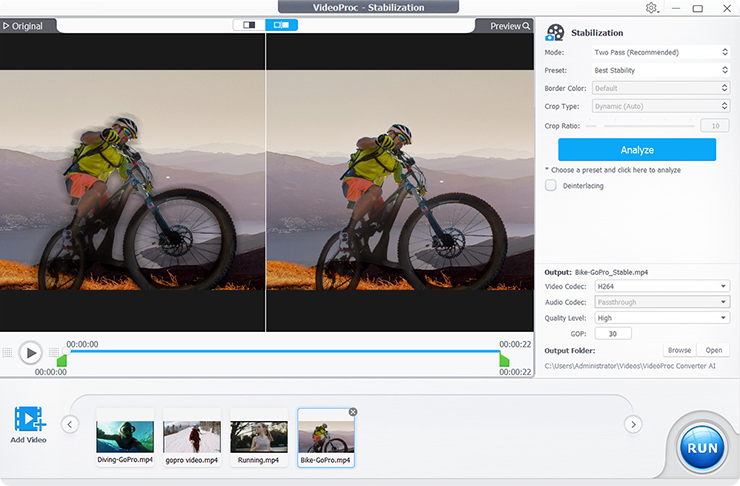
Clips shot on mobile phones, handheld cameras, and drones often suffer from shake or motion blur, distracting viewers and breaking the flow. Instead of fixing this in the NLE, many editors stabilize footage first. VideoProc makes it easy with an AI Stabilization tool that remove unwanted camera shake.
Key capabilities of Stabilization:
Correct jitter and shake while preserving natural motion.
2 stabilization modes, 4 presets, 3 border colors to for desired result.
Make Slow-mo or Smoother Videos with AI Frame Interpolation
 Try VideoProc Converter AI
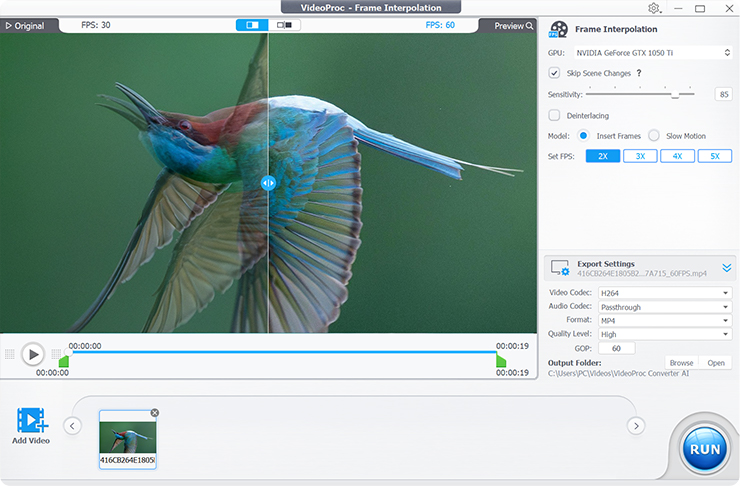
Frame Interpolation that can turn normal videos into slow motions, or make smoother fast-movement to reduce motion blur, producing fluid movement, ideal for dynamic vlogs or high-motion videos.
Key capabilities of Frame Interpolation:
Add 2-5x frames to smooth fast motion with AI.
Convert low FPS to higher FPS (to 480fps or higher).
Turn normal videos to slow motion without re-shooting.


Improve Clarity and Resolution
Increase image resolution for 4K/8K video timelines, large-format displays, and 10K high-DPI printing.
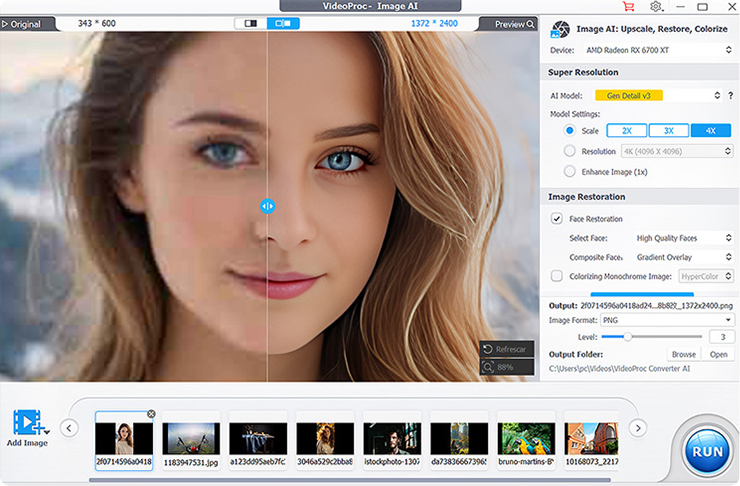
Enhancing Images for Sharing or Creative Projects
Images are used everywhere — from social media posts and personal photo collections to creative projects like photo editing, storyboards, and video production. However, many images come from AI generation, old photo scans, or compressed online sources, which can make them appear low-resolution, blurry, or faded.
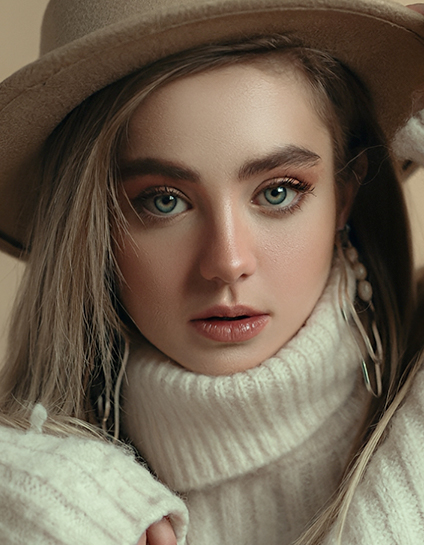

Restore Faces
Rebuild lost details in aged photos by improving facial clarity and correcting flaws for reuse in modern projects.


Colorize black-and-white images
Apply natural-looking color to monochrome images, making historical visuals suitable for modern storytelling and content creation.
Optimized for 64-bit systems, ensuring optimal performance on graphics drivers newer than the version of Sep.2020.
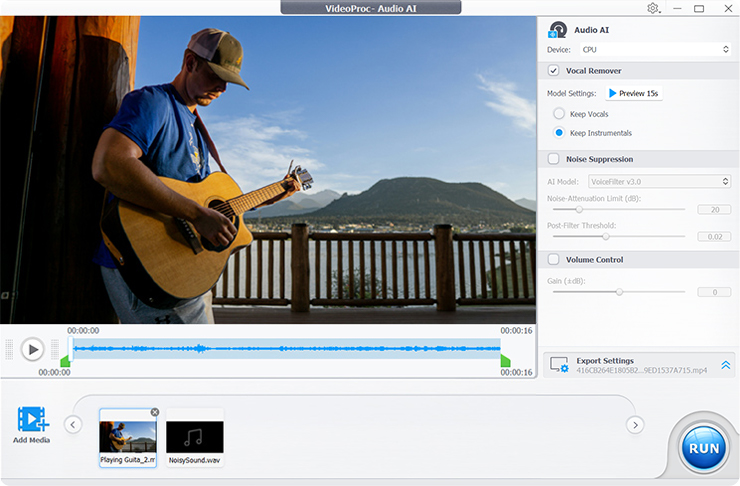
Remove Unwanted Voice and Noise with Audio AI





 Remove Vocals
 Remove Instrumentals
 Remove Noise
Complete Toolkit to Support Video Production
VideoProc Converter AI is your complete solution for source preparation and post-processing. Convert any format, compress large files without losing quality, download videos or audio from online sources, record, or edit quickly. Save time, simplify your process, and get your media ready for any device, platform, or project.
-
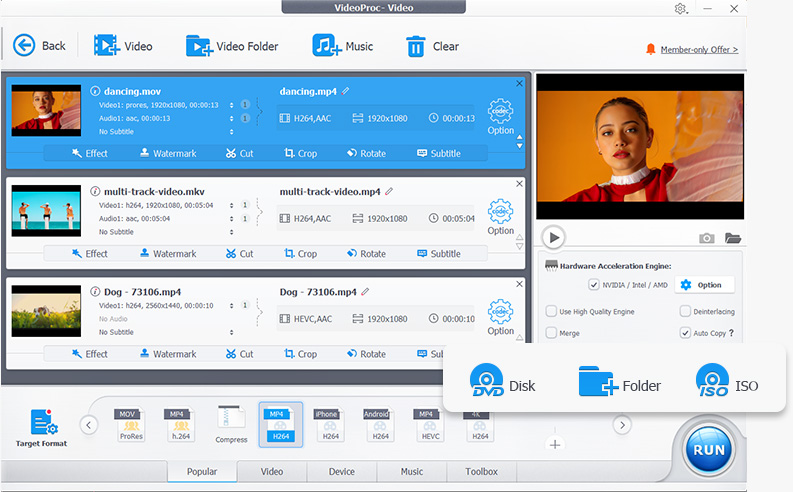
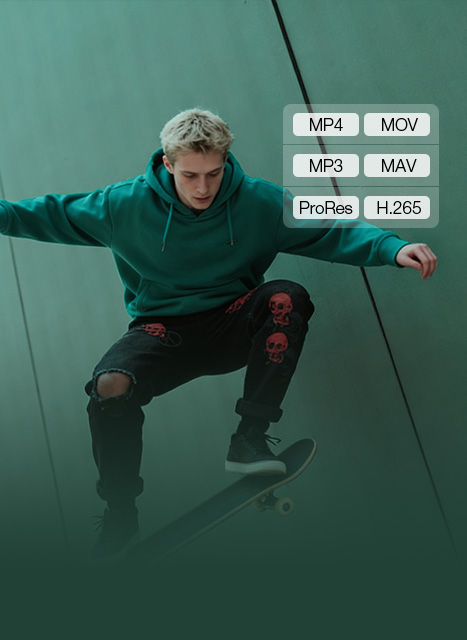 Fix Any Format IssueConvert HEVC, MKV, MOV, DVD, or GoPro, DJI, Camera videos into high-quality MP4, H.264, ProRes, MP3, or 420+ formats, ready for editing or social media.Best for: Social media, multi-device, and editing workflows
 -
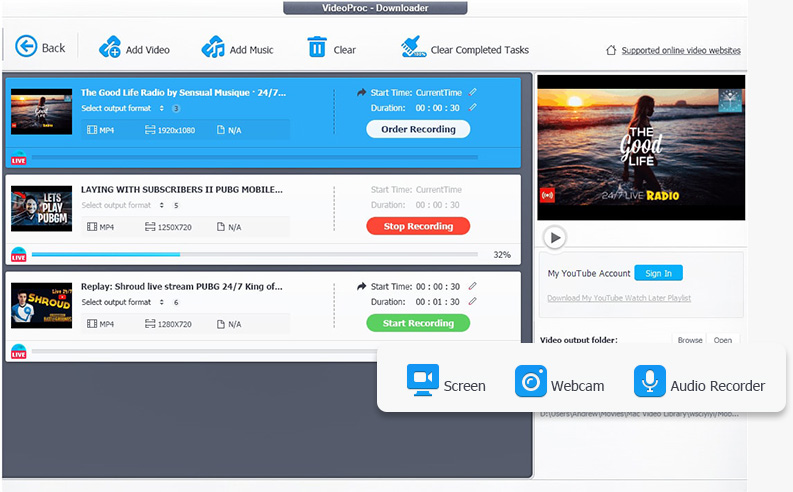
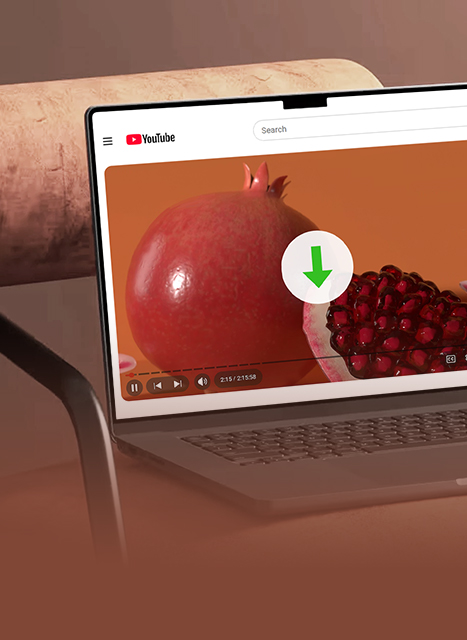 Download Video & AudioEasily download videos and audio from 1000+ online sites, including streams, playlists, and subtitles. Batch downloads make it fast to collect editing materials.Best for: any videos, vlogs, B-roll, music, podcasts, and sound effects
 -
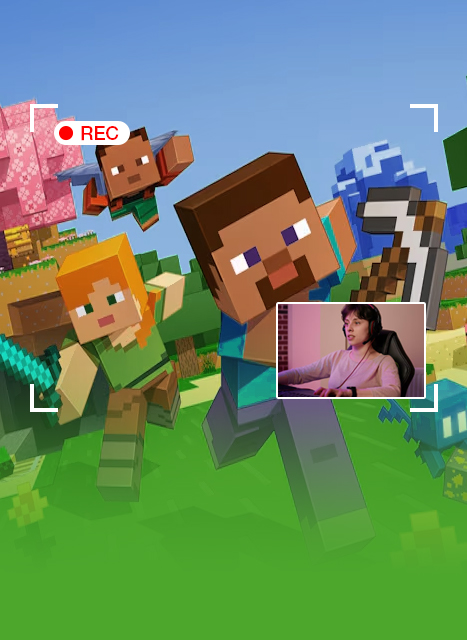 Record Screen and Camera TogetherCapture your screen and camera at up to 4K@60fps, with PiP and Chroma Key tools, making it easy to record tutorials, reactions, and commentary for editing.Best for: Tutorials, tech reviews, online classes, and gaming commentary
 -
 Shrink Video Size EffortlesslyReduce video size up to 90% with a simple slider, while preserving quality. Supports batch compression and per-video controls for easy sharing, storage, or editing.Best for: YouTube, TikTok, client delivery, and large project exports
VideoProc - Perfect Partner for Your Editing Workflow
VideoProc Converter AI is not a substitute for Premiere Pro, DaVinci Resolve, or other NLEs. Instead, it handles the enhancement, preparation, and pro-process tasks.
When paired with VideoProc Vlogger, it creates a complete workflow.
Pre-process
Clean up media, fix common issues, and prepare footage before the fine cut
Edit
Edit your project on the timeline in your NLE
After Editing
Post-process your final output for better delivery, sharing or playing if necessary
Available in VideoProc Converter AI
Available in VideoProc Vlogger
Available in VideoProc Converter AI
- Keyframes
- AI-enhance Video
- AI-enhance Image
- Insert Frames
- Upscale
- Add Text
- Motion editing
- Transitions
- Merge
- Deblur
- AI-enhance the Final Video
- Adjust Parameters
- AI-Stabilize
- Convert Transcode
- Convert
- Record Screen/Audio
- Compress the Final Video
- Download
- Cut
- Rough Cut
- Sharpen
- Chroma Key
- Edit Color
- Split
- AI-enhance Audio
- Change Speed
- Blend
- Multi-track timeline
- Denoise
- Add Audio
VideoProc Converter AI enhances quality with AI and handles format compatibility, while VideoProc Vlogger focuses on timeline-based editing. Learn their differences >
VideoProc, Best Mate for All Content Creation
For Vlog
& Lifestyle Creation
"VideoProc has streamlined my vlogging workflow. It cleans up noisy footage, fixes messy audio, and handles format issues in minutes."

"Most of my travel footage is shot on the move, and VideoProc fixes shaky, noisy clips and gets everything ready for 4K publishing."


For Travel
& Outdoor Creation
For Education
& Tutorial Creation
"VideoProc handles screen recording and audio cleanup in one place, which saves me a lot of time when creating tutorial videos."

"From 4K/60fps recording to fast transcoding, VideoProc keeps audio and video perfectly in sync, compact, and ready for editing."

For Gamers
& Reaction Creation
For Music, Podcast
& Voice Creation
"It removes background noise, make karaoke tracks, and converts recordings into the formats I need for my music project."

"It makes fast-paced sports footage usable. It improves clarity, stabilizes movement, and turns action shots into smooth slow-motion highlights."


For Fitness
& Sports Creation

Chosen by Over 5.2 Million Customers,
Recommended by Professional Media

With so many tools to take advantage of, combined with AI image improvements that compare to the best alternatives, VideoProc Converter AI has lots to commend. If you're looking for software to convert your archive footage and photographs into sharp, vibrant 4K images, VideoProc Converter AI comes highly recommended.

As an AI-powered image & video enhancer and a complete media toolbox, VideoProc Converter AI introduces multiple feature upgrades throughout the year to fix these problems with the next-level outputs. It helps correct noise, boost sharpness, upscale low-resolution photos, and recover fine textures that cameras couldn’t capture.

VideoProc Converter AI is an easy-to-use AI-powered tool for working with videos, images, audio, and DVDs. It has a range of different tools for converting file types, fixing files, compressing files, editing, making GIFs, and more.

Whether you’re a content creator digging through old hard drives or you’re just looking to digitize family memories, chances are you’ve run across your share of blurry clips and grainy footage. VideoProc Converter AI have made it possible to quickly and easily upscale, stabilize, colorize, and breathe new life into old footage.
How to Use VideoProc Converter AI to Assist Your Editing
-
Enhance Video Quality
Super Resolution: Improve video resolution and clarity. Reduce noise and blur, and upscale footage by 2×, 3×, or 4× up to 4K.
-
Make Video Smoother
Frame Interpolation: Boost low-fps footage to 120fps, 240fps, or higher, and create smooth slow-mo videos without re-shooting.
-
Fix Shaky Footage
Stabilization: Fix shaky footage captured on cameras, GoPro, or smartphones, and make handheld shots look smooth and steady.
-
Improve and Restore Photos
Image AI: Enhance, upscale, restore, and colorize photos, AI-generated images, and other visuals using AI.
-
Remove Background Noise
Audio AI: Remove unwanted noise, vocals, or background music from video/audio files.
-
Fix Format Compatibility Issues
Convert videos and audio into widely supported formats like MP4, H.264, MKV, MOV, MP3, and more.
-
Download and Record Media for Editing
Download videos or audio from online sources, or record your screen and audio to create more materials for editing.
 Optimized for 64-bit systems, ensuring optimal performance on graphics drivers newer than the version of Sep.2020.
 Download 32-bit >
Suitable for 32-bit systems, as well as PCs with graphics drivers older than the version of Sep.2020.
|
Tech Specs >
Download 32-bit >
Suitable for 32-bit systems, as well as PCs with graphics drivers older than the version of Sep.2020.
|
Tech Specs >
FAQ
A typical workflow with VideoProc Converter AI fits naturally into your existing editing process:
- Capture footage: Shoot with cameras, phones, or action cams. You can also use VideoProc to download online media or record screen and audio.
- Pre-edit cleanup (with VideoProc): Enhance resolution and clarity, reduce noise, fix common video/audio issues, and convert formats for better compatibility.
- Edit in your NLE: Import the cleaned footage into your editor, such as the free VideoProc Vlogger, Premiere Pro or After Effects.
- Export the final cut: Complete your edit and export the project.
- Post-edit enhancement (optional) - Apply final upscaling or quality enhancement in VideoProc to the exported video.
- Deliver & publish: Share your content on social media platforms or other channels.
GPU acceleration significantly speeds up media processing by shifting heavy workloads from the CPU to your graphics card. This is especially important for AI-powered tasks, which require intensive computation and would be extremely slow without hardware acceleration.
VideoProc Converter AI is designed to fully utilize your NVIDIA CUDA/NVENC, Intel QSV, AMD GPUs, and Apple M1/M2/M3/M4/M5 (Pro/Max/Ultra), allowing its AI models to process more frames in less time. For example, on a Windows PC with an NVIDIA GeForce RTX 3060 Ti, upscaling a 720×480 video to 2× resolution using Gen Detail V3 runs at around 20.47 FPS, which is 2-3x faster than most comparable AI video enhancement tools.
That said, AI enhancement is inherently more demanding than standard video processing. Performance will vary depending on your system and GPU, but with GPU acceleration enabled, VideoProc Converter AI delivers noticeably faster and more efficient results than CPU-only or less-optimized solutions.
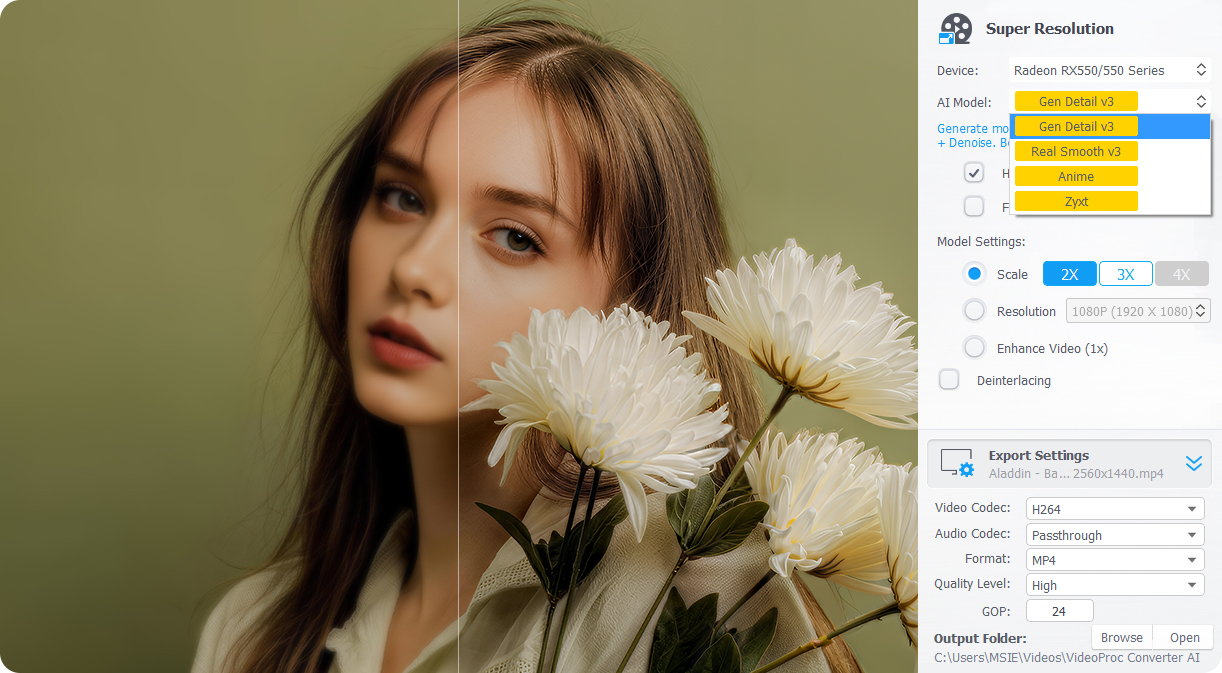
VideoProc Converter AI offers four Super Resolution AI models, each optimized for different content types. For most users, we recommend starting with the two latest models:
- Gen Detail - Focuses on detail generation and sharpness. It enhances skin, hair, textures, and overall visual clarity. Best for high-detail footage and images.
- Real Smooth - Designed to restore imperfect media. It reduces noise, fixes flaws, and delivers a cleaner, smoother look. Ideal for noisy, low-quality, or damaged content.
For specific scenarios:
- Anime - Best for anime, cartoons, and illustrated content.
- Zyxt - A lightweight option for older or lower-end GPUs.
If you're unsure which model to use, try previewing different models and settings—results can vary depending on the source. For a deeper breakdown and side-by-side examples, please refer to our full guide.
Many built-in enhancement tools in NLEs are not fully AI-driven. They often rely on traditional filters for upscaling, denoising, or sharpening, which can deliver limited results and slow down your editing timeline, especially with high-resolution footage.
VideoProc Converter AI is purpose-built for AI enhancement and pre-/post-processing. It runs enhancement tasks outside your NLE, allowing you to work in parallel: enhance or fix footage in VideoProc Converter AI while continuing to edit in Premiere Pro, DaVinci Resolve, or other editors.
This approach offers:
- Better results from dedicated AI models for resolution, noise reduction, stabilization, and restoration
- Faster workflows by keeping heavy AI processing off your editing timeline
- Cleaner source media, so effects, color grading, and exports run more smoothly in your NLE
In short, VideoProc Converter AI complements your editor by handling time-consuming enhancement tasks before or after the edit, so you can focus on storytelling, not waiting for renders.
AI Super Resolution can upscale and improve your video quality, but the results depend on your source footage and the chosen model. Here are the main factors that affect enhancement:
1) Video vs. Image: Enhancing video quality with AI is inherently more complex than enhancing a still image because video enhancement must maintain spatial detail and temporal consistency across many frames. Video super‑resolution models analyze motion and scene changes in addition to raw detail, which is a more challenging problem than single‑frame image enhancement and often yields subtler before/after differences.
2) Source quality: Extremely low resolution (e.g., 480p), heavy compression artifacts, noise, motion blur, or focus issues can limit AI enhancement. AI models can only reconstruct recognizable details, not create new real information.
3) Model selection: Each AI model is optimized for specific types of footage. Experimenting with different models usually helps, and if you’re upscaling video, a 2× scale generally produces more natural results than 3× or 4×.
Test different models and settings on your footage to find the optimal enhancement for each video.





Solid quality improvement with AI enhancement
"Better video quality leads to better engagement. VideoProc Converter AI helped clean up my footage, and the denoising and upscaling
are seriously impressive. I started getting more positive comments and even saw a noticeable bump in subscribers."