New AI features are available
 Listed in
 "Failed to open disc" is especially confusing when the same movie plays normally in VLC or on a standalone player. But playback and ripping make very different demands on a disc. A player only needs to follow the movie's playback path. MakeMKV has to map the disc, identify its titles, and read the selected data consistently enough to copy it. That is why a disc can appear perfectly fine yet fail before MakeMKV lists a single title.
The good news is that this is a fairly common MakeMKV problem, and in many cases it can be fixed without replacing the disc or drive. We've run into it ourselves and found many similar cases on the MakeMKV forum, Reddit, and other Q&A sites. Based on what worked for us and what other users have repeatedly reported working, we've narrowed the solutions down to eight simple fixes worth trying first.
Quick answer: Test another disc first. If it works, focus on the original disc; if it doesn't, focus on the drive or MakeMKV setup. Then work through the fixes below in order.
- Why MakeMKV Says "Failed to Open Disc"
- 8 Solutions to Fix the MakeMKV "Failed to Open Disc" Error
- Solution 1. Test a Known-Good Disc
- Solution 2. Clean and Reseat the Disc
- Solution 3. Reconnect the Drive without a USB Hub
- Solution 4. Close Software That May Be Using the Drive
- Solution 5. Update MakeMKV
- Solution 6. Change the DVD Opening Mode or Make an ISO Backup
- Solution 7. Check Permissions and the Drive's Region Setting
- Solution 8. Treat Blu-ray and 4K UHD as Separate Cases
- Or Try a Better MakeMKV Alternative🔥
- Still Stuck? Here's What the Failure Pattern Means
- FAQs
Why MakeMKV Says "Failed to Open Disc"
MakeMKV has to do more than prove that a movie can play. It must read the disc's file system, interpret its title structure, access protected content when applicable, and identify the video, audio, subtitle, and chapter streams it can place in an MKV container. A failure at any of those stages can end with the same short message: "Failed to open disc."
That is also why a DVD may play normally in VLC or a standalone player but still fail in MakeMKV. Playback only proves that the player can follow enough of the disc to show the movie. It may avoid a damaged area, follow a different navigation path, or never inspect the part of the disc that is causing MakeMKV trouble. In practice, most cases come down to one of a few areas: the disc itself, the drive or connection, the DVD structure, or Blu-ray/UHD access and compatibility. The important thing is to figure out which one you are dealing with before changing settings at random.
Start with the 60-second check below. In many cases, those three questions are enough to point you in the right direction. If the cause is still unclear, the MakeMKV error log can narrow it down further.
Before You Start: Run This 60-Second Check
Before changing any settings, answer these three questions. They can quickly tell you whether the MakeMKV "Failed to open disc" error is more likely related to the disc, the drive, or your setup.
- Does your computer detect the optical drive? If not, MakeMKV is probably not the first thing you need to troubleshoot.
- Does a known-good disc open in the same drive? If it does, focus on the original disc or its structure. If it doesn't, the drive, connection, permissions, or software setup may be the problem.
- Is the failed disc a DVD, Blu-ray, or 4K UHD? Similar MakeMKV errors can have very different causes depending on the disc type. A DVD structure issue, for example, requires a different fix from an incompatible UHD drive.
Narrow Down the Cause with MakeMKV's Error Log
If the 60-second check does not clearly point to the disc, drive, or setup, the error log can help narrow it down. To check MakeMKV's error log, open Preferences > General, enable Log debug messages, restart the program, and try the disc again. MakeMKV should display the location of the saved log when it starts. You do not need to understand every DEBUG: Code entry. Start with the readable messages closest to the failure and use the table below to identify the most likely cause.
| Message or Symptom | What It Usually Points To | Where to Look Next |
|---|---|---|
|
The drive cannot recover data from one or more sectors |
Clean the disc, test another copy, or use another drive |
|
Drive, enclosure, cable, power, firmware, or severe read trouble |
Reconnect the drive and test it without a hub |
IFO file ... is corrupt or navigation error |
Damaged or deliberately complicated DVD structure |
Try another DVD opening mode or make an ISO backup |
|
Structural copy protection may be obscuring the main movie |
Try a different opening mode or a DVD-focused alternative |
MEDIA REGION CODE IS MISMATCHED |
The drive or operating system is enforcing a region mismatch |
Verify the drive region and direct-access permissions |
AACS, SDF, or LibreDrive messages |
Blu-ray/UHD access or drive-compatibility issue |
Update MakeMKV and inspect the drive information panel |
The drive does not appear at all |
Operating-system or hardware detection failure |
Check Device Manager/System Information, cables, and power |
💡Tip: If the same MakeMKV read error appears at exactly the same offset every time, that usually points to a consistently unreadable area of the disc or a disc structure that repeatedly sends the drive there.
How to Fix the MakeMKV "Failed to Open Disc" Error
By this point, you should have a better idea of where the problem is coming from. The fixes below go from the quickest, lowest-risk checks to more specific DVD, Blu-ray, and UHD troubleshooting. Start with the fix that best matches what you found above rather than changing everything at once.
1. Start by Ruling Out the Disc
The quickest way to narrow down the problem is to see whether the same drive can still open a disc you know has worked before. Ideally, keep the media type the same: test a working DVD against a failed DVD, or a working Blu-ray against a failed Blu-ray. A CD is not a useful comparison because optical drives may use different laser paths for different formats.
If the known-good disc opens normally, MakeMKV and the drive's basic connection are probably working, which makes the original disc the more likely problem. If several known-good discs fail as well, the issue is probably elsewhere, so move on to the drive, connection, access, and software checks below.
2. Clean the Disc and Check for Read Problems
A disc does not have to look badly scratched to give MakeMKV trouble. Fingerprints, haze, or a small damaged area can interrupt the sustained, sector-by-sector reads MakeMKV needs even when the movie still plays normally.
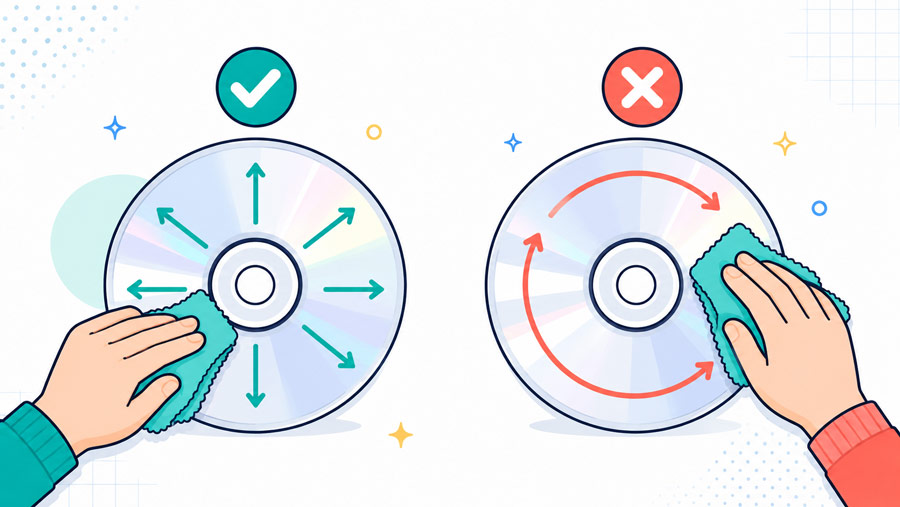
Clean the disc with a soft microfiber cloth, wiping from the center toward the outer edge rather than in circles. If you use a disc-safe cleaning fluid, let it evaporate completely before trying the disc again. It is also worth checking both sides under angled light.
Do not rule out the disc simply because it is new. Manufacturing defects and damage inside the case do happen. If MakeMKV continues to report the same unrecoverable sector at the same location after cleaning, repeated retries are unlikely to change much. At that point, another copy of the disc or a different optical drive is a more useful test.
3. Rule Out a USB, Cable, or Power Problem
If several discs are failing, the disc itself becomes a less convincing explanation, especially if you are using an external optical drive.
USB hubs, weak cables, unstable bridges, and marginal power can all work well enough for light use but become unreliable during a long optical-disc read. Try connecting the drive directly to the computer rather than through a hub. If the drive uses its own power adapter or a dual-USB power cable, make sure it is receiving the power it expects. A different USB port or cable is also worth testing.
Change one thing at a time and try the scan again. If the drive disappears, ejects unexpectedly, or produces repeated timeouts across multiple discs, that points much more strongly to the hardware path than to copy protection on one particular disc.
4. Make Sure Nothing Else Is Using the Drive
Sometimes the problem is not the disc or MakeMKV at all. Another program may already be trying to read the drive.
Close VLC, disc-player software, other ripping tools, and any utility that automatically scans newly inserted media. On Windows, File Explorer may also briefly access a disc while generating thumbnails or reading its contents. After closing anything that may be touching the drive, eject and reinsert the disc, restart MakeMKV, and try again.
This is especially worth checking if discs that previously worked have suddenly started failing without any obvious hardware change. Two applications competing for access can produce symptoms that look surprisingly similar to a bad disc or unstable drive.
5. Check Whether MakeMKV Needs Updating
If older discs still open but a newer Blu-ray or UHD title does not, an outdated MakeMKV installation is worth ruling out. Older versions can gradually lose compatibility with newer disc protection, updated operating systems, and some drive behavior, so a disc that MakeMKV cannot open today may simply need a newer release. The updating of MakeMKV is straightforward:
- In MakeMKV, open Help > About and check the version you are currently running.
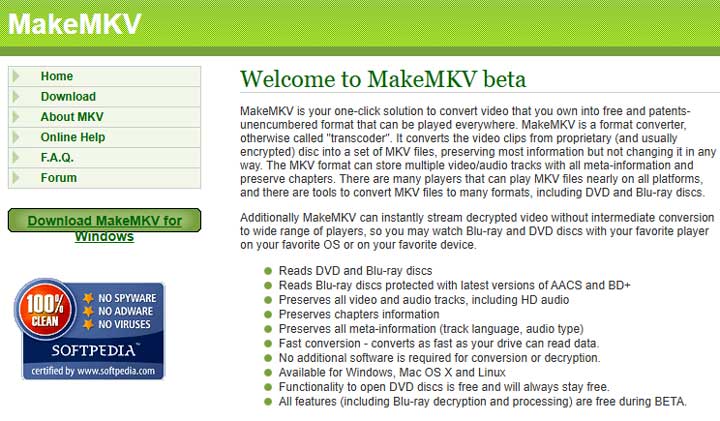
- Visit the official MakeMKV download page and get the latest version for your operating system.
- Close MakeMKV, install the new version, reopen it, and try the problem disc again.
You usually do not need to change any ripping settings after updating. Start by testing the same disc again and see whether MakeMKV can now scan and list its titles.
An old version can also cause broader symptoms than a single "Failed to open disc" message. You may run into unsupported or newer AACS protection, discs that seem unusually difficult to scan, or a warning that the MakeMKV version itself is too old. Checking for an update is therefore especially worthwhile when newer discs fail but older discs still work.
Note:
1) An update cannot repair a physical read problem. If the debug log repeatedly reports MEDIUM ERROR, UNRECOVERED READ ERROR, or another read failure at the same location, the disc or drive is still the more likely cause.
2) Currently, the MakeMKV website is partially unavailable, and the official download page cannot be accessed. If you need to download MakeMKV, check out our guide for downloading MakeMKV.
6. Try a Different DVD Opening Mode
If MakeMKV can detect the DVD but fails while scanning its titles, the problem may be the DVD structure rather than the disc itself. This is especially common with DVDs that use unusual menus, navigation, or large numbers of fake titles.
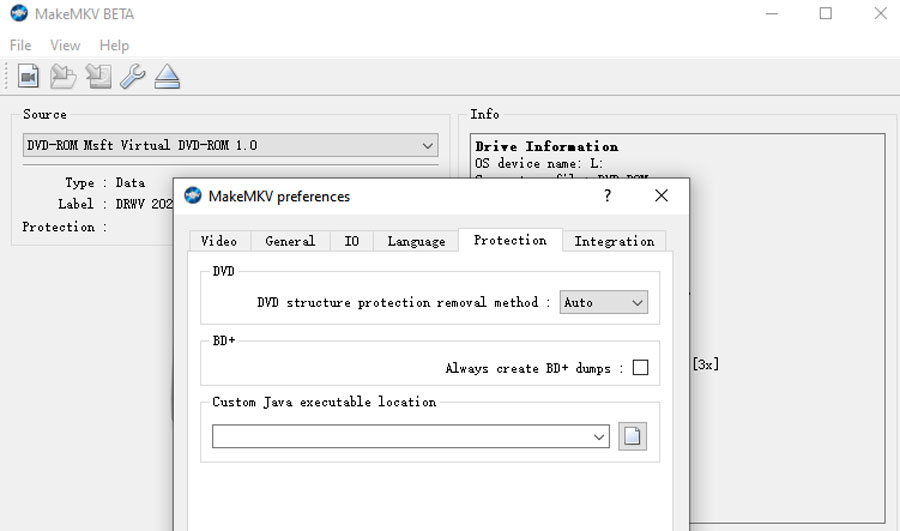
First, open Preferences > Protection and find the DVD opening mode. Try CellWalk, CellTrim, and CellFull one at a time instead of Auto. These modes make MakeMKV analyze the DVD structure in slightly different ways, so one may work when another does not. If none of them helps, switch the setting back to Auto.
You can also try creating an ISO backup if MakeMKV allows it. This is useful because it helps separate a reading problem from a structure problem:
- The ISO backup also fails with read errors: the drive is having trouble reading data from the disc.
- The ISO backup succeeds, but MakeMKV still cannot open the ISO: the disc can probably be read correctly, but MakeMKV is having trouble interpreting its DVD structure.
Some DVDs deliberately use complicated navigation or dozens of misleading titles as copy protection. That is why a DVD may play normally in a player but still fail when MakeMKV tries to scan and identify its titles.
7. Check Region and Drive-Access Issues
If the log specifically mentions a region mismatch or access problem, the next step is to check what the operating system and drive are allowing MakeMKV to do. For DVDs, inspect the drive's current region setting and confirm that it matches the disc you are trying to read. Do not change the region casually: many optical drives allow only a limited number of region changes before the setting becomes locked.
On Windows, running MakeMKV as administrator once can help determine whether the operating system is blocking the level of drive access MakeMKV needs. Treat this as a diagnostic test rather than something that should automatically be required every time.
On macOS and Linux, make sure the current user account has permission to access the optical device.
The error pattern still matters here. Permissions are a poor explanation for one specific DVD that fails at the exact same sector every time. In that case, a disc-read problem remains more likely.
8. Treat Blu-ray and 4K UHD as Separate Cases
Blu-ray and 4K UHD introduce another variable: drive compatibility.
A drive labeled "Blu-ray" is not automatically capable of reading UHD discs in a way MakeMKV can use. Open MakeMKV's drive information panel and note the drive model, firmware revision, highest AACS version, and LibreDrive status. If you share that information publicly, redact the drive's serial number first.
For a regular Blu-ray, start by confirming that MakeMKV is current and that the same drive can still open other Blu-ray discs.
For 4K UHD, the exact drive model and firmware matter much more. If MakeMKV shows that LibreDrive is possible but not enabled, the obstacle may be the drive firmware rather than the movie itself.
Avoid flashing firmware simply because a generic tutorial says a model is compatible. The correct procedure depends on the exact drive platform and its current firmware, and using the wrong image can leave the drive unusable. If your drive is not supported, replacing it with a verified compatible model may be safer than modifying it.
Or Try a Better MakeMKV Altenrative
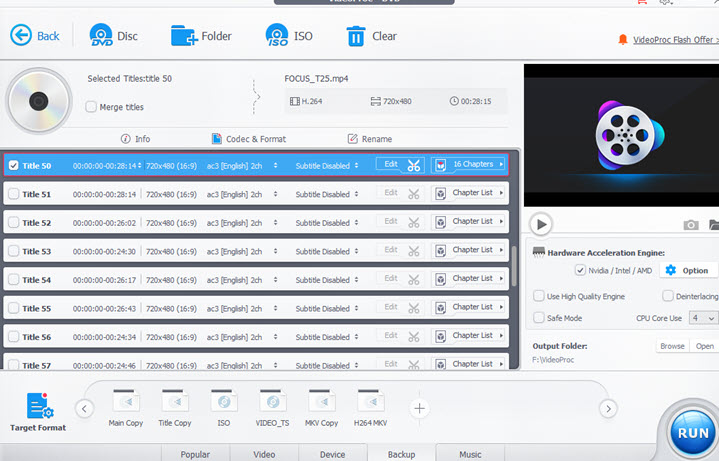
With some DVDs—especially discs with unusual navigation, complicated protection, or dozens of misleading titles—the problem is not always worth chasing inside MakeMKV. If MakeMKV keeps failing to open the disc, VideoProc Converter AI can be a good MakeMKV alternative to turn to. It can handle a wide range of DVD structures and protection schemes, including 99-title and other deliberately confusing discs. One of the best part is it can automatically identify the likely main title while still letting you choose the chapters, language, audio tracks, and subtitles you want to keep.
You also get more flexibility in how the disc is saved. VideoProc Converter AI can back up a DVD as a 1:1 MKV copy, ISO image, or VIDEO_TS folder, or convert it directly to MP4, H.264, MOV, HEVC, and hundreds of other formats. So whether you want a full backup or a smaller file that is easier to play and store, you can handle it in the same workflow. For older or lower-quality DVDs, the built-in AI Super Resolution tool can also upscale the video and improve perceived clarity while keeping the result relatively natural.
It's super easy to rip or back up DVDs with VideoProc Converter AI. Here is a quick demonstrtaion.
Step 1. Download and open the program, select DVD, and load the physical disc, ISO image, or DVD folder.

Step 2. It will automatically select the likely main title, or you can choose a specific title and adjust the audio tracks and subtitles manually.
Step 3. Choose an output based on what you need. For a full backup, select Backup and choose the appropriate backup mode. If you want better compatibility or a smaller file, select a format such as MP4, MKV, MOV, HEVC, or AV1. Then choose the destination folder and click Run.
If MakeMKV Still Fails: What the Error Pattern Tells You
If none of the fixes above resolves the problem, save the debug log and note four things: the disc type, exact drive model, firmware revision, and whether other discs of the same type still work. Those details are far more useful in a support post than "Failed to open disc" on its own. From there, the next step usually depends on the pattern you are seeing:
- One disc fails with read errors: Try another copy or test the disc in a different drive.
- One DVD fails with structure or navigation errors: Try another opening mode, create an ISO backup, or use a DVD-focused alternative.
- Every disc fails: Focus on the drive, connection, power, permissions, or software that may be competing for access.
- Only 4K UHD fails: Check the exact drive model, firmware, and LibreDrive compatibility.
- An ISO or VIDEO_TS folder also fails: Re-create the source if possible. A playable image can still contain incomplete or inconsistent DVD structure data.
The goal at this point is not to keep changing random settings. Use the pattern of the failure to decide whether the problem is most likely the disc, the drive, the DVD structure, or UHD compatibility—and troubleshoot that part next.
FAQs
1. Why Can VLC Play the DVD When MakeMKV Cannot Open It?
VLC may be able to follow the main playback path while skipping unreadable data or ignoring titles it does not need. MakeMKV scans and interprets more of the disc so it can identify titles and streams. Successful playback therefore does not prove that every sector and navigation table is readable.
2. Does Reinstalling MakeMKV Fix the "Failed to Open Disc" Error?
Sometimes, but it should not be the first response. Reinstalling can replace damaged program files, while updating can address compatibility issues. Neither action fixes a scratched disc, a weak optical drive, a region mismatch, or unsupported UHD firmware. The error log should decide whether reinstalling is relevant.
3. Can MakeMKV Open an ISO File or VIDEO_TS Folder?
MakeMKV can open supported disc images and DVD file structures. If an ISO plays but will not open in MakeMKV, enable debug logging and inspect it for structural or navigation errors. The software that created the ISO may have omitted data or produced a layout MakeMKV cannot interpret.
Will Cleaning the Disc Fix a MakeMKV Medium Error?
It can fix errors caused by fingerprints, dust, or surface residue. It will not repair a deep scratch, layer damage, or a manufacturing defect. If the same error returns at the same offset after proper cleaning, test another drive or another copy of the disc.
Is VideoProc Converter AI a Complete Replacement for MakeMKV?
No. It is a practical alternative for converting DVDs to playback-friendly formats and for some unusual DVD structures. MakeMKV remains the stronger choice when you want a direct remux of DVD, Blu-ray, or compatible UHD content with the original streams. VideoProc Converter AI does not rip Blu-ray or UHD discs.