New AI features are available
 Listed in
 A MakeMKV SCSI error is frustrating because it sounds specific, but it does not immediately tell you what to fix. The same warning can appear when a disc has a bad spot, when an external drive is short on power, when a USB connection drops out, or when MakeMKV runs into an access or authentication problem. Reinstalling the app or changing random settings usually does not help much until you know which one you are dealing with.
The important detail is the full line after SCSI error. MEDIUM ERROR, HARDWARE ERROR, NOT READY, and ILLEGAL REQUEST point in different directions, so they should not be treated as the same problem. A read failure on one disc is very different from several clean discs failing in the same drive.
Before you buy another drive or start looking for firmware, do one quick comparison: try a known-good disc in the same drive, then try the problem disc in another compatible drive if you can. That simple check often tells you whether the problem follows the disc, the drive, the connection, or the way the disc is being accessed.
Quick diagnosis: Start with the simplest question: does the problem follow the disc or the drive? If one disc always fails at the same point, suspect the disc first. If several clean discs fail in the same drive, check the drive, USB connection, enclosure, and power supply. If the log mentions authentication, keys, or command errors, diagnose that separately from a physical read failure.
- What "SCSI Error" Means in MakeMKV
- Diagnose the Problem Before Trying Fixes
- Common MakeMKV SCSI Error Messages by Cause
- How to Fix a MakeMKV SCSI Error, in the Right Order
- When to Replace the Disc—and When to Replace the Drive
- Tired of Troubleshooting MakeMKV SCSI Errors? Try Its Best Alternative
- FAQs
Common MakeMKV SCSI Error Messages by Cause
The name is more confusing than the problem. Your Blu-ray drive does not need a vintage SCSI connector for MakeMKV to report a SCSI error. Modern optical drives use the SCSI multimedia command set even when their physical connection is SATA or USB. The command set is transport-independent and can operate across ATA/ATAPI, Serial ATA, and USB.
When MakeMKV asks the drive to read a block, seek to a position, authenticate a protected disc, or report information, the drive can return "sense data" explaining why it could not comply. The broad category is the sense key. The extra description—such as L-EC UNCORRECTABLE ERROR or TIMEOUT ON LOGICAL UNIT—adds the detail needed for diagnosis.
That is why "I have a SCSI error" is not quite enough information. Copy the complete line from the MakeMKV log, including:
- the sense-key category;
- the description after the colon;
- the file or device being read;
- the offset, if one is shown; and
- whether MakeMKV ultimately reported success or failure.
The final status matters. A warning followed by Operation successfully completed is different from repeated errors followed by Failed to save title or Backup failed.
Check the Disc, Drive, and MakeMKV Log First
Before changing MakeMKV settings to fix the MakeMKV Scsi error, check where the failure repeats. A disc that fails at the same spot suggests a different problem from several discs failing in the same drive.
What you observe |
What it most strongly suggests |
Best next test |
|---|---|---|
One disc fails repeatedly at the same offset |
A damaged, contaminated, or poorly manufactured disc |
Clean it, then try another copy or another drive |
Different discs fail in the same drive |
Drive, cable, enclosure, port, power, or firmware trouble |
Test a known-good disc and change one hardware variable |
One disc fails in two or more drives at the same area |
The disc itself, or a defect shared by that pressing |
Exchange the disc for a copy from another batch if possible |
DVD works, but Blu-ray or UHD does not |
Format support, firmware compatibility, or a weakening optical pickup |
Test another disc of the same format in a confirmed-compatible drive |
Errors begin as an external drive spins faster |
USB power, cable, hub, or enclosure instability |
Use its AC adapter or a properly powered port/hub |
The error changes after moving the drive to another port or enclosure |
The data or power path |
Replace the unstable component before blaming the disc |
Do not take the first result as final. A rough disc can make a good drive look bad, and an old drive can still read easier discs without trouble. Try one more disc or one more drive before you start changing MakeMKV settings.
Why a Disc Can Play Normally but Fail in MakeMKV
Successful playback is evidence that the disc is readable enough to watch, not proof that every requested block can be extracted correctly.
A player follows one playback path in real time. It may never touch alternate playlists, extras, or the same file ranges MakeMKV reads. Video playback can also mask a brief problem as a dropped frame or momentary artifact. Ripping is sustained data retrieval, and MakeMKV can verify Blu-ray data against hashes stored on the disc. If the drive cannot deliver correct data after retries, MakeMKV may stop instead of silently writing a damaged title.
This also explains why "another app played it" does not clear the drive, disc, or USB path. The workload is different.
What Common MakeMKV SCSI Errors Usually Point To
Once you have the full log line, the wording after the sense key is what matters most. It usually tells you whether to look at the disc, the drive, the connection, or MakeMKV’s access to the disc.
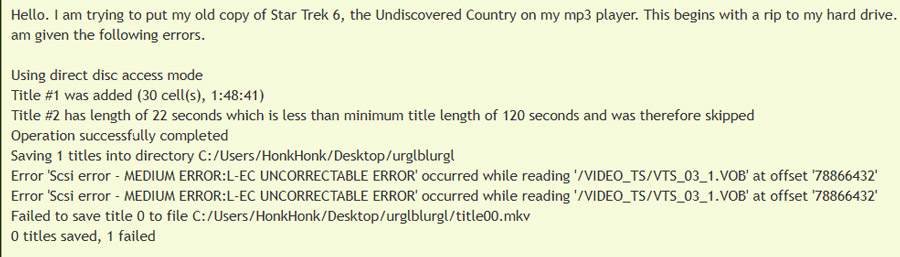
1. Medium Error: L-EC Uncorrectable Error or Unrecovered Read Error
A MEDIUM ERROR usually means the drive could not read part of the disc. In MakeMKV logs, messages such as L-EC UNCORRECTABLE ERROR or UNRECOVERED READ ERROR normally point to data the drive could not recover, even after its own retry and error-correction process.
The cause is often physical: fingerprints, residue, scratches, disc rot, warping, or a poorly manufactured disc. The annoying part is that the disc may still look clean. DVD and Blu-ray data layers are not something you can judge reliably by eye.
Tips:
MakeMKV forum discussions usually treat L-EC UNCORRECTABLE ERROR as a read failure, not a decryption failure. If the same disc fails at the same offset in more than one drive, replacing the disc is usually more useful than changing MakeMKV settings.
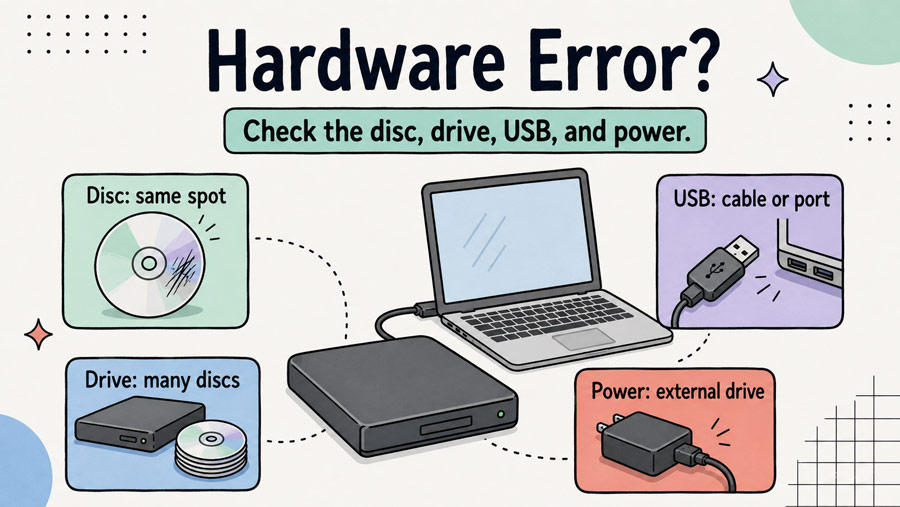
2. Hardware Error: Timeout on Logical Unit or Track Following Error
A HARDWARE ERROR does not always mean the drive is broken. It means the drive failed to finish what MakeMKV asked it to do. Sometimes the disc is still the real problem. A damaged or hard-to-read spot can make the drive keep trying until the command times out. This may happen near a layer change, near the outer edge of the disc, or in one specific title. If only one disc or one title fails, test that disc in another drive before blaming the hardware.
If the same error happens with several clean discs, then look at the drive and everything connected to it: the USB cable, external enclosure, USB bridge, power supply, and port. For an external drive that stops responding, close MakeMKV, eject the disc if possible, disconnect the drive, wait a few seconds, reconnect it, and open MakeMKV again. If the problem keeps coming back across different discs, the drive setup is probably unstable.
3. Not Ready: Logical Unit Is in Process of Becoming Ready
This message means the drive was not ready to handle the command. Seeing it once while a disc spins up may be harmless. Seeing it repeatedly during a rip is not.
USB-powered optical drives deserve particular attention here. A drive can enumerate normally, open a disc, and then become unreliable when its motor and laser are working harder. MakeMKV forum guidance notes that insufficient USB power can surface after read or seek errors, especially as a drive increases speed.
Connect the drive directly instead of through an unpowered hub. If it was designed to use two USB plugs, connect both to properly powered ports. Prefer the supplied AC adapter when the enclosure has one. Also test a shorter, known-good data cable; a cable can carry enough power for detection yet fail under sustained transfer.
4. Illegal Request: Invalid Field in CDB
This error usually means the drive did not accept a command from MakeMKV. It is different from a MEDIUM ERROR. In other words, the log is not saying that MakeMKV found a bad sector on the disc.
Start with the simple checks. Update MakeMKV, restart the app, and restart the drive. Close DVD players, disc-mounting tools, or any other app that may be using the optical drive in the background. If the error started after you changed a USB enclosure, adapter, or drive bridge, test the drive another way if you can. Some adapters do not pass optical-drive commands correctly.
Note:
Be careful with firmware. Do not flash a drive just because the log says INVALID FIELD IN CDB. Firmware depends on the exact drive model and revision, and the wrong firmware can break the drive. Only consider it after you have confirmed the model, current firmware, disc type, and a trusted guide for that specific hardware.
5. Illegal Request: Read of Scrambled Sector without Authentication
This message usually appears with encrypted DVDs. It means something tried to read a protected part of the disc before the disc was properly authenticated.
Do not panic if you see it once. In some cases, MakeMKV switches to direct disc access and continues normally. If the job ends with Copy complete or Operation successfully completed, this warning by itself does not mean the MKV is bad.
If the title fails, then treat it as an access or authentication problem. Close other disc software, eject and reload the disc while MakeMKV is open, and make sure no other app is controlling the drive. Then check the full log, not just this one line.
6. Copy Protection Key Exchange Failure
KEY NOT PRESENT or KEY NOT ESTABLISHED points toward an authentication exchange, not a conventional bad-sector read. Update MakeMKV first and restart the drive. Make sure another application has not taken control of the disc. For UHD media, also confirm that the exact drive and firmware combination supports the intended workflow.
Keep this branch separate from MEDIUM ERROR. Cleaning a disc may help if the drive cannot read its control data, but repeated key-exchange messages call for software, access, and compatibility checks before physical repair theories.
How to Fix a MakeMKV SCSI Error, in the Right Order
Solution 1. Save the Full Log and Check the Final Status
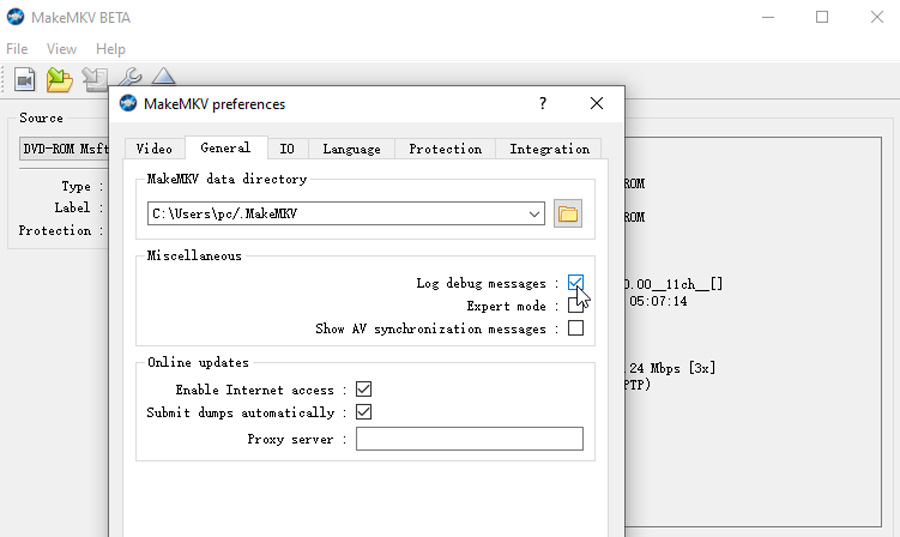
Do not troubleshoot from a cropped screenshot containing only the word "error." In MakeMKV, open Preferences > General, enable Log debug messages, close all running MakeMKV instances, and restart the program. The startup messages show where the session log is saved.
Record the drive model and firmware shown near the beginning of the log. Keep the exact error text and note whether repeated attempts fail at the same offset.
Solution 2. Update MakeMKV, Then Restart the Drive
Install the latest version from the official MakeMKV site first. A newer build can help with newer discs, authentication changes, OS updates, and drive compatibility. It will not fix a scratched or unreadable disc, but it does remove one easy software-related cause.
After updating, restart the drive as well as MakeMKV. For an internal drive, reboot the computer. For an external drive, unplug it or switch it off for a short moment, then reconnect it before trying the disc again.
Solution 3. Clean the Disc Gently
Clean the disc once, but do it carefully. Use a soft, lint-free cloth and wipe from the center of the disc straight toward the outer edge. Do not rub in circles. Sony's disc-care guidance recommends a soft, dry cloth and warns against solvents, commercial disc cleaners, and lens cleaners.
Then check the disc under angled light. Look for fingerprints, haze, scratches, tiny pinholes, edge separation, or a label that is starting to lift. A new disc can still be bad; residue and manufacturing defects do happen.
Solution 4. Try Again Once and Check Where It Fails
After cleaning the disc, try the rip one more time. If the error comes back at almost the same offset, the disc probably has a damaged or unreadable spot. If the error moves around, or the drive disappears during the rip, the problem is more likely the drive, USB connection, or power.
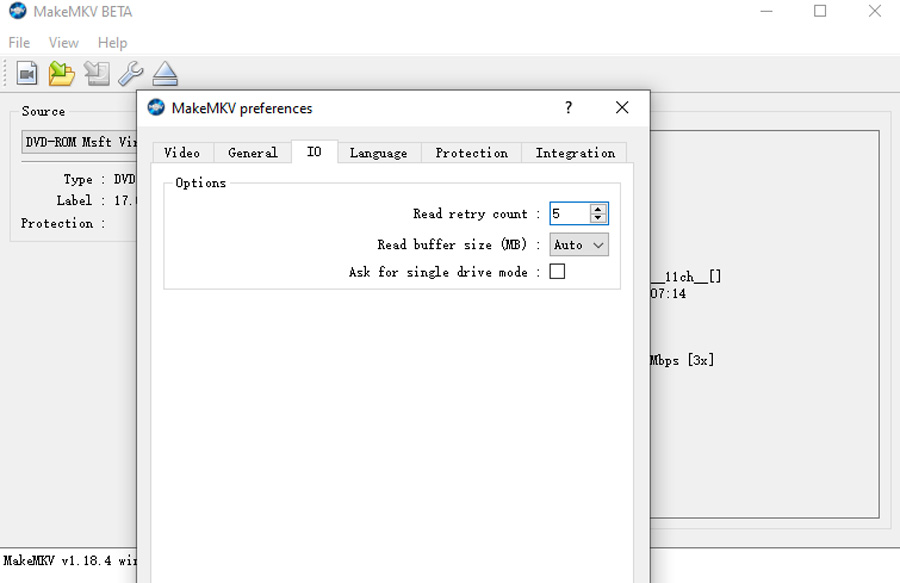
MakeMKV's Preferences > IO > Read Retry Count controls how many times MakeMKV asks for another read after an error. Raising it a little may help with a borderline disc. Setting it very high usually just makes the drive grind away for hours without recovering the missing data.
Solution 5. Try Another Disc or Another Drive
Use another disc that you know works, ideally in the same format. A normal DVD does not tell you much about UHD Blu-ray compatibility. If the failing disc still fails, try it in another drive if you have access to one.
One drive may read a difficult disc better than another. That does not automatically mean either drive is bad. What matters is the bigger picture: one disc failing points toward the disc; several good discs failing in the same drive points toward the drive or its setup.
Solution 6. Simplify the USB and Power Setup
For an external drive, remove anything extra between the drive and the computer. Skip extension cables, unpowered USB hubs, monitor hubs, and front-panel ports while testing. Try a different USB port, a known-good cable, and the drive's power adapter if it has one.
Change one thing at a time. If you swap the cable, port, hub, and enclosure all at once, the rip may work, but you will not know which part caused the problem.
Solution 7. Do Not Start with Speed Tweaks
MakeMKV already manages drive speed in many cases. It can slow the drive down after a read problem and speed it up again for easier parts of the disc. That is why custom speed settings should not be the first thing you change.
If the error always happens near a layer change or near the outer edge of the disc, a lower maximum speed may help. It will not rebuild data the drive truly cannot read. If custom speed settings make the drive seek more, slow down badly, or produce new errors, go back to the defaults.
Solution 8. Leave Firmware for Last
Firmware is not a casual fix. For regular DVD and Blu-ray read errors, it is rarely the first thing to change. For UHD discs, firmware can matter a lot, but only with the exact drive model, revision, platform, and disc type.
Do not install firmware just because it worked for a similar-looking drive. Check the exact model and current firmware first, use a trusted guide for that hardware, and understand the risk. A bad flash can leave the drive unusable.
How to Tell Whether the Disc or Drive Is the Problem
The easiest way to separate a bad disc from a bad drive is to see where the failure follows. If one disc keeps failing at the same offset after careful cleaning, and other discs of the same format work in your drive, the disc is the first suspect. That becomes even clearer if the same disc fails in a second compatible drive, or if you can see damage, cloudy residue, edge separation, or a lifting label.
Look at the drive when the problem is not tied to one disc. If several known-good discs fail, if the drive struggles with formats it used to read, or if it disappears and needs frequent power cycles, the drive setup deserves attention. Try a different cable, port, and power source before replacing the drive. If another drive reads the same discs without trouble, your original drive is probably the weak link.
This check saves money and time. One defective pressing does not justify a new drive. But if every “bad disc” starts looking bad in the same drive, exchanging discs will not solve the real problem.
Tired of Troubleshooting MakeMKV SCSI Errors? Try VideoProc
At some point, it is fair to stop chasing the same MakeMKV error. If you have already cleaned the disc, updated MakeMKV, restarted the drive, changed the USB cable or port, and the same DVD still will not finish, the next useful test is a different DVD-ripping workflow.
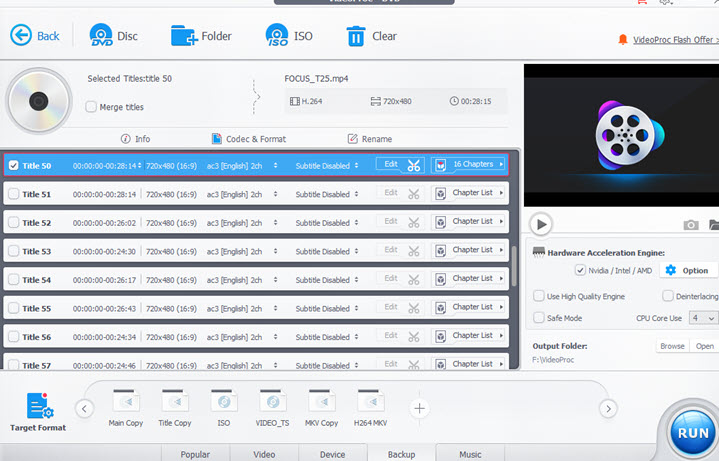
VideoProc Converter AI is one of the best MakeMKV alternatives for DVD jobs. It can process encrypted DVDs, 99-title discs, and lightly scratched discs, and it can back up a DVD to ISO, VIDEO_TS, or MKV. It can also convert a DVD directly to MP4 or MOV when you want a playable digital file instead of a MakeMKV-style backup.
This does not mean software can magically rebuild missing data. If the drive cannot physically read a sector, no ripper can recover the original bytes. But for DVD errors caused by protection handling, title structure, or MakeMKV’s reading path, trying VideoProc Converter AI may save more time than repeating the same failed rip.

Frequently Asked Questions
1. Does a MakeMKV SCSI Error Mean My Drive Is Broken?
No. It means a drive command did not complete normally. A MEDIUM ERROR affecting one disc is more likely to involve that disc. Repeated HARDWARE ERROR or NOT READY messages across good discs make the drive, connection, or power path more suspicious.
2. Will Reinstalling MakeMKV Fix the Error?
Usually not for a physical read error. Updating MakeMKV is worthwhile for command, authentication, and compatibility problems. Reinstalling the same build does not repair damaged media or unstable USB power.
3. Should I Set Read Retry Count to 25 or Higher?
There is no universally correct number. Increase it modestly for a marginal read, then stop if the same sector continues to fail. The drive and operating system may already be retrying before MakeMKV receives the error, so a large setting can multiply the delay.
4. Why Does the Error Happen near the End of a Blu-ray or UHD Rip?
The outer area of the disc and layer transitions can be harder for a marginal drive-disc combination to track. A repeatable late failure can still be a localized disc defect. Clean the disc, compare the offset, and test another drive before drawing a conclusion.
5. Is Read of Scrambled Sector without Authentication Always Fatal?
No. If MakeMKV switches access mode and completes the copy successfully, the warning may be harmless in that context. If the save fails, investigate exclusive drive access and authentication using the complete log.
Sources
- INCITS T10: SCSI Sense Keys
- INCITS T10: SCSI ASC/ASCQ Assignments
- MakeMKV Forum: If You're Experiencing Rip Errors, Read Here First
- MakeMKV Forum: Drive Speed Control
- MakeMKV Forum: Read Retry Count
- MakeMKV Forum: Activating Debug Logging
- MakeMKV Forum: Read of Scrambled Sector Without Authentication
- VideoProc Converter AI: DVD Converter Features
- VideoProc: MakeMKV Alternatives for DVD Ripping