New AI features are available
Bought a 4K UHD Blu-ray, inserted it into your PC's optical drive, only to find you can't easily digitize it and add it to your Plex server?
That's incredibly frustrating. But in fact, it may come down to the hardware itself. Your optical drive comes with factory-installed firmware to block you from directly getting the raw data on your discs without restriction, you know, for the sake of rights management, enforcing region pricing, or even reducing operational noise.
The LibreDrive can bypass these firmware-level restrictions and give you unrestricted access to the data on any disc, without the artificial limitations imposed by manufacturers. So, what is LibreDrive, and how do you get it?
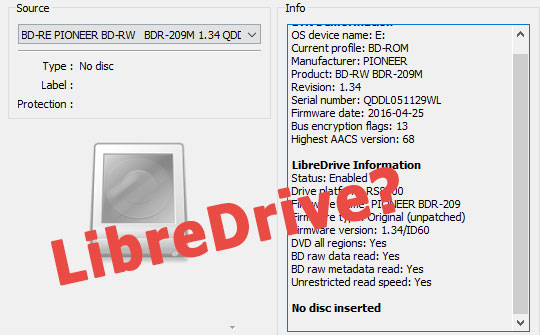
What Is LibreDrive
In the simplest terms, LibreDrive is a liberated optical drive through custom firmware modifications.
Imagine your DVD or Blu-ray drive is a highly secure vault. The laser inside the drive is perfectly capable of reading every single piece of data inside that vault. However, the manufacturer installed a digital padlock to block you out unless your computer provides the exact right decryption keys.
LibreDrive essentially removes that digital padlock. By flashing payloads and altering the factory firmware, the drive stops enforcing those strict digital rights management rules and activates a "Direct Disc Access" mode. It simply hands over the raw, unrestricted movie data straight to your ripping software, such as MakeMKV and its alternatives.
LibreDrive Compatible Drives
Not every optical drive on the market can be flashed. To work with LibreDrive, the hardware generally needs to be built on specific internal architectures, like the MT1959 platform.
Here is a handy table breaking down the most popular MT1959 drives:
Drive Category |
Manufacturer & Model |
Form Factor |
Max Ripping Speed |
|---|---|---|---|
UHD Official Desktop |
LG WH16NS60 |
5.25" Internal SATA |
8x |
UHD Friendly Desktop |
ASUS BW-16D1HT / LG BH16NS55 |
5.25" Internal SATA |
8x |
UHD Official Slim |
LG BU40N |
9.5mm Internal SATA |
6x |
External USB Slim |
LG BP60NB10 / BP50NB40 |
External USB 2.0 |
6x |
Pioneer uses its proprietary RS-series architecture rather than the MediaTek MT1959. Older Pioneer drives natively support LibreDrive out of the box via simple MakeMKV SDF.bin injection. However, a highly restrictive firmware update released in December 2022 completely blocked LibreDrive support. It wasn't until May 2025 that the developers behind MakeMKV cracked the code, enabling full LibreDrive support for modern Pioneer drives via a custom soft flash.
Note:
Flashing optical drives externally via USB (common with laptops and mini-PCs) is more complex than direct SATA connections. The USB enclosure's SATA-to-USB bridge must fully support raw SCSI commands for flashing. Here are some verified enclosures and SATA-to-USB adapters for flashing:
- 5.25" Desktop Enclosure: OWC Mercury Pro 5.25"
- 5.25" Desktop Enclosure: ICY BOX IB-550StU3S
- Slimline Enclosure: Silverstone TS14
- Adapter: BENFEI SATA to USB 3.0 Cable, USB 3.0 to SATA III with 12V/2A
For 5.25-inch desktop drives, the USB adapter must supply external 12V/2A power. Standard 5V bus-powered adapters are insufficient and can permanently damage the drive.
Additionally, physical disc hygiene is essential. Even minor dirt, residues, or defects can cause read errors, drastically slow down extraction, and lead to MakeMKV hash check failures.
How to Flash Your Drive
A Quick Heads-Up: Flashing carries real hardware risks of bricking. Back up your original firmware if possible, and only flash MT1959 drives built after 2016. Pioneer post-2022 models needed special tools. Never, ever cross-flash a desktop drive's firmware onto a slim laptop drive, or vice versa. Also, do not cross-flash ASUS firmware onto an LG slim drive.
#1. LibreDrive Flasher App
Windows users can and should use the community-developed SDFtool Flasher GUI. It includes built-in safety checks, automatically detects encrypted firmware, handles the enc flag, and has a recovery mode. This is the safest, most automated option for LG and ASUS drives.
- Connect your drive properly.
- Download the latest SDFtool Flasher from https://forum.makemkv.com/forum/viewtopic.php?t=22896.
- Download the All You Need Firmware Pack and the latest sdf.bin (only for offline use).
- Run the flasher and select your optical drive from the top drop-down list.
- Leave the "WRITE Firmware" option at its default setting.
- Select the exact
.binfile that matches your drive's model and physical size from the bottom drop-down list. - Click START. The tool handles DE-patching, encryption flags, and safety checks.
- If something goes wrong, you can use the tool's RECOVER Drive option.
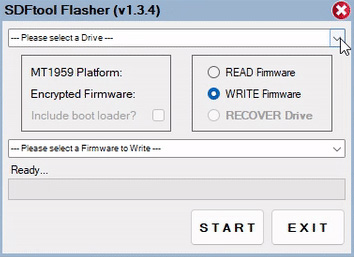
Once finished, Launch MakeMKV. The "LibreDrive information" should now show as "Enabled." You can then use MakeMKV as usual.
#2. Command-Line Flashing
Mac and Linux users will be using the terminal/CLI with makemkvcon, which is actually a hidden command-line utility built straight into the MakeMKV software. This utility interfaces directly with the drive using low-level SCSI pass-through commands.
- Install the latest MakeMKV (version 1.17.7 for Linux flashing).
- Download
sdf.binfrom https://makemkv.com/sdf.bin and the firmware pack. - Copy
sdf.binand your chosen firmware.binfile into your system's temporary directory folder (/tmp) for an absolute root-level path access. - Open Terminal and navigate to MakeMKV's binary folder:
- macOS:
cd /Applications/MakeMKV.app/Contents/MacOS - Linux: Usually in your PATH or
/usr/bin.
- macOS:
- Get the optical drive identifier by typing
./makemkvcon f -l. - Flash command (replace paths and identifiers):
- Unencrypted:
./makemkvcon f -d 'YOUR-DRIVE-ID' -f /tmp/sdf.bin rawflash main -i /tmp/YOUR-FIRMWARE.bin - Encrypted (most 2020+ firmwares):
./makemkvcon f -d 'YOUR-DRIVE-ID' -f /tmp/sdf.bin rawflash enc -i /tmp/YOUR-FIRMWARE.bin
- Unencrypted:
Power cycle the drive completely after flashing, then you can launch MakeMKV on Mac or Linux to test LibreDrive mode.
#3. Troubleshooting
The most common error is "No drive tool logic found in SDF.bin" or "Internal error 0x8d000000". Do these steps in order to fix it:
- Put a normal Blu-ray disc (not UHD) into the drive.
- Open MakeMKV and click on the drive icon to let it read the disc.
- Wait until it finishes the process, which often includes downloading the latest SDF payload.
- Close MakeMKV completely.
- Try flashing again with SDFtool or the terminal command.
If the error still appears, add the appropriate force flag to your command: use -t mtk19xx for MediaTek architectures, or -t pioneer for RS-series hardware.
UHD Friendly drives have one extremely annoying quirk known as the "sleep bug". If you leave a 4K disc idle in a Friendly drive for about two minutes, the laser goes to sleep. When it wakes up, it makes horrible grinding noises and refuses to read the disc until you physically open and close the tray. You can actually fix this bug permanently by cross-flashing "Official" firmware onto your "Friendly" drive.
Conclusion
To this day, physical discs remain the only medium over which a consumer possesses absolute and irrevocable ownership. LibreDrive ensures that high-bitrate, uncompressed cinematic history survives the inevitable physical rot of optical media and the arbitrary revocation of digital streaming licenses.
Making a personal digital backup of a physical movie you legally purchased feels like classic "fair use." However, the law looks at it a bit differently. In the United States, the DMCA strictly makes it illegal to bypass the digital lock (the DRM) protecting the disc. Since LibreDrive's entire job is to bypass that lock to get to the raw data, using it technically crosses a legal line. You'll find very similar, highly restrictive rules in the EU and the UK as well.
Should you decide to proceed, flashing a drive for LibreDrive is an advanced, risky process that can permanently brick your hardware if done incorrectly. This is definitely something you should be aware of.