
How to download and export iCloud photos & videos to PC/Mac in original quality?
When you see warnings like "Device busy, please try again later" or "video/photo export failed:#", or you cannot export certain iCloud photos or videos in original quality, it is highly possible that those videos and photos are saved on iCloud instead of on your devices.
With DearMob iPhone Manager, it's easy to identify and access iCloud photos from iOS/iPadOS device. You can download all photos from iCloud to Windows/Mac securely in just a few clicks.
Free download DearMob iPhone Manager:
Free DownloadFor Win 7 or higher Free DownloadFor Mac OS X 10.9 or laterDearMob iPhone Manager tags all your iCloud photos with a Cloud icon so that you can effortlessly pinpoint whether a specific photo is on iCloud or not.
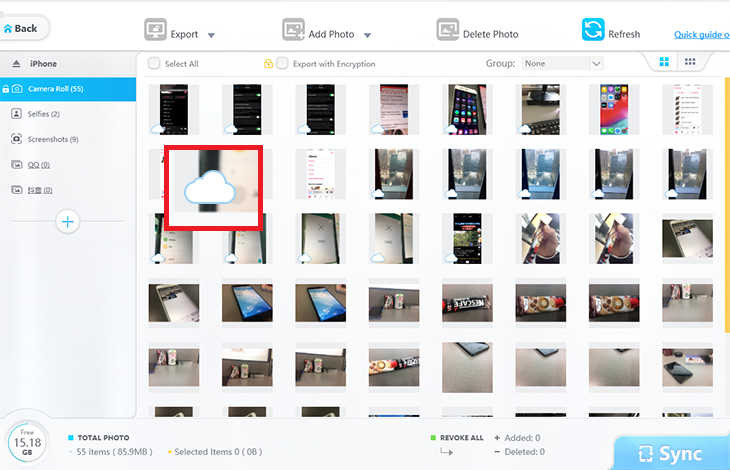
 Notes:
To download all full-res photos and videos from iCloud to computer, you will have to enable "Download and Keep Originals" on your iPhone/iPad.
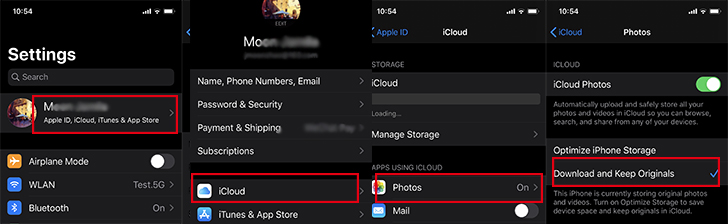
Step 1: Go to Settings > [Your Name] > iCloud > Photos.
Step 2: with iCloud Photos turned on, tick the "Download and Keep Originals" tab.
Step 3: On your devices, you shall see original videos/photos being downloaded.
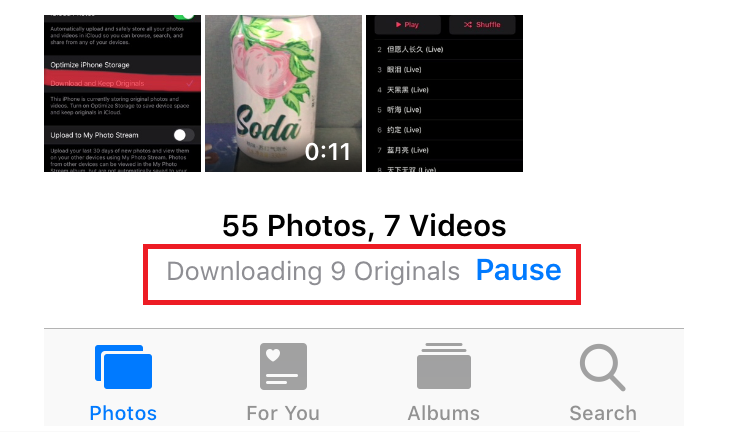
Step 4: Upon download, reconnect your device to computer and let DearMob read and retry exporting original photos/videos without failure.

Digiarty Software, established in 2006, pioneers multimedia innovation with AI-powered and GPU-accelerated solutions. With the mission to "Art Up Your Digital Life", Digiarty provides AI video/image enhancement, editing, conversion, and more solutions. VideoProc under Digiarty has attracted 5.2 million users from 180+ countries.
Stay current with our latest updates, guides, and subscriber-only offer.
Choose Language
Copyright © 2026 Digiarty Software, Inc. All rights reserved.
Any third-party product names and trademarks used on this website, including but not limited to Apple, are property of their respective owners.