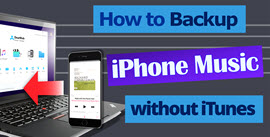
Connect Your Device with DearMob on Windows PC
DearMob iPhone Manager supports both Wi-Fi connection and cable connection. You can connect multiple devices to your Windows PC and switch among them to manage your devices.
- Fully Backup/Restore all your iPhone iPad data to wherever you want, PC or Mac
- Selectively Backup/Restore without erasing existing data
- Flexible two-way sync with cable or via Wi-Fi
- Extensive 15+ file type management in one program
- Encrypt your backup file with passwords and military-grade algorithm
- Unlimited Stable iOS backup with no corruption errors
Connect Your Device with Cable
1. Launch DearMob iPhone Manager and connect your iDevice with cable.
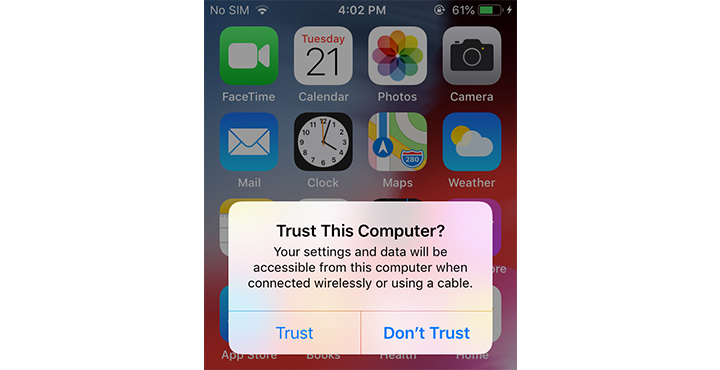
2. Unlock your device and tap Trust when you see the "Trust This Computer" prompt.
3. DearMob will automatically recognize your device and display it on the interface.
Connect Your Device via Wi-Fi
 Tips:
Tips:
- For the first time connecting via Wi-Fi, you'll need some setup in iTunes.
- After that, DearMob will automatically recognize and connect to your device every time they are on the same Wi-Fi network. No cable or iTunes is required.
1. Connect your device to iTunes via cable.
2. Unlock your device and tap Trust when you see the "Trust This Computer" prompt.
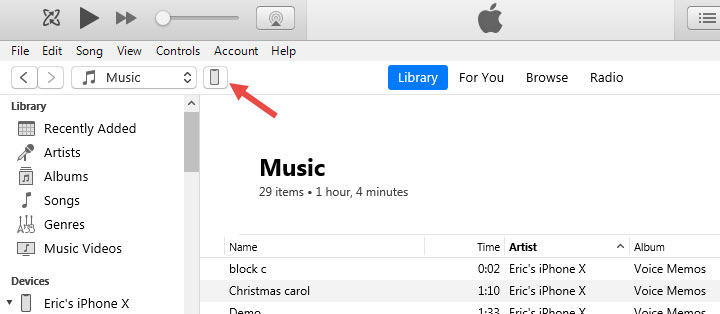
3. Click the device icon on iTunes.
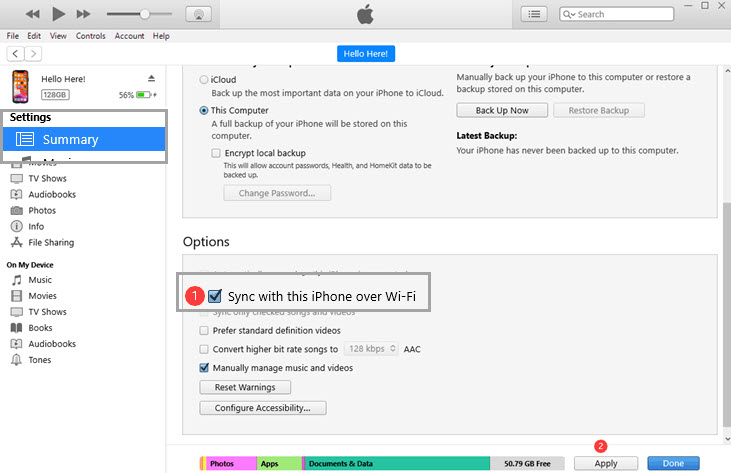
4. Go to Summary > Options from the left side panel. Enable Sync with this iPhone over Wi-Fi then click Apply.
5. Launch DearMob and you'll see your device is connected.
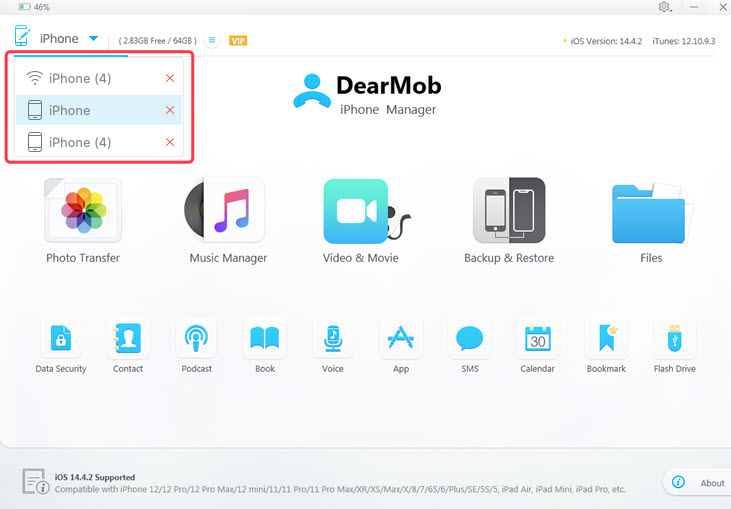
Notes:
- Make sure that your device and your computer are on the same Wi-Fi network.
- During the Wi-Fi connection mode, please keep the iPhone screen on.
Frequently Asked Questions
Why Can't I Connect Using Wi-Fi?
That may be due to invalid settings. If you suddenly cannot use the Wi-Fi connection, re-launch iTunes and re-enable Sync with this iPhone over Wi-Fi. Please feel free to contact our technical support department if it still does not work.
How to Choose between the Cable Connection and Wi-Fi Connection?
Connecting your device with a cable is more stable and fast, while the Wi-Fi connection is simple and convenient. The cable connection is recommended for device backup since it is more stable. Depending on your network condition, the Wi-Fi connection may be slower than the cable connection.