New AI features are available
Cupscale is an open-source Windows GUI frontend for local AI upscaling frameworks like ESRGAN and Real-ESRGAN. But let's be frank. Cupscale is a bit of a time capsule today. Since its first release in 2020, the original creator hasn't released a major update in several years. It's not a polished, one-click upscaling solution. But here's the thing: it's still completely free, and for a lot of people, it works great.
So, I'm going to explain everything you need to know about Cupscale in this guide. I'll cover what Cupscale can do, how to download and install it, and a brief tutorial for upscaling images and videos. And some modern alternatives in case you decide Cupscale isn't the right fit.
What Is Cupscale
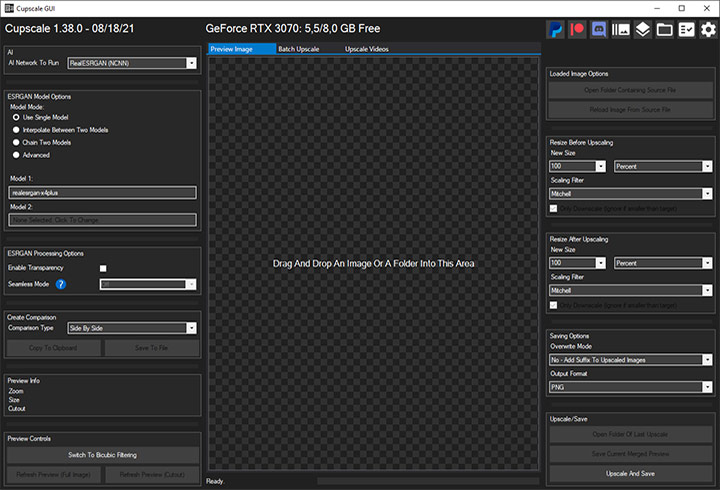
Cupscale is a free, open-source graphical user interface for Windows based on ESRGAN, which is a sophisticated AI model that can turn your low-res image into a higher-resolution version that's sharp and clear. Before Cupscale, you had to use ESRGAN with complex command lines. Cupscale offers a user-friendly interface you can click and drag your way through.
Key Features of Cupscale
- Multiple hardware options for CUDA (fastest on Nvidia GPUs), Vulkan (for AMD/Intel GPUs), and CPU (slower, for systems without a dedicated GPU)
- Flexible model chaining to process an image through different AI algorithms in sequence
- Efficient bulk upscaling for an entire folder of images at once
- Good compatibility with PNG, JPEG, BMP, WEBP, TGA, DDS images, GIF, and videos
- Various comparison tools: side-by-side, 50/50, and before/after animations
- Optional pre-processing and post-processing
That said, it's important to set realistic expectations. Cupscale hasn't received a major update from its original creator in several years. This means you might run into compatibility issues or occasional bugs, especially with newer graphics cards. But for a free tool that puts cutting-edge open-source AI in your hands, many users find it's still worth the effort.
Cupscale Download and Installation
A Quick Heads-Up: Cupscale is exclusively an offline, local Windows desktop application. Any website you find on Google is not an official domain created or affiliated with the original GitHub project.
Step 1: Download Cupscale
Go to the Cupscale GitHub releases page: https://github.com/n00mkrad/cupscale/releases. Download the ZIP file for the latest version, which is 1.39.0 at the time of writing.
Step 2: Extract the files
Extract the contents of the ZIP file to a folder on your computer. Do not extract it to Program Files or any other system-protected folder. Windows security settings can interfere with Cupscale's ability to run properly.
Step 3: Double-click Cupscale.exe to launch the application.
Step 4: Check dependencies
Cupscale requires some necessary resource files to function correctly. You can install them manually and add them to your system PATH, or use the built-in Dependency Checker to install them automatically.
To install dependencies automatically:
- Enable the Dependency Checker by clicking the checklist icon in the top-right corner.
- Click "Embedded Python Installer" > "Install" on the left side.
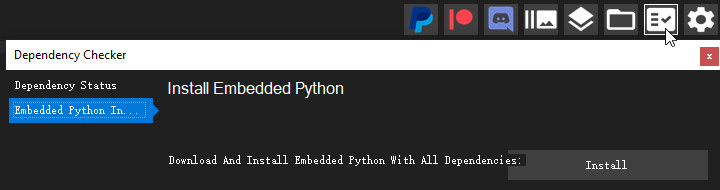
This will automatically download and set up a version of Python that's known to work with Cupscale. It's fast and easy.
Note: For manual installation: versions other than Python 3.9 may not work reliably with Cupscale. The embedded installer should handle this for you, but if you run into issues, this is something to keep in mind.
Cupscale Models
Cupscale is just the interface. You need models to process your images and videos.
Cupscale 1.38.0 and later actually come bundled with three default models: RealSR (DF2K_JPEG), BSRGAN, and Real-ESRGAN. Note that Real-ESRGAN currently supports only 4x-scale models, much like Video2X.
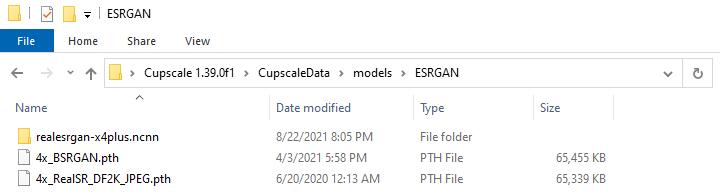
For more models, you'll need to manually download the model files (usually in .pth or .bin format) from OpenModelDB or its official Discord server and place them in your models folder.
To locate your models folder, you can:
- Open Models Folder in the top-right corner;
- Or Settings > General Settings > Models Path.
Different models are trained on different types of content, so they excel at different things. The best way to find the right model is to experiment. Load a small sample, try a few different models, and see which one gives you the results you like best.
Cupscale Tutorial
Above the preview window, Cupscale has three tabs corresponding to its three main functions: Upscale Image, Batch Upscale, and Upscale Videos. The overall workflow is similar regardless of which function you choose.
Here's how to use Cupscale to upscale images or videos.
Step 1: Launch the program.
Double-click Cupscale.exe to open the application. Running as administrator will break its drag-and-drop functionality.
Step 2: Select a function tab and load your file.
Select the function as needed above the preview window: Upscale Image, Batch Upscale, or Upscale Videos. Load your image or video by dragging and dropping it into the workspace.
Step 3: Select your AI model.
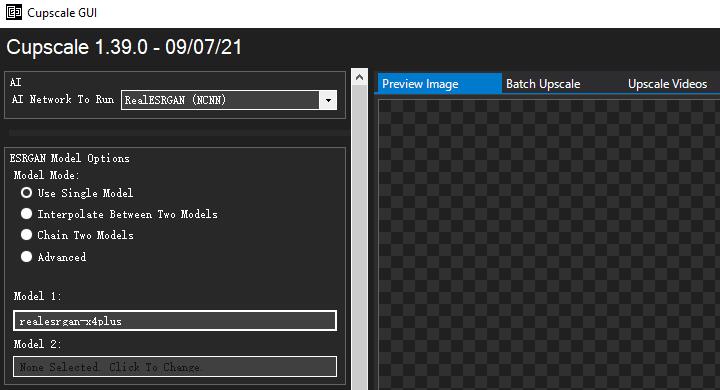
If you do not need to use two models, set the "Model Mode" to "Use Single Model" on the left side of the interface and select a model from the "Model 1" list. If you are not sure where to start, Real-ESRGAN is a great choice for realistic photos and videos.
Step 4: Preview the result.
Before you commit to the full upscale, you can see a preview of the upscaled image to decide whether to try a different model.
Note: Do not use the preview buttons while you are in batch mode or upscaling videos. This will almost certainly crash the program. Also, keep in mind that video upscaling hasn't been thoroughly tested with all hardware configurations, so you might run into some issues.
Step 5: Upscale and save.
Click the "Upscale and Save" button in the bottom right. Cupscale will start the process, which can take a while depending on your file and the power of your computer.
Pro tip: Cupscale may experience instability when processing a longer video. A workaround is to use a separate tool like FFmpeg to extract video frames as images, then use Cupscale's batch mode to upscale all the frames, and finally use FFmpeg again to reassemble the frames with the original audio.
Cupscale Alternative
As Cupscale is not actively maintained, many users are looking for a more stable, modern alternative. VideoProc Converter AI is an all-in-one AI video and image enhancer that has been actively updated since 2018. The program currently includes over 10 AI models for image, video, and audio files. It's optimized for various hardware. You can upscale your images and videos out of the box without manual model downloads or complex configurations. For those who want consistent results with minimal technical effort, it's a better alternative.

VideoProc Converter AI - Stable and Simple Cupscale Alternative
- Batch AI image upscaling up to 10K with sharper details
- Batch AI video upscaling up to 4K with better visual quality
- Support Windows and macOS with optimized hardware acceleration
- Easy to use, consistent output, no complex setup
- All-in-one: AI tools, converter, downloader, DVD backup, etc.

Step 1: Install and open VideoProc Converter AI. On the main interface, select the "Super Resolution" module for video upscaling or the "Image AI" module for image processing.

Step 2: Drag and drop the files you wish to upscale into the program. Batch processing is supported for both images and videos.

Step 3: Select an AI model based on the type of file you are enhancing. Gen Detail and Real Smooth are generally the most recommended ones for realistic media, while Anime is designed for anime-style videos and images.

Step 4: Set your desired scale factor or output resolution, up to 4K for videos and 10K for images. For videos, you can choose options like deinterlacing, high quality mode, or fast mode at this stage. For images, you can opt to apply face restoration for portraits or colorization for B&W photos.

Step 5: Configure settings such as image format, DPI, video codec, and quality level. Once you are satisfied with the preview, click "RUN" to start exporting.

Is Cupscale Worth It Today
Cupscale is a fascinating piece of software history. It's completely free. It offers advanced features like model chaining and interpolation that you won't find in simpler tools. And for some users, it still works just fine for image upscaling tasks.
But "still works" isn't exactly a glowing recommendation. For most users today, Cupscale is no longer a practical choice. The project hasn't seen a significant update in years. While you can still download it and get it running, there are much better options available. Those seeking a smoother, more reliable experience would benefit from a modern AI enhancer like VideoProc Converter AI.