
 VideoProc Converter
 New AI features are available

 Listed in
 AI video upscaling has emerged as a game-changer for enhancing old or low-resolution footage. Started in 2018, Video2X has since grown into a popular solution on GitHub for this. Based on machine learning, its core purpose is to improve video resolution, frame rate, and quality. It's a free and open source project. In simple terms, you can take a low-res video, increase its resolution (e.g., from 480p to 1080p or 4K) and boost its frame rate for smoother motion, without the huge price tag of commercial software.
In this blog, we'll explore everything about Video2X, share our experiences, and see how it competes with other AI video upscalers. Ultimately, you can decide if it's the best choice for your needs.

Video2X Download and Setup Experience
Video2X is completely free to use. It's released under the AGPL open-source license. But any other website, such as video2x.app site, you find on Google is not affiliated with the official Video2X project.
The software works on Windows and Linux (community support for macOS is limited). You can download and use all features at no cost, but it does demand a capable system for reasonable performance. For practical use, a mid-to-high range GPU is recommended.
Google Colab
If your PC isn't powerful enough, Video2X can run in the cloud. The developers provide a Google Colab notebook, allowing you to borrow a powerful GPU (e.g. Nvidia Tesla K80/T4) for up to 12 hours for free. This is a great workaround.
Windows
You can download and run Video2X via the Windows installer or pre-built package.
- Download the installer from the releases page.
- Double-click the installer.
- Choose the installation directory.
- Follow the on-screen instructions to complete the installation.
For the pre-built binaries:
Use the method below:
$latestTag = (Invoke-RestMethod -Uri https://api.github.com/repos/k4yt3x/video2x/releases/latest).tag_name
curl -LO "https://github.com/k4yt3x/video2x/releases/download/$latestTag/video2x-windows-amd64.zip"
New-Item -Path "$env:LOCALAPPDATA\Programs\video2x" -ItemType Directory -Force
Expand-Archive -Path .\video2x-windows-amd64.zip -DestinationPath "$env:LOCALAPPDATA\Programs\video2x"
You can then add %LOCALAPPDATA%\Programs\video2x to your PATH environment variable to run video2x from the command line.
Linux
Video2X can be installed via package managers or built from source. For Arch Linux users, the software is available in the AUR through packages such as video2x, video2x-git, and video2x-qt6 or video2x-qt6-git for the Qt6 GUI.
There are community-contributed packages and a Docker container available. The AppImage format is also provided as a portable option for other Linux distributions, allowing execution without dependency management.
Video2X Mac
There is no official Mac build of Video2X. However, it's theoretically possible to run Video2X on macOS with the correct drivers and configuration. Technically minded users have managed to run it using containers or by installing compatible Vulkan drivers. Casual Mac users might find this too complex. So if you are on macOS, using an alternative like VideoProc Converter AI may be preferable, as the current unofficial methods require significant technical expertise and patience.
Video2X Tutorial
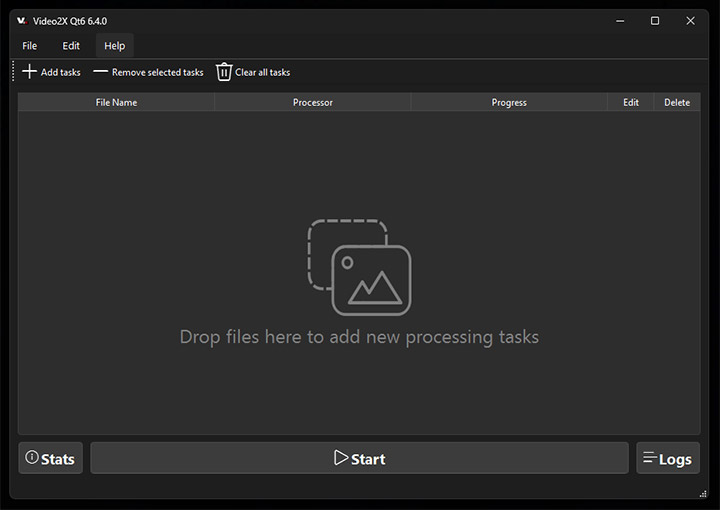
Video2X now features a polished GUI to make the upscaling process accessible to everyone. After launching the Video2X GUI, you can add video files to the queue, choose the AI model for upscaling, and configure output settings. The interface is intuitive. You don't need deep technical knowledge to get started.
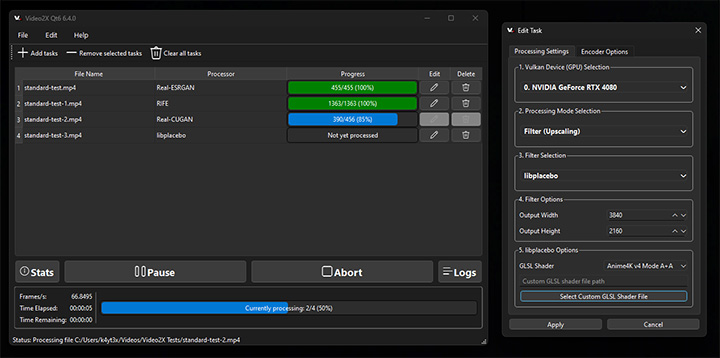
Step 1. Add the video or image file(s) to the software.
Step 2. Select a processing mode accordingly, Filter (Upscaling) to increase the resolution, or Frame Interpolation to boost the frame rate.
Step 3. Choose the AI model or shader based on your needs.
Step 4. Tweak settings like resolution, output format, etc.
Step 5. Hit Start to start processing.
Key Features Test & Review
Video2X Upscaler
Video2X isn't tied to a single algorithm. It integrates several state-of-the-art super-resolution methods. Notably, it supports Real-ESRGAN, Real-CUGAN and Anime4K among others. You can choose the processor that best fits your content. For example, Anime4K work best for animated content, and Real-ESRGAN for live-action footage. With the right model, the tool can make a blurry old video look dramatically clearer.
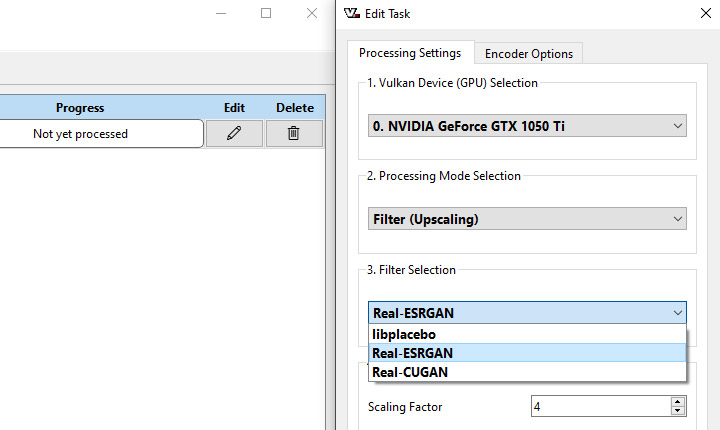
So I selected some videos and did some tests on this upscaling filter. The first one is a 5-second anime clip (854×480 pixels) in MPEG-4 AVC format at 30 fps. I used the realesr-animevideov3 model and set the scaling factor to 2. Video2X upscaled the video in just 17 seconds. Here's what I got.
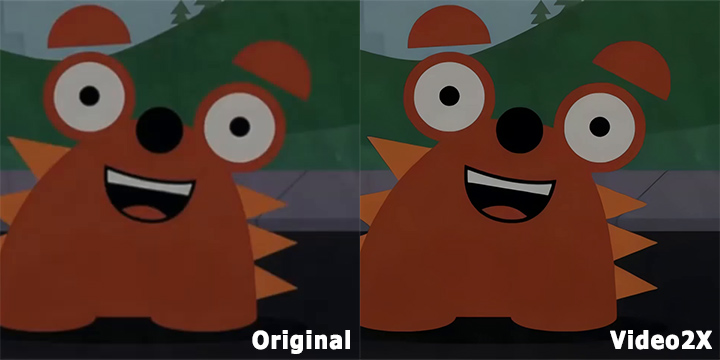
I'd say Video2X performed exceptionally in this 2D digital animation video. As you can see, the black borders around the character, the pupils, and the mouth seams have been turned into ultra-crisp lines. The blocky compression noise present in the original's dark road and background trees has been almost entirely flattened and smoothed out. It restored the artwork to what looks like its native vector resolution at high speed, without introducing unwanted texture or edge distortion.
 However, the issue arises with realistic-style videos. Among all the various models and their variants, only the Real-ESRGAN-Plus model handles realistic footage. Other models, such as Real-CUGAN or Anime4K, were trained on anime-style content. Although Real-ESRGAN-Plus already has a model capable of 2x video upscaling, it seems that the maintainers have not yet added this option. Consequently, for realistic videos, you are limited to using the Real-ESRGAN-x4plus model in Video2X, which enforces a fixed 4x upscaling factor.
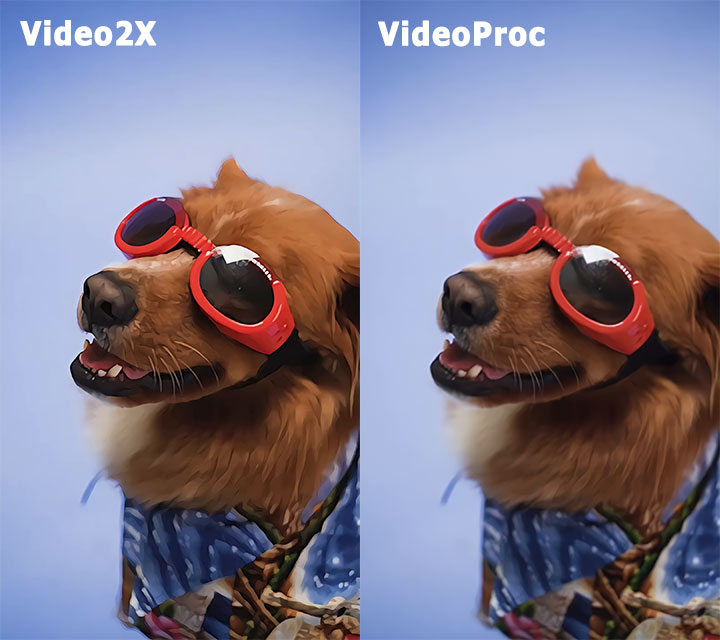
In this case, I had to choose Real-CUGAN's models-pro to get a 2x upscaling result for the second test video, a 7.5-second vertical clip of a fluffy dog with 225 frames in total. This time, Video2X took 172 seconds to finish the task. Unsurprisingly, the result was a mess. Anyway, here's what I got.
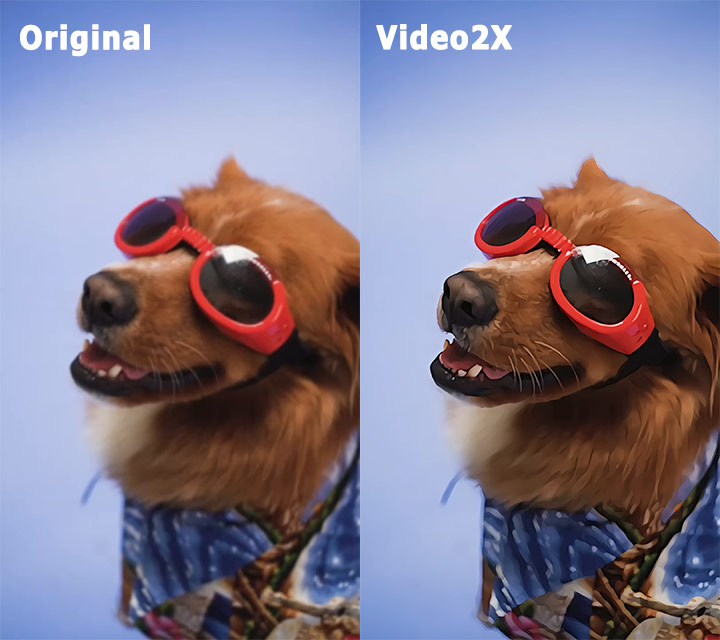
Look closely at the dog's snout, chin, and red glasses. Video2X drew heavy, dark, vector-like outlines along high-contrast borders. While this makes the image look extremely sharp at a glance, it sacrifices photographic realism. Not to mention the halo, ringing, and dark outline artifacts along the dog.
Frame Interpolation (Boosting FPS)
Besides enlarging resolution, Video2X can interpolate new frames to increase a video's frame rate smoothly. It incorporates algorithms like RIFE (Real-Time Intermediate Flow Estimation) for AI-based frame interpolation. This is great for creating slow-motion effects or upscaling old footage that was recorded at low FPS. The GUI allows selecting Frame Interpolation mode and a target frame multiplier. Video2X will then generate the intermediate frames using AI.
Customizable Encoding and Workflow
Under the hood, Video2X uses FFmpeg for video I/O, and it gives users control over encoding settings if desired. You can specify output formats, encoder options via extra parameters, or just use defaults.
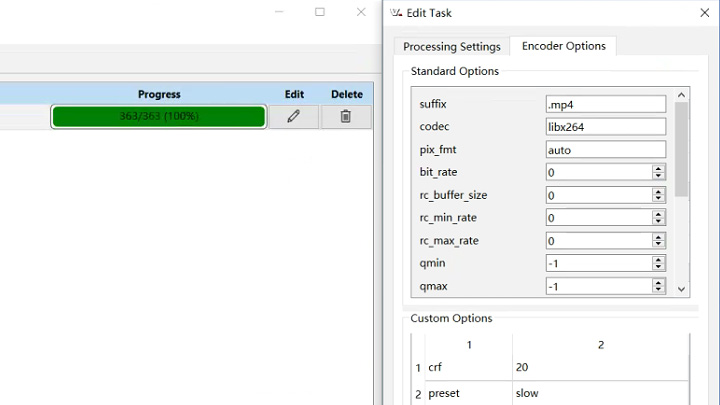
The latest architecture (v6.x) is optimized to be efficient. Frames are processed in memory rather than written to disk between steps. This avoids huge temporary storage and speeds up the pipeline. This is a big improvement over early versions which would dump thousands of frames to disk (consuming hundreds of GB). The current version is much more streamlined, allowing for faster and more memory-efficient upscaling runs.
Completely Free and Community-Driven
A huge positive point is that Video2X is free software. There's a sense of appreciation that such a powerful tool costs nothing, especially when compared to commercial AI video upscalers that can be quite expensive.
The open-source nature also means it gets contributions from developers worldwide and users can suggest improvements on GitHub. The community around Video2X has created guides, shared settings for best results, and even built front-ends (like alternative GUIs). This collaborative ecosystem means the tool keeps improving.
Challenges and Limitations
GPU and Compatibility Issues
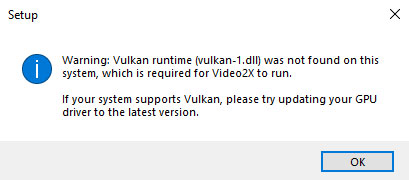
Tied to the above, some users have run into issues getting Video2X to use their GPU properly. Since it requires Vulkan support, folks on older GPUs or on macOS have struggled. Additionally, we've also noted we needed to update graphics drivers or install CUDA/cuDNN for certain models to work at full speed.
Limitations on Scaling Factors for Realistic Video
For real-world footage, Video2X currently supports only the realesrgan-x4plus model. As this model was trained exclusively with a 4x scaling architecture, it supports only a fixed 4x upscaling factor.
In other words, if you wish to upscale a non-anime video by 2x or 3x in Video2X, you can either enlarge it by 4x and then make further adjustments, or try your luck with a model trained for anime.
In addition, Video2X does not include models capable of enhancing the quality of realistic videos without changing the resolution. You can verify this by examining the project's model files.
Speed Limitations
The most common drawback mentioned is performance. Upscaling video frames with neural networks is computationally heavy. Video2X processes anime-style videos extremely quickly. However, when it comes to realistic videos, many users report that Video2X can be very slow if you don't have a high-end GPU.
For instance, using the Real-ESRGAN model on a standard PC might only process on the order of 1-2 frames per second, meaning a full minute of video could take hours to upscale. In our experience, it took 614 seconds to perform a 4x upscale on a 15-second video with a resolution of 636x480 pixels, a frame rate of 23.976 fps, and a total of 364 frames. That is not a fast one by any means. And you can see the output below.

Our earlier upscaling test using the realistic video also confirm this. Below is a side-by-side comparison of test results for several video enhancement software applications, including Video2X.
| Spec | Video2X | VideoProc Converter AI | Topaz Video |
|---|---|---|---|
Model Used |
Real-CUGAN |
Gen Detail |
Proteus |
Time Taken (s) |
172 |
88 |
308 |
Avg. Processing FPS |
1.30 |
2.56 |
0.73 |
Max GPU Utilization |
99% |
99% |
99% |
Peak VRAM Usage |
1411 MB |
5454 MB |
6715 MB |
Max CPU Utilization |
90.634 |
35.608 |
70.990 |
Output File Bitrate |
8.20 Mbps |
8.71 Mbps |
6.25 Mbps |
Total Frame Count |
223 |
225 |
225 |
As we can see, Video2X is not particularly fast, but one of its major advantages is its exceptionally low peak VRAM usage. However, we also found that Video2X dropped 2 of the original 225 frames during rendering, outputting only 223 frames. If the video were longer, this could lead to audio sync drift.
Video2X Alternative
While Video2X delivers on its promise of quality enhancement, the hardware needs and somewhat technical nature may not suit everyone's needs. If you are looking for an AI video upscaler that's much easier to use with decent quality, VideoProc Converter AI is a good alternative without a high price tag for the value it provides.
VideoProc Converter AI supports Windows and macOS natively. It has a built-in AI Super Resolution module with different algorithms for different videos to improve the resolution and overall quality. The tool can increase resolution by up to 4x (400%), for instance, converting a 480p video to 1080p or 4K, while preserving and enhancing details. Whether dealing with anime or realistic footage, you can freely select an upscaling factor from 1x to 4x, or even specify a popular output resolution.
In addition, it comes with a Frame Interpolation module to convert low FPS to high FPS videos. The AI uses motion estimation algorithms to generate new frames, so you can easily convert low FPS to high FPS videos and create epic slow motions with AI-level smoothness.
In fact, if you are a casual user who needs quick, reliable results and a smooth workflow, you might be better served by a user-friendly solution like VideoProc Converter AI. It provides various models, optimizes for your hardware, and often completes tasks faster. The cost of such software buys you time and simplicity. It's recommended for those who aren't necessarily interested in the nitty-gritty of how upscaling works, but just want to press a button and get great results.

Wrap Up
Video2X proves that you don't need to spend a dime to leverage AI for video enhancement. It's a commendable tool for upscaling videos, images, and GIFs, offering high-quality results given the right hardware. This review covered how to set it up, its capabilities, and honest insights into its performance. For many hobbyists and even some professionals, Video2X can be a lifesaver, especially when budget is a concern.
But for those who prioritize their own time and ease of use, exploring an alternative like VideoProc Converter AI, with its broader feature set and faster throughput, might be the better route.



