


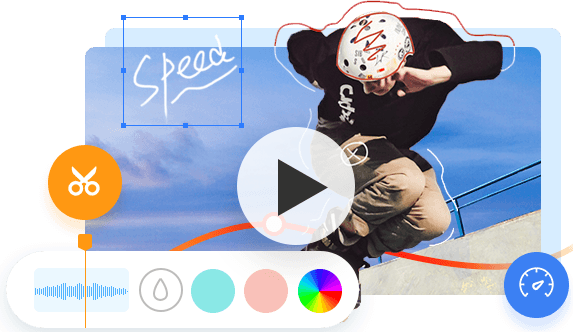
Photos carry our so many good memories. Photos have witnessed our important days like birthday, prom, engagement party, wedding day, and more. There are chances that you may want to share a photo to social media platforms, and that's when you need to add music to a photo to make it more engaging and dynamic.
For the purpose of putting a song on a picture, you can make a slideshow video with pictures and music or put a song on a picture in video editor to create a video. Below are some methods about how to add music to a photo on computer, phone, and online.
1. Social Media Apps
Most social platforms have built-in tools to add music to single or multiple photos. If all you want is add music to a photo and then post it to social media, the built-in features of these apps will suffice.
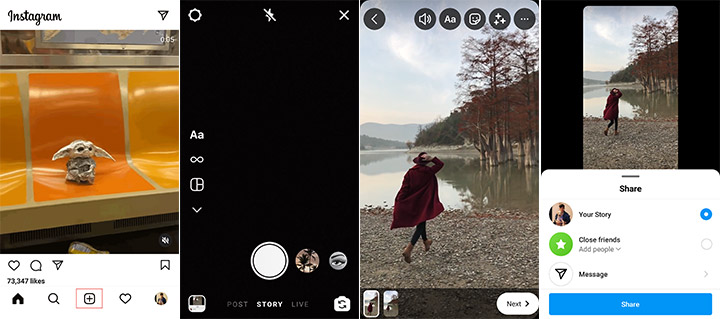
Taking Instagram as an example, here's how to add music to your photo.
- Open the Instagram app and tap the + icon.
- Select Post and choose your photo from your camera roll.
- Tap Add Music to browse or search Instagram's library
- Add stickers, text, or effects if you'd like to.
- Share the photo with music.
2. How to Put a Song to a Picture on Android/iOS
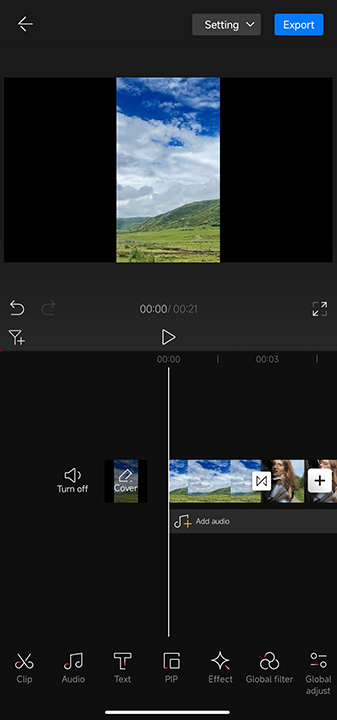
If you want to add a song to a picture on Android or iPhone, video editing apps can help for higher-quality exports or specific timing. VideoProc Editor is an all-in-one video editor for Android and iOS that combines simplicity with advanced tools. It's totally free to use and will not put any watermark on your output files.
The app supports a variety of music formats, including MP3, WAV, FLAC, and ALAC. Besides basic audio adding functions, you can also adjust speed, add sound effects, create beat-synced videos with one click, and more. For outputs, you can export your photos at up to 4K resolution without any limitations.
- Open VideoProc Editor. Tap the "Create Now" icon to import as many photos as you want from your camera roll.
- Arrange the photos in your desired sequence by dragging and dropping on the timeline.
- Click "Add audio" below the video track to upload your own music.
- Make other edits if you want. Once you are satisfied, export the photo with music in your preferred resolution.
3. How to Add Music to a Photo on Windows/Mac
Platform: Windows and Mac
For those who want to add music to a photo on computer, VideoProc Vlogger is ready to help. Designed as a professional yet easy-to-use video editing software, VideoProc Vlogger offers a set of basic as well as advanced video editing features. Let's check what it is capable of:
- Supports adding music to a photo and it allows you to edit your music freely.
- Works well on both Windows and Mac and it's 100% safe.
- Offers GPU acceleration to process your video in a lightning speed.
- Exports high-quality videos in all video formats and codec.
Now let's download and install VideoProc Vlogger and follow the detailed steps to add music to a photo on Windows and Mac computer.

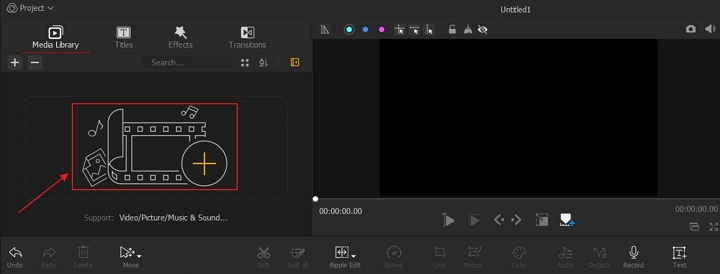
Step 1. Upload your files.
Run VideoProc and go to the Media Library in the left upper corner. Click the plus icon to upload your photos, pictures, and music here.
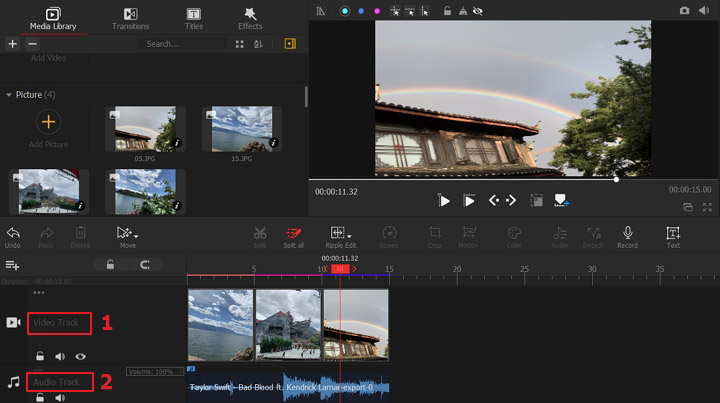
Step 2. Drag the pictures to the Video Track and put the music to the Audio Track.
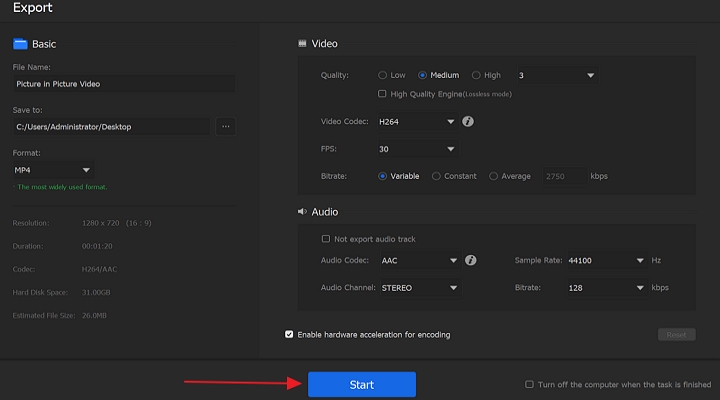
Step 3. Export the video.
Set the file name, file location, video codec, audio codec and more parameters. Click the Start icon to export this video.
4. How to Add a Song to a Picture Online
There are chances that you want to add a song to a picture without downloading or installing an application to your computer or phone. Then you can check this method to help you put a song to a picture online directly. No download is needed, no registration is required. This online service supports adding a song to a picture for free, converting an image to a video with music, and adding a cover photo to a music. Let's check the detailed steps below:
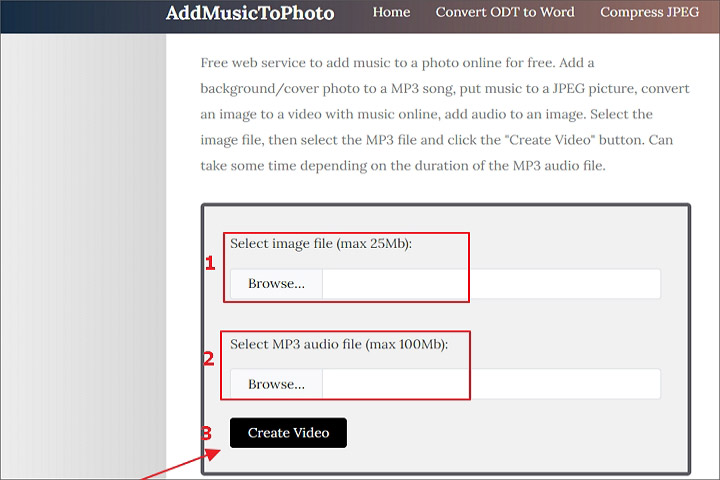
Step 1. Visit AddMusictoPhoto on your browser.
Step 2. Click Browse... to upload your image files and audio files. (It supports uploading maximum 25MB image files and 100MB audio files.)
Step 3. Click Create Video to add music to a photo online quickly. Then you can download this video to your device.
The Bottom Line
We make it super simple to add music to a photo on computer, smart phone, and online without downloading any software. Of all the tools we've mentioned, VideoProc Vlogger is the best of the lot. It offers so many features to help you polish your videos in a easy and effective way!




